Overview
MioSalon enables salon and spa receptionists to redeem prepaid hourly package balances directly while booking customer appointments on the calendar.
When a returning client with an active hourly package schedules a treatment, front-desk staff can instantly view remaining package hours, select eligible services, and deduct session durations without having to create separate bills.
Redeeming packages directly from the appointment screen guarantees seamless therapist scheduling, booking the right therapist and treatment room, automated package balance deduction, and immediate notification of package redemption rules.
Follow the step-by-step instructions below to redeem services from a customer purchased hourly package on the MioSalon appointment calendar.
Navigation Path
Main Menu → Appointments → New Booking
Step-by-Step Instructions: Redeeming an Hourly Package in New Appointment
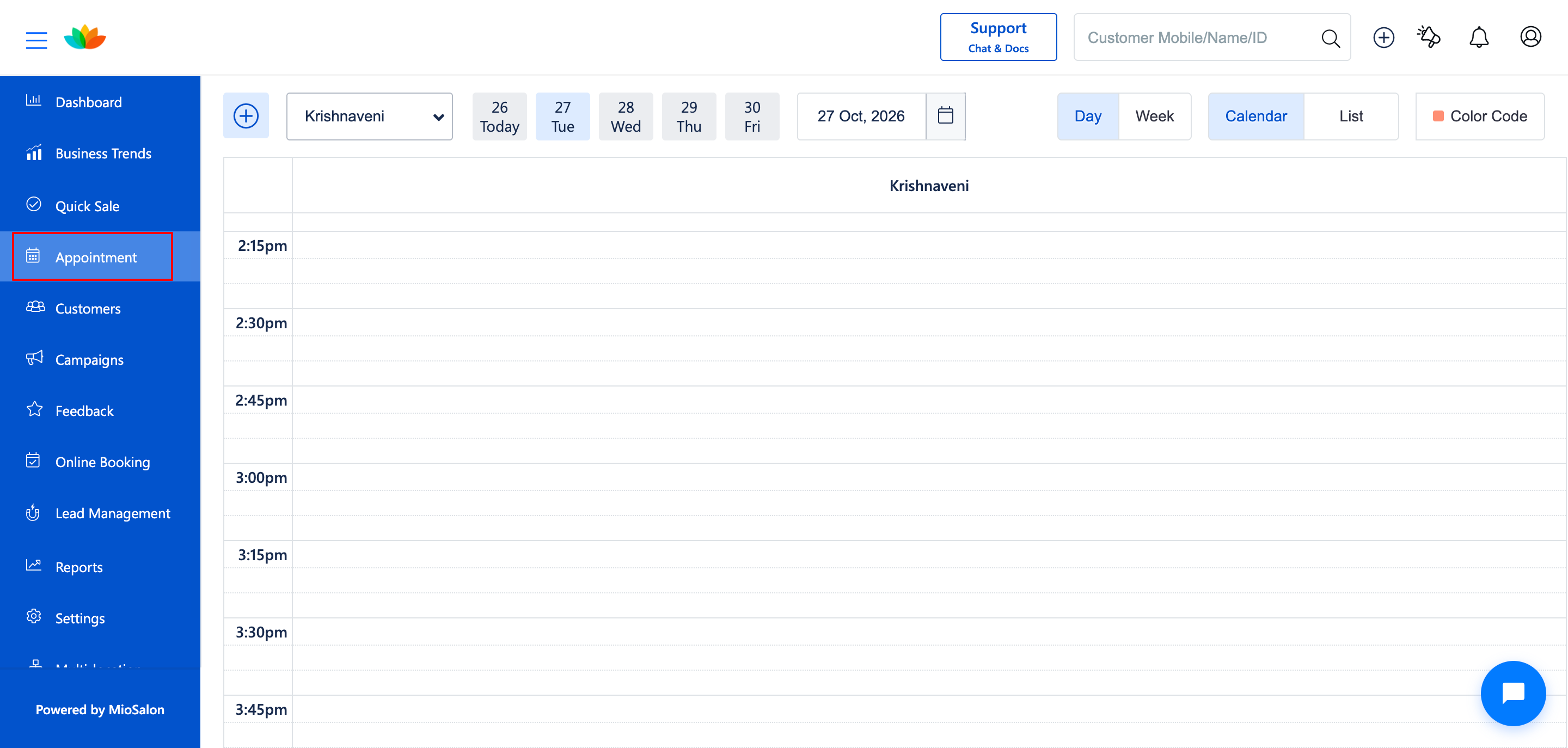
1. From the main left navigation bar, click on the Appointments calendar icon.
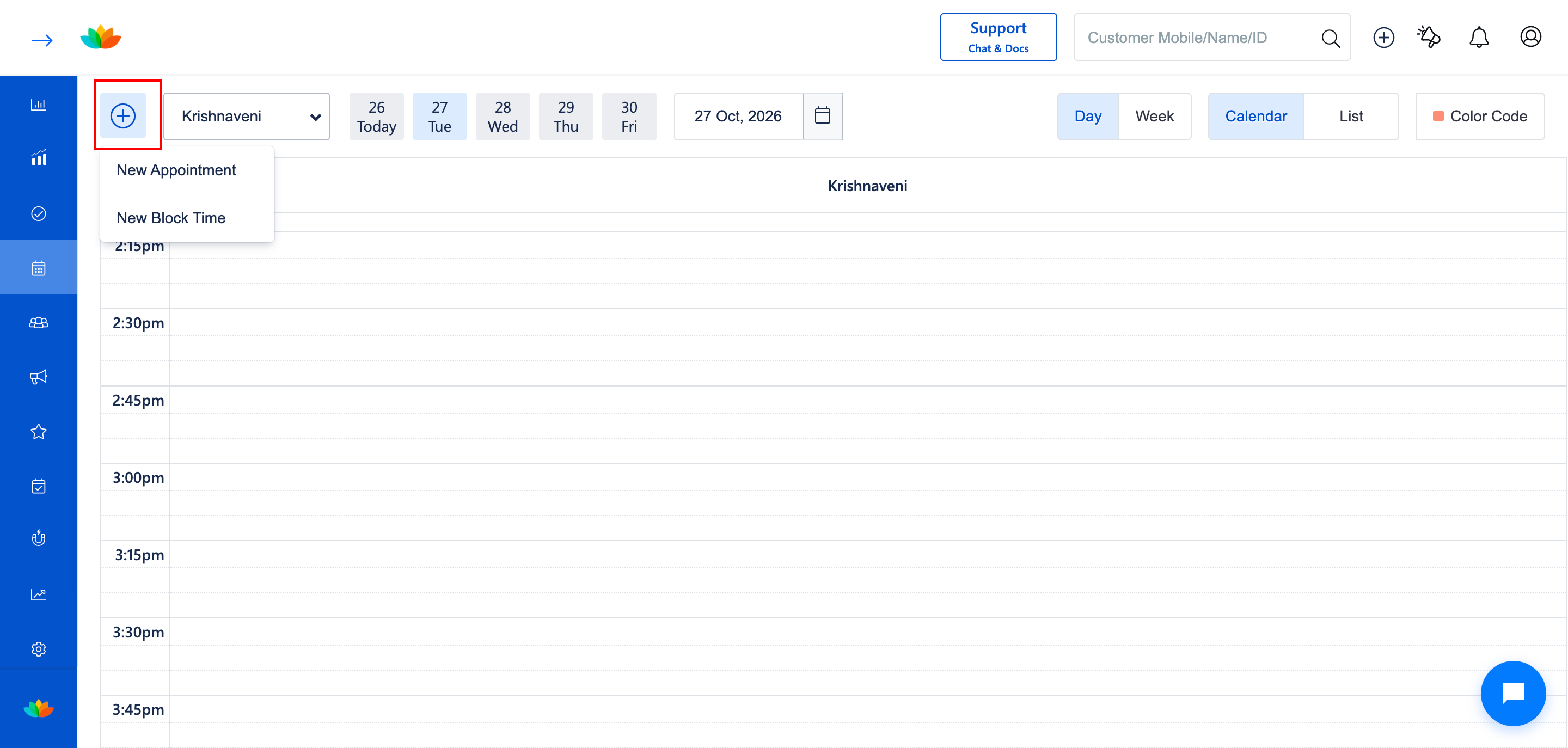
2. Click on the therapist schedule column at the desired time slot, or click on the + New Booking button.
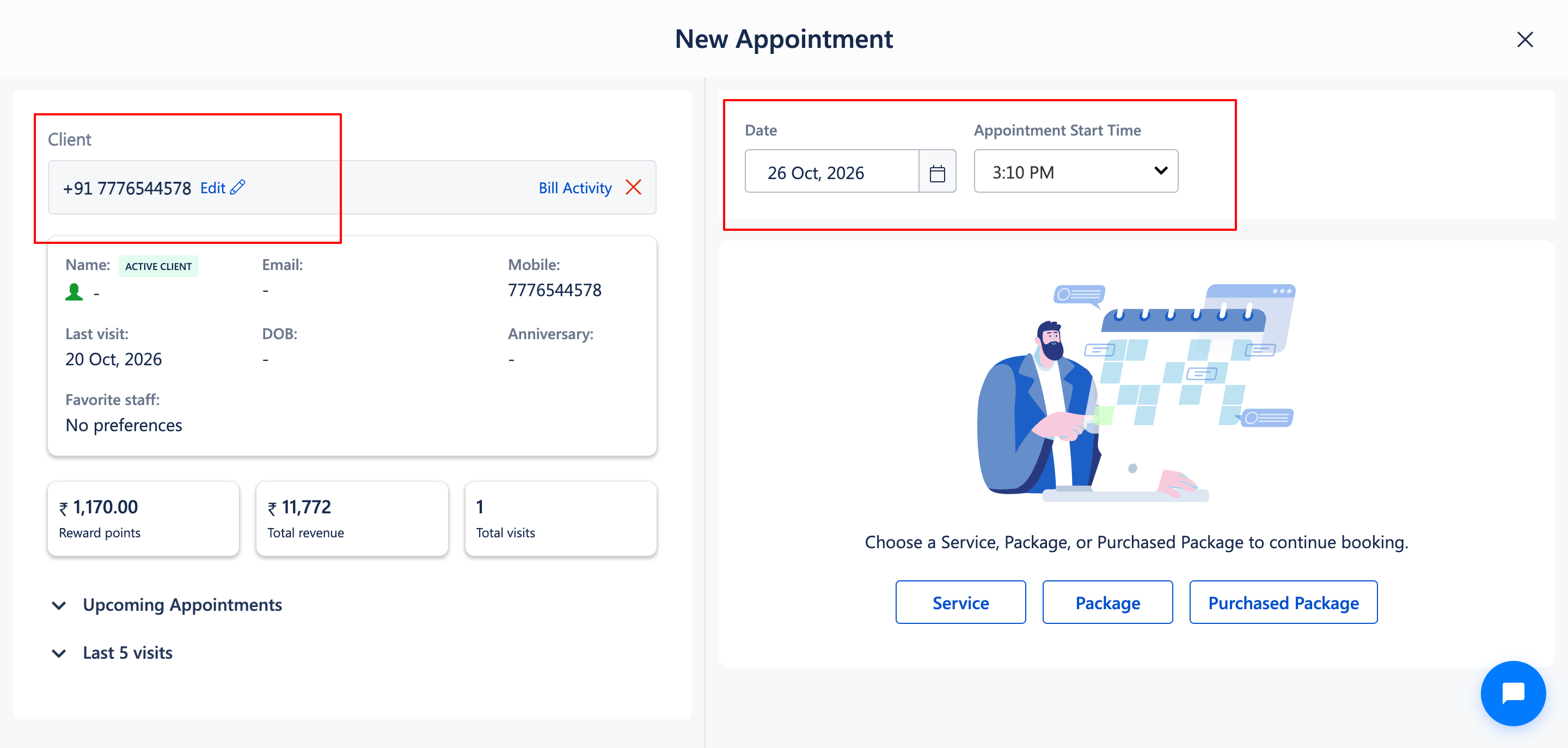
3. In the New Booking modal, search and select the customer by entering their mobile number or name (E.g., Vinoth S, +91 7776544578).
4. Set the appointment Date (E.g., 20 Oct, 2026) and Appointment Start Time (E.g., 15:40).
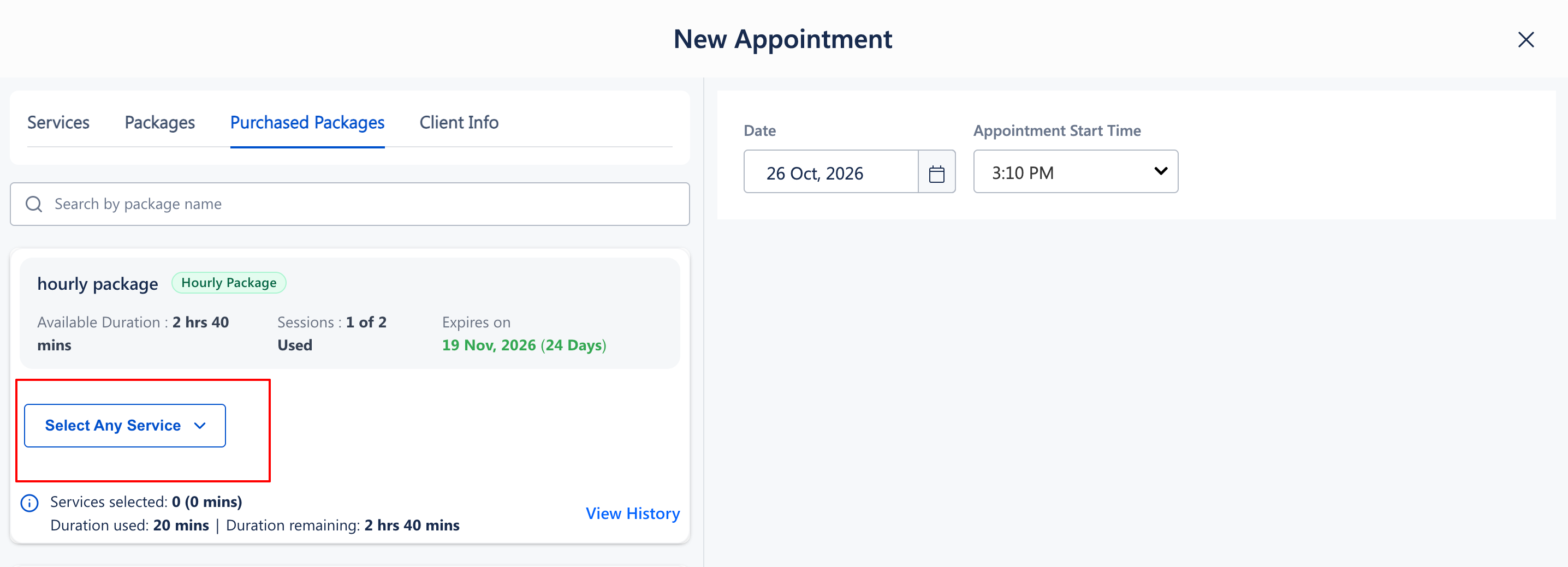
5. Notice that the Purchased Packages tab automatically appears on the left navigation panel next to Services and Packages tabs
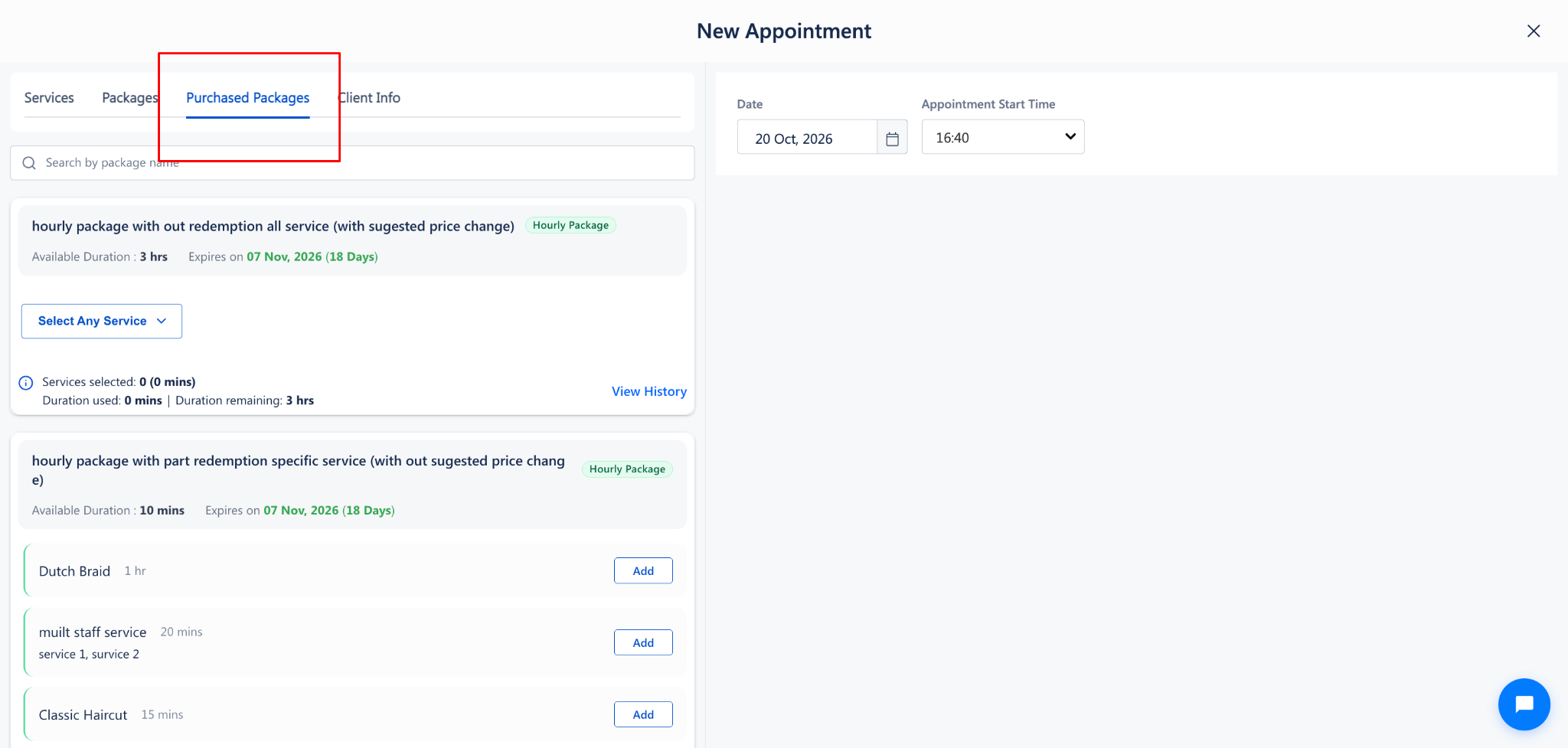
6. Click on the Purchased Packages tab to view all active packages owned by the client:
• All-Services Packages: If the package applies to all salon services (E.g., Hourly package), click on the Select Any Service dropdown to choose the service to book.
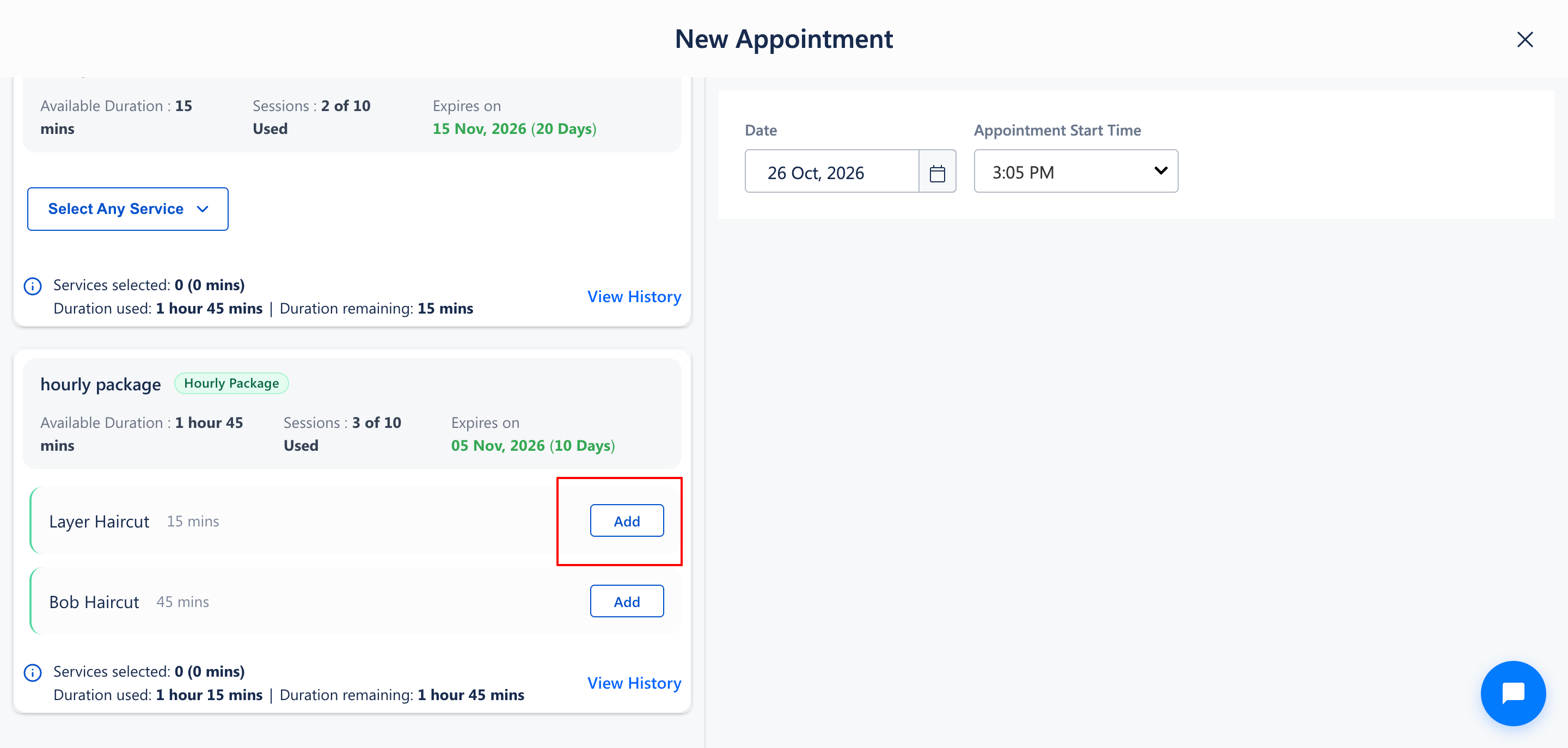
• Specific-Services Packages: If the package is restricted to defined treatments (E.g., Hourly Package), review the list of eligible services (E.g., Layer Haircut, 15 mins) and click on the Add button next to the service.
7. The selected service is added immediately to the appointment booking list on the right panel
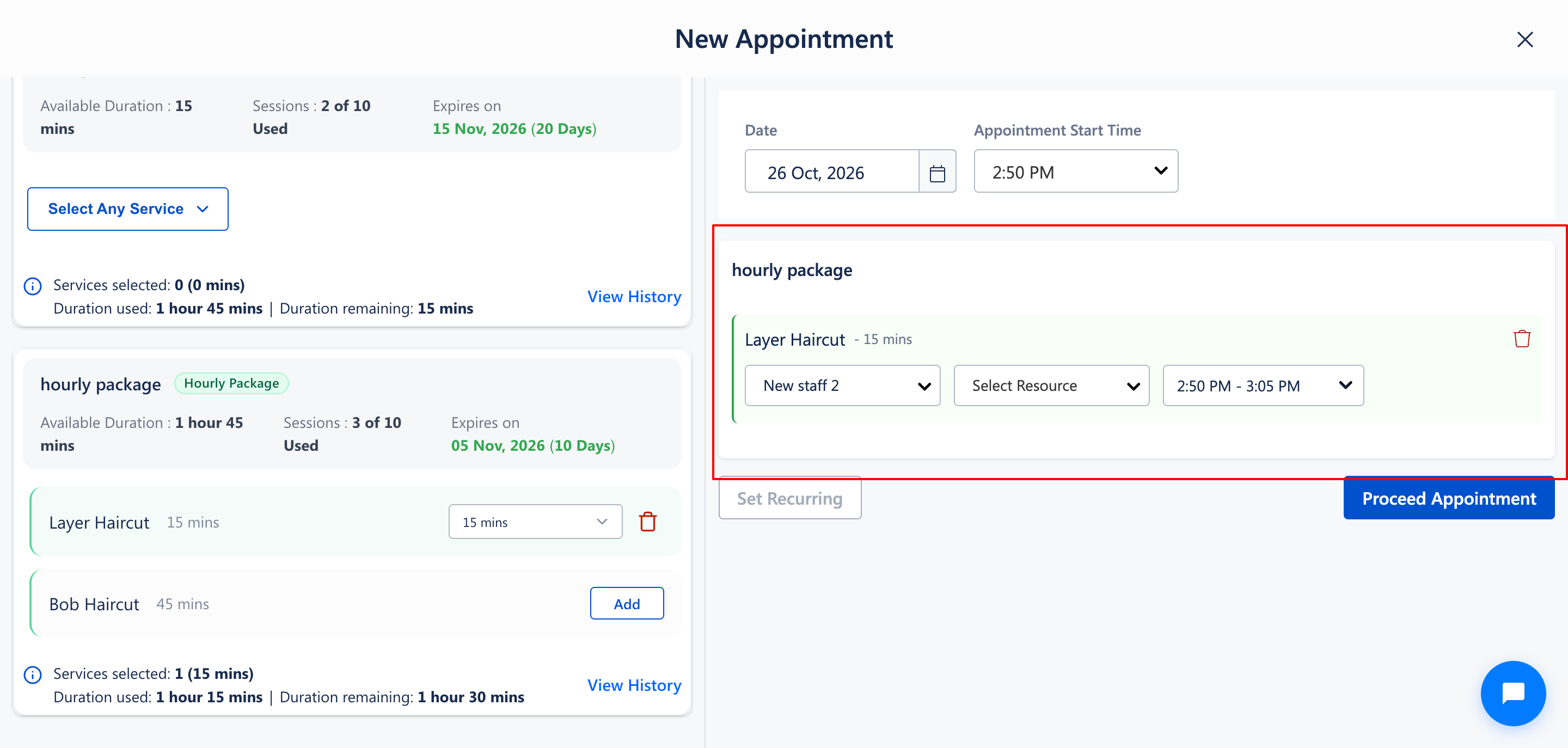
8. Enter appointment and staff details:
• Service Staff: Assign the primary therapist delivering the treatment (E.g., Staff 8).
• Sales by: Select the staff member receiving redemption service credit.
• Select Resource: Select the treatment room or equipment needed for the service.
• Buffers: Check therapist preparation buffer (E.g., 20 mins) and guest relaxation buffer (E.g., 15 mins).
9. If the customer desires additional services during the same visit, click on Add button against the purchased package service to add more package redemptions or regular billable salon services.
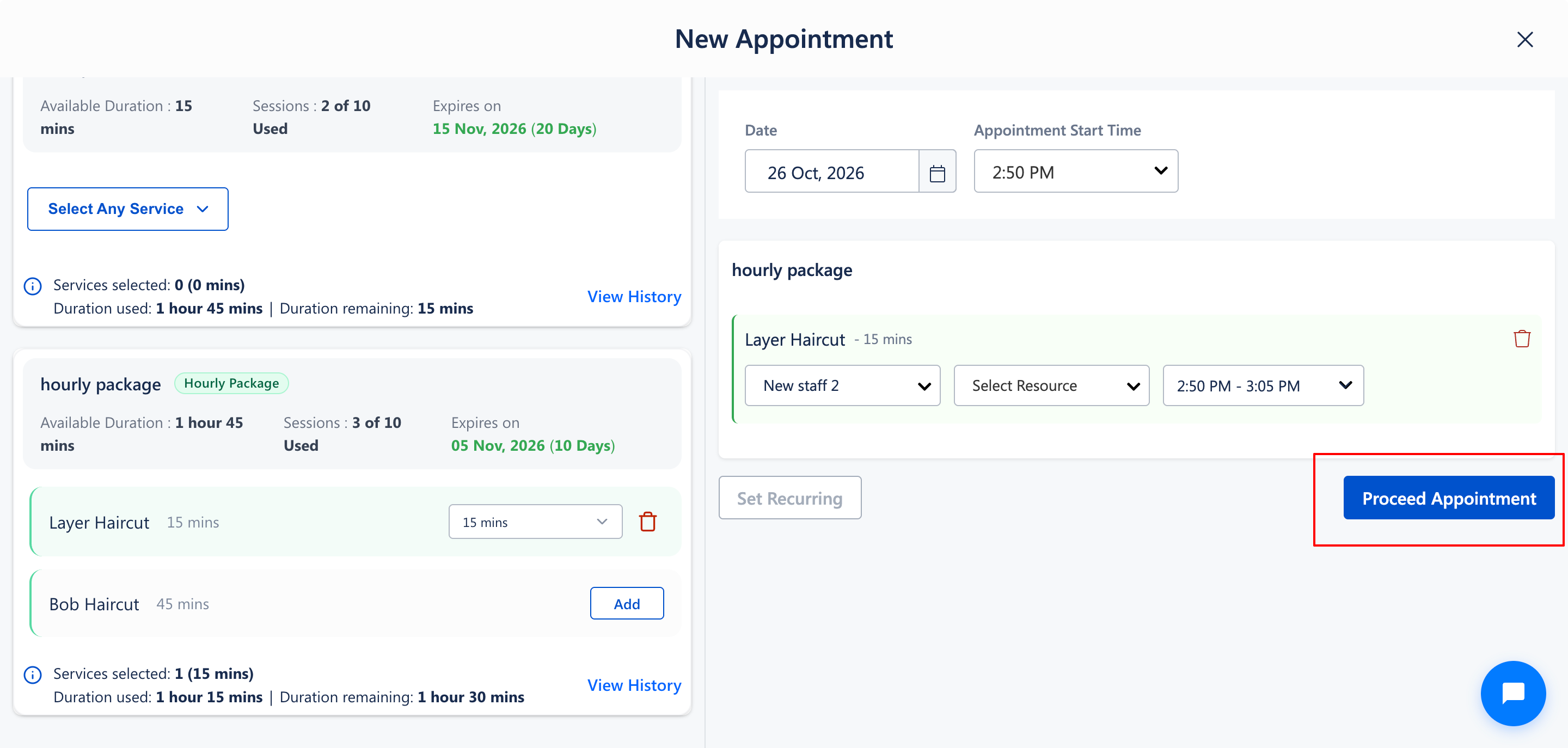
10. Click on the Proceed Appointment button to confirm and place the appointment on the salon calendar.
Handling Rule Violations During Package Redemption
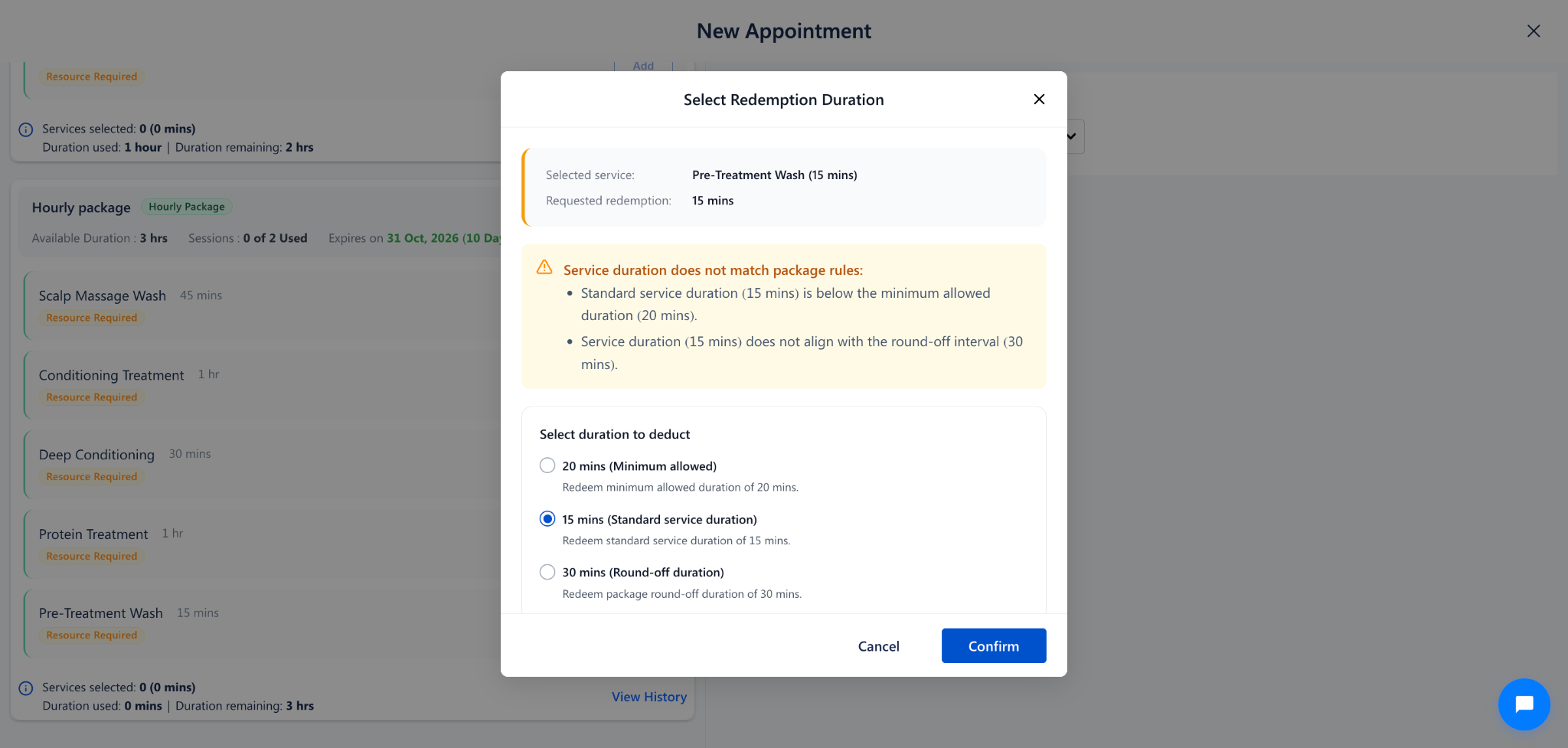
1. Service Duration Below Minimum or Round-Off Mismatch: When the selected service standard duration does not align with the minimum package duration rule (E.g., 15 mins service vs 20 mins package rule), the system displays the Select Redemption Duration modal. Staff must select either 20 mins (Minimum allowed) to satisfy package terms, or 15 mins (Standard service duration), and click Save
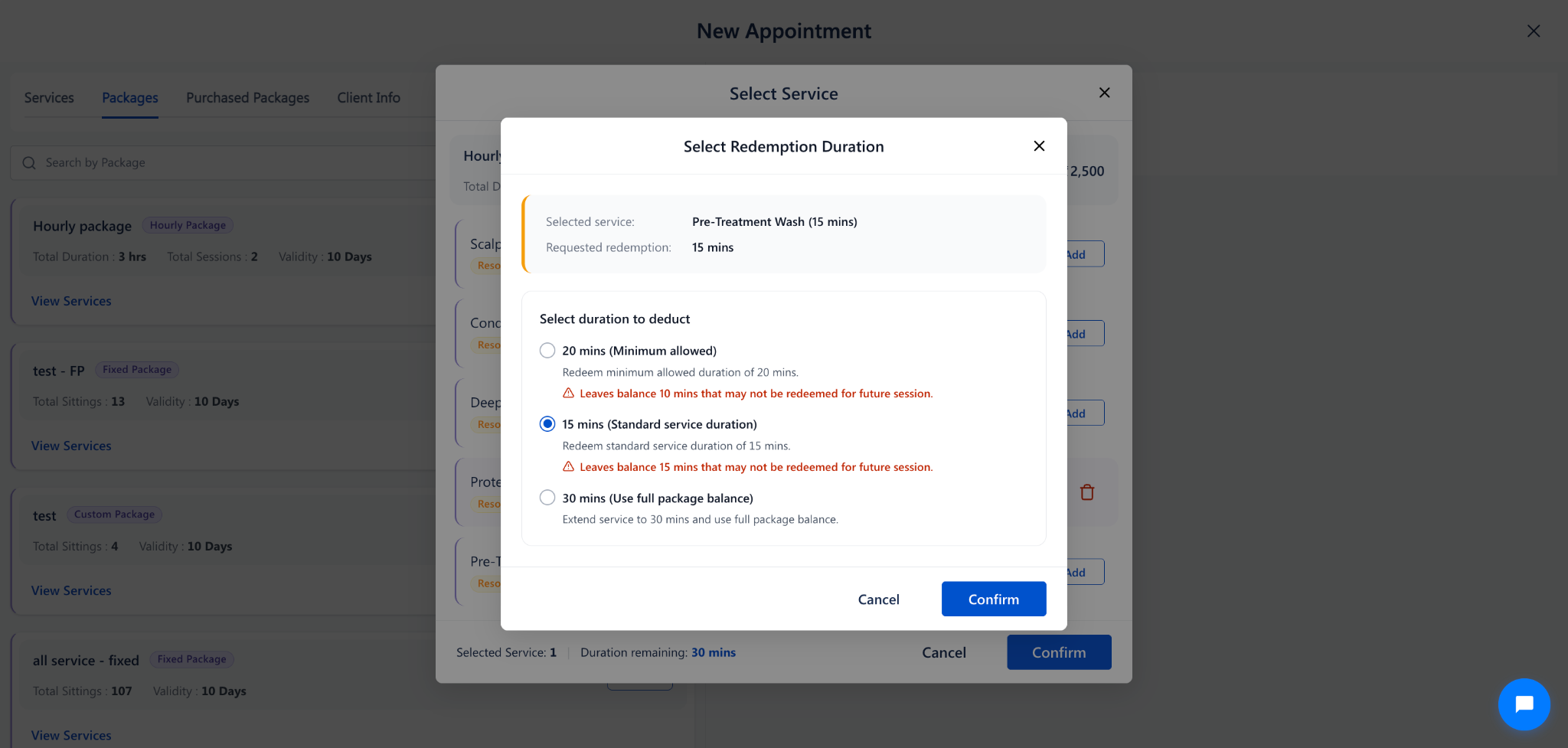
2. Leftover Balance Warning (Next Visit Alert): If booking a service leaves an unusable balance (E.g., deducting 15 mins leaves 15 mins below the 20 mins package minimum rule), the popup warns: Leaves balance 15 mins that may not be redeemed for future session. Staff can choose 30 mins (Use full package balance) to avoid wasting paid minute
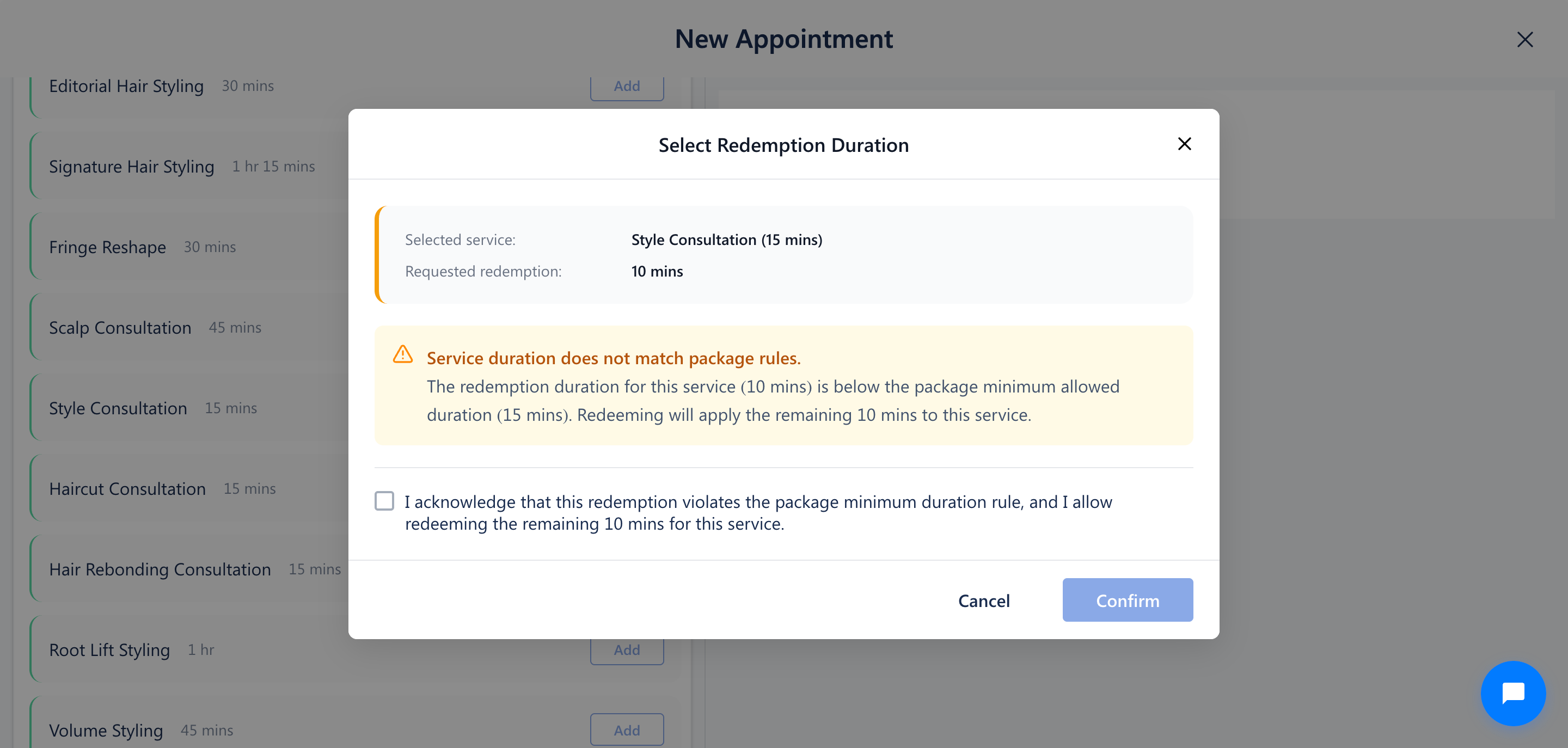
3. Redeeming Remaining Balance Below the Minimum Duration: If the customer’s remaining package balance is below the minimum duration for a service (e.g., 10 mins remaining when the minimum duration is 15 mins), the Select Redemption Duration popup warns that the remaining 10 mins can still be redeemed. Staff can select the acknowledgment checkbox and click Confirm to redeem the remaining balance and add the service to the appointment.
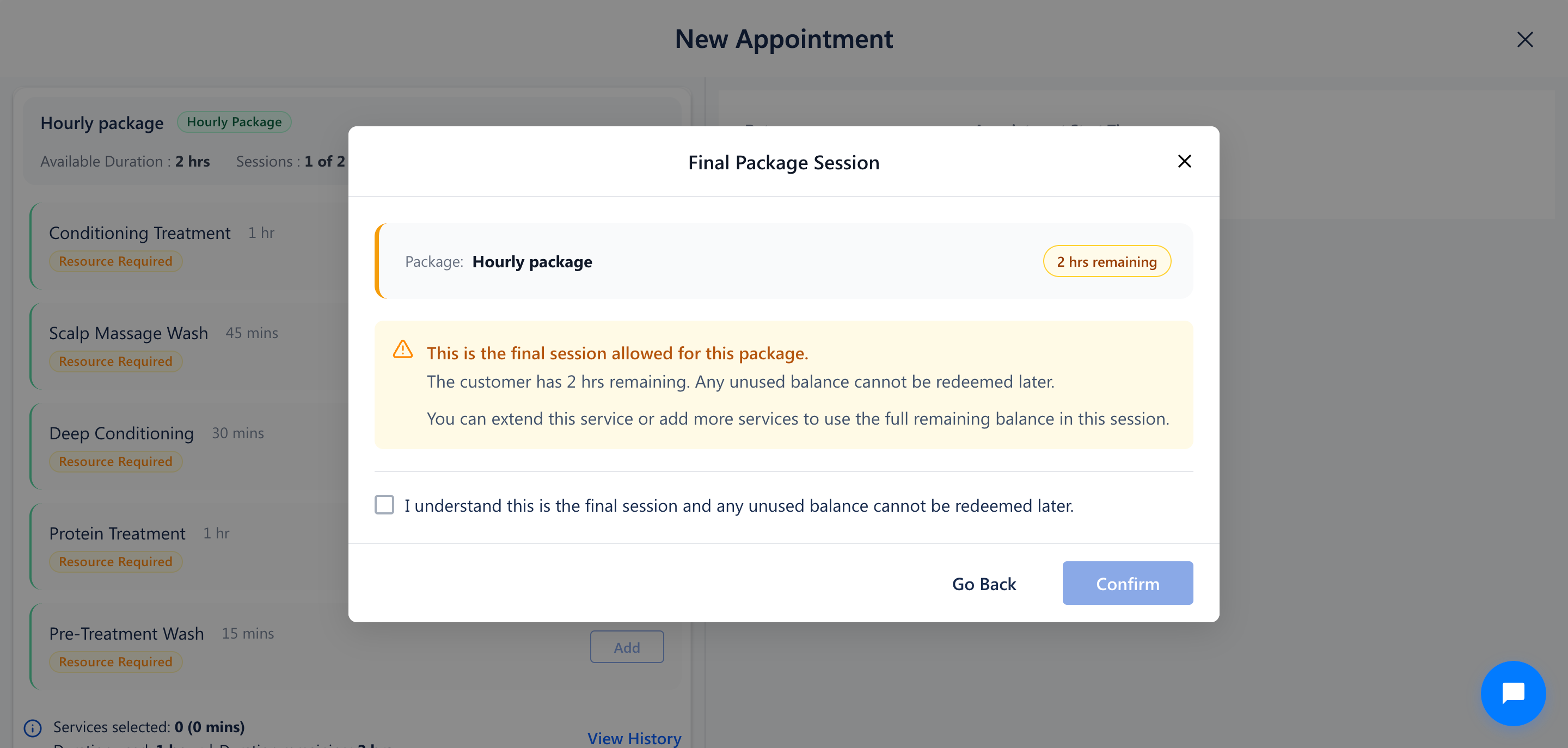
4. Final Package Session Warning Popup: When booking the final permitted session (e.g., the 10th session out of 10) with unused package balance remaining (e.g., 1 hour), the popup warns that this is the final session and the unused balance may not be redeemed later. Staff can select the acknowledgment checkbox and click Confirm to proceed, or click Go Back to cancel. In the Available Packages section, staff can adjust the service duration or add more eligible services (e.g., 30 mins of foot reflexology and 30 mins of head massage) to use the remaining balance, then click Confirm to add the selected services to the appointment.
Note
1. The Purchased Packages tab appears automatically only when the selected customer has an active, unexpired package with remaining balance.
2. Package hours are held upon appointment booking and officially deducted from customer package balance once the appointment status updates to completed or checked out.
3. If a package expires before the appointment date, staff must extend package validity in Customer 360 or package settings before booking.
Use Cases
1. Regular Package Redemption: A customer who purchased a 5-hour spa package books a 1-hour body massage session from their available balance.
2. Multi-Service Visit: Redeeming a 30-minute hair wash from an active package and adding an ala-carte haircut on the same appointment ticket.
3. Exhausting Final Balance: Utilizing the full package balance option when the client wants an extended therapy to consume all remaining package time.
Benefits
1. Streamlined Guest Reception: Receptionists can verify active packages and book treatments directly without opening billing screens.
2. Automatic Balance Updates: Time used is calculated automatically against package session rules.
3. No Lost Minutes: Helpful rule alerts prevent small leftover minutes from being wasted.
4. Room and Staff Coordination: Automatically reserves treatment rooms, therapists, and cleanup buffers to avoid double-booking.
Was this article helpful?
That’s Great!
Thank you for your feedback
Sorry! We couldn't be helpful
Thank you for your feedback
Feedback sent
We appreciate your effort and will try to fix the article