How to Access Appointment Details to Cancel a Purchased Package Redemption
Before you can Cancel a redeemed package service, you need to open the appointment details. MioSalon gives you two ways to do this:
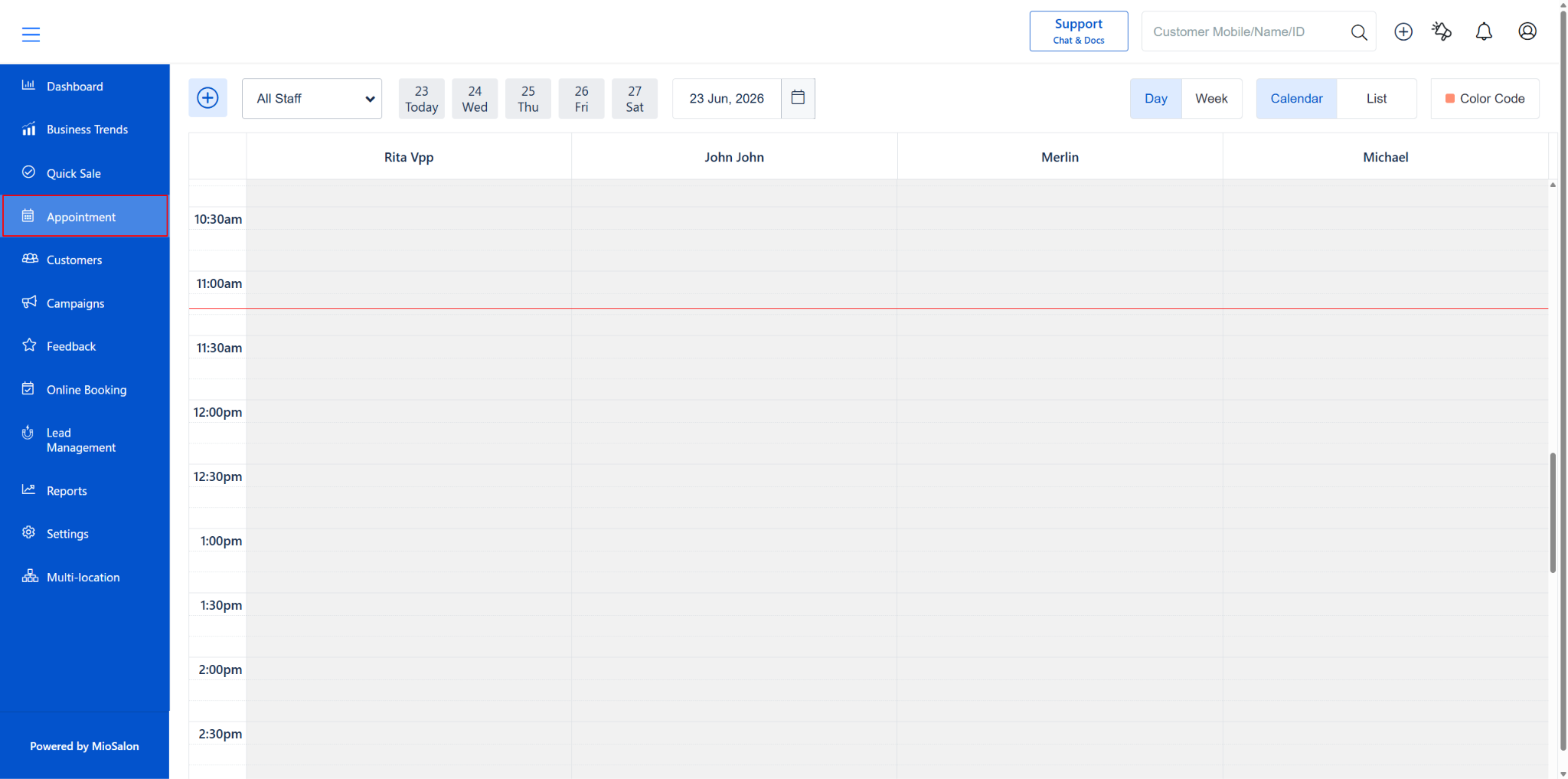
Option 1: Via Calendar View
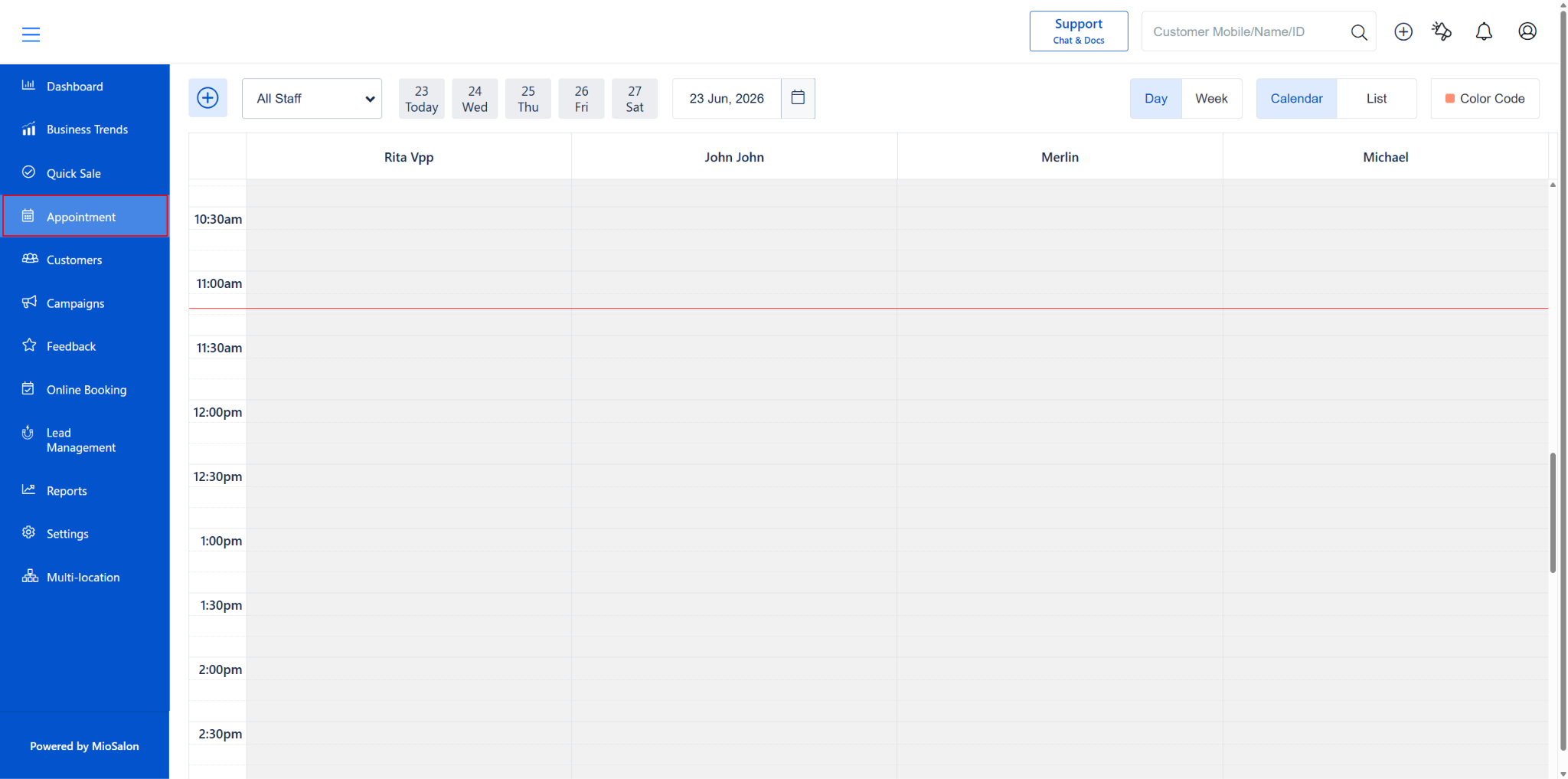
1. Go to Appointment from the left menu.
2. Make sure you’re on the Calendar view (top-right toggle).
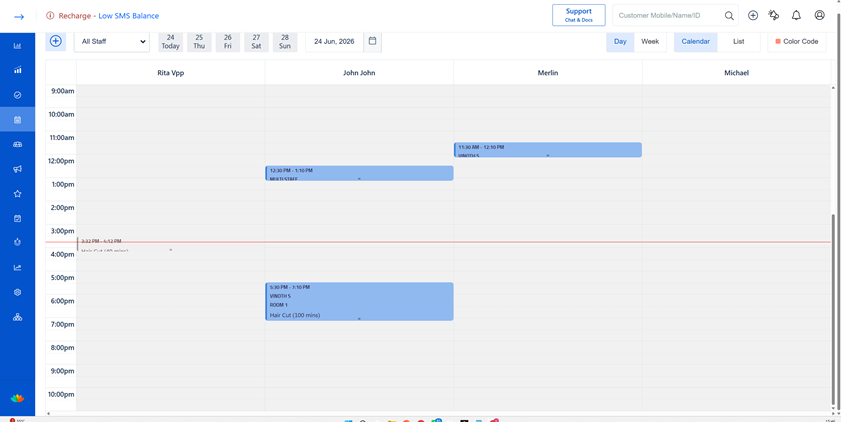
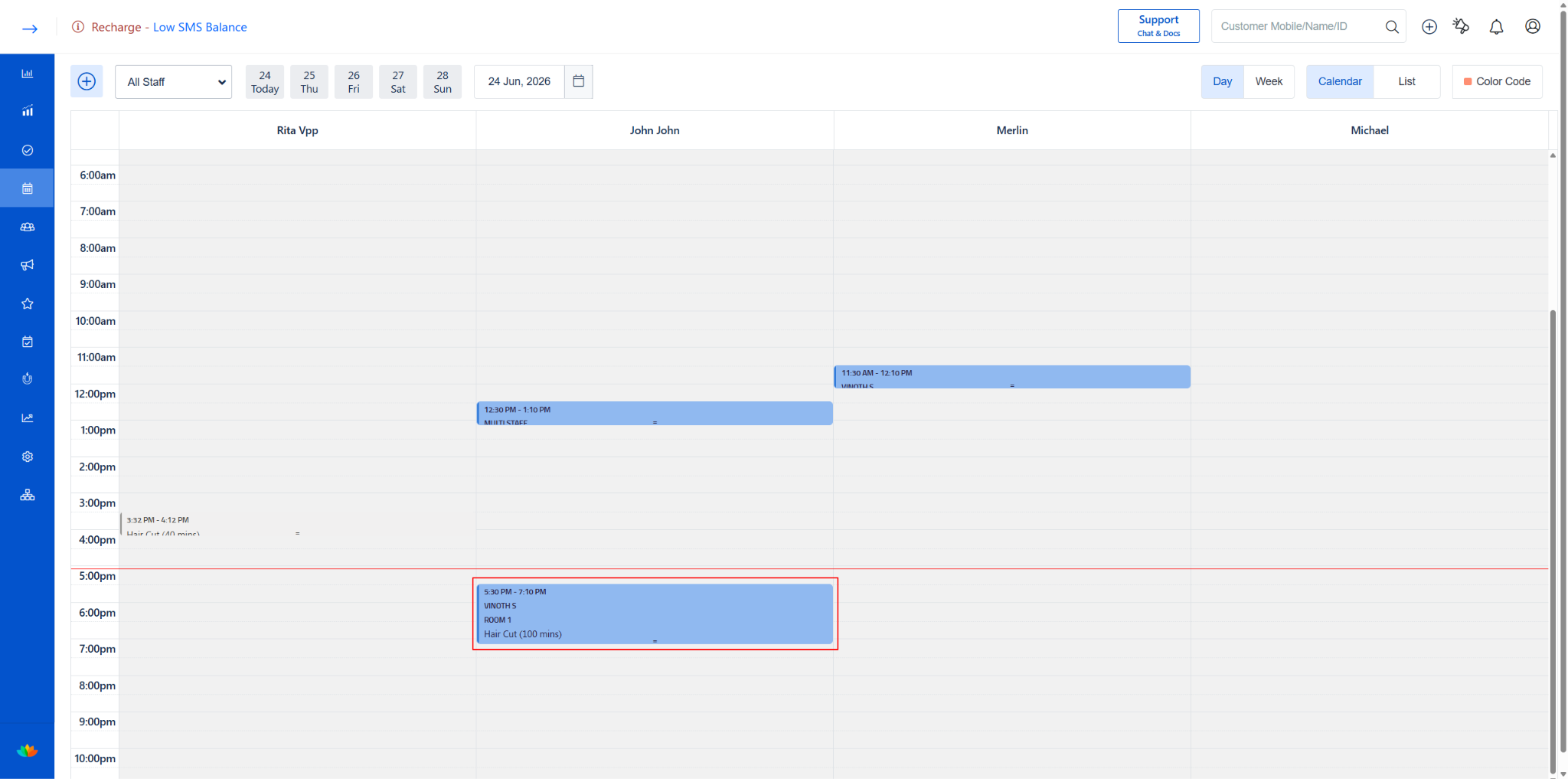
3. The redeemed service appointment appears as a coloured block under the assigned staff column.
4. Click on the appointment block to open the Appointment Details popup.
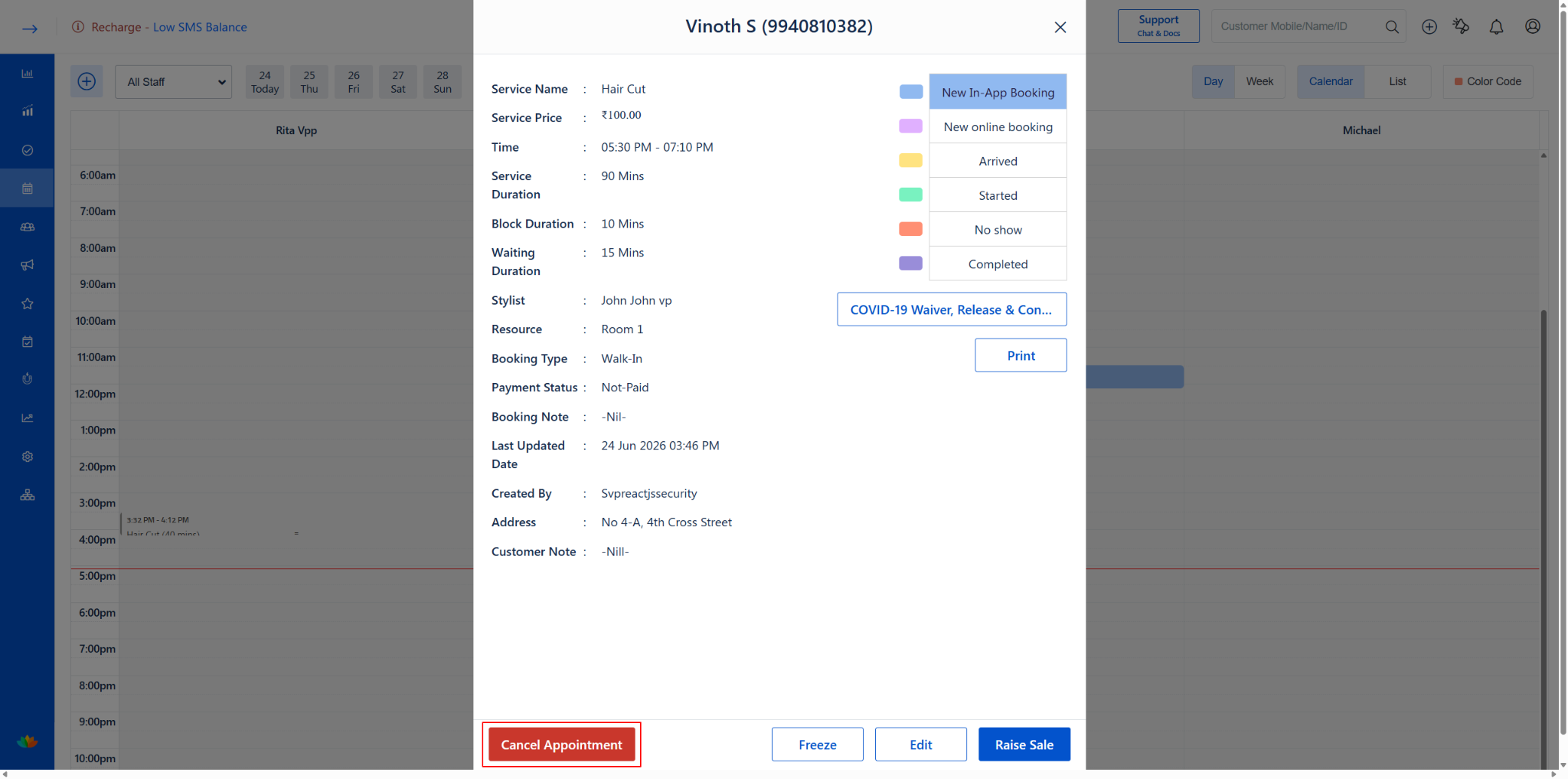
Appointment Details popup (Calendar view) displays:
· On the right side, you’ll see the Appointment Status options.
· At the bottom, you have four action buttons:
o Cancel Appointment (red) — Cancel this appointment
o Freeze — Freeze the appointment
o Edit — Edit the appointment details
o Raise Sale — Raise a sale/bill for this appointment
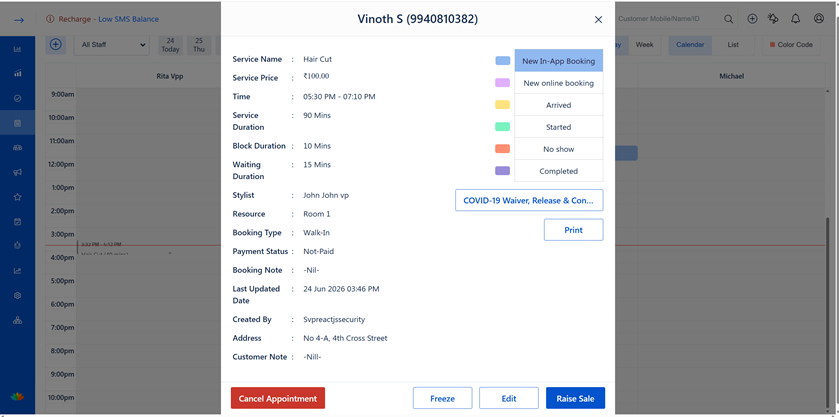
Appointment Details popup showing redeemed package info, status options, and action buttons
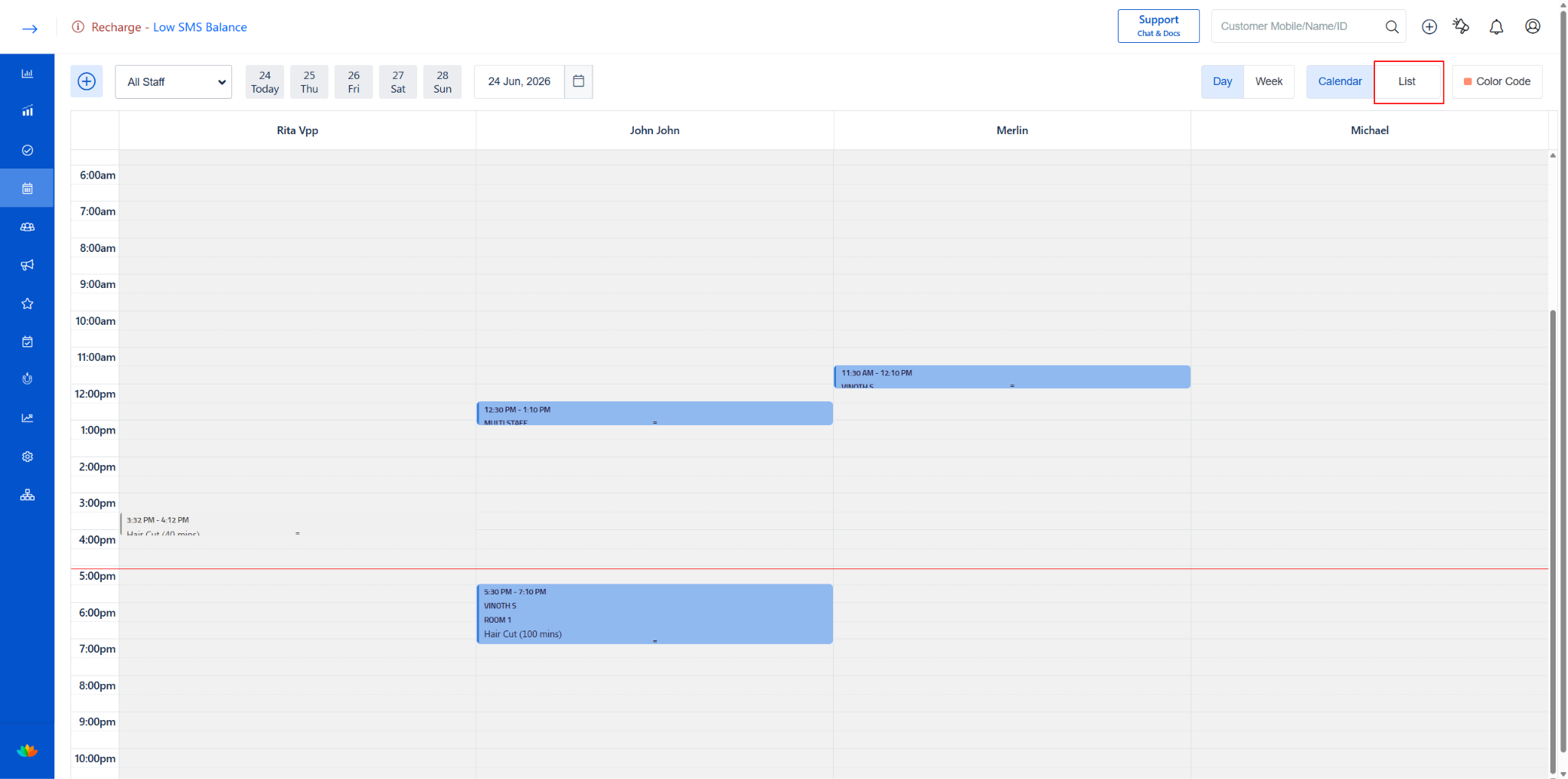
Option 2: Via List View
1. Go to Appointment from the left menu.
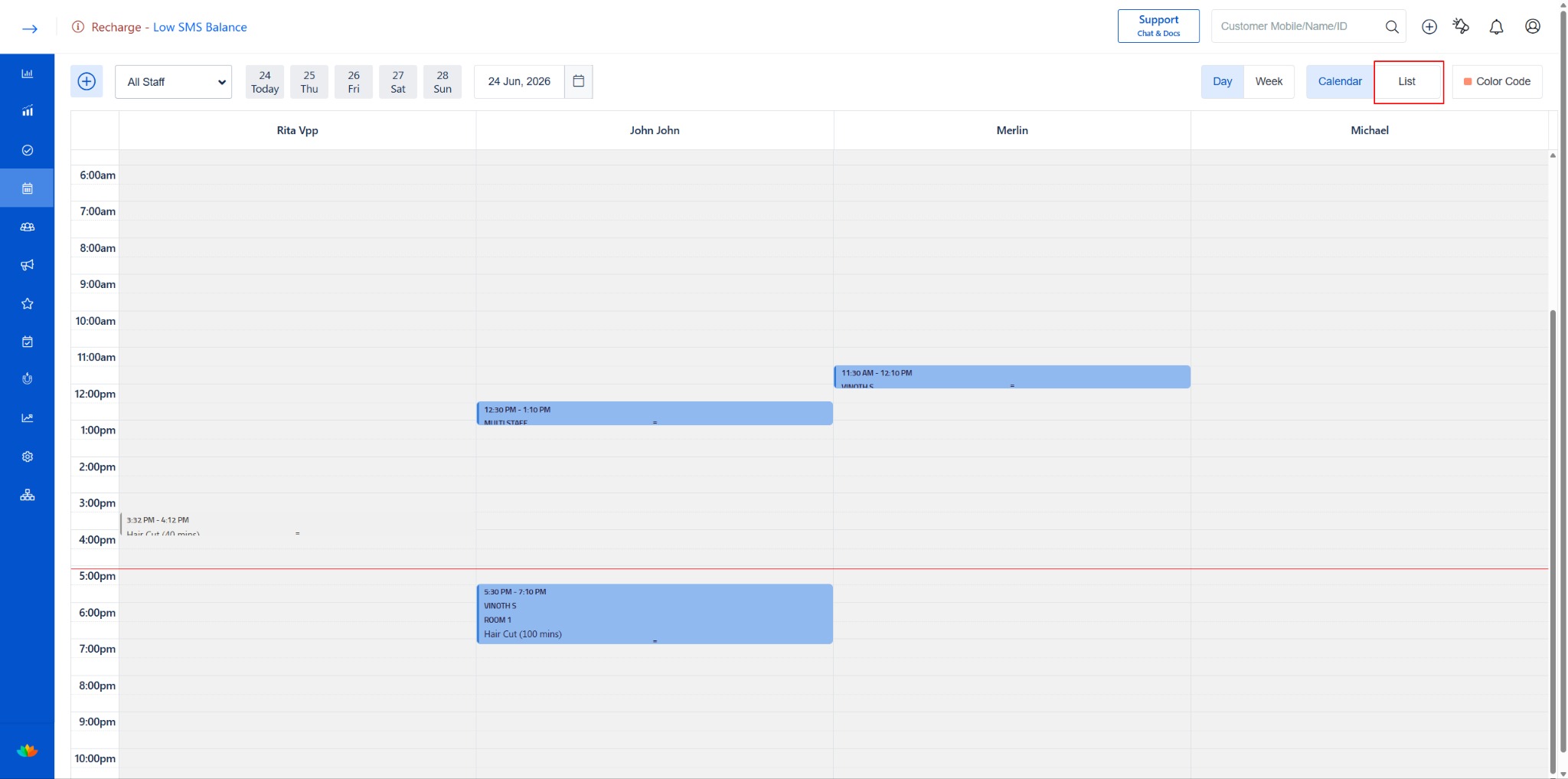
2. Click the “List” toggle in the top-right corner (next to Calendar).
3. All appointments are displayed as individual cards.
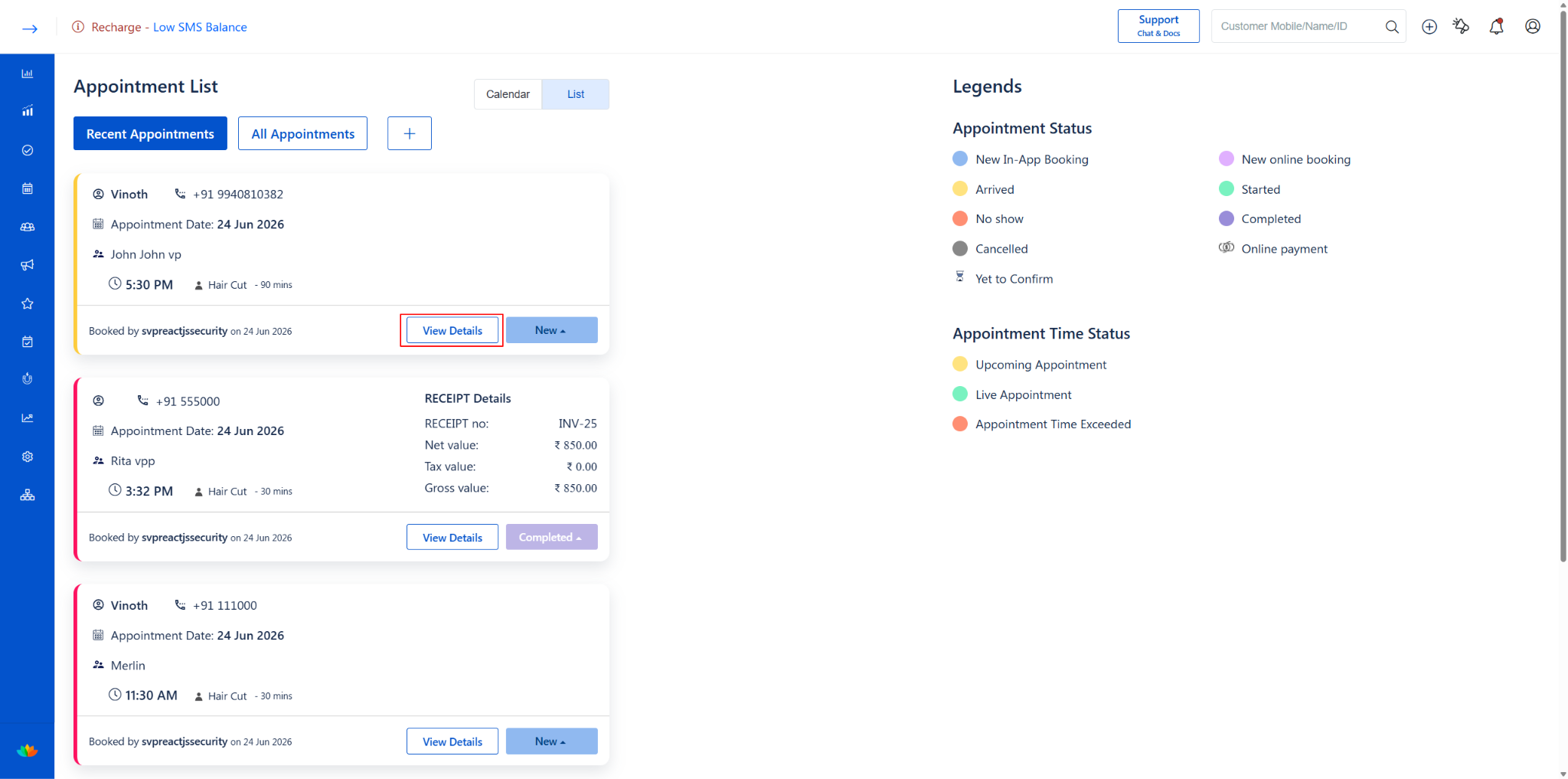
Each appointment card shows the client details, date, staff, time, and redeemed service.
At the bottom of each card, you’ll see two buttons: - “View Details” — Opens the appointment details popup - “New ▲” — Shows the current appointment status
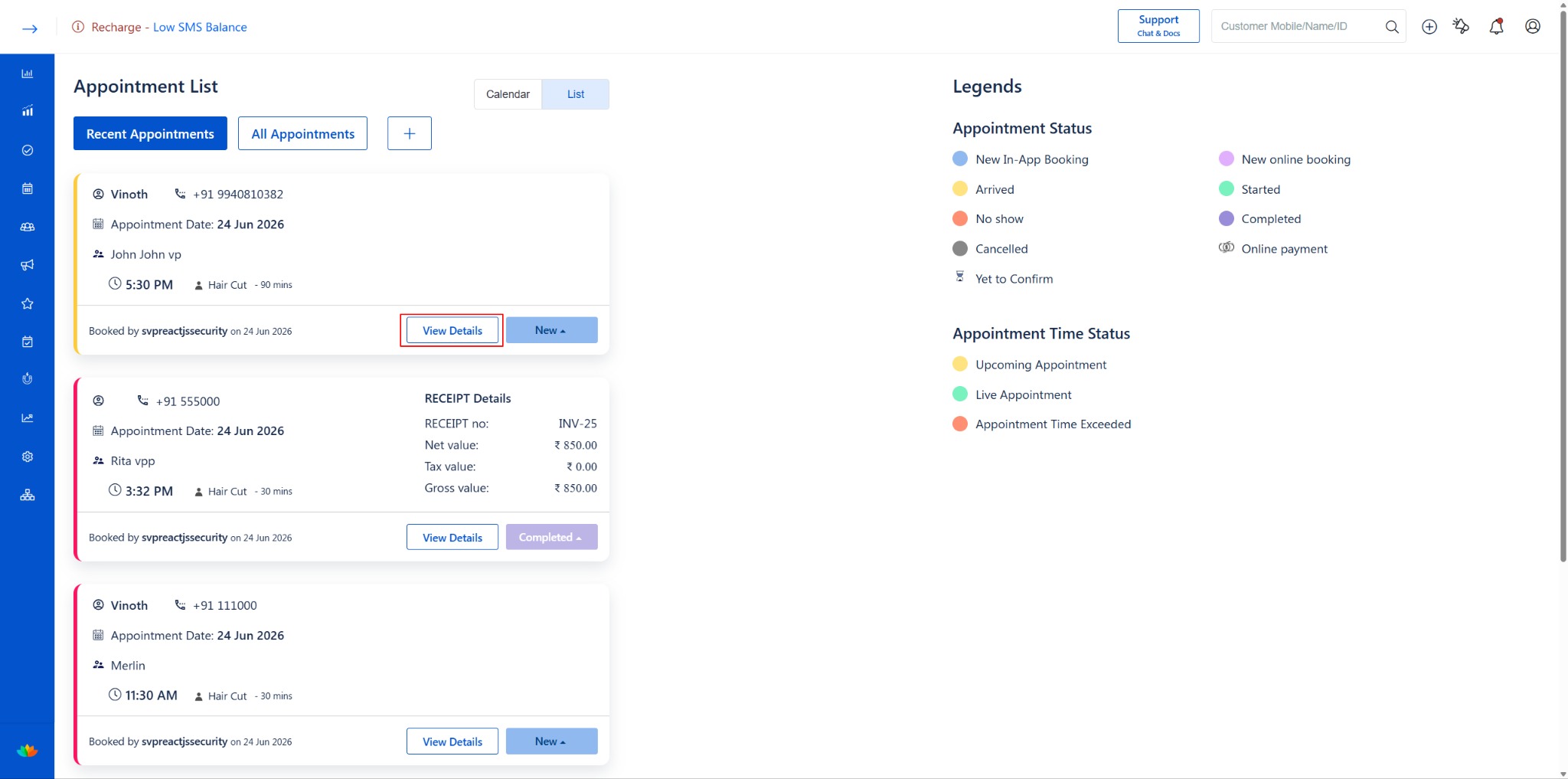
Appointment List card showing client details, redeemed service info, and View Details button
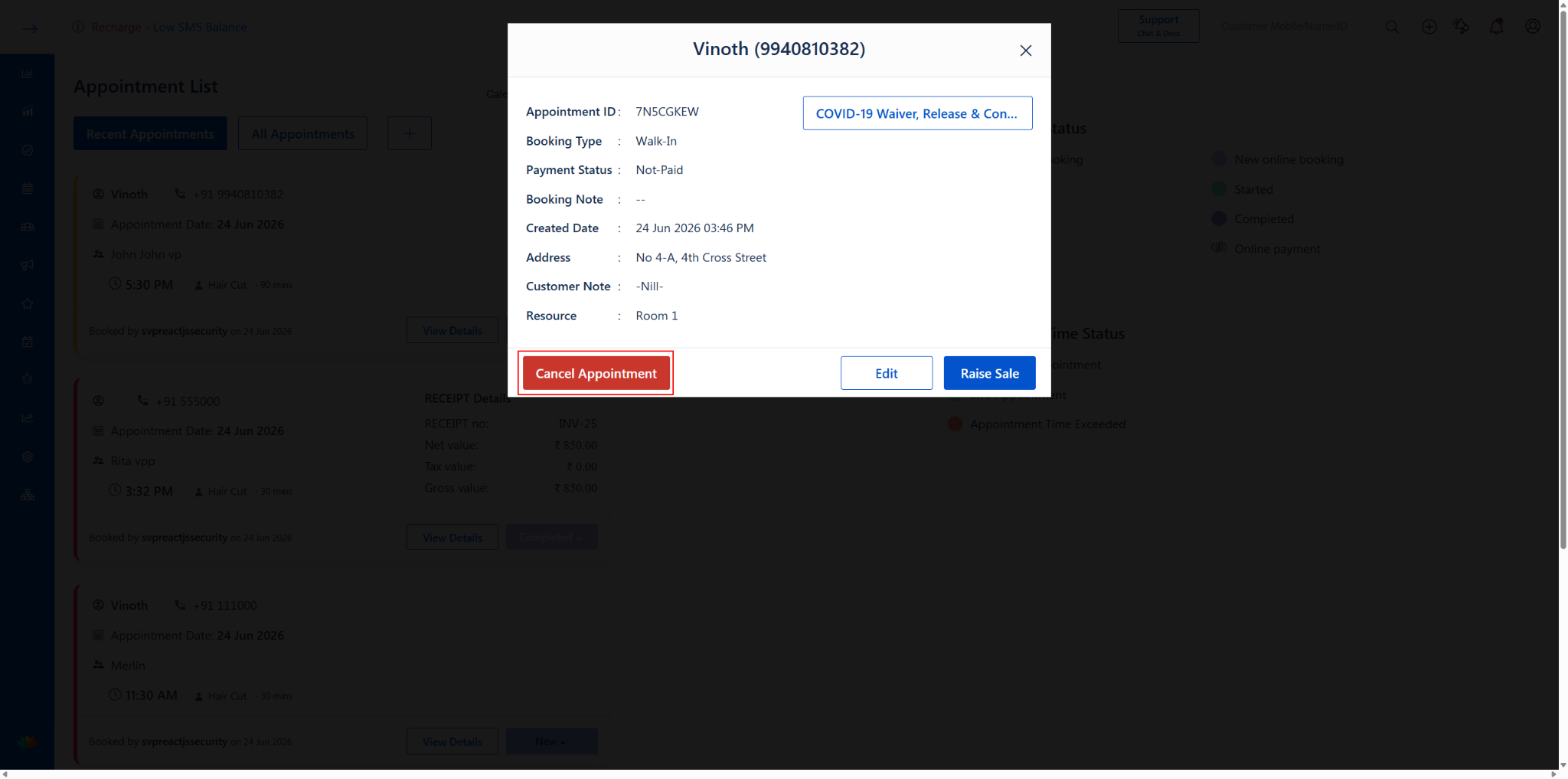
Click “View Details” to open the Appointment Details popup:
· At the bottom, you have three action buttons:
o Cancel Appointment (red) — Cancel this appointment
o Edit — Open the Edit Appointment screen
o Raise Sale — Raise a sale/bill for this appointment
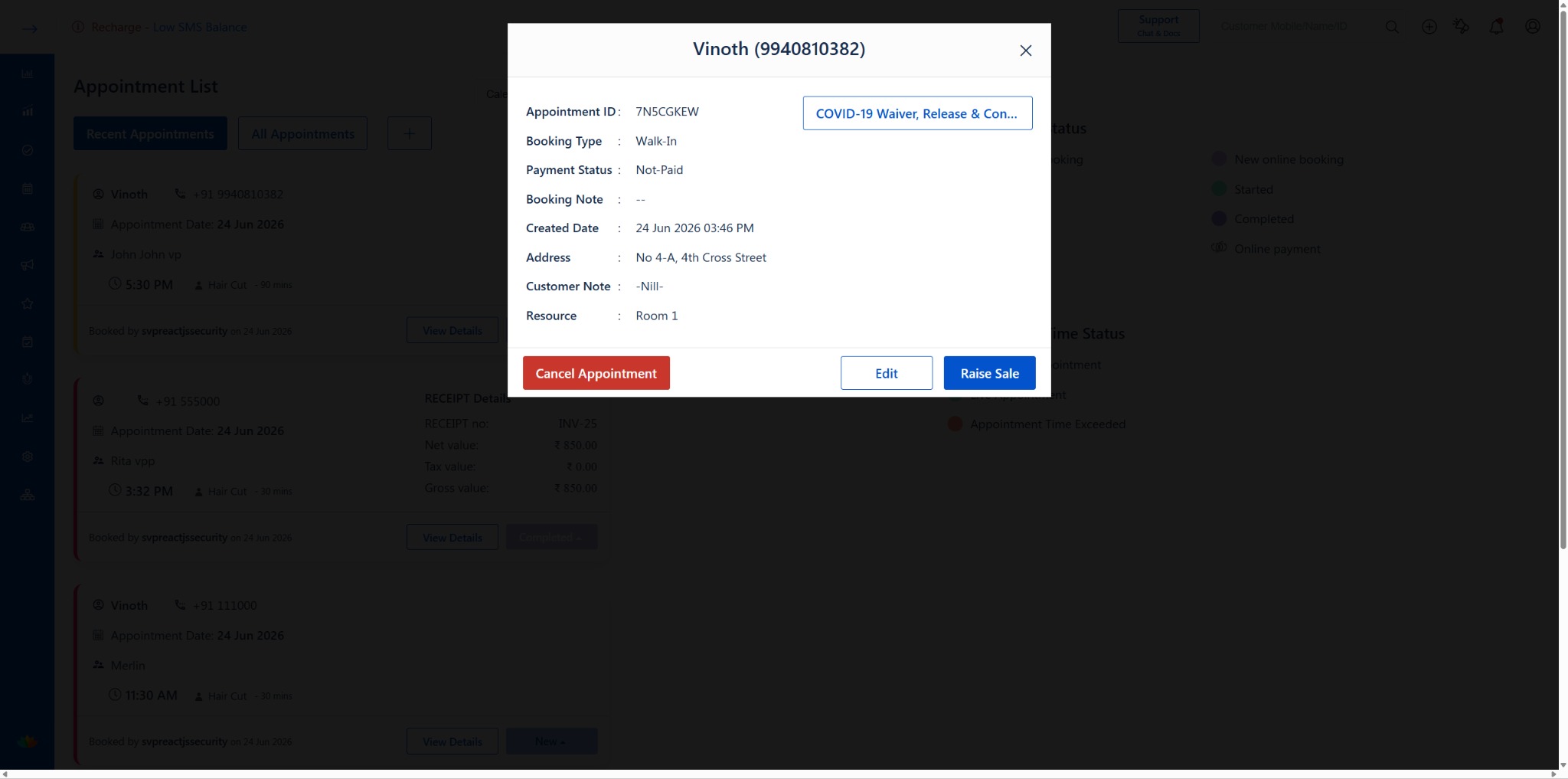
Appointment Details popup from List view with Cancel, Edit, and Raise Sale buttons
1. Cancel a Purchased Package Redemption
Overview
When a client cancels a session they booked using a purchased package, the system will cancel the appointment and automatically return that session to their package balance.
To ensure accurate records and track why appointments are being cancelled, MioSalon requires you to enter a reason for cancellation.
Navigation Path
· Via Calendar: Appointment → Calendar → Click appointment block → Cancel Appointment
· Via List: Appointment → List → View Details → Cancel Appointment
Step-by-Step Instructions
Step 1: Click “Cancel Appointment”
· On the Appointment Details popup, click the red “Cancel Appointment” button at the bottom-left.
· A Cancel Appointment popup will appear.
Step 2: Enter Cancellation Reason and Confirm
· Enter the Reason for Cancellation in the text box (e.g., “Personal Emergency”).
· Click the red “Cancel Appointment” button to confirm the cancellation.
· Click ✕ (close icon) to go back without cancelling.
· Note: The cancelled session is automatically credited back to the client’s available package sessions.
Was this article helpful?
That’s Great!
Thank you for your feedback
Sorry! We couldn't be helpful
Thank you for your feedback
Feedback sent
We appreciate your effort and will try to fix the article