Overview
Customer 360 in MioSalon provides a unified profile view of all client interactions, appointments, transaction histories, and active package holdings.
Salon receptionists and spa consultants use Customer 360 to verify available hourly package balances before booking appointments and review lifetime package purchases.
With dedicated sub-tabs for Available Services and Package History, staff can instantly check remaining session counts, inspect past redeemed therapy dates, and extend validity dates directly on client profiles.
Accessing real-time duration balances in Customer 360 prevents booking confusion, accelerates front-desk check-in, and delivers personalized guest care.
Follow the guided step-by-step instructions below to locate, track, review, and update customer hourly package details in MioSalon Customer 360.
Navigation Path
Main Menu → Customers → Customer Profile
Steps to Access Customer 360 Profile
1. Log in to your MioSalon account.
2. In the top-right global search bar, enter the customer mobile number or name (E.g., +91 1113334), or click on the Customers icon on the left navigation bar and select the client.
3. The Customer 360 profile screen opens, displaying guest contact information, key statistics (Appointments, No Show, Total Revenue), and sub-navigation tabs.
Steps to View Active Balances in Available Services Tab
1. On the Customer 360 profile sub-tab menu, click on the Available Services tab
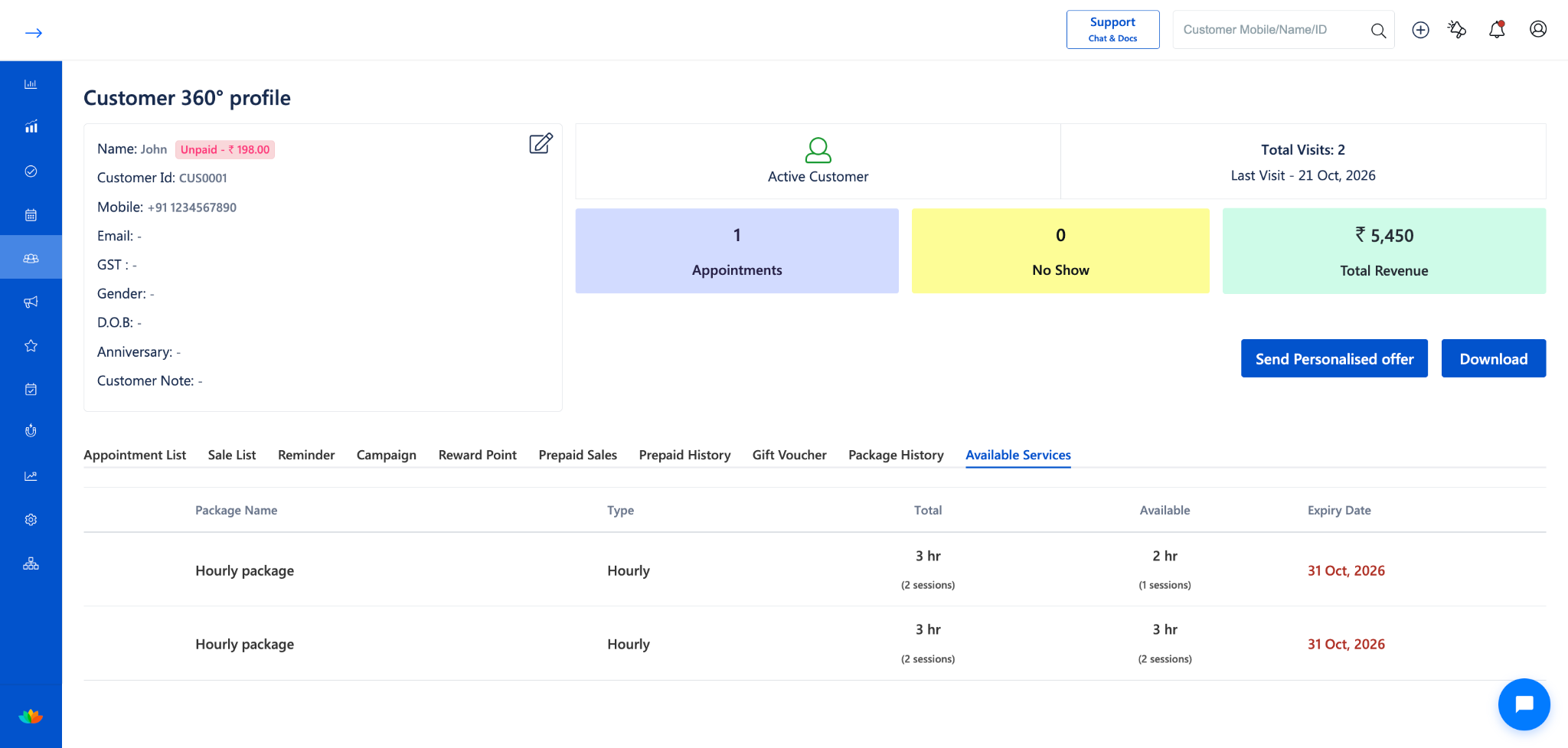
2. Review active hourly packages listed with their balance details:
• Package Name: Name of the active hourly package (E.g., Specific - 30 (min) or Hourly package with roundoff redemption all service).
• Type: Displays Hourly to distinguish duration-based packages from fixed service counts.
• Total: Total hours purchased and total allowed session limit (E.g., 2 hr (5 sessions) or 2 hr (4 sessions)).
• Available: Current balance available for booking (E.g., 1 hr 30 mins (2 sessions) or 1 hr 30 mins (3 sessions)).
• Expiry Date: The final date until which the client can redeem services (E.g., 19 Sep, 2027).
3. Front-desk staff use this data to inform guests of their exact remaining treatment hours before service delivery.
Steps to Check Past Redemptions in Package History Tab
1. On the Customer 360 sub-tab bar, click on the Package History tab.
2. The Package History table loads, listing all hourly packages, on-demand packages, and promotional time bundles purchased by the client
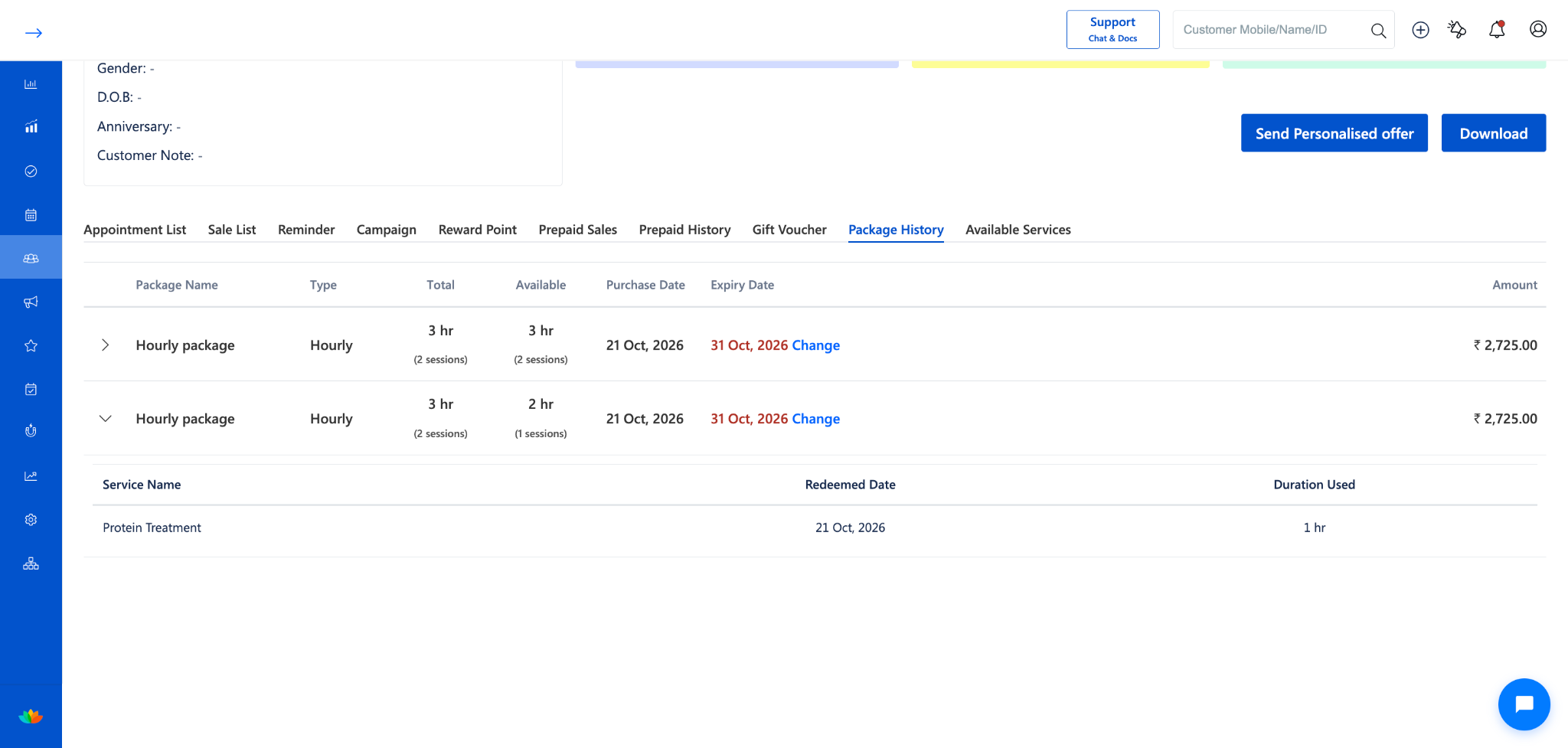
3. Locate the target package entry (E.g.,Hourly Package, Total: 3 hr, Available: 2 hr, Purchase Date: 21 Sep, 2026, Amount: ₹ 1,100.00).
4. Click on the dropdown arrow icon on the left side of the row to expand the list of past redeemed services.
5. Review the specific services used under this package:
• Service Name: Displays the service performed (E.g.,Protein Treatment).
• Redeemed Date: Date of redemption (E.g., 21 Sep, 2026).
• Duration Used: Exact time deducted from the package (E.g., 10 mins).
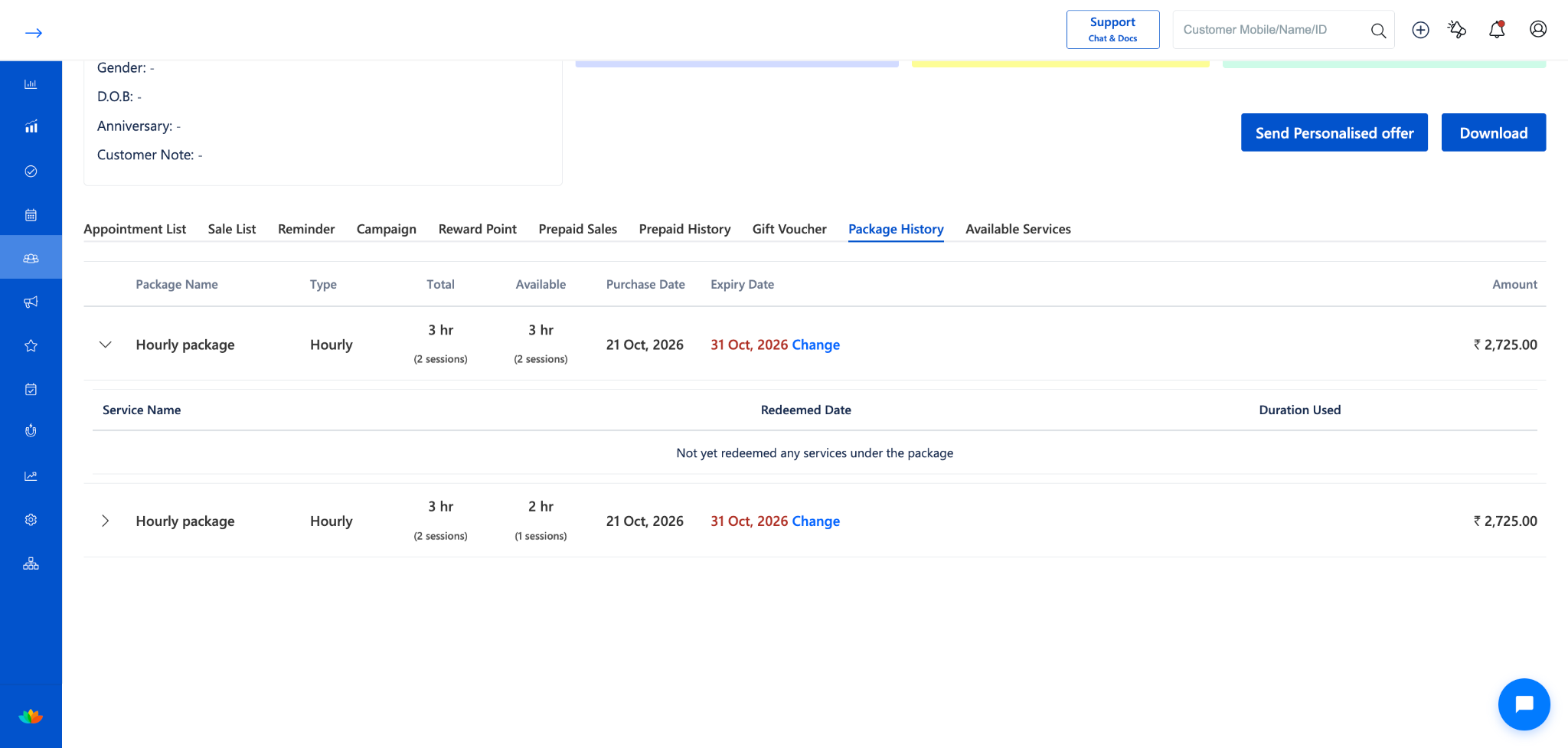
6. For packages with unused hours where no services have been taken yet, expanding the package row displays the message: Not yet redeemed any services under the package
Steps to Extend Package Validity and Provide Reason from Customer 360
1. In the Package History tab, locate the package requiring an extension.
2. Under the Expiry Date column, click on the blue Change link displayed next to the expiration date (E.g., 4 Oct, 2026 Change).
3. The Change Expiry modal opens, displaying the date selector and reason text box
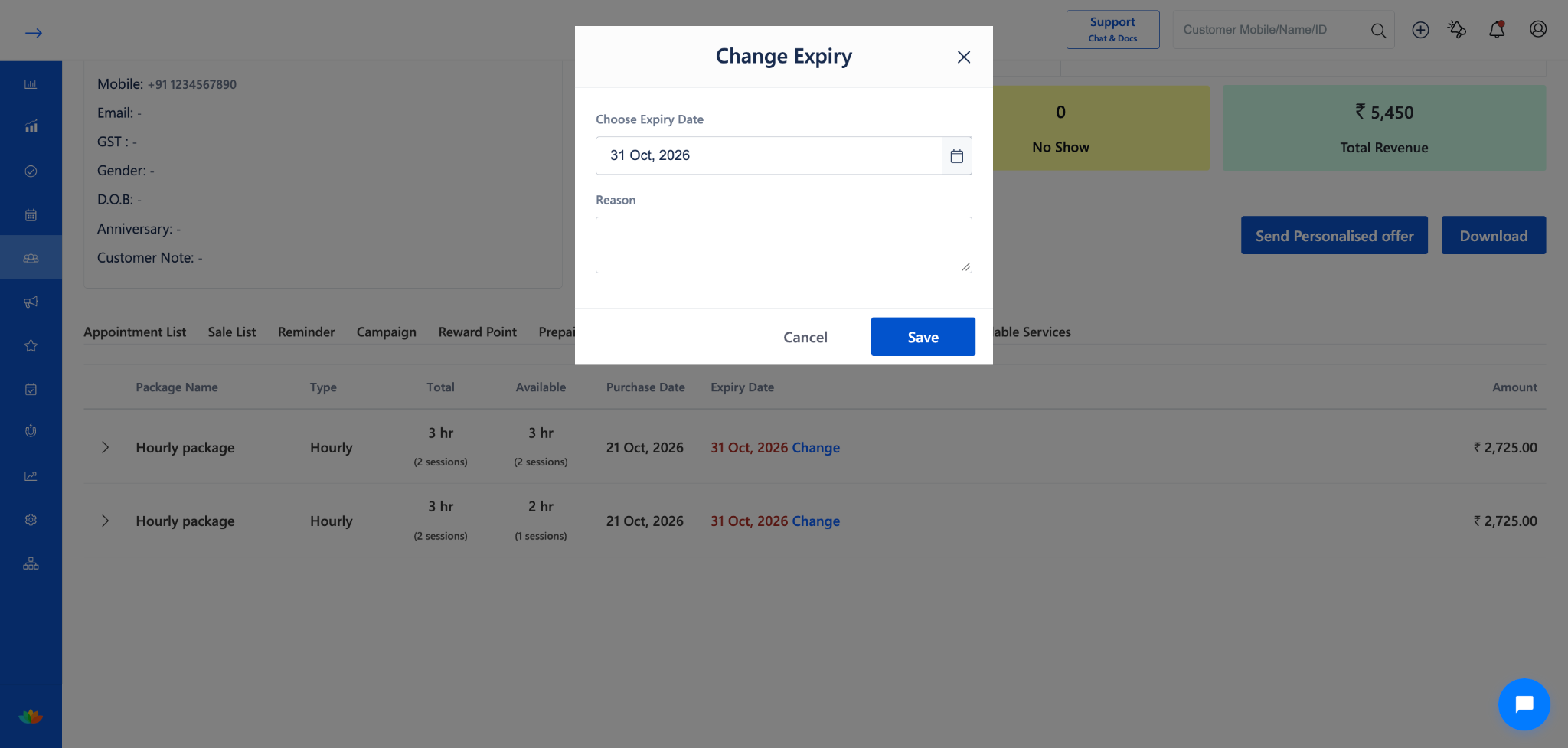
4. Under Choose Expiry Date, click on the calendar picker and select the new expiration date (E.g., 20 Oct, 2026).
5. In the Reason text field, provide the reason for extending package validity (E.g., Guest out of town, Therapist unavailability, Salon loyalty extension).
6. Click on the Update button to confirm the changes and save the validity extension.
7. The updated expiration date reflects instantly across both Package History and Available Services, enabling front-desk staff to continue redeeming services in Quick Sale and Appointments.
Note
1. When an hourly package reaches 0 mins balance or passes its expiry date without an extension, it automatically disappears from the Available Services tab while remaining fully accessible in Package History for lifetime records.
2. Updating the expiry date via the Change link applies exclusively to the selected customer profile and does not alter package validity rules for other clients.
3. The Available duration in Customer 360 updates automatically with Quick Sale billing and appointment bookings.
Use Cases
1. Appointment Pre-Check: Checking a guest active hourly balance in Available Services before booking an 80-minute massage session.
2. Front-Desk Balance Verification: Reassuring clients of their exact remaining treatment minutes when they call or visit the salon counter.
3. Client Validity Renewal: Extending package expiration dates for clients who missed appointments due to illness, travel, or emergencies.
4. Reviewing Past Services: Checking previous visit dates, treatments received, and minutes deducted to answer customer billing questions.
Benefits
1. Complete Guest Visibility: Gives receptionists immediate access to package balances and past redemptions directly within the client profile.
2. Instant Front-Desk Extensions: Adjusts package expiry dates on the spot without changing main package settings.
3. Faster Check-In: Reduces front-desk waiting times by showing active time balances and session counts at a glance.
4. Accurate Service Records: Keeps a permanent, transparent record of all treatments completed and package fees paid.
Was this article helpful?
That’s Great!
Thank you for your feedback
Sorry! We couldn't be helpful
Thank you for your feedback
Feedback sent
We appreciate your effort and will try to fix the article