Overview
The Gallery Settings feature controls where the Before & After image upload option appears in your workflow.
Salons, spas, and clinics use this feature to capture customer transformation images at the right stage of service delivery.
By choosing the preferred workflow, staff can consistently upload client images either during appointment booking or at the time of billing.
This ensures a streamlined process for building a visual gallery of customer results, which can be used for marketing, client consultations, and tracking service outcomes over time.
Navigation Path
Settings → Gallery Settings → Gallery Settings
Steps to Setup the Gallery Settings
Step 1: Navigate to Gallery Settings
From the left sidebar, click on Settings.
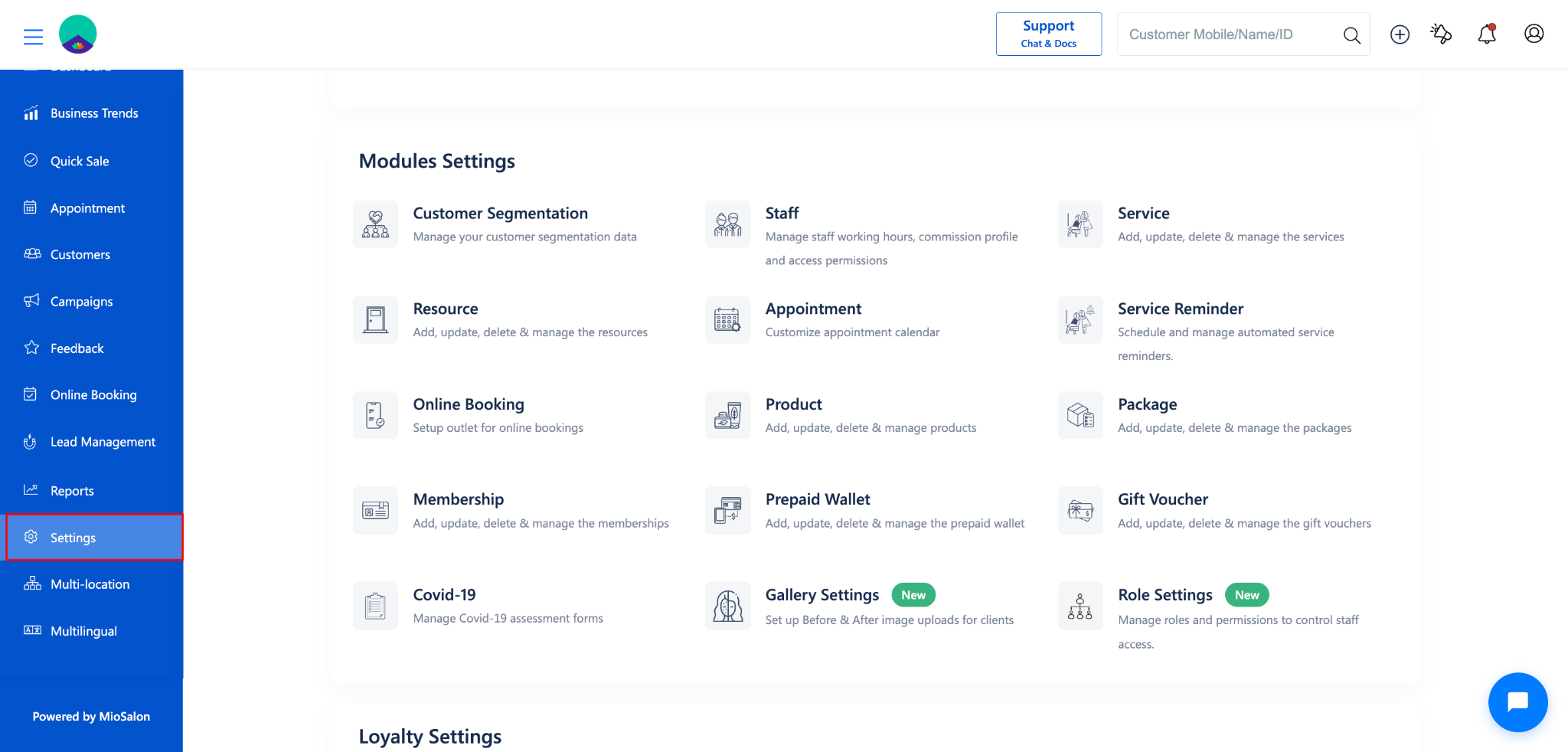
Under Settings, select Gallery Settings.
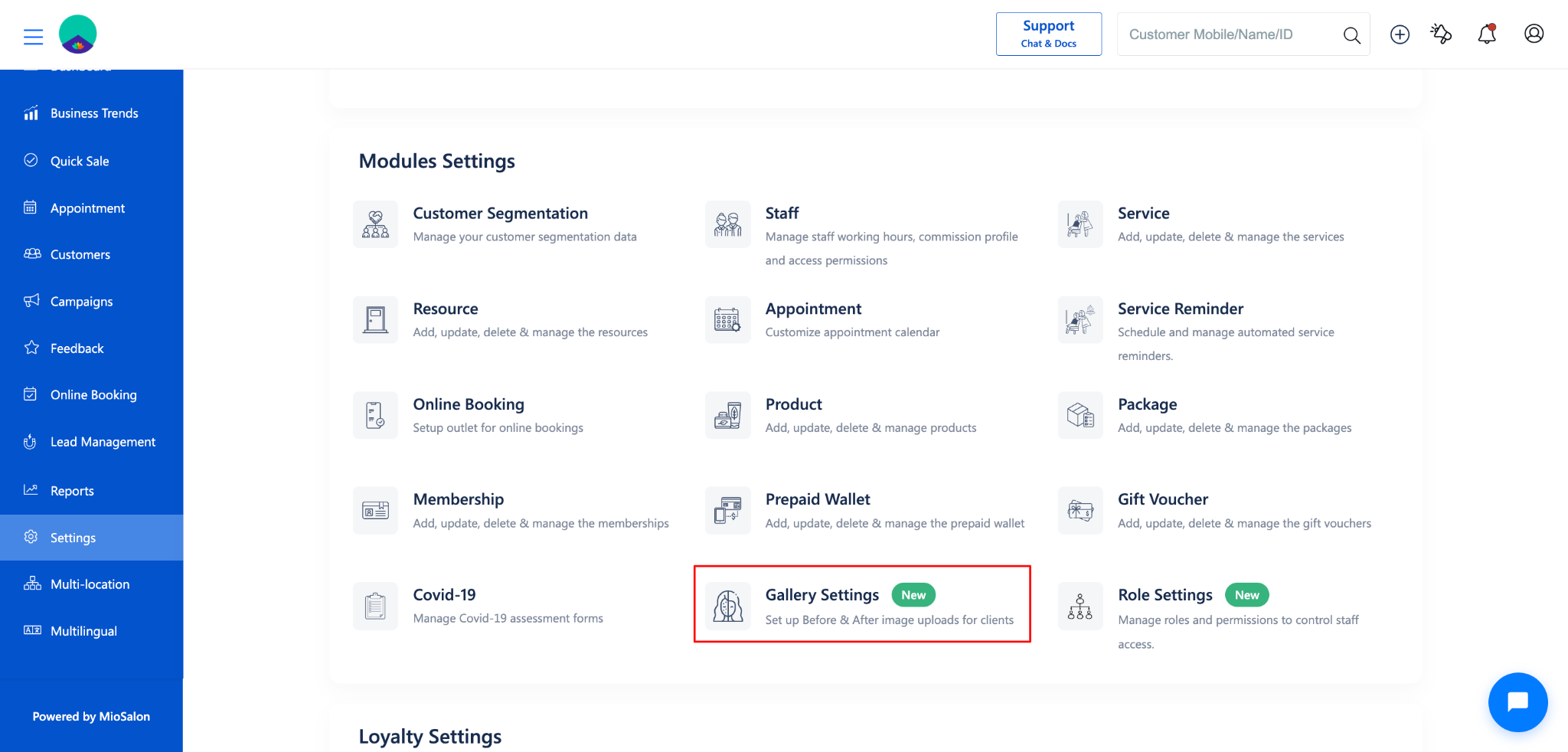
Click on Gallery Settings from the left-side menu.
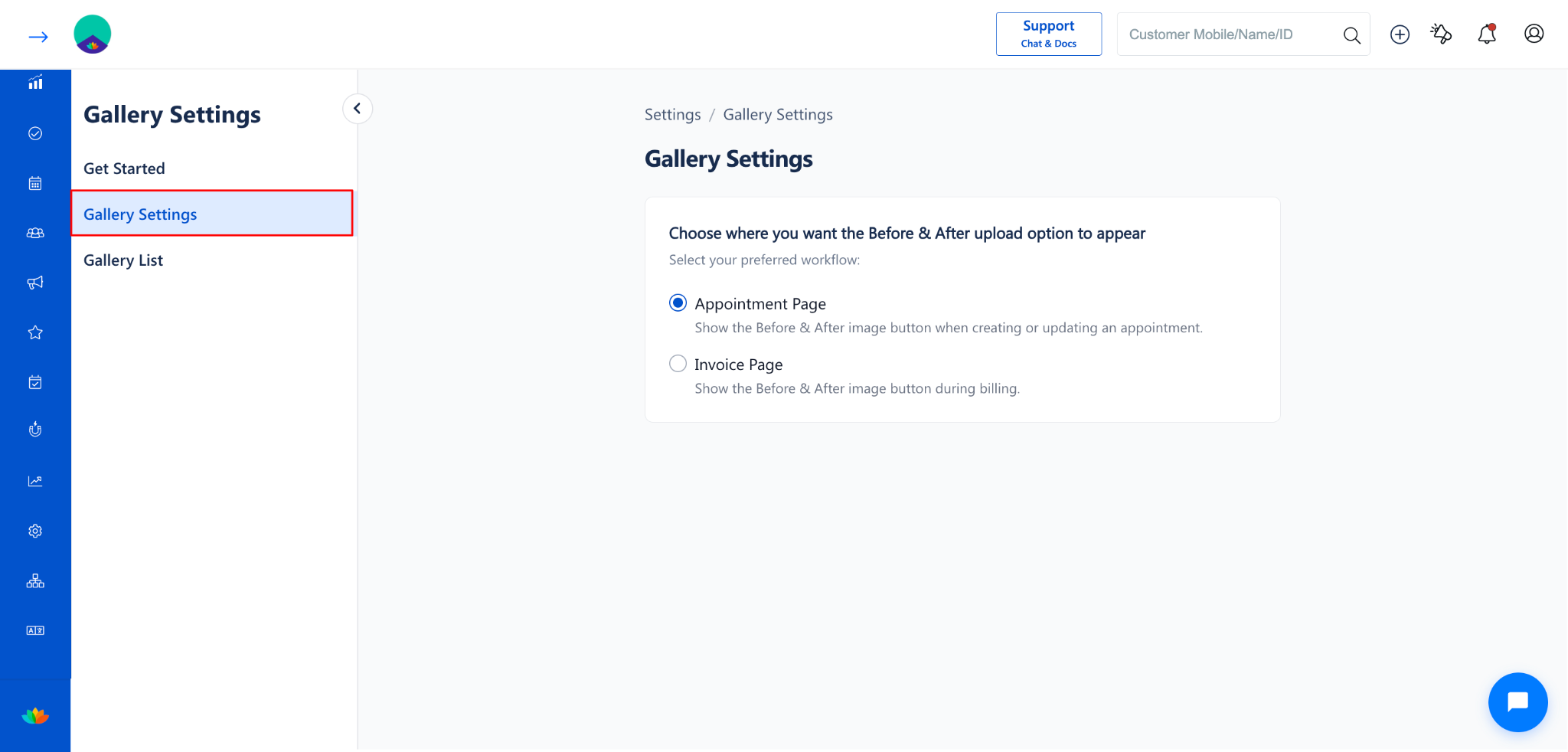
The Gallery Settings page will open.
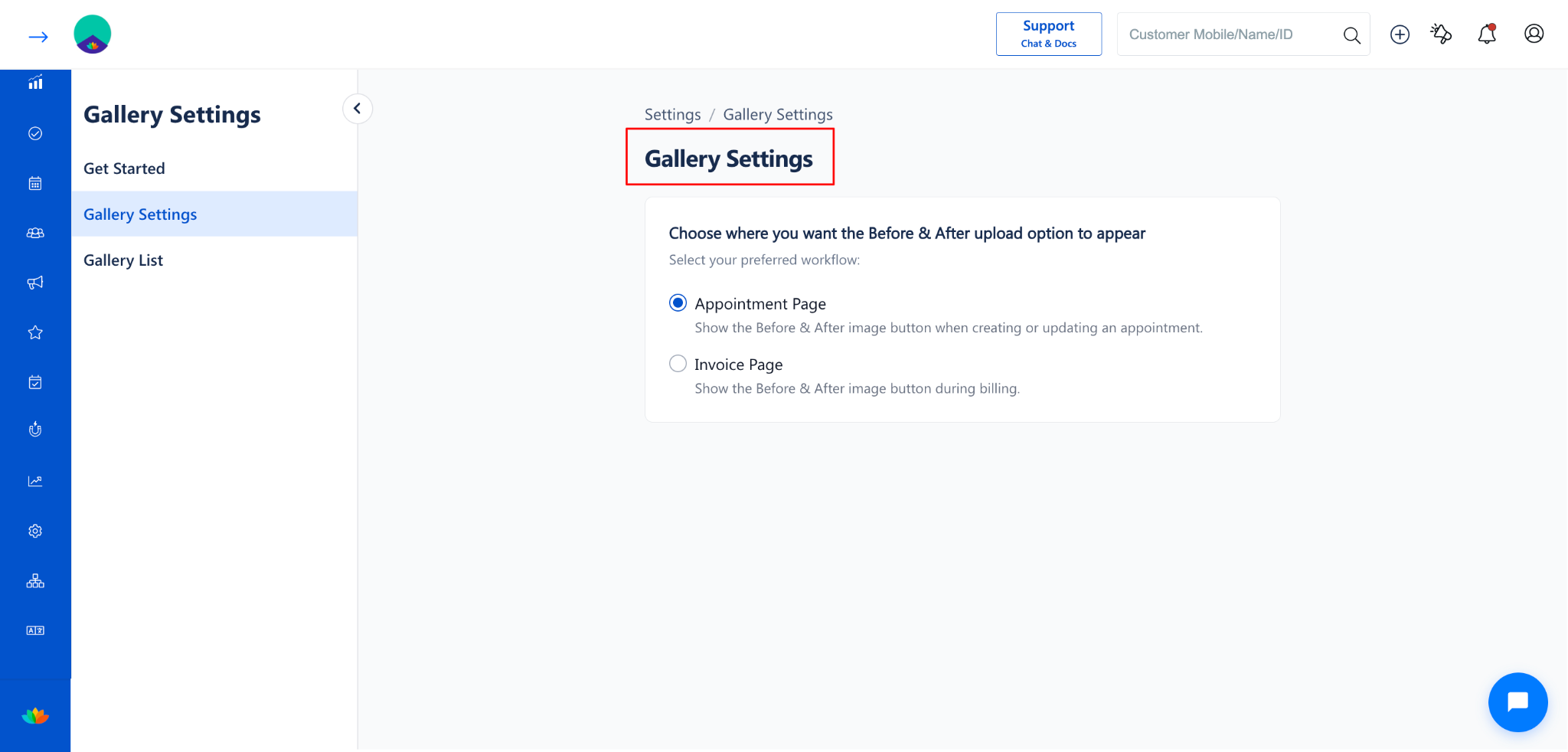
Step 2: Choose Where the Before & After Upload Option Appears
On the Gallery Settings page, locate the section: Choose where you want the Before & After upload option to appear.
Select your preferred workflow from the available options:
3 Click the radio button next to the preferred option to select it.
NOTE
You can select only one workflow at a time. If you switch from Appointment Page to Invoice Page, the upload option will move accordingly.
Use Cases
Select Appointment Page workflow to capture images during service delivery for real-time documentation.
Select Invoice Page workflow to upload images after the service is completed and during the billing process.
Switch between workflows based on seasonal campaigns or changes in business operations.
Benefits
Provides flexibility to choose the most convenient point in the workflow for image uploads.
Ensures consistency across staff by standardizing when images are captured.
Reduces missed uploads by embedding the option directly in the existing workflow.
Supports building a professional gallery for marketing and client engagement.
Was this article helpful?
That’s Great!
Thank you for your feedback
Sorry! We couldn't be helpful
Thank you for your feedback
Feedback sent
We appreciate your effort and will try to fix the article