How to Delete the Business (Salon, Spa, etc) Images from the gallery in MioSalon ?
Overview
The Delete Business Images feature in MioSalon allows salon administrators to remove outdated, duplicate, or unwanted photos from their branch galleries.
Businesses use image deletion to retire old facility pictures, declutter the image gallery, and free up slots within the 10-image branch limit.
Removing outdated photos ensures that online booking visitors only see active, accurate representations of your current salon environment.
Follow the guided step-by-step instructions below to delete business images from the gallery in MioSalon.
Navigation Path
Online Booking → Business Images
Steps to Delete the Business (Salon, Spa, etc) Images from the gallery
1. Click on the Online Booking module from the main left navigation bar.
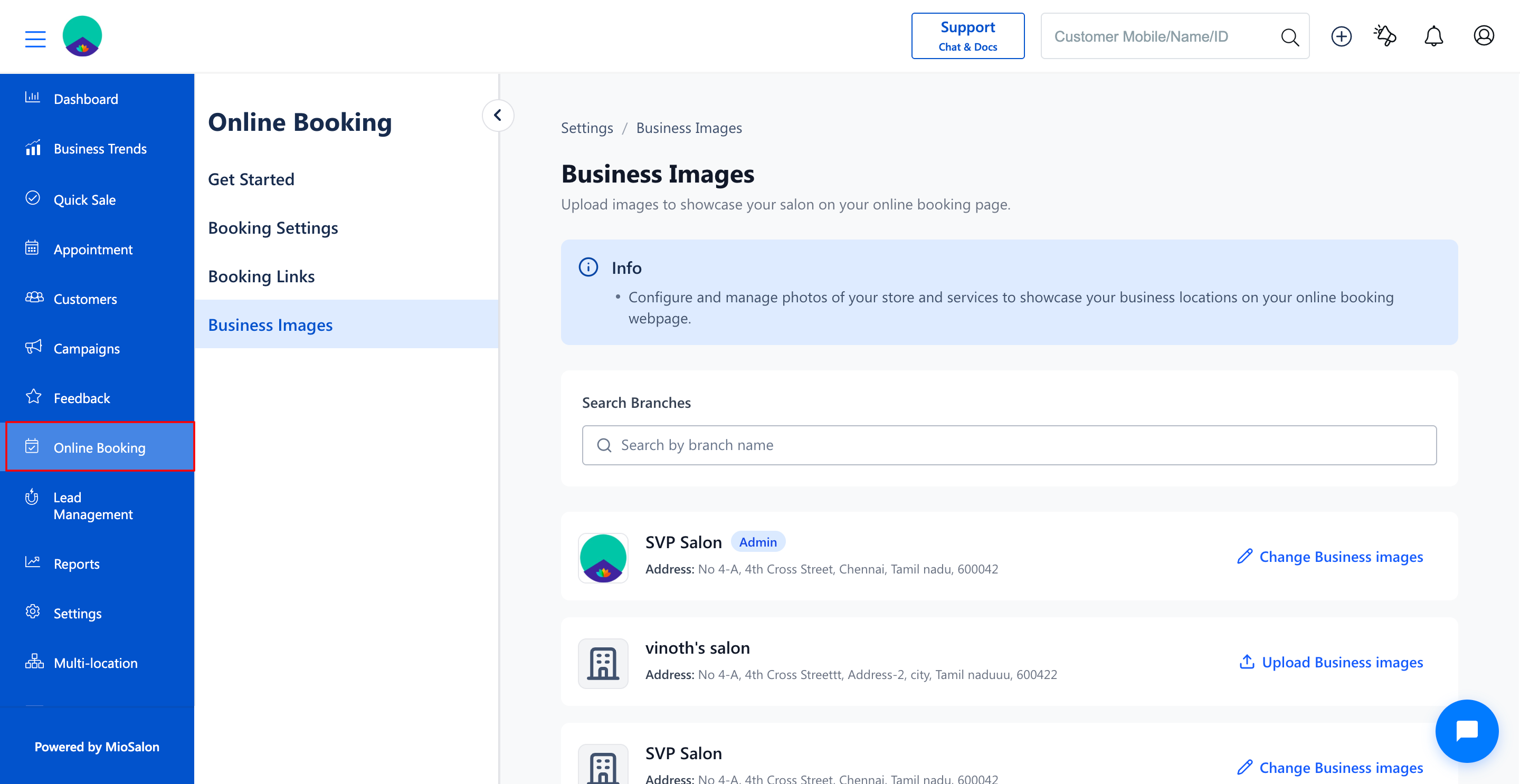
2. In the secondary left menu, click on Business Images to view your branch list.
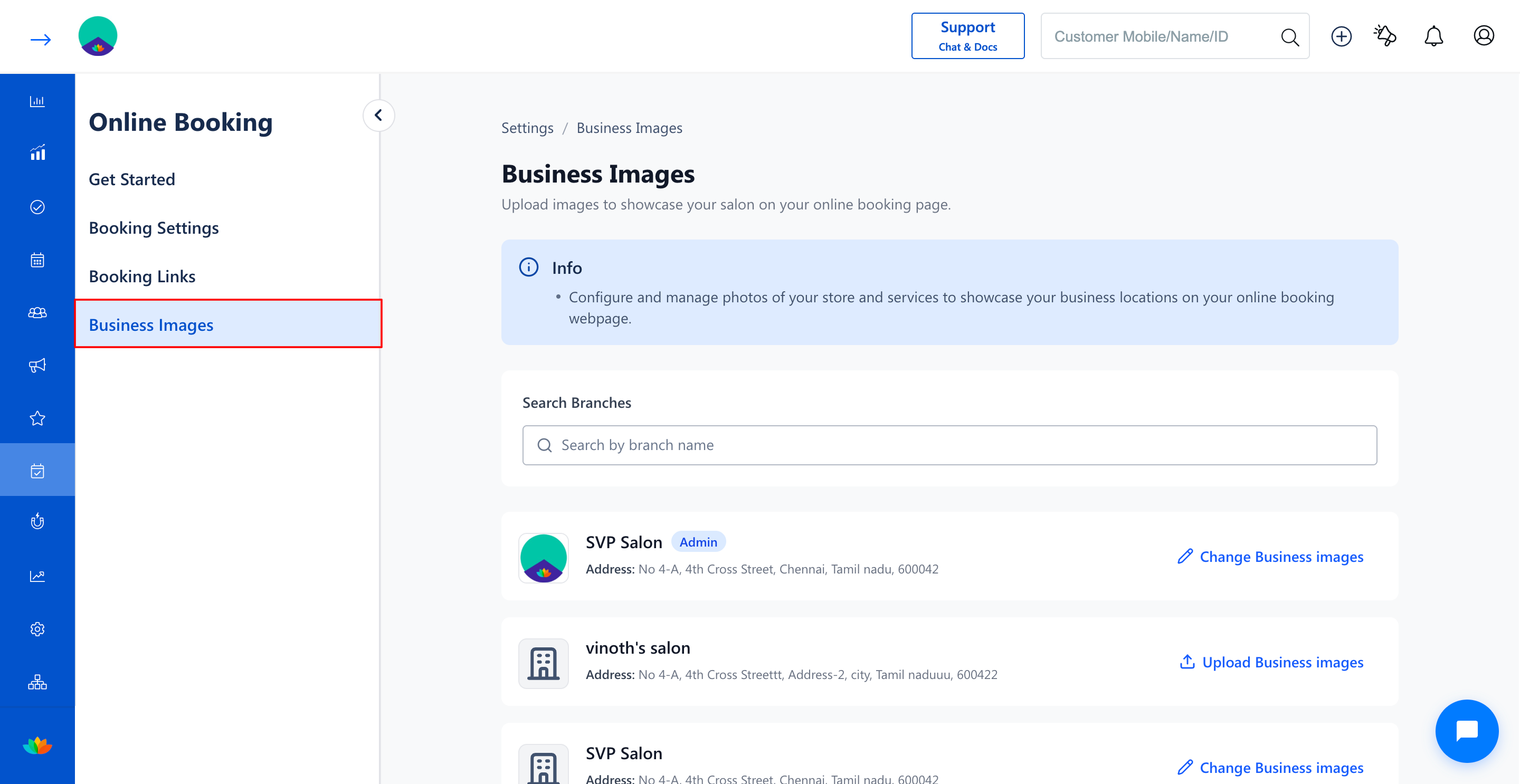
3. Locate the branch containing images you want to remove (E.g., vinoth's salon).
4. Click on the Change Business images button on the branch card.
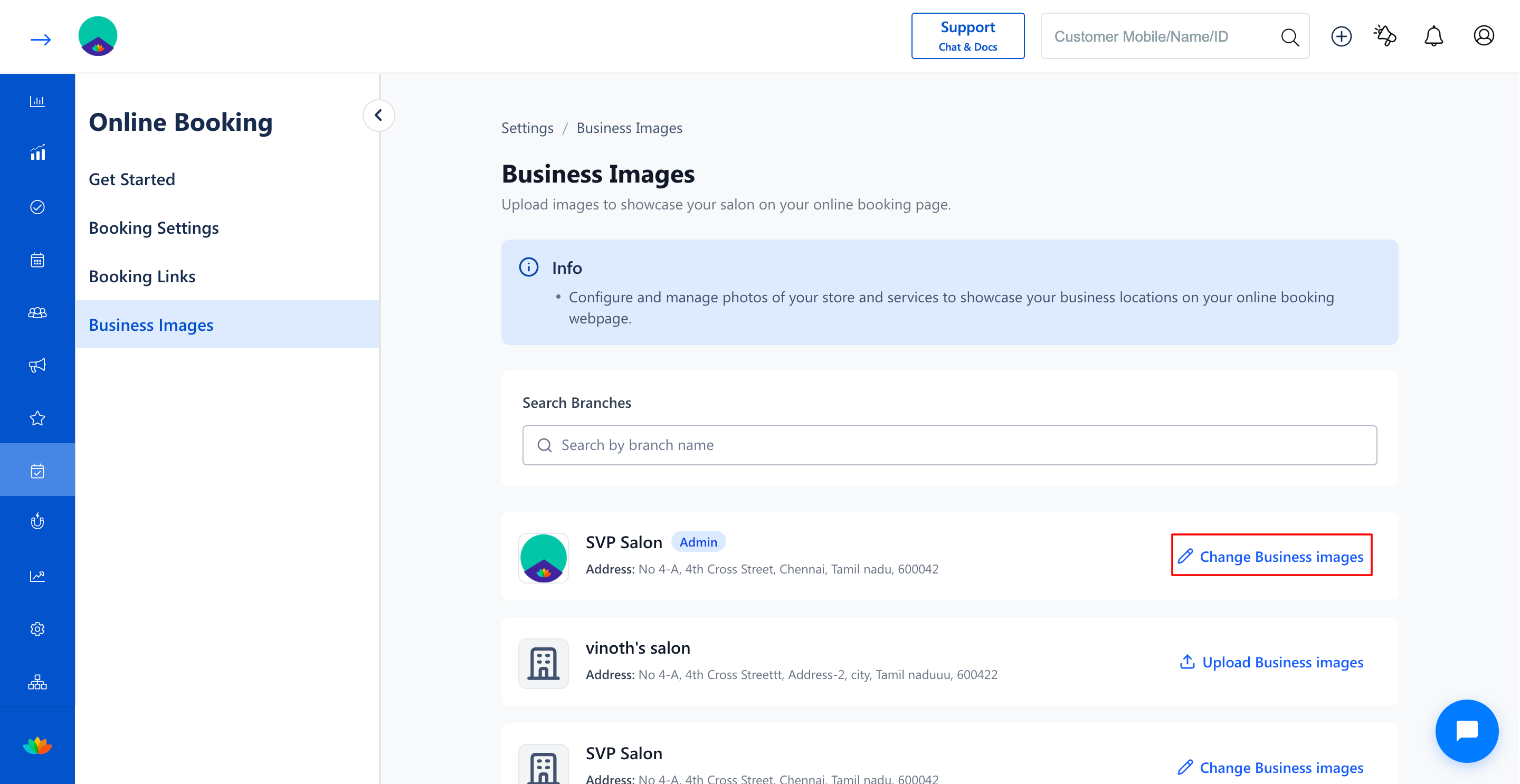
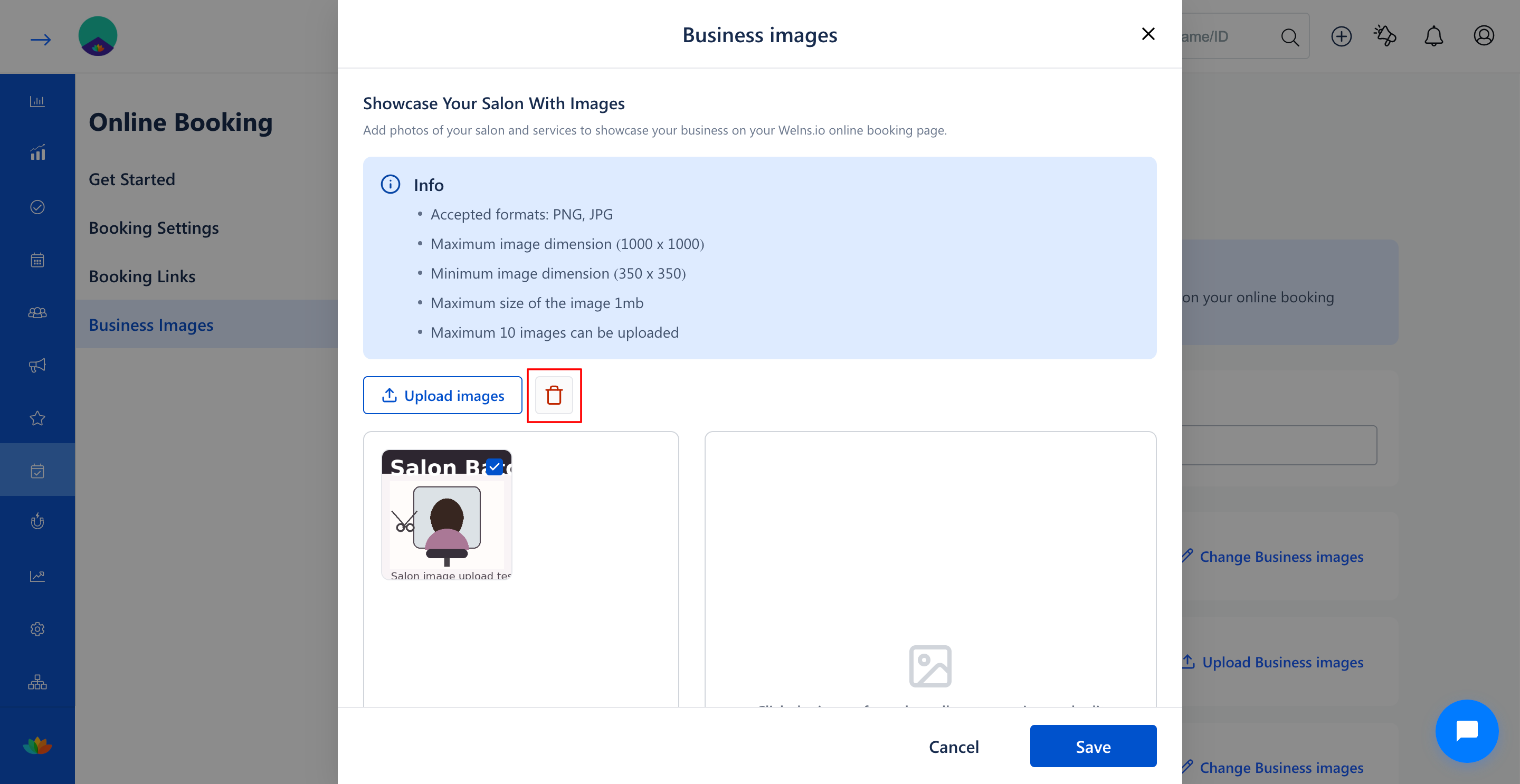
5. In the Business images popup window, click the checkbox in the top right corner of the image thumbnail you wish to delete.
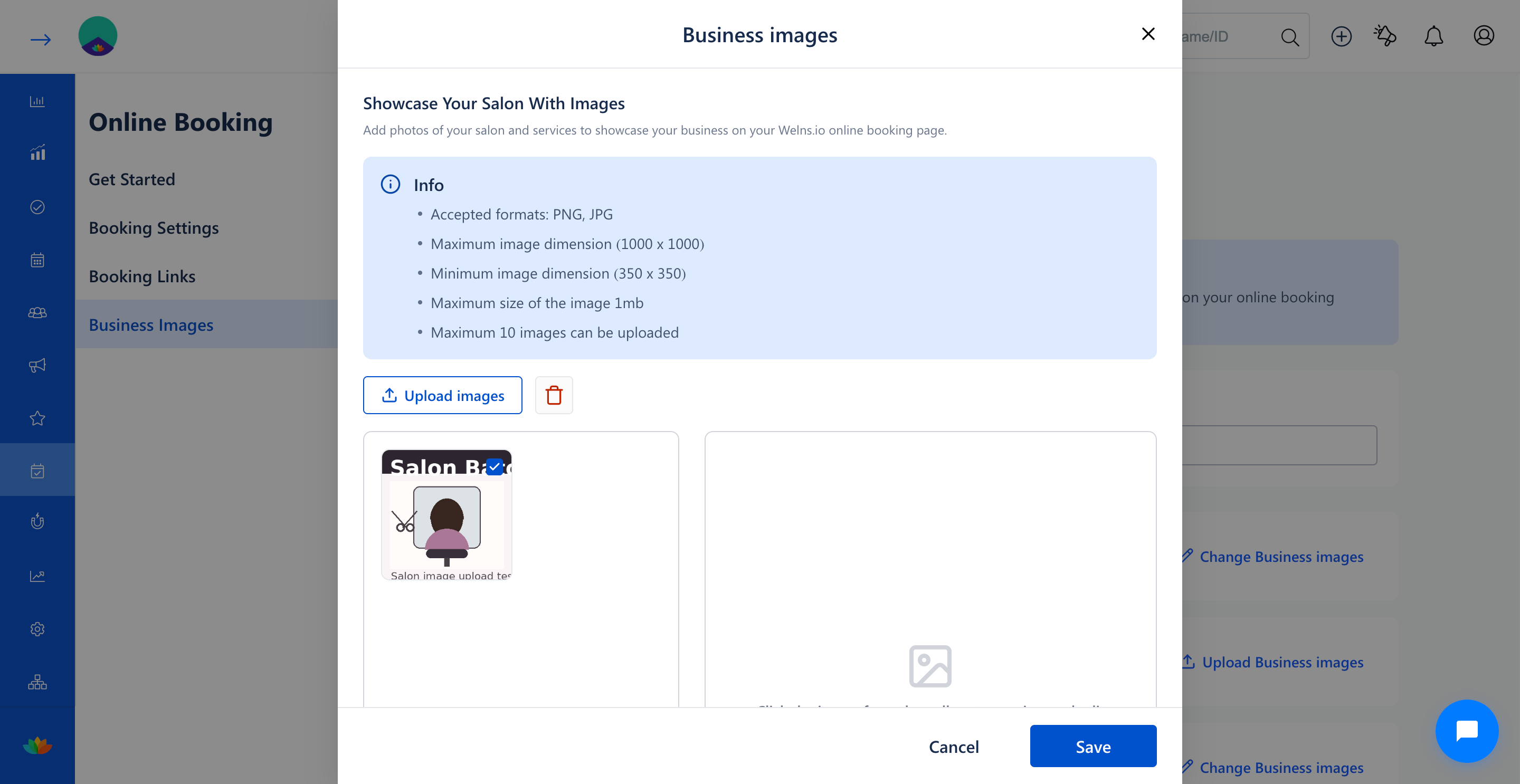
6. Verify that the Delete icon (trash can icon) in the top action bar turns active in red.
7. Click on the Delete icon to remove the selected photo from the gallery.
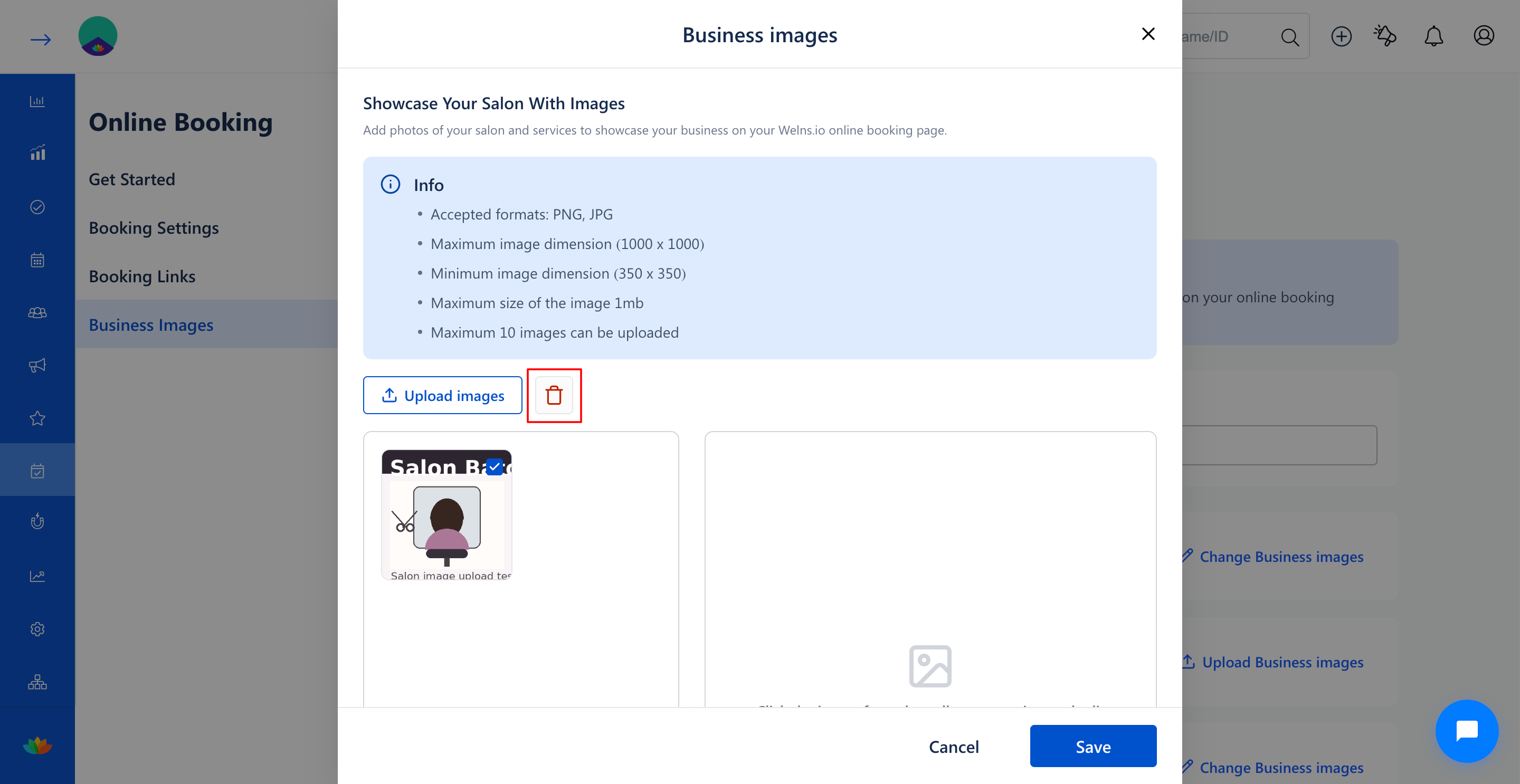
8. Click on the Save button at the bottom of the popup window to confirm and apply the deletion.
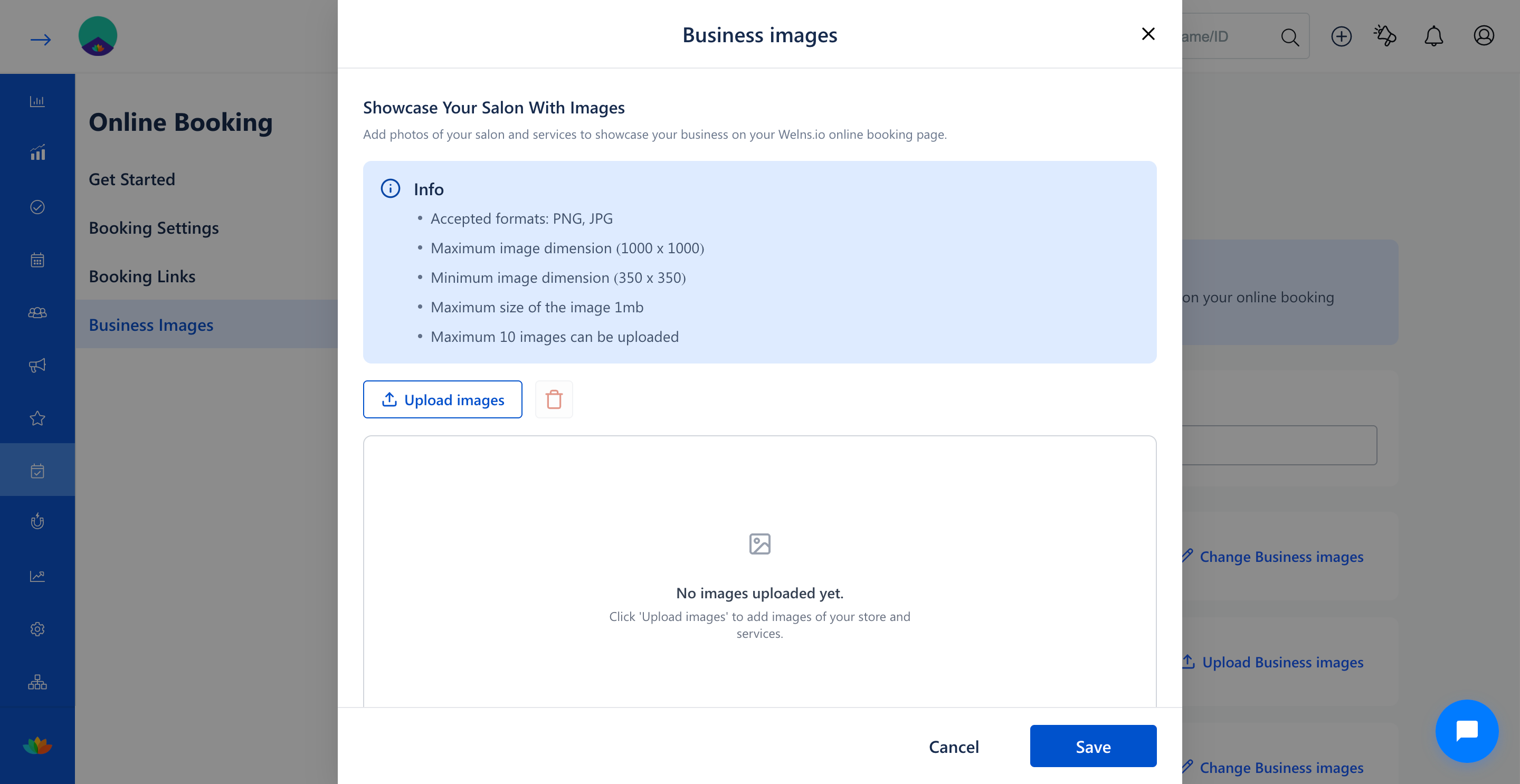
9. If all photos for a branch are removed, the branch card on the Business Images page will display the Upload Business images button.
Note
Deleting business images removes them permanently from the online booking webpage. If an image is deleted accidentally, re-upload the original image file using the Upload images button before clicking Save.
Use Cases
1. Salons removing photos of replaced furniture, outdated styling stations, or discontinued service areas.
2. Spas deleting low-resolution or poor quality pictures to make room for professional photo uploads.
Benefits
1. Keeps the online booking portal clean, professional, and free of outdated visual clutter.
2. Frees up branch image capacity within the 10-image limit for new high-resolution photography.
3. Eliminates customer confusion by ensuring advertised salon visuals accurately match the physical store.
Was this article helpful?
That’s Great!
Thank you for your feedback
Sorry! We couldn't be helpful
Thank you for your feedback
Feedback sent
We appreciate your effort and will try to fix the article