Overview
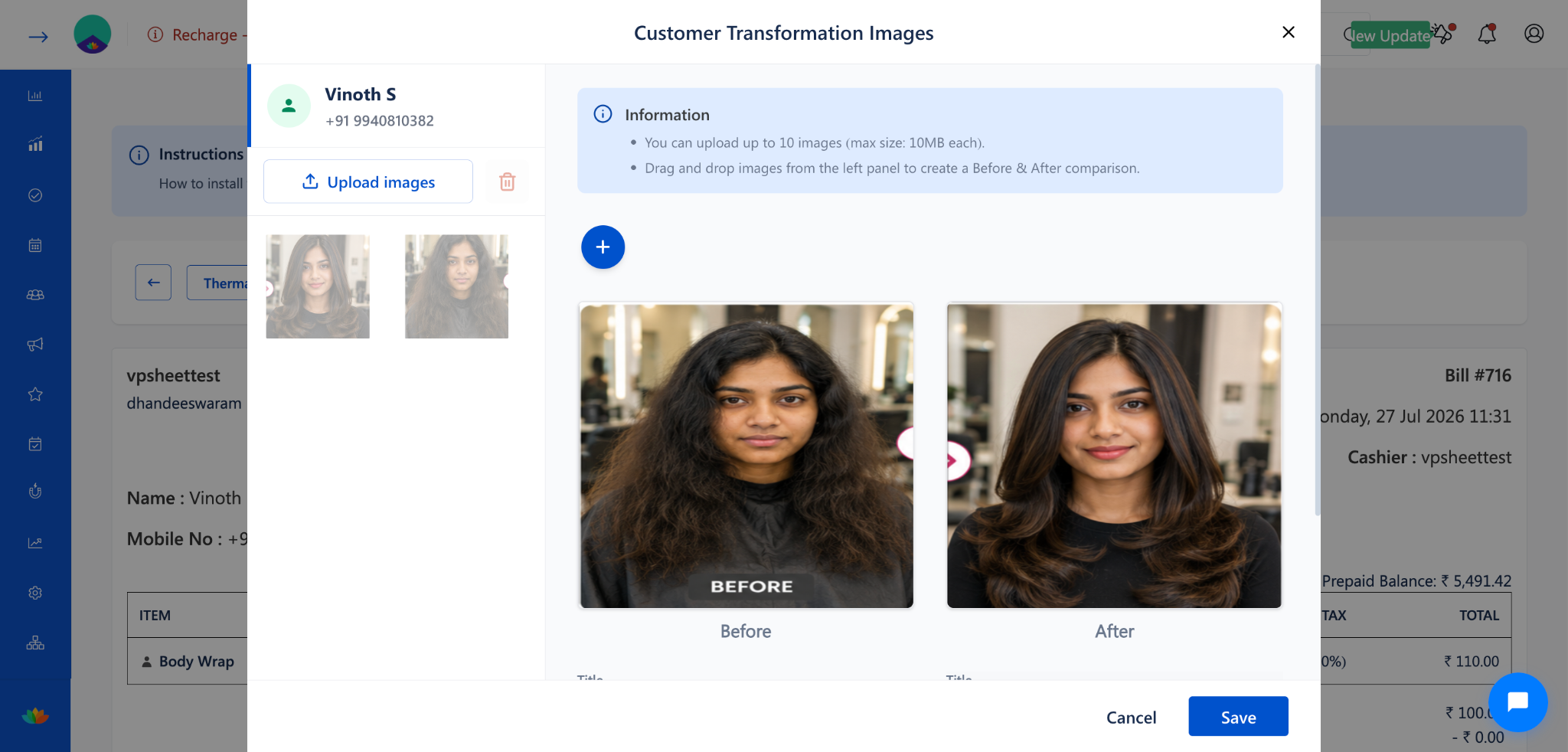
After uploading customer transformation images, you can preview them directly within the Customer Transformation Images dialog.
The preview feature allows you to view the Before & After comparison side by side, zoom into individual images for closer inspection, and navigate through multiple comparison sets.
This is useful for verifying image quality, confirming the correct Before & After pairing, and reviewing customer results before sharing or saving them.
Navigation Path
Appointment Summary → Upload Client Images → Click on Image Thumbnails or Bill Page → Actions --> Customer Transformation Images
Steps to Preview the Added Images
Step 1: Open Customer Transformation Images
From Appointment:
Open the appointment from the calendar or appointment list.
On the Appointment Summary page, click the Upload Client Images tab.
Click on the uploaded image thumbnails to open the Customer Transformation Images dialog.
From Billing:
Open the bill page for the completed appointment.
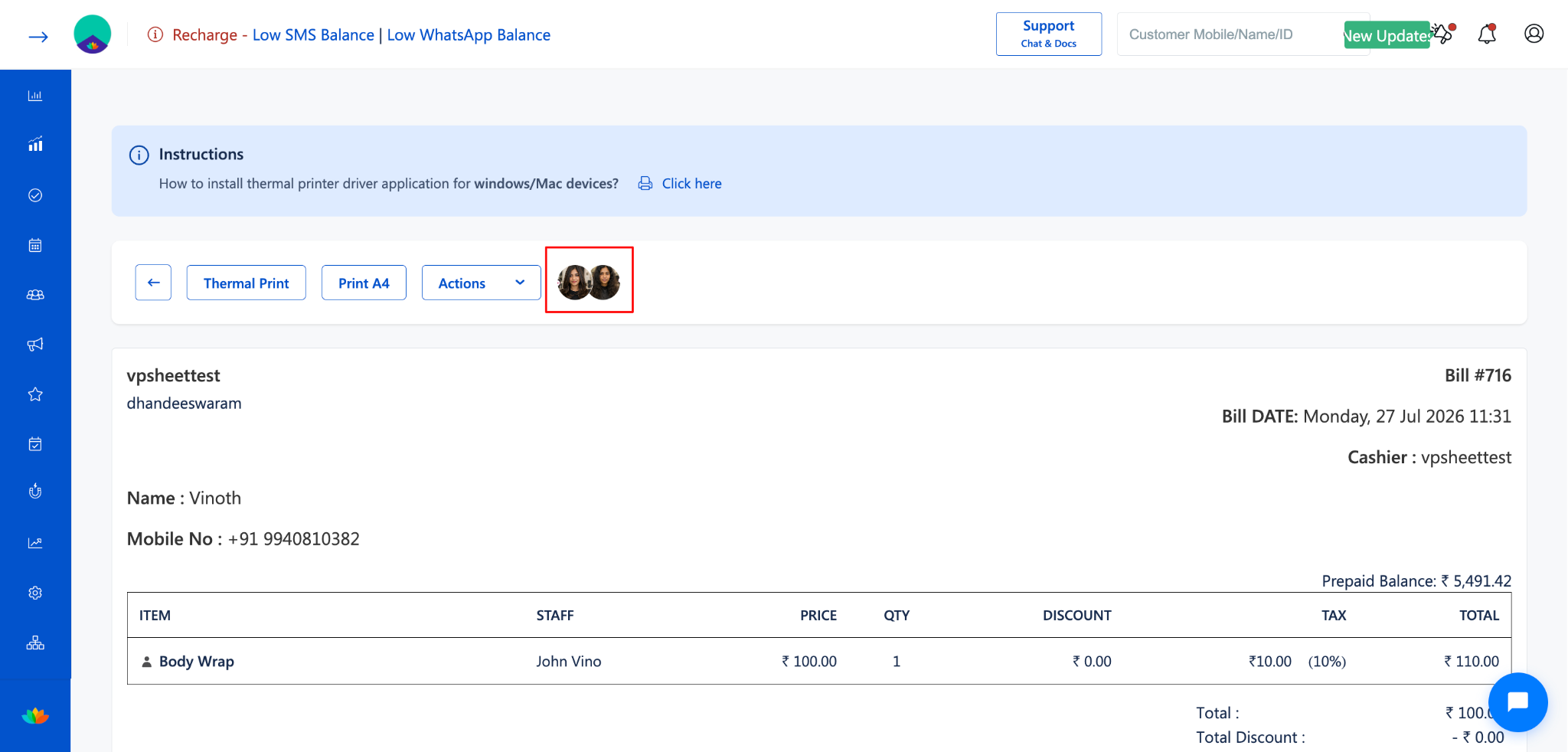
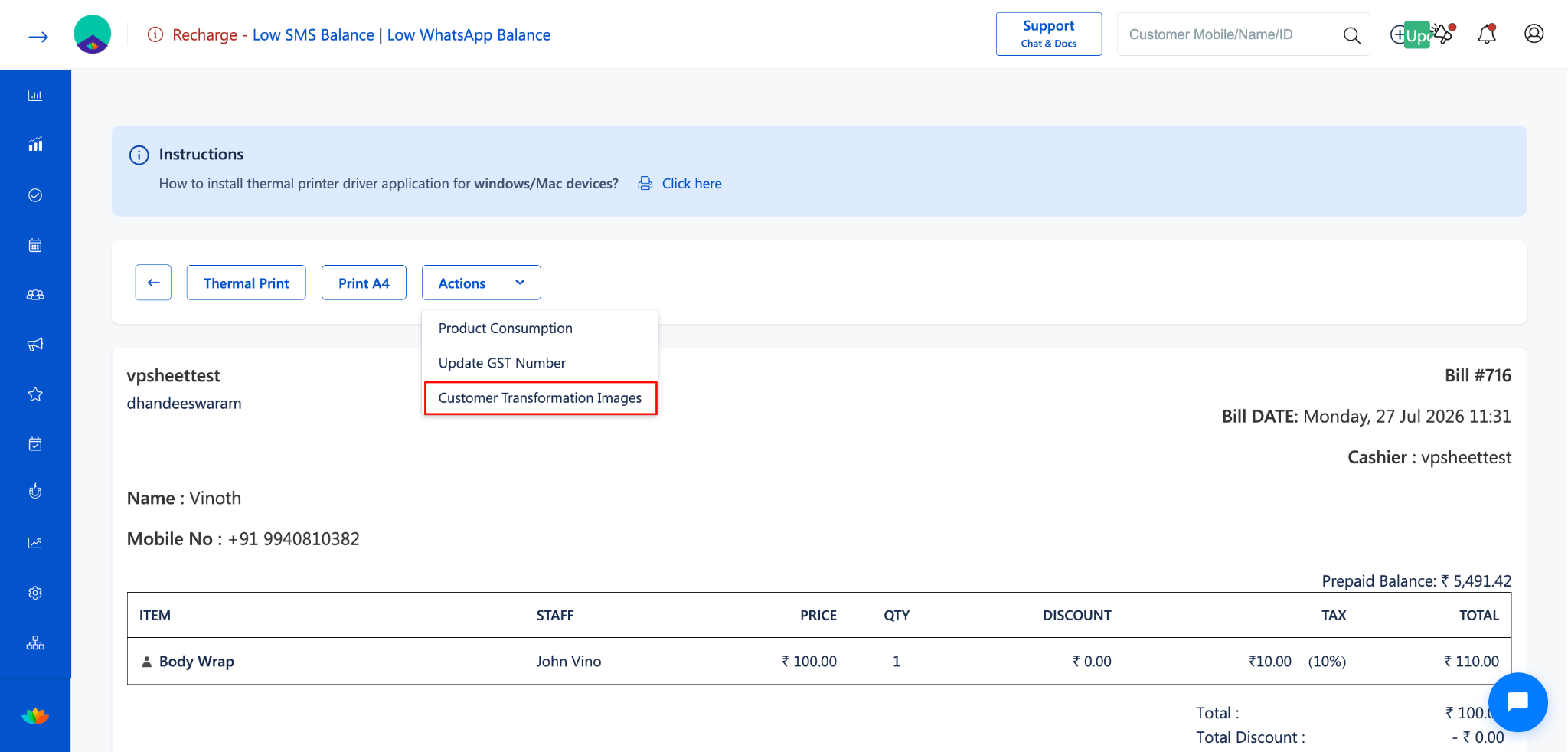
Click the Actions dropdown and select Customer Transformation Images.
Step 2: View the Before & After Comparison
The Customer Transformation Images dialog will display:
Left panel: All uploaded images as thumbnails
Right panel: The Before & After comparison view
The selected comparison set shows the Before image on the left and the After image on the right.
Each image is labeled with Before and After below it.
Step 3: Use the Zoom Feature
Hover over the Before or After image in the comparison view.
A zoom icon (magnifying glass) will appear on the image.
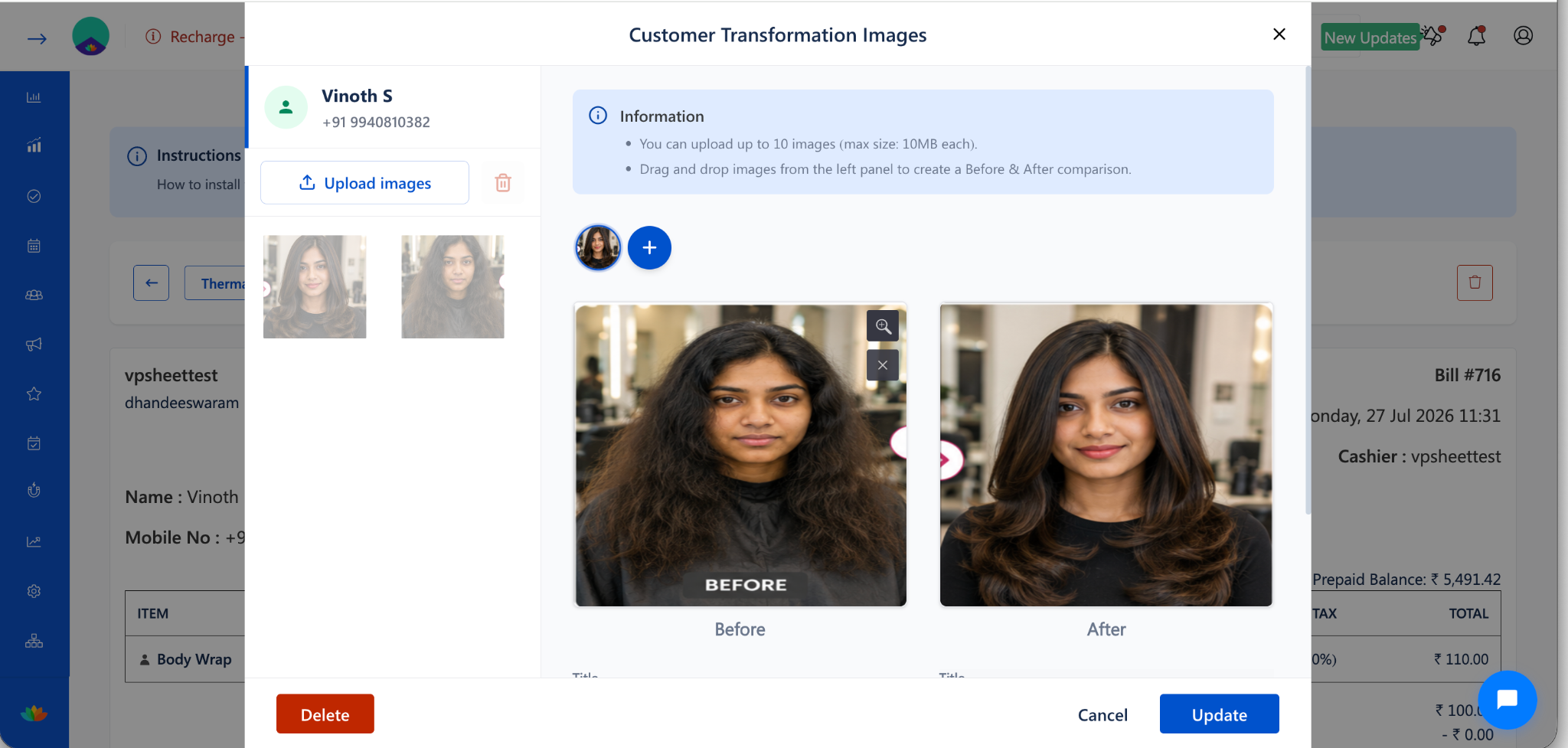
Click the zoom icon to view the image in a larger, full-size preview.
An X (close) icon will also appear to remove the image from the slot if needed.
Step 4: Navigate Between Comparison Sets
If multiple Before & After comparison sets have been created, use the circular image thumbnails at the top of the right panel to switch between sets.
Click on a thumbnail to view that specific comparison set.
Use Cases
Verify the quality and clarity of uploaded images before saving them to the customer's record.
Confirm that the correct images are placed in the Before and After slots.
Review transformation results with the customer during a follow-up consultation.
Inspect image details using the zoom feature for close-up review.
Benefits
Provides a clear side-by-side comparison for quick visual assessment.
Zoom functionality allows detailed inspection without downloading images.
Supports multiple comparison sets for comprehensive documentation.
Helps maintain quality standards for the business gallery.
Was this article helpful?
That’s Great!
Thank you for your feedback
Sorry! We couldn't be helpful
Thank you for your feedback
Feedback sent
We appreciate your effort and will try to fix the article