How to Update a Gift Voucher
Overview
After creating a gift voucher, you may need to modify its details such as the name, pricing, validity, tax settings, branch assignment, or notification templates.
Updating a gift voucher ensures that the latest business requirements and promotional strategies are reflected without needing to create a new voucher from scratch.
All changes take effect immediately after saving, keeping your voucher offerings current and accurate across all applicable branches.
Navigation Path
Settings → Gift Voucher → Gift Voucher List → Select Gift Voucher
Steps to Update a Gift Voucher
Step 1: Navigate to the Gift Voucher List
From the left sidebar, click on Settings
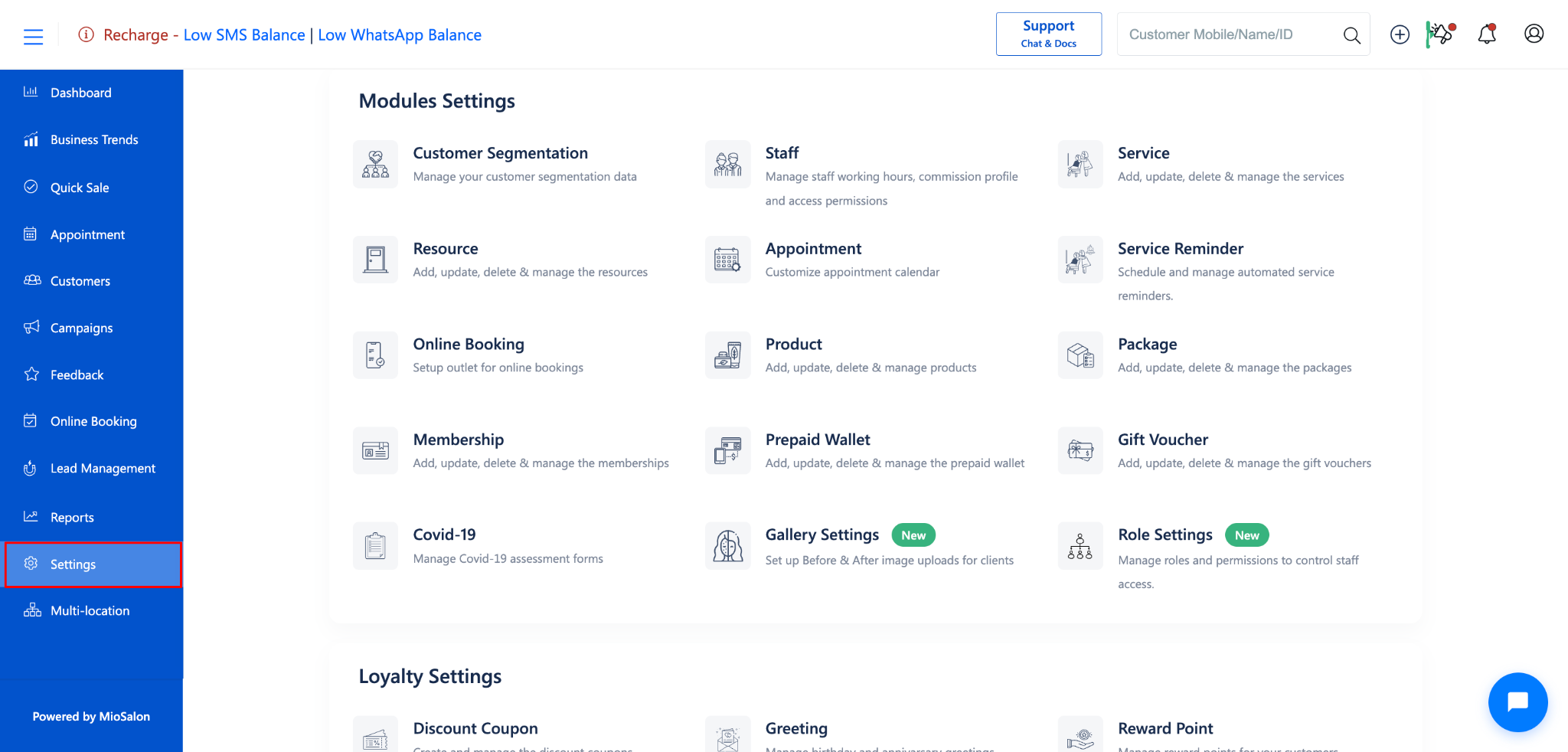
Under Settings, select Gift Voucher.
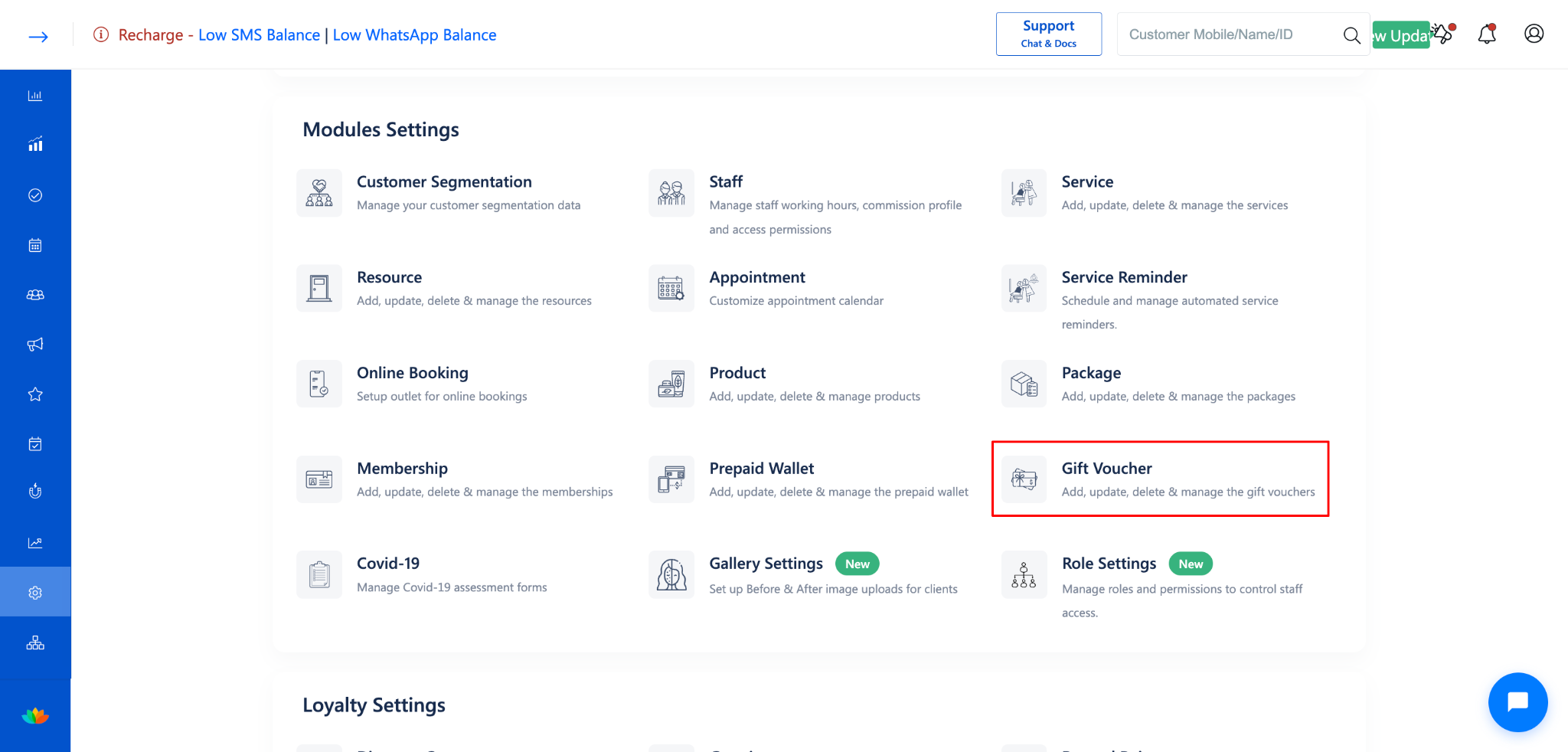
Click on Gift Voucher List from the left-side menu.
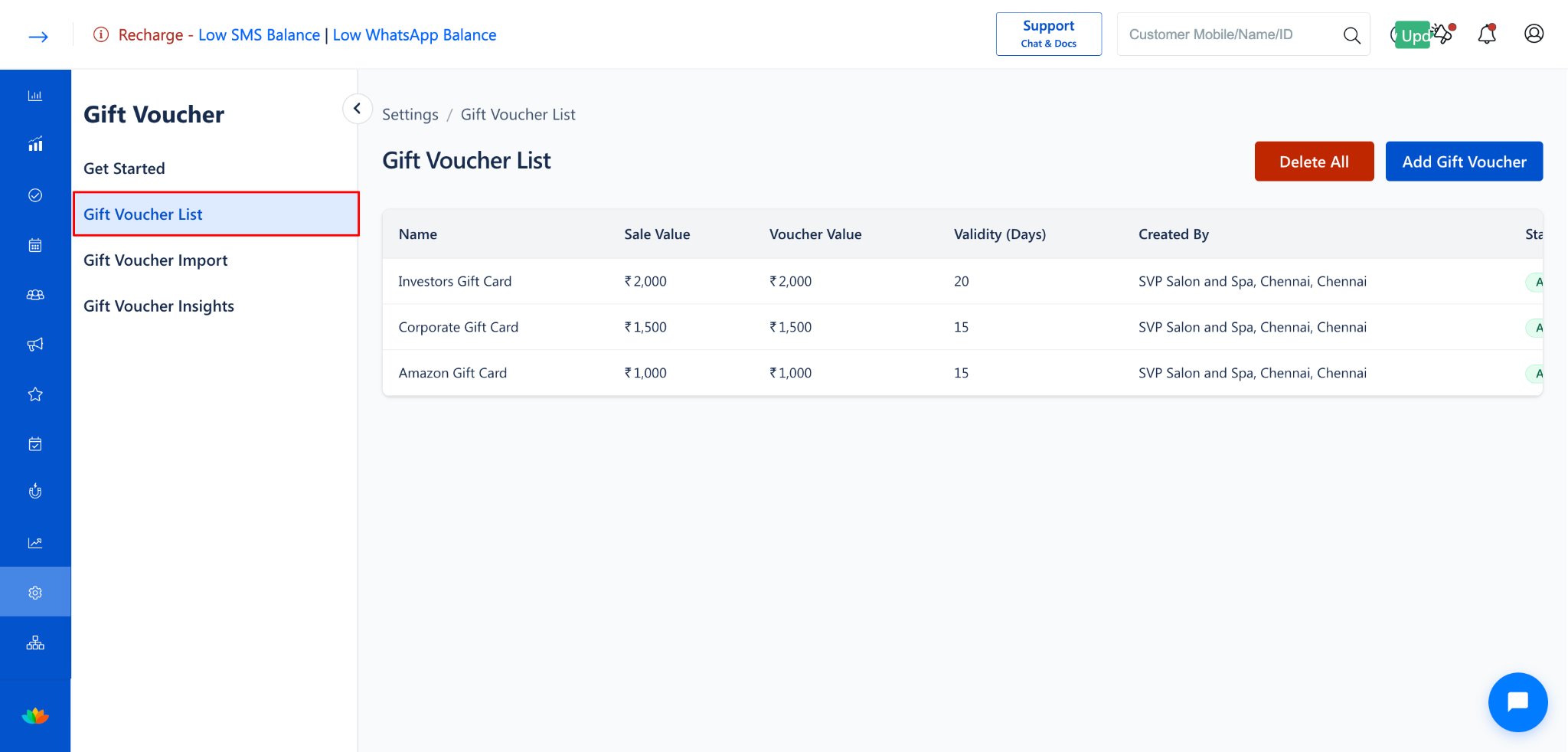
Step 2: Select the Gift Voucher to Update
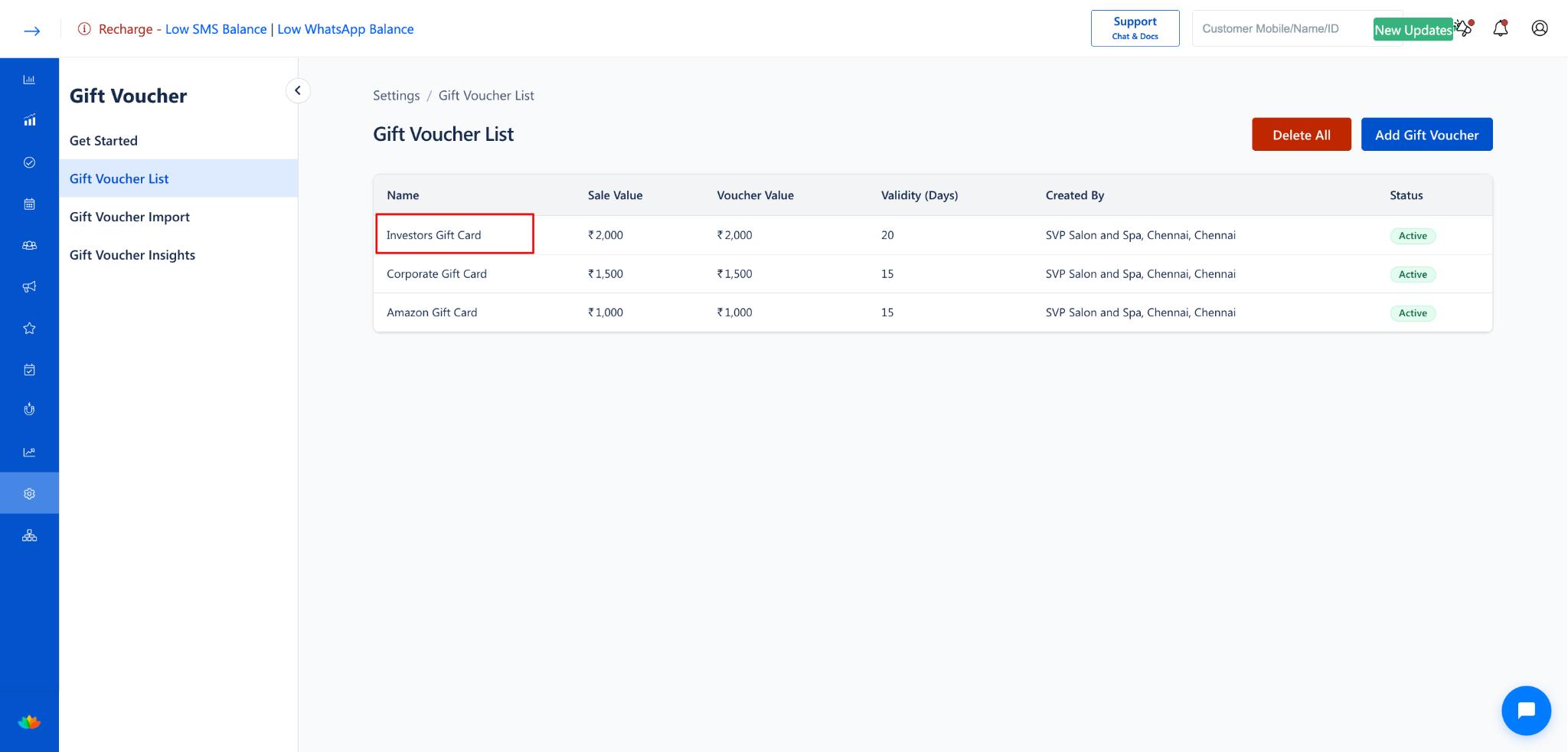
From the Gift Voucher List, click on the gift voucher you want to update (e.g., Investors Gift Card).
The Update Gift Voucher form will open.
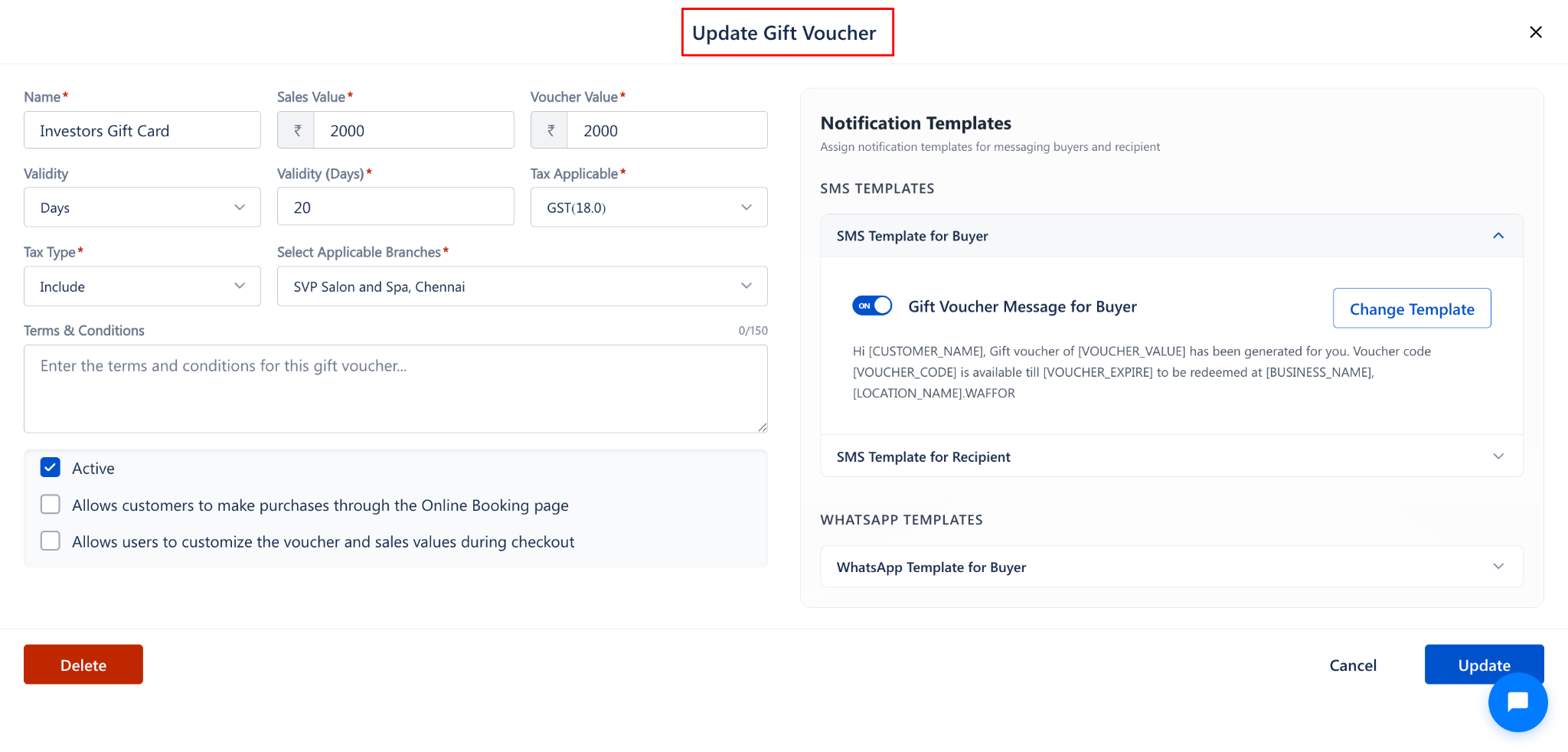
Step 3: Modify the Gift Voucher Details
Update any of the following fields as needed:
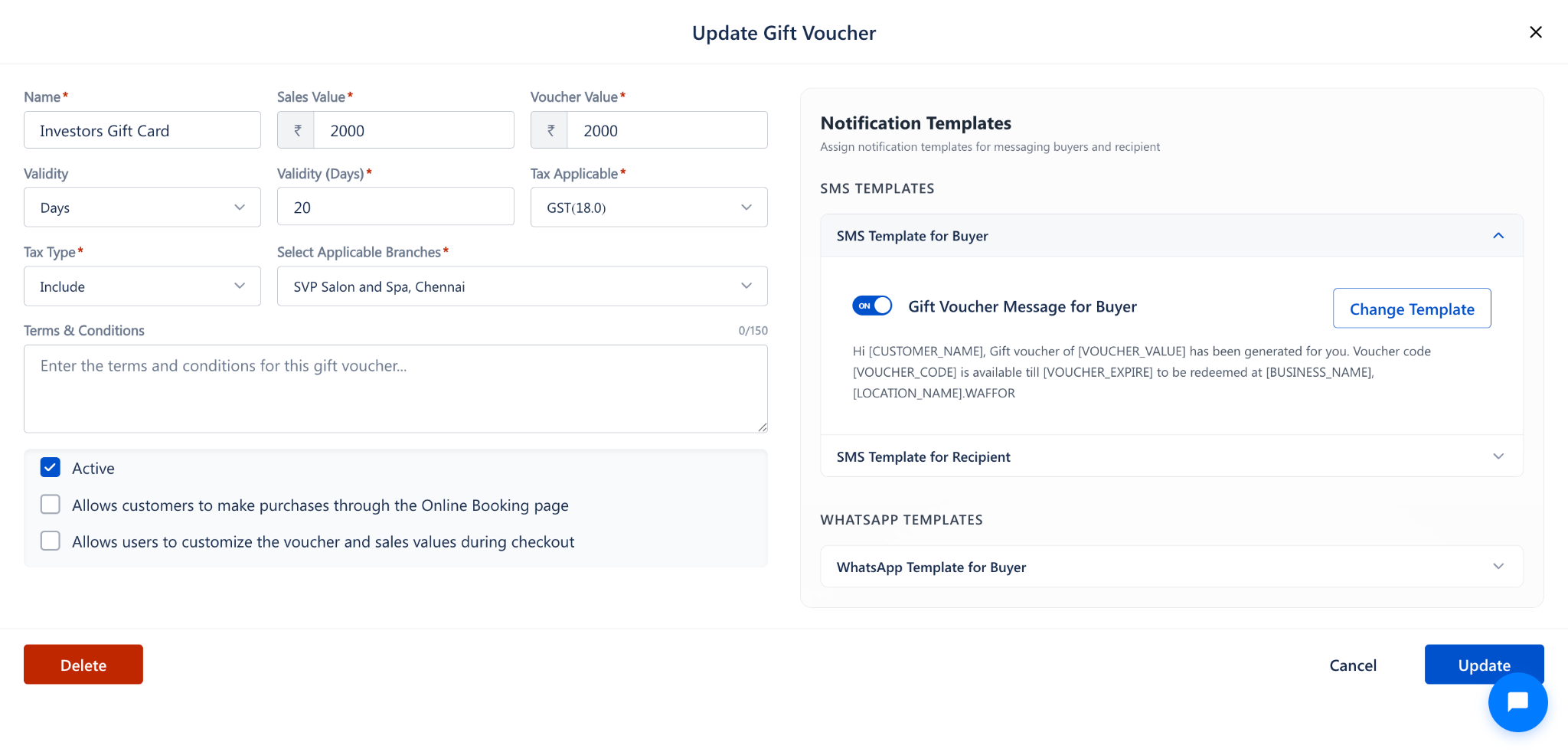
Step 4: Update Additional Options
Review and update the following options:
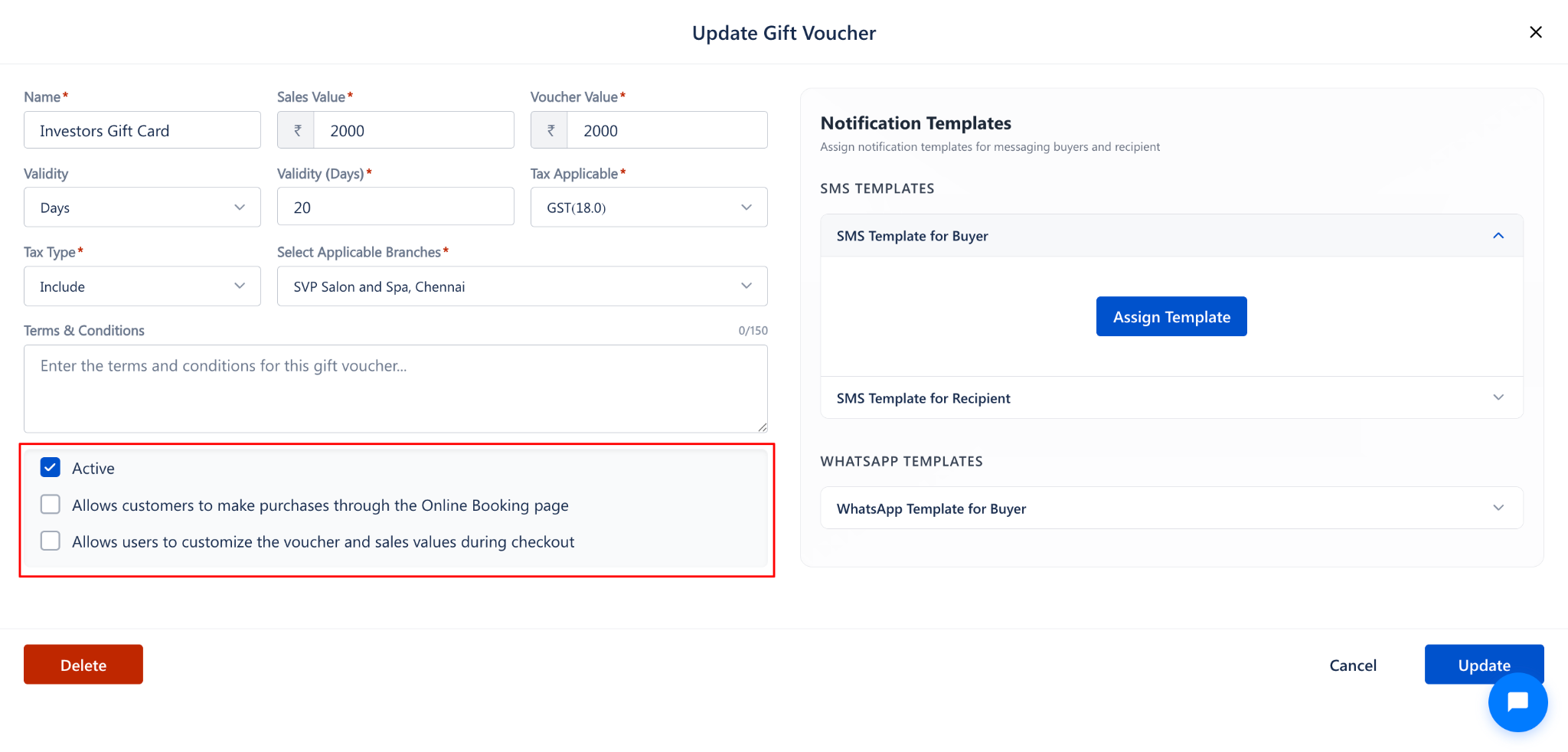
Step 5: Update Notification Templates (Optional)
On the right side of the form, review the Notification Templates panel.
Update the assigned SMS Templates and WhatsApp Templates as needed.
Step 6: Save the Changes
Click the Update button at the bottom-right corner to save your changes.
To discard the changes, click Cancel to close the form without saving.
Use Cases
Update the sales value or voucher value when running new promotions or seasonal discounts.
Change the validity period to extend or shorten voucher availability.
Add or remove branches when expanding or restructuring your business locations.
Modify the voucher name to reflect updated branding or campaign themes.
Benefits
Keeps voucher offerings aligned with current business strategies without creating duplicates.
Provides flexibility to adjust pricing, validity, and availability in real time.
Ensures tax compliance by allowing quick updates to tax configurations.
Reduces administrative effort by centralizing all voucher modifications in one form.
Was this article helpful?
That’s Great!
Thank you for your feedback
Sorry! We couldn't be helpful
Thank you for your feedback
Feedback sent
We appreciate your effort and will try to fix the article