How to Check the Gift Voucher Report
Overview
The Gift Voucher Insights page provides a centralized view of all issued gift vouchers, including their purchase details, expiry dates, total and available values, and redemption status.
This report helps you monitor voucher usage, track outstanding balances, and identify vouchers that are approaching expiry or have been fully redeemed.
You can filter the report by status, date range, or voucher code to quickly find specific records.
Navigation Path
Settings → Gift Voucher → Gift Voucher Insights
Steps to Check the Gift Voucher Report
Step 1: Navigate to Gift Voucher Insights
From the left sidebar, click on Settings.
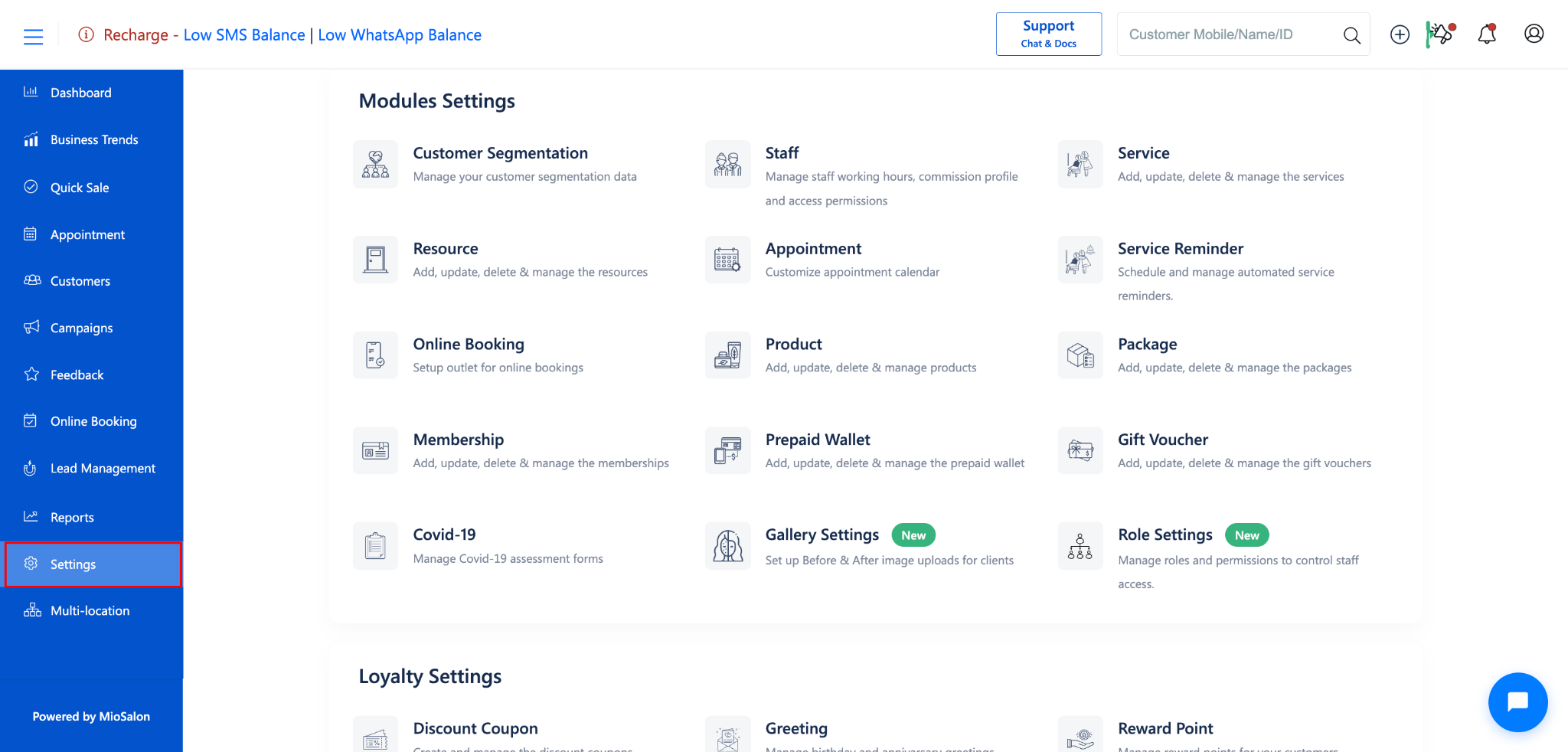
Under Settings, select Gift Voucher.
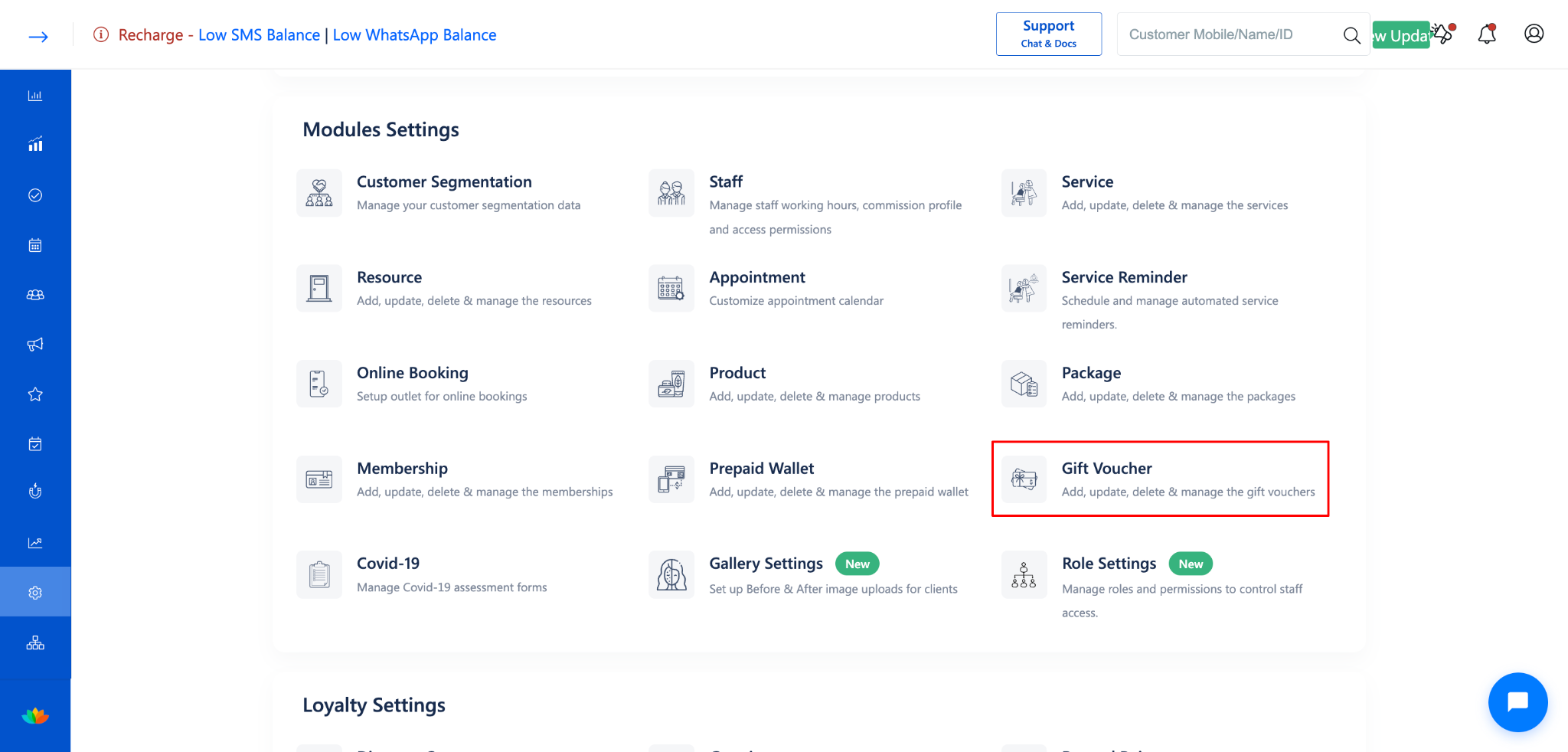
Click on Gift Voucher Insights from the left-side menu.
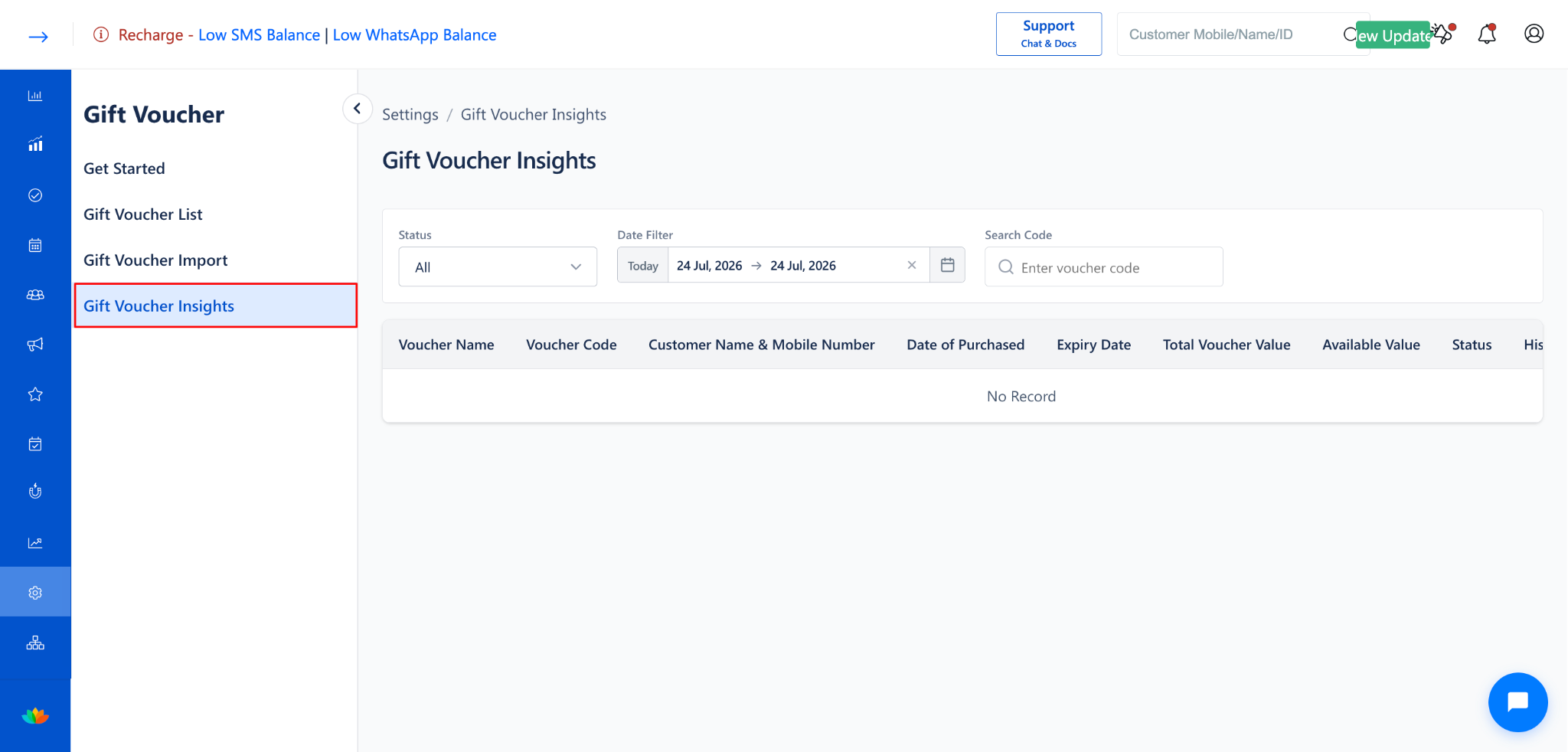
The Gift Voucher Insights page will open.
Step 2: Review the Report Columns
The Gift Voucher Insights report displays the following information for each voucher:
Step 3: Filter the Report
You can filter the report using the following options:
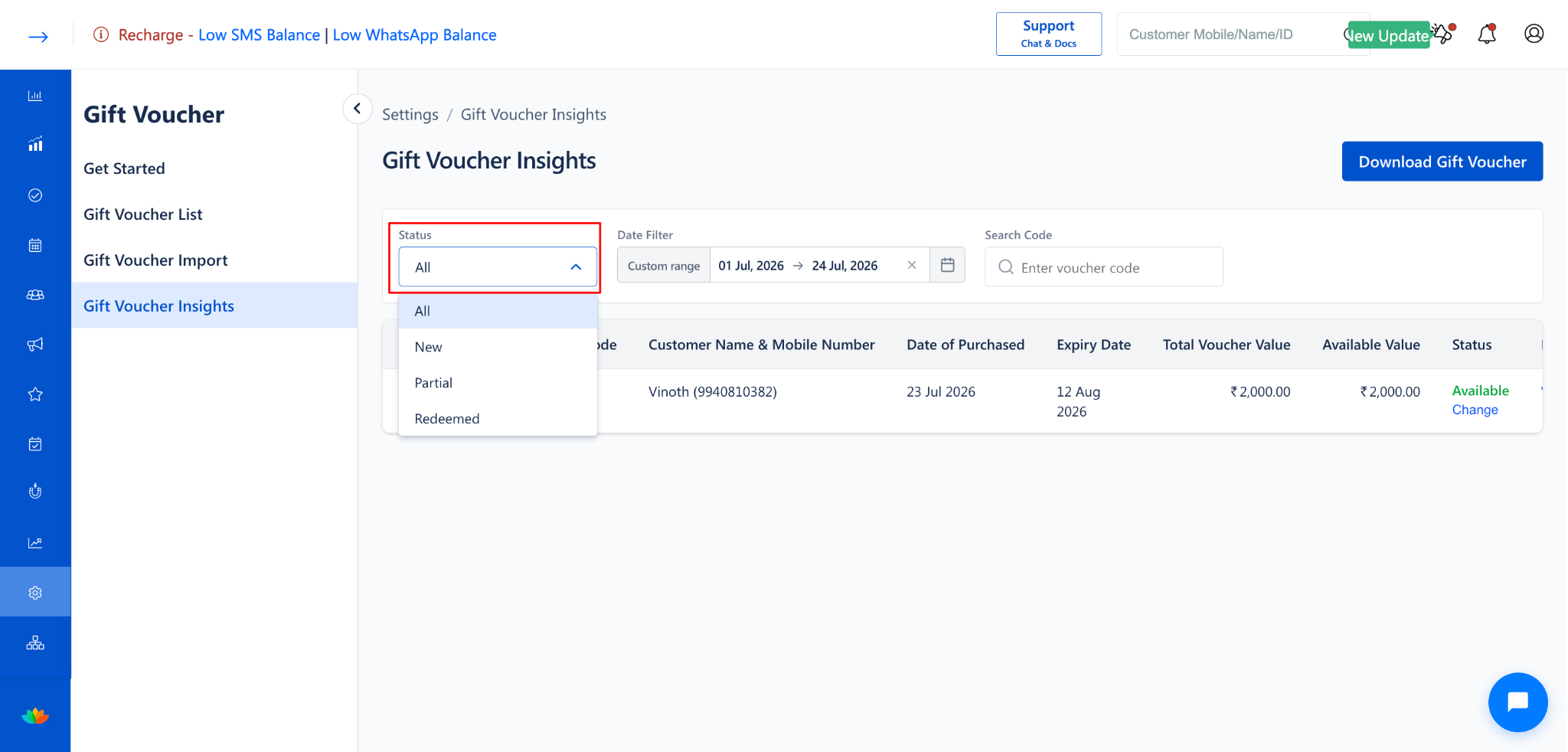
Status Filter:
Click the Status dropdown to filter vouchers by status.
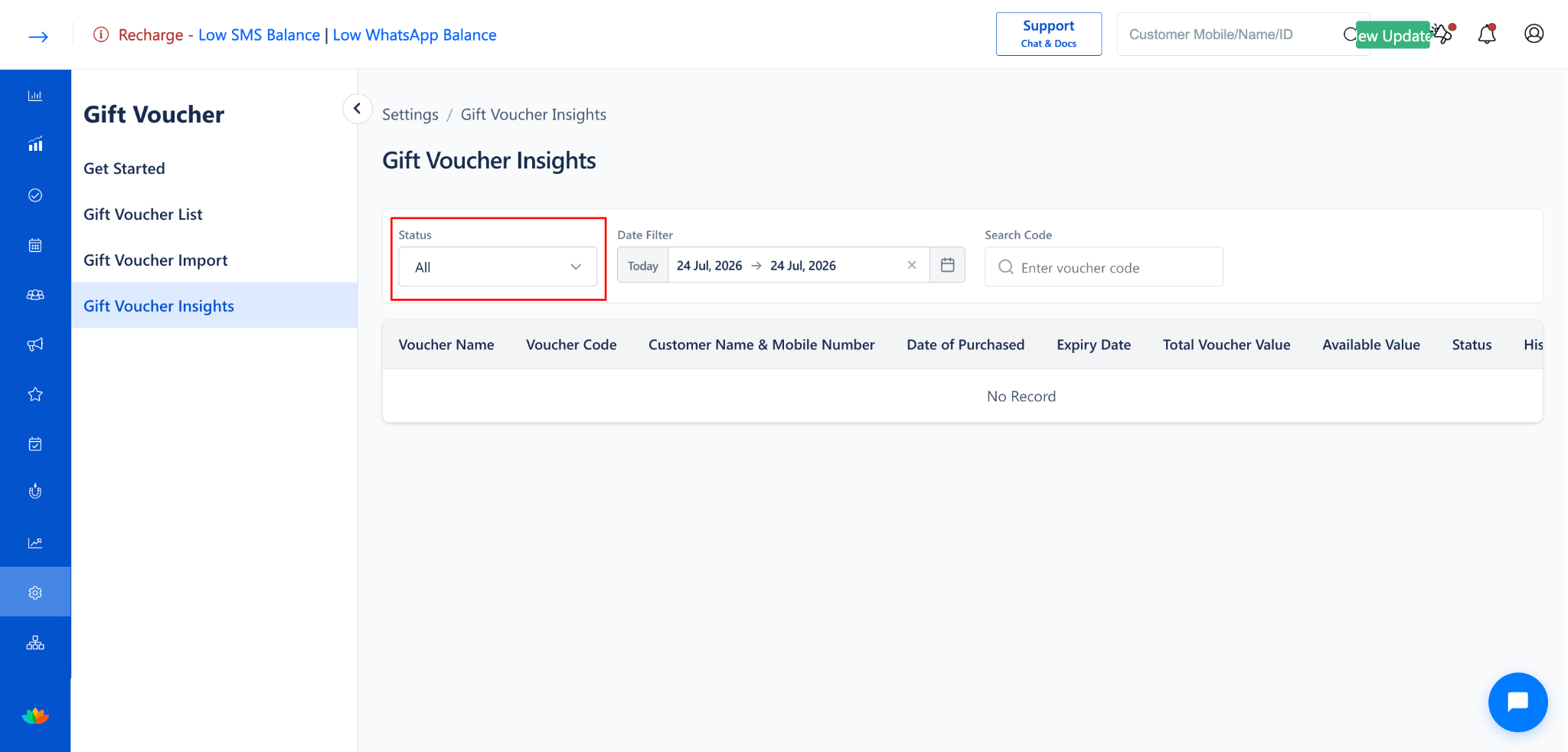
Available status options:
Date Filter:
Click on the Date Filter field to filter vouchers by date range.
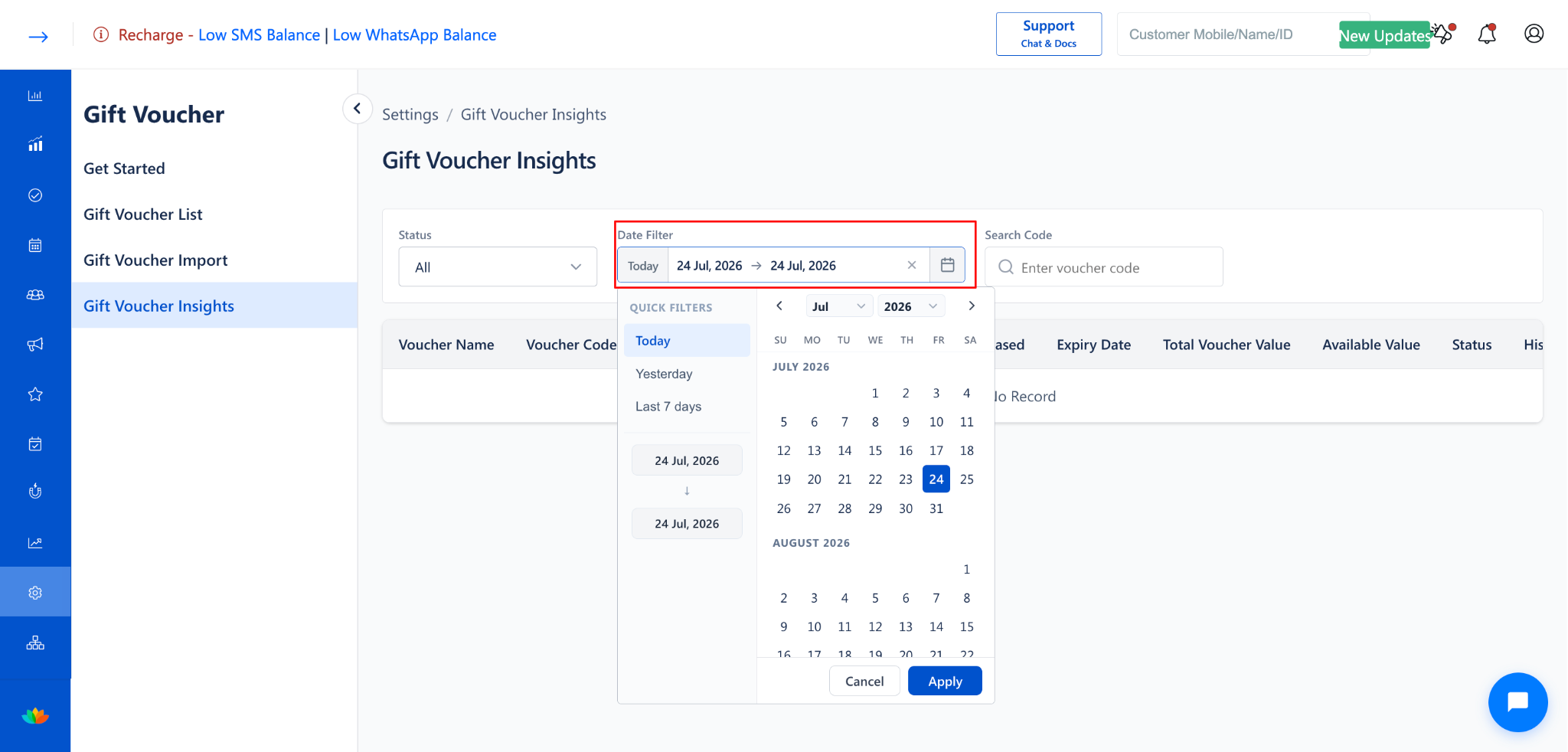
You can use:
Quick Filters: Today, Yesterday, Last 7 days
Custom date range: Select a start date and end date using the calendar
Click Apply to apply the selected date range, or Cancel to discard.
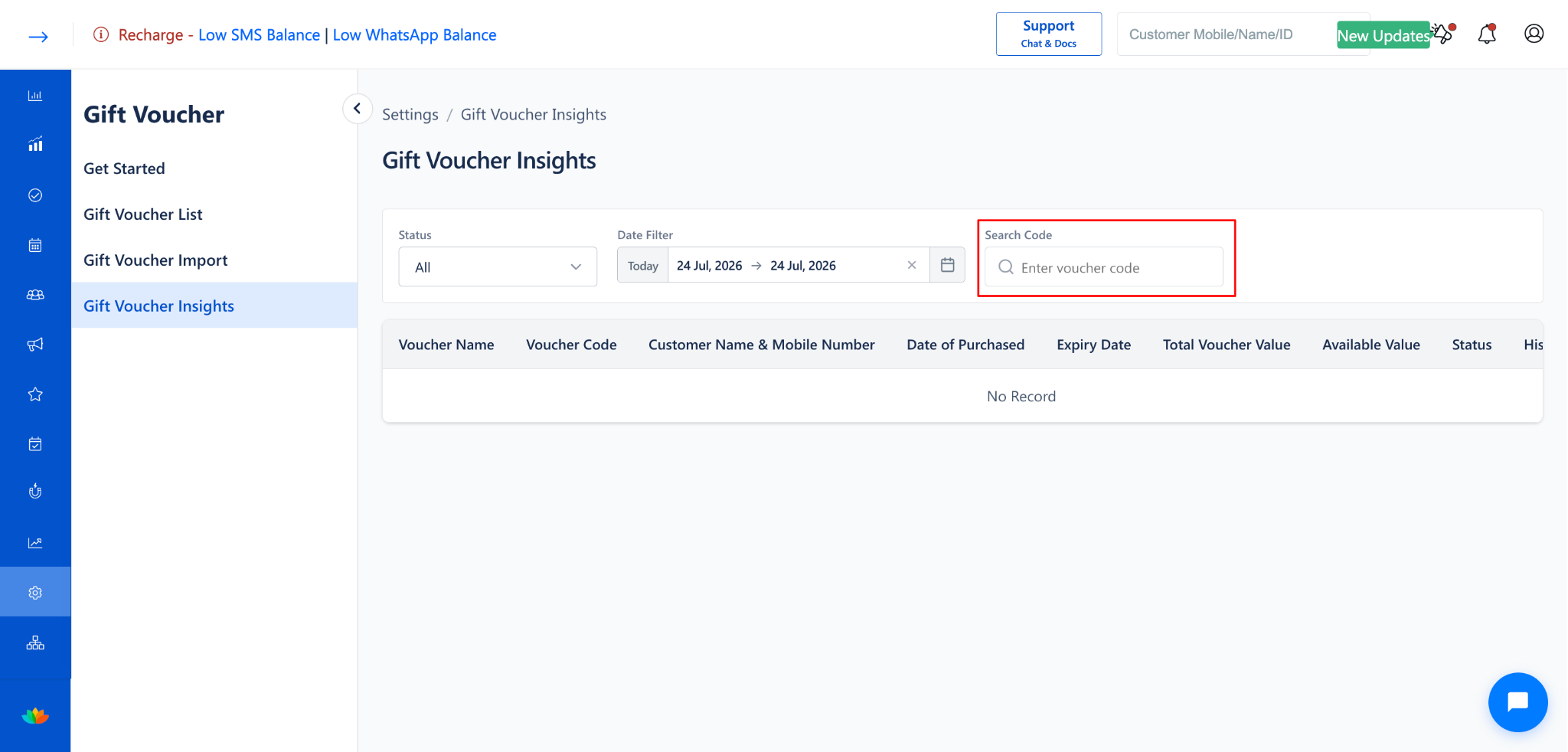
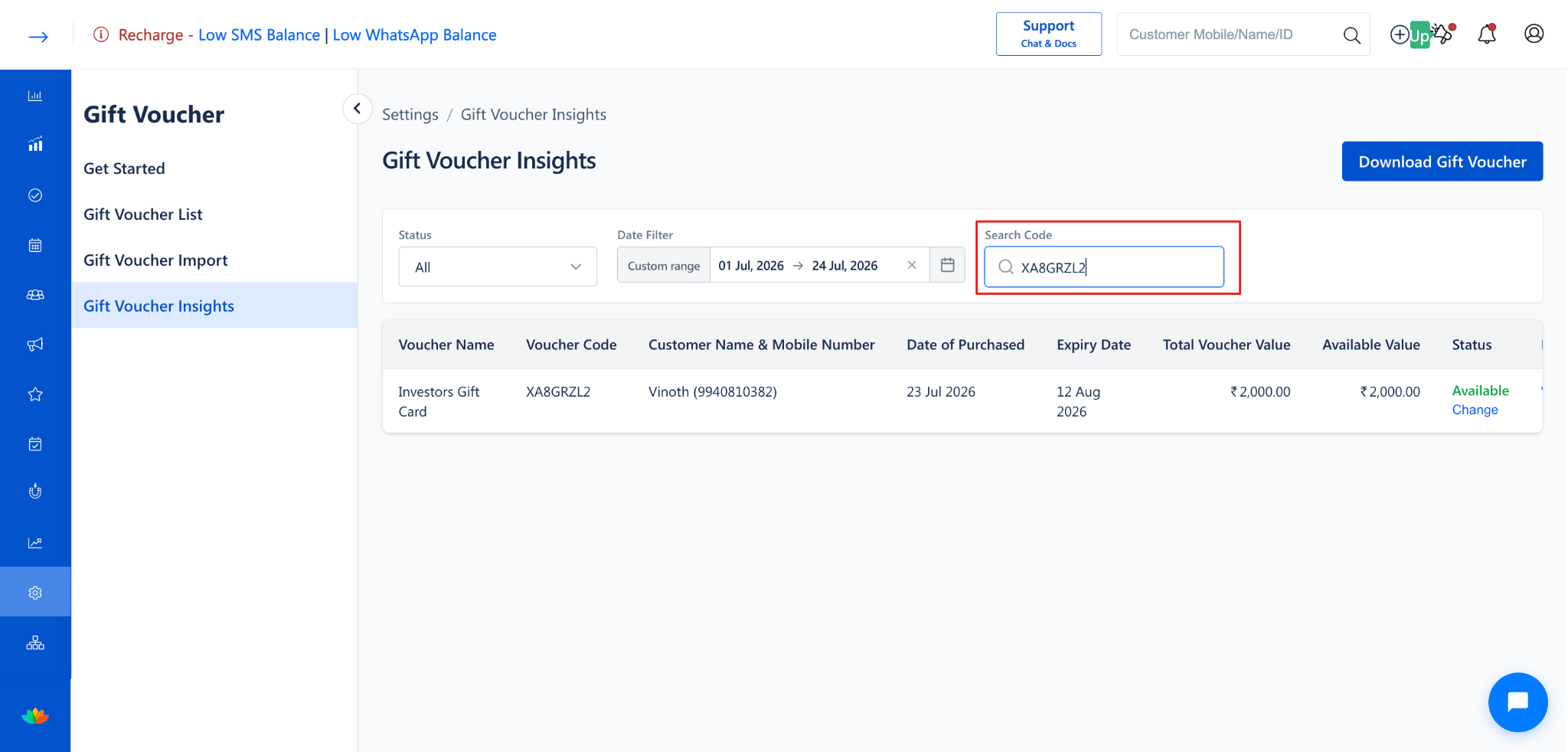
Search Code:
Use the Search Code field to search for a specific voucher by entering the voucher code.
Use Cases
Monitor the redemption status of all issued gift vouchers in real time.
Track outstanding voucher balances to understand pending liabilities.
Identify vouchers nearing their expiry date for proactive customer outreach.
Review the purchase history and usage patterns for specific vouchers.
Benefits
Provides complete visibility into gift voucher performance and usage.
Enables quick identification of partially redeemed or expired vouchers.
Supports data-driven decisions on future gift voucher promotions and pricing.
Reduces manual tracking effort with built-in filters and search capabilities.
Was this article helpful?
That’s Great!
Thank you for your feedback
Sorry! We couldn't be helpful
Thank you for your feedback
Feedback sent
We appreciate your effort and will try to fix the article