Overview
Assigning SMS and WhatsApp templates to a gift voucher ensures that customers automatically receive notifications when a voucher is purchased.
You can assign separate templates for the buyer and the recipient, choosing from a repository of pre-built templates.
This allows your business to deliver a professional, branded communication experience without manual follow-up.
Each template includes dynamic placeholders that auto-fill customer and voucher details at the time of sending.
Navigation Path:
Settings → Gift Voucher → Gift Voucher List → Add/Update Gift Voucher → Notification Templates
Steps to Assign an SMS Template
Step 1: Open the Gift Voucher Form
Navigate to Settings > Gift Voucher > Gift Voucher List.
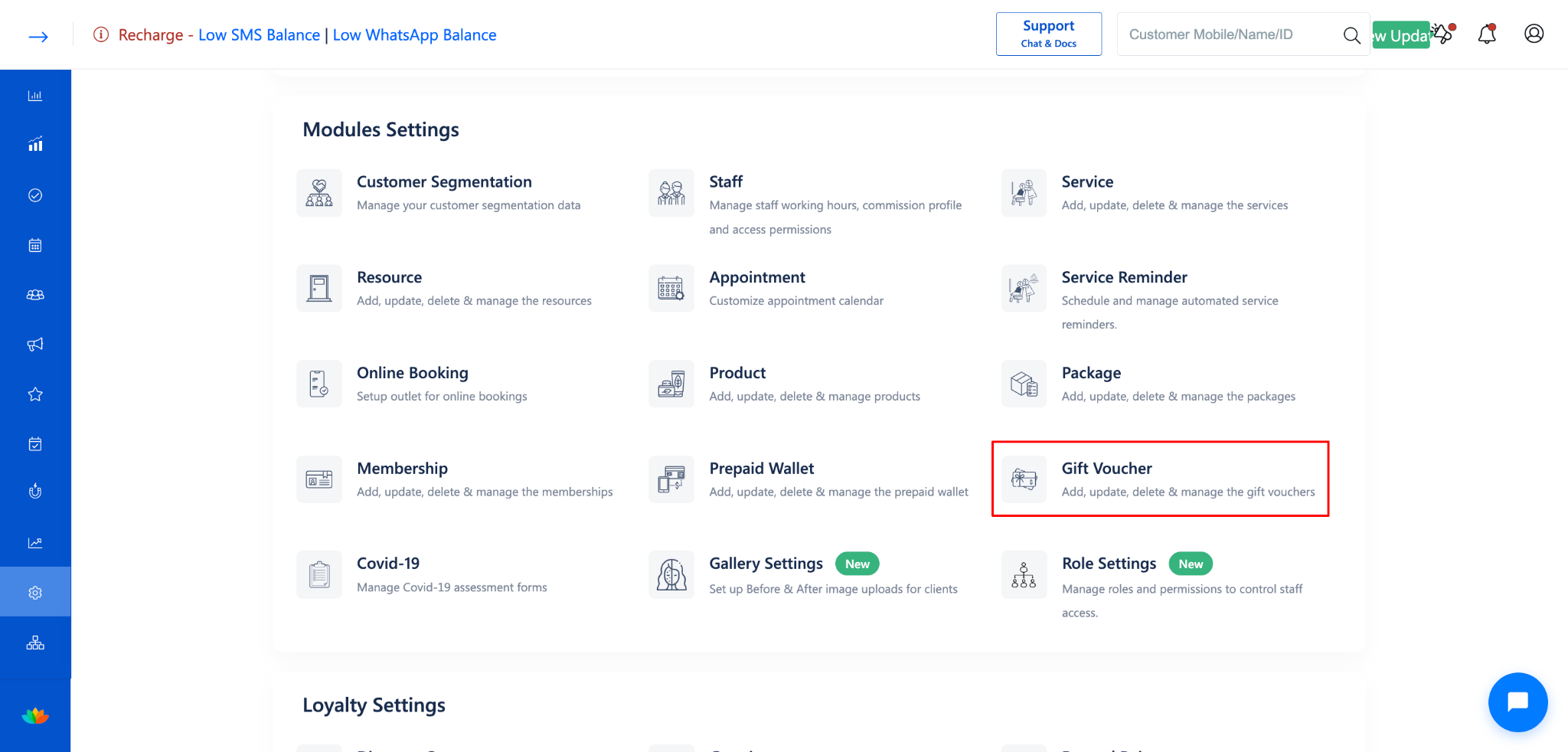
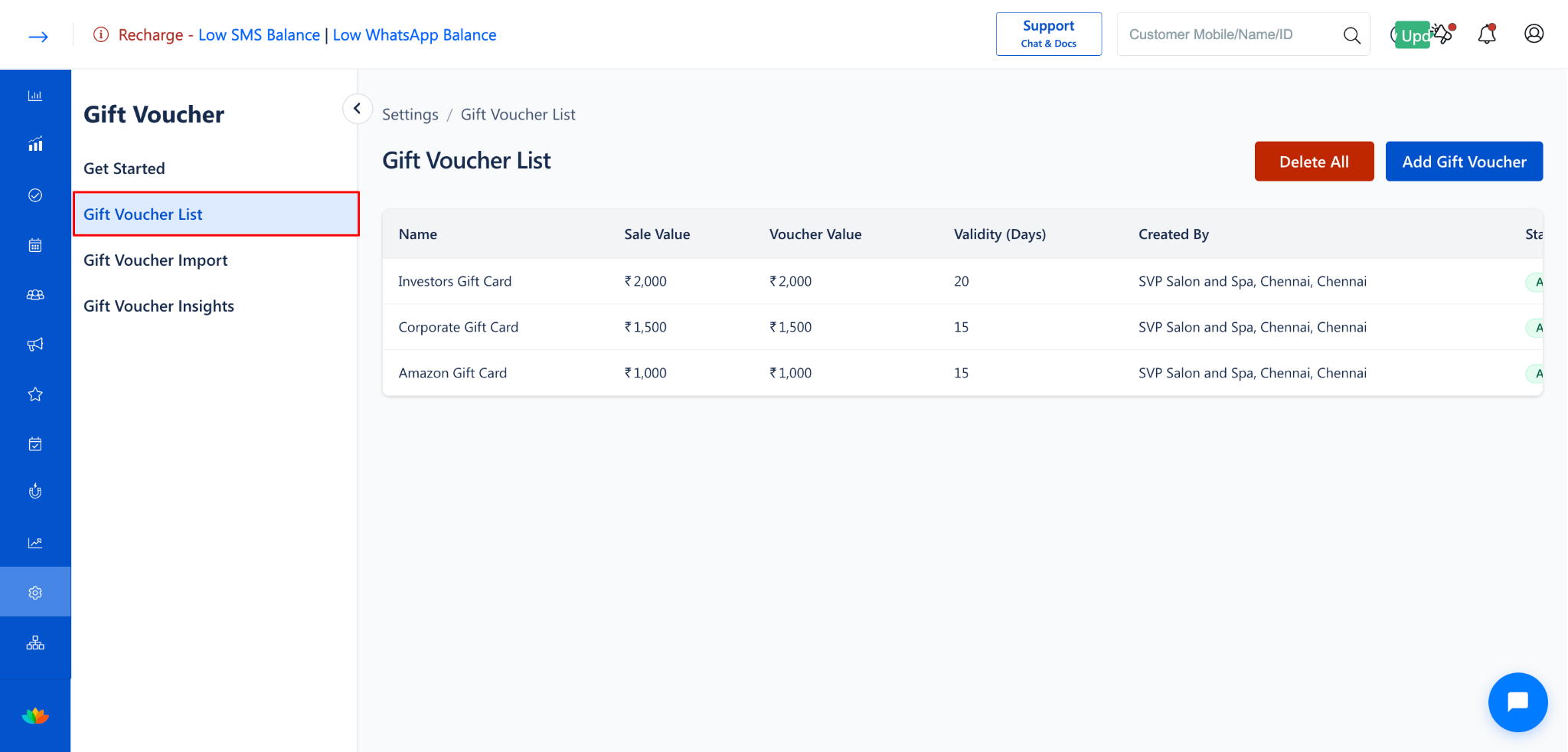
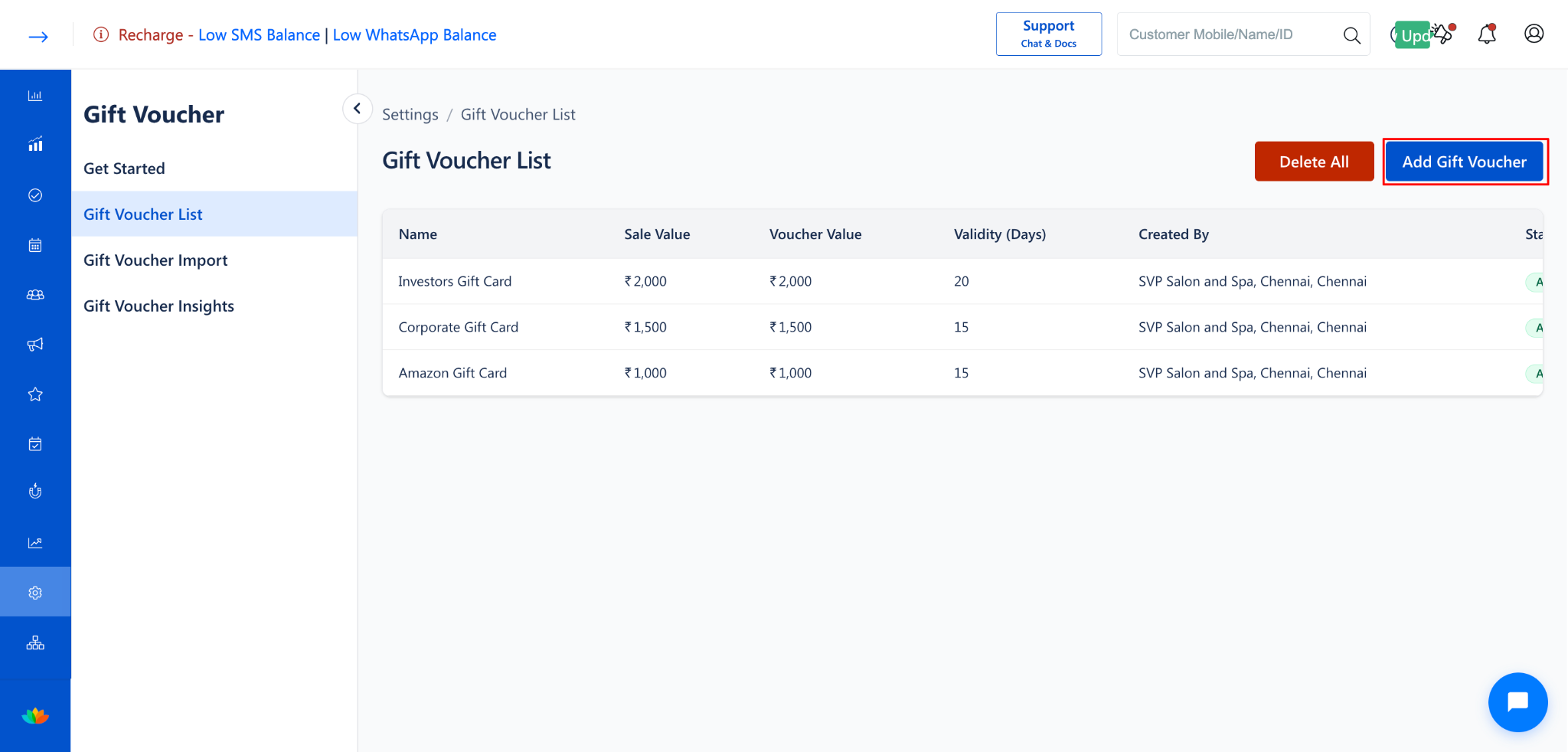
Click Add Gift Voucher to create a new voucher, or click on an existing voucher to open the Update Gift Voucher form.
Step 2: Expand the SMS Template Section
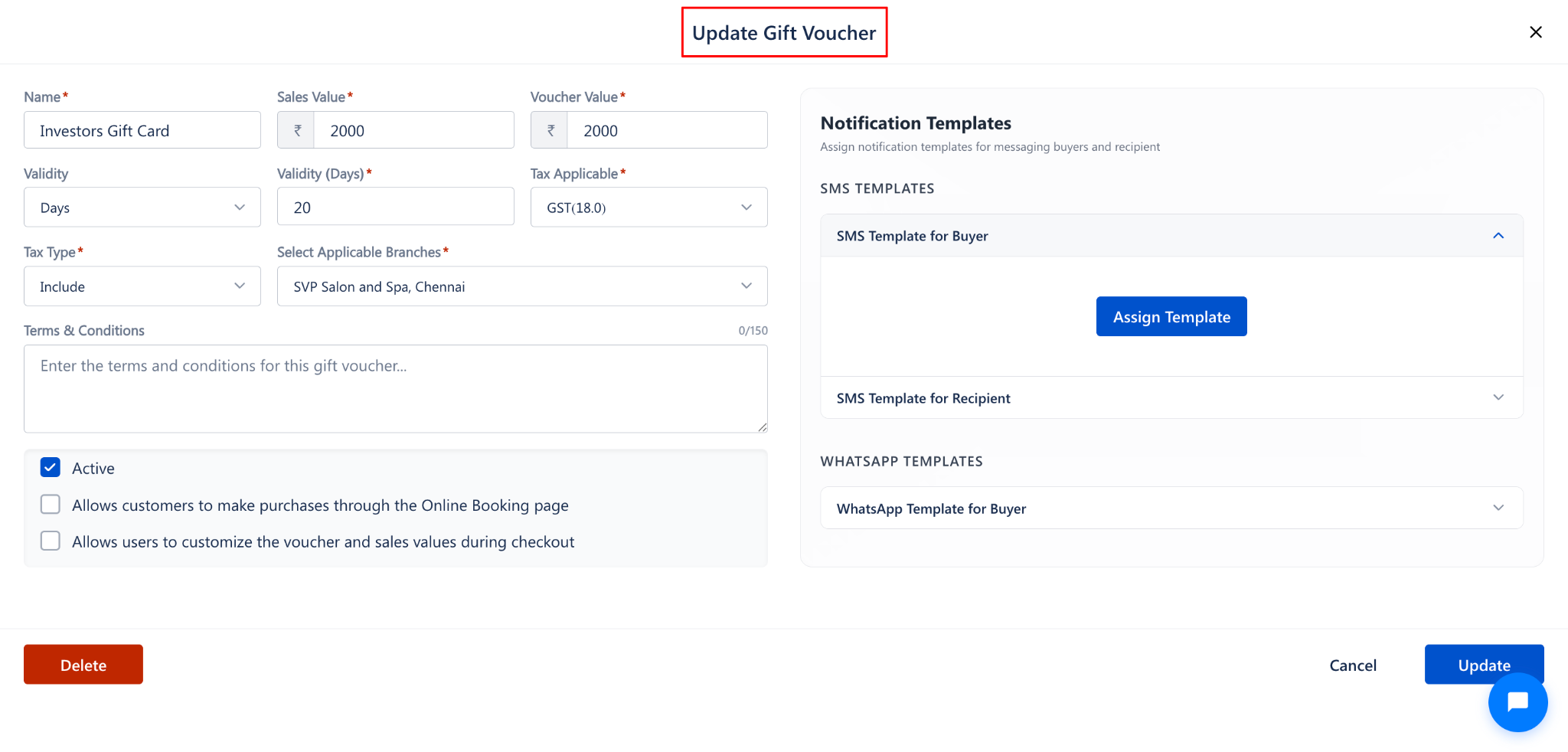
On the right side of the form, locate the Notification Templates panel.
Under SMS TEMPLATES, click on SMS Template for Buyer to expand it.
nStep 3: Click Assign Template
Click the Assign Template button inside the expanded section.
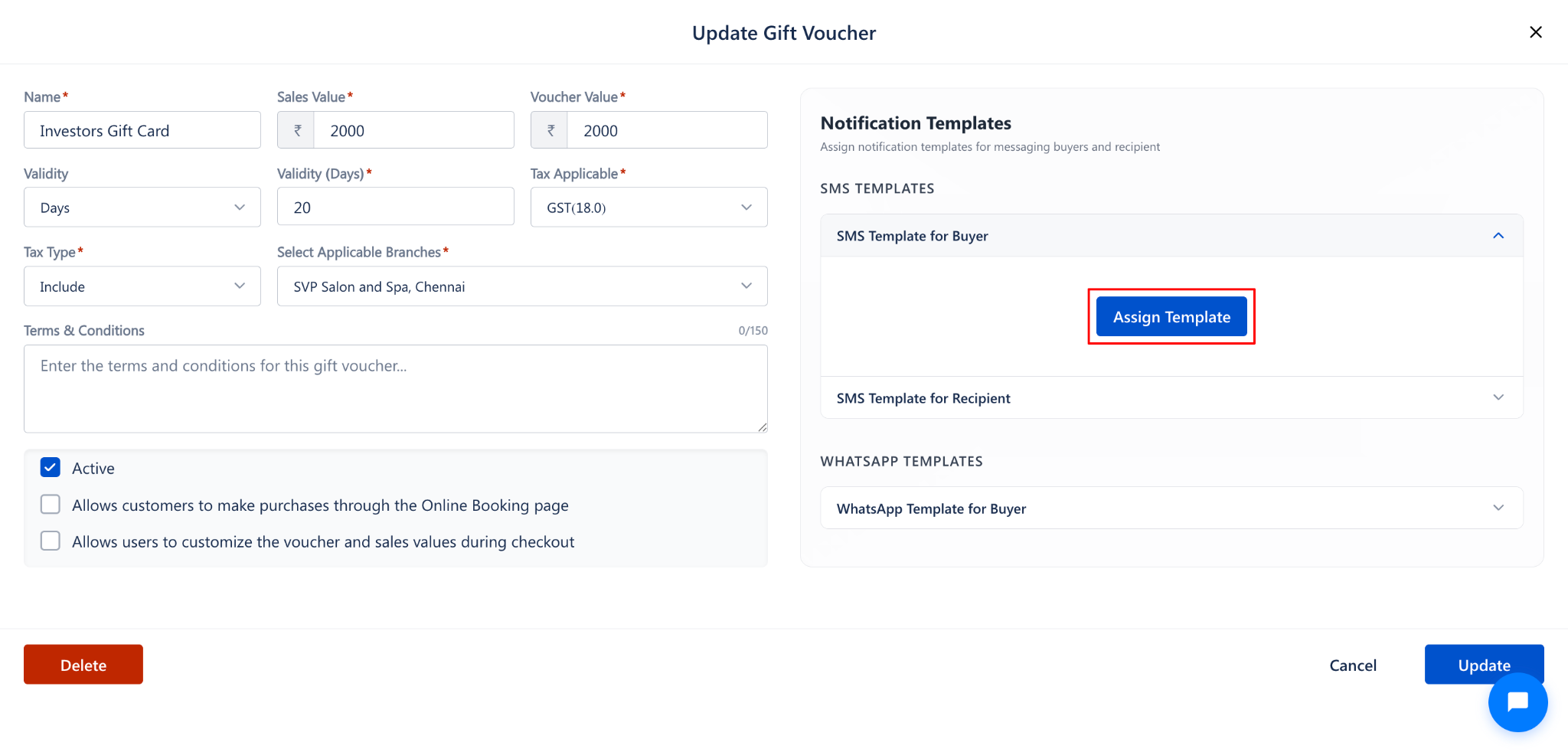
The SMS Template for Gift Voucher popup will open.
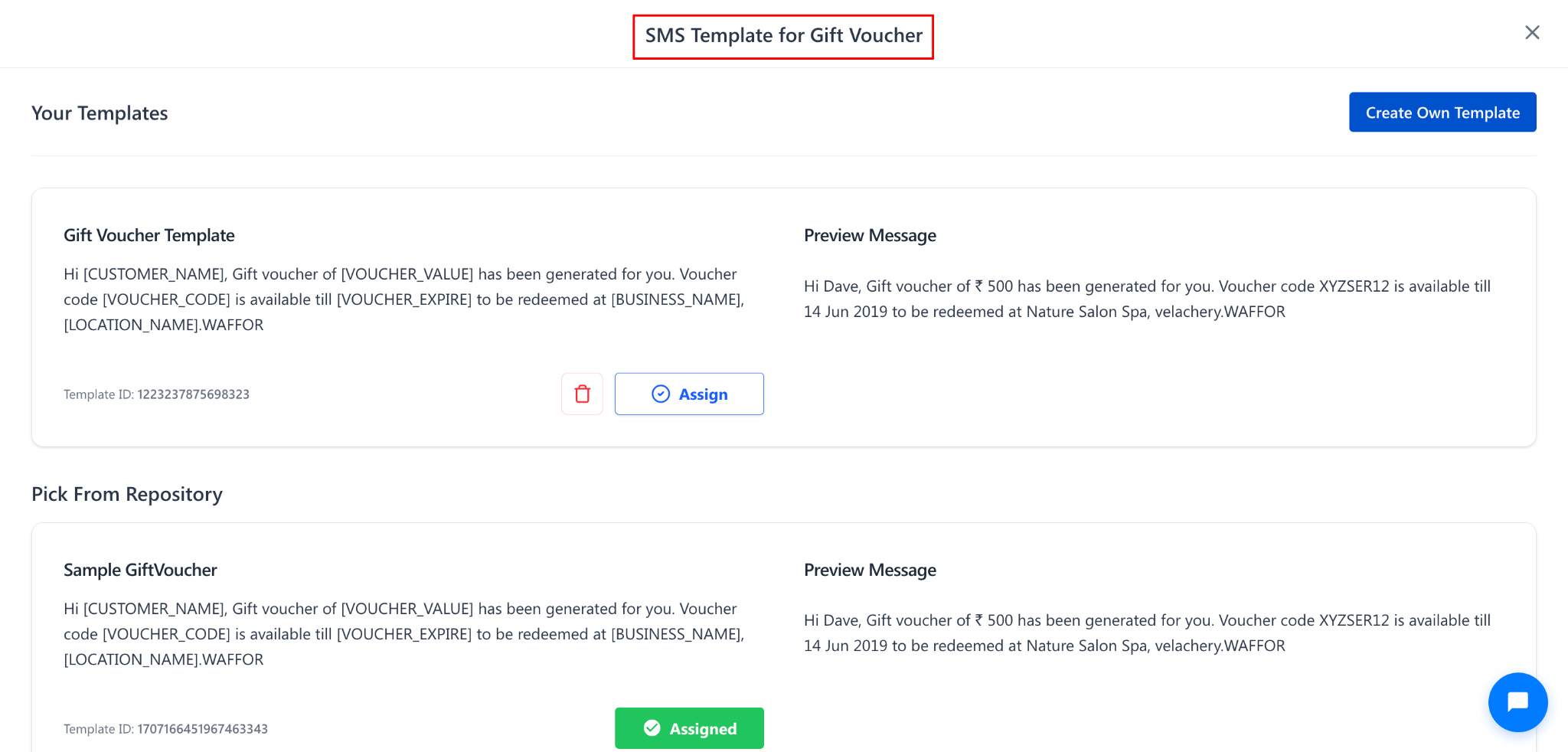
Step 4: Select a Template from the Repository
In the popup, review the templates listed under Pick From Repository.
Each template displays:
Template name (e.g., Sample GiftVoucher)
Template content with placeholders like [CUSTOMER_NAME], [VOUCHER_VALUE], [VOUCHER_CODE], [VOUCHER_EXPIRE], [BUSINESS_NAME], [LOCATION_NAME]
Preview Message showing how the SMS will appear to the customer
Template ID
Click the Assign button on the template you want to use.
Step 5: Assign SMS Template for Recipient
Click on SMS Template for Recipient to expand it.
Click Assign Template and follow the same process to assign a template for the recipient.
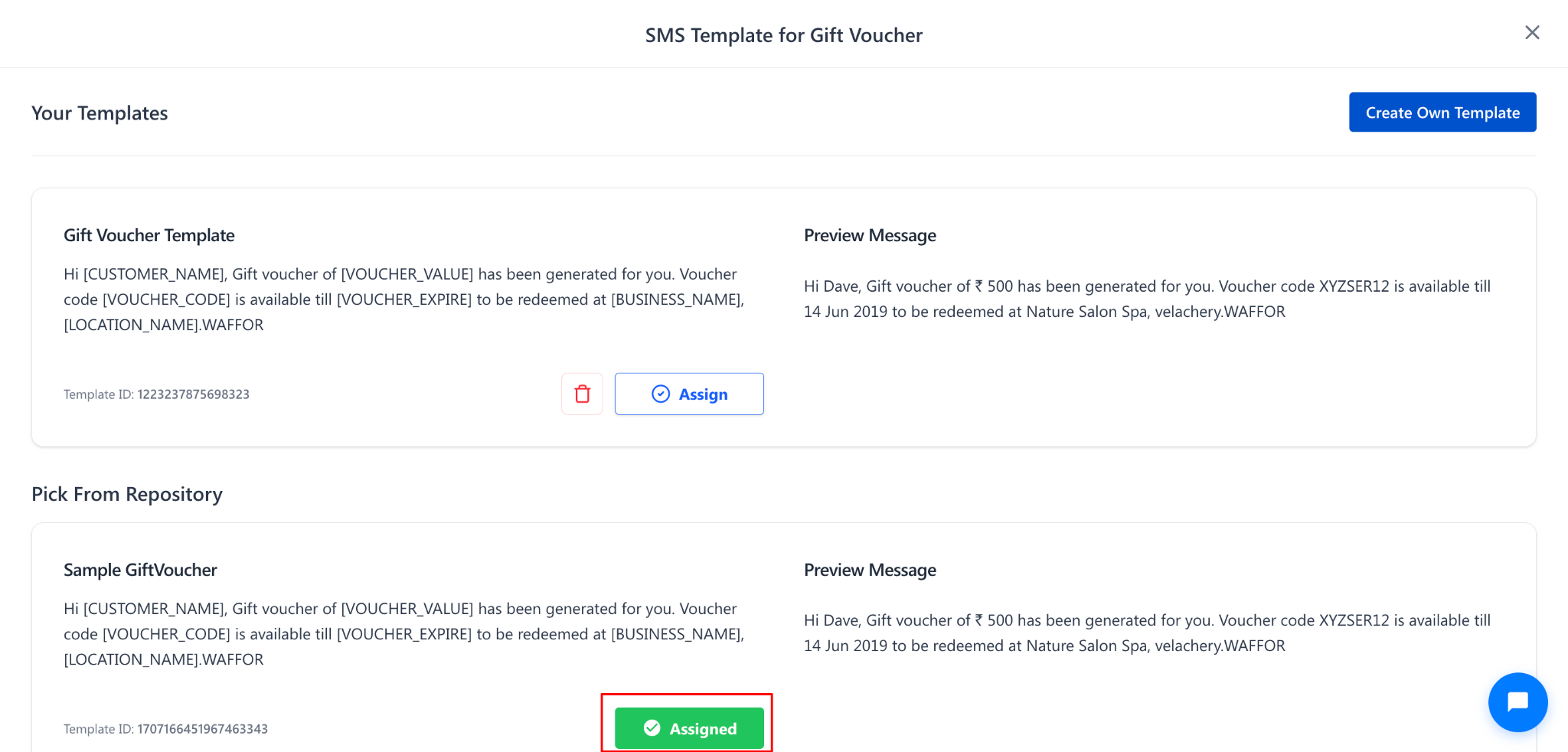
Steps to Assign a WhatsApp Template
Step 1: Expand the WhatsApp Template Section
In the Notification Templates panel, scroll down to the WHATSAPP TEMPLATES section.
Click on WhatsApp Template for Buyer to expand it.
Step 2: Click Assign Template
Click the Assign Template button.
The WhatsApp Template for Gift Voucher popup will open.
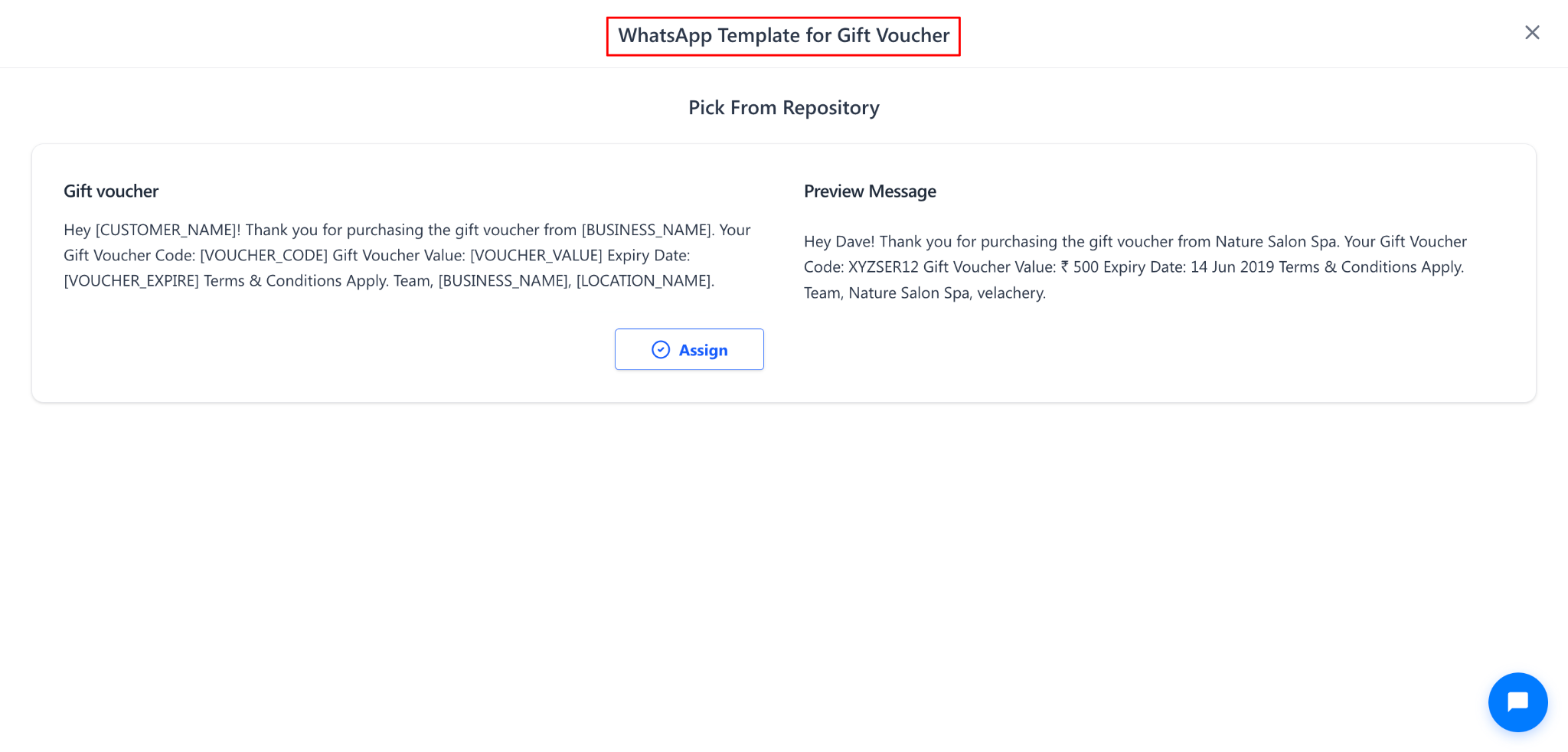
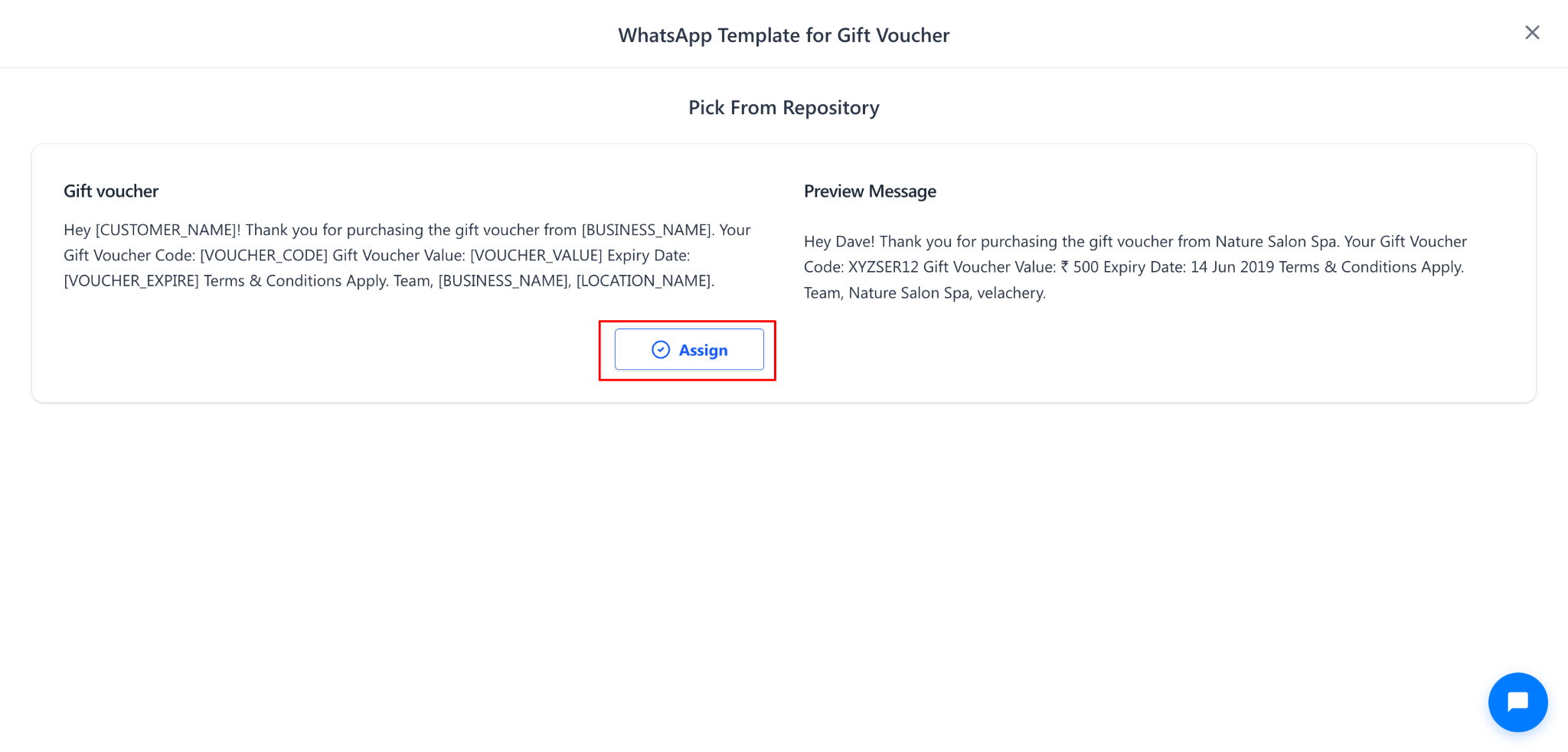
Step 3: Select and Assign the Template
Under Pick From Repository, review the available WhatsApp template.
The template shows the message content with placeholders and a Preview Message.
Click Assign to assign the template.
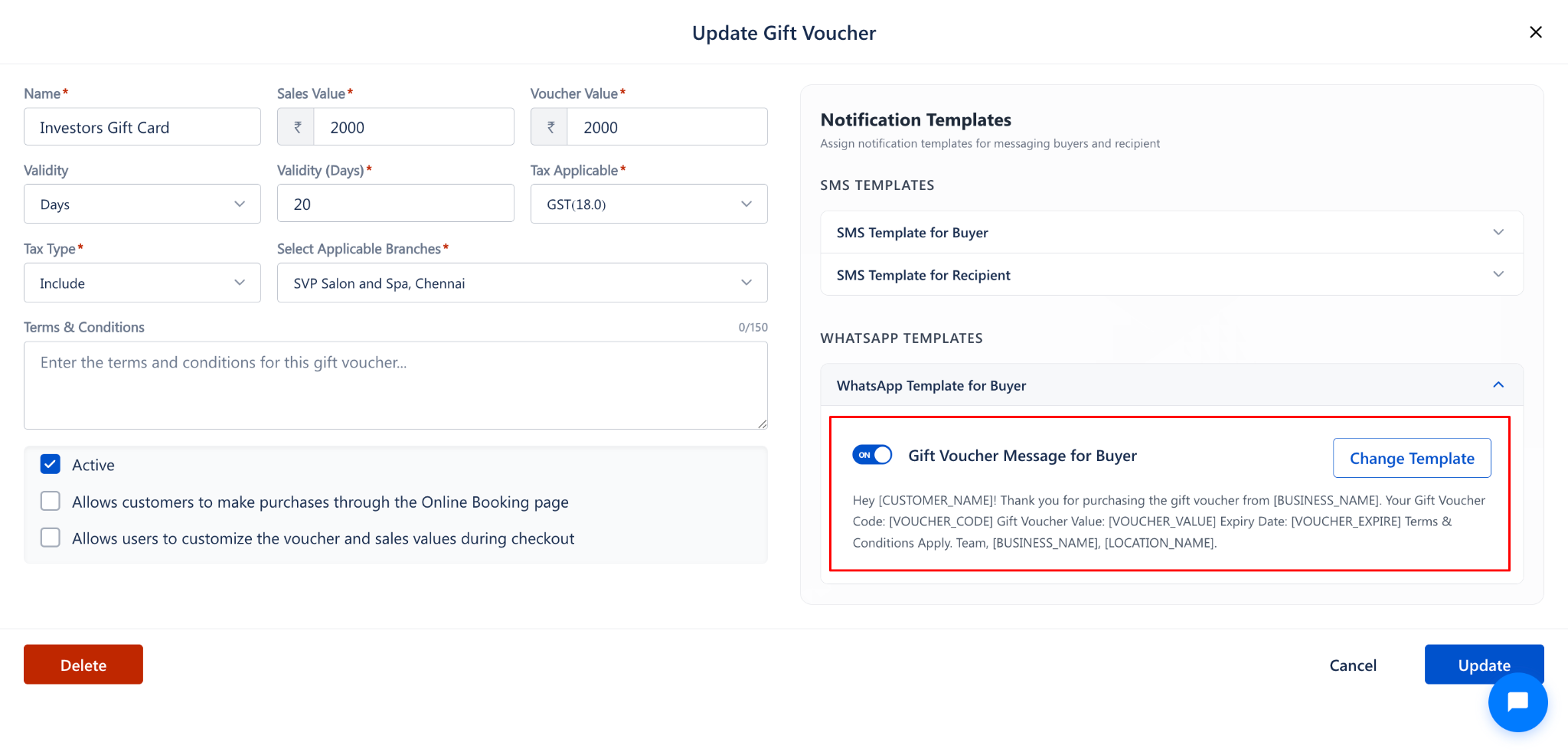
Step 4: Save the Gift Voucher
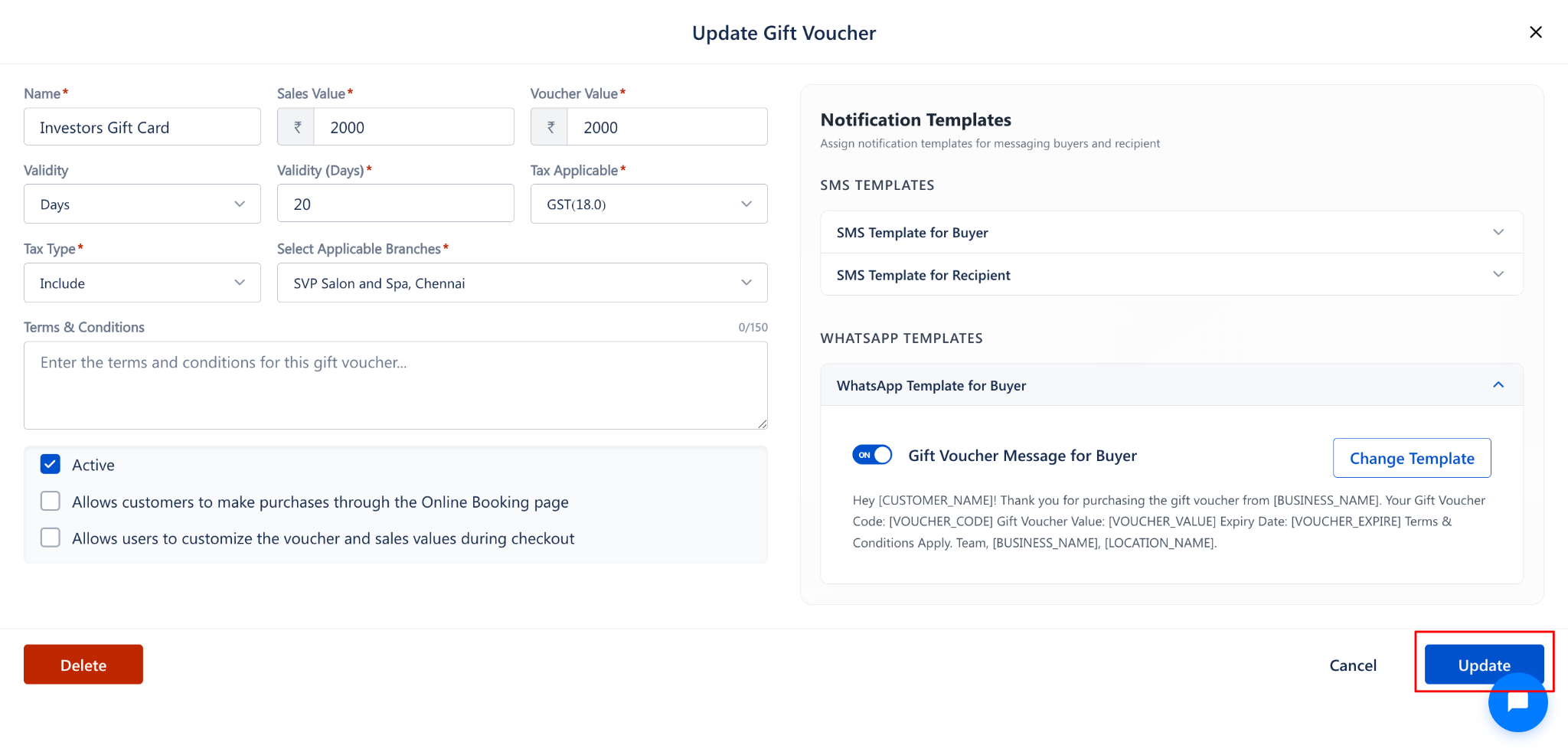
Click Save (for new gift vouchers) or Update (for existing gift vouchers) to save your changes.
Use Cases
Assign buyer templates to send purchase confirmation with voucher code and value details.
Assign recipient templates so the person receiving the gift gets the voucher code directly.
Use WhatsApp templates for faster, more personal delivery on customers' preferred platform.
Assign different templates for SMS and WhatsApp to match channel-specific messaging styles.
Benefits
Automates voucher delivery, eliminating the need for manual communication.
Ensures consistent, professional messaging across all gift voucher purchases.
Reduces customer support queries about voucher codes and redemption details.
Supports both SMS and WhatsApp channels for wider customer reach.
Was this article helpful?
That’s Great!
Thank you for your feedback
Sorry! We couldn't be helpful
Thank you for your feedback
Feedback sent
We appreciate your effort and will try to fix the article