Overview
There are situations where you may need to extend or modify the expiry date of an issued gift voucher, such as when a customer requests an extension or when a promotion period changes. The Change Expiry feature in Gift Voucher Insights allows you to update the available value, change the expiry type (Unlimited or a specific date), and log a reason for the modification.
This ensures full traceability while giving you flexibility to manage voucher validity on a case-by-case basis.
Navigation Path
Settings → Gift Voucher → Gift Voucher Insights → Status Column → Change
Steps to Change the Gift Voucher Expiry Date
Step 1: Navigate to Gift Voucher Insights
From the left sidebar, click on Settings.
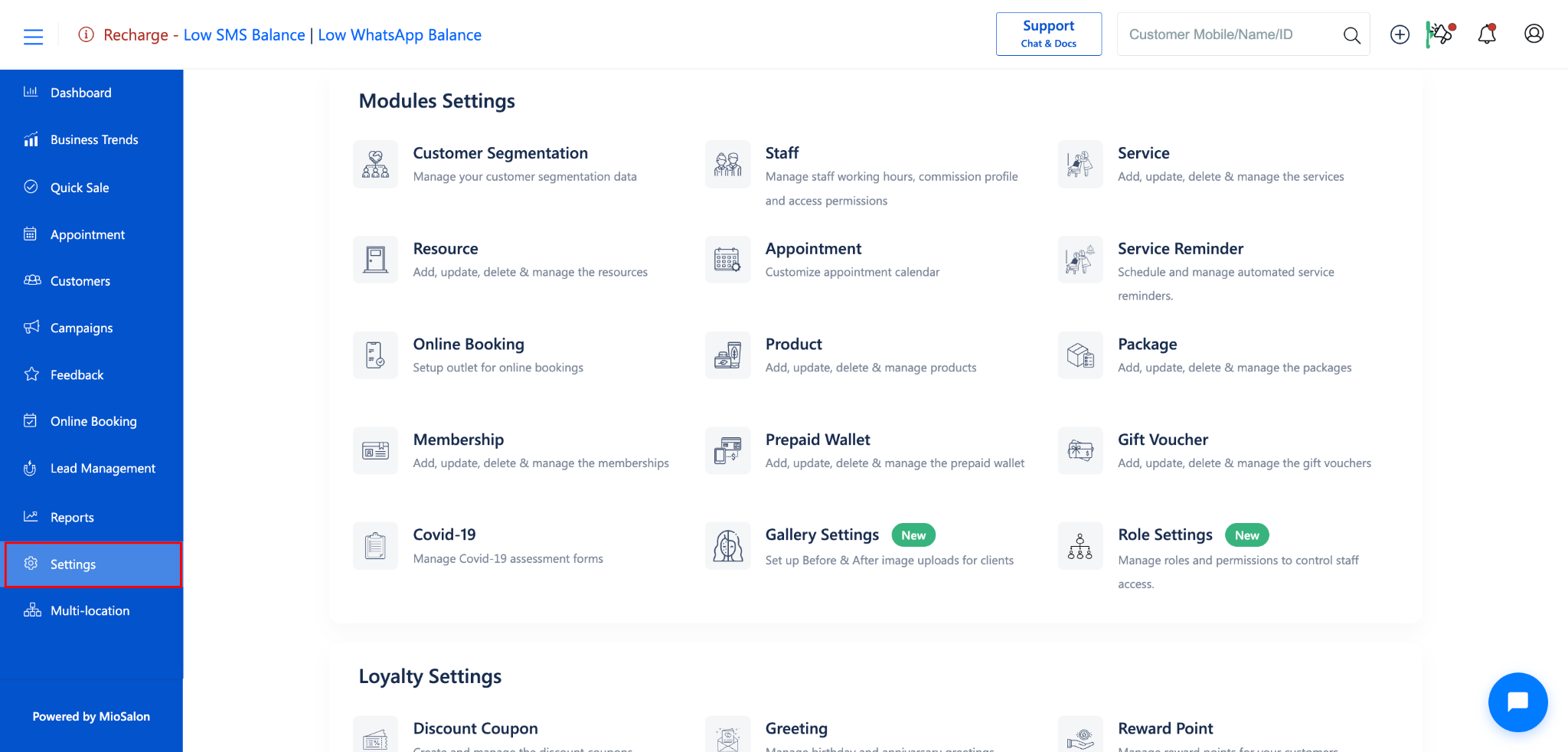
Under Settings, select Gift Voucher.
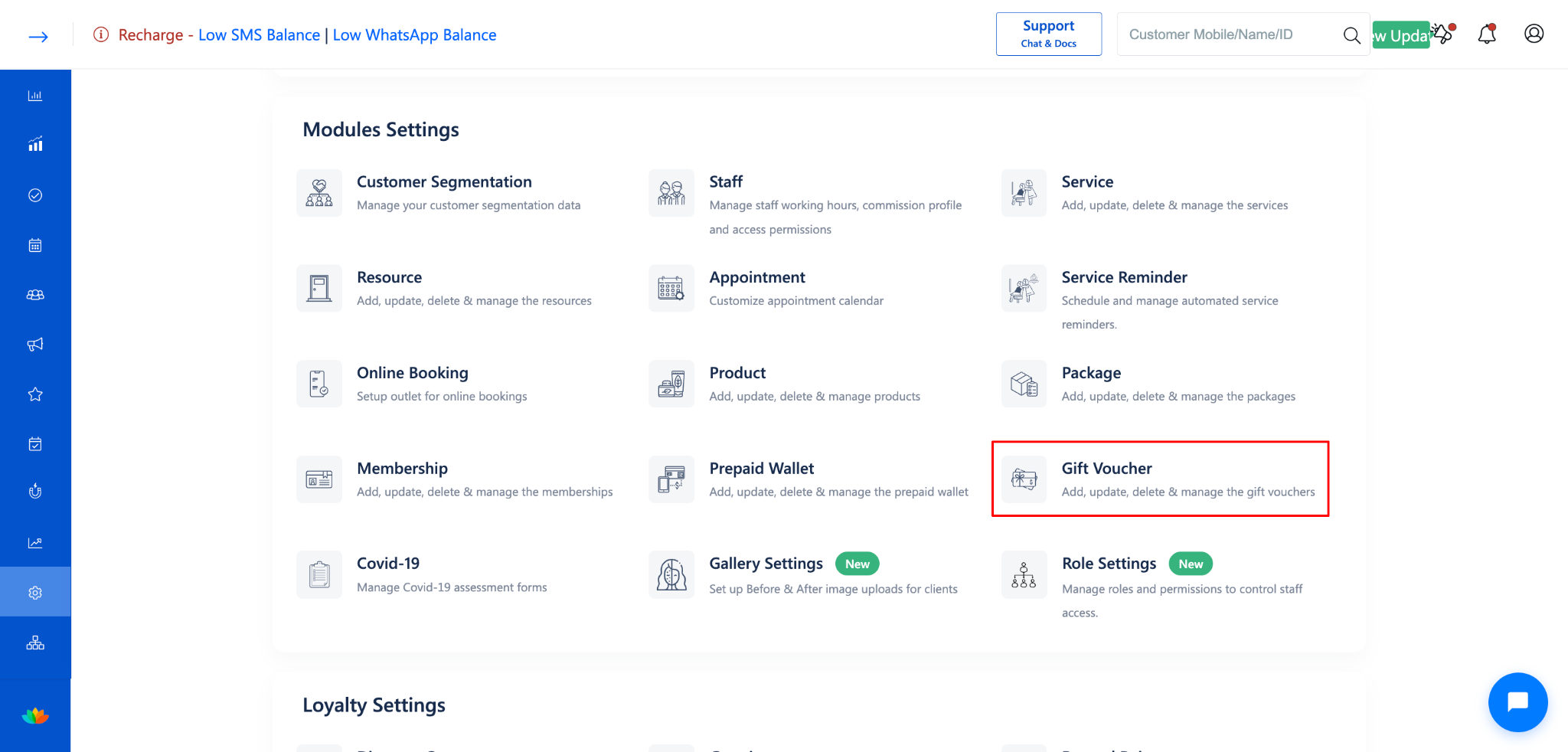
Click on Gift Voucher Insights from the left-side menu.
Step 2: Locate the Gift Voucher
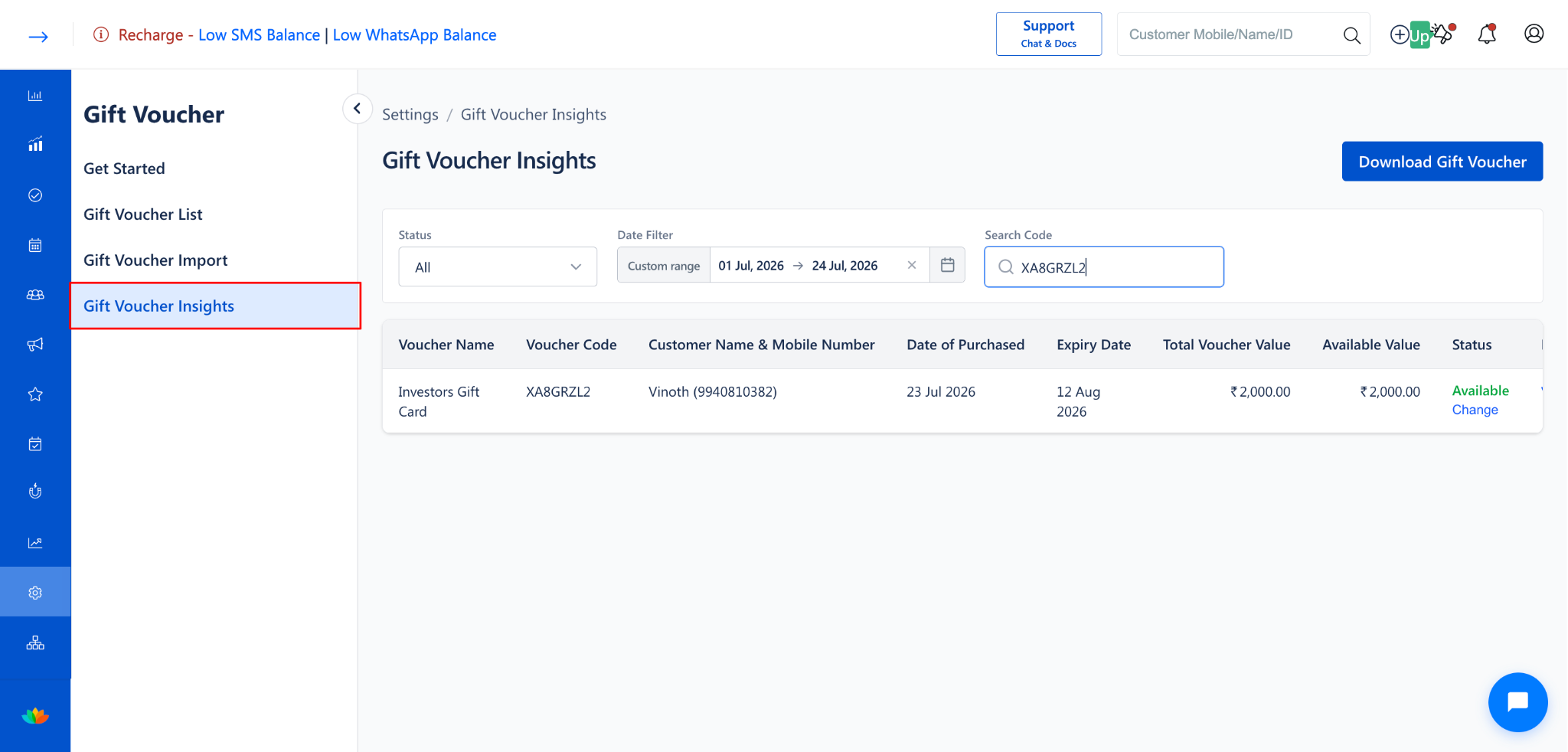
Find the gift voucher whose expiry date you want to change.
Use the Status filter, Date Filter, or Search Code to locate the voucher quickly.
Step 3: Click "Change" in the Status Column
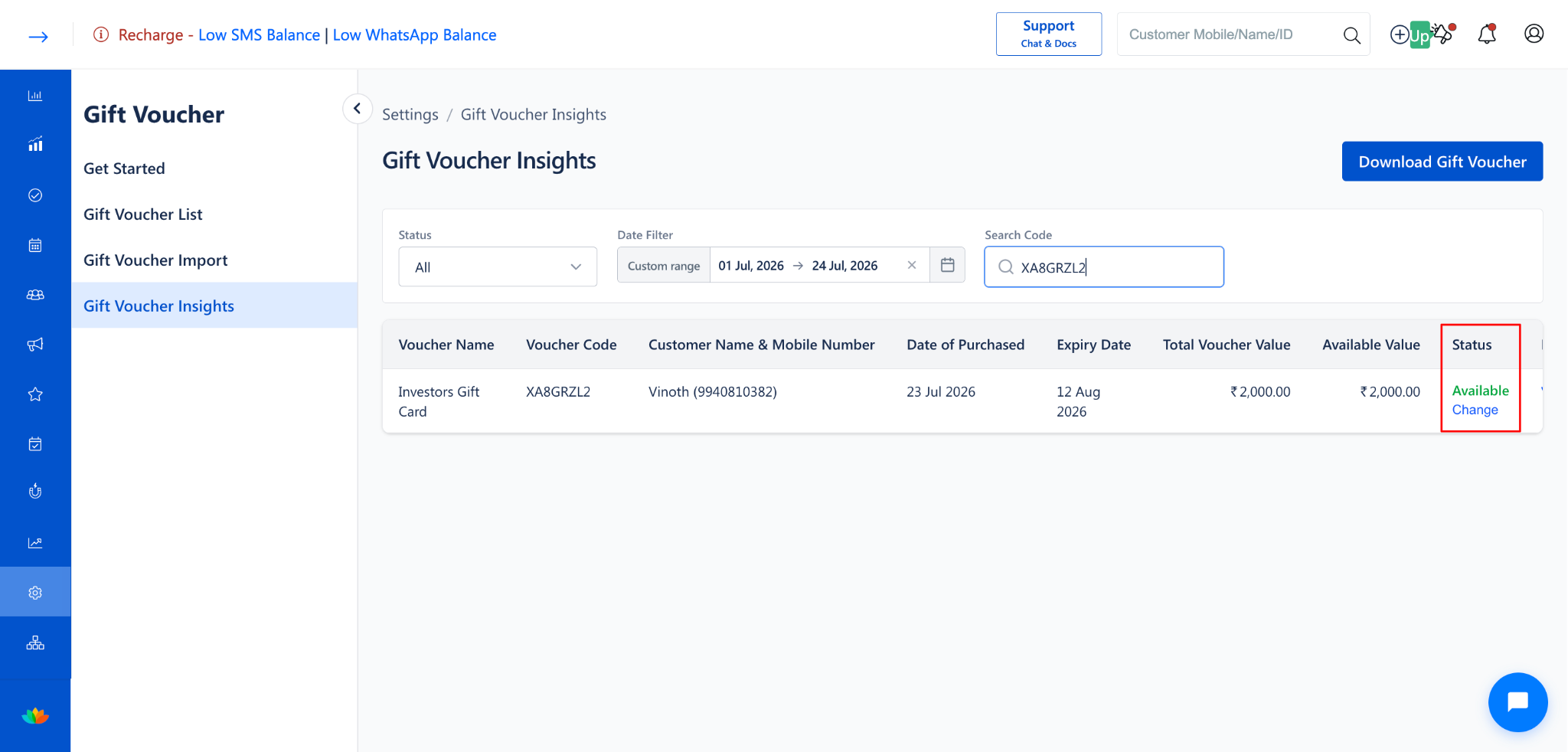
In the Status column of the voucher, locate the Change link below the status label (e.g., "Available Change").
Click on Change to open the Change Expiry dialog.
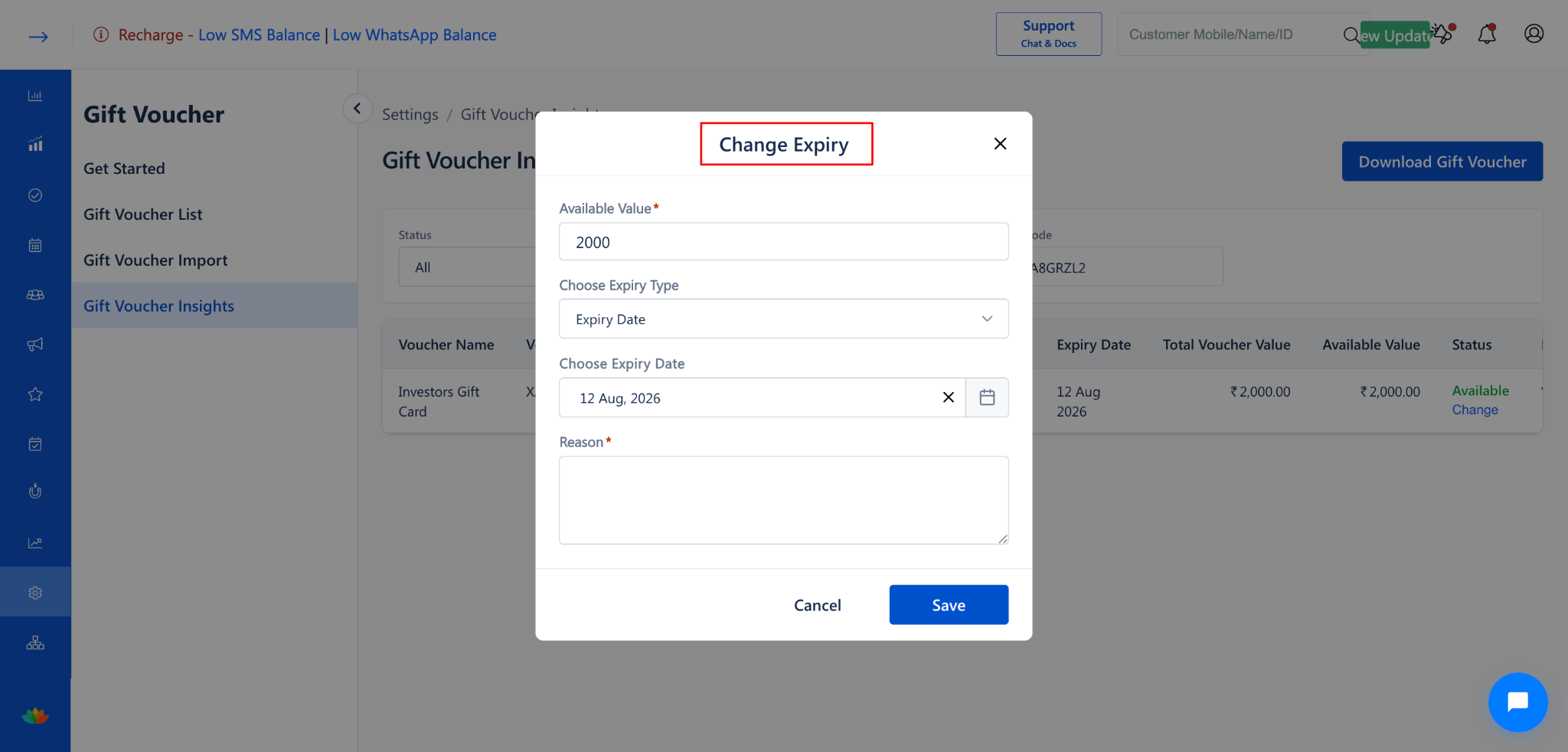
Step 4: Fill in the Change Expiry Form
The Change Expiry dialog contains the following fields:
Expiry Type Options:
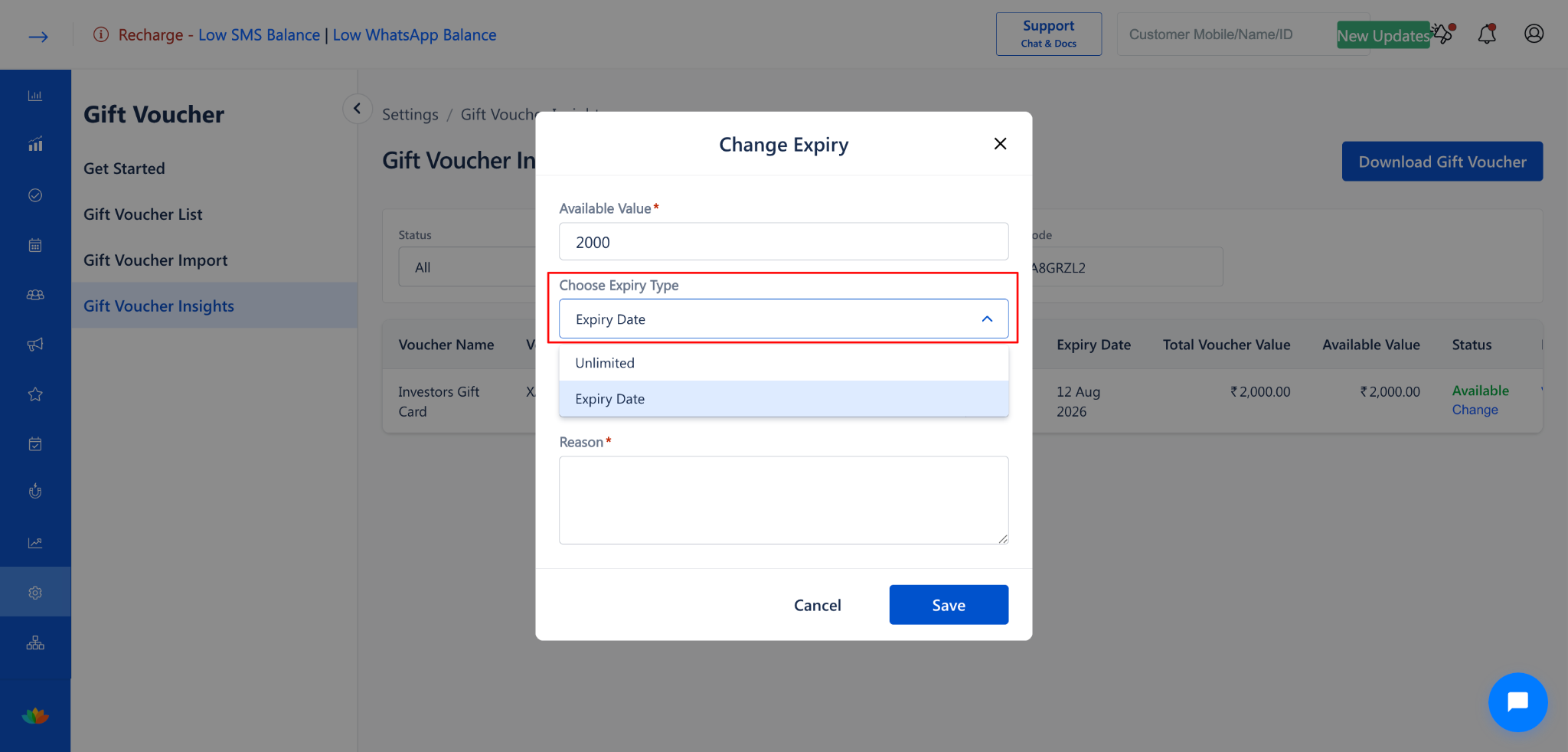
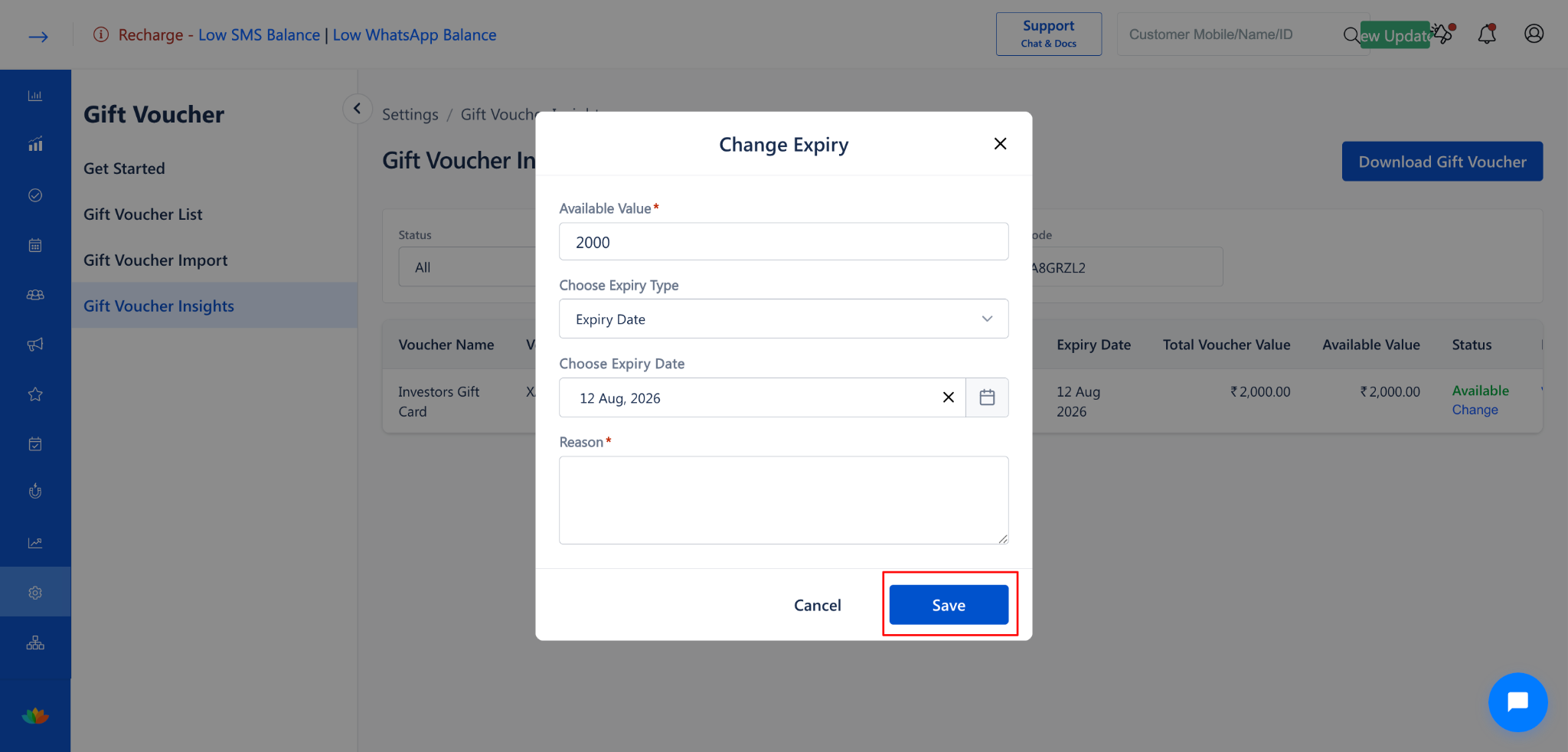
Step 5: Save the Changes
Click the Save button to apply the new expiry settings.
The updated expiry date will be reflected in the Gift Voucher Insights report.
To discard the changes, click Cancel to close the dialog without saving.
Use Cases
Extend the expiry date for a customer who was unable to redeem the voucher in time.
Change the expiry to Unlimited for loyalty-based or VIP gift vouchers.
Adjust the expiry date when a promotional campaign period is extended.
Correct an expiry date that was set incorrectly during voucher creation.
Benefits
Provides flexibility to manage voucher validity without creating a new voucher.
Maintains an audit trail with mandatory reason logging for every change.
Improves customer satisfaction by accommodating extension requests.
Supports both fixed-date and unlimited expiry options for different business needs.
Was this article helpful?
That’s Great!
Thank you for your feedback
Sorry! We couldn't be helpful
Thank you for your feedback
Feedback sent
We appreciate your effort and will try to fix the article