Overview
When you need to add a large number of gift voucher codes to your account, importing them in bulk through a file is faster and more efficient than creating each one manually.
The Gift Voucher Import feature allows you to download a template file, fill in the voucher details in the required format, and upload them all at once. This is especially useful when migrating voucher data from another system or issuing pre-generated voucher codes for a promotional campaign.
Navigation Path
Settings → Gift Voucher → Gift Voucher Import
Steps to Import Gift Vouchers
Step 1: Navigate to Gift Voucher Import
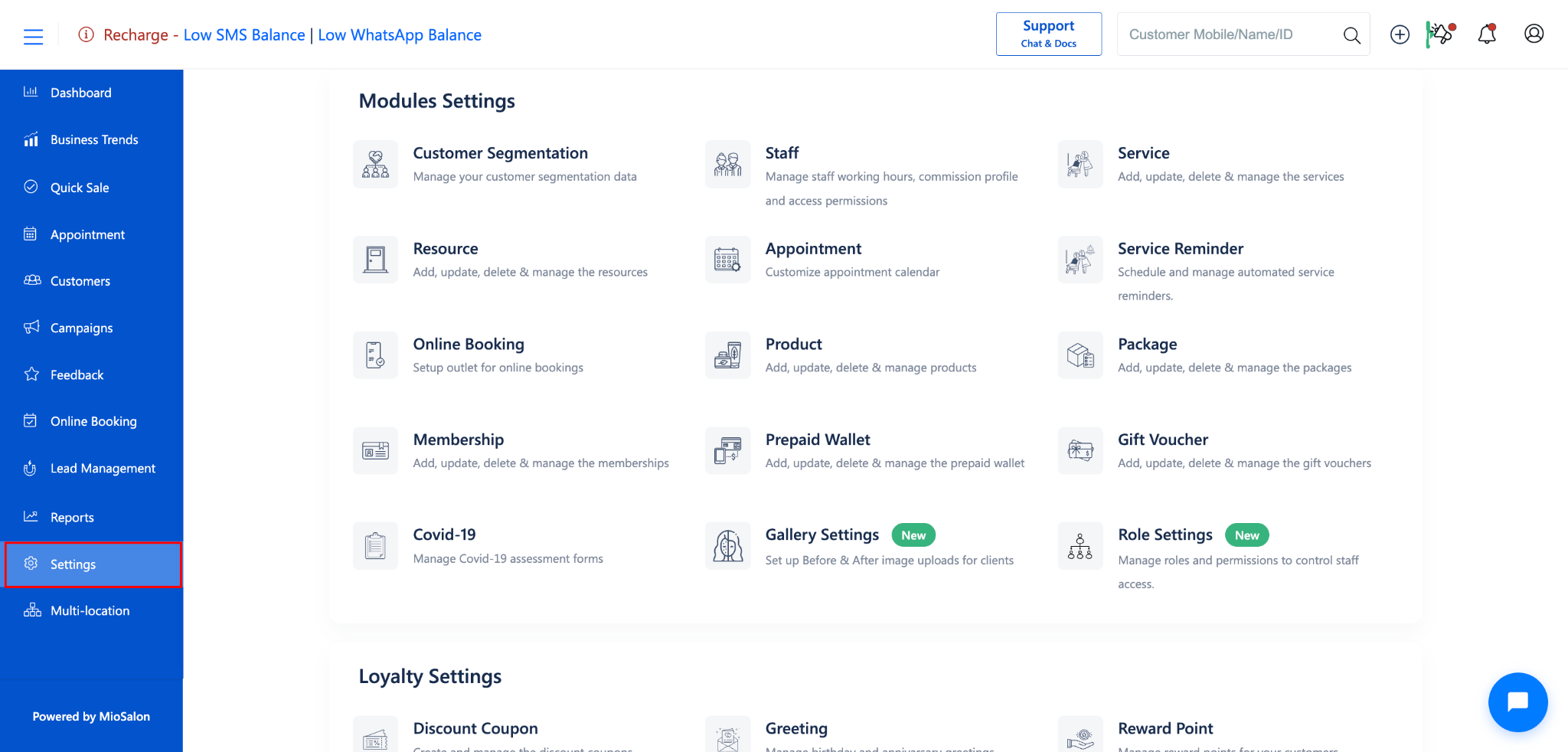
From the left sidebar, click on Settings
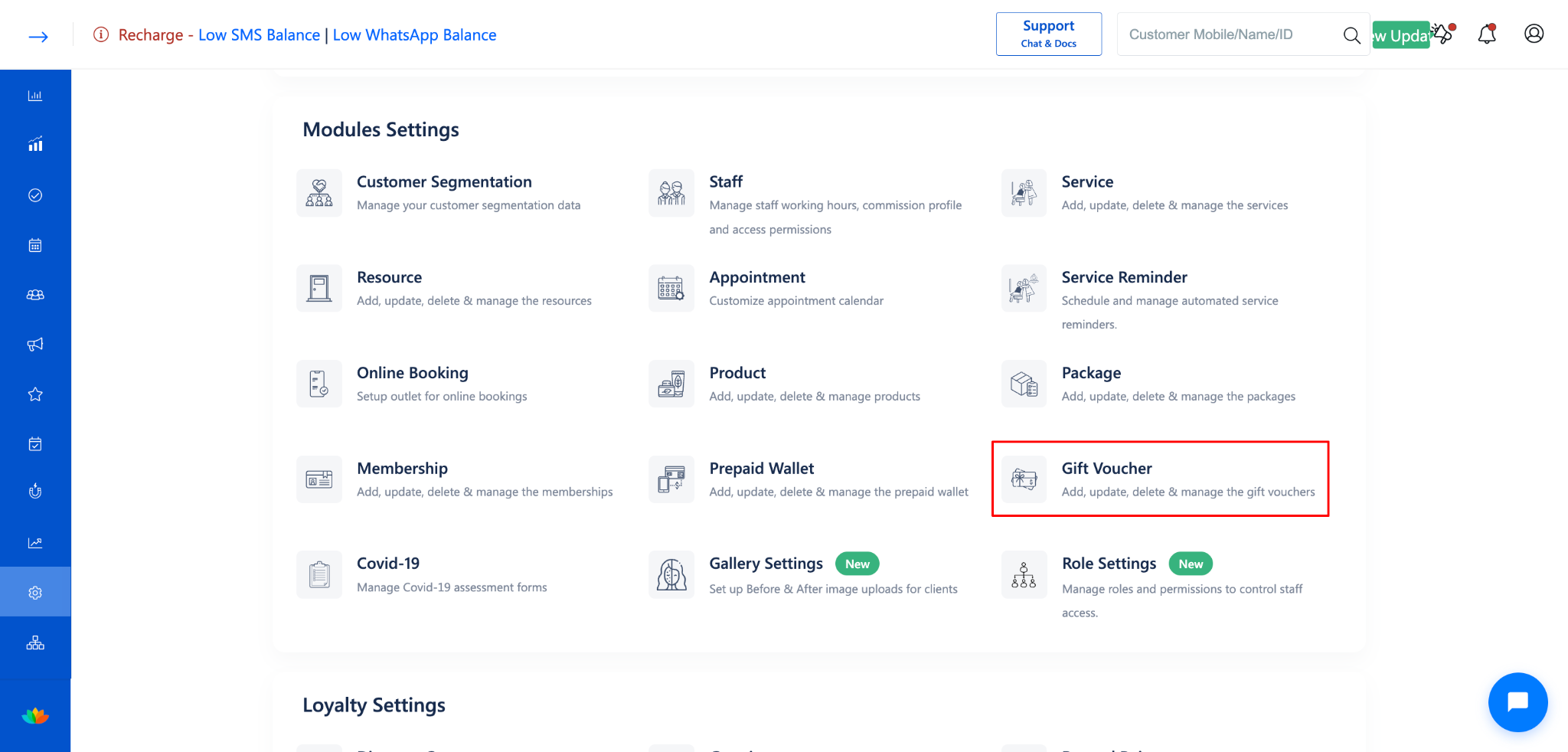
Under Settings, select Gift Voucher.
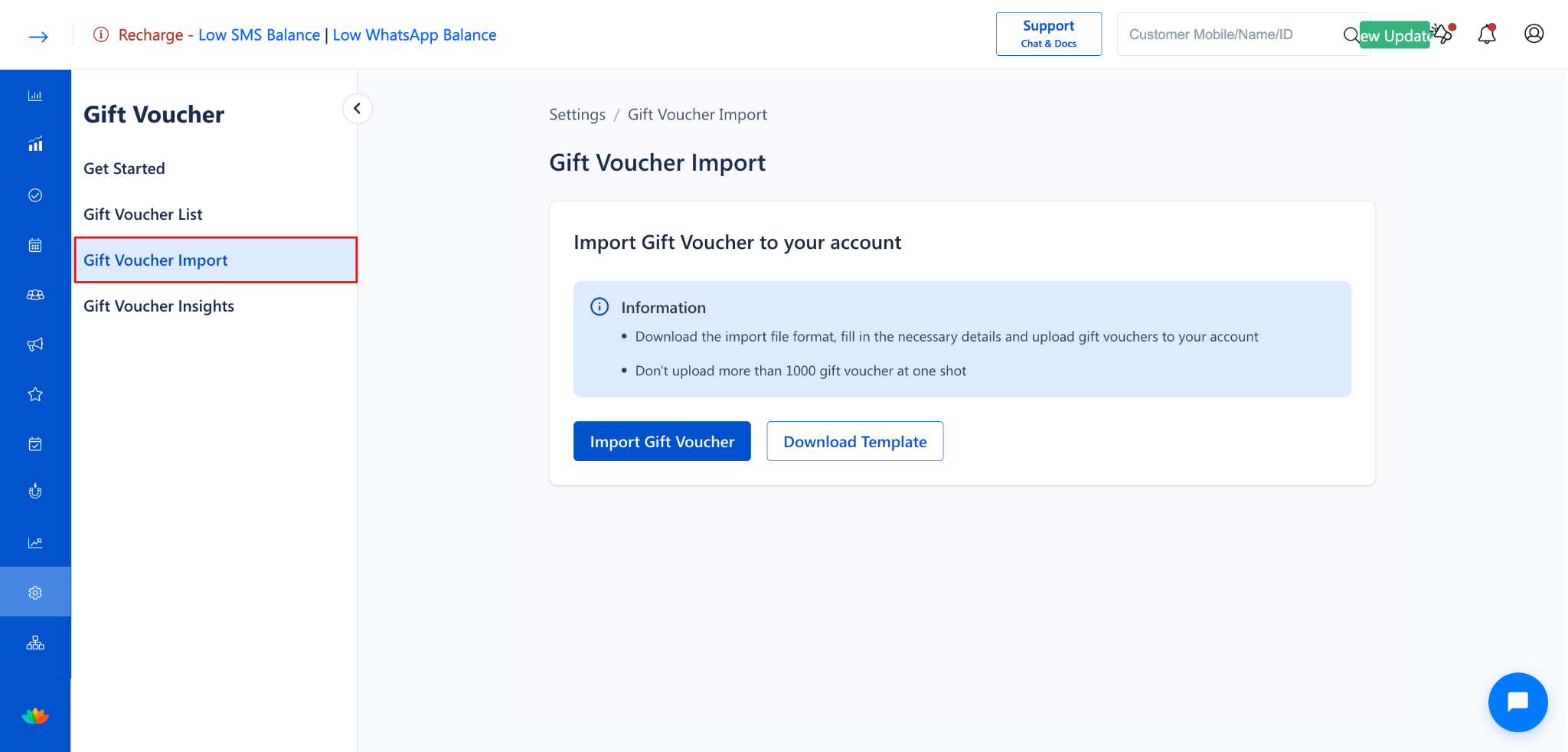
Click on Gift Voucher Import from the left-side menu.
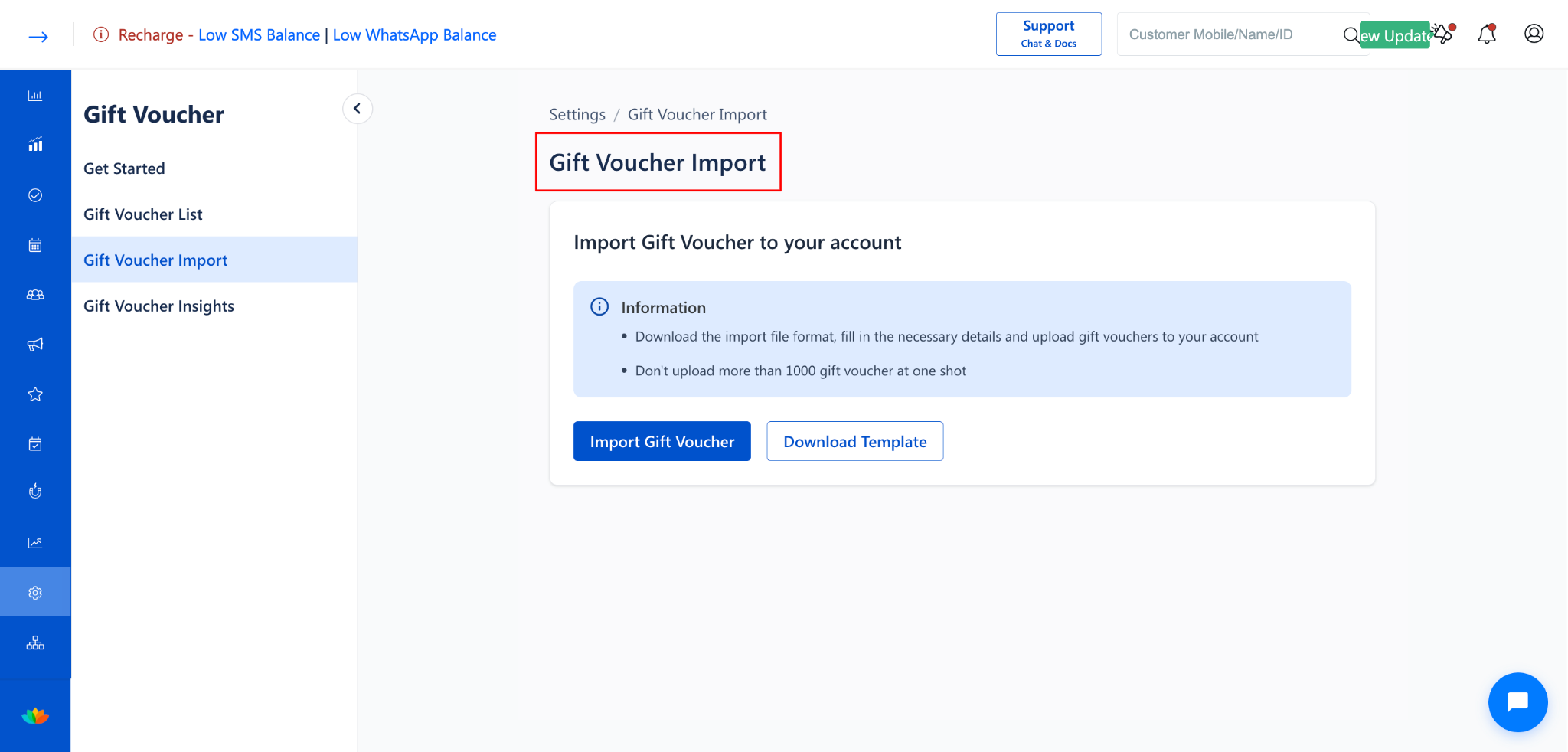
The Gift Voucher Import page will open.
Step 2: Download the Import Template
On the Gift Voucher Import page, locate the Import Gift Voucher to your account section.
Click the Download Template button to download the import file format.
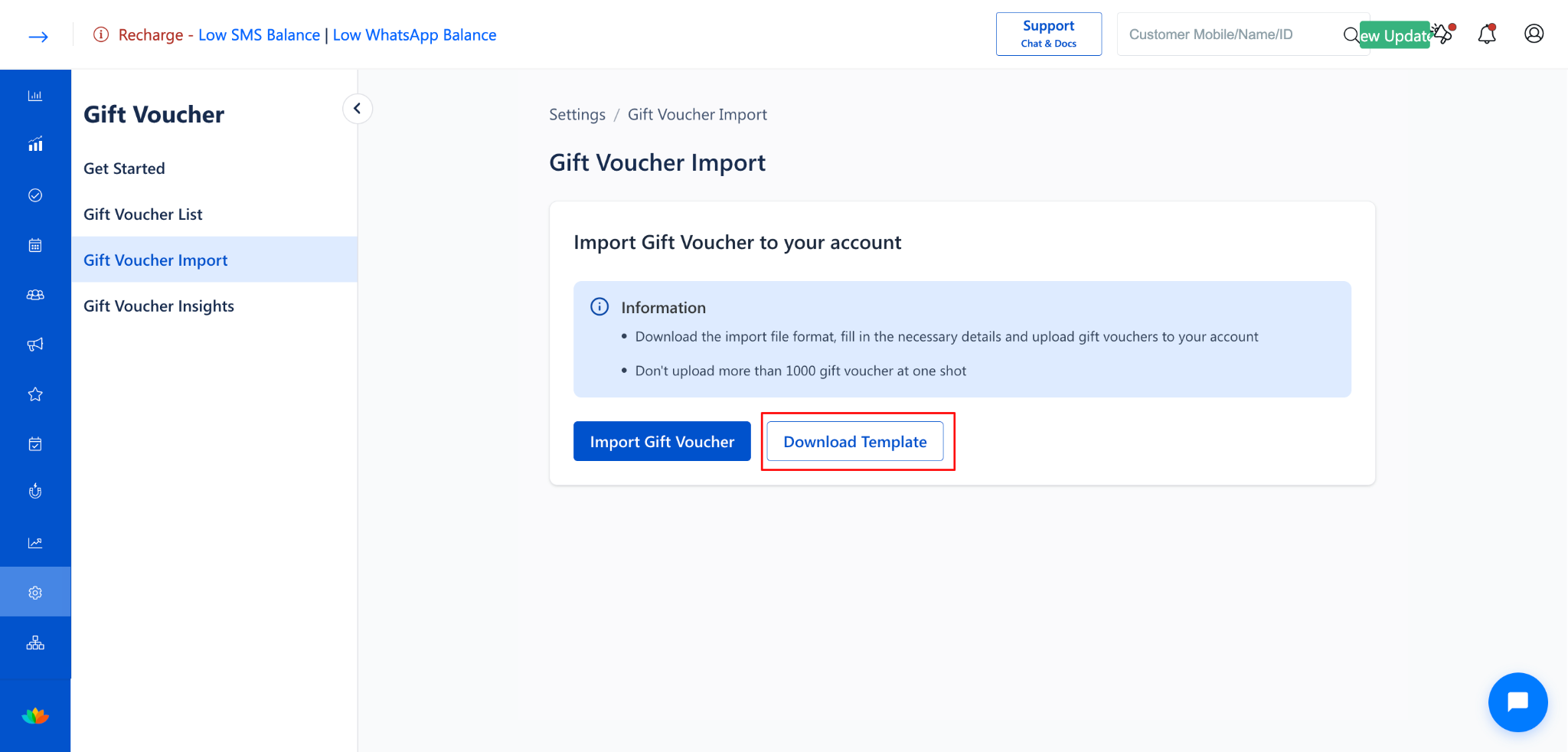
Open the downloaded template file on your computer.
NOTE
The information box on the page provides the following guidelines:
Download the import file format, fill in the necessary details, and upload gift vouchers to your account.
Do not upload more than 1000 gift vouchers at one shot.
Step 3: Fill in the Template
Open the downloaded template file.
Fill in the required gift voucher details in the format specified by the template.
The template file contains the following mandatory columns:
Master Voucher Name*
Voucher Code*
Voucher Value*
Channel Name*
Expiry Date (DD/MM/YYYY)*
Sales Date (DD/MM/YYYY)*
Example:
Master Voucher Name: Birthday Gift Voucher
Voucher Code: GSXTY001
Voucher Value: 5000
Channel Name: Amazon
Expiry Date: 16/04/2018
Sales Date: 19/01/2018
Note: Fields marked with an asterisk (*) are mandatory.
Save the file after entering all the data.
NOTE
If you have more than 1000 vouchers, split them into multiple files and import them separately.
Step 4: Import the Import File
Return to the Gift Voucher Import page.
Click the Import Gift Voucher button.
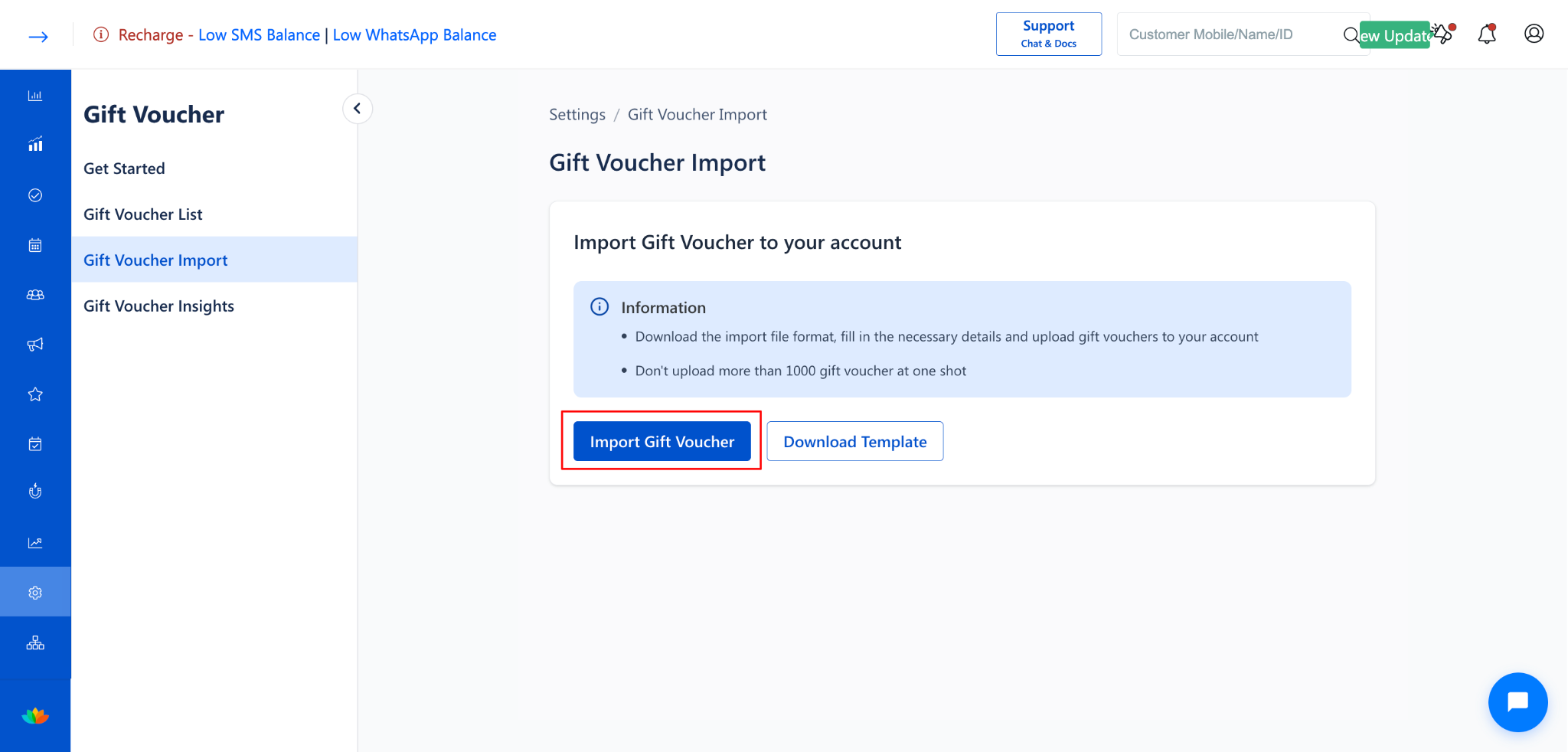
Select the completed template file from your computer.
The system will process the file and import the gift voucher codes to your account.
Use Cases
Migrate gift voucher data from another software or system into your account.
Issue pre-generated voucher codes for a large-scale promotional campaign.
Add vouchers in bulk for corporate gifting or partnership programs.
Quickly set up gift voucher inventory during initial account configuration.
Benefits
Saves significant time compared to manually creating each voucher one by one.
Reduces data entry errors by using a structured template format.
Supports batch processing of up to 1000 vouchers per import.
Simplifies migration from other systems by accepting standard file imports.
Was this article helpful?
That’s Great!
Thank you for your feedback
Sorry! We couldn't be helpful
Thank you for your feedback
Feedback sent
We appreciate your effort and will try to fix the article