Overview
The Package Report in MioSalon provides salon and spa owners with comprehensive business visibility into client hourly package sales, time balances, and session redemption history.
Salon administrators and front-desk managers use this report to monitor purchased therapy hours, check remaining duration balances, review individual service redemptions, and extend package validity.
Real-time tracking of hour balances and session limits prevents extra service time beyond package limits, protects prepaid package revenue, and keeps billing accurate across all salon counters.
Follow the guided step-by-step instructions below to view, filter, review, and export hourly package reports in MioSalon.
Navigation Path
Main Menu → Reports → Package
Steps to Access and View Package Report
1. Log in to your MioSalon account as an Admin or Manager user.
2. From the main left navigation bar, click on the Reports icon (bar graph icon).
3. On the top navigation tabs, select the Package tab.
4. The Package Report table loads, listing all purchased client packages across your salon.
Steps to Filter and Export Package Report Data
1. Click on the Package Name dropdown to filter the table by a specific package name, or leave as All to view all salon packages.
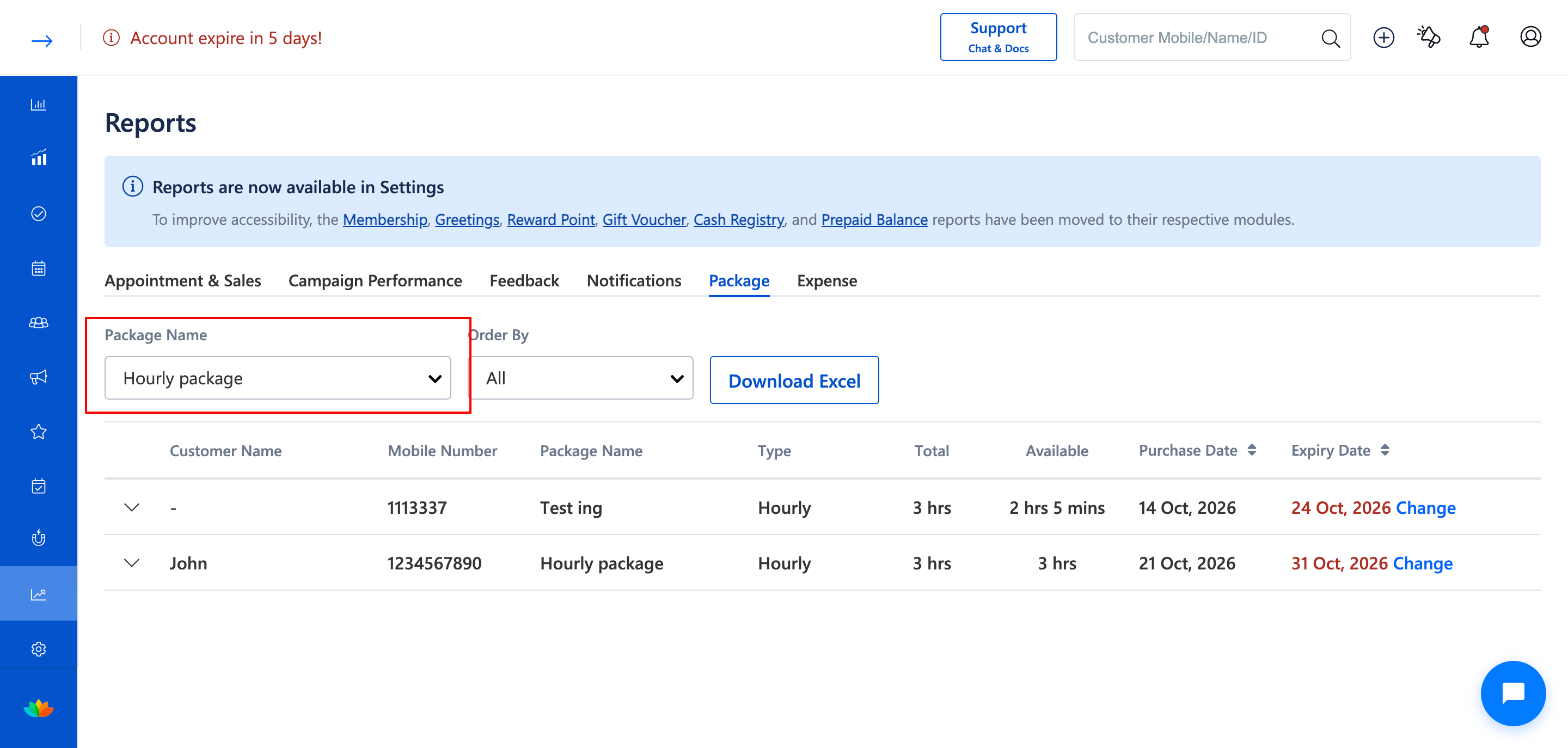
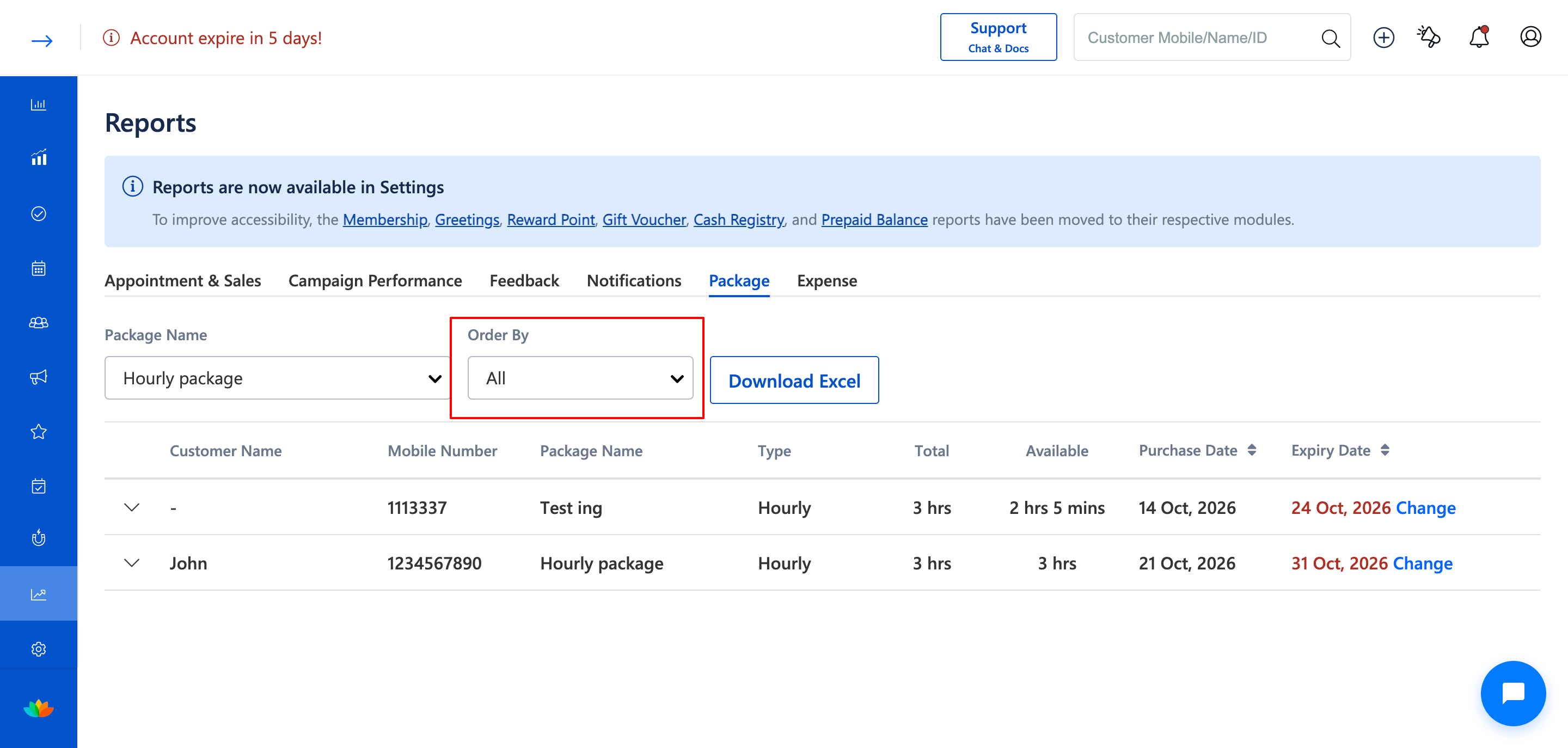
2. Click on the Order By dropdown to sort report rows by client name, purchase date, or expiration date.
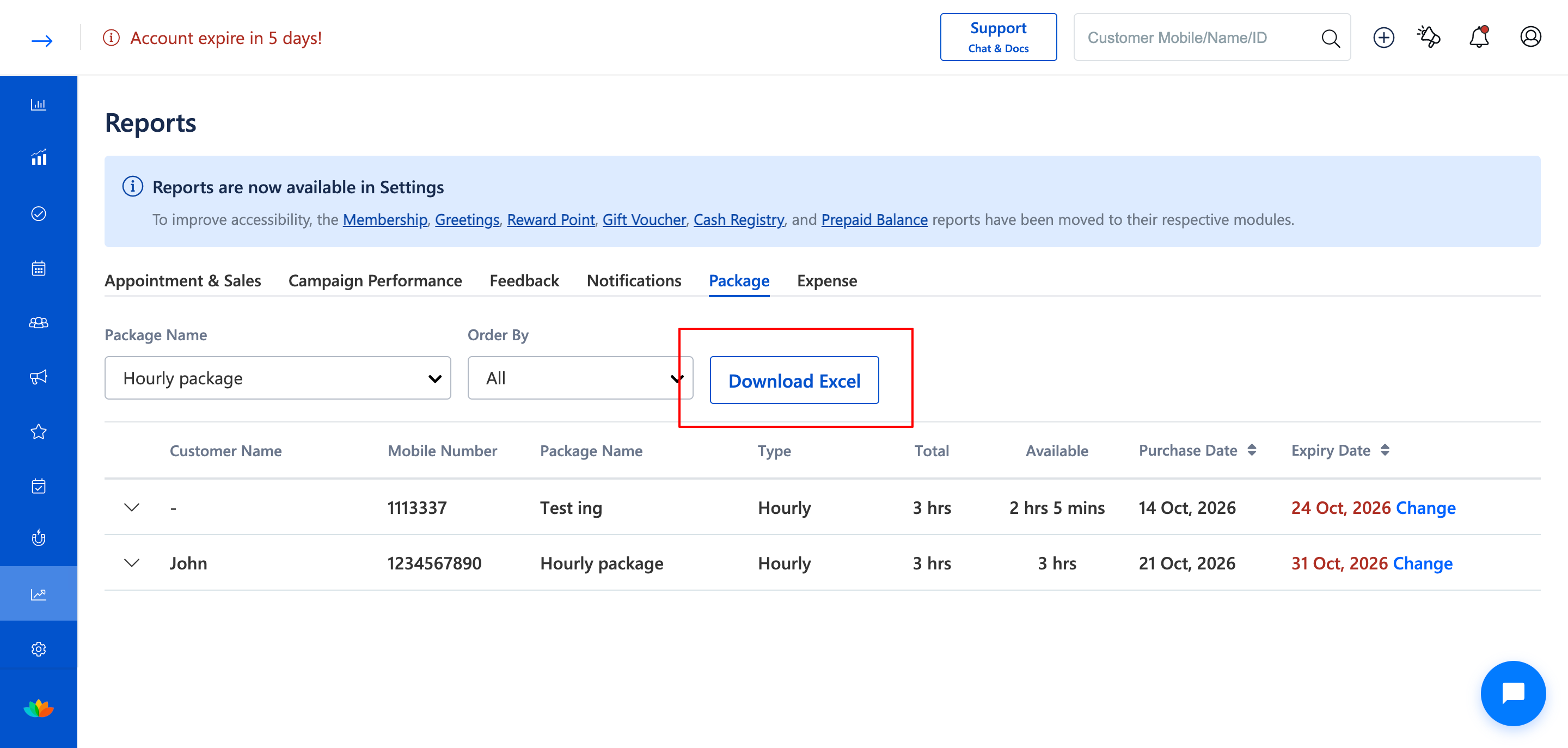
3. To export records for salon accounting or record-keeping, click on the Download Excel button located next to the filter dropdowns.
4. Use the pagination Next button at the bottom right to browse through additional report pages.
Steps to View Past Service Redemption Details
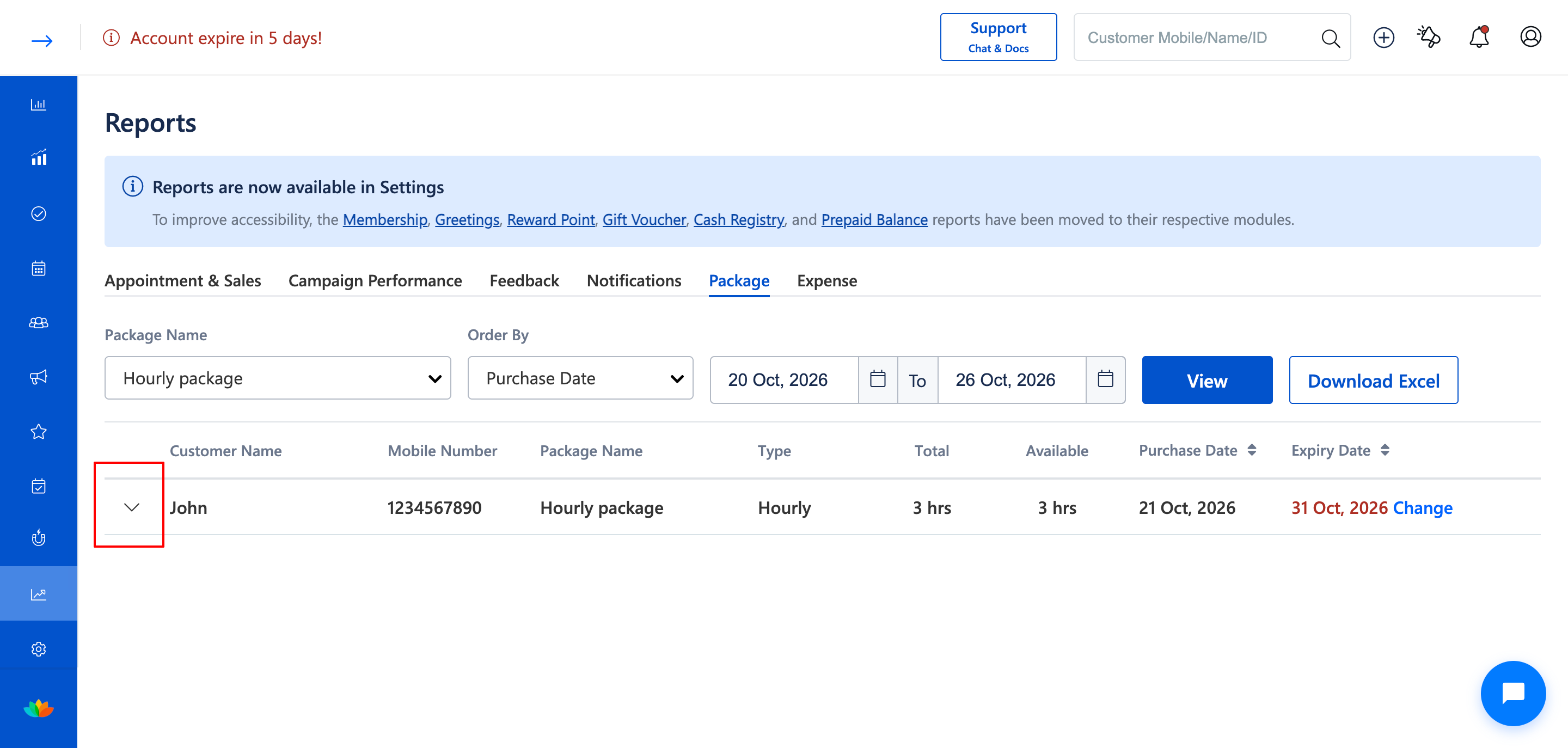
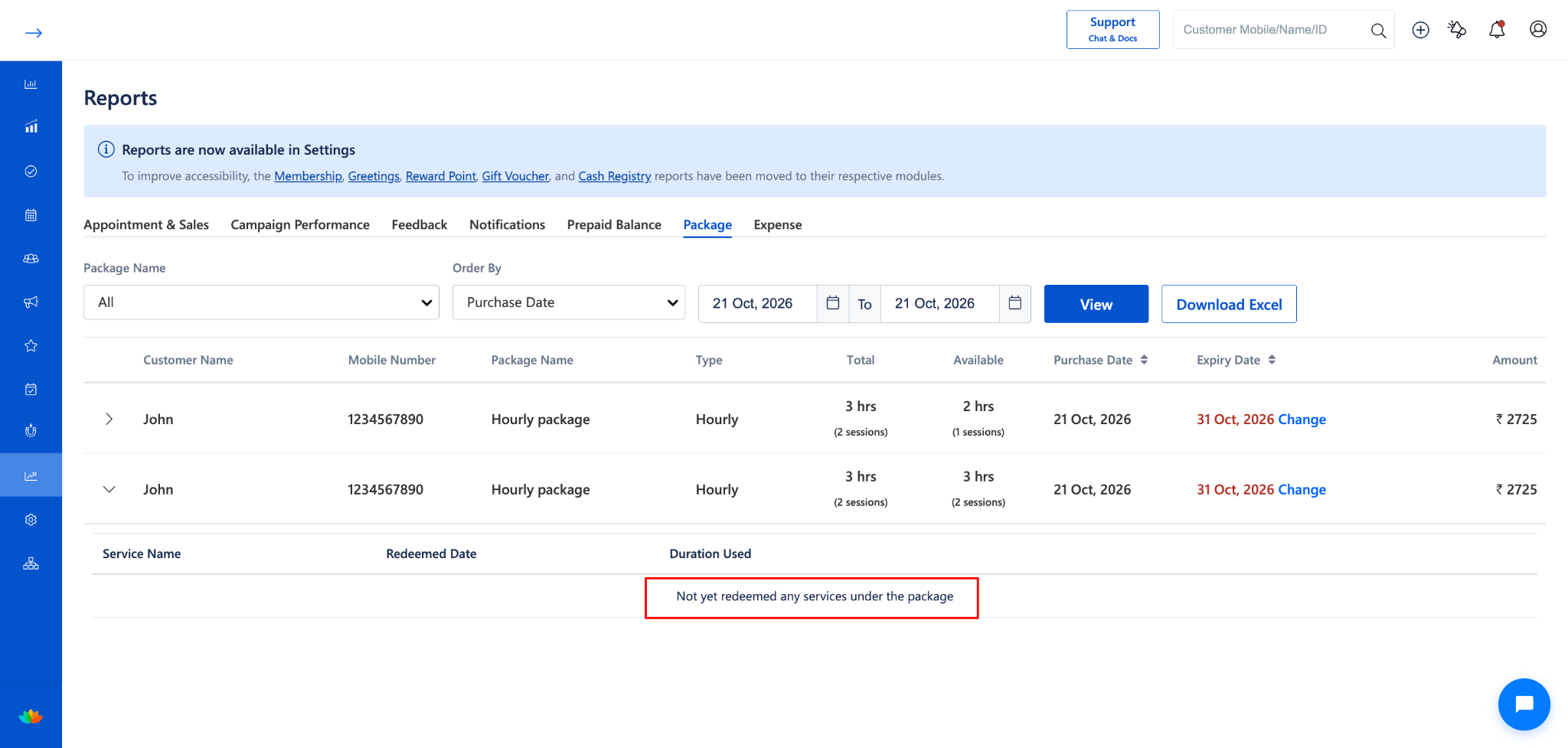
1. In the Package Report table, locate the customer package row you wish to inspect (E.g., Mobile: 1234567890, Package: Hourly Package).
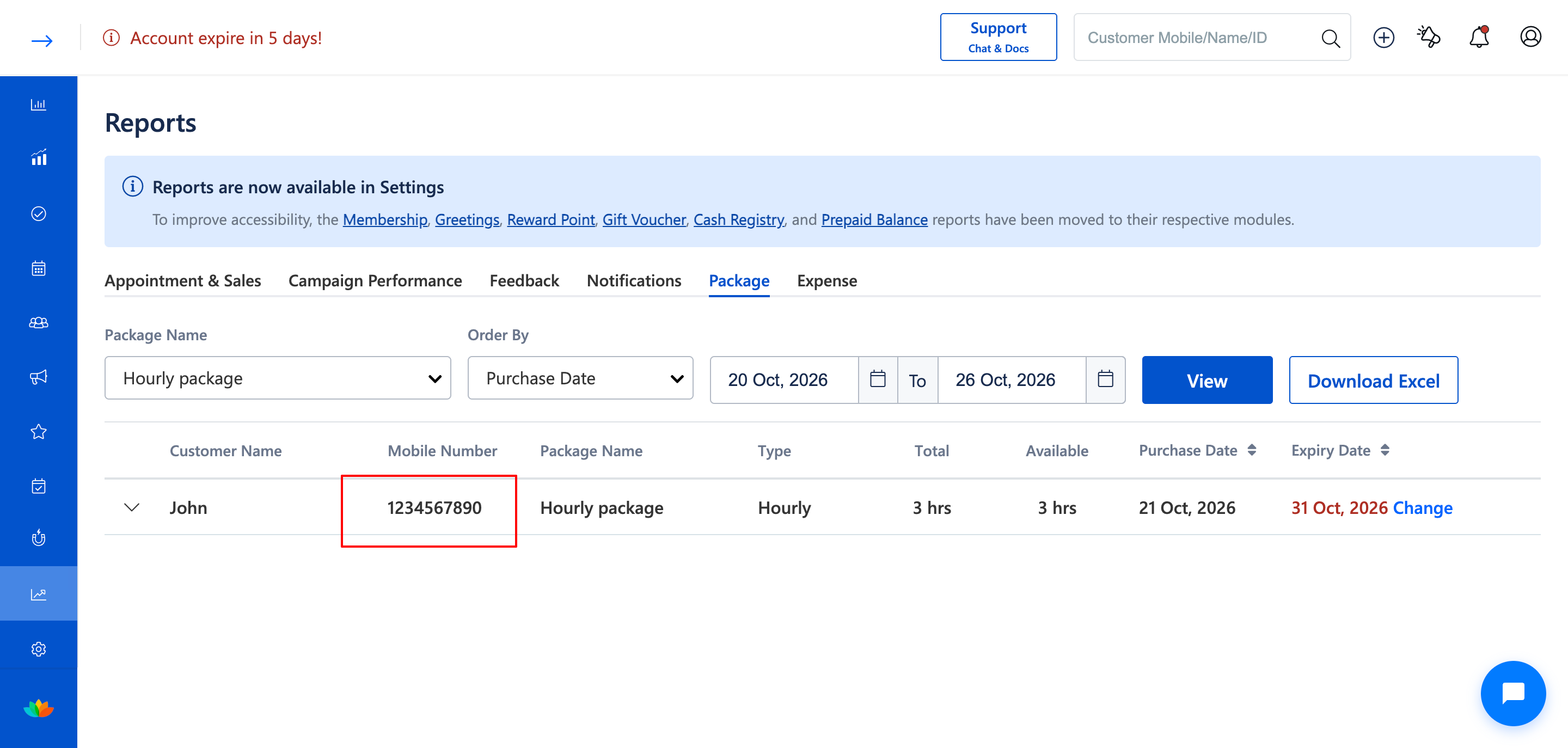
2. Click on the small dropdown arrow icon on the left side of the customer package row to expand the detailed redemption breakdown
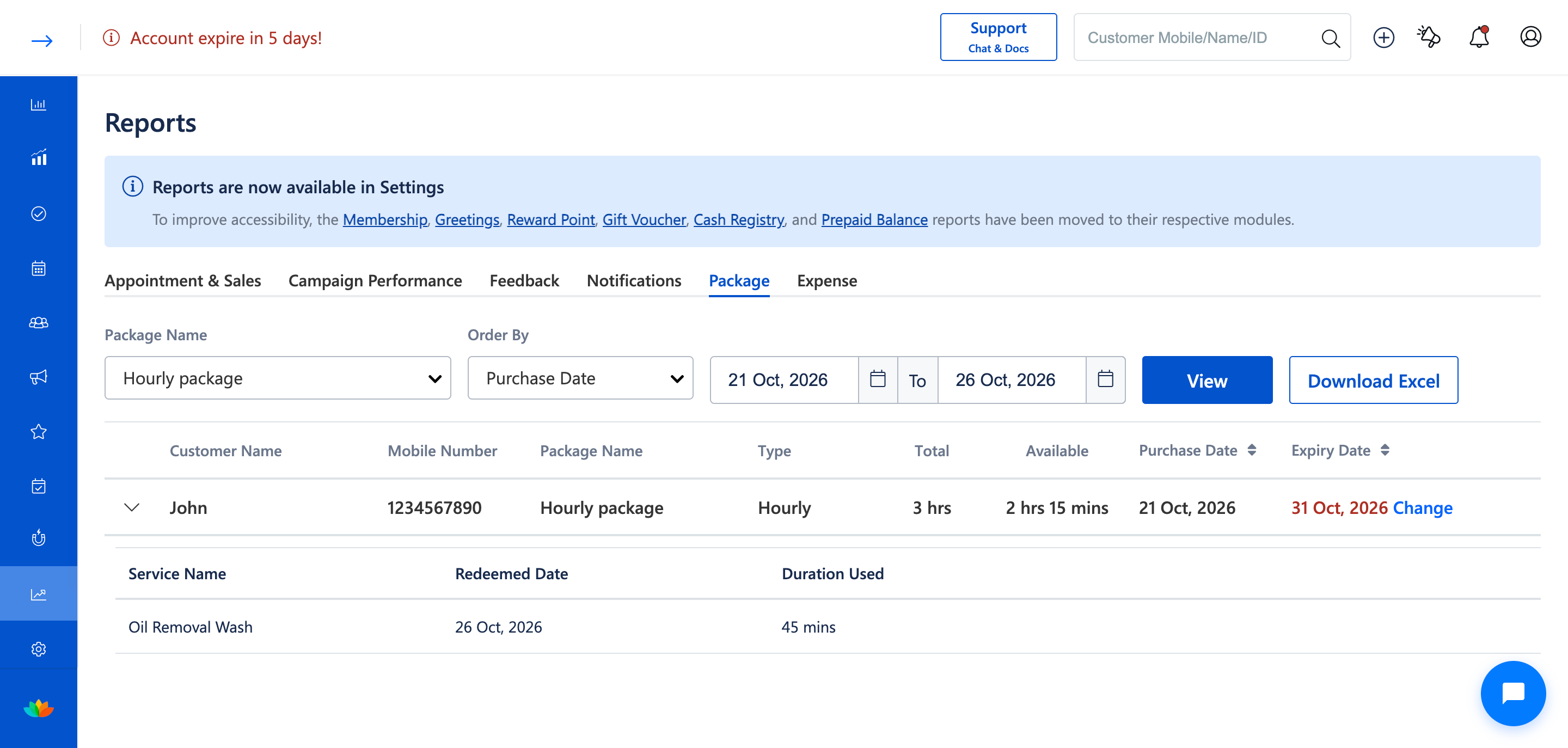
3. Review the nested redemption sub-table displaying:
• Service Name: The exact haircut, styling, or spa treatment redeemed (E.g., Classic Haircut, Pixie Haircut, V-Cut, U-Cut, Bangs Trim).
• Redeemed Date: The specific appointment or billing date when the service was redeemed (E.g., 4 Sep, 2026 or 5 Sep, 2026).
• Duration Used: The exact minutes or hours deducted from the package time balance (E.g., 15 mins, 40 mins, 1 hr, 1 hr 30 mins).
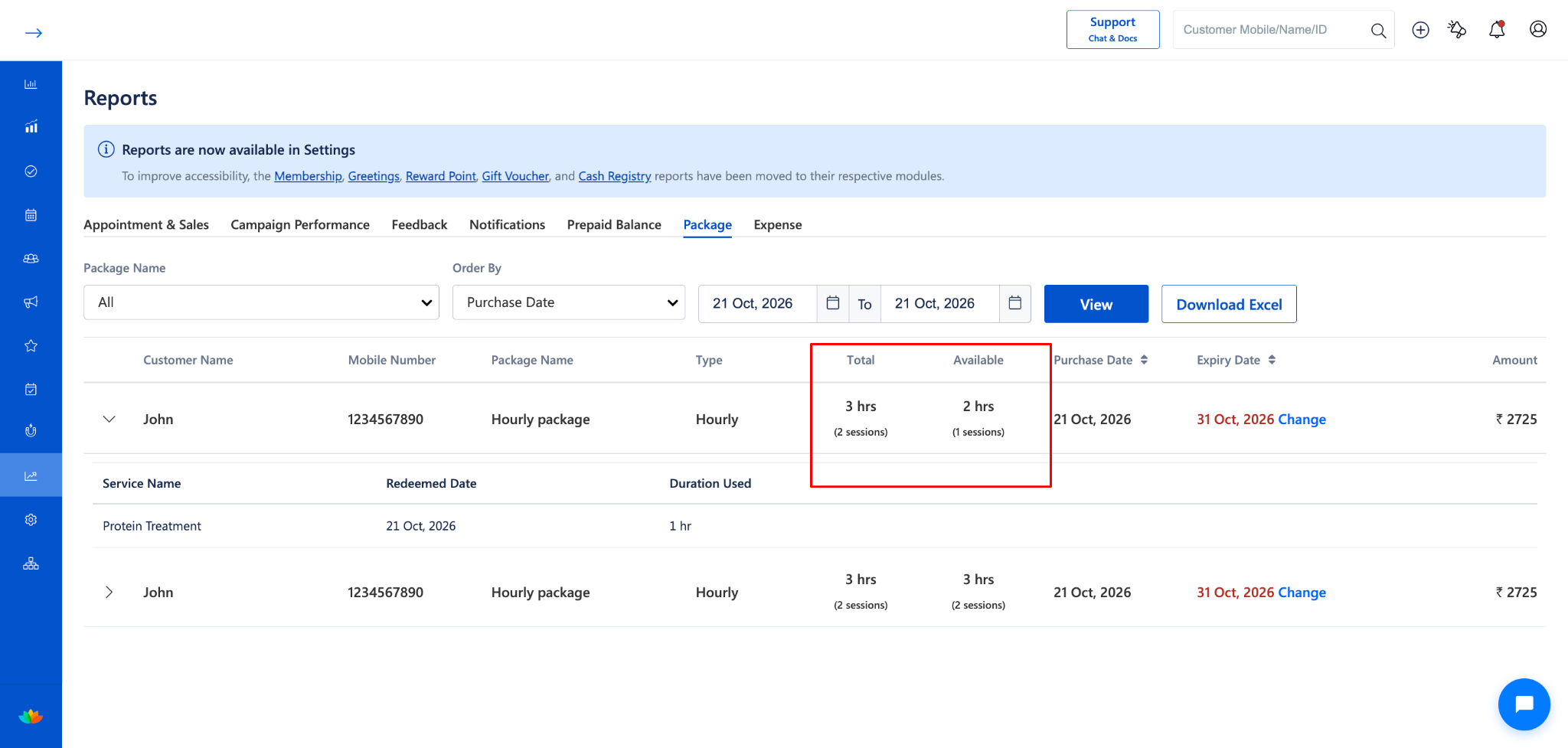
4. For packages configured with booking limits, review the Total and Available columns to track both consumed durations and session counts simultaneously (E.g., Total: 3 hrs (2 sessions), Available: 2 hrs (1 sessions))
Steps to Check Eligible Services and Unused Packages
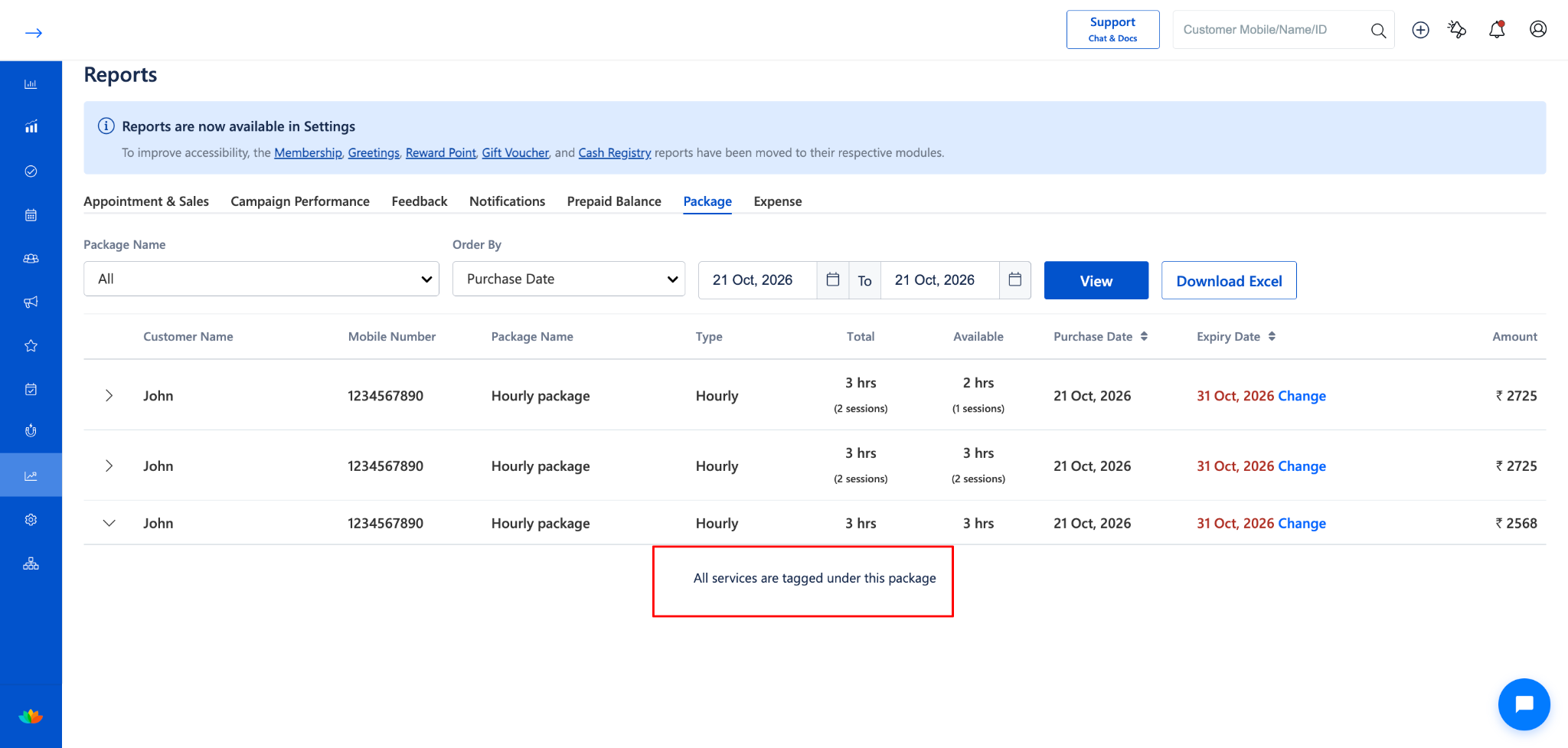
1. For on-demand packages created with universal salon service eligibility, clicking the expand arrow displays All services are tagged under this package, confirming that hours can be redeemed across your full salon service menu
2. For newly sold packages where the client has not yet taken any services, expanding the row displays Not yet redeemed any services under the package
Steps to Update Package Expiry Date and Reason Directly from Report
1. In the Package Report table, locate the target client package row.
2. Under the Expiry Date column, click on the blue Change link located next to the expiration date (E.g., 4 Oct, 2026 Change).
3. The Change Expiry modal opens, displaying the date selector and reason input box
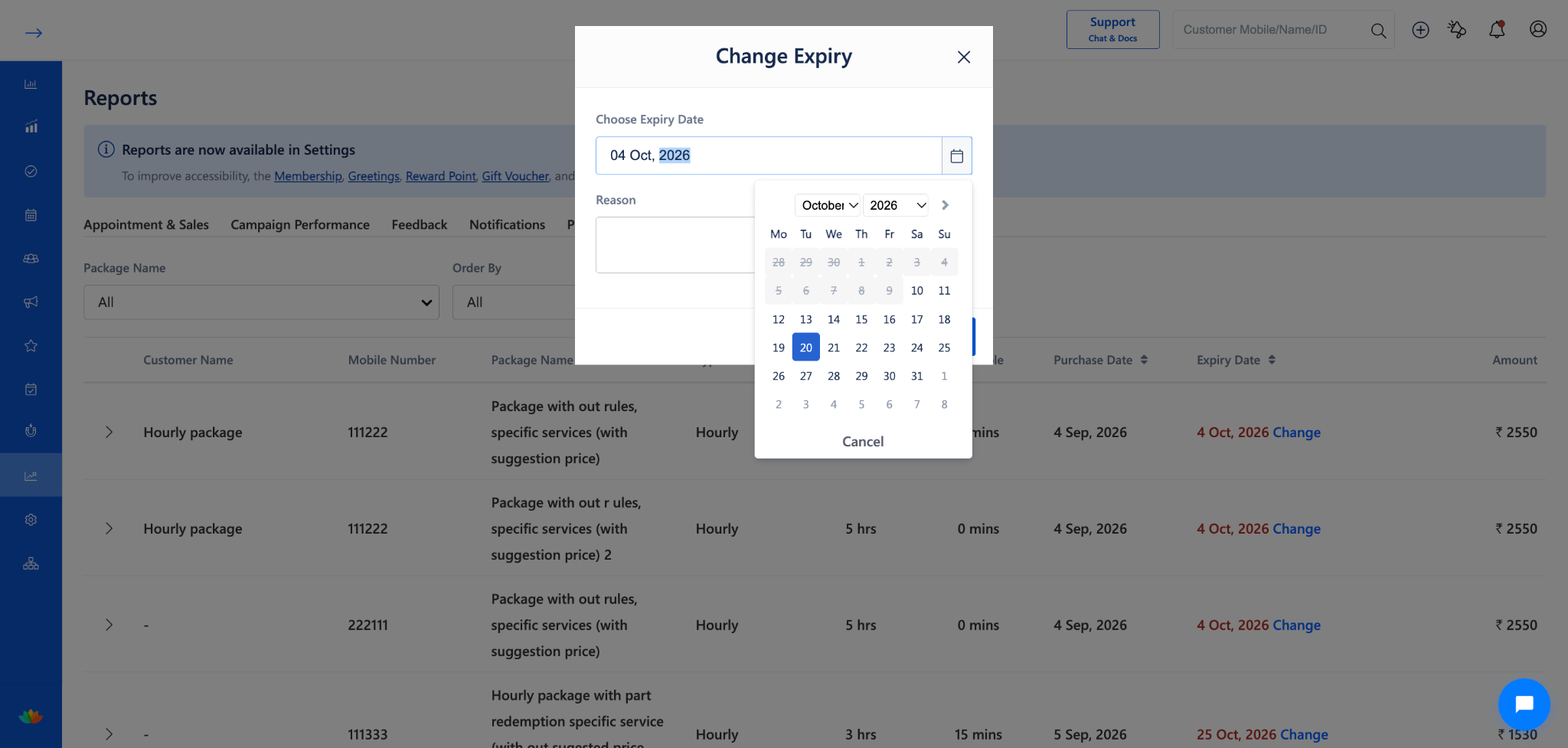
4. Under Choose Expiry Date, click on the date field to open the calendar dropdown and select the new expiration date (E.g., 20 Oct, 2026).
5. In the Reason text box, enter the reason for extending package validity (E.g., Guest vacation extension, Medical leave, Salon loyalty courtesy).
6. Click on the Update button to confirm the new expiry date and record the extension reason.
7. Verify that the Expiry Date column updates immediately, enabling front-desk staff to continue redeeming package hours at Quick Sale and Appointments.
Note
1. The Available column reflects remaining package duration in real time after every Quick Sale checkout. Once an hourly package balance reaches 0 mins, the package is fully exhausted.
2. Modifying the package expiry date using the Change link affects only that specific customer package record, leaving the master package settings template unchanged.
3. For packages with both duration and session restrictions (E.g., 3 hrs and 10 sessions), the package expires whenever either the duration reaches 0 mins or the session count reaches 0 sessions.
Use Cases
1. Checking Guest Package Balances: Answering customer questions about remaining massage hours by reviewing past visit dates and service times.
2. Granting Validity Extensions: Quickly extending package expiry dates directly from the report when clients were traveling or unable to visit.
3. Month-End Accounts Review: Exporting Excel reports at month-end to compare package sales with completed services.
4. Identifying Unused Packages: Finding clients with unused package hours and running outreach reminders before expiry.
Benefits
1. Builds Guest Trust: Prevents billing confusion with a clear, line-by-line record of every redeemed service.
2. Direct Validity Management: Enables salon managers to adjust expiration dates in one click without navigating away from the report.
3. Effortless Excel Exporting: Provides clean downloadable spreadsheets for salon accountants and multi-branch management reviews.
4. Clear Balance Overview: Easily tracks remaining minutes and visit limits together on one simple screen.
Was this article helpful?
That’s Great!
Thank you for your feedback
Sorry! We couldn't be helpful
Thank you for your feedback
Feedback sent
We appreciate your effort and will try to fix the article