How to Create a Fixed Package in MioSalon ?
Overview
Fixed packages in MioSalon enable salon and spa businesses to bundle specific services with predefined session counts at an attractive packaged price.
Businesses use fixed packages to promote high-margin service combinations, drive repeat appointments, and secure upfront revenue from clients.
Setting up fixed packages simplifies billing at checkout and automatically tracks service redemption balances for each client.
Follow the guided step-by-step instructions below to create a fixed package in MioSalon.
Navigation Path
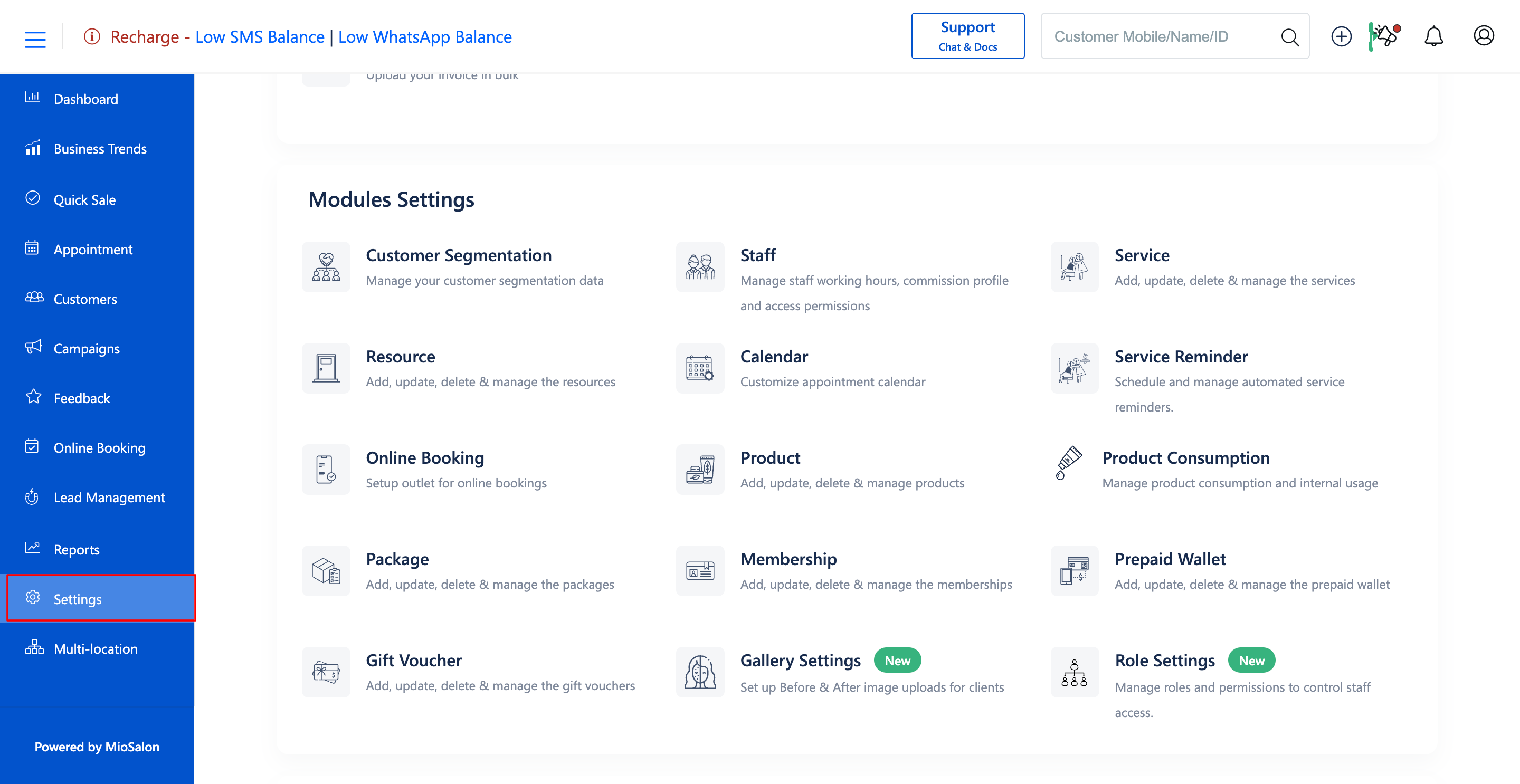
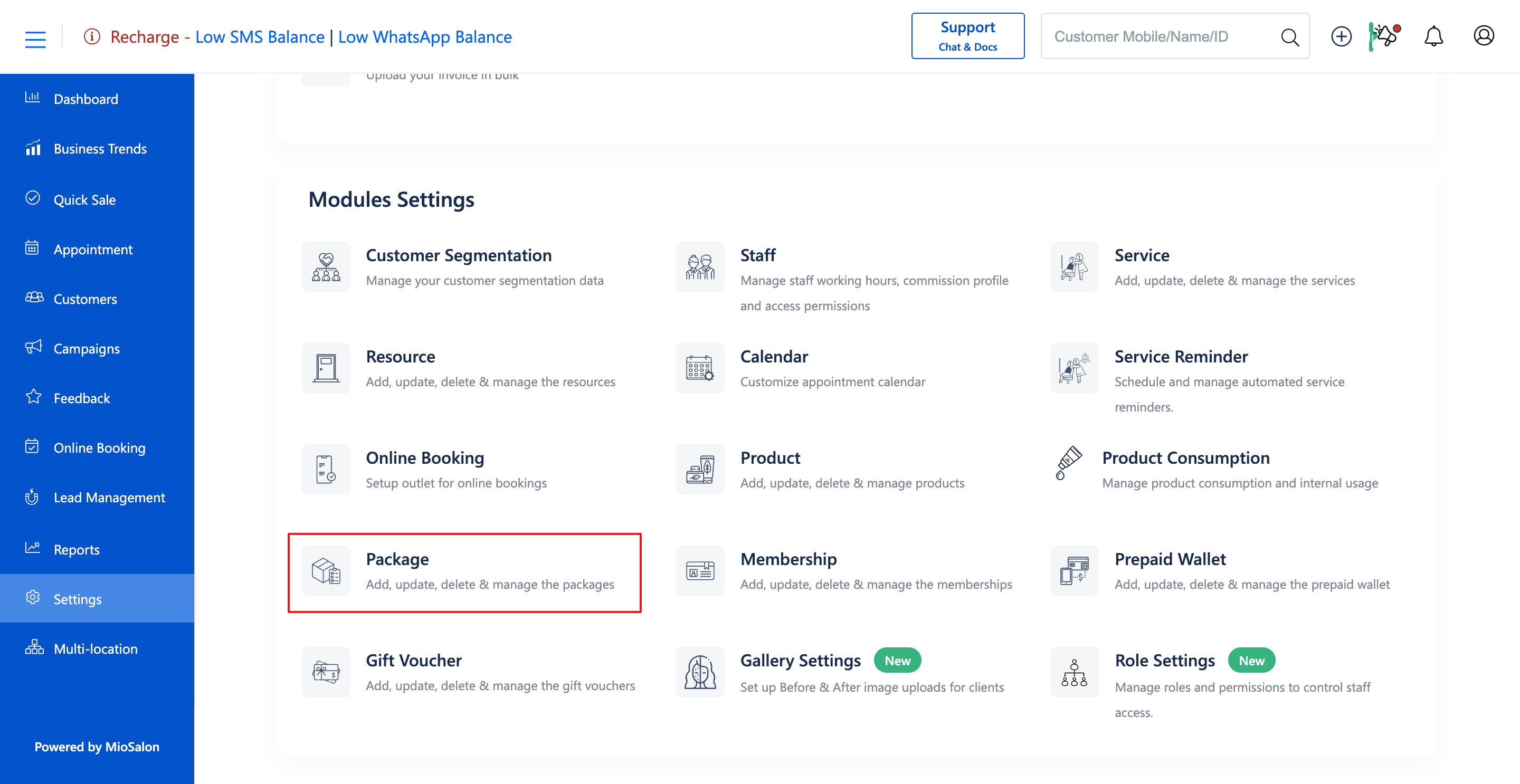
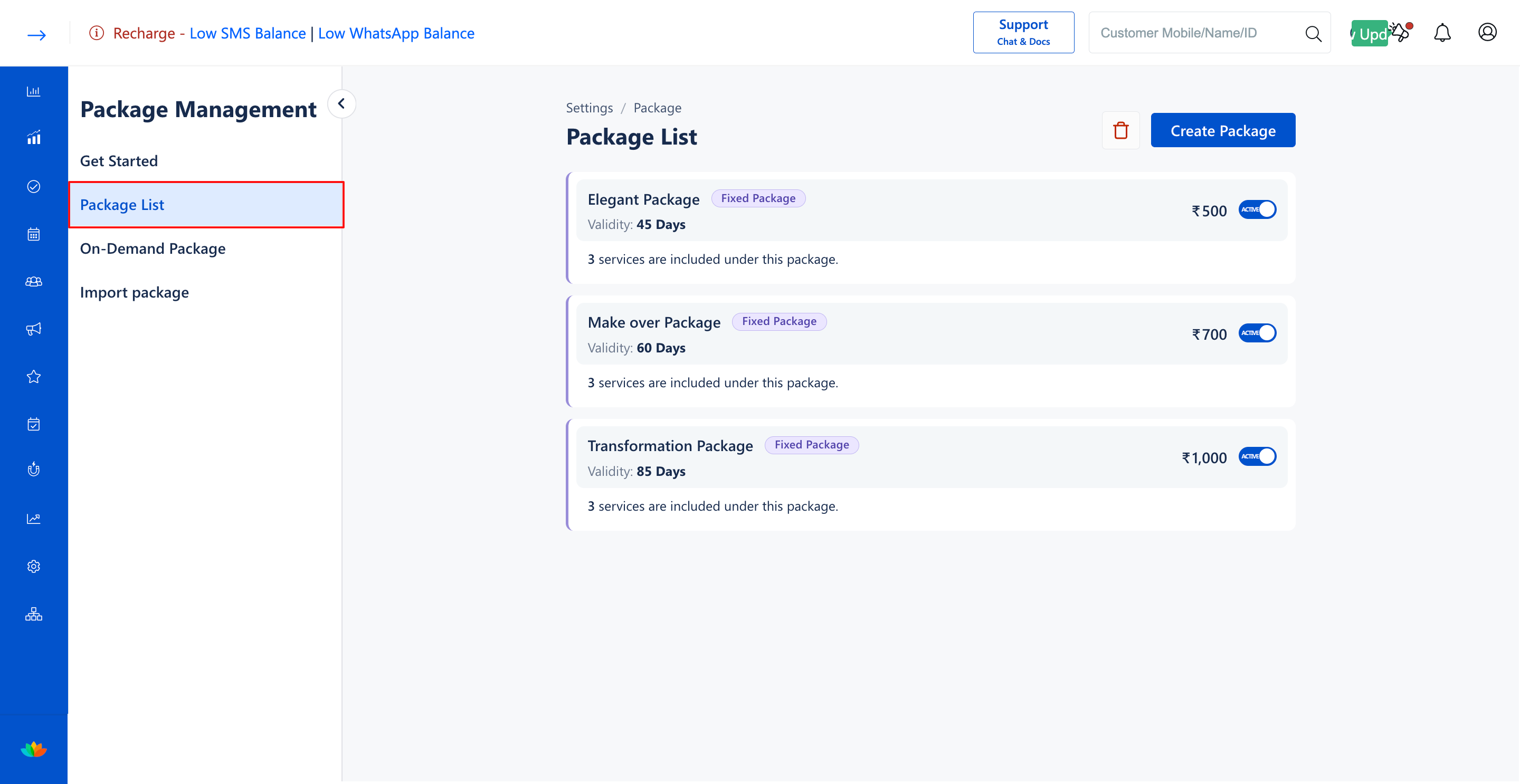
Settings → Modules Settings → Package → Package List
Steps to Create a Fixed Package
1. Navigate to the Settings module from the main left navigation bar and click on the Package card under the Modules Settings section.
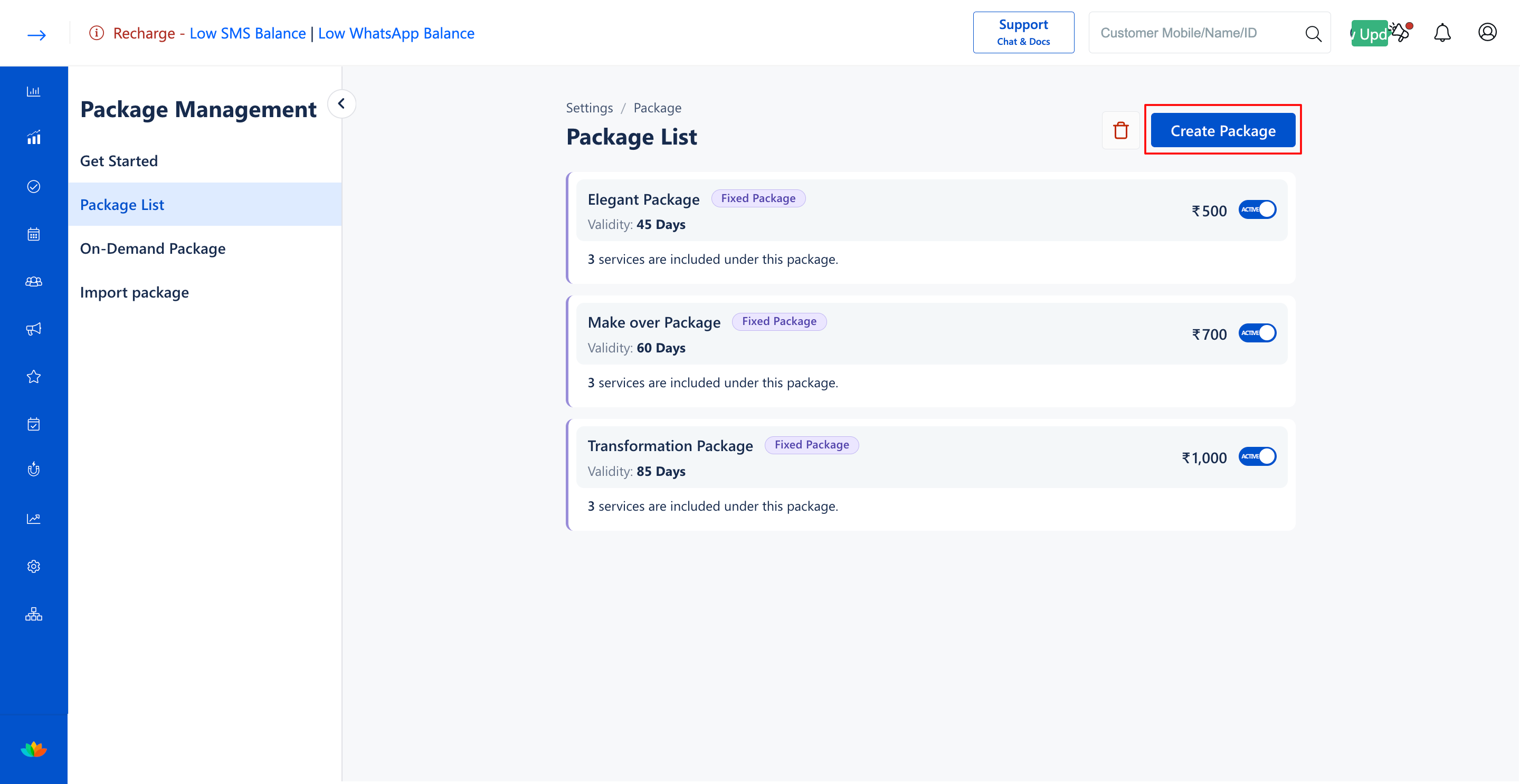
2. Select the Package List tab from the left sub-navigation menu, then click on the Create Package button located in the top-right corner.
3. In the Package Type section, select Fixed Package from the Package Type* dropdown menu.
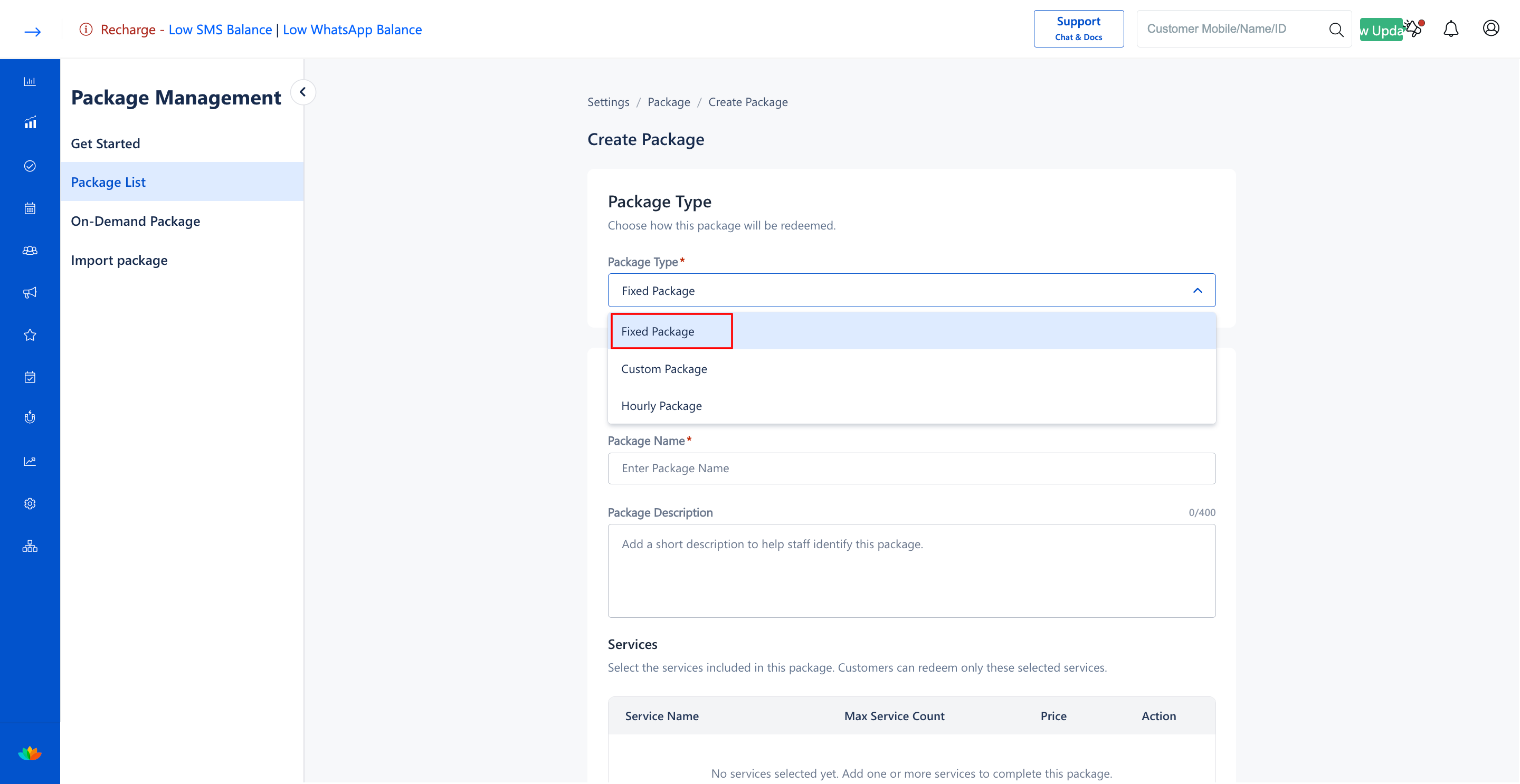
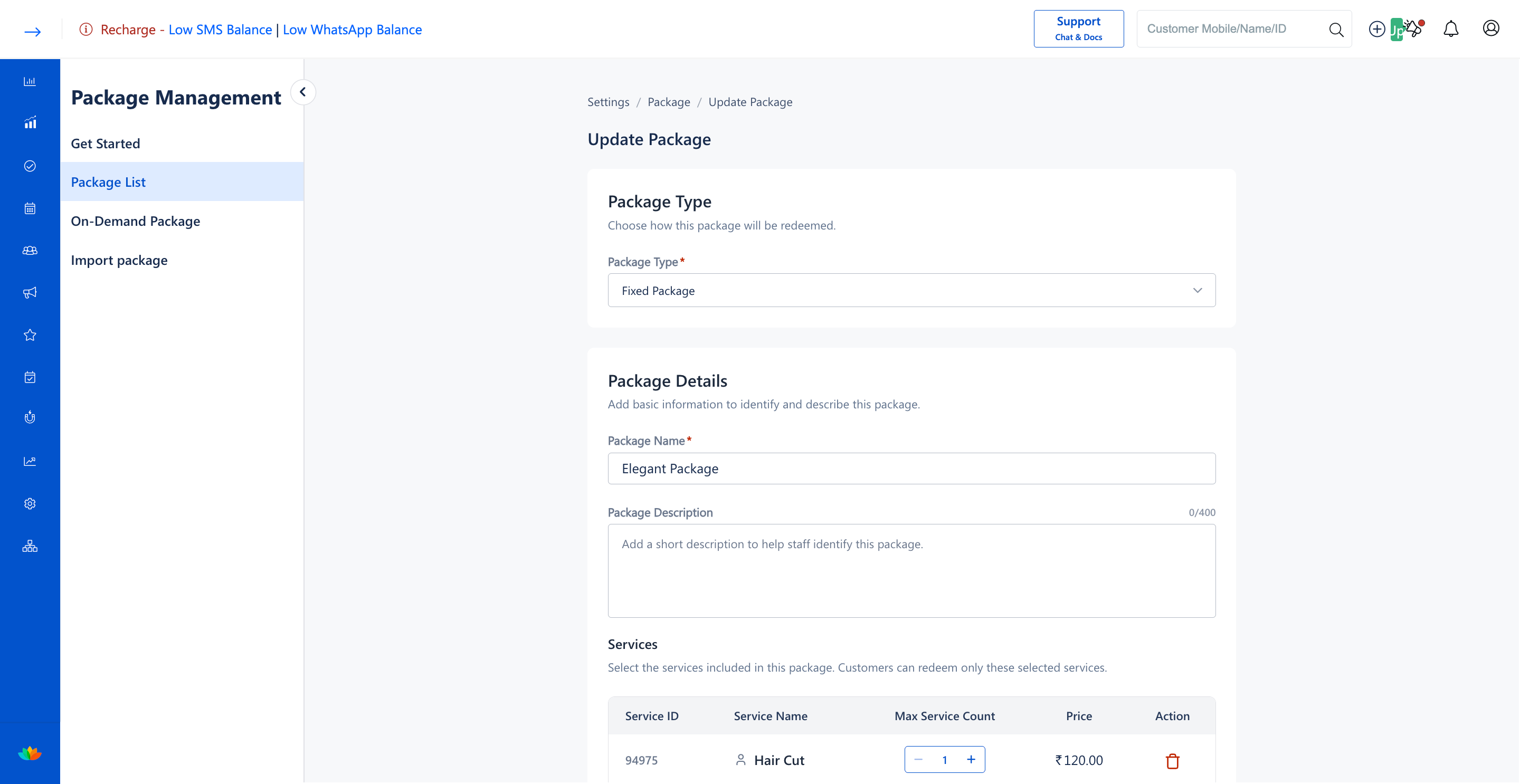
4. In the Package Details section, fill in the following information:
• Package Name*: Enter a descriptive name for the package. (E.g., Bridal Glow Package)
• Package Description: Enter a brief summary to help staff identify package inclusions. (E.g., Comprehensive bridal beauty care bundle including facial, hair spa, and manicure treatments.)
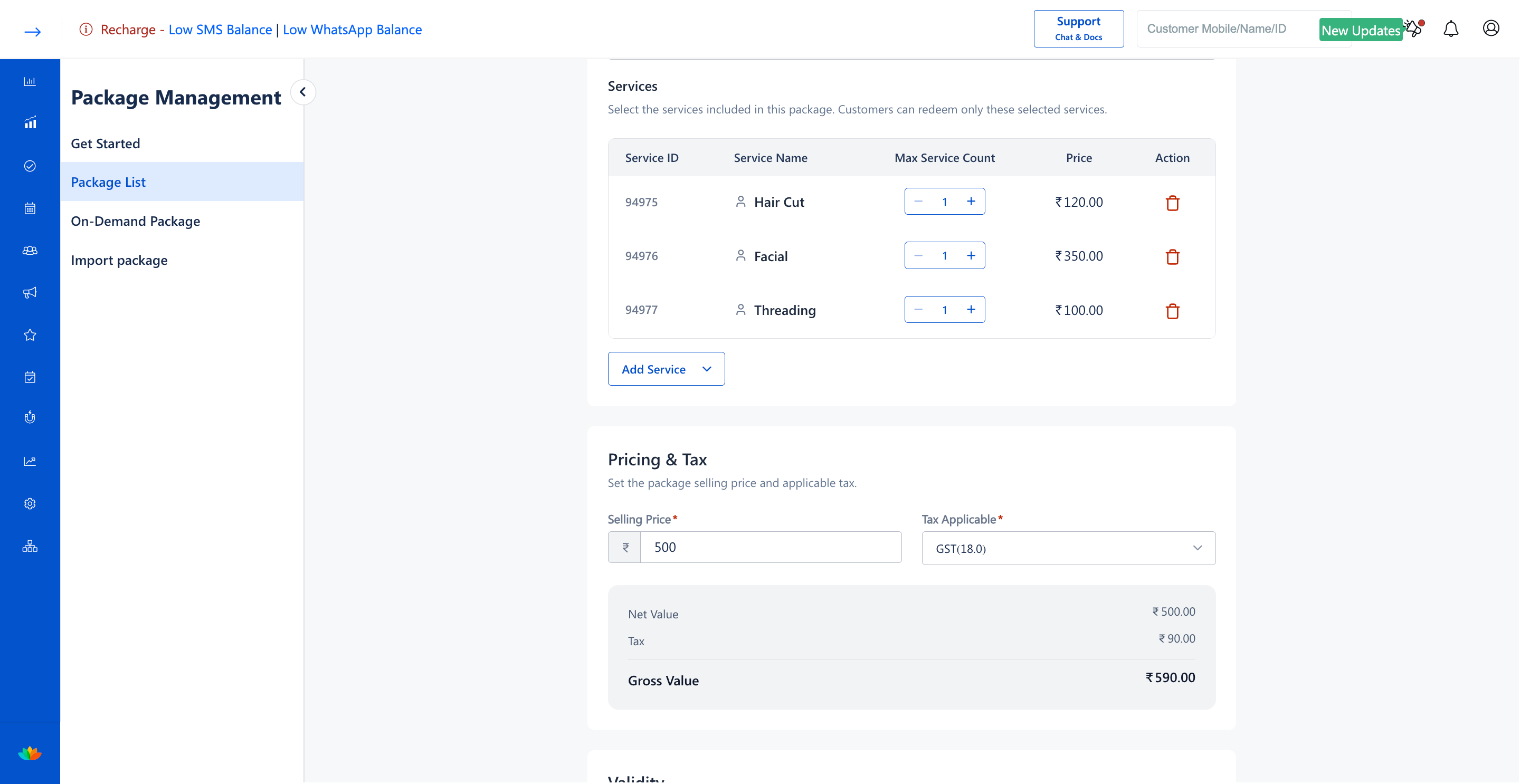
5. In the Services section, click on the Add Service dropdown button, search and check the services to include, and configure the service limits:
• Service Name: Select required services from the list. (E.g., Facial, Hair Spa)
• Max Service Count: Set the allowed number of sessions for each selected service. (E.g., 2)
6. In the Pricing & Tax section, configure the financial details:
• Selling Price*: Enter the total selling price of the package before tax. (E.g., 2500)
• Tax Applicable*: Select the appropriate tax rate from the dropdown. (E.g., GST(18.0))
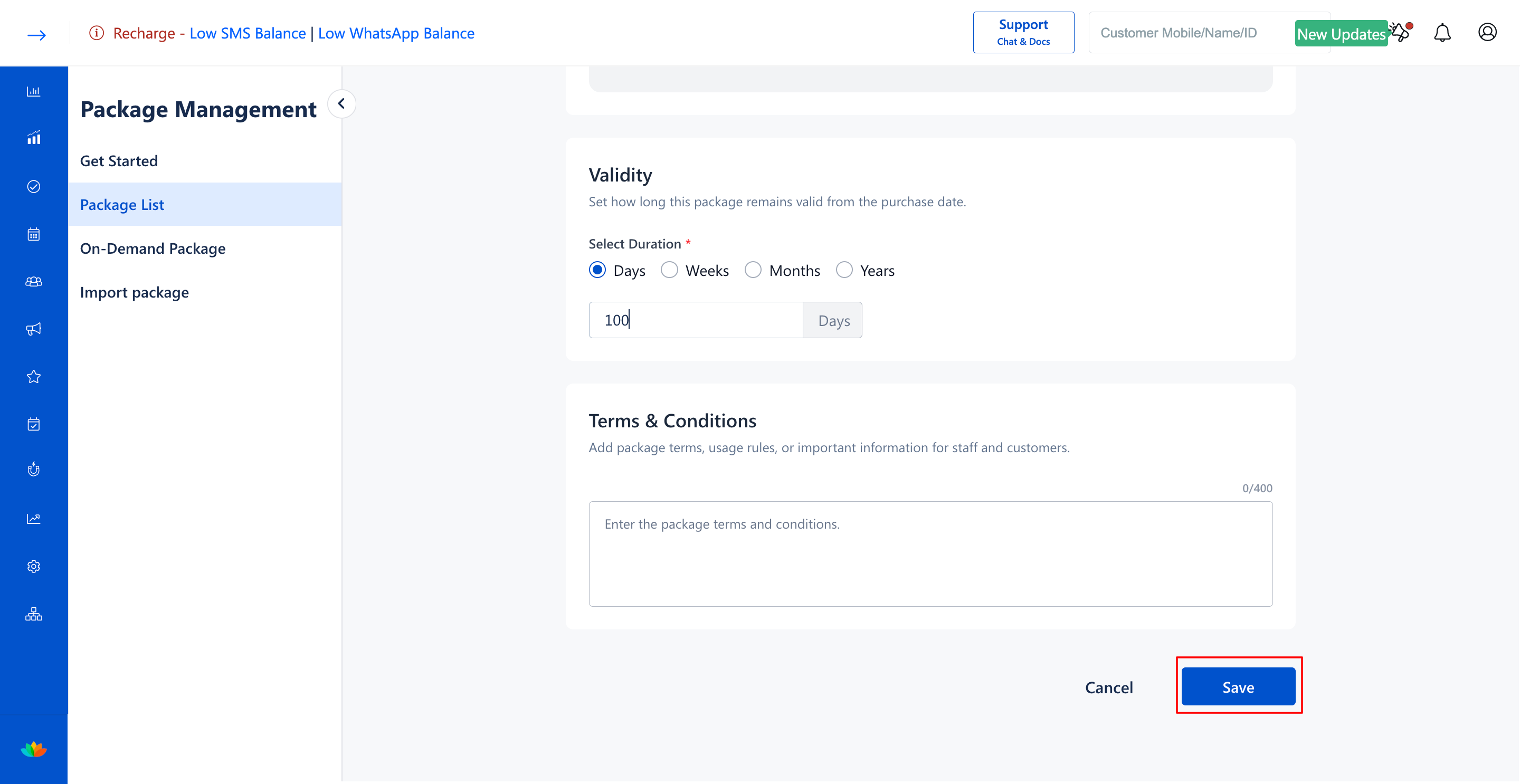
7. In the Validity section, define how long the package remains active from the purchase date:
• Select Duration*: Choose between Days, Weeks, Months, or Years and enter the duration value. (E.g., 60 Days)
8. In the Terms & Conditions section, enter relevant redemption rules or business policies. (E.g., Valid across all salon branches. Non-refundable and non-transferable.)
9. Click on the Save button to create and activate the new fixed package.
Note
Services bundled within a fixed package cannot be substituted for other services during checkout or appointment redemption.
Use Cases
1. Creating seasonal beauty packages such as Pre-Bridal Pampering, Festive Glow, or Monsoon Hair Care.
2. Offering bundled wellness sessions such as 5 Body Massages with 2 Complimentary Steam Baths.
3. Packaging recurring grooming routines like Monthly Haircut and Beard Trim memberships.
Benefits
1. Secures upfront revenue and guarantees repeat salon visits across the package validity period.
2. Accelerates front-desk billing by eliminating the need to add individual services manually.
3. Automates session tracking and prevents over-redemption of bundled services.
Was this article helpful?
That’s Great!
Thank you for your feedback
Sorry! We couldn't be helpful
Thank you for your feedback
Feedback sent
We appreciate your effort and will try to fix the article