How to Update the HSN/SAC Code in MioSalon
Overview
Regulations and classification codes may occasionally change, requiring updates to your system.
MioSalon allows you to easily edit and update existing HSN/SAC Codes to reflect current rates or classifications.
Updating an HSN/SAC Code ensures that all future transactions categorize goods correctly based on the new rules.
Follow the steps below to modify an existing HSN/SAC Code for your products or services.
Navigation Path
Settings → Point of Sale → HSN/SAC Code
Steps to Update an HSN/SAC Code
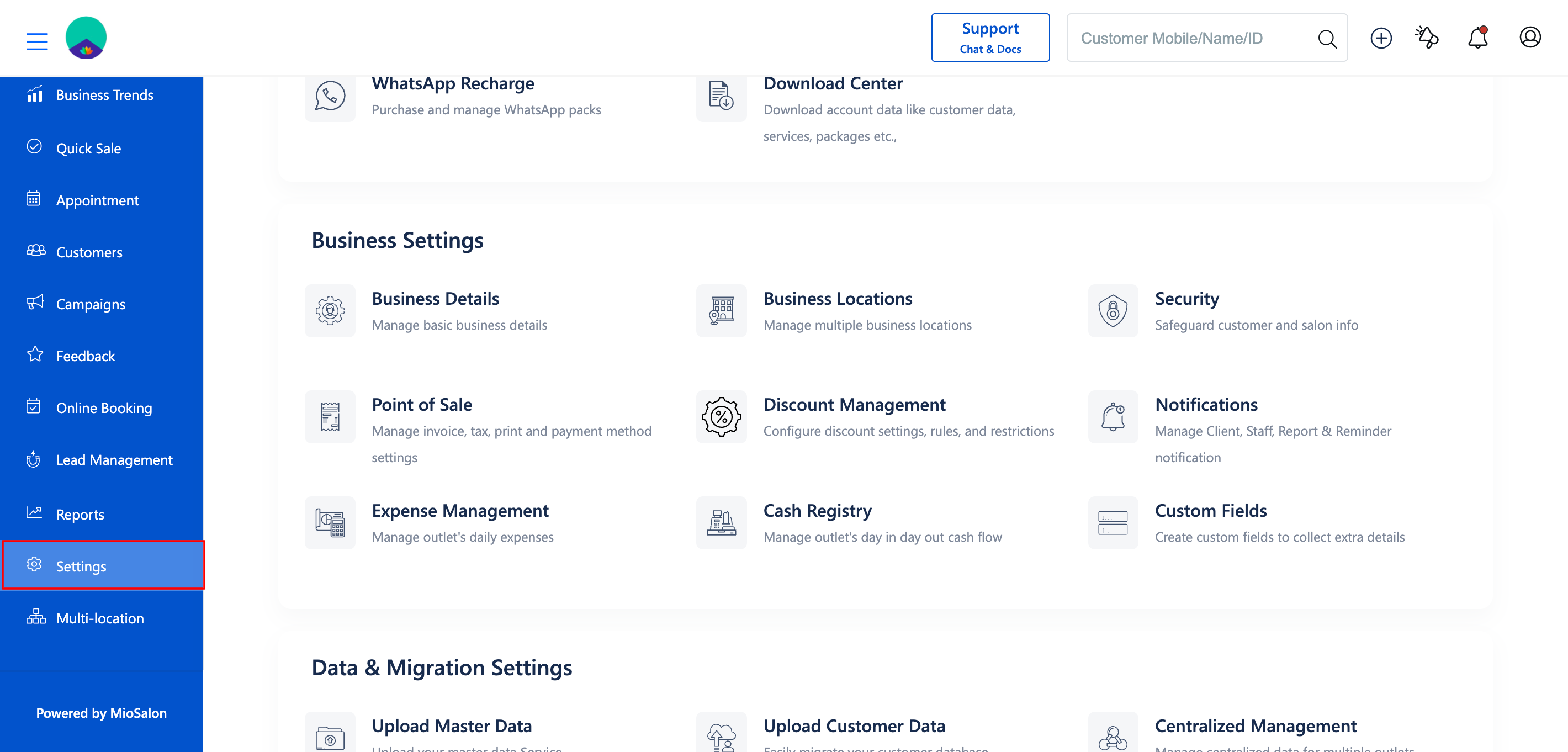
1. Log in to your MioSalon account and navigate to Settings → Point of Sale → HSN/SAC Code.
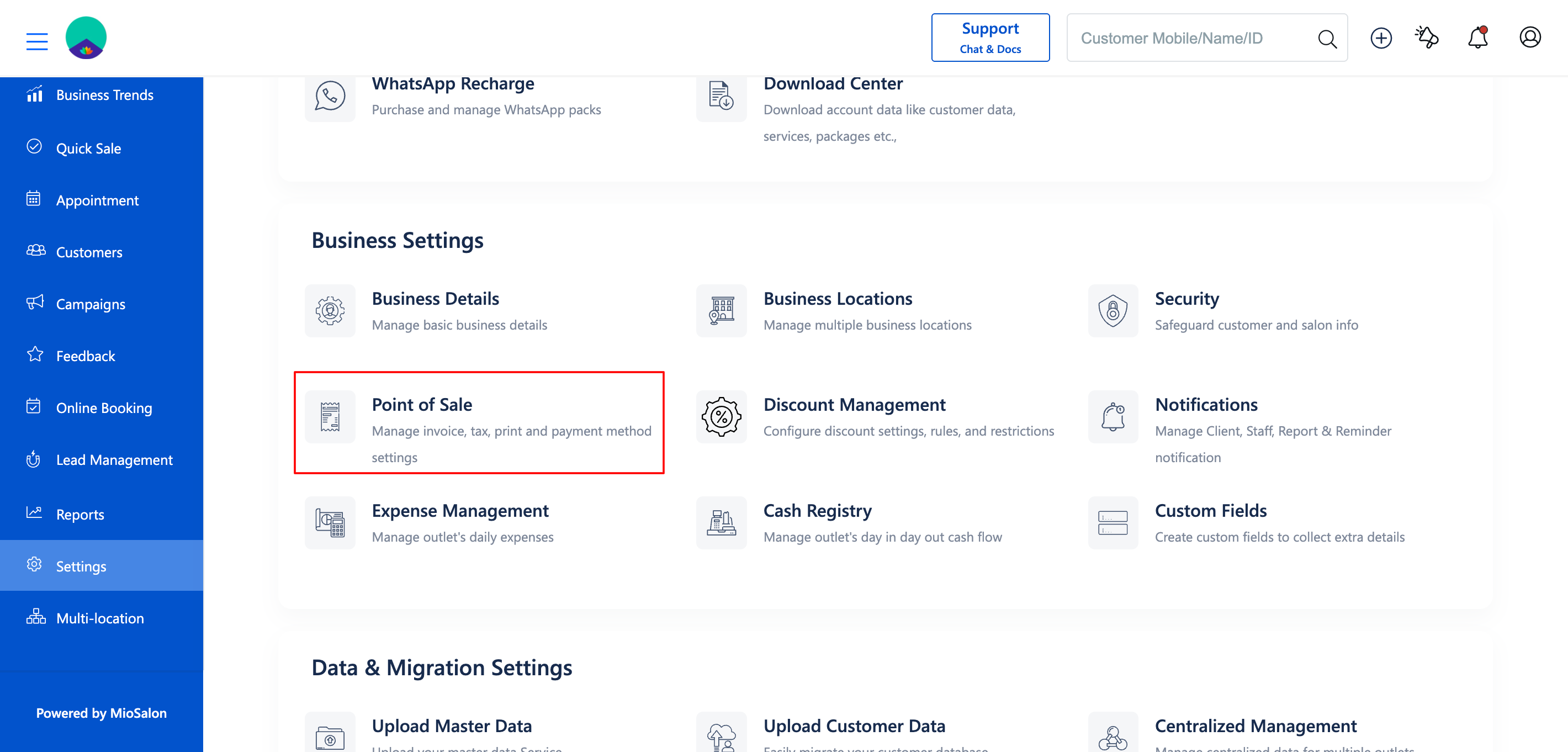
2. Locate the specific HSN/SAC Code you wish to modify from the list of existing codes.
3. Click the Edit icon next to the relevant HSN/SAC Code in the Action column.
4. The Update HSN/SAC Code popup will appear on the screen.
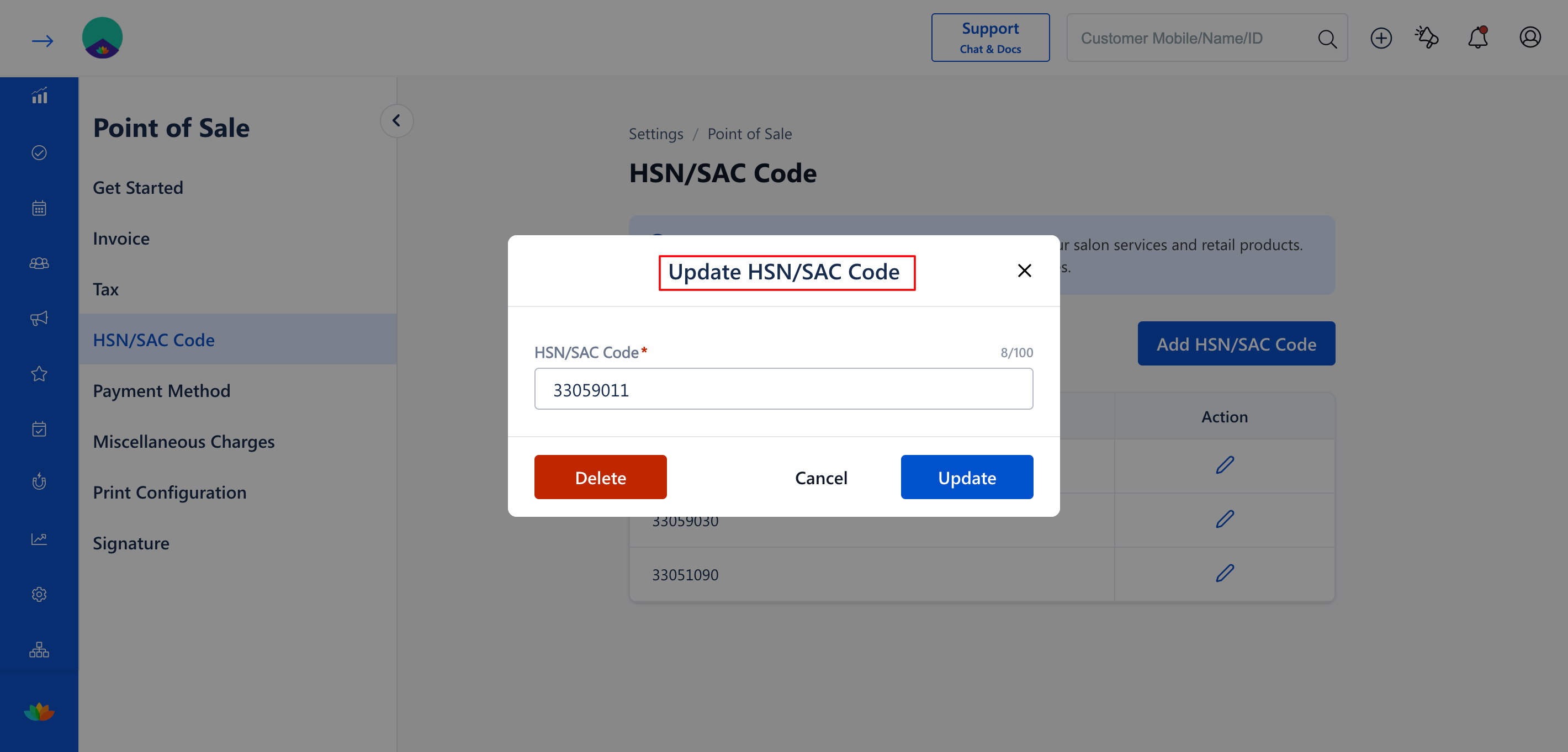
5. Make the necessary changes to the HSN/SAC Code field.
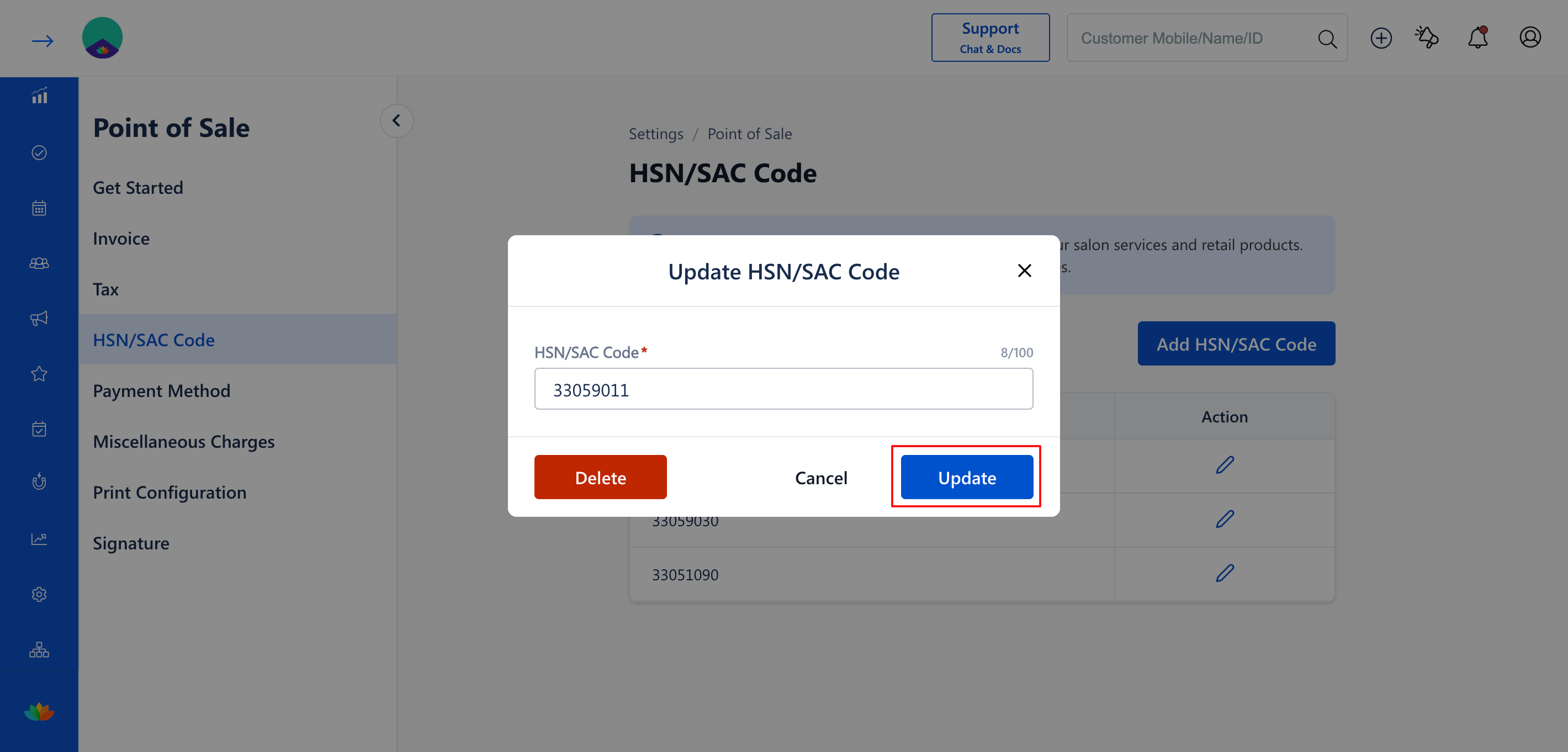
6. Click Update to apply and save the modifications immediately.
Use Cases
1. Modifying a code when government regulations change the classification for a specific category of goods.
2. Correcting a typographical error made during the initial setup of an HSN/SAC Code.
3. Updating the codes for more accurate Service and Product Tracking.
Benefits
1. Prevents financial discrepancies by keeping tracking and invoices accurate and up to date.
2. Eliminates the need to delete and recreate codes when minor changes are required.
3. Secures uninterrupted billing operations even when external policies shift.
Note
Updating an HSN/SAC Code will apply the new settings to future transactions. Historical data will remain unaffected by this change.
Was this article helpful?
That’s Great!
Thank you for your feedback
Sorry! We couldn't be helpful
Thank you for your feedback
Feedback sent
We appreciate your effort and will try to fix the article