Overview
The Point of Sale (POS) module in MioSalon helps you configure how invoices are generated, taxes are applied, payments are collected, bills are printed, and discounts are controlled during checkout. This article explains each POS sub-tab in detail and how to configure them correctly.
Log in to your MioSalon account.
From the left-side menu, click Settings.
Scroll down and select Point of Sale.
1. Get Started
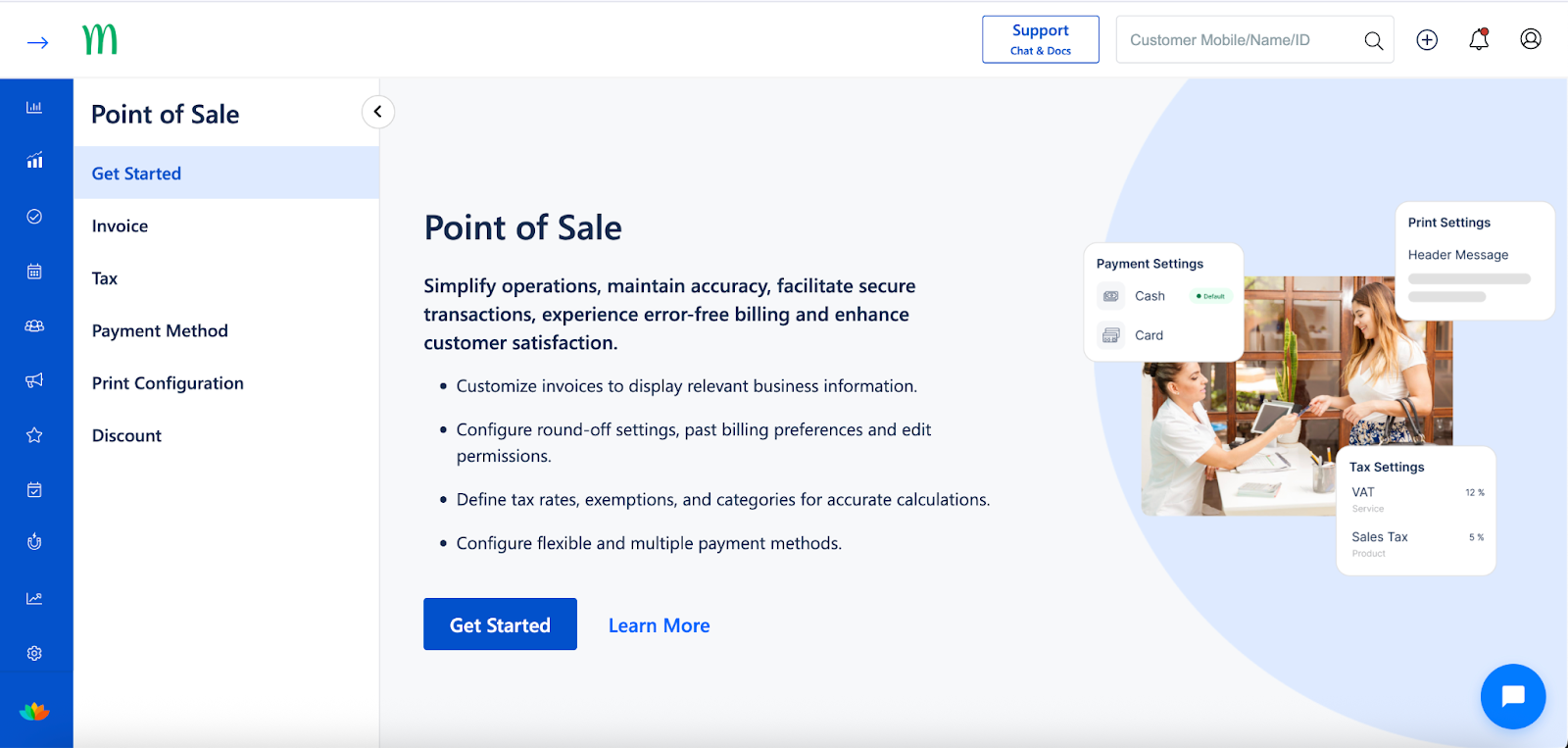
The Get Started screen provides a high-level overview of how the Point of Sale works in MioSalon and highlights key configuration areas required before billing customers.
From this section, you can navigate to:
Invoice Settings
Tax Settings
Payment Method
Print Configuration
Discount
Use this page as a checklist to ensure all POS configurations are completed before starting billing operations.
Invoice Settings
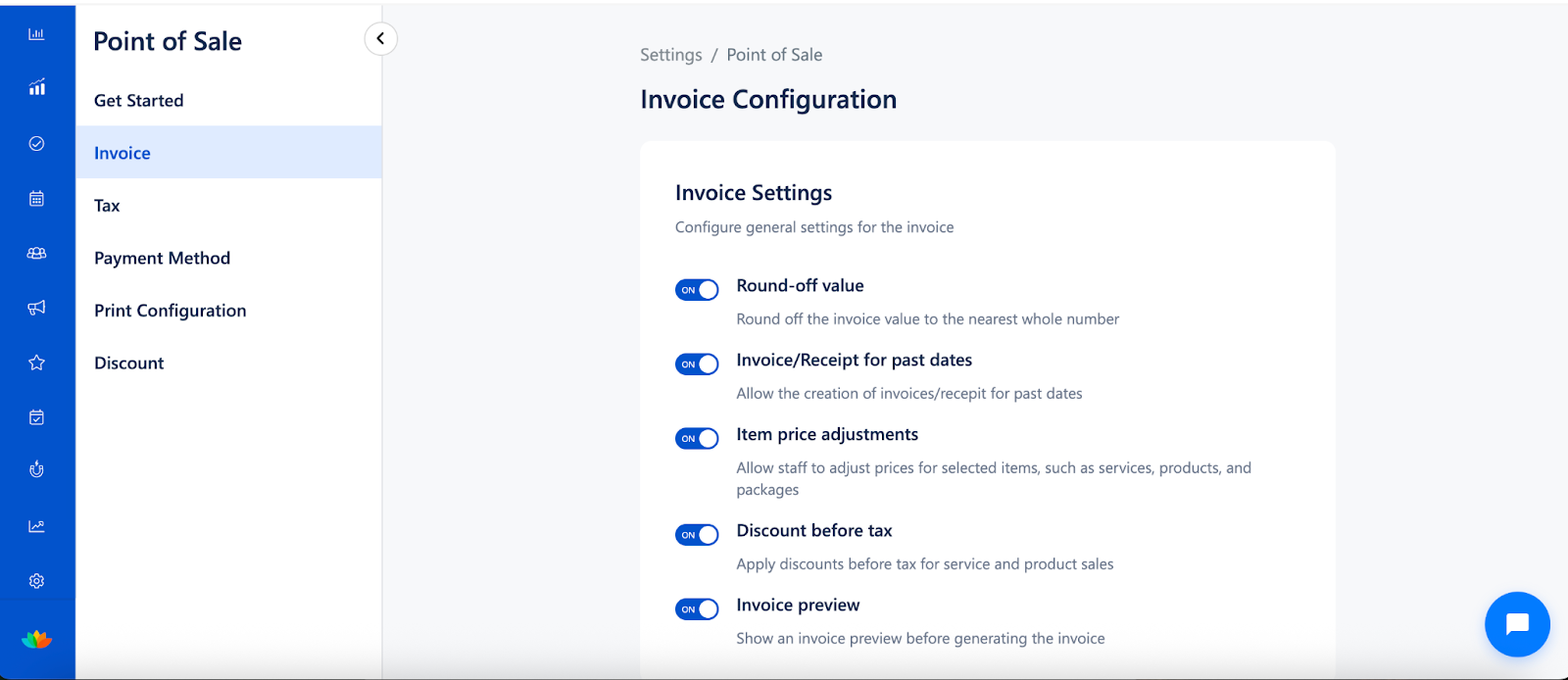
Configure general behaviors that control how invoices are created and displayed during billing.
Round-off value
Rounds off the final invoice amount to the nearest whole number automatically.
Invoice/Receipt for past dates
Allows creating invoices or receipts for a previous date when required.
Item price adjustments
Enables staff to adjust prices for selected items such as services, products, and packages during billing.
Discount before tax
Applies discounts to the invoice amount before tax is calculated.
Invoice preview
Displays a preview of the invoice before it is generated and finalized.
2. Invoice Settings
Invoice Configuration
Invoice Settings control how invoice numbers, prefixes, and deletion rules behave.
2.1 Invoice Sequence
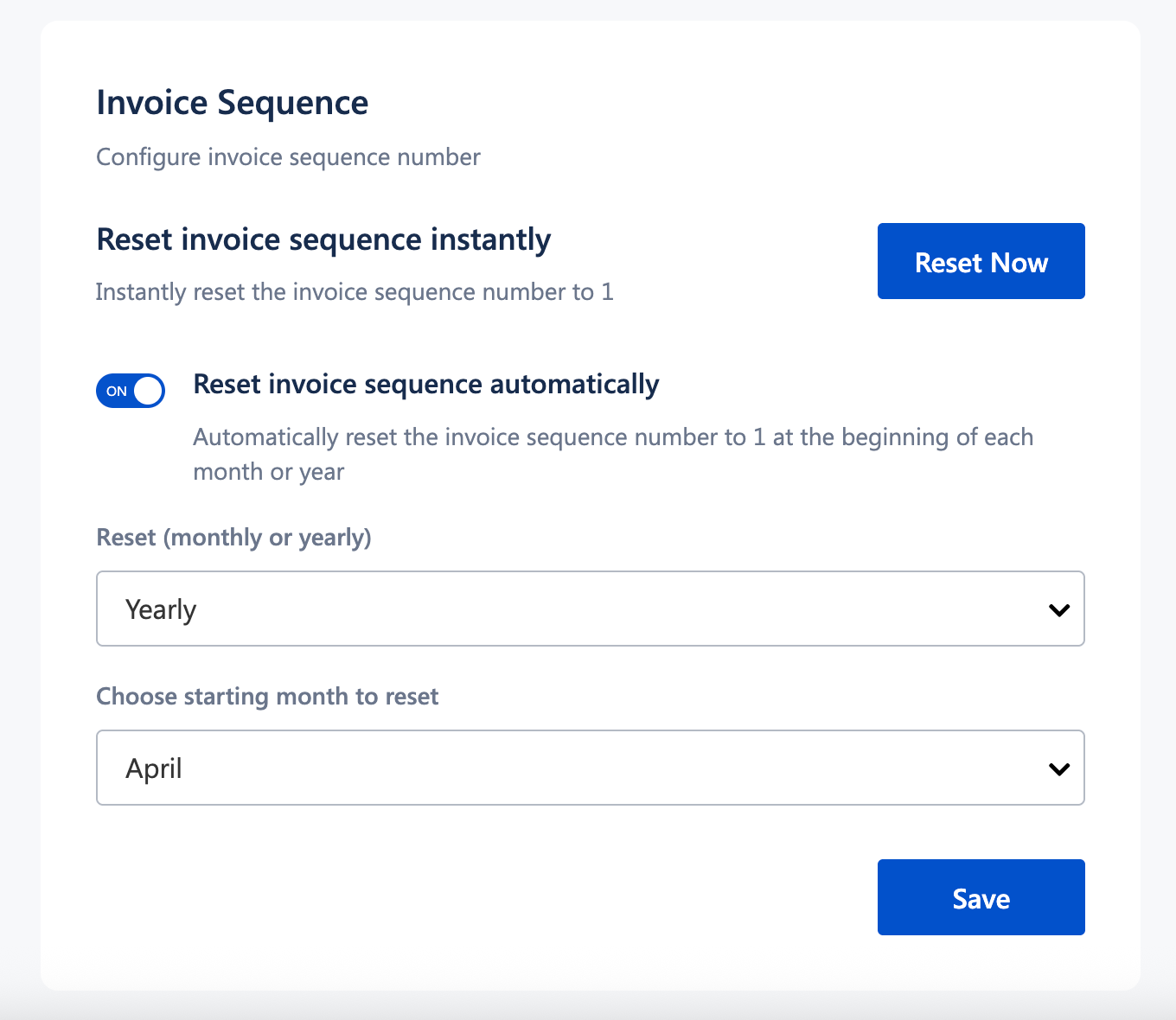
Purpose: Configure how invoice numbers are generated.
Available options:
Reset invoice sequence instantly
Click Reset Now to immediately reset the invoice sequence number.Reset invoice sequence automatically
Enable this option to reset the sequence:Monthly or Yearly
Select the starting month for reset (for example, April)
Click Save after making changes.
2.2 Custom Prefix
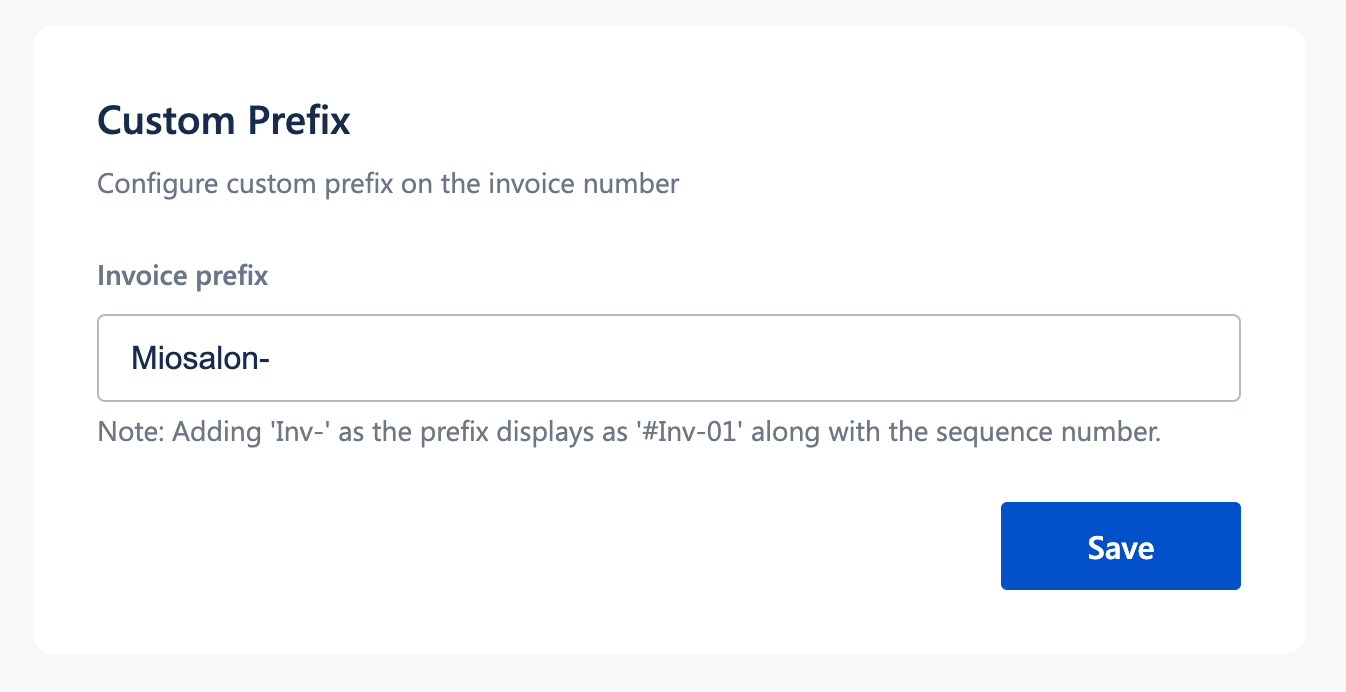
Purpose: Add a prefix to invoice numbers.
Enter the Invoice prefix (example:
Miosalon)The prefix appears along with the sequence number on invoices
(Example: INV-01)
Click Save to apply.
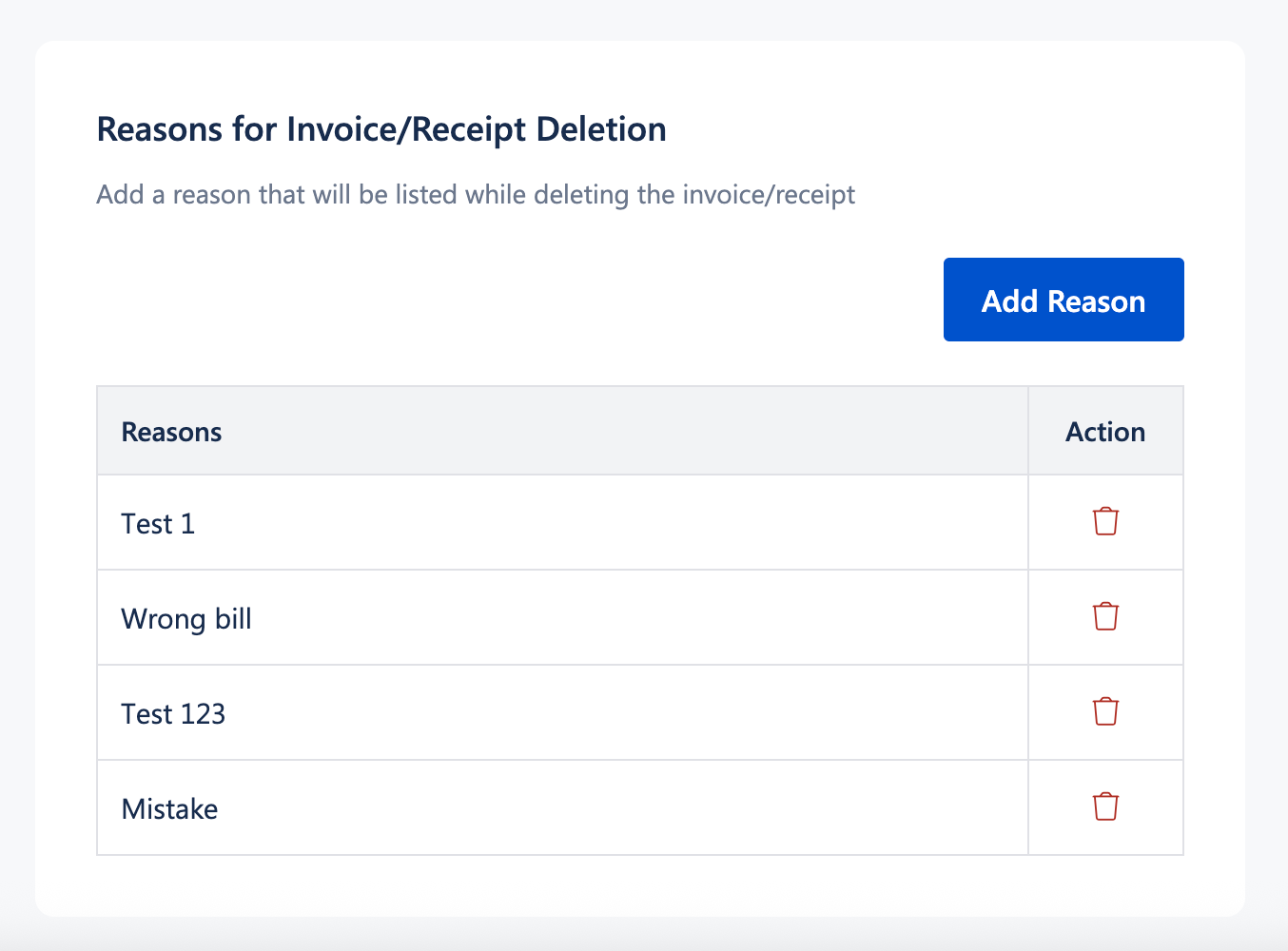
2.3 Reasons for Invoice/Receipt Deletion
Purpose: Maintain audit control when invoices or receipts are deleted.
Click Add Reason
Enter the reason for deletion (maximum 100 characters)
Click Save
Configured reasons appear as a selectable list during invoice deletion.
3. Tax Settings
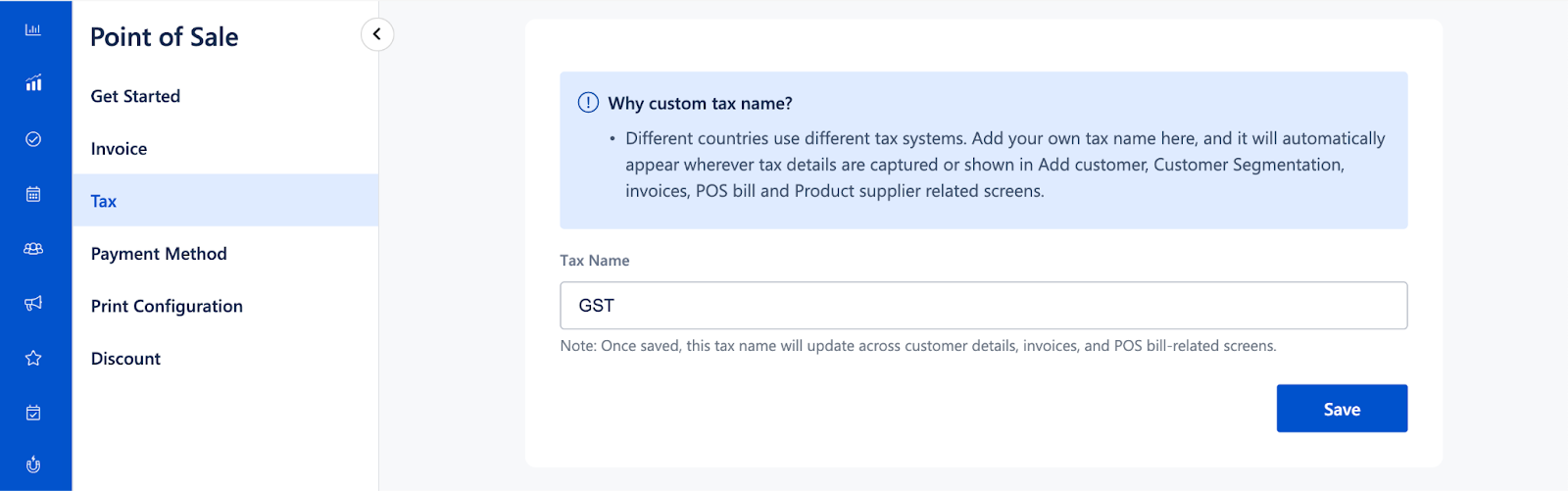
3.1 Custom Tax Name
Purpose
The Custom Tax Name setting allows you to define a tax label that matches your country’s or region’s tax system instead of being restricted to predefined tax names. This ensures that tax terminology used across MioSalon aligns with local regulations and business practices.
Note
Once saved, the custom tax name is updated globally across the system. This change reflects immediately in customer details, invoices, and all POS bill-related screens, including historical views where tax labels are displayed.
3.2 GST Settings
Purpose
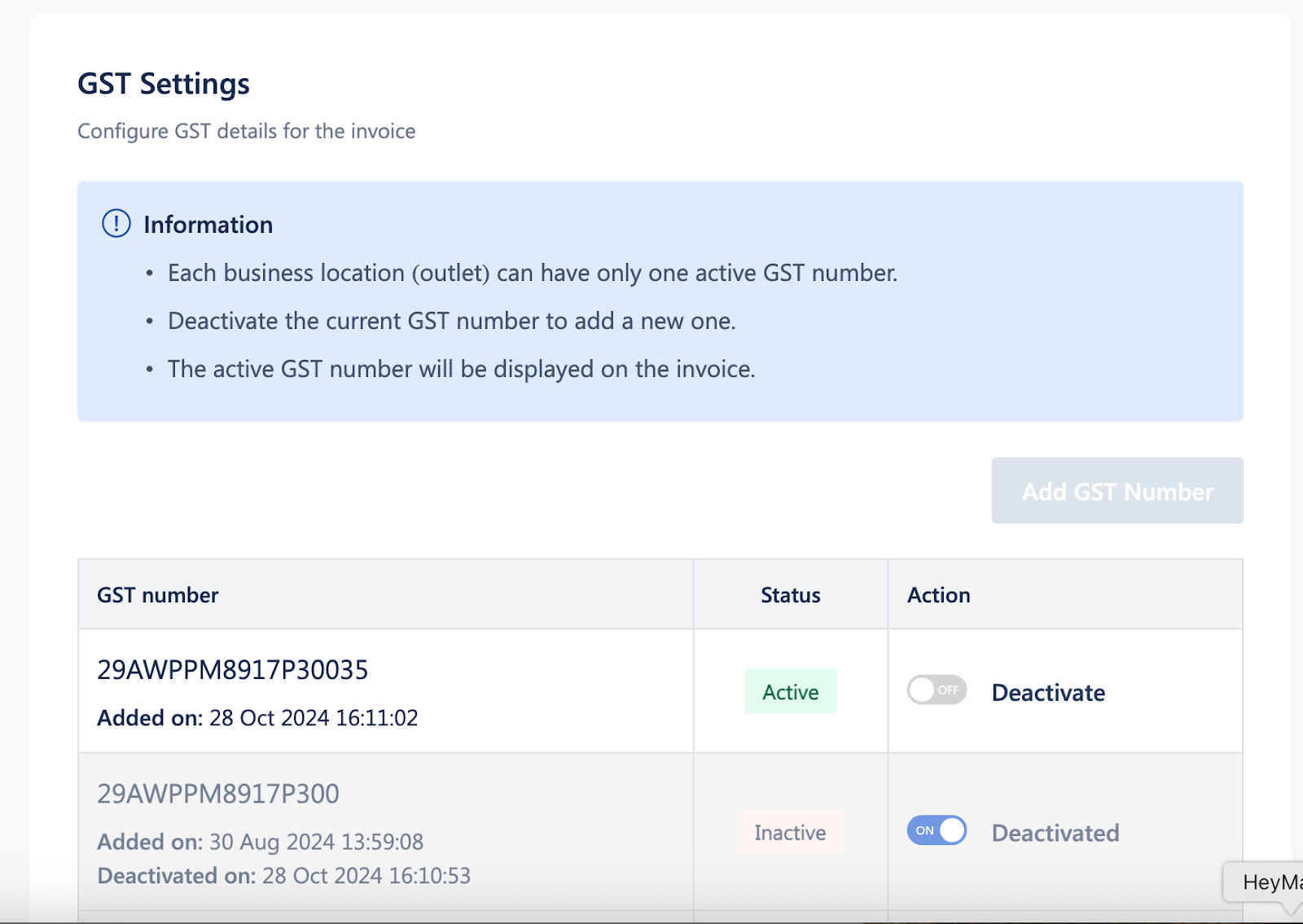
GST Settings allow you to manage your business GST registration details so that the correct GST number appears on customer invoices and remains compliant with local tax regulations.
Key Rules
Each business location can have only one active GST number
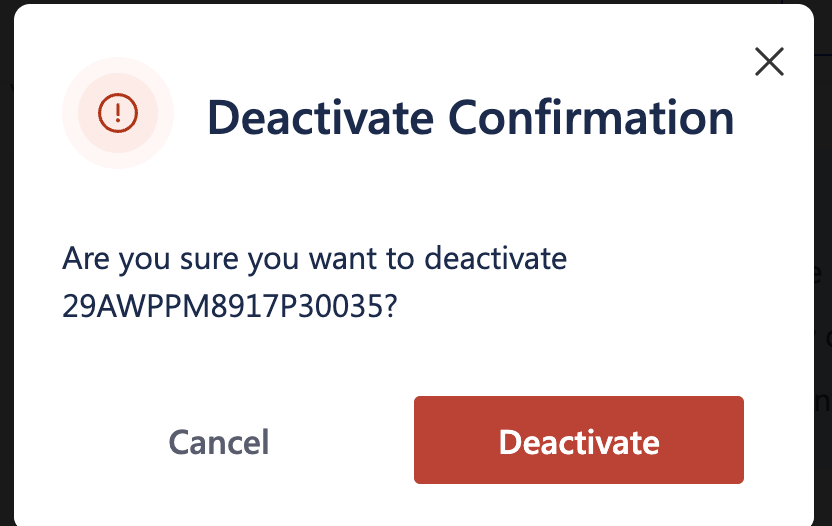
An existing GST number must be deactivated before adding a new one
The active GST number is automatically printed on invoices
Actions Available
View GST number status (Active / Inactive)
Activate or Deactivate a GST number
Add a new GST number
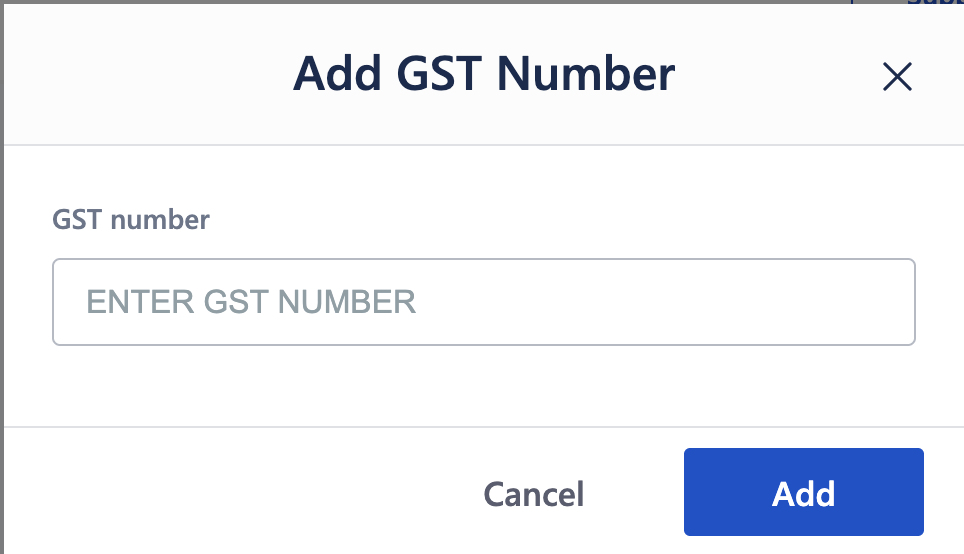
Click Add GST Number
Enter the GST number
Click Add
3.3 Tax Setting
Purpose
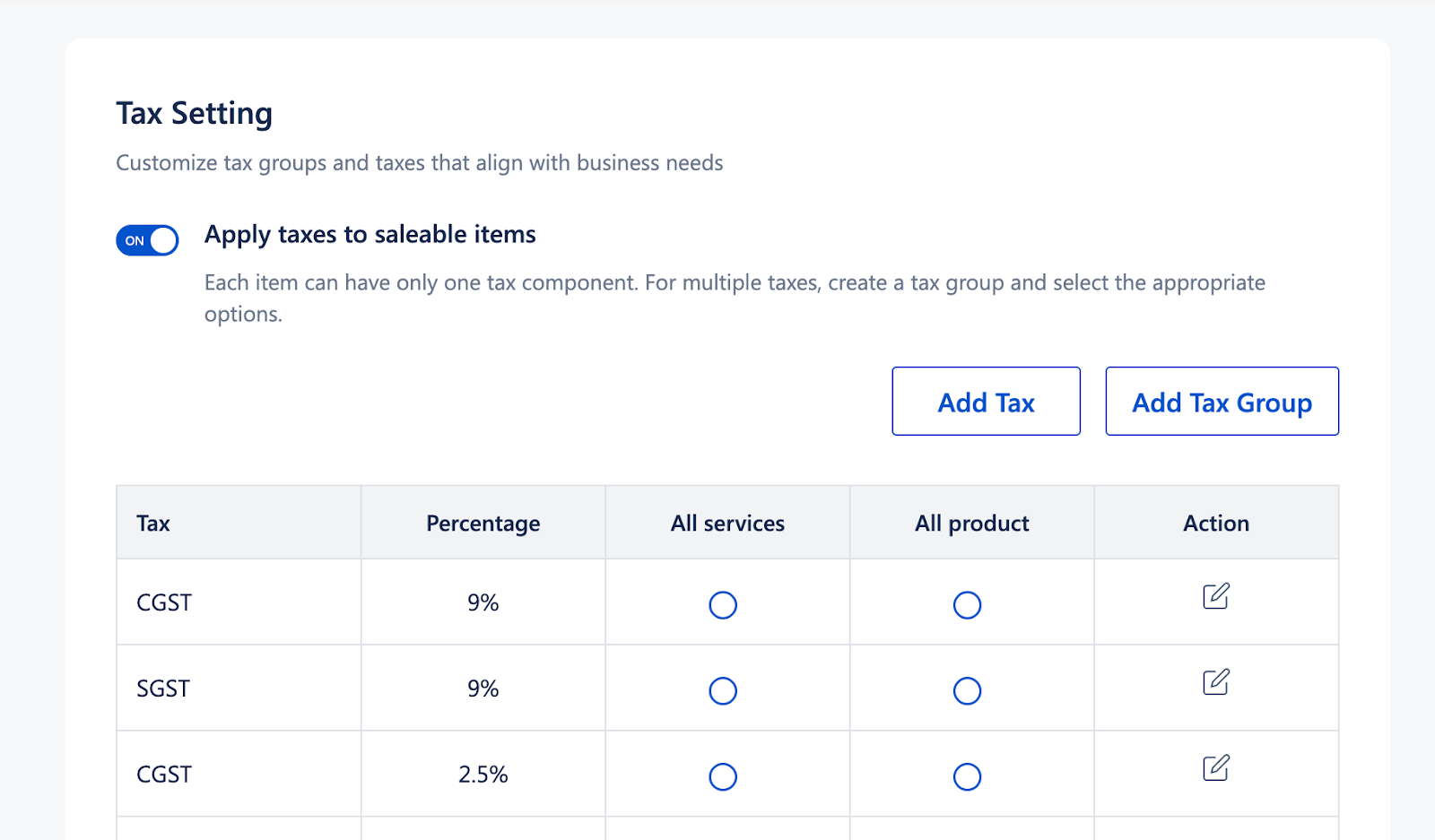
Tax Setting lets you define how taxes such as CGST, SGST, VAT, or other regional taxes are applied to saleable items like services, products, packages, memberships, and vouchers.
This section controls:
Individual tax percentages
Whether taxes apply to all services or all products
Grouping multiple taxes together for easier application
Important Notes
Each item can have only one tax component
If multiple taxes are required, you must use a Tax Group
Include or Exclude Tax
Purpose
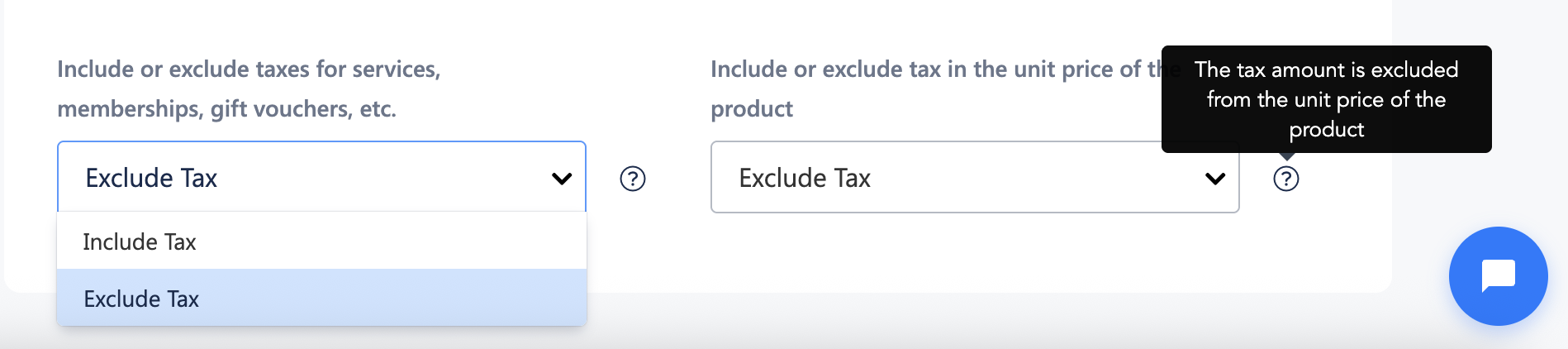
This setting controls whether tax is included in item prices or added separately during billing, for both services and products.
Services, Memberships, Gift Vouchers, etc.
Choose how tax should be applied to non-product saleable items.
Include Tax – Tax is already included in the item price, and the invoice shows the tax breakup without changing the final amount.
Exclude Tax – Tax is calculated and added on top of the item price during billing.
Products (Unit Price)
Choose how tax should be applied to product unit prices.
Include Tax – The product price already includes tax, and no additional tax is added at checkout.
Exclude Tax – The product price excludes tax, and tax is added separately to the invoice.
Note
These settings apply only to newly created bills and do not affect existing invoices. Changing this setting updates how prices and tax totals are calculated and displayed on future invoices.
Add Tax
Purpose
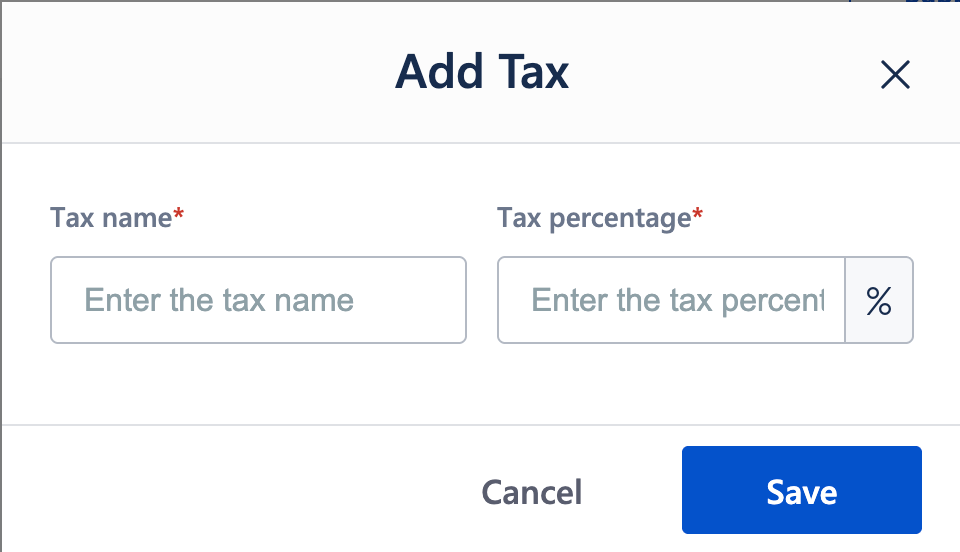
Add Tax is used to create individual tax components with a specific percentage that can later be applied directly to services/products or included inside a Tax Group.
How it works
Click Add Tax
Enter:
Tax name
Tax percentage
Click Save
Once created, the tax becomes available for selection across the POS module.
Add Tax Group
Purpose
Add Tax Group allows you to combine multiple individual taxes into a single group so that all selected taxes are applied together during billing.
This is useful when:
Multiple taxes apply to the same item
You want to avoid selecting individual taxes repeatedly
How it works
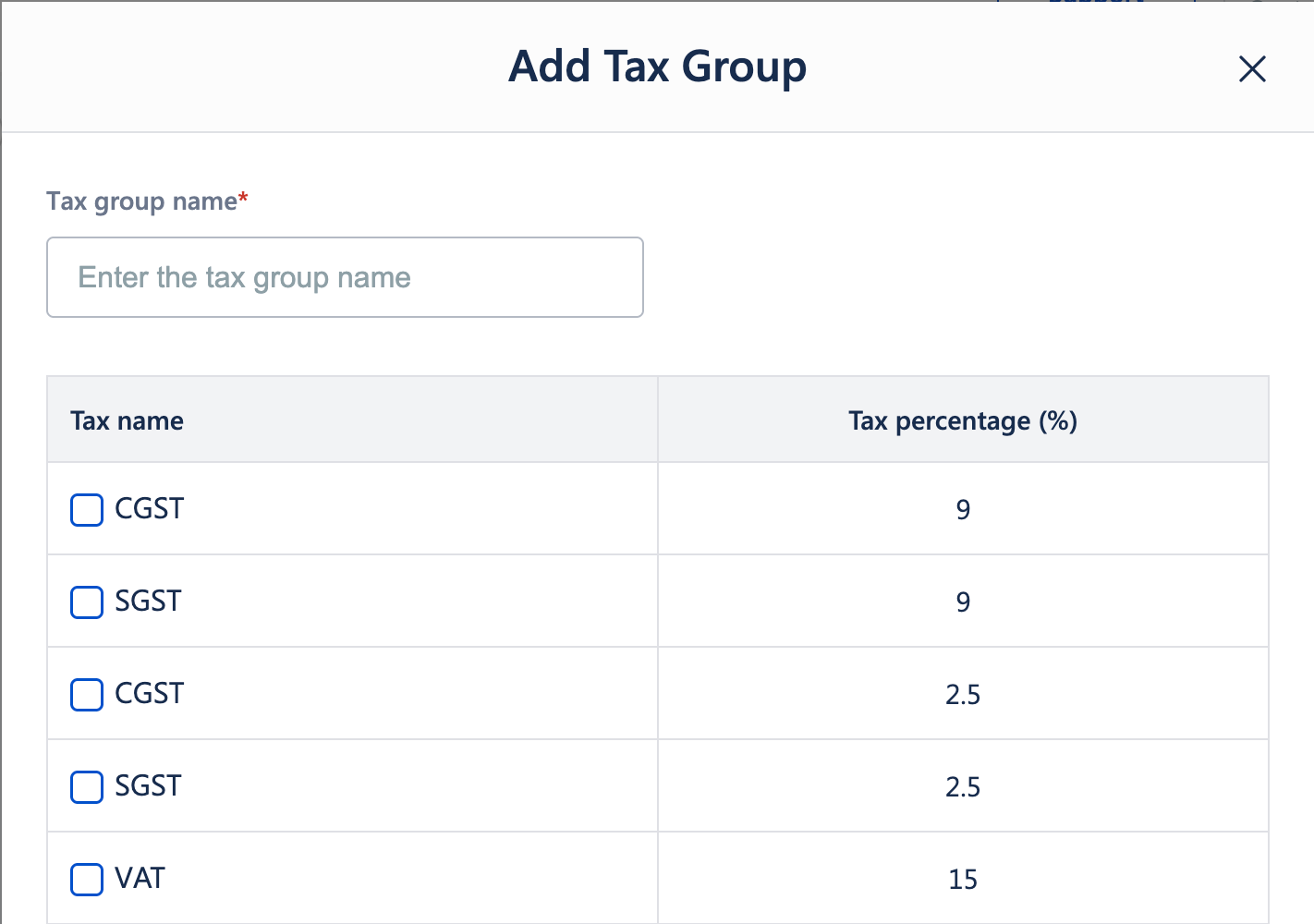
Click Add Tax Group
Enter the Tax group name
Select the required taxes (CGST, SGST, VAT, etc.)
Click Save
The Tax Group can now be applied as a single tax component.
4.3 Delete/Update Tax Group
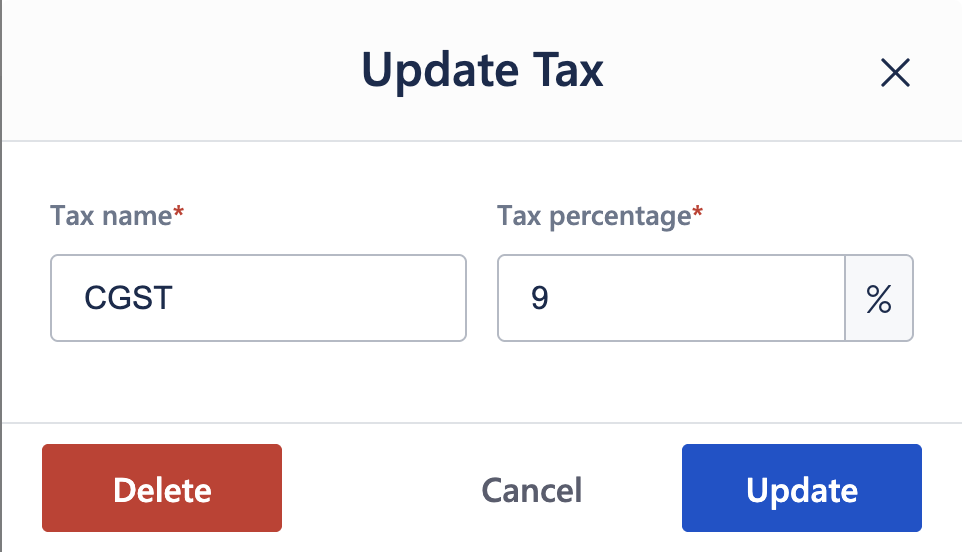
Click the Edit icon in the table under Action column
Enter Tax Name and Tax Percentage
Click Update to Save changes
(or)
Click Delete the Tax Group.
4. Payment Method
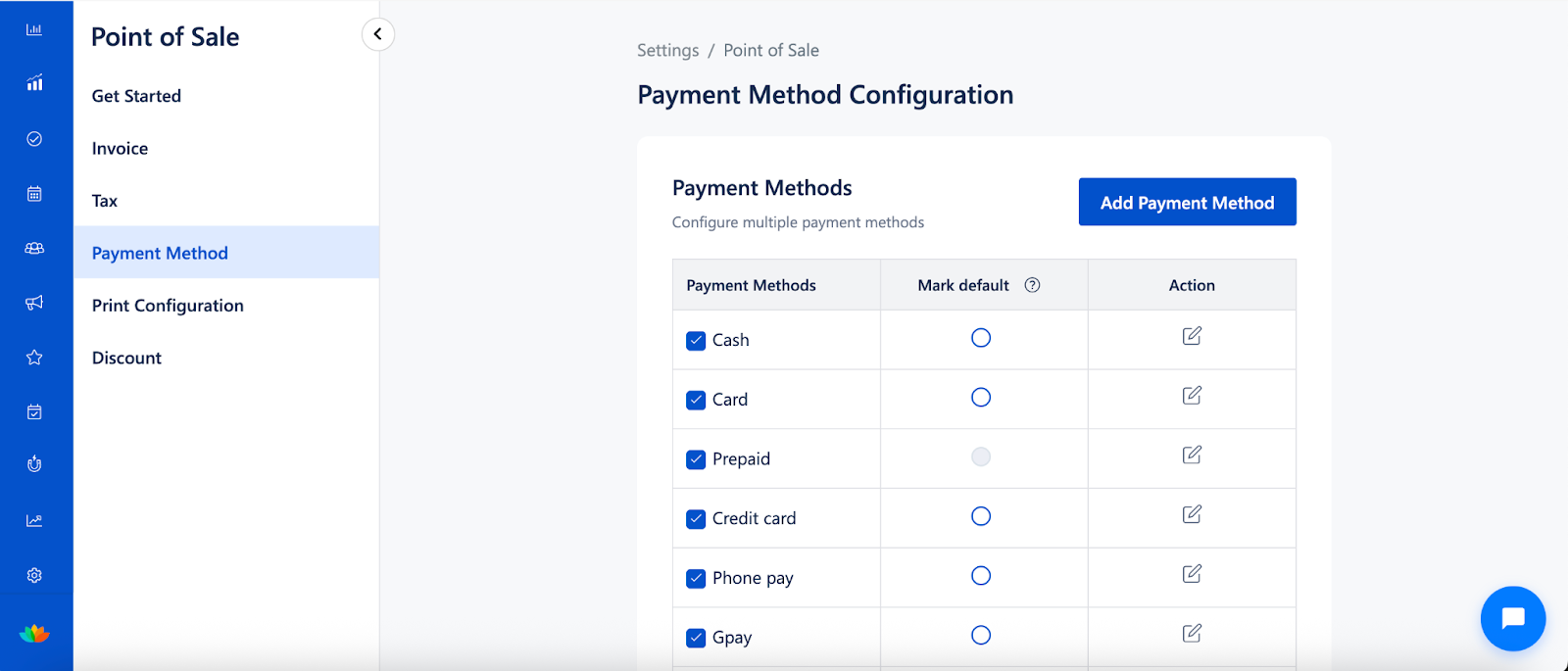
Payment Method Configuration
Purpose
Payment Method Configuration lets you control which payment options are available at checkout and how payments are captured during billing.
From this section, you can:
Enable or disable payment methods
Set default payment methods
Control payment collection behavior
Add Payment Method
Purpose
Add Payment Method is used to create new payment options such as UPI, Wallets, Cards, or custom payment modes for specific locations.
How it works
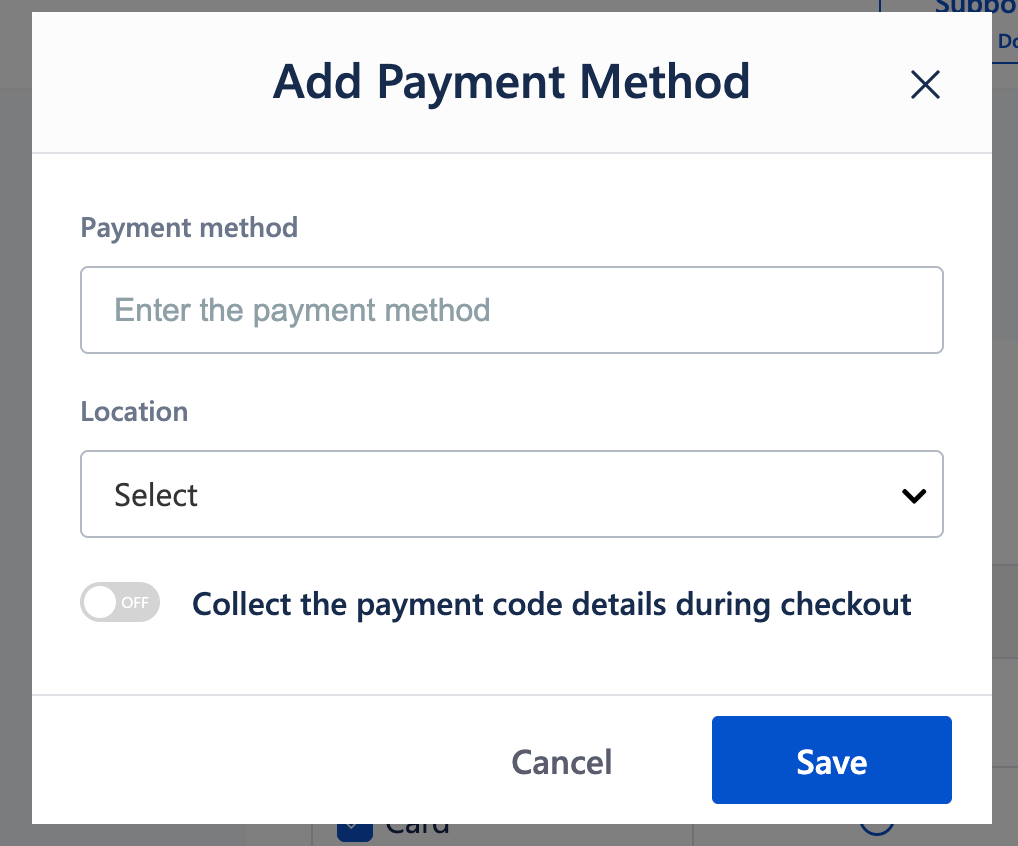
Click Add Payment Method
Enter:
Payment method
Location
Optionally enable Collect the payment code details during checkout
Click Save
This ensures flexibility in accepting multiple payment types across outlets.
5. Print Configuration
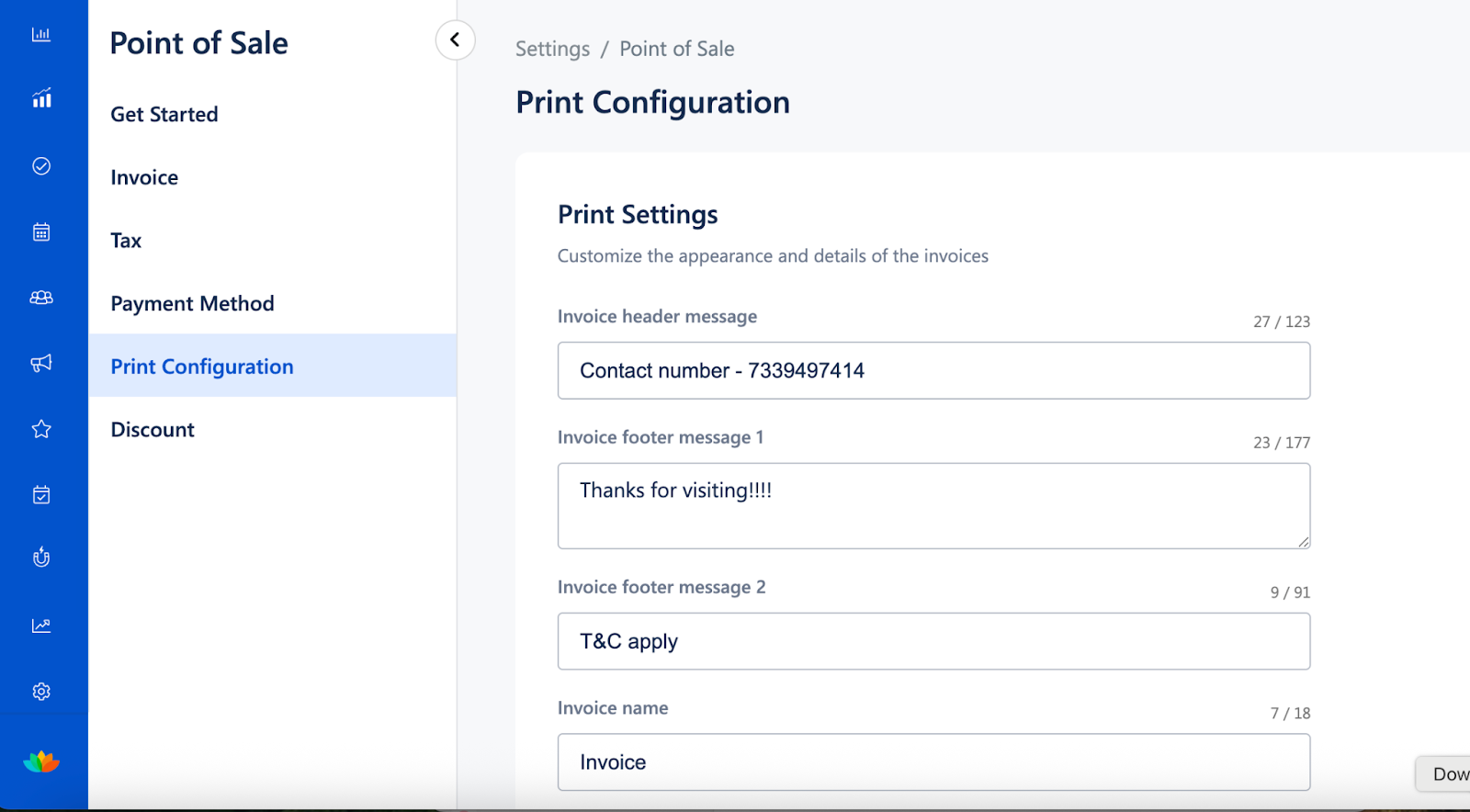
Print Settings
Purpose
Print Settings allow you to control how invoices appear when printed, including layout, branding, and customer-visible details.
You can configure:
Contact number
Header message
Footer message
Invoice name
Customer details to print
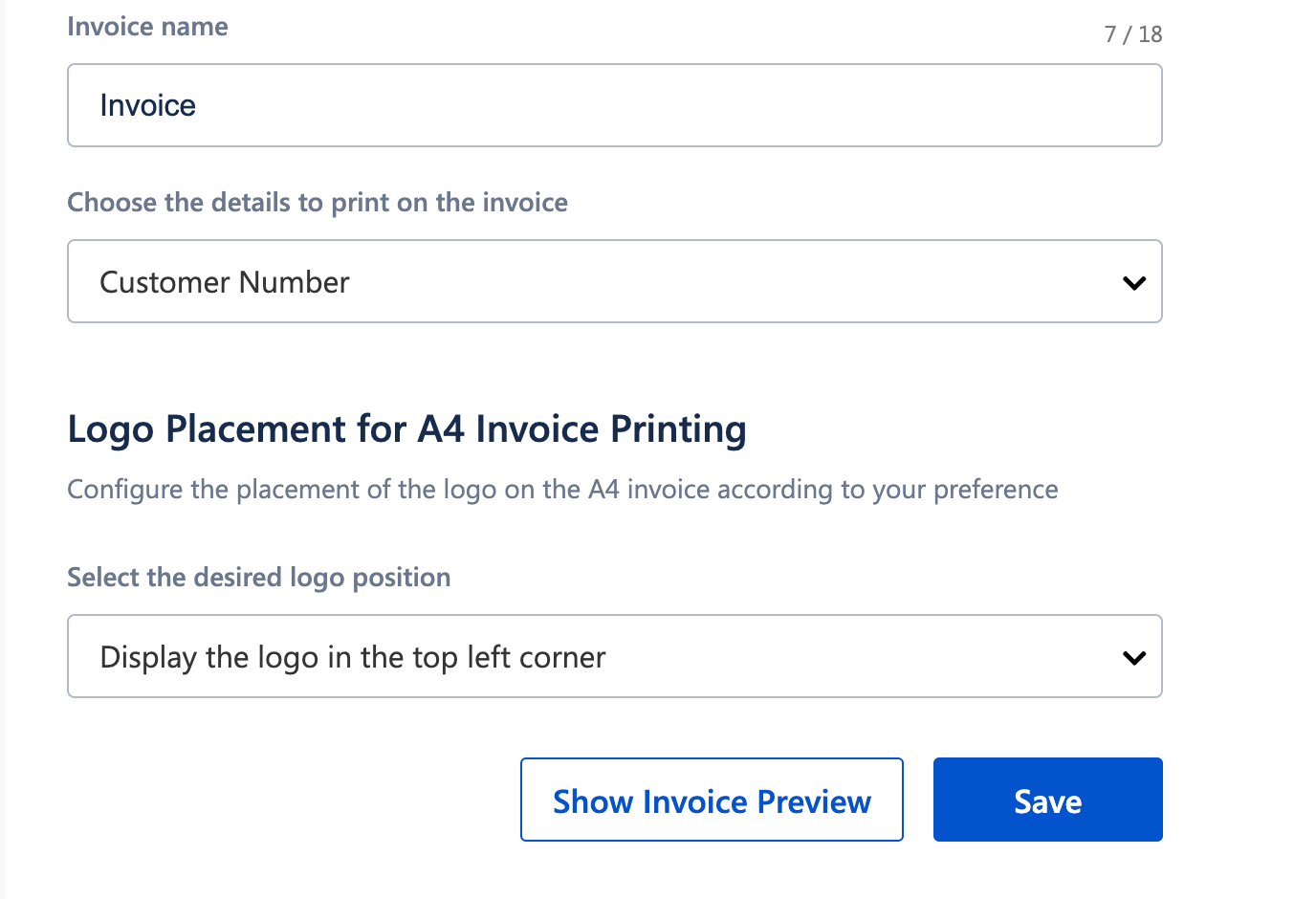
Logo Placement for A4 Invoice Printing
Purpose
This setting controls where your business logo appears on A4-sized printed invoices to maintain consistent branding.
Example options
Display the logo in the top left corner
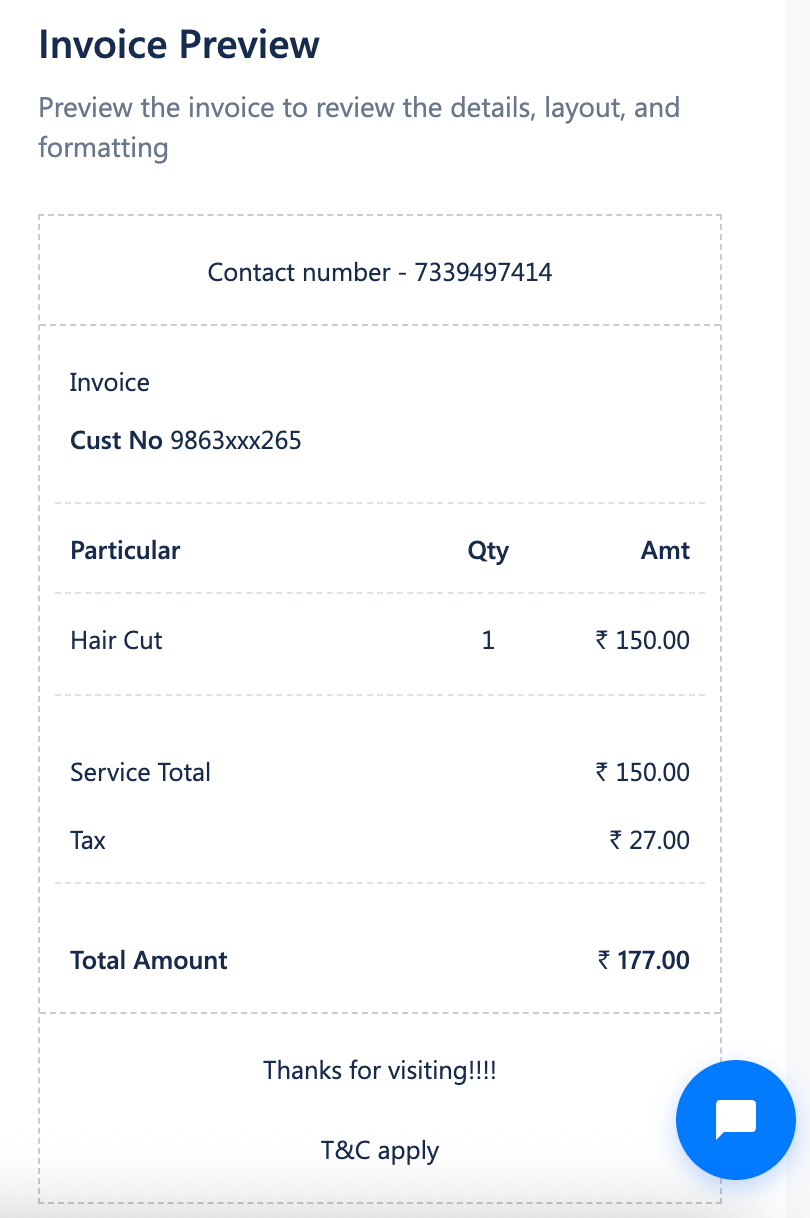
Invoice Preview
Purpose
Invoice Preview allows you to review the invoice layout, formatting, tax breakup, and totals before saving or printing invoices.
How it helps
Prevents formatting errors
Ensures correct tax calculations
Confirms branding and alignment
Click Show Invoice Preview to review and Save to apply changes.
6. Discount
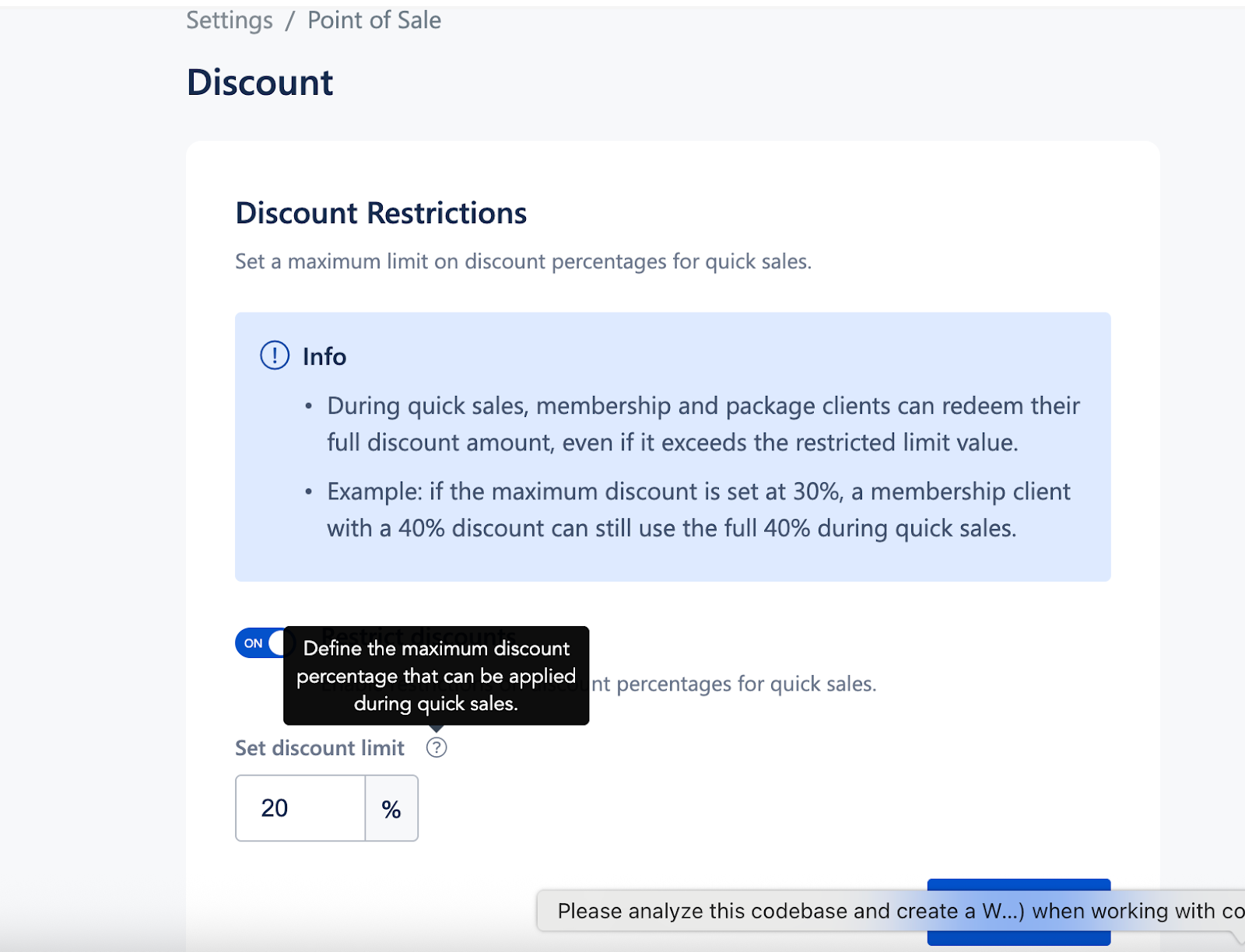
Discount Restrictions
Purpose
Discount Restrictions help control excessive discounting during quick sales and ensure consistent pricing policies across staff members.
How it works
Set a maximum discount percentage
During quick sales, the system automatically restricts discounts that exceed the defined limit
Example
Maximum discount set to 20%
Staff applies 40%
System applies only 20%
This ensures better revenue control and prevents misuse.
Was this article helpful?
That’s Great!
Thank you for your feedback
Sorry! We couldn't be helpful
Thank you for your feedback
Feedback sent
We appreciate your effort and will try to fix the article