Overview
If the default SMS templates in the repository do not match your business communication style, you can create a custom SMS template for gift voucher notifications.
Custom templates give you full control over the message content, allowing you to include your brand voice, specific terms, and relevant voucher details using dynamic placeholder tags.
Once created, your custom template is saved under "Your Templates" and can be assigned to any gift voucher.
Navigation Path
Settings → Gift Voucher → Gift Voucher List → Add/Update Gift Voucher → Notification Templates → SMS Template → Assign Template → Create Own Template
Steps to Create Your Own SMS Template
Step 1: Open the SMS Template Popup
Navigate to Settings → Gift Voucher → Gift Voucher List.
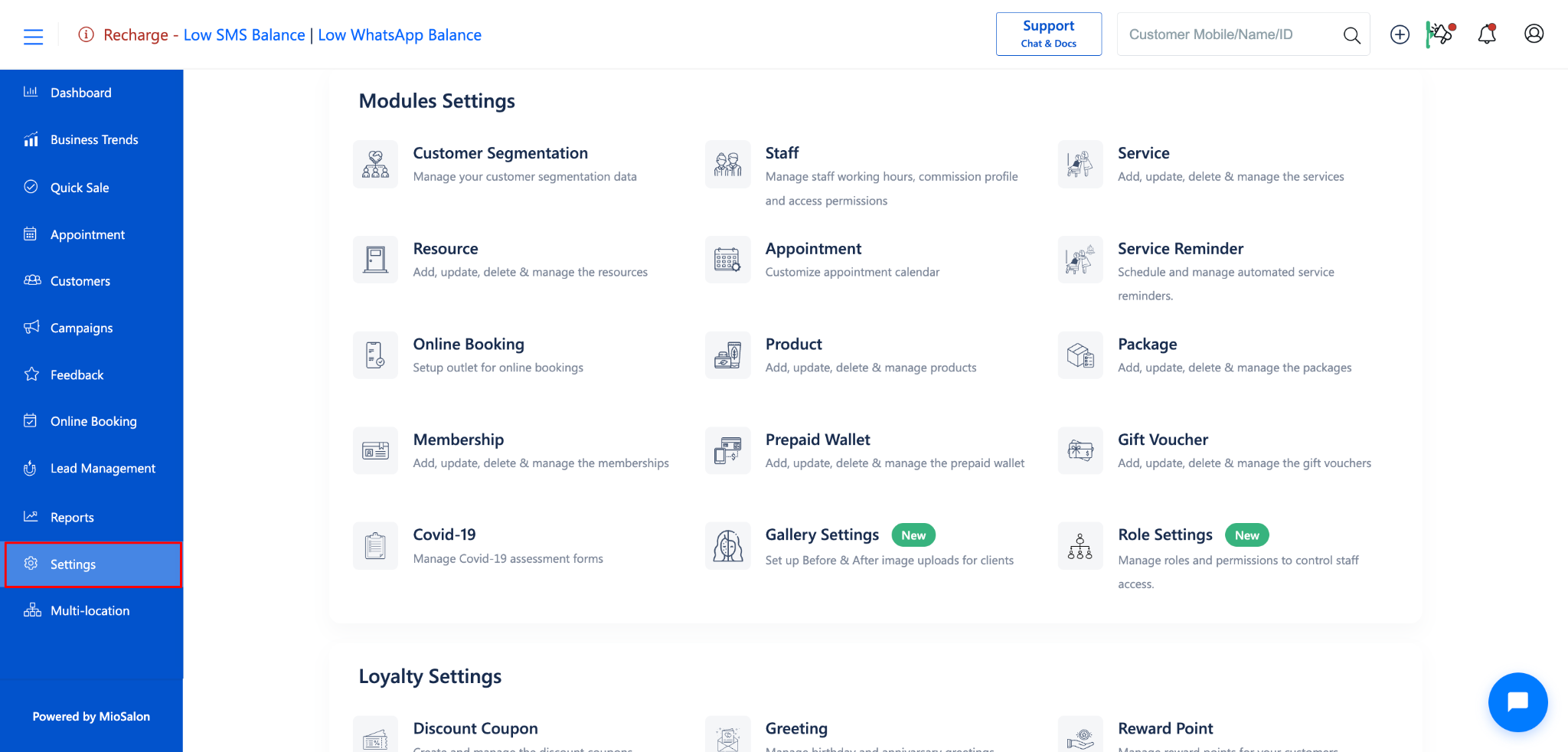
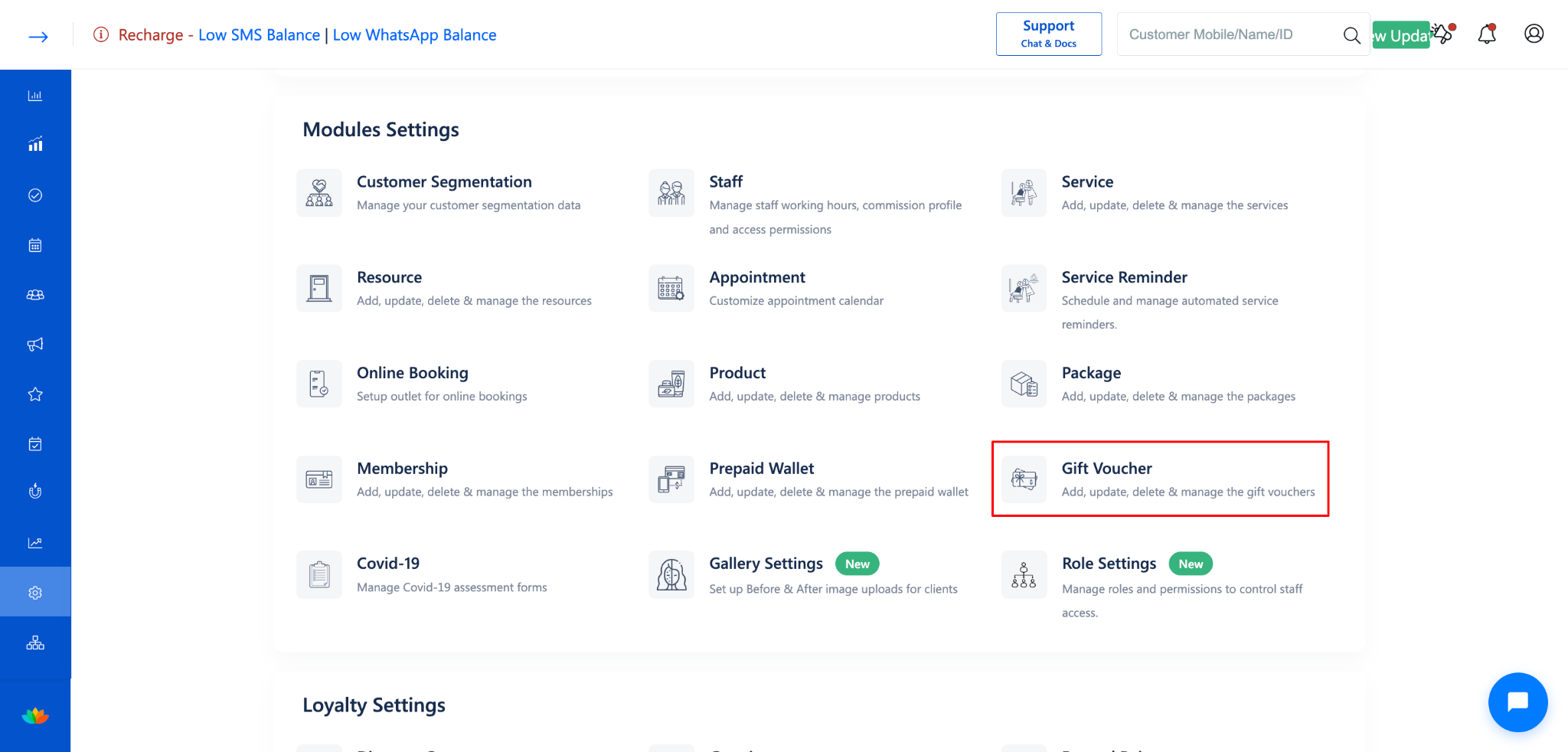
Click Add Gift Voucher or open an existing gift voucher.
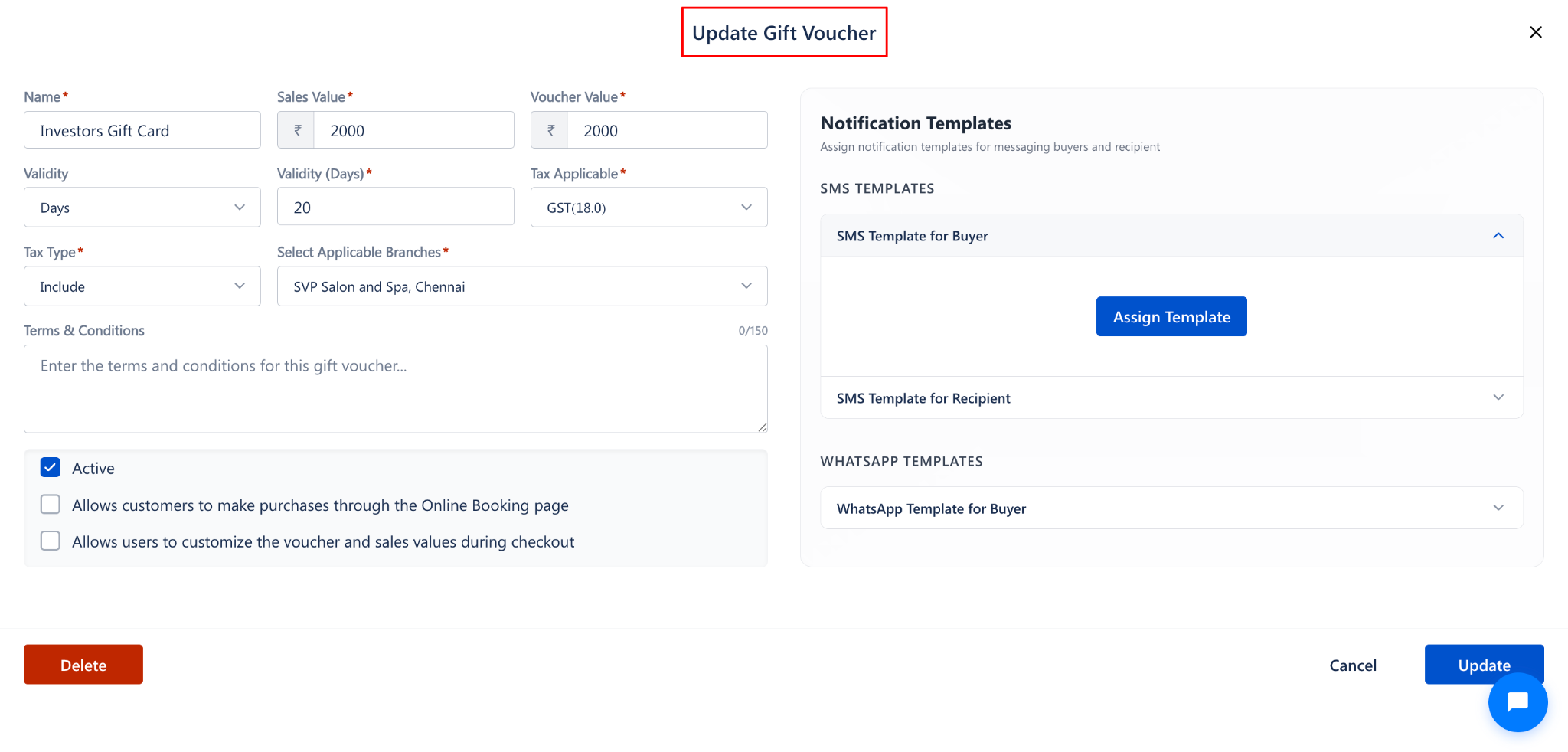
In the Notification Templates panel on the right, expand SMS Template for Buyer or SMS Template for Recipient.
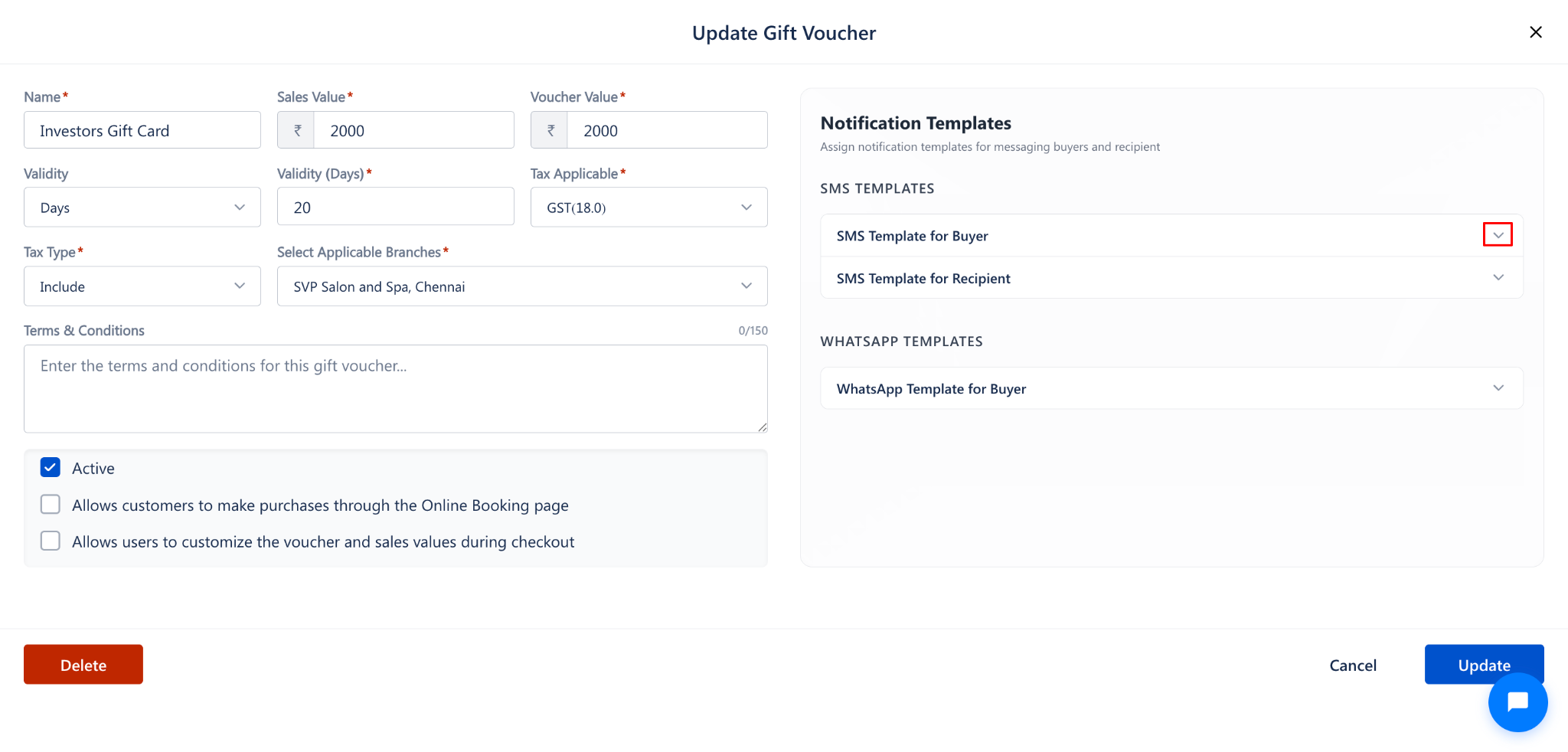
Click the Assign Template button.
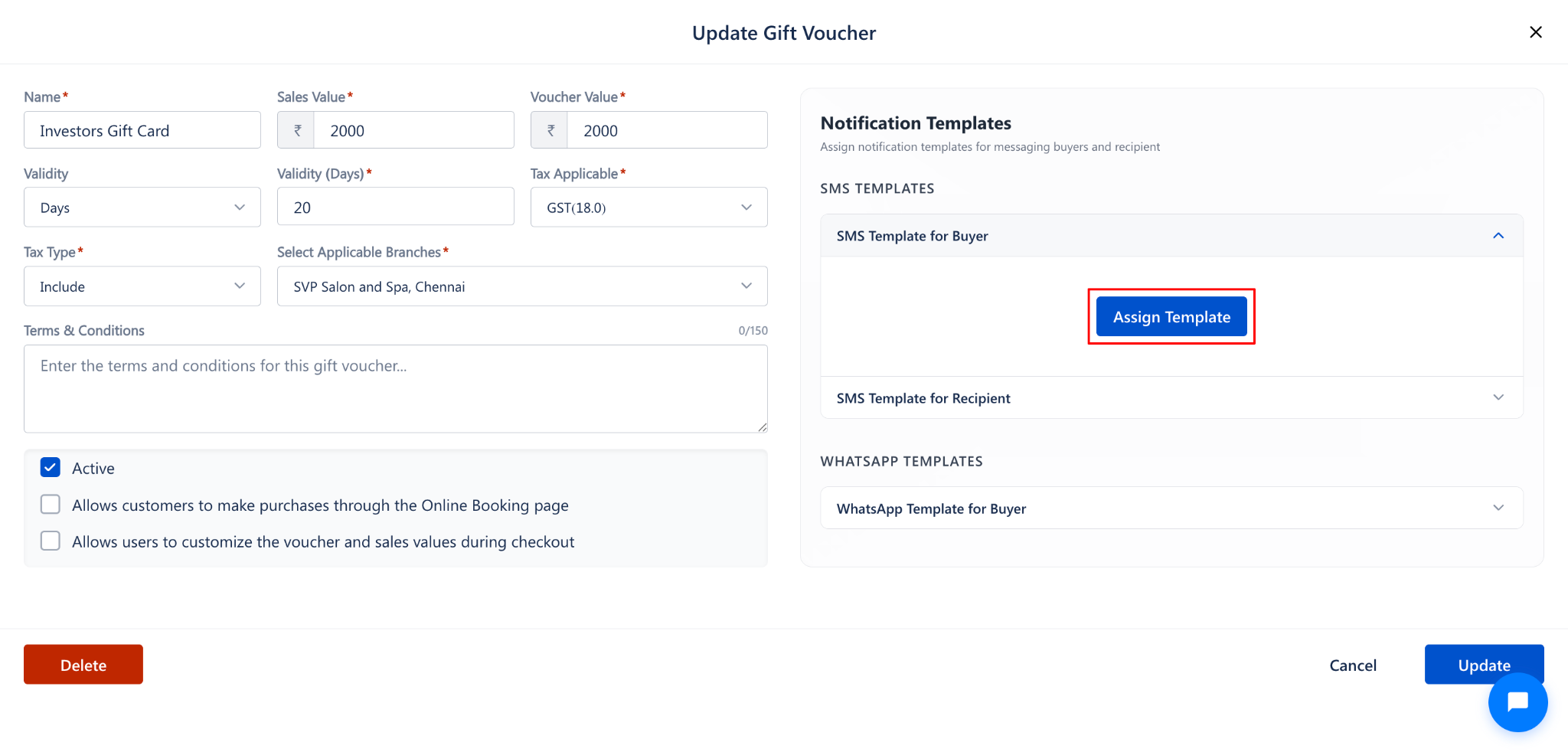
The SMS Template for Gift Voucher popup will open.
Step 2: Click "Create Own Template"
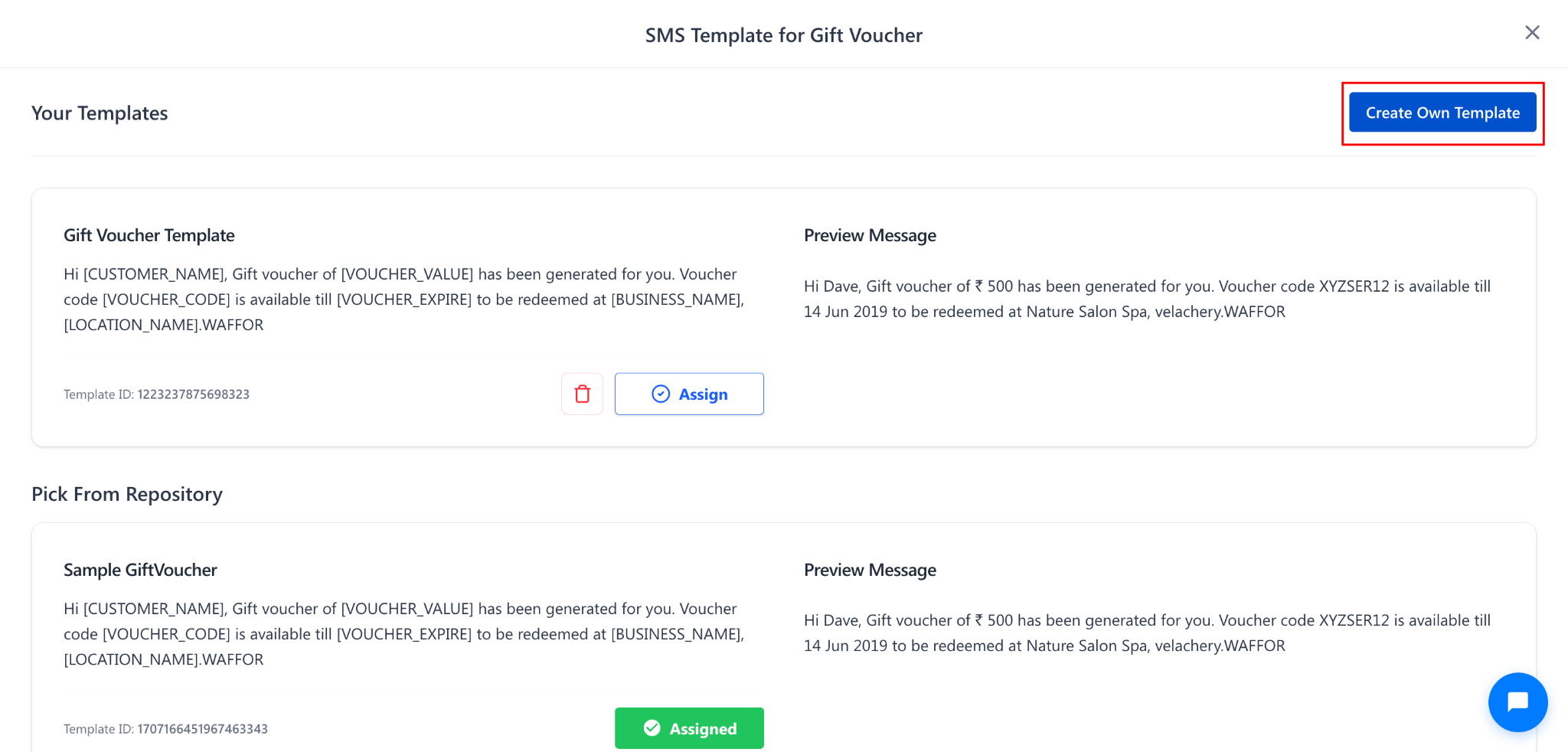
At the top of the popup, click the Create Own Template button.
The Create Own Template form will open.
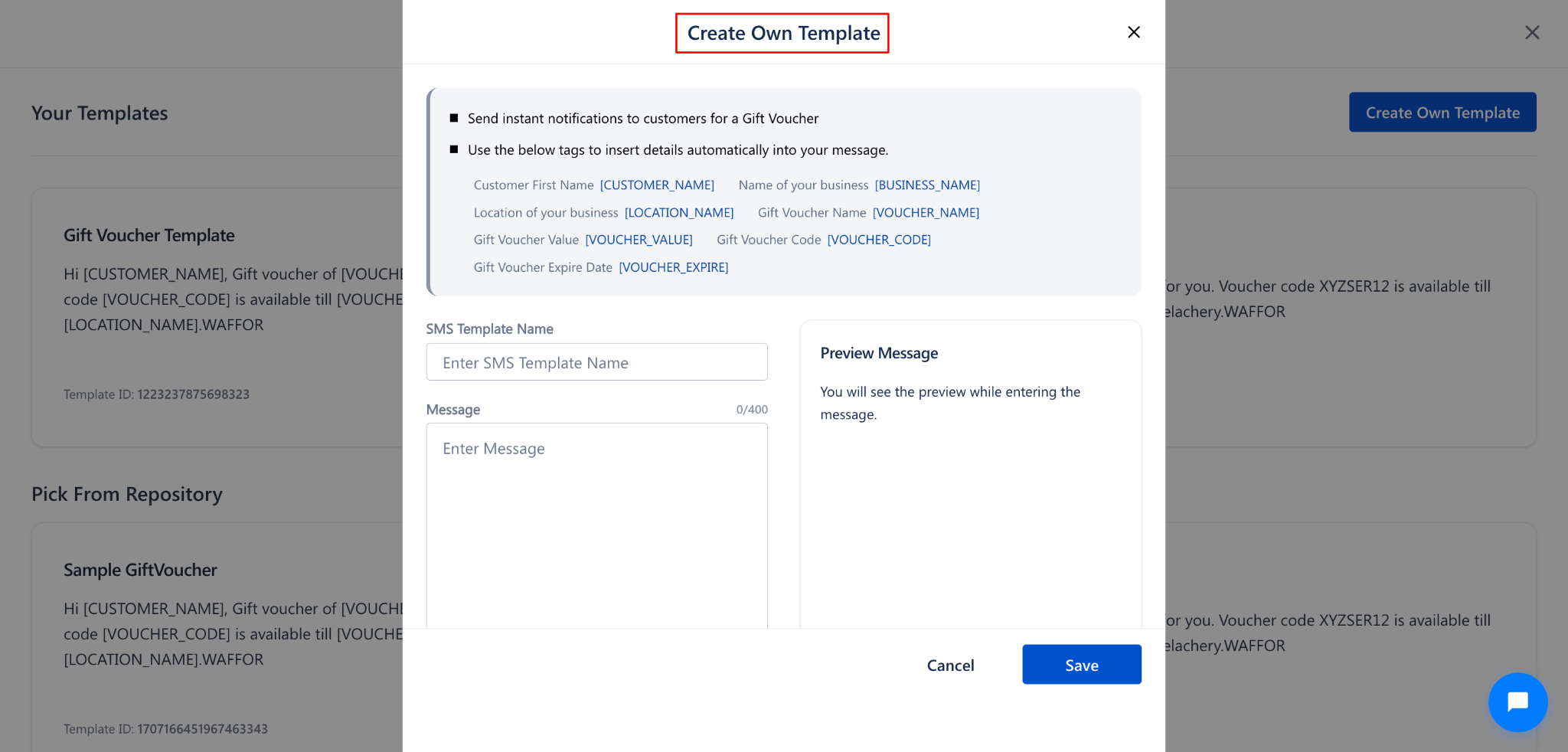
Step 3: Review the Available Tags
The following placeholder tags are available for use in your message. These tags automatically insert the relevant details when the SMS is sent:
Step 4: Fill in the Template Details
Enter the following details:
NOTE:
As you type the message, the Preview Message on the right side updates in real time to show how the SMS will appear to the customer with sample data.
In the International Account SMS template ID option, it was not available (Reason: TRAI Rules)
Step 5: Save the Template
After composing your message, click the Save button to save the custom template.
The template will be saved under Your Templates in the SMS template popup.
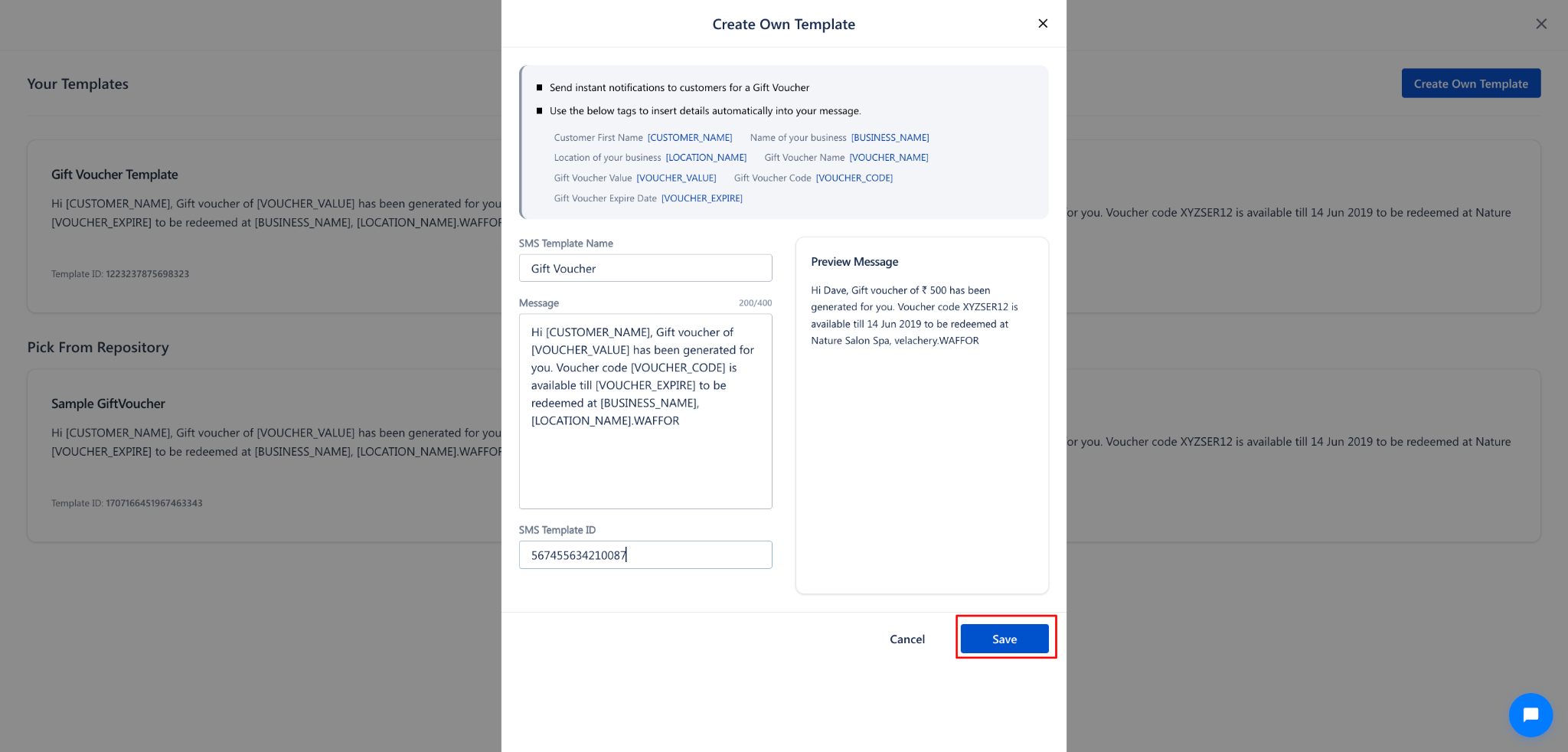
Step 6: Assign the Custom Template
After saving, your custom template will appear in the Your Templates section at the top of the SMS Template popup.
Click the Assign button next to your custom template to assign it to the gift voucher.
To delete a custom template, click the delete icon next to the template in the Your Templates section.
Use Cases
Create branded SMS messages that match your salon's communication tone and style.
Include specific promotional information or redemption instructions in the voucher notification.
Customize messages for different voucher types (e.g., birthday gift voucher vs. seasonal offer).
Add business-specific terms or booking instructions to the voucher SMS.
Benefits
Full control over the content and tone of gift voucher notifications.
Strengthens brand identity through consistent, customized messaging.
Enables targeted communication for different voucher campaigns.
Templates are reusable and can be assigned to multiple gift vouchers.
Was this article helpful?
That’s Great!
Thank you for your feedback
Sorry! We couldn't be helpful
Thank you for your feedback
Feedback sent
We appreciate your effort and will try to fix the article