How to Change the Staff Password in MioSalon ?
Overview
Staff passwords control individual system access for stylists, therapists, and receptionists using the MioSalon platform.
Salon owners and managers can reset staff passwords directly from login settings whenever an employee forgets credentials or during security audits.
Managing staff passwords centrally ensures rapid credential recovery while preserving business control over salon data access.
Follow the guided step-by-step instructions below to change or reset a staff password in MioSalon.
Navigation Path
Settings → Account Settings → Login Settings → Login Details
Steps to Change the Staff Password
1. Navigate to the Settings module from the main left navigation bar.
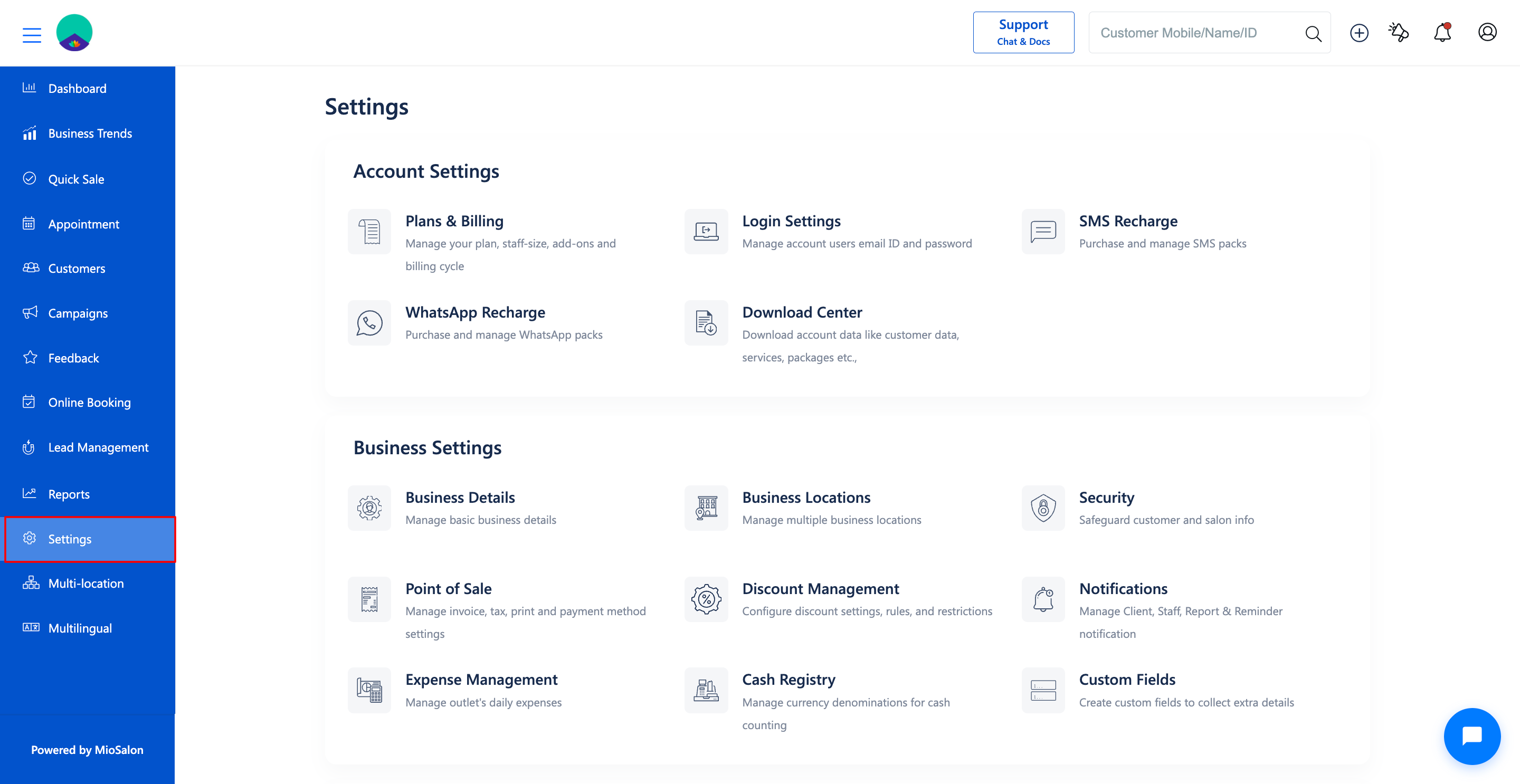
2. Click on the Login Settings card located under the Account Settings section.
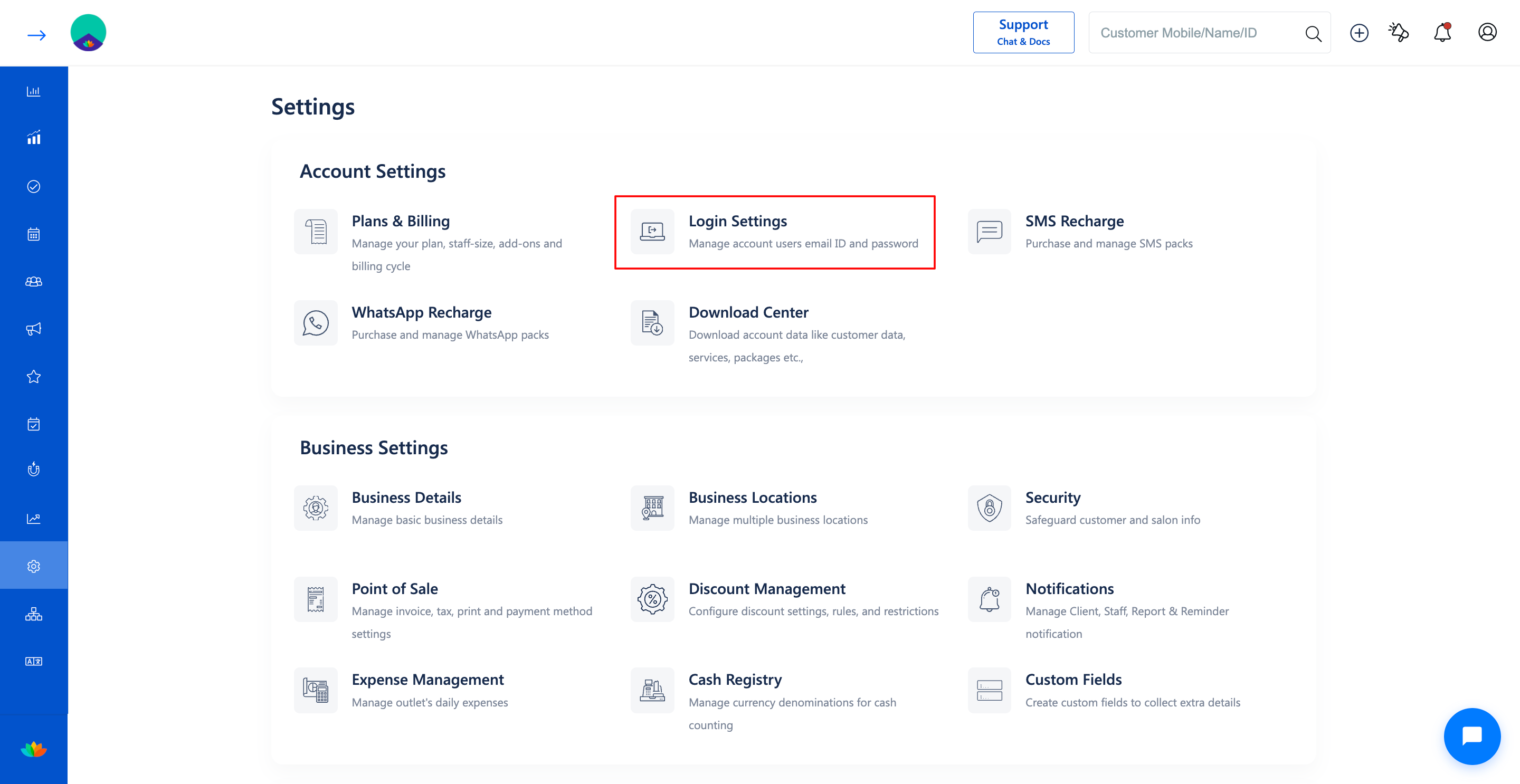
3. Select the Login Details tab from the left sub-navigation menu.
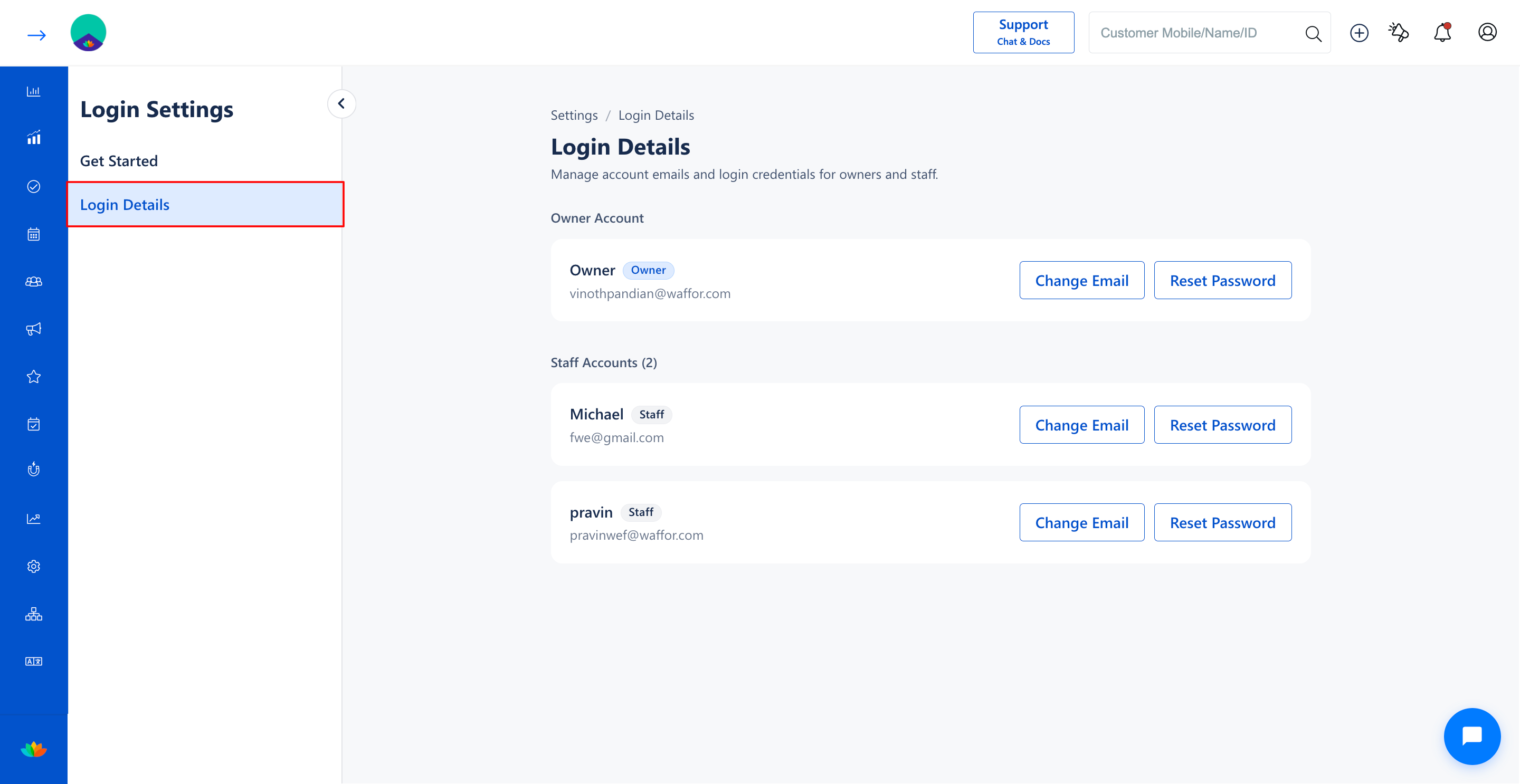
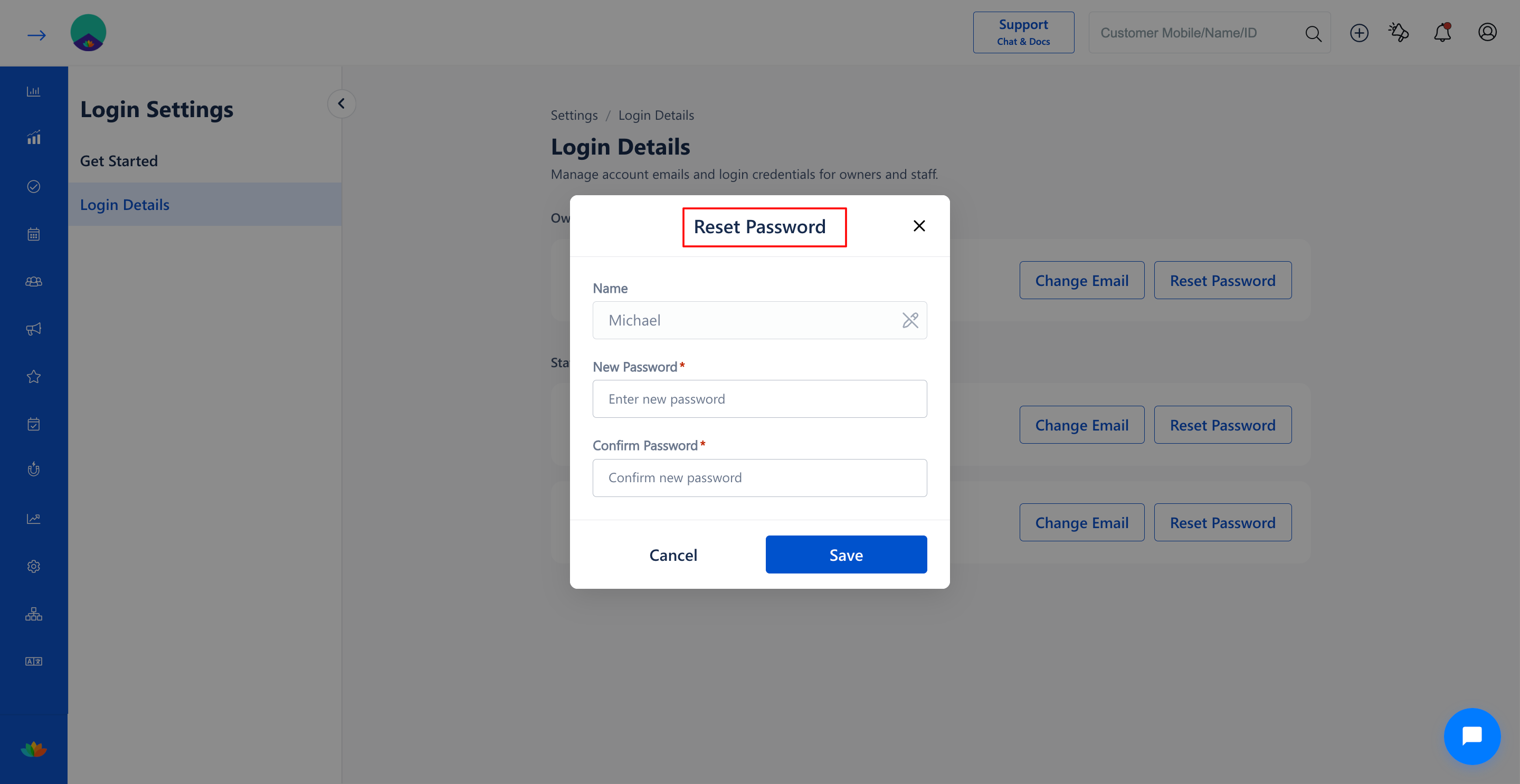
4. In the Staff Accounts section, locate the target staff member and click on the Reset Password button next to their profile.
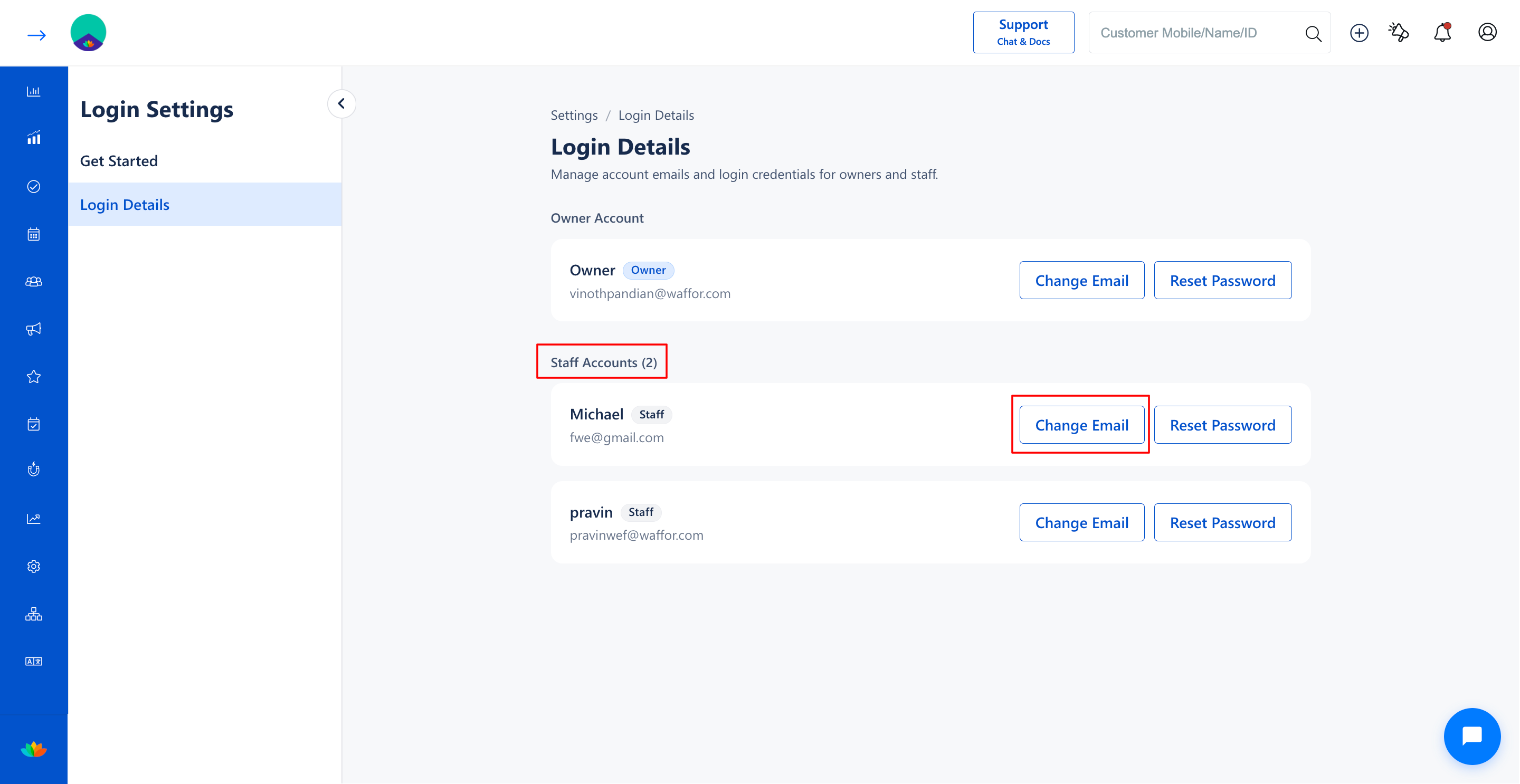
5. In the Reset Password pop-up window, enter the new staff credentials:
• Name: Displays the staff member name. (E.g., Michael)
• New Password*: Enter a new password for the staff member. (E.g., StaffPass#2026)
• Confirm Password*: Re-enter the new password to confirm. (E.g., StaffPass#2026)
6. Click on the Save button to update the staff password.
Note
When an administrator resets a staff password, the staff member current password is not required. Provide the updated password directly to the staff member so they can log in.
Use Cases
1. Assisting staff members who forgot their login passwords to regain swift system access.
2. Immediately updating staff credentials when an employee departs from the salon.
3. Enforcing periodic password updates for frontline staff to enhance account security.
Benefits
1. Resolves employee login lockouts promptly without stalling daily appointment and billing tasks.
2. Grants business owners full administrative control over staff access permissions and security.
3. Prevents unauthorized system entry by past employees or unauthorized individuals.
Was this article helpful?
That’s Great!
Thank you for your feedback
Sorry! We couldn't be helpful
Thank you for your feedback
Feedback sent
We appreciate your effort and will try to fix the article