Overview
Configuring Tax Settings in MioSalon allows you to define how taxes are created, grouped, and applied to services, products, memberships, and other saleable items. This ensures accurate tax calculation, compliant invoices, and consistent tax application across the Point of Sale.
You can create individual taxes, group multiple taxes together, and control how taxes are applied during billing.
To access Tax Settings
Log in to your MioSalon account.
From the left-side menu, click Settings.
Under Settings, click Business Settings.
Scroll down and select Point of Sale.
Click Tax.
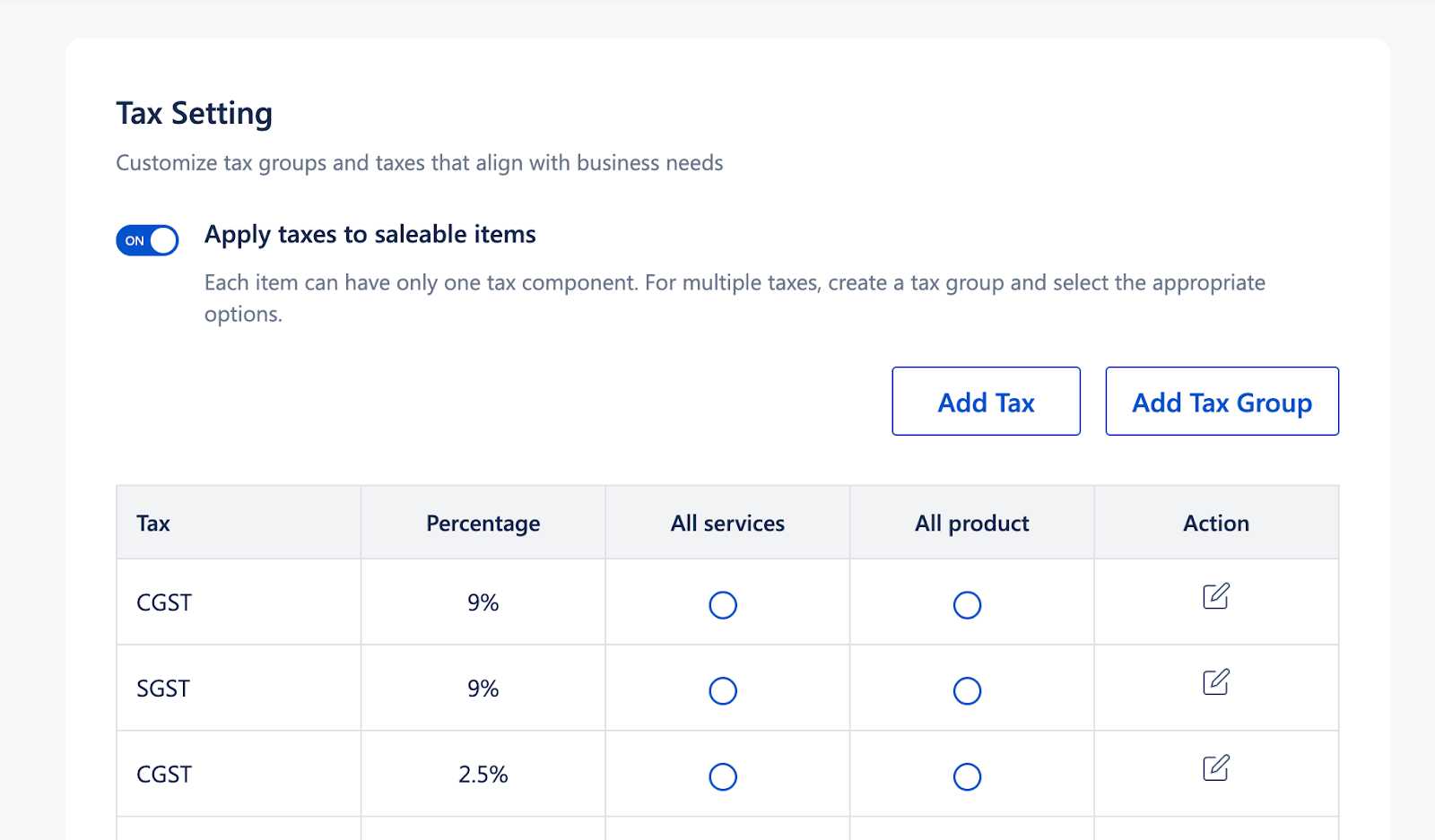
You can now configure taxes, tax groups, and tax application rules.
To add a tax
Navigate to Settings → Business Settings → Point of Sale → Tax.
In the Tax Setting section, click Add Tax.
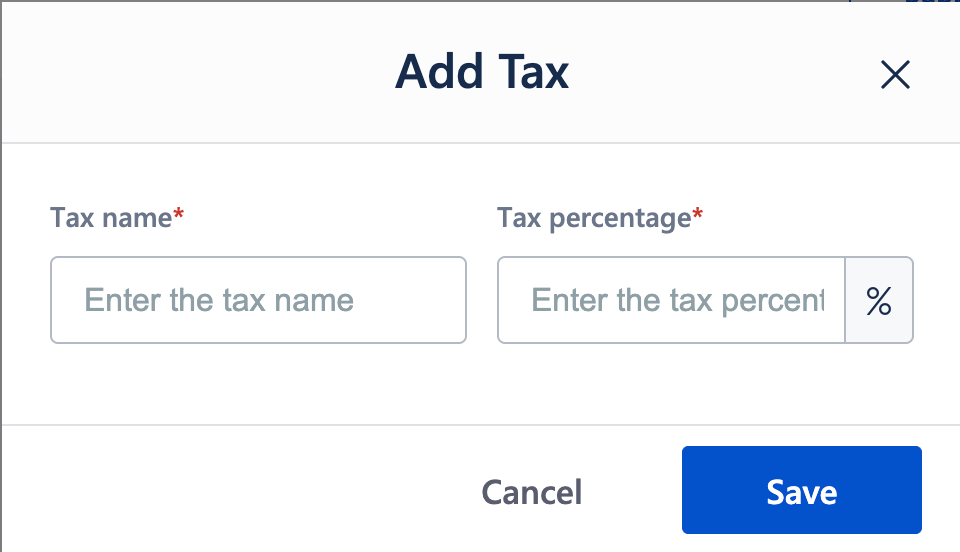
Enter the Tax name (for example: CGST, SGST, VAT).
Enter the Tax percentage.
Click Save.
The tax will now be available to apply to saleable items or to include in a tax group.
To add a tax group
Navigate to Settings → Business Settings → Point of Sale → Tax.
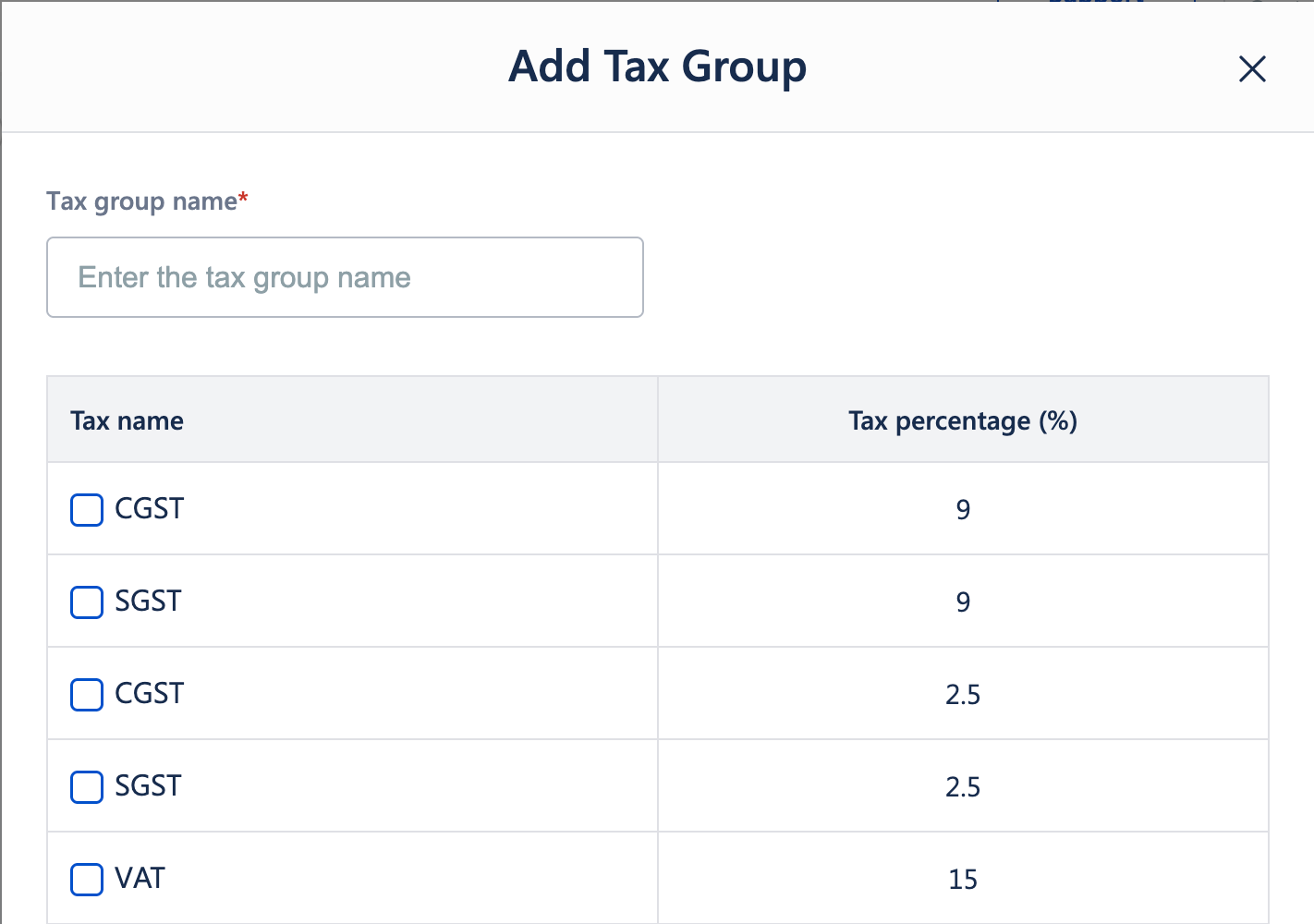
Click Add Tax Group.
Enter the Tax group name.
Select the required taxes to include in the group.
Click Save.
The tax group can now be applied as a single tax component during billing.
To configure include or exclude tax options
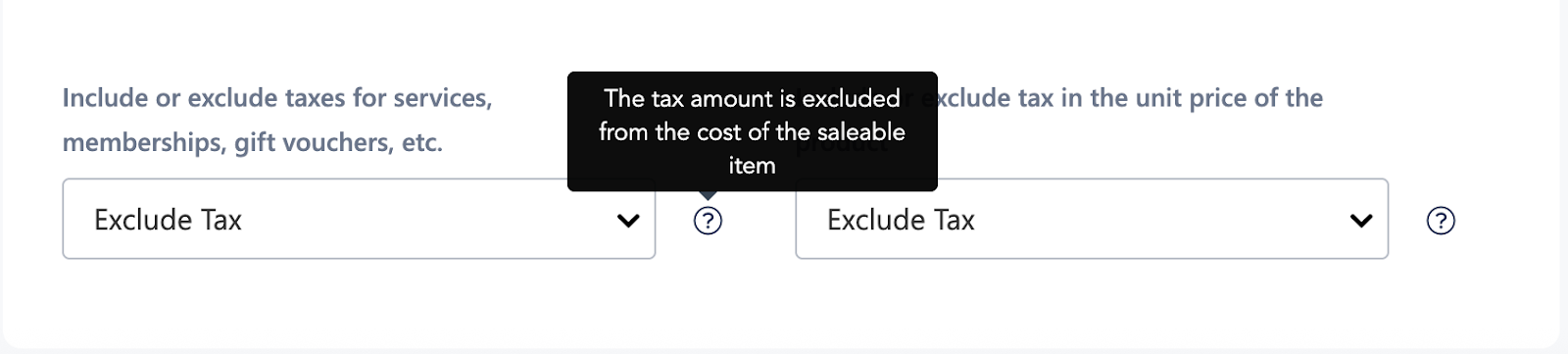
In the Tax Setting section, locate the Include or Exclude Tax options.
Configure the following:
Services, memberships, gift vouchers, etc.
Include Tax – Tax is included in the item price.
Exclude Tax – Tax is added separately during billing.
Products (unit price)
Include Tax – Product price includes tax.
Exclude Tax – Tax is added on top of the product price.
Important Notes
Each saleable item can have only one tax component applied.
If multiple taxes are required, they must be combined using a Tax Group.
Tax percentage changes apply only to new bills created after saving.
Existing invoices are not recalculated when tax settings are updated.
Ensure tax configurations comply with local statutory regulations.
Use Cases
Single-tax businesses
Create and apply one tax directly to services or products.Multiple tax components
Use tax groups to apply CGST and SGST together without manual selection.Regulatory compliance
Ensure taxes are applied correctly based on local tax laws.Consistent billing experience
Maintain uniform tax application across all POS transactions.Simplified tax management
Centralize tax configuration instead of adjusting item-level pricing repeatedly.
Was this article helpful?
That’s Great!
Thank you for your feedback
Sorry! We couldn't be helpful
Thank you for your feedback
Feedback sent
We appreciate your effort and will try to fix the article