Overview
Double booking for resources allows multiple appointments to be scheduled simultaneously using the same resource (such as a room, equipment, or bed). This is useful in cases where a resource can accommodate more than one service at the same time.
You can enable or disable this setting from the Appointment module settings.
Purpose
Enabling double booking for resources helps businesses:
Maximize utilization of rooms or shared equipment
Reduce idle time for partially used resources
Improve operational efficiency during peak hours
Guided Steps to Allow Double Booking for Resources
Step 1: Navigate to Appointment Settings
Go to Settings from the left-side menu.
Click on Modules Settings.
Scroll down and select the Appointments module.
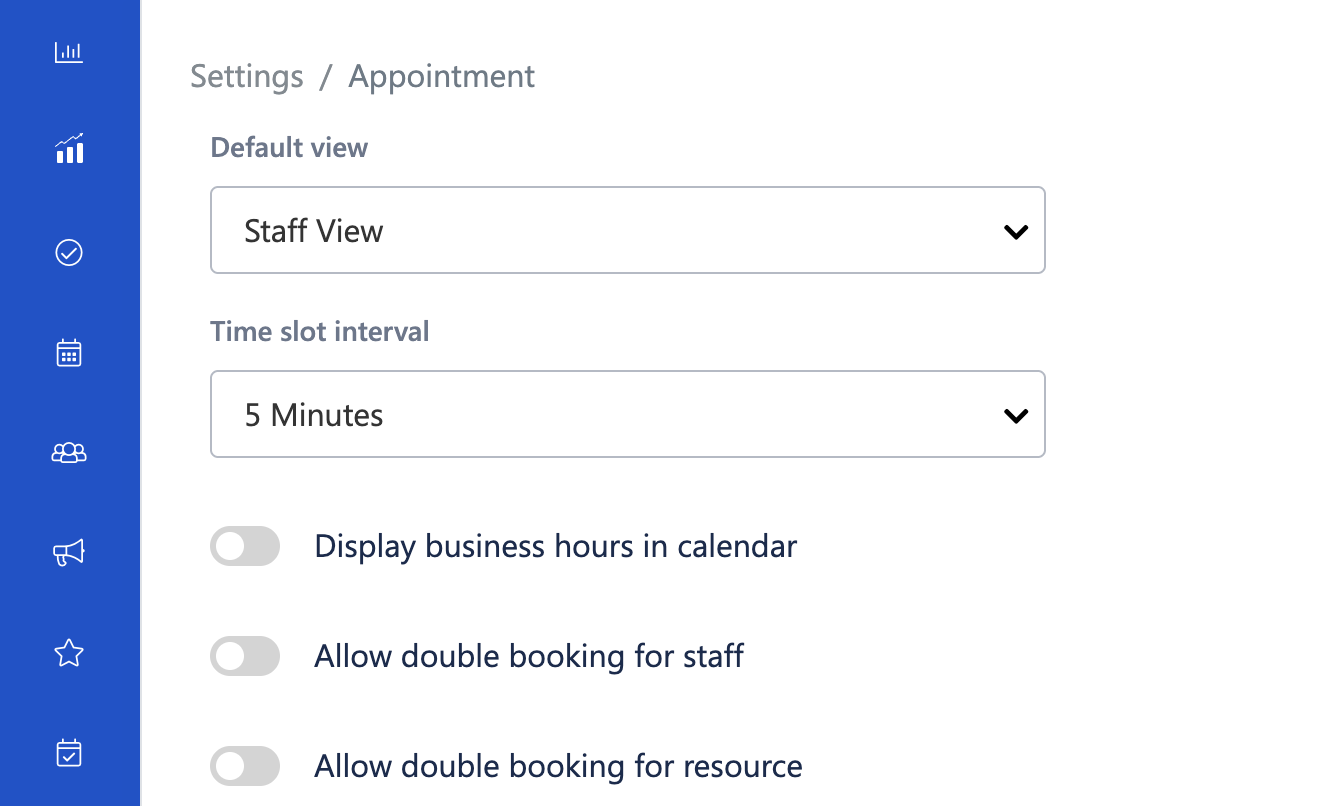
Step 2: Enable Double Booking for Resources
Locate the toggle option:
Allow double booking for resourceTurn the toggle ON to enable double booking.
Click Save (if applicable).
What Happens After Enabling?
The system will allow more than one appointment to be assigned to the same resource at overlapping time slots.
Calendar conflicts related to resource availability will not block appointment creation.
Appointments will still follow staff availability rules unless separately configured.
Use Case Scenarios
1. Shared Service Rooms
A large facial room can accommodate two clients at once. Enabling double booking allows scheduling both appointments without restriction.
2. Multi-Equipment Setup
A spa room contains multiple machines. Different services can run simultaneously in the same room.
3. High-Traffic Hours
During peak times, shared resources can be optimized to avoid unnecessary appointment rejection.
Important Notes
This setting applies only to resources, not staff.
If you also want to allow overlapping bookings for staff, enable Allow double booking for staff separately.
Ensure operational capacity supports simultaneous usage before enabling this option.
Was this article helpful?
That’s Great!
Thank you for your feedback
Sorry! We couldn't be helpful
Thank you for your feedback
Feedback sent
We appreciate your effort and will try to fix the article