Overview
Appointment Settings in MioSalon allow you to control how appointments are displayed, booked, and managed in the calendar. You can configure default calendar views, time slot intervals, booking rules, consent requirements, and cancellation reasons to align with your operational workflow.
These settings help improve scheduling accuracy, prevent overbooking, and ensure compliance through client consent and cancellation tracking.
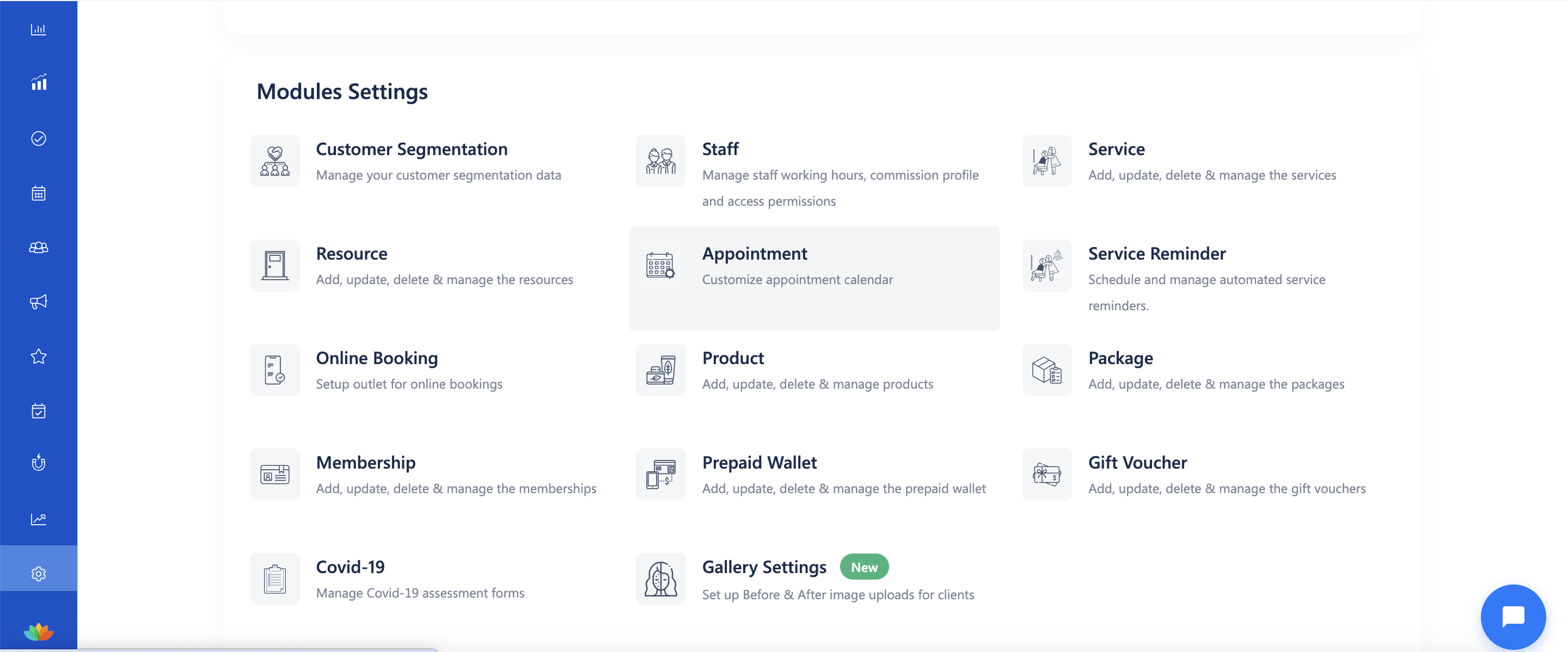
To access Appointment Settings
Log in to your MioSalon account.
From the left-side menu, click Settings.
Scroll down to Module Settings.
Click Appointment.
Configure Appointment Display and Booking Rules
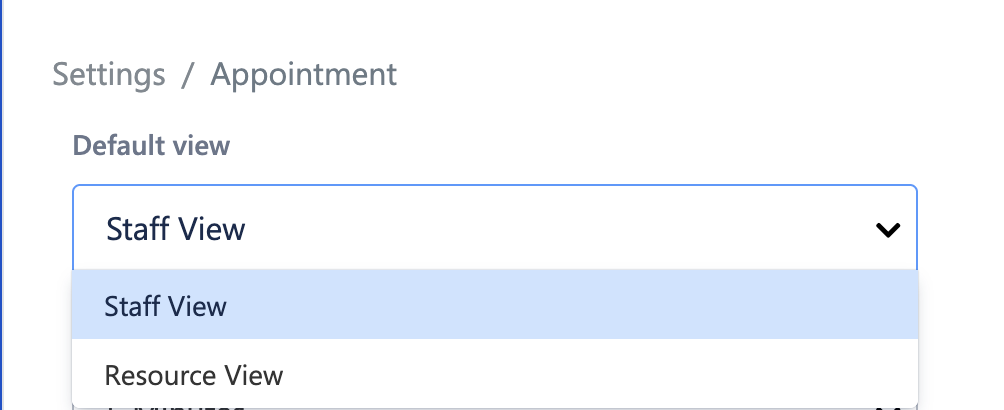
Default View
Under Default view, select how the appointment calendar should open:
Staff View – Appointments are grouped by staff.
Resource View – Appointments are grouped by resources (rooms, equipment, etc.).
Why this matters:
Choose the view that best matches how your business schedules services daily.
Time Slot Interval
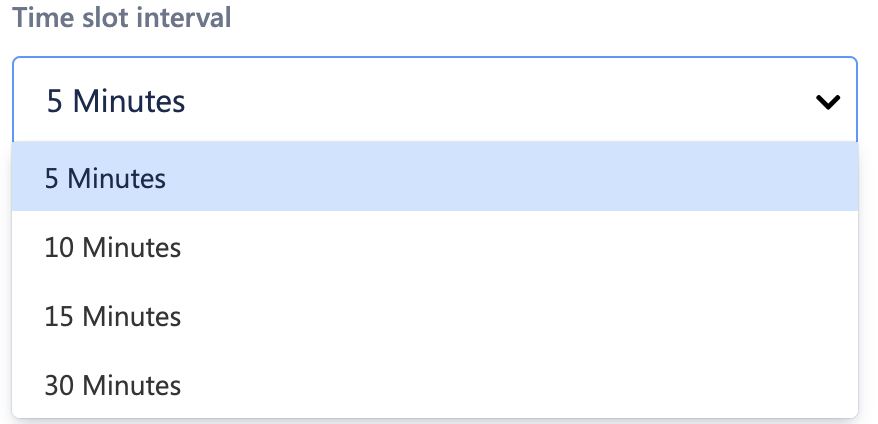
Under Time slot interval, select the required interval:
5 Minutes
10 Minutes
15 Minutes
30 Minutes
Click Save.
Why this matters:
Smaller intervals provide more precise scheduling; larger intervals simplify calendar views.
Configure Appointment Toggles
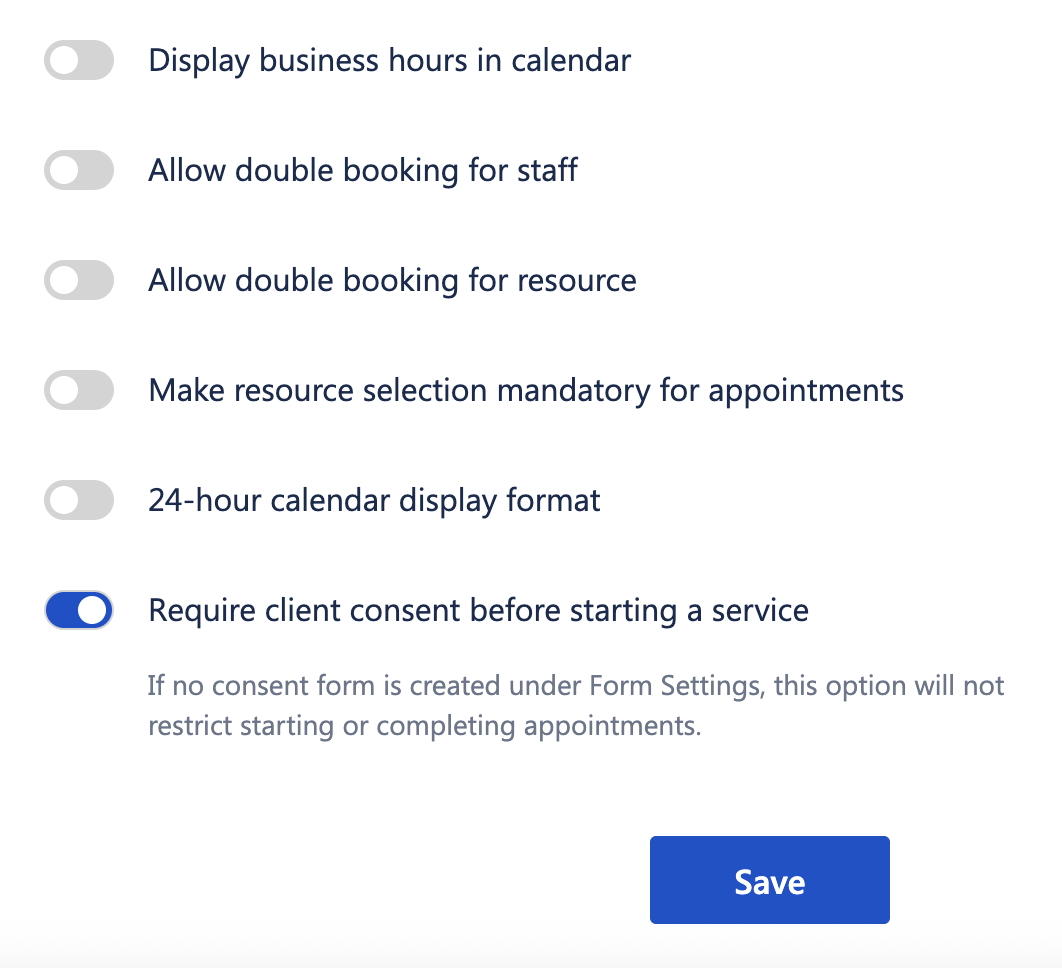
Display business hours in calendar
Shows only configured working hours in the appointment calendar.
Allow double booking for staff
Allows staff to be booked for overlapping appointments.
Allow double booking for resource
Allows the same resource to be booked for overlapping appointments.
Make resource selection mandatory for appointments
Forces staff to select a resource before confirming an appointment.
24-hour calendar display format
Displays time in 24-hour format instead of AM/PM.
Require client consent before starting a service
Prevents starting or completing an appointment unless client consent is recorded.
Note:
If no consent form is created under Form Settings, this option will not restrict starting or completing appointments.
Click Save after updating any of the above settings.
Configure Cancellation Reasons
To add cancellation reasons
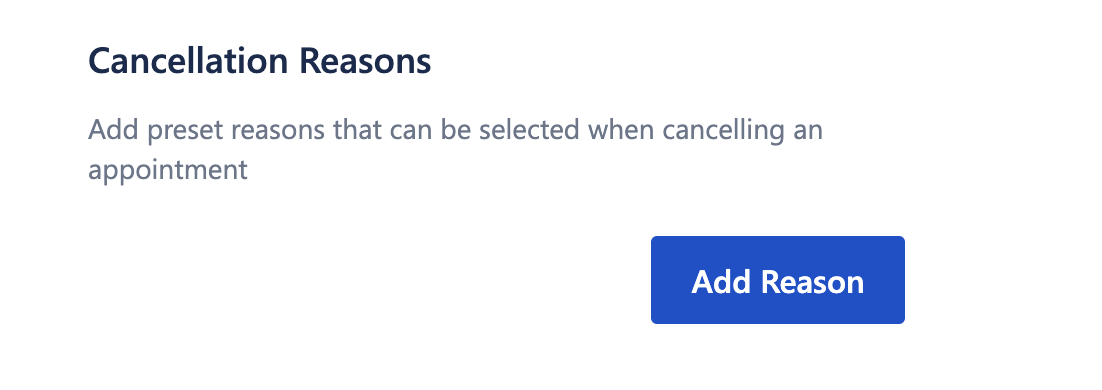
Scroll to the Cancellation Reasons section.
Click Add Reason.
Enter the reason for cancellation
(for example: No-show, Client Cancelled, Staff Unavailable).Click Save.
The added reason will now appear as a selectable option when cancelling appointments.

Important Notes
Appointment settings apply only to future appointments.
Cancellation reasons help maintain consistent reporting and audit trails.
Consent enforcement works only when consent forms are configured.
Double booking options should be used carefully to avoid scheduling conflicts.
Use Cases
Efficient calendar management
Choose staff or resource views based on business operations.Prevent overbooking
Disable double booking to avoid staff or resource overload.Compliance and consent tracking
Ensure client consent is captured before service delivery.Accurate cancellation reporting
Use predefined reasons to analyze cancellations and no-shows.Operational consistency
Standardize appointment handling across staff and locations.
Was this article helpful?
That’s Great!
Thank you for your feedback
Sorry! We couldn't be helpful
Thank you for your feedback
Feedback sent
We appreciate your effort and will try to fix the article