Overview
MioSalon’s appointment calendar offers multiple viewing options to help you manage schedules efficiently across staff, resources, and timeframes. You can switch between Day, Week, Calendar, and List views, and also set a default calendar view and time slot interval from Appointment module settings for consistent usage across your team.
Set Default Calendar View & Time Slot Interval (Module Settings)
You can control how the appointment calendar opens by default for all users using Appointment module settings.
Navigation
Settings → Module Settings → Appointment
Scroll down to the Appointment Settings section.
Configure Default Calendar View
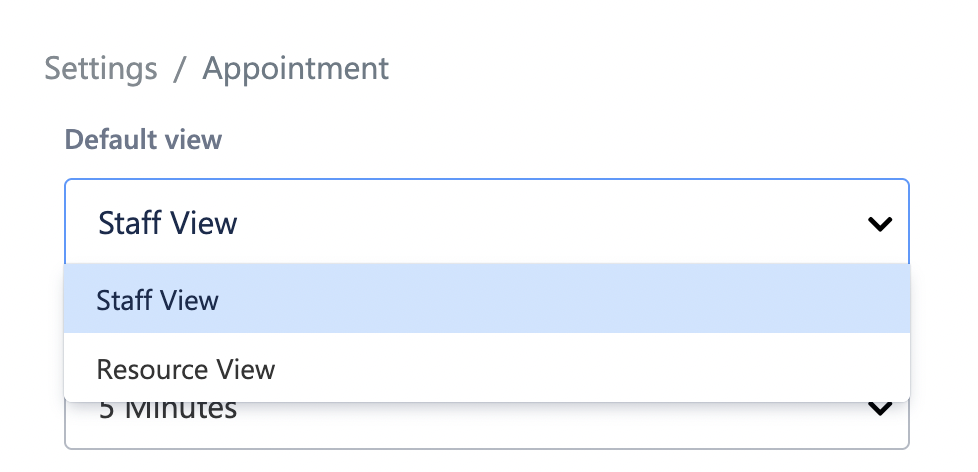
Under Default View, choose how the calendar should load by default.
Options include:
Staff View – Appointments grouped by staff (recommended for salons).
Resource View – Appointments grouped by rooms or equipment.
Service View (if enabled) – Appointments grouped by services.
This setting ensures a consistent calendar layout for all users.
Set Time Slot Interval
Under Time Slot Interval, select how granular the calendar timeline should be.
Available intervals:
5 minutes
10 minutes
15 minutes
30 minutes
Smaller intervals allow precise scheduling, while larger intervals provide a cleaner overview.
Save Settings
Click Save to apply the default calendar view and time slot interval.
These settings apply across:
Day, Week, Calendar, and List views
Appointment creation screens
Staff scheduling workflows
Navigation
Main Menu → Appointments → Calendar
Available Calendar Views
1. Day View
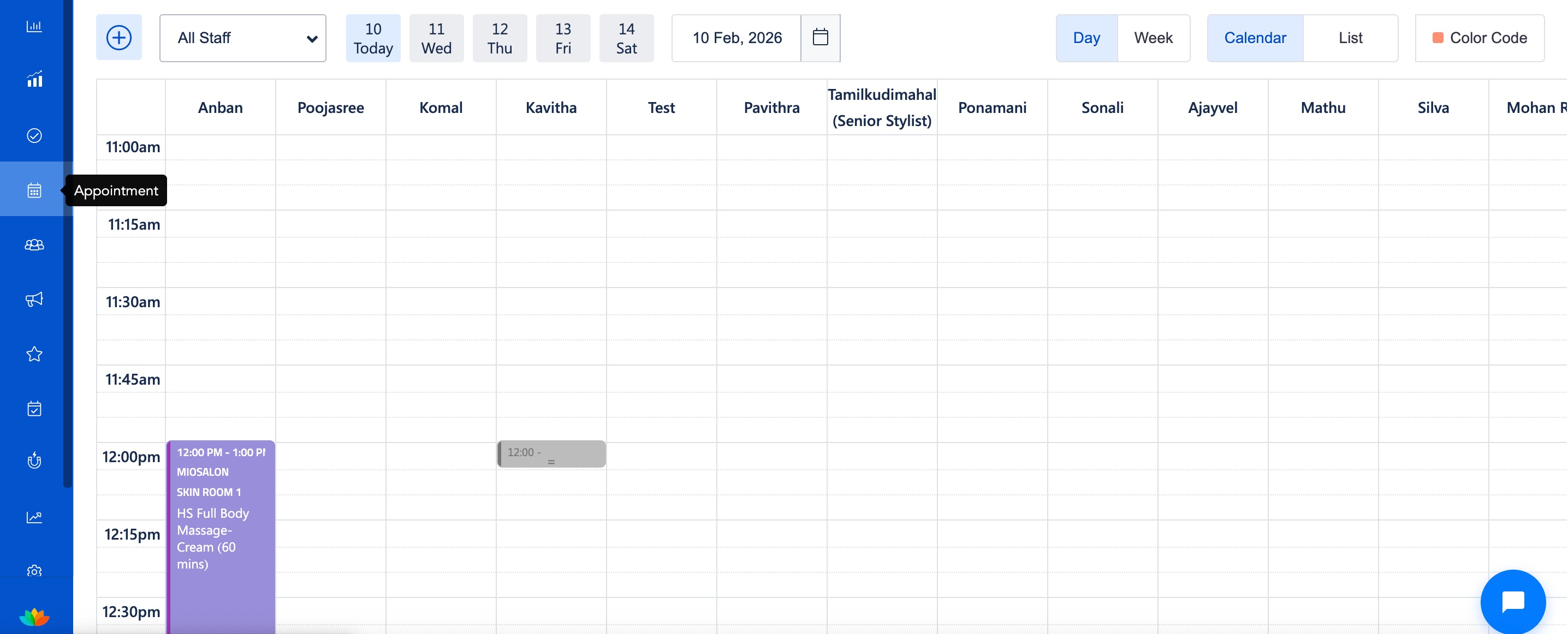
Displays appointments for a single day across all staff or selected staff.
Useful for:
Managing daily schedules
Handling walk-ins and last-minute changes
Monitoring staff availability in real time
2. Week View
Shows appointments across a week, grouped by staff or resources.
Useful for:
Planning staff workload
Identifying peak and low-traffic days
Scheduling recurring or follow-up appointments
3. Calendar View
Provides a structured timeline view with precise time slots.
Useful for:
Detailed scheduling
Avoiding overlaps
Managing services with specific durations
4. List View
Displays appointments in a simple, scrollable list format.
Useful for:
Quick appointment lookup
Reviewing booking status (New, Confirmed, Completed, Cancelled)
Searching by customer or staff name
How to Switch Calendar Views
Open the Appointments module.
Use the Day / Week / Calendar / List toggle at the top-right of the screen.
Select the view that best suits your scheduling needs.
The calendar updates instantly without affecting existing appointments.
Benefits
Ensures consistent calendar experience for all staff
Reduces scheduling conflicts
Improves visibility of staff and resource availability
Saves time during appointment booking
Use Cases
High-volume salons: Use Staff View with 5–10 minute intervals for quick services.
Spas or clinics: Use Resource View with 15–30 minute intervals for room-based scheduling.
Multi-staff teams: Set a default view to avoid confusion across users.
FAQs
Q: Which view is best for handling walk-ins?
Day view is recommended for real-time appointment handling.
Q: Can I switch views without losing my selected date?
Yes, the selected date remains the same when switching between views.
Q: Does List view show cancelled appointments?
Yes, appointment status is clearly indicated in List view.
Was this article helpful?
That’s Great!
Thank you for your feedback
Sorry! We couldn't be helpful
Thank you for your feedback
Feedback sent
We appreciate your effort and will try to fix the article