How to Upload the Business (Salon, Spa, etc) Images in MioSalon ?
Overview
The Business Images upload feature in MioSalon enables salon and spa businesses to upload and display storefront, interior, and service photos on their Welns.io online booking webpage.
Salon owners and managers utilize this setting to showcase their facility ambiance, styling stations, and treatment suites to prospective clients booking online.
Uploading high-quality branch photos improves customer trust, builds visual appeal, and increases appointment conversion rates across all salon locations.
Follow the guided step-by-step instructions below to upload business images in MioSalon.
Navigation Path
Online Booking → Business Images
Steps to Upload the Business (Salon, Spa, etc) Images
1. Click on the Online Booking module from the main left navigation bar.
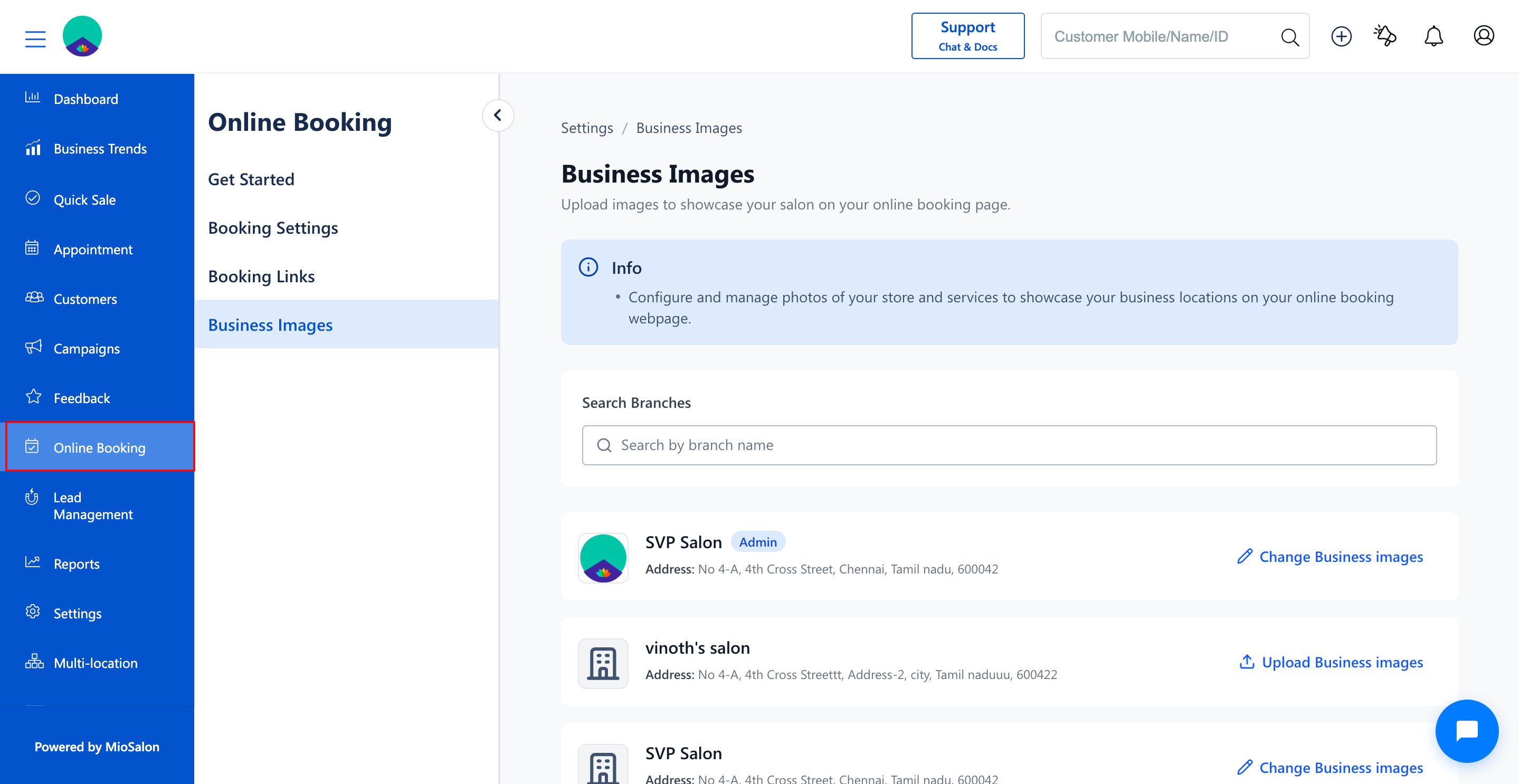
2. In the secondary left menu, click on Business Images to open the branch image management screen.
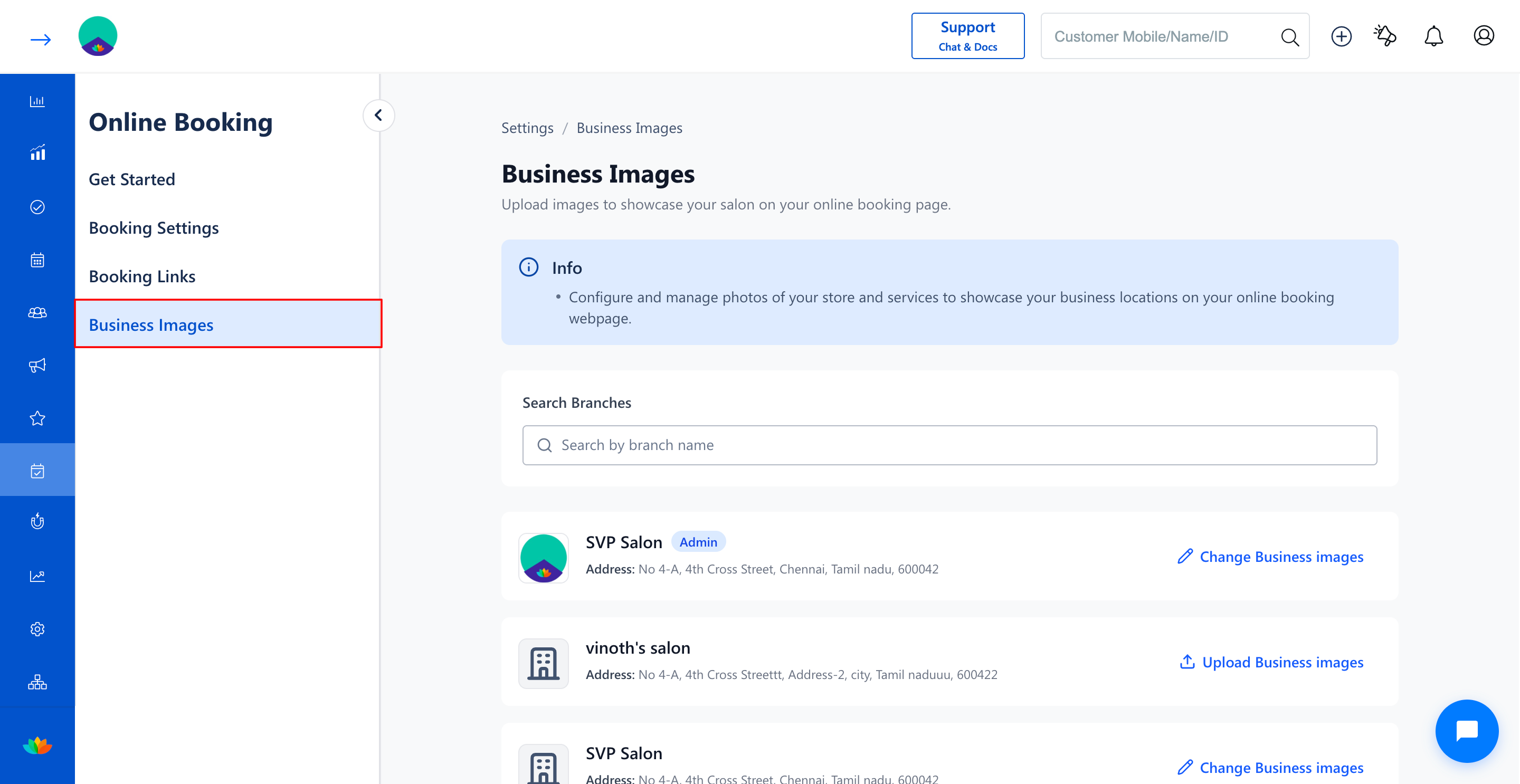
3. Locate your desired salon branch from the list, or type the branch name in the Search by branch name field (E.g., vinoth's salon).
4. Click on the Upload Business images button next to the selected branch card.
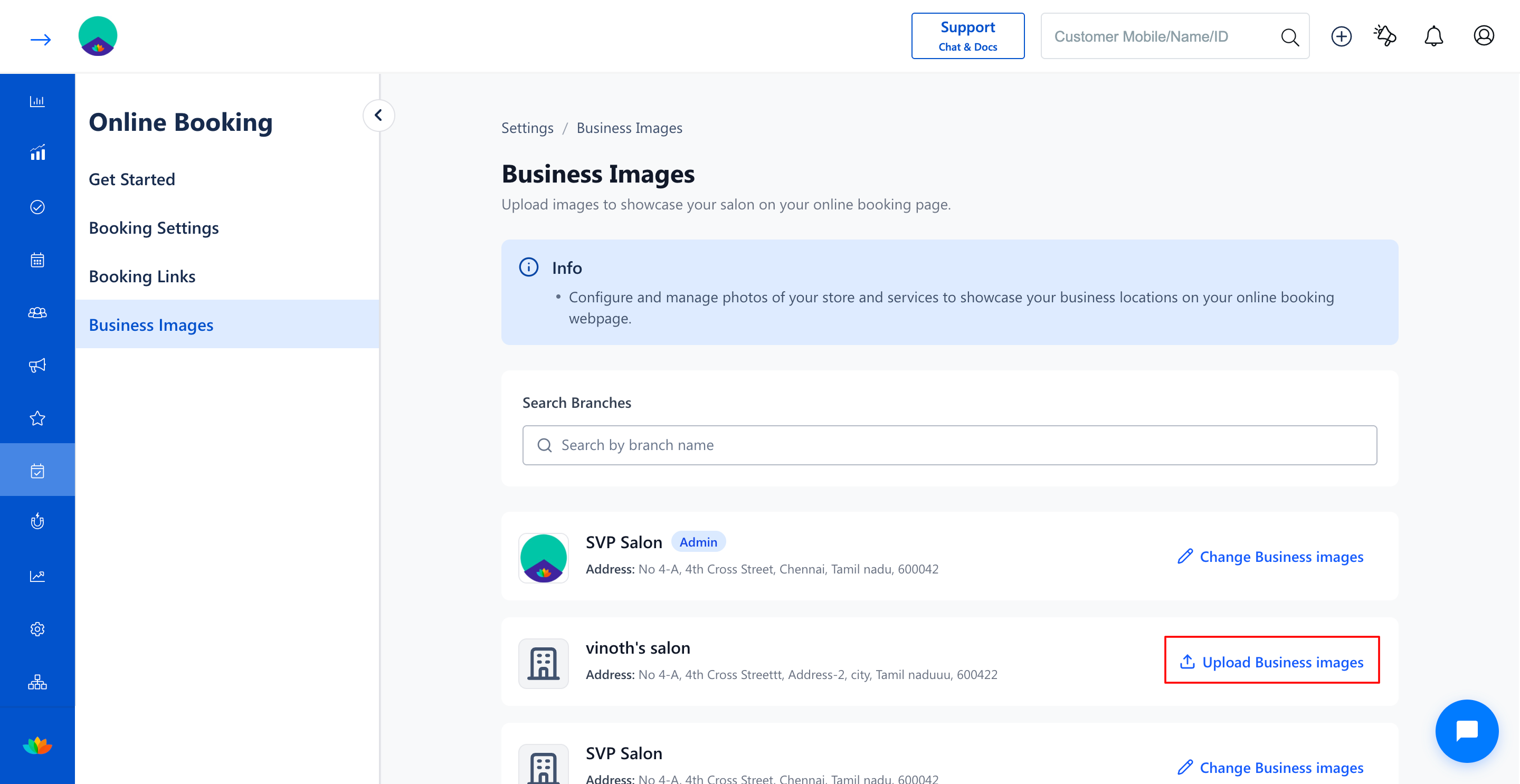
5. In the Business images modal, review the upload criteria and click on the Upload images button.
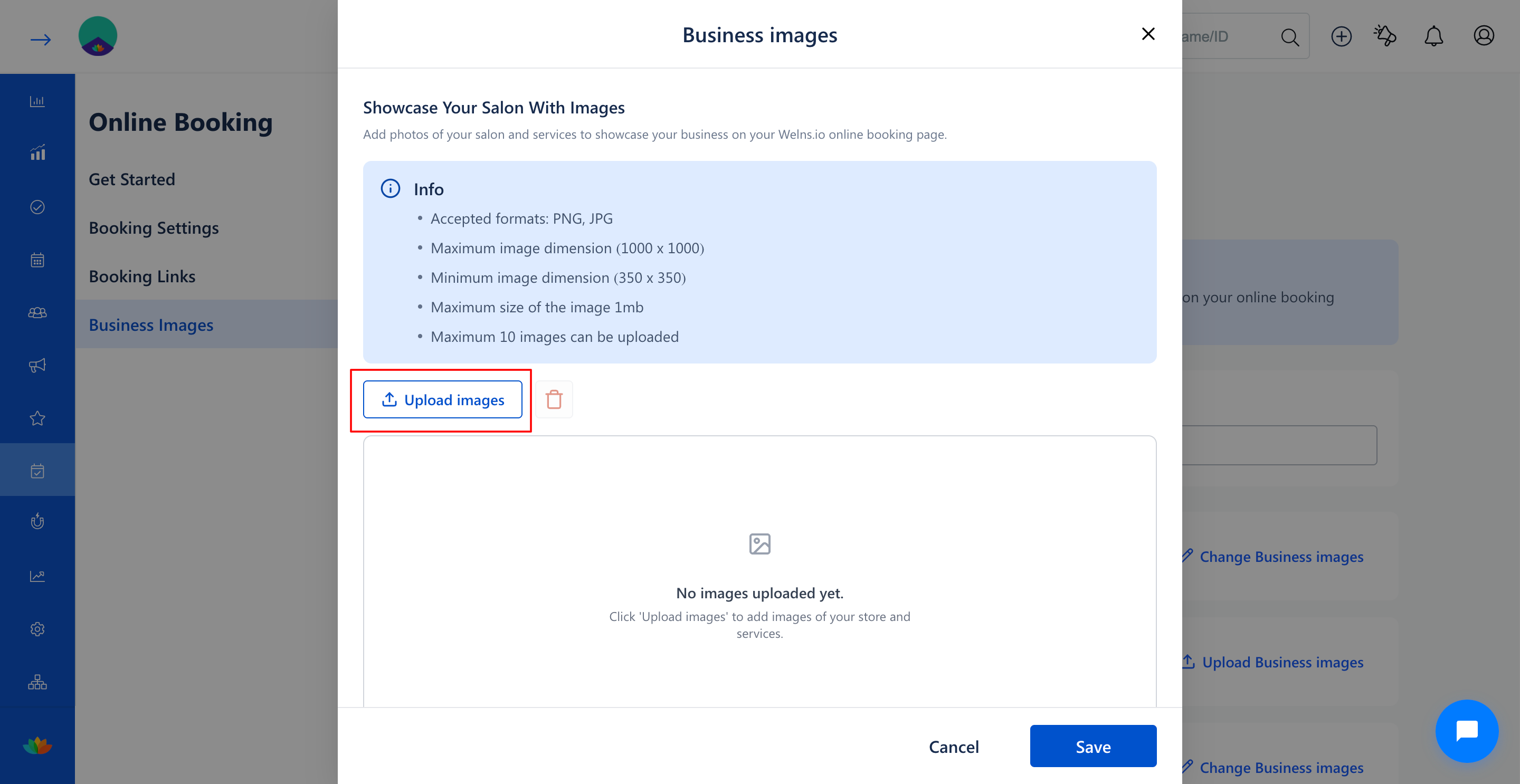
6. Select the image file from your device (E.g., Salon Interior.png) that meets the required criteria (PNG or JPG format, 350x350 px to 1000x1000 px, maximum size 1MB).
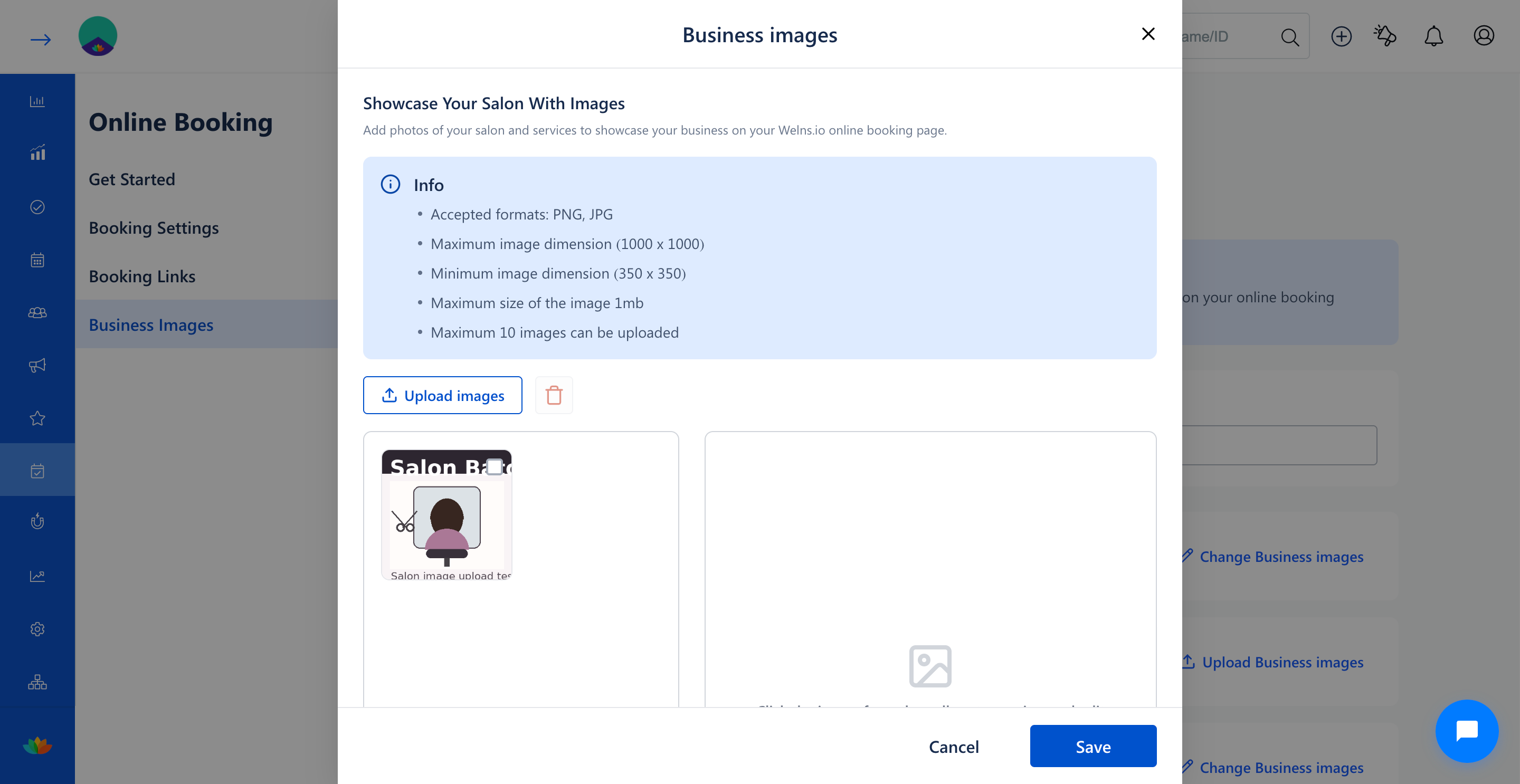
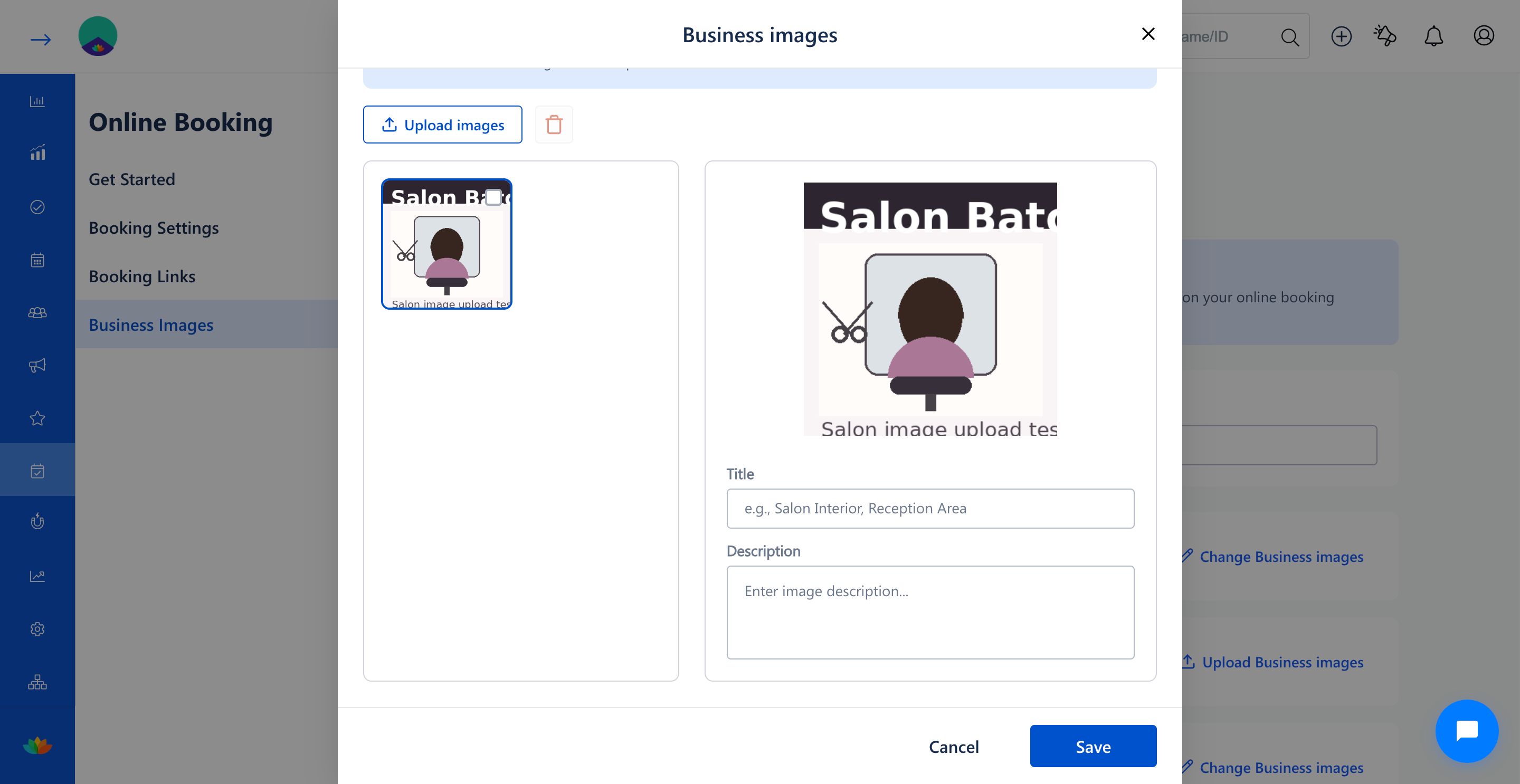
7. Click on the uploaded image thumbnail card to open the image customization panel on the right side.
8. Enter a relevant title in the Title field (E.g., Salon Interior) and add descriptive details in the Description field (E.g., Modern styling stations and premium reception lounge).
9. Click on the Save button at the bottom right corner to upload and publish the photos.
10. Verify that the branch card now displays the Change Business images option, confirming that your photos are live on your online booking page.
Note
Each salon branch can upload a maximum of 10 business images. All uploaded images must comply with the recommended specifications below for optimal display on mobile and desktop online booking pages.
| Specification | Requirement |
|---|---|
| Accepted Formats | PNG, JPG |
| Maximum Dimension | 1000 x 1000 pixels |
| Minimum Dimension | 350 x 350 pixels |
| Maximum File Size | 1 MB per image |
| Maximum Upload Limit | Up to 10 images per branch |
Use Cases
1. Salons showcasing clean reception areas, private spa rooms, and hair styling chairs to attract new online clients.
2. Multi-branch businesses uploading unique photos for each outlet to highlight location-specific amenities and architecture.
Benefits
1. Builds client confidence by offering a visual preview of the salon environment before booking appointments.
2. Boosts online appointment booking conversion rates through professional storefront and interior presentation.
3. Simplifies image management across multiple branches from a single unified settings page.
Was this article helpful?
That’s Great!
Thank you for your feedback
Sorry! We couldn't be helpful
Thank you for your feedback
Feedback sent
We appreciate your effort and will try to fix the article