Overview
The Delete Custom Package On-Demand feature in MioSalon enables staff to remove an added custom package and its selected treatment sessions from the Quick Sale cart.
Front-desk teams use this function when a customer requests a different package bundle or cancels their package purchase before payment processing.
Deleting custom packages on-demand ensures immediate removal of all package quotas, cancels bundled service bookings, and resets the billing total.
Follow the guided step-by-step instructions below to delete an on-demand package for a custom package in MioSalon.
Navigation Path
Navigation Bar → Quick Sale
Steps to Delete an On-Demand package for Custom Package
1. Click on the Quick Sale icon from the main left navigation bar.
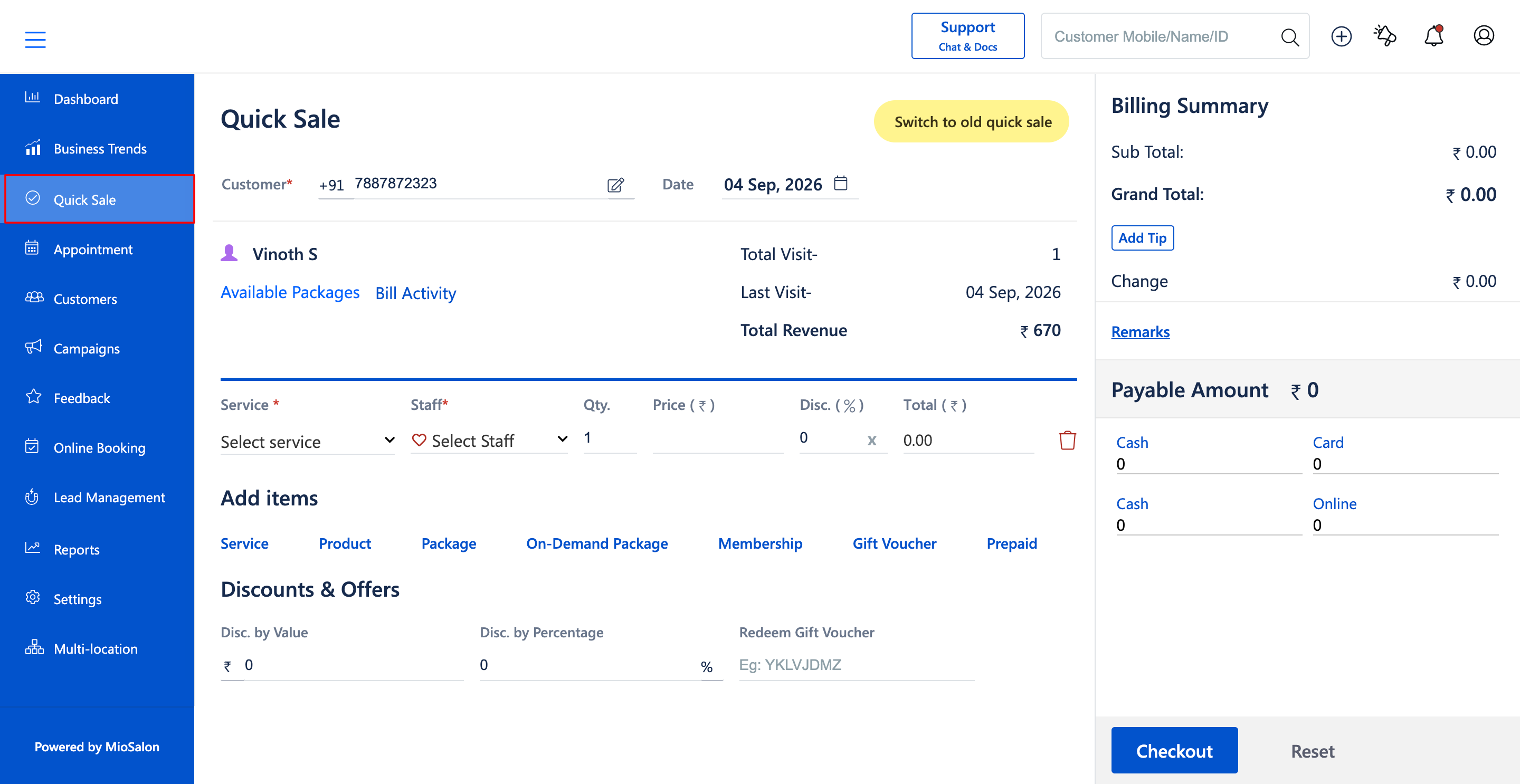
2. In the Quick Sale cart, locate the added Custom package line item (E.g., Custom package - Price ₹670.00).
3. Click on the Delete icon (red trash can icon) next to the Custom package row.
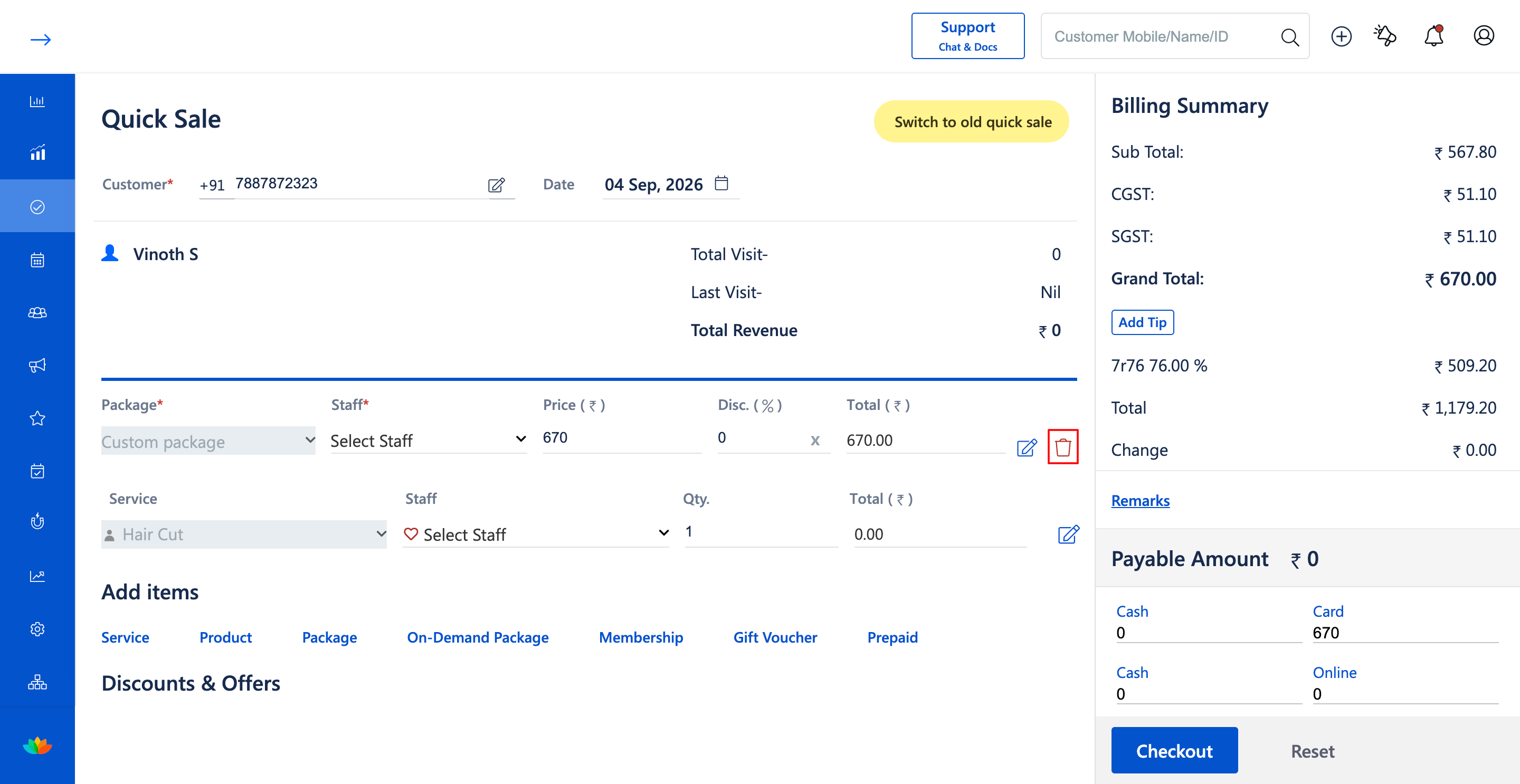
4. Confirm the package removal when prompted by the system.
5. Verify that the custom package and all scheduled service sessions attached to it are cleared from the cart.
6. Confirm that the Billing Summary updates immediately with zero remaining payable balance.
Note
Removing a custom package from Quick Sale removes all configured eligible treatment quotas and unlinks any zero-cost services booked under the package.
Use Cases
1. Switching a customer from a custom package to a standard service booking during checkout.
2. Removing an erroneously added custom package before billing payment.
Benefits
1. Provides fast one-click removal of complex multi-service custom packages.
2. Automatically cleans up linked appointment services without manual line-by-line deletion.
3. Protects reporting accuracy by preventing false package transaction entries.
Was this article helpful?
That’s Great!
Thank you for your feedback
Sorry! We couldn't be helpful
Thank you for your feedback
Feedback sent
We appreciate your effort and will try to fix the article