On-Demand Package – Support Article
Feature Overview
The On-Demand Package feature allows you to create flexible, custom service packages directly during billing. It empowers your business to offer both fixed and on-the-spot packages with controlled, rule-based discounts tailored to customer needs.
Navigation Path
Settings → Package → On-Demand Package
Accessing the On-Demand Package Settings
Log in to the application with admin or package management access.
Navigate to Settings from the left-side menu.
Click on Package.
Select On-Demand Package from the list.
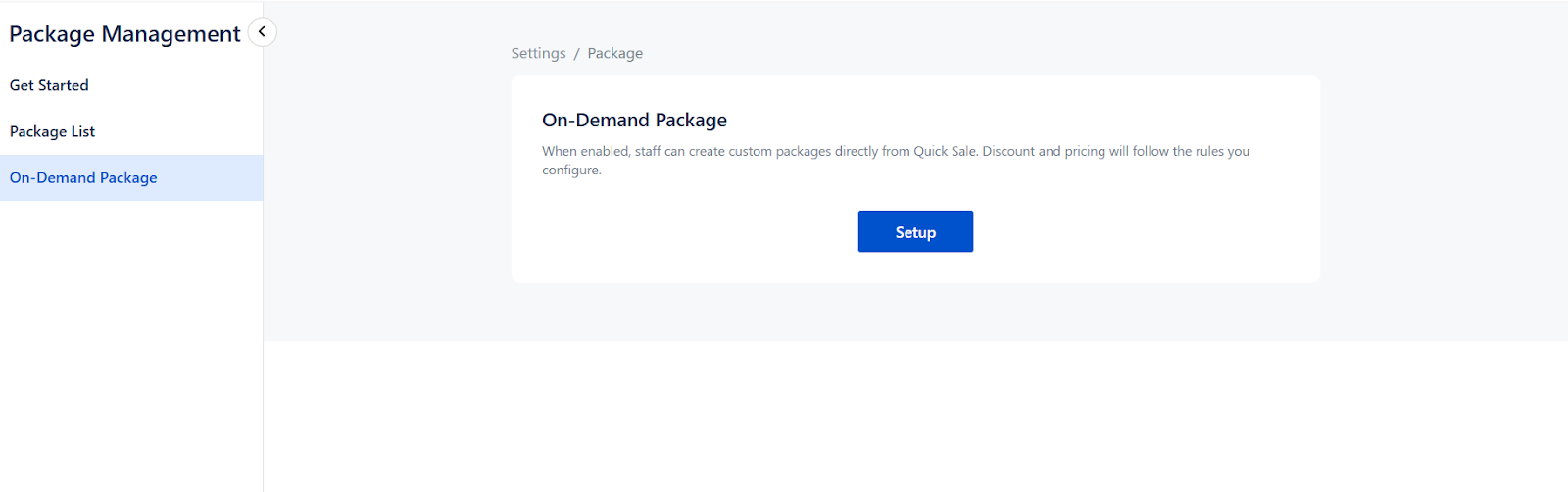
By default, only the Setup button is displayed on this page.
Enable On-Demand Package
Click the Setup button on the On-Demand Package page.
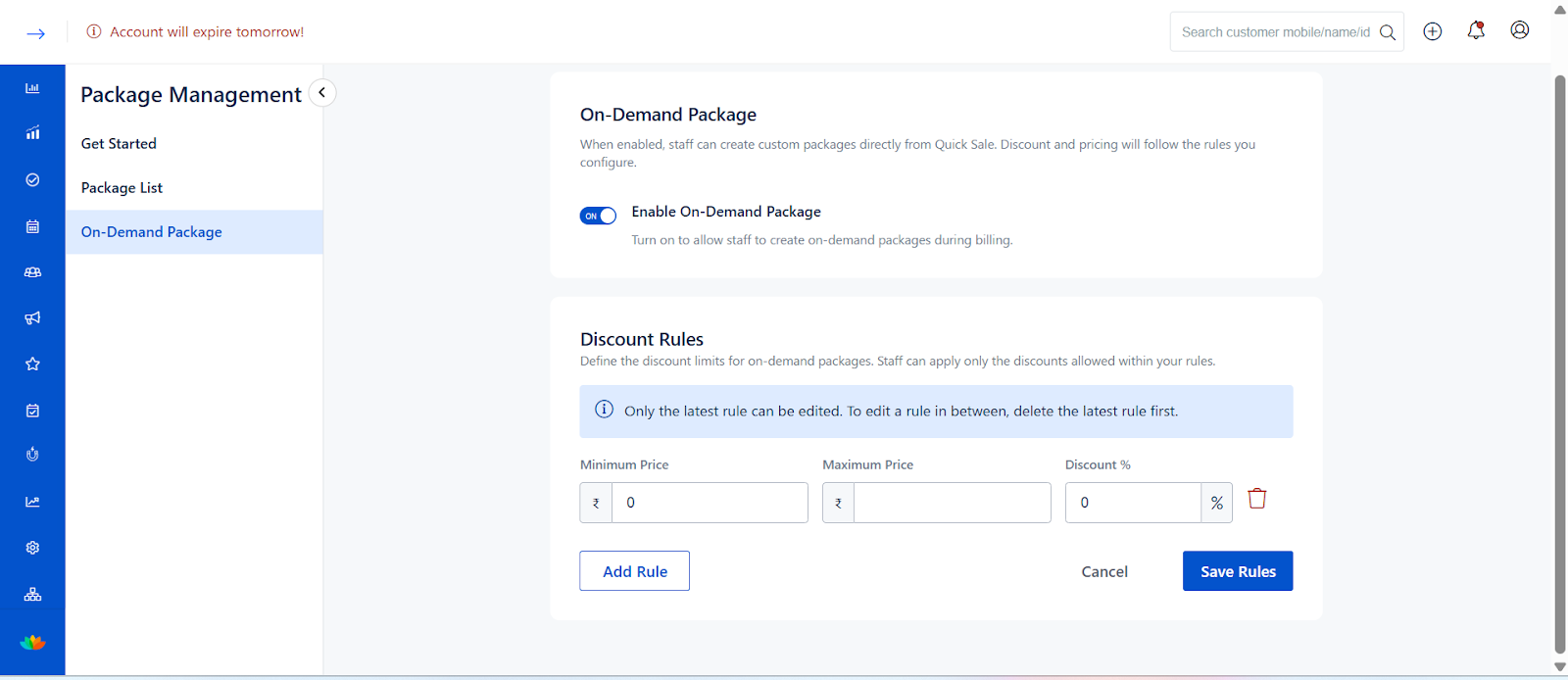
Turn ON the Enable On-Demand Package toggle.
Once enabled, Users can create on-demand packages during billing.
Based on this toggle status, the On-Demand Package option becomes visible on the Quick Sale page.
(See screenshot)
Configure Discount Rules
Discount rules help restrict how much discount Users can apply while creating on-demand packages in Quick Sale.
Scroll to the Discount Rules section.
Enter values for the following fields:
Minimum Price
Maximum Price
Discount %
Example:
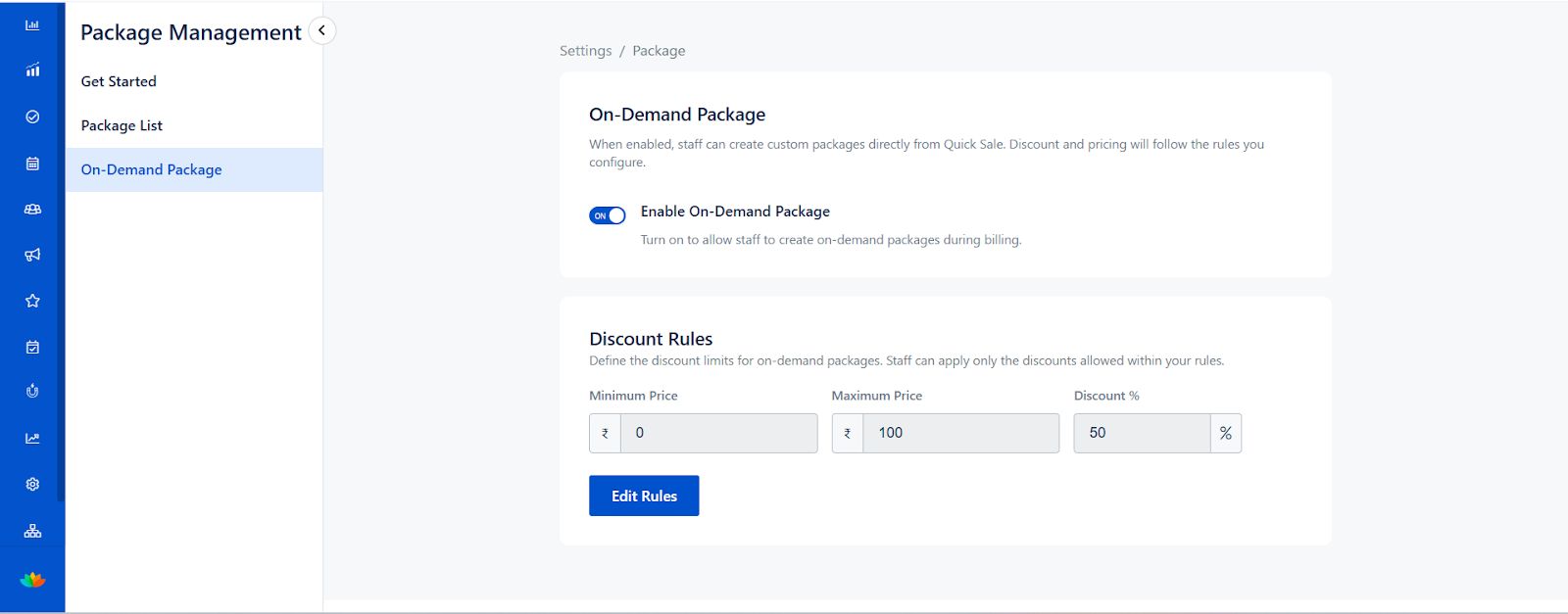
Minimum Price: ₹0
Maximum Price: ₹100
Discount: 50%
→ Users cannot apply more than a 50% discount for packages within this price range on while creating an On-Demand package on Quick sale
4. Click Add Rule to save the rule fields and enable adding the next rule.
Managing Discount Rules
You can create multiple discount rules, up to a maximum of 10 rules.
Each rule must be added sequentially by entering the Minimum Price, Maximum Price, and Discount %.
The Add Rule button is displayed only after clicking the Edit Rules option.
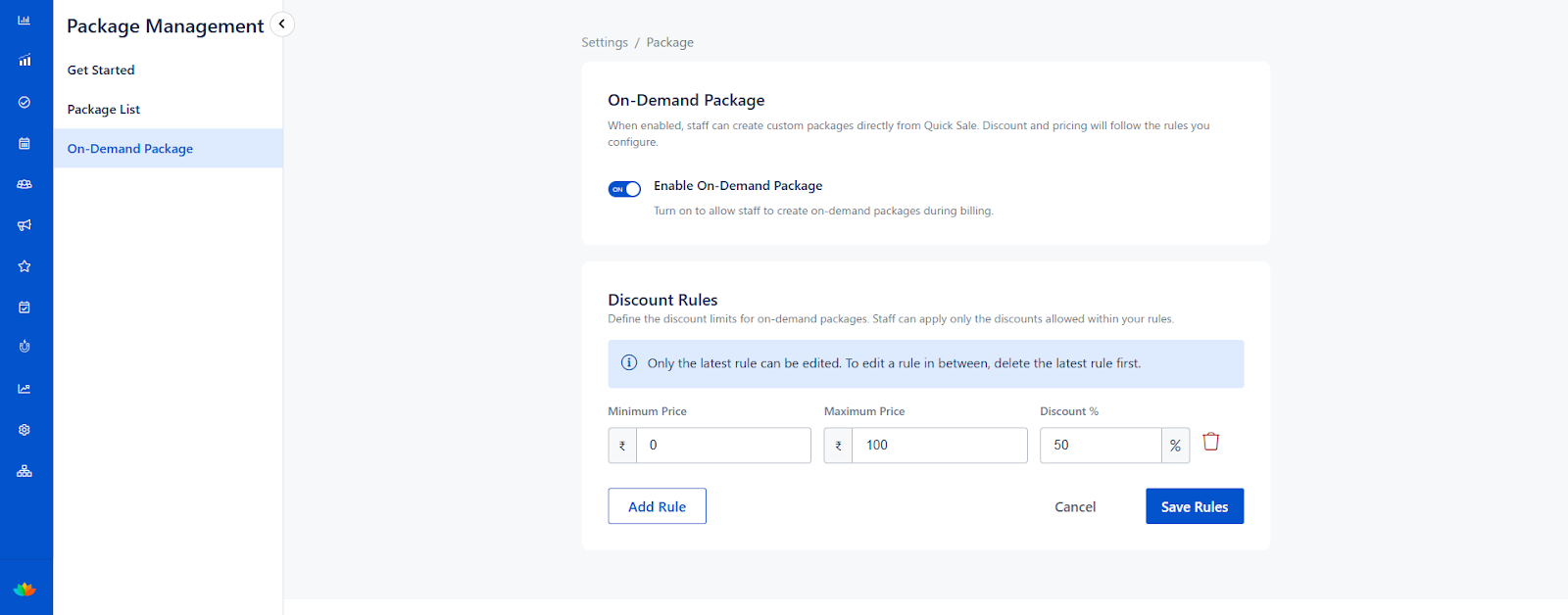
After filling the first rule, click Add Rule to define the next rule.
Once all required rules are added, click Save Rules to apply the changes.
Editing and Deleting Rules
Only the latest (last added) rule can be edited.
Rules created in between cannot be edited.
Rules can be deleted only in last-to-first order.
To modify an earlier rule, you must first delete the rules added after it.
How It Works in Quick Sale
On-Demand Package Visibility
Navigate to the Quick Sale page.
The On-Demand Package option is displayed only if the Enable On-Demand Package toggle is turned ON in Settings.
If the toggle is OFF, the on-demand package option will not be available in Quick Sale.
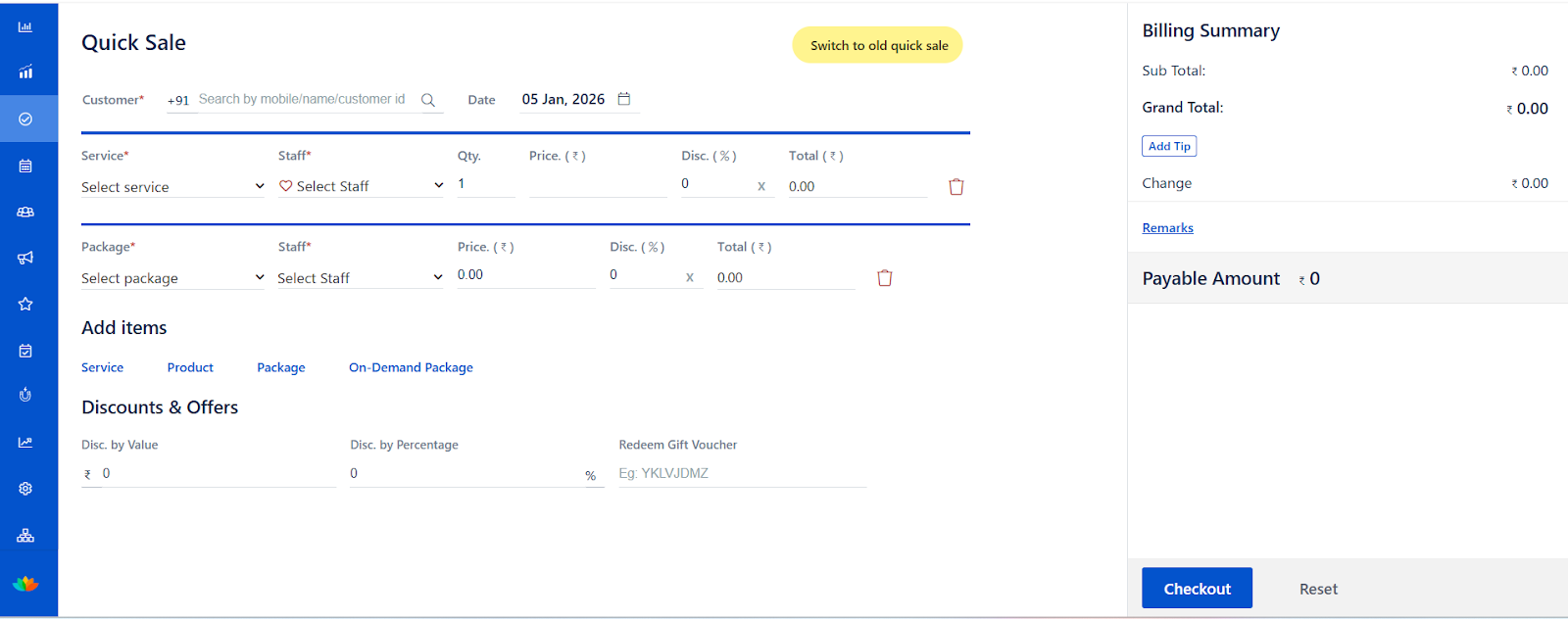
Add On-Demand Package – Package Type Selection
Click the On-Demand Package option in Quick Sale.
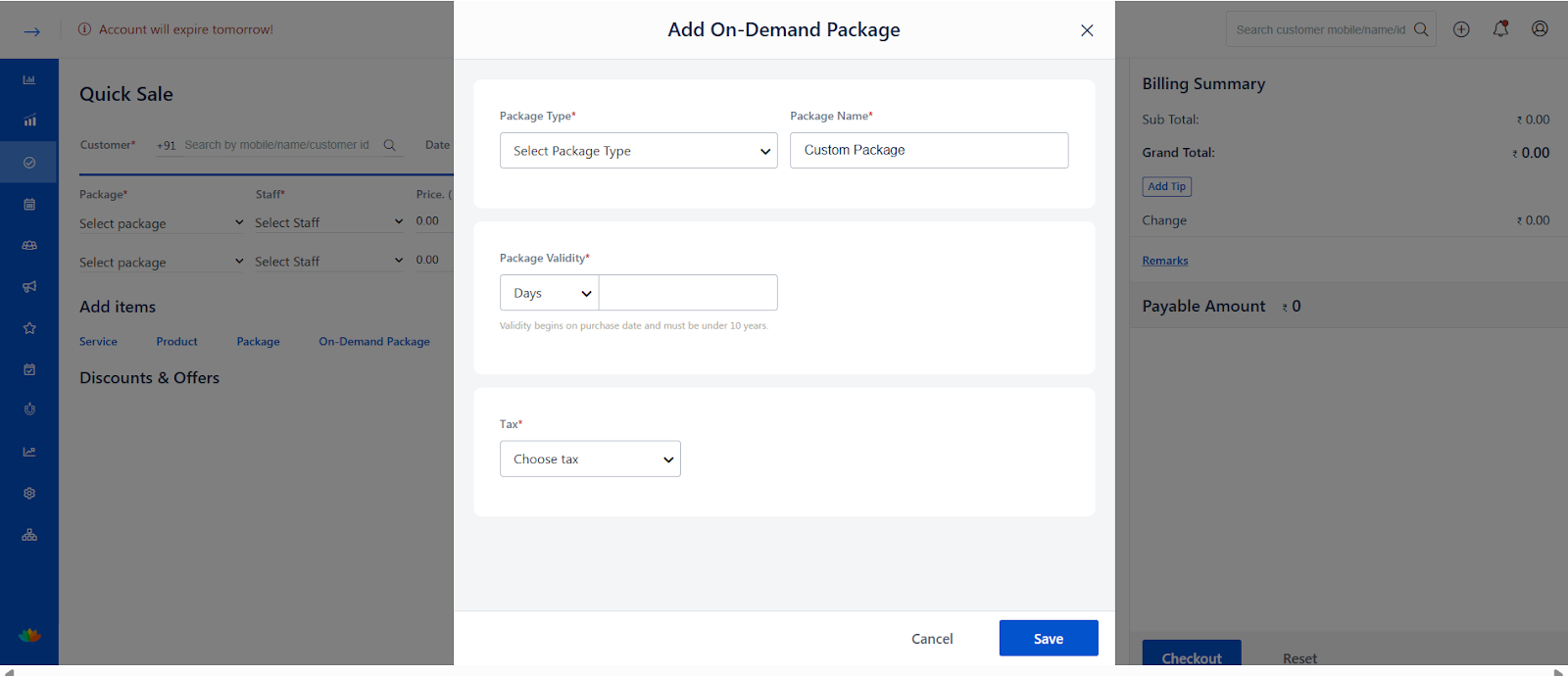
The Add On-Demand Package pop-up opens.
Package Type behavior:
Without selecting Package Type
Only basic fields are visible.
Service-related fields remain hidden.
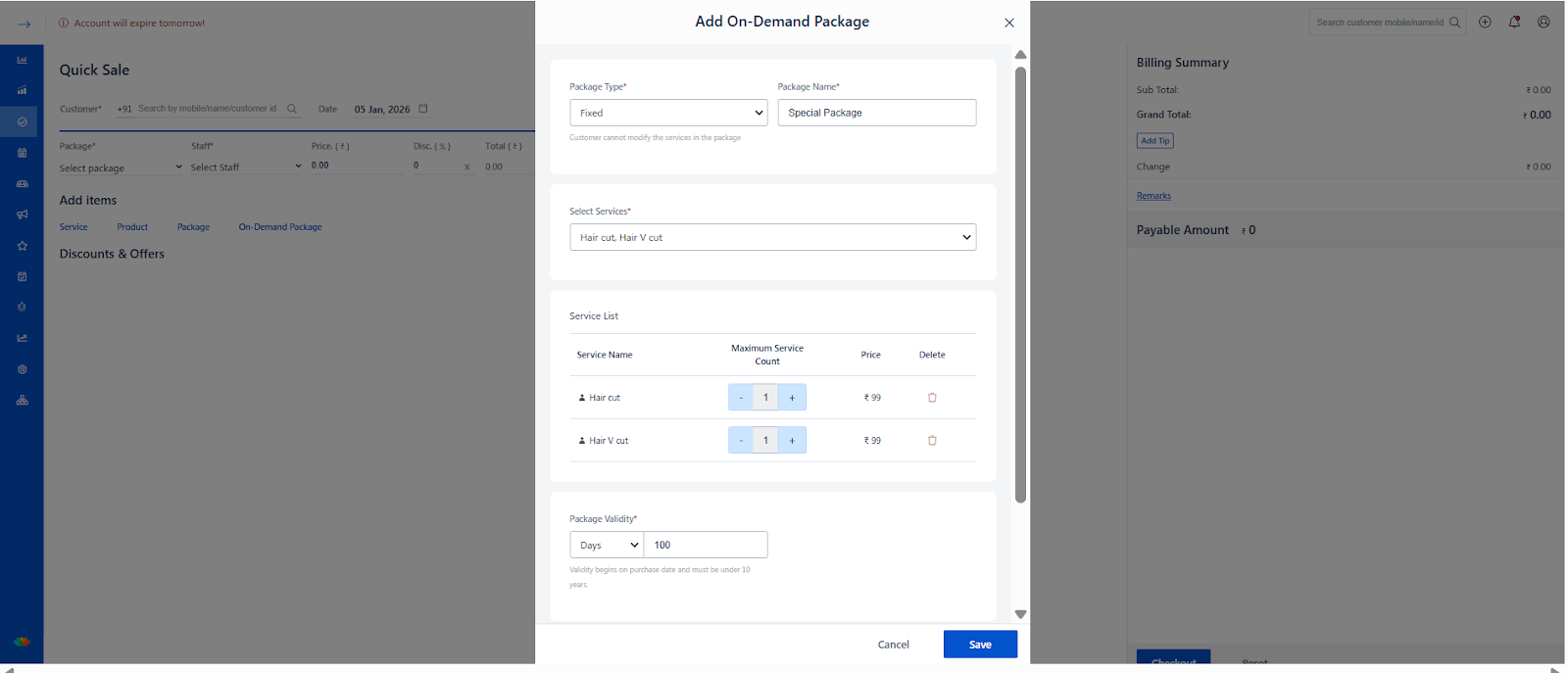
Fixed Package Type
Select Fixed as the package type.
Choose the services included in the package.
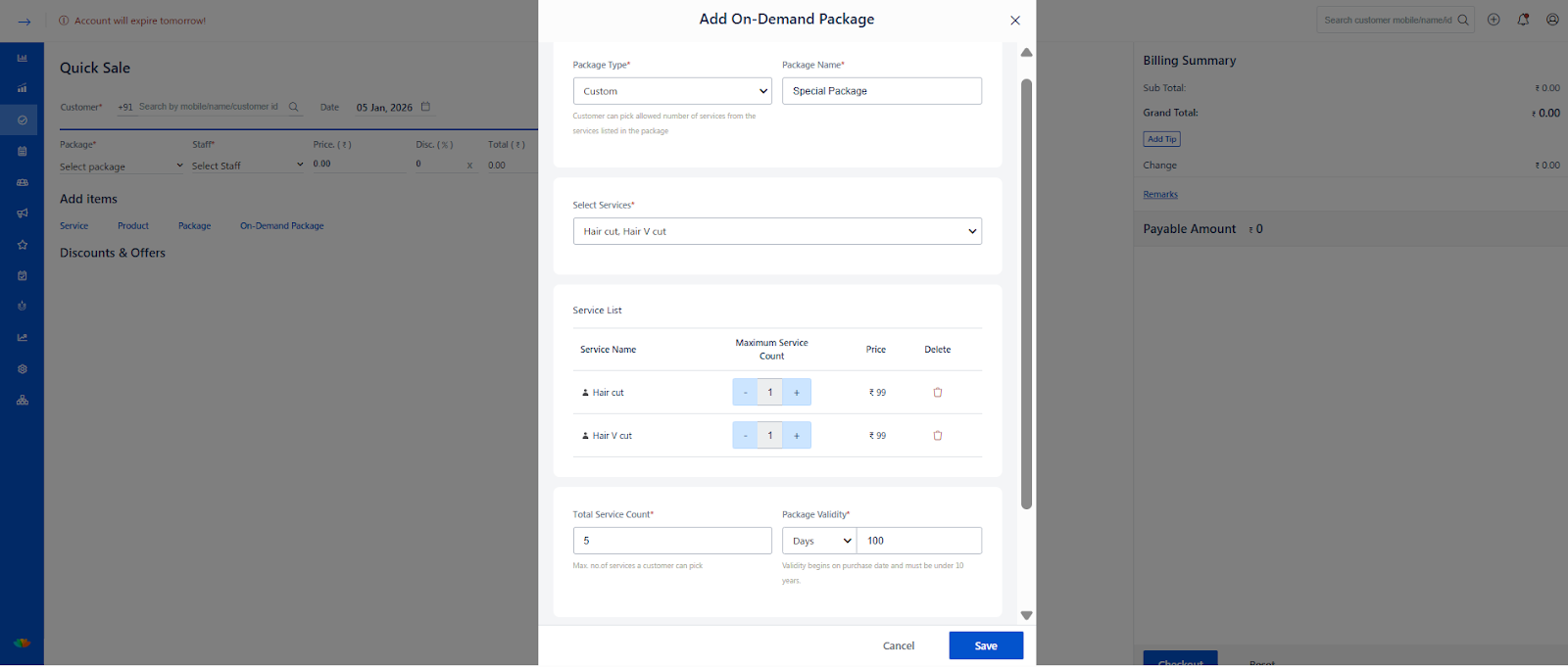
Custom Package Type
Select Custom as the package type.
Choose the list of allowed services.
Enter the Total Service Count (maximum services a customer can pick).
Customers can select services up to the allowed count.
Complete Package Creation
Fill in all the fields:
Package Name
Services
Package Validity
Tax
Click Save to create the on-demand package.
Billing with the On-Demand Package
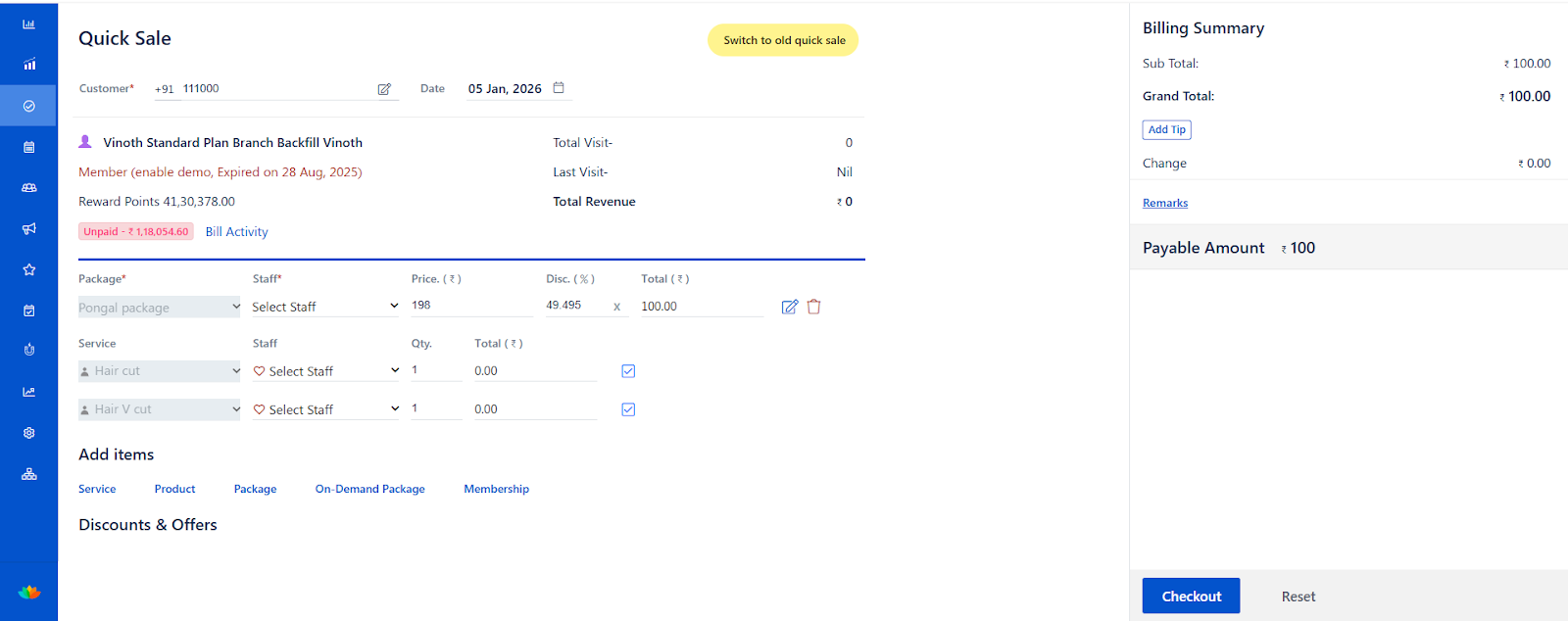
After creating and saving an on-demand package, the package and its services are displayed in the Quick Sale billing screen.
Based on the package type:
Fixed Package: Services are locked and cannot be modified.
Custom Package: The customer can choose services up to the allowed service count.
Edit On-Demand Package during Billing
Users can click the Edit option on the on-demand package before completing the bill.
Editable details include:
Selected services (for custom packages)
Package validity
Other configurable package details
All changes continue to follow the configured Discount Rules.
Delete On-Demand Package during Billing
Users can remove the on-demand package from the bill using the Delete option.
Once deleted, the package and its associated services are removed from the billing summary.
Users can then add a new on-demand package or continue billing with other items.
Use Cases
Create personalized service bundles for walk-in customers.
Offer controlled discounts during festive or promotional periods.
Upsell multiple services by packaging them during checkout.
Empower Users to respond quickly to custom customer requests without admin intervention.
Benefits
Pricing Control: Prevent over-discounting with rule-based limits.
Flexibility: Create packages instantly without predefining them.
Operational Efficiency: Reduce dependency on fixed package setup.
Revenue Growth: Encourage bundled service sales.
Improved Customer Experience: Offer tailored packages at the point of sale.
Was this article helpful?
That’s Great!
Thank you for your feedback
Sorry! We couldn't be helpful
Thank you for your feedback
Feedback sent
We appreciate your effort and will try to fix the article