Overview
The Custom Package On-Demand creation feature in MioSalon allows businesses to build customized service packages where clients can choose from a pooled selection of services up to a total service count.
Salons use custom packages to give clients the flexibility to combine multiple grooming and beauty services under a single consolidated package purchase.
Creating custom packages on-demand ensures automated quota management, real-time price recommendations, and instant appointment booking during checkout.
Follow the guided step-by-step instructions below to create an on-demand package for a custom package in MioSalon.
Navigation Path
Navigation Bar → Quick Sale
Steps to create an On-Demand package for Custom Package
1. Click on the Quick Sale icon from the main left navigation bar.
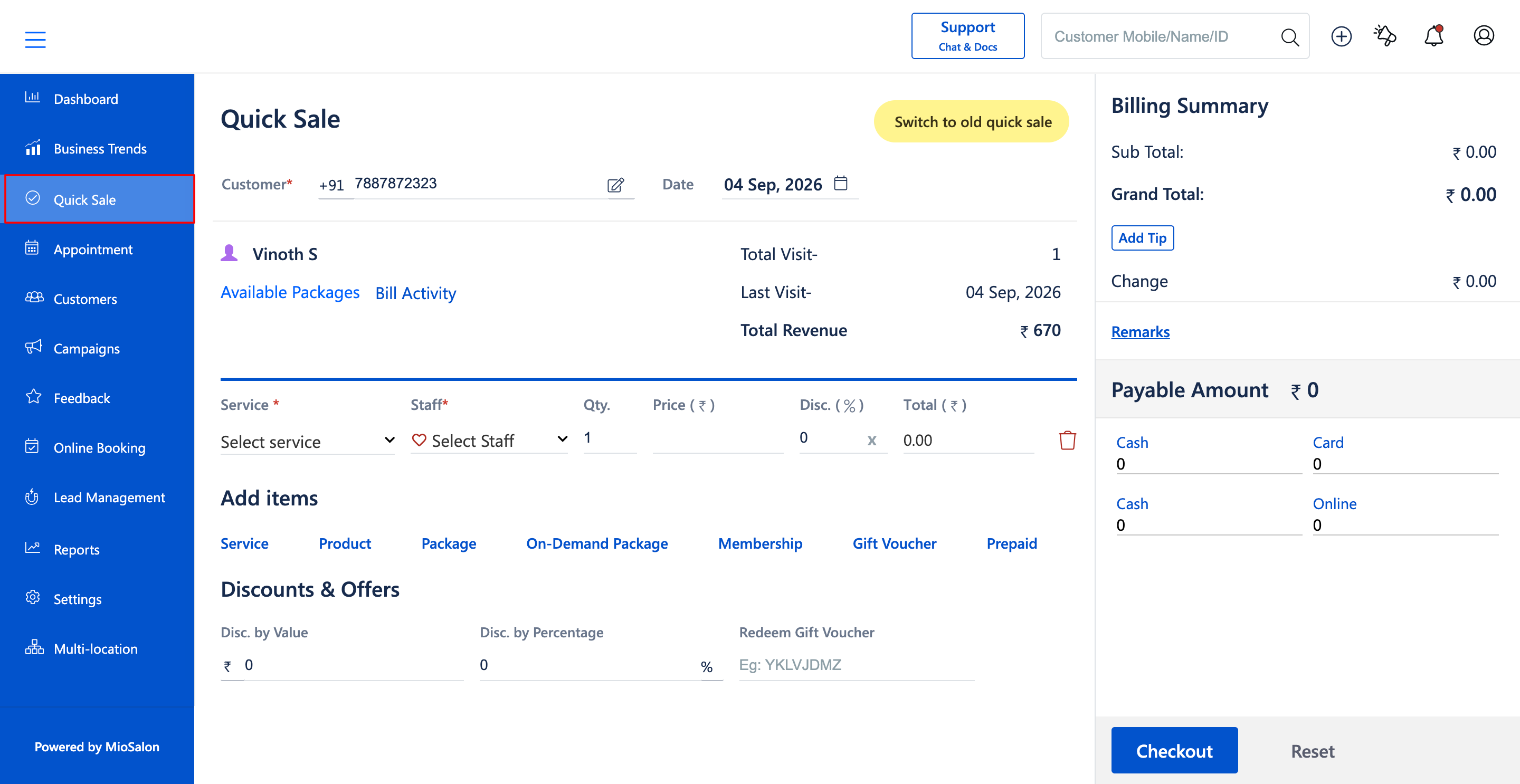
2. Search and select the customer by entering their mobile number or name (E.g., Vinoth S, +91 7887872323).
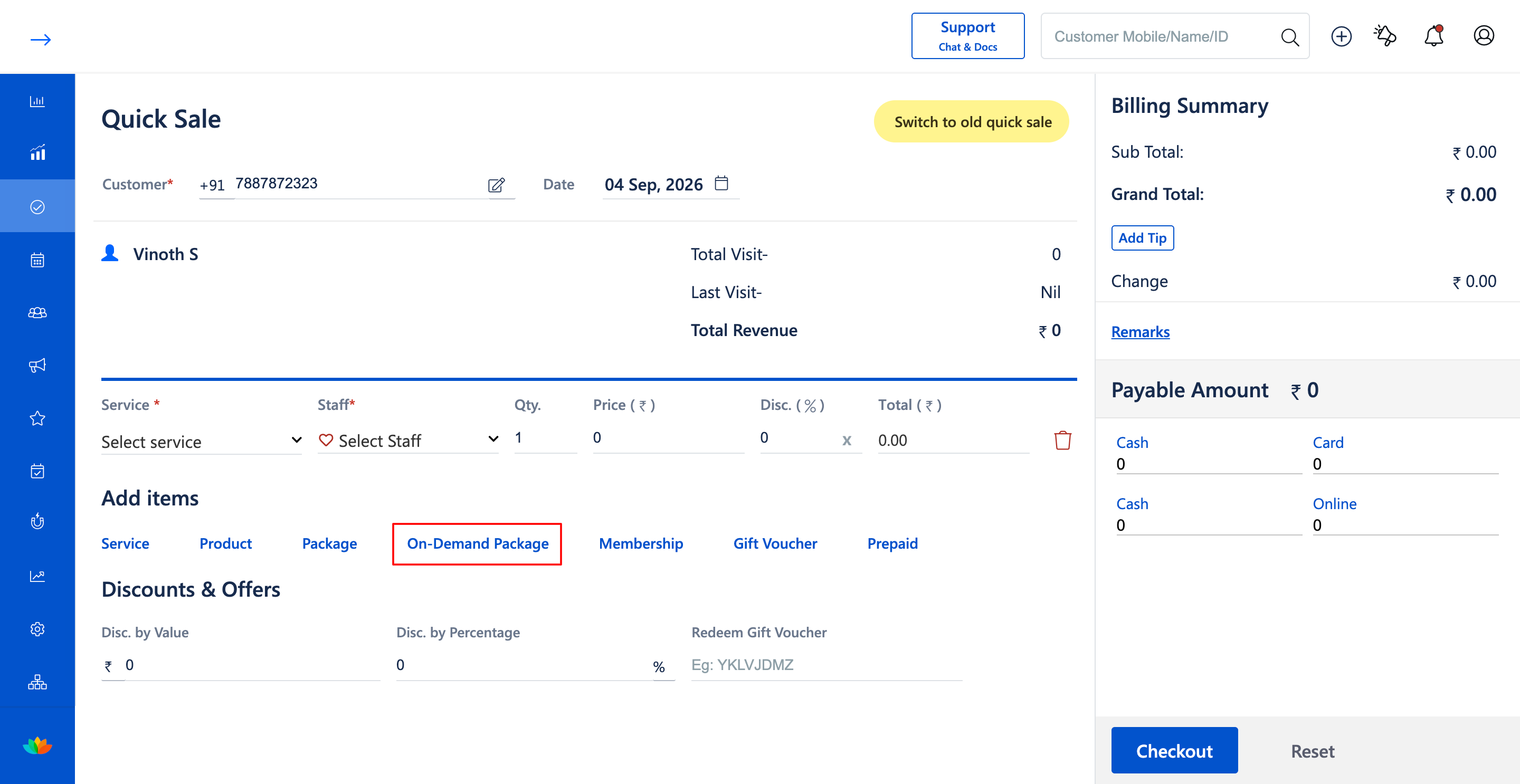
3. In the Add items section, click on On-Demand Package.
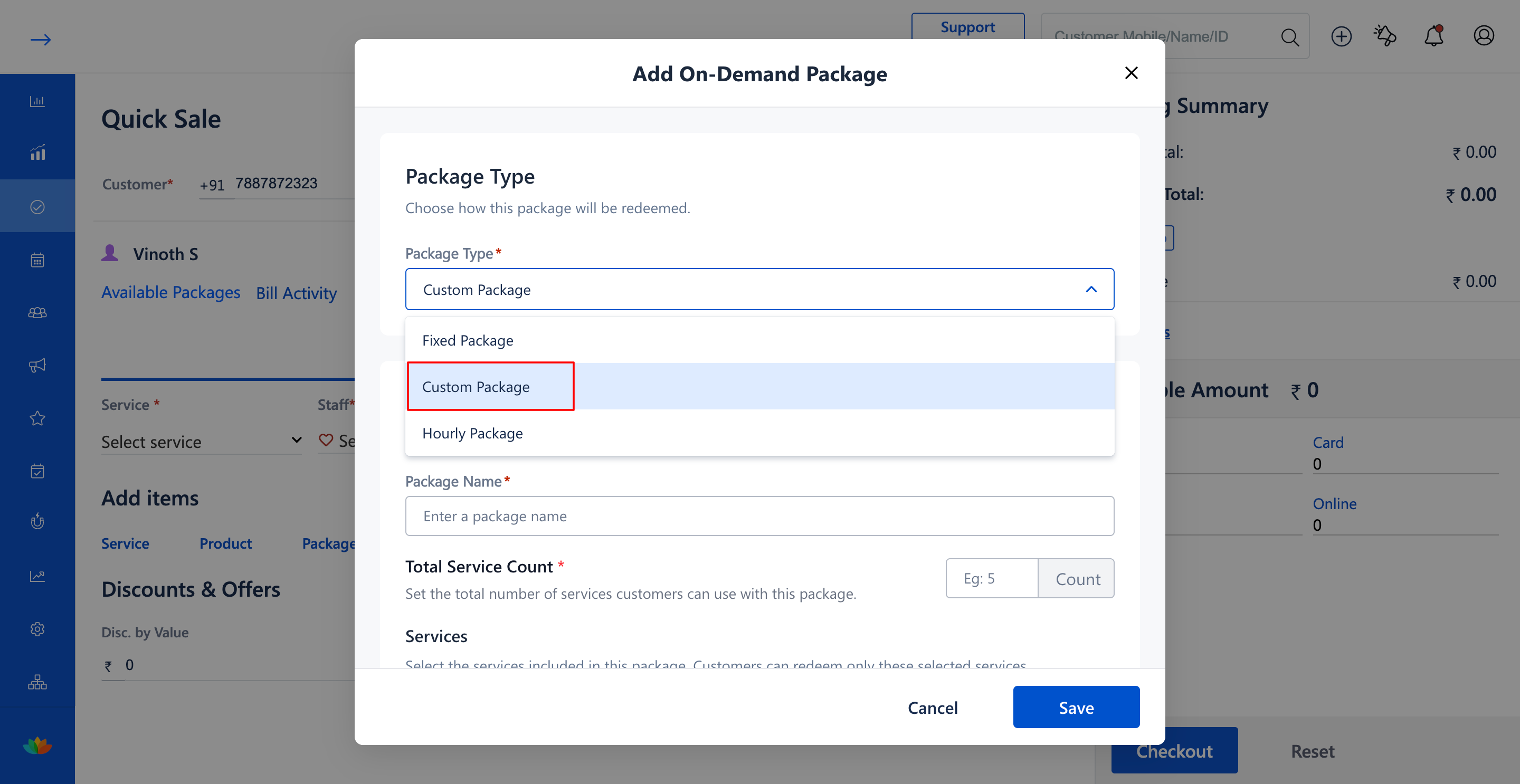
4. In the Add On-Demand Package window, select Custom Package from the Package Type dropdown.
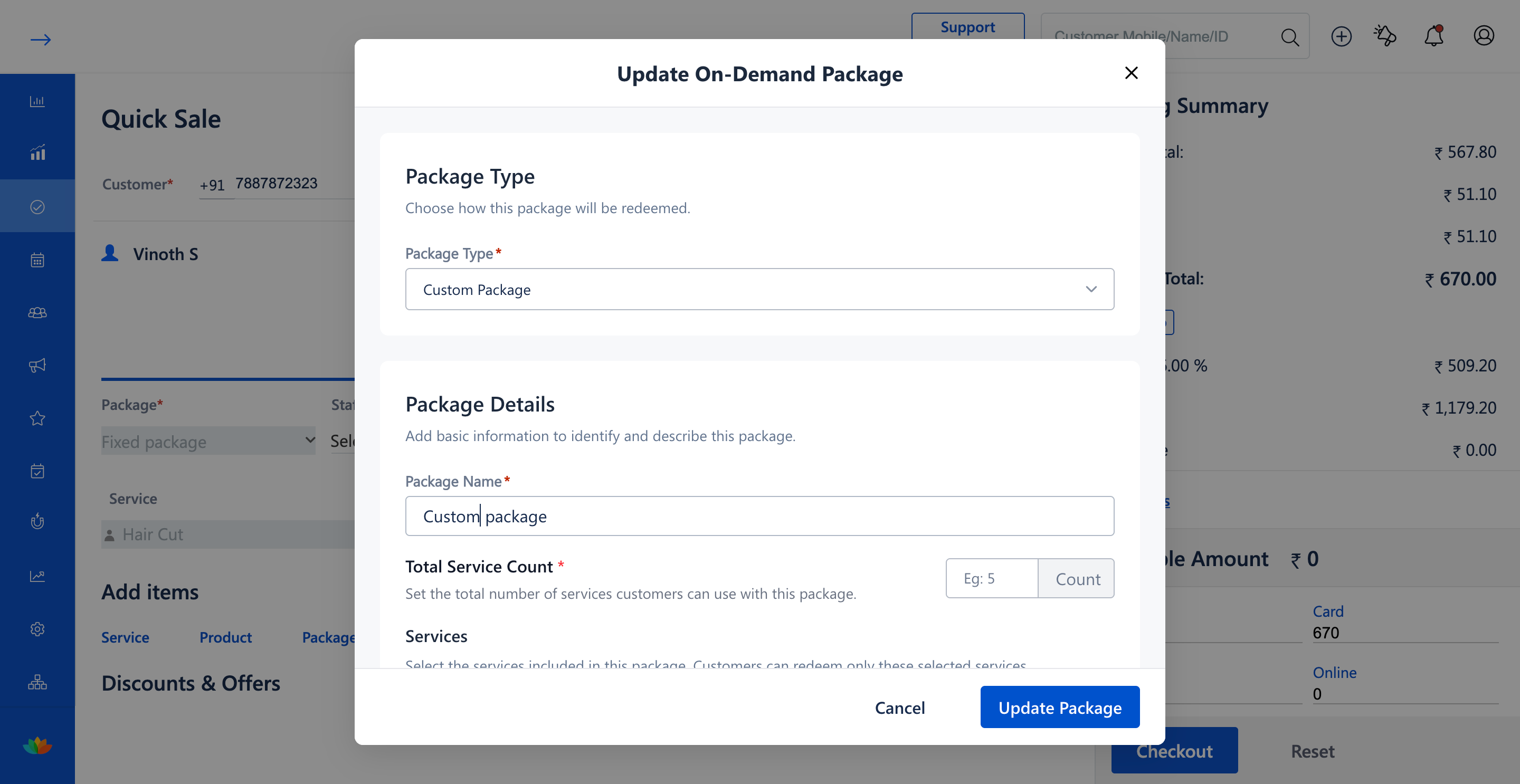
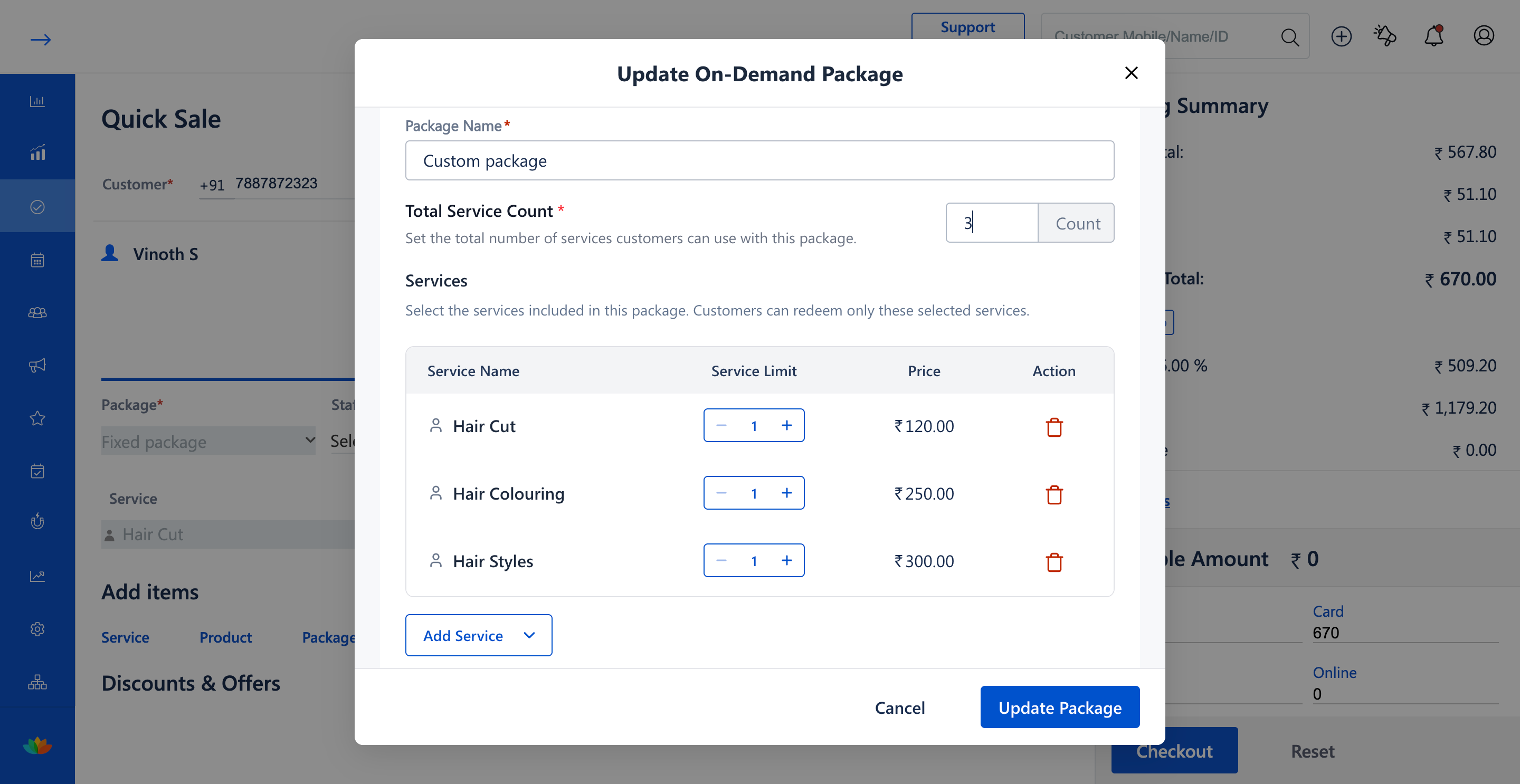
5. Enter the package title in the Package Name field (E.g., Custom package) and define the total allowable visits in the Total Service Count field (E.g., 3 Count).
6. In the Services section, use the Add Service dropdown to include eligible treatments (E.g., Hair Cut, Hair Colouring, Hair Styles) and configure the Service Limit for each service (E.g., 1 per service).
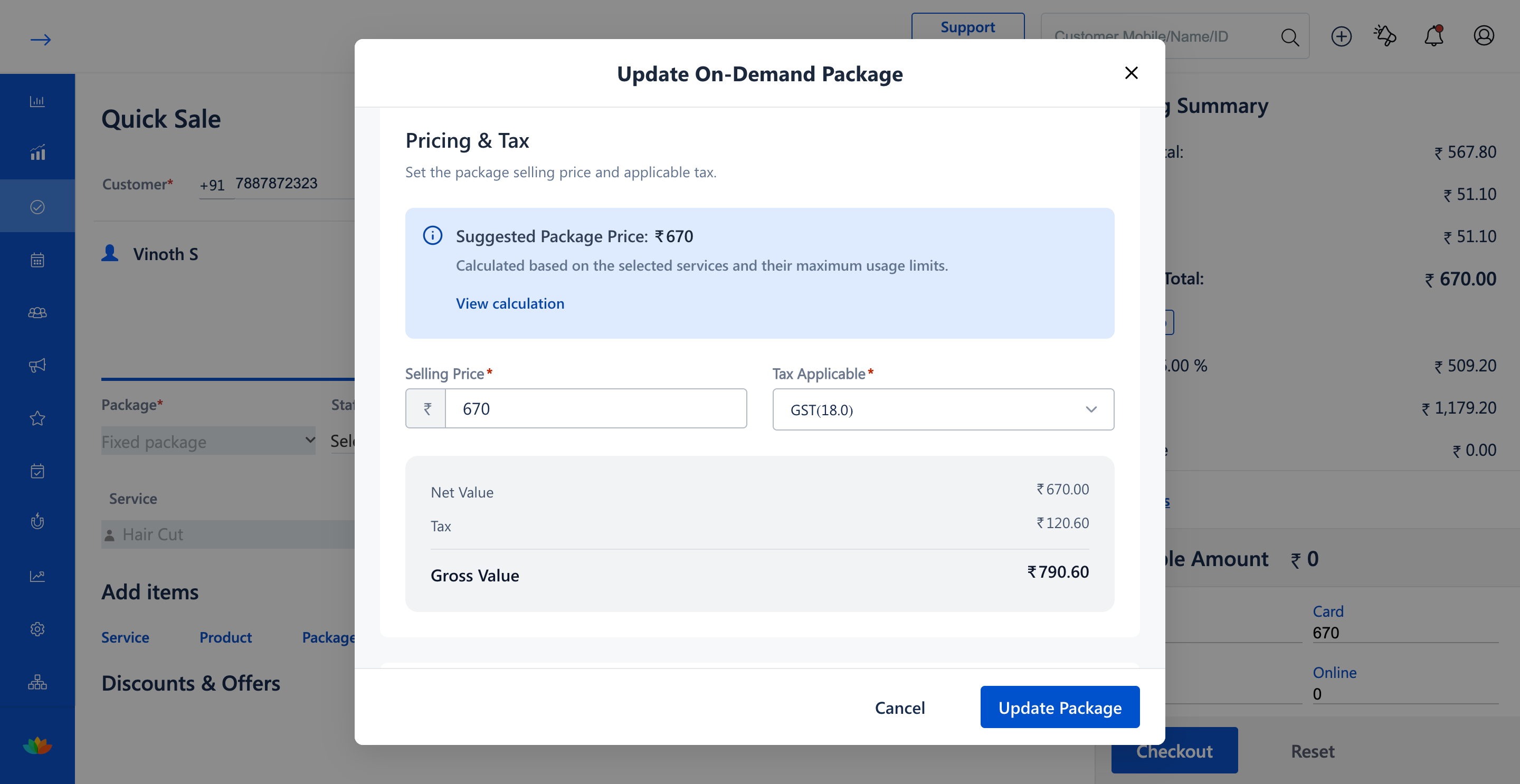
7. Review the Suggested Package Price calculated based on selected service limits (E.g., ₹670), set the Selling Price (E.g., 670), and choose the Tax Applicable (E.g., GST(18.0)).
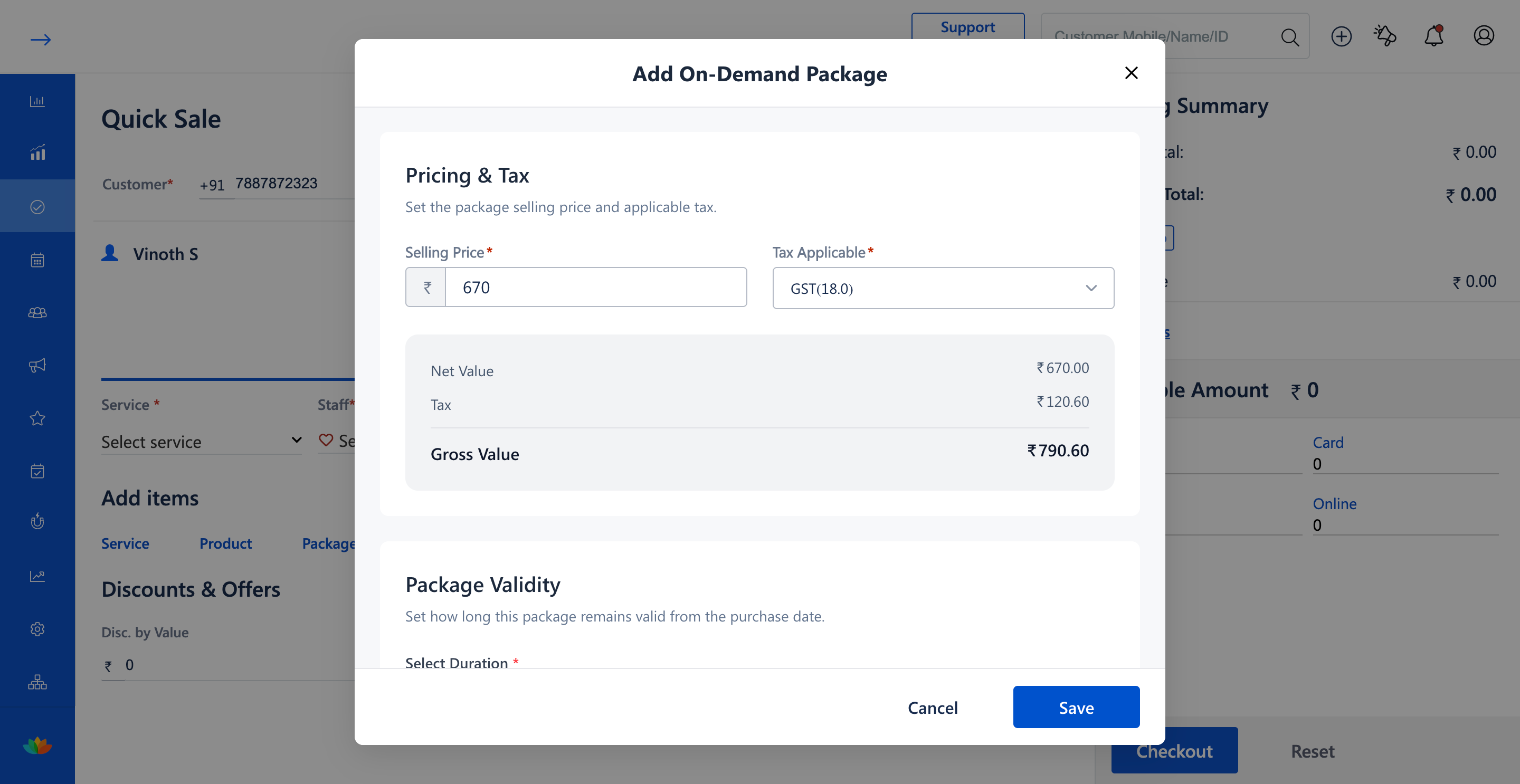
8. Under Package Validity, select the duration type (E.g., Days) and input the validity duration (E.g., 100 Days), then click on Update Package or Save.
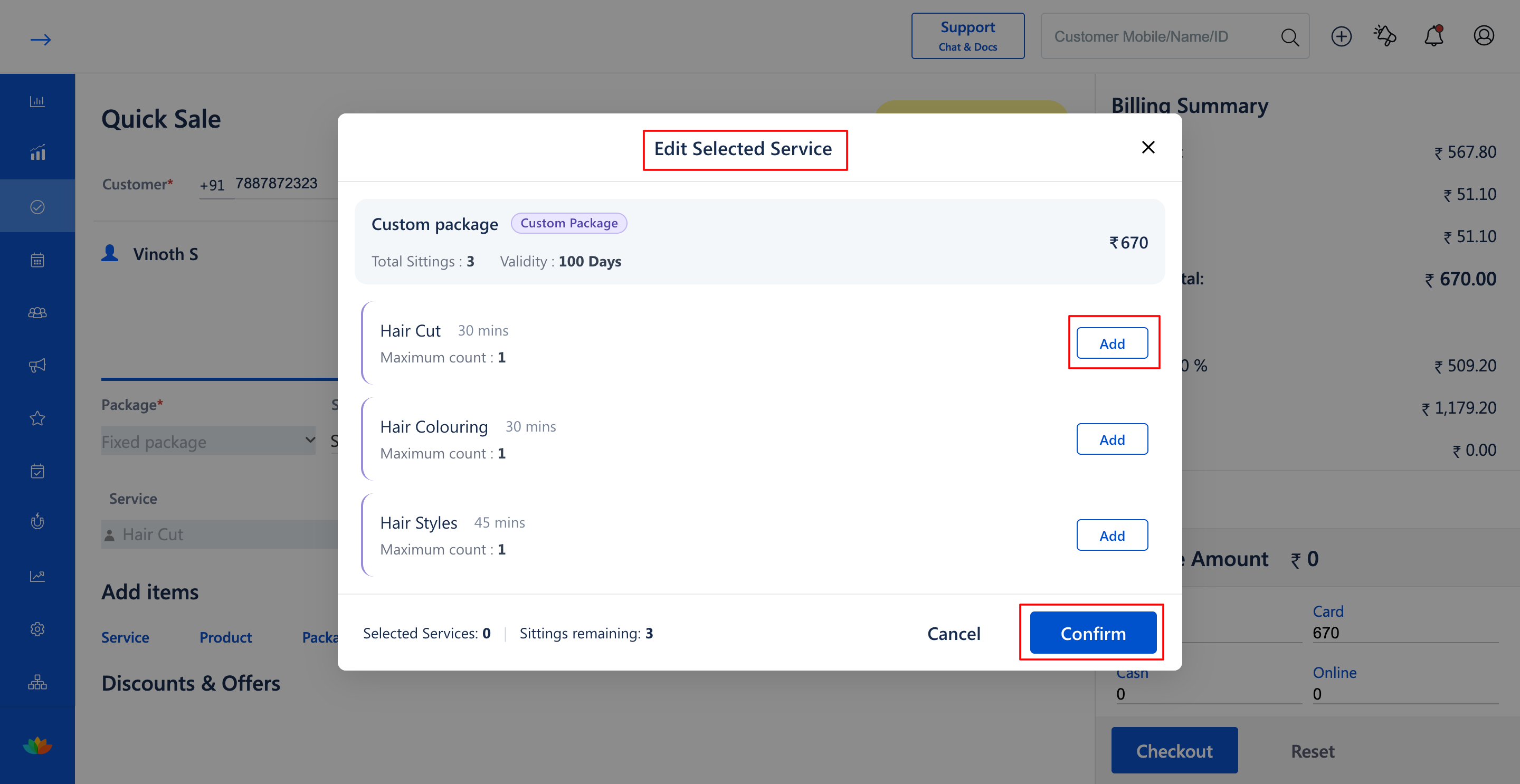
9. In the Edit Selected Service pop-up window, review the eligible services list and remaining sittings (E.g., Total Sittings: 3, Sittings remaining: 3).
10. Click on the Add button next to the desired service (E.g., Hair Cut 30 mins), confirm that 1 sitting is selected (E.g., Selected Service: 1 | Sittings remaining: 2), and click on Confirm.
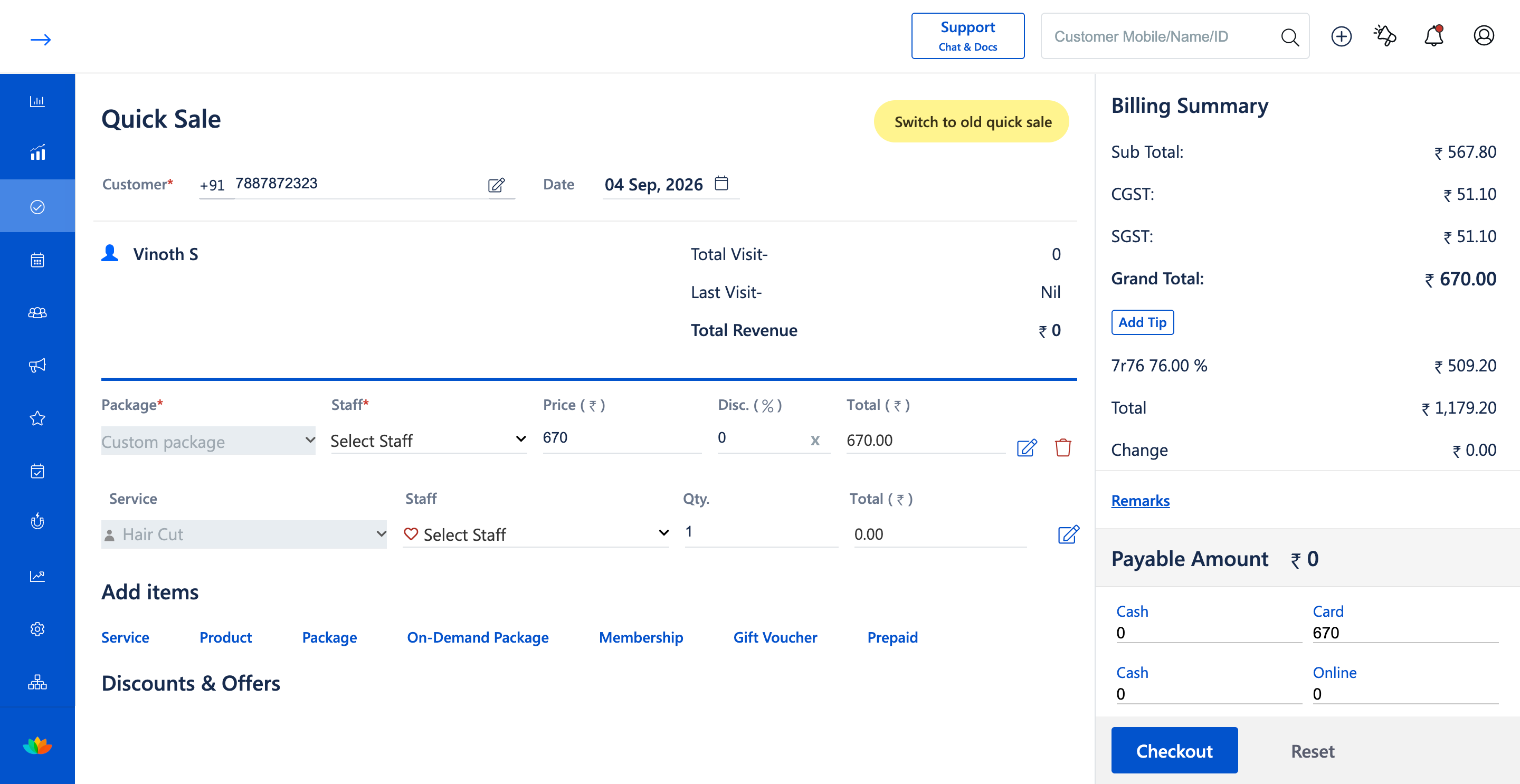
11. In the Quick Sale cart, review the custom package entry (E.g., Custom package ₹670.00) and scheduled service (E.g., Hair Cut ₹0.00), select staff, and click on Checkout.
Note
Custom packages enable clients to choose any combination of eligible services up to the configured Total Service Count. Each service limit defines the maximum number of times that specific service can be redeemed within the package.
Use Cases
1. Salons offering a 3-service pamper bundle where clients can mix and match haircut, styling, and hair colouring across separate appointments.
2. Spas providing customized wellness packages with customizable treatment selections.
Benefits
1. Gives customers flexibility in choosing their preferred services while locking in upfront package sales.
2. Automatically enforces individual service redemption limits to protect salon service margins.
3. Seamlessly integrates package purchasing with instant first-session appointment booking.
Was this article helpful?
That’s Great!
Thank you for your feedback
Sorry! We couldn't be helpful
Thank you for your feedback
Feedback sent
We appreciate your effort and will try to fix the article