Overview
The Fixed Package On-Demand creation feature in MioSalon allows front-desk teams to build customized fixed packages and book scheduled service sessions directly during the checkout workflow.
Salons and spas utilize on-demand fixed packages to offer pre-defined service bundles with set sitting limits and structured pricing tailored to client requirements.
Creating fixed packages on-demand automates visit tracking, ensures accurate service session deduction, and streamlines appointment scheduling from a single screen.
Follow the guided step-by-step instructions below to create an on-demand package for a fixed package in MioSalon.
Navigation Path
Navigation Bar → Quick Sale
Steps to create an On-Demand package for Fixed Package
1. Click on the Quick Sale icon from the main left navigation bar.
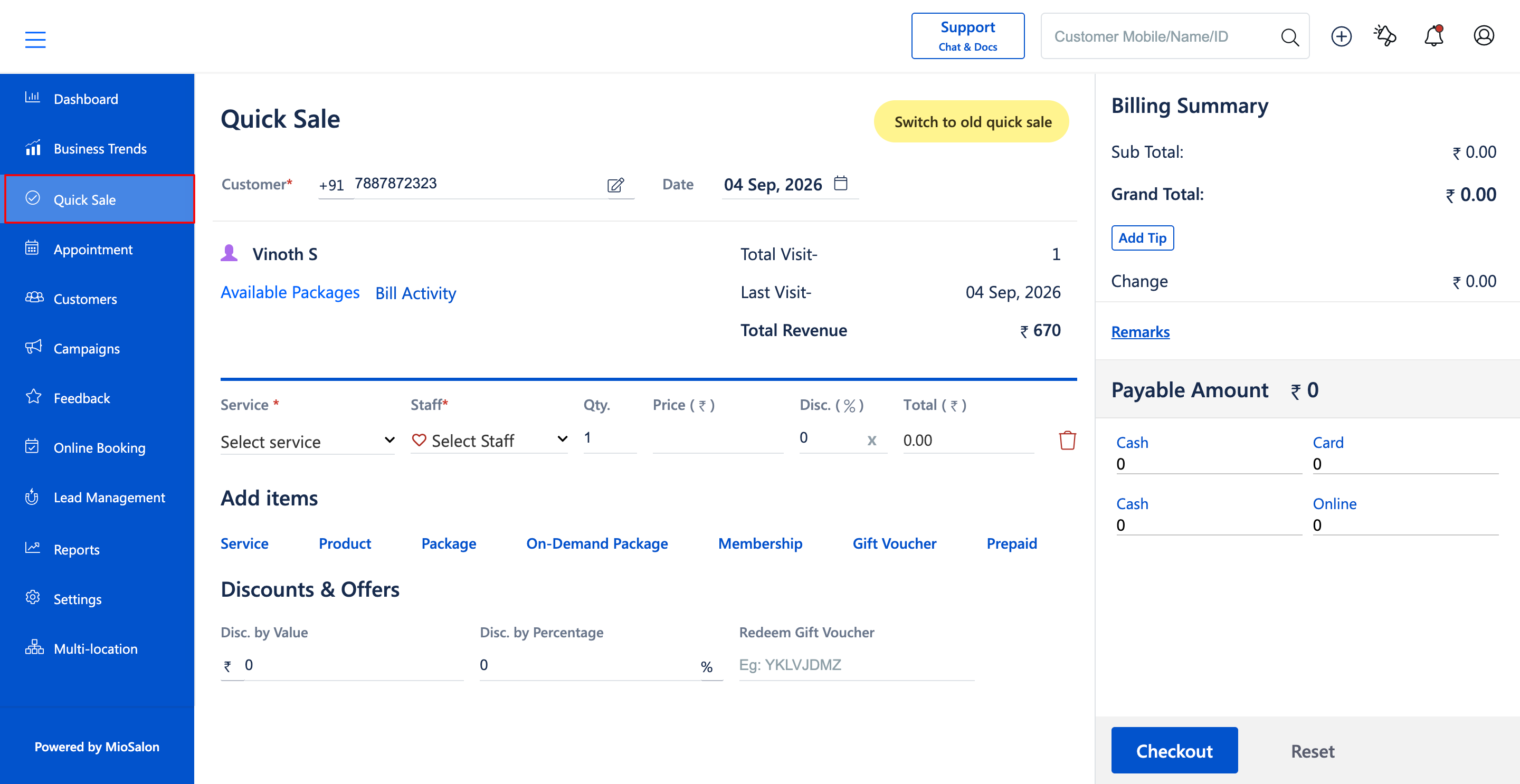
2. Search and select the client by entering their mobile number or name in the customer field (E.g., Vinoth S, +91 7887872323).
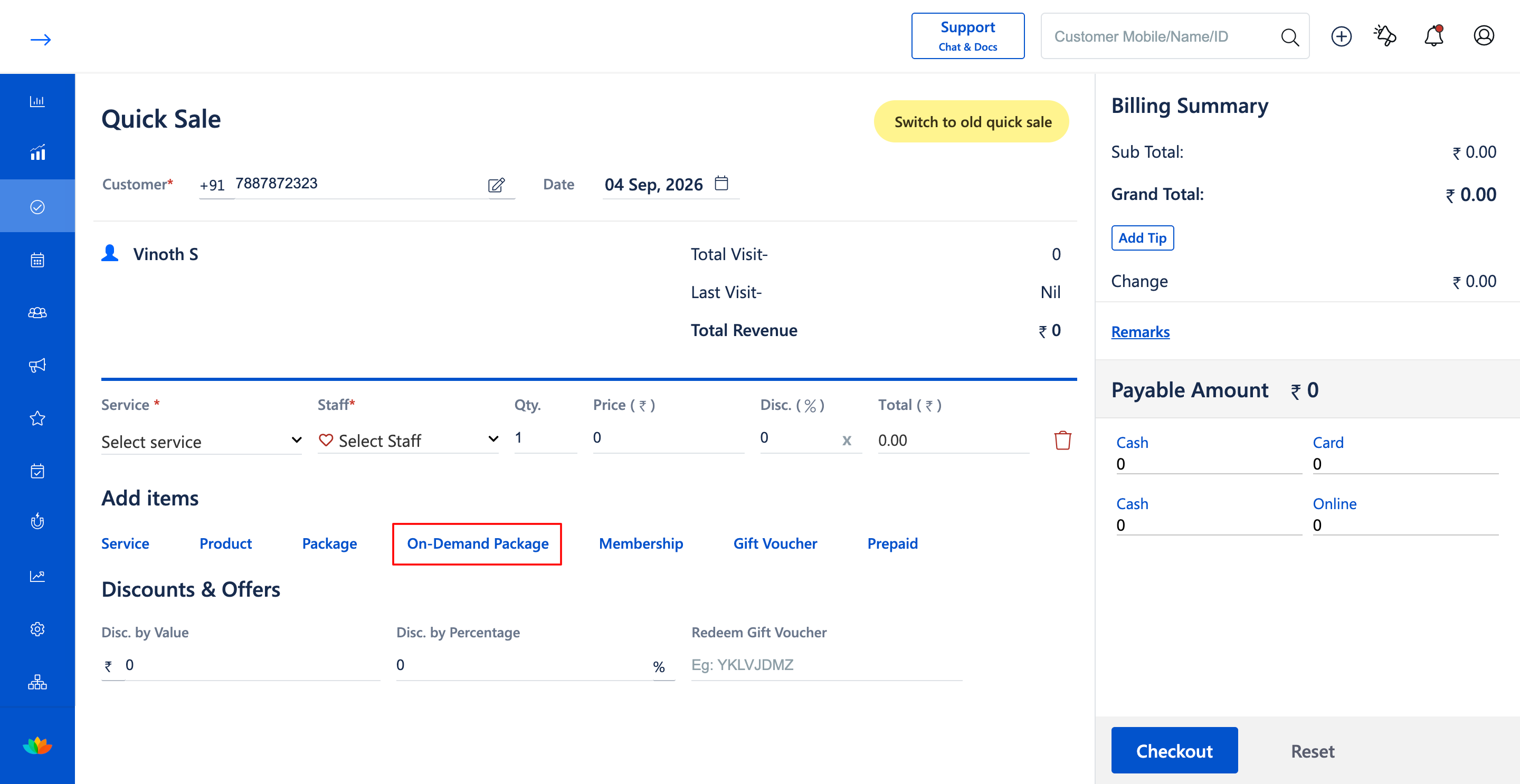
3. In the Add items section, click on the On-Demand Package option to open the package creation drawer.
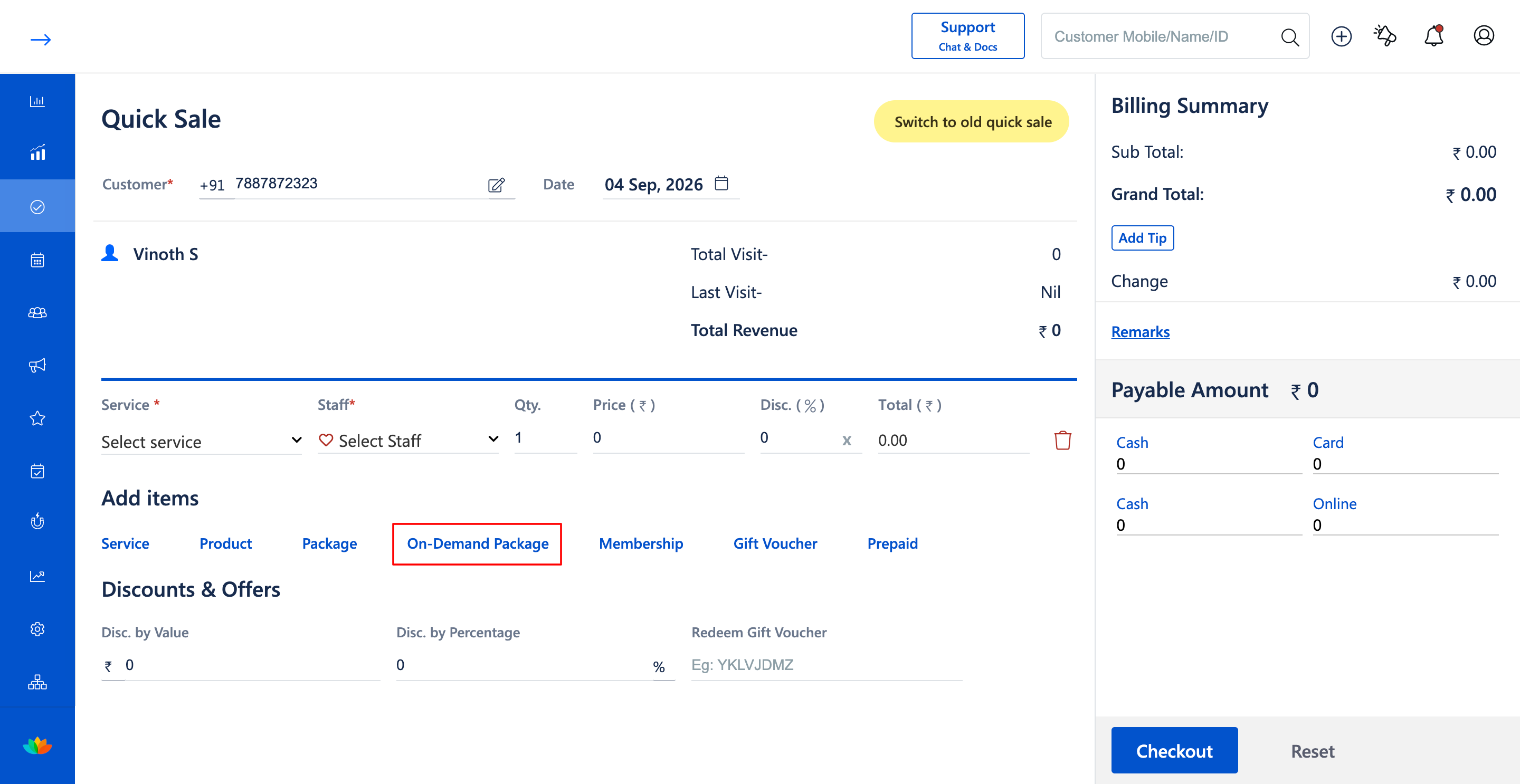
4. In the Add On-Demand Package pop-up window, click on the Package Type dropdown and select Fixed Package.
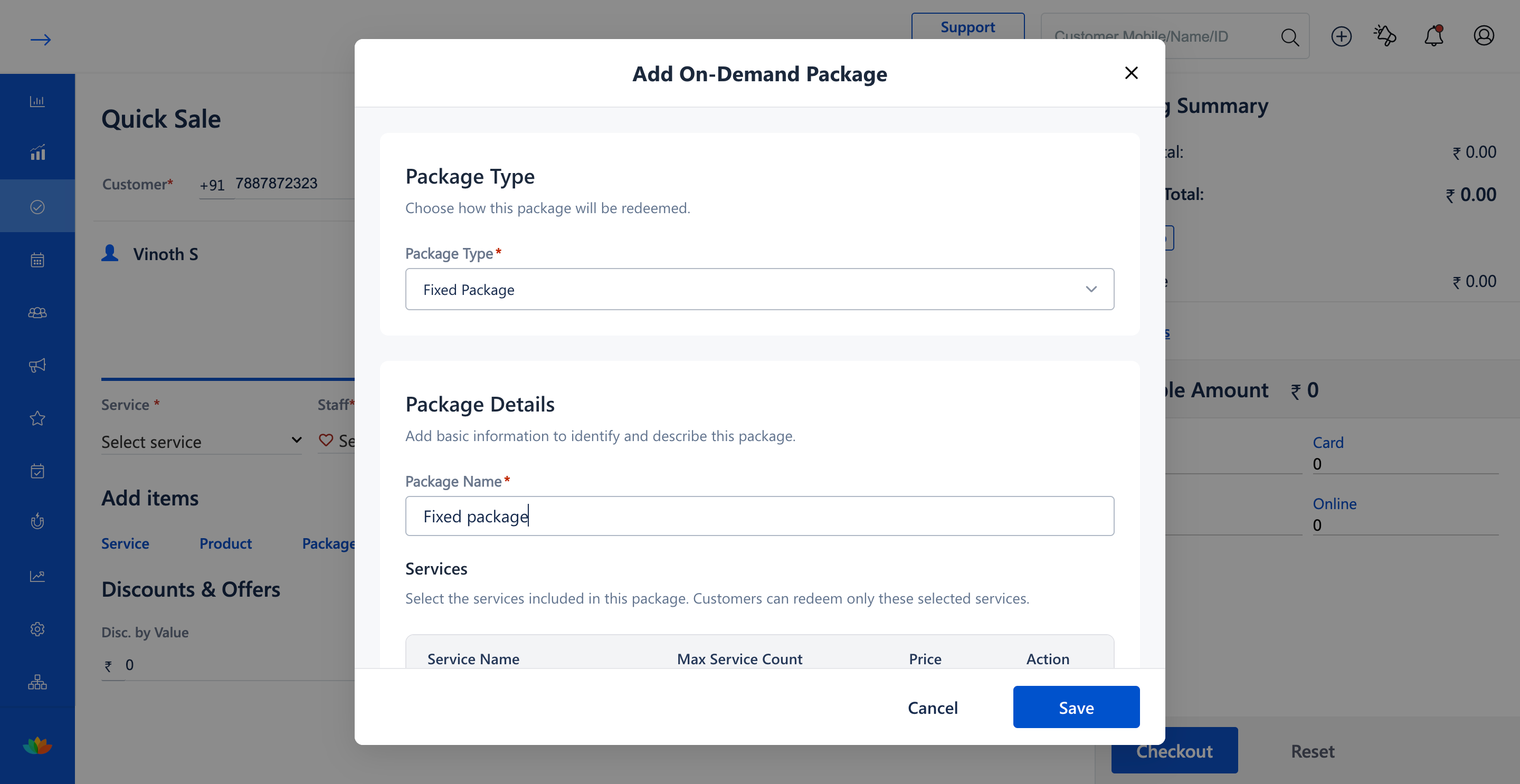
5. Enter a clear and descriptive title in the Package Name field (E.g., Fixed package).
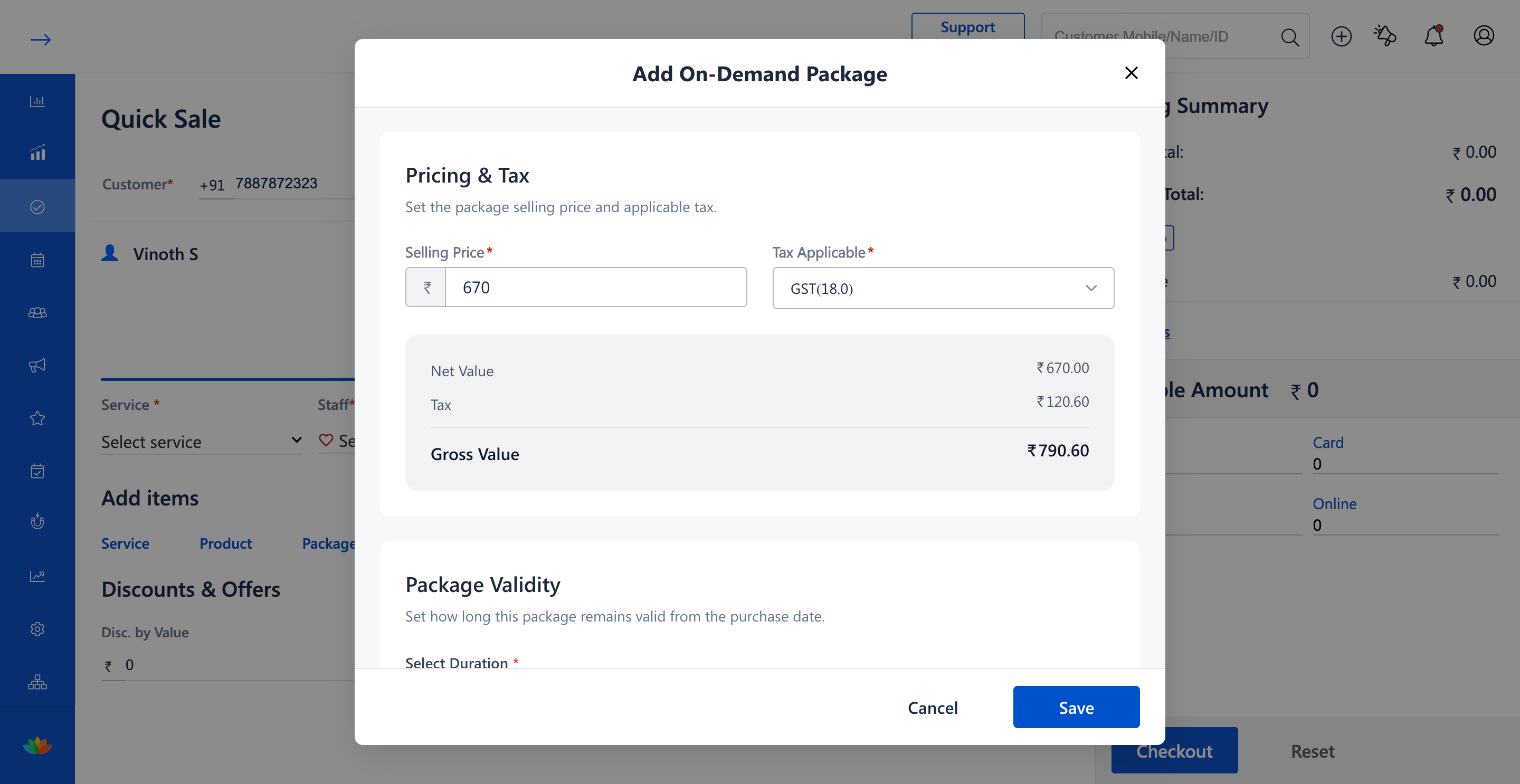
6. Under the Pricing & Tax section, enter the Selling Price (E.g., 670) and choose the appropriate tax rate from the Tax Applicable dropdown (E.g., GST(18.0) - Gross Value ₹790.60).
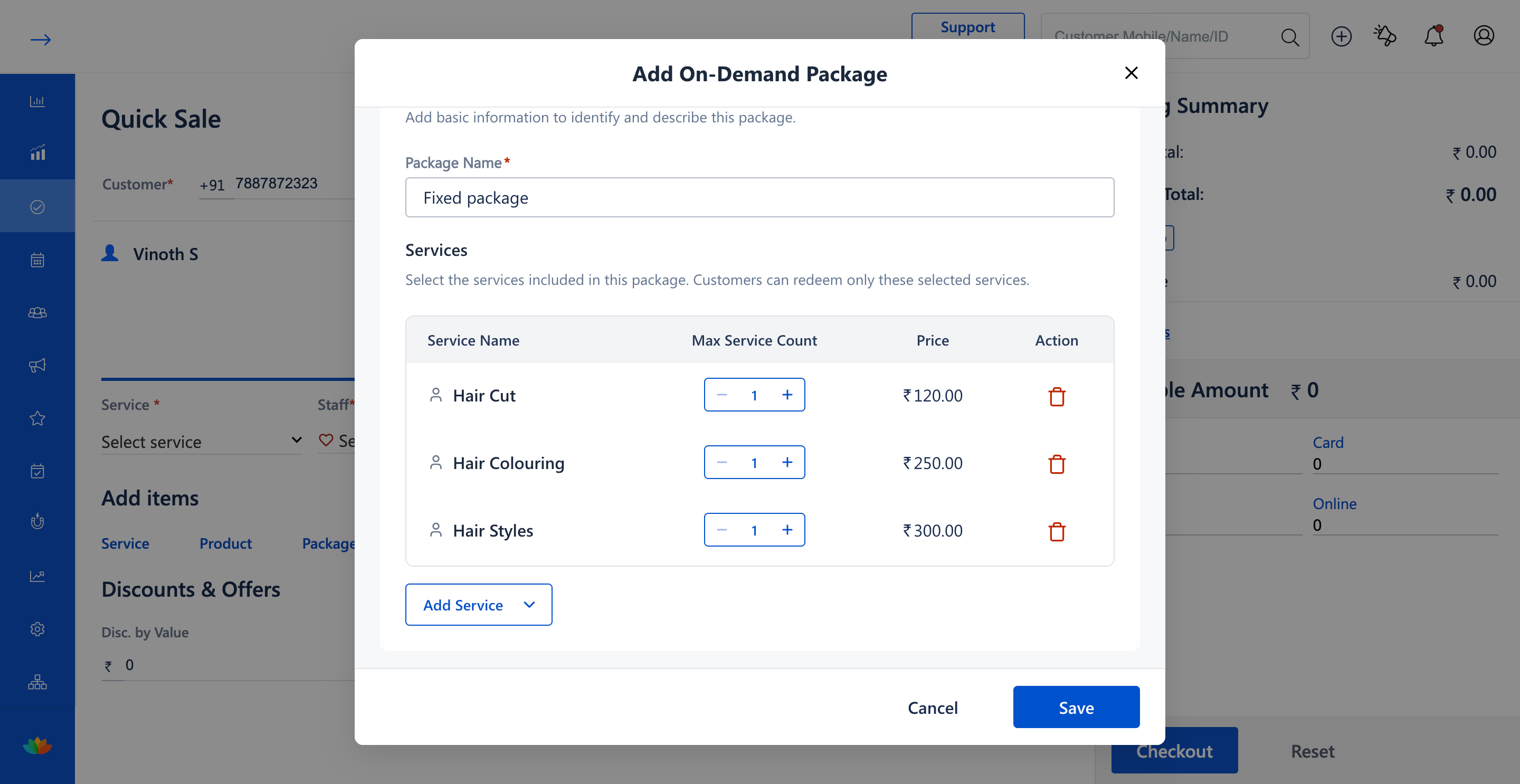
7. Under the Package Validity section, select the duration unit (E.g., Days) and enter the validity period (E.g., 100 Days), then click on the Save button.
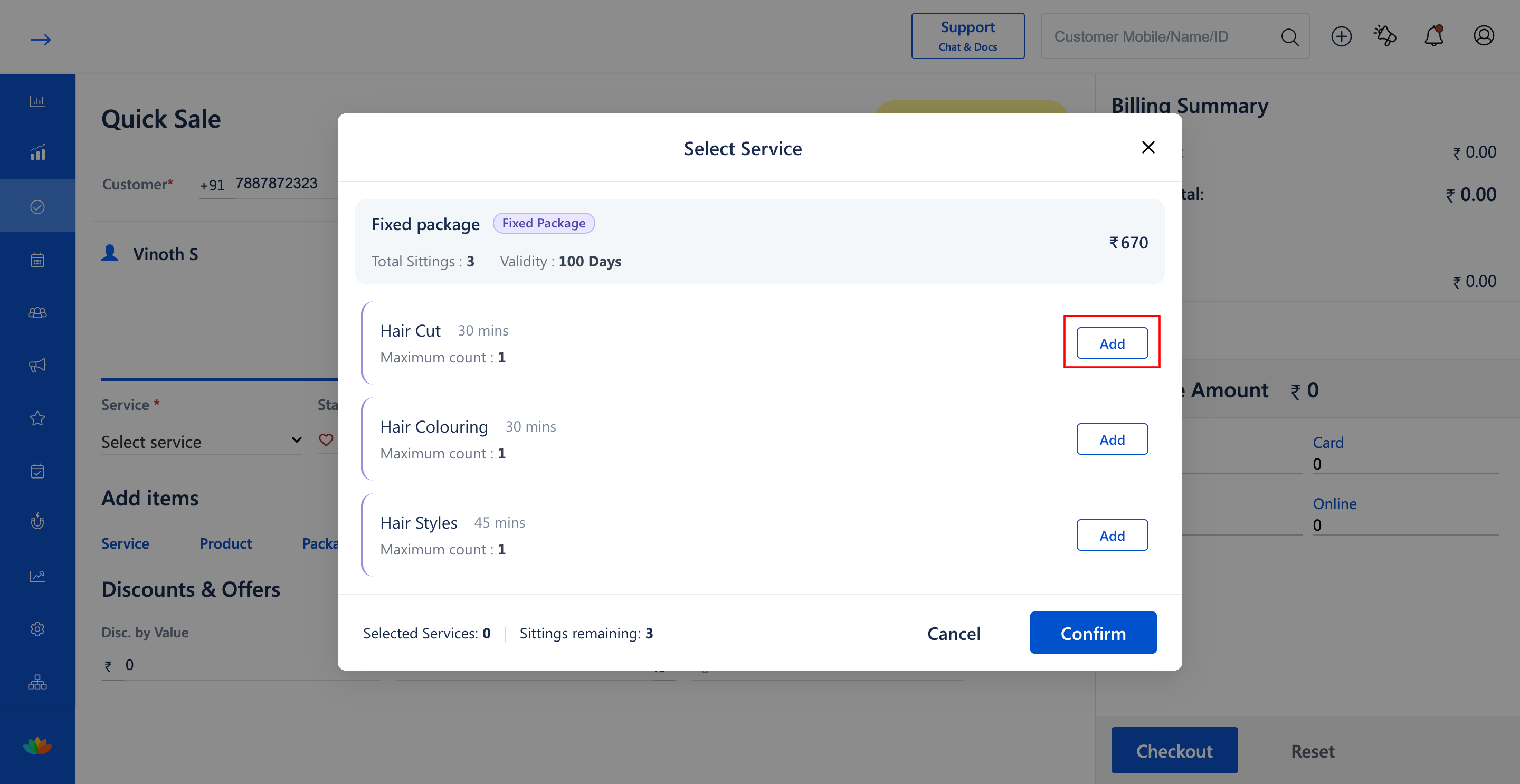
8. In the Select Service modal, view the available services and review the package details (E.g., Fixed package, Total Sittings: 3, Validity: 100 Days).
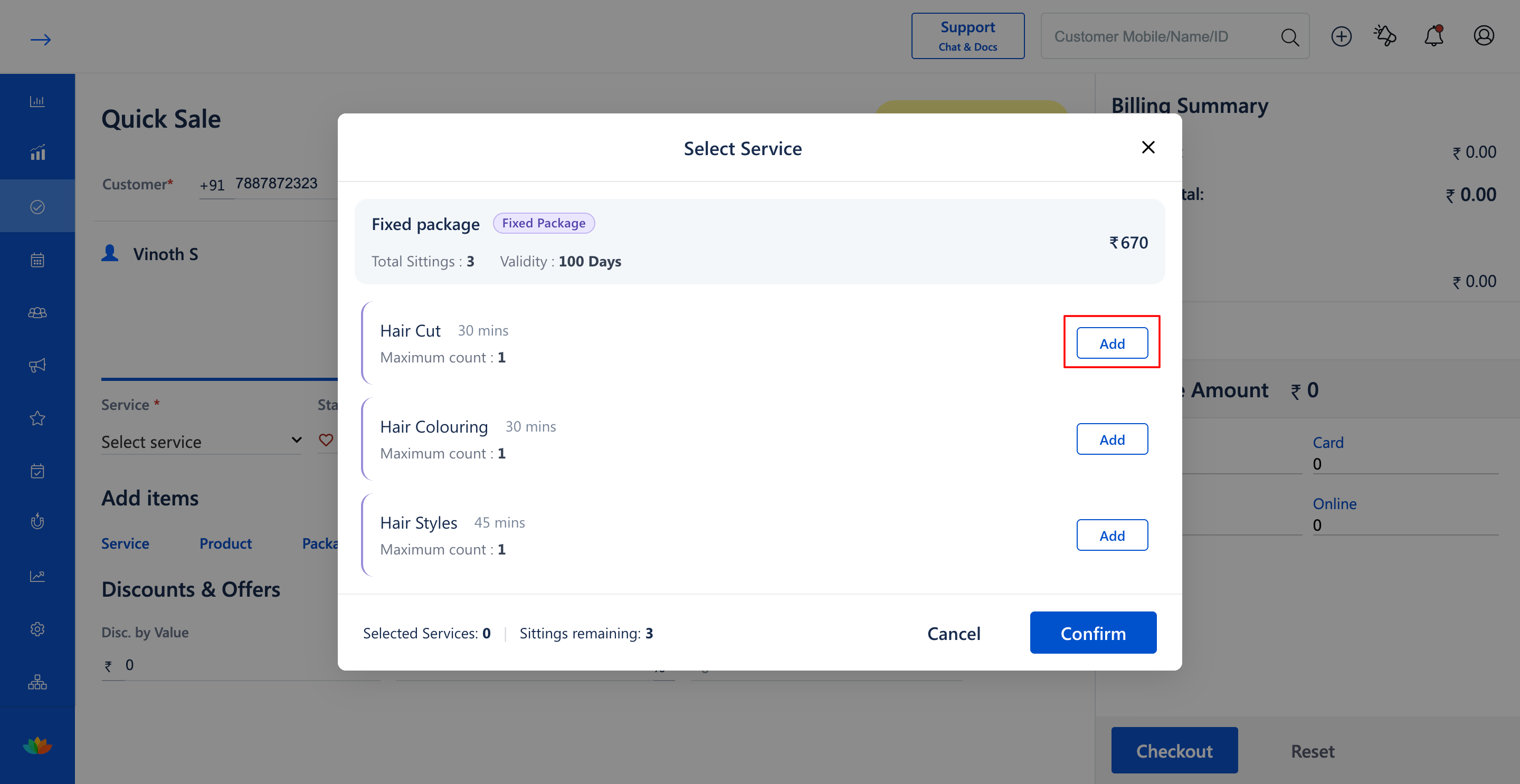
9. Click on the Add button next to the service you wish to schedule for the initial appointment (E.g., Hair Cut 30 mins), verify that the remaining sittings update (E.g., Selected Service: 1 | Sittings remaining: 2), and click on Confirm.
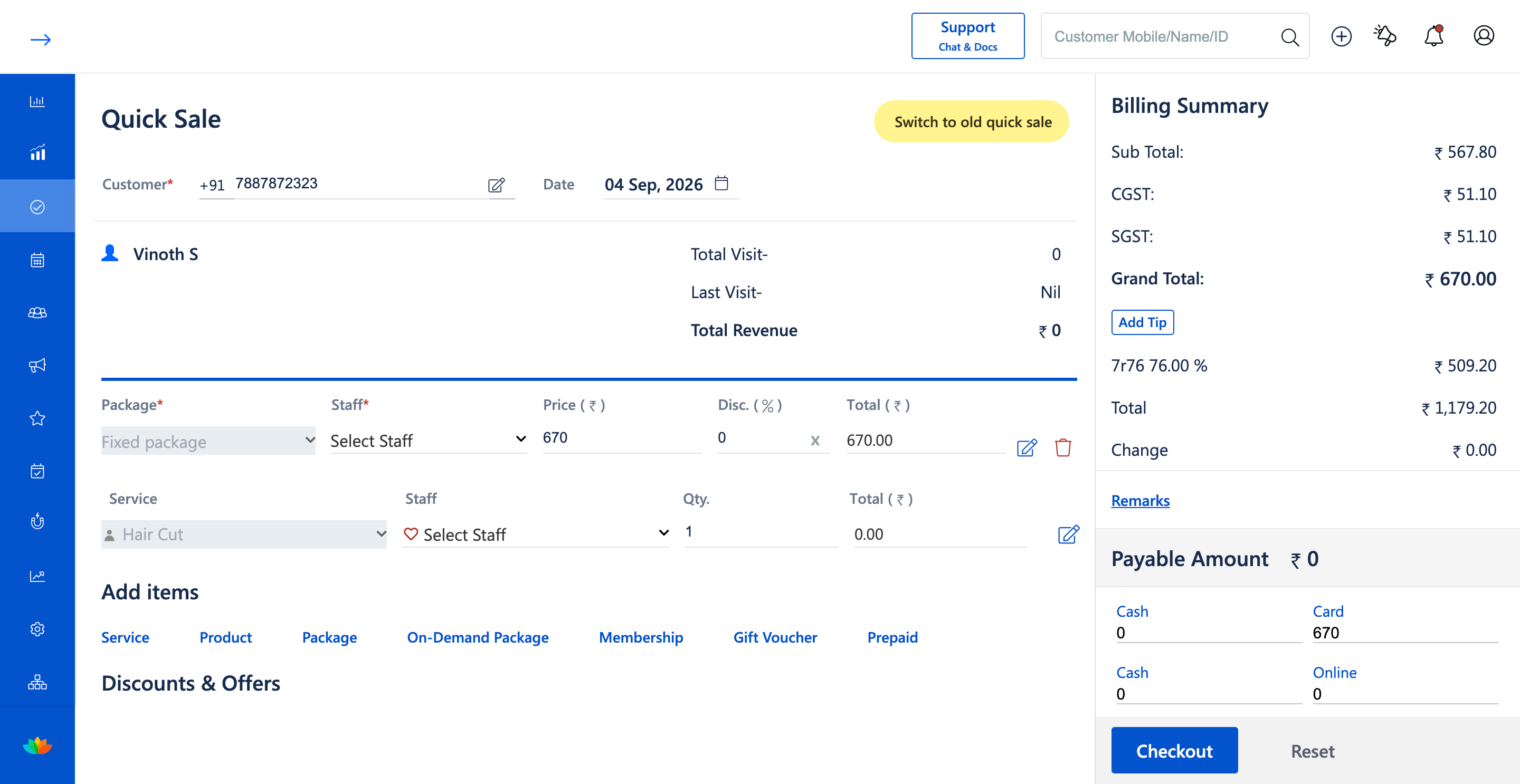
10. In the Quick Sale cart, review the added fixed package and selected service (E.g., Fixed package ₹670.00, Hair Cut ₹0.00), assign staff, choose the payment method (E.g., Card ₹670.00), and click on Checkout to complete the booking.
Note
Fixed packages allocate a set number of sittings per service. When an appointment service is selected during package creation, it is added at ₹0.00 to prevent double charging while deducting 1 sitting from the customer's package balance.
Use Cases
1. Salons offering promotional beauty bundles where clients purchase a package of 3 haircuts at a special discounted price.
2. Spas selling fixed therapy packages allowing guests to book and enjoy their first treatment immediately upon purchase.
Benefits
1. Eliminates separate manual steps for package sales and first-session booking.
2. Prevents revenue leakage by automatically tracking sittings and applying zero-cost session redemptions.
3. Accelerates front-desk billing time while providing clients with clear package balances on invoice receipts.
Was this article helpful?
That’s Great!
Thank you for your feedback
Sorry! We couldn't be helpful
Thank you for your feedback
Feedback sent
We appreciate your effort and will try to fix the article