How to View and Download the Cash Registry Summary Report in MioSalon ?
Overview
The Cash Registry Summary Report in MioSalon provides a day-wise aggregated summary of your salon's cash movements.
It consolidates the Opening Balance, Cash Collected, Expense Value, Cash Balance, Closing Balance, and the Difference of Balance Vs Closing into a single, easy-to-read report.
This report helps business owners and managers quickly identify any discrepancies between expected and actual cash for each day.
You can filter the report by custom date ranges and download it as an Excel file for offline analysis and record-keeping.
Navigation Path
Settings → Cash Registry → Cash Registry Summary Report
Steps to View the Cash Registry Summary Report
1. Log in to your MioSalon account.
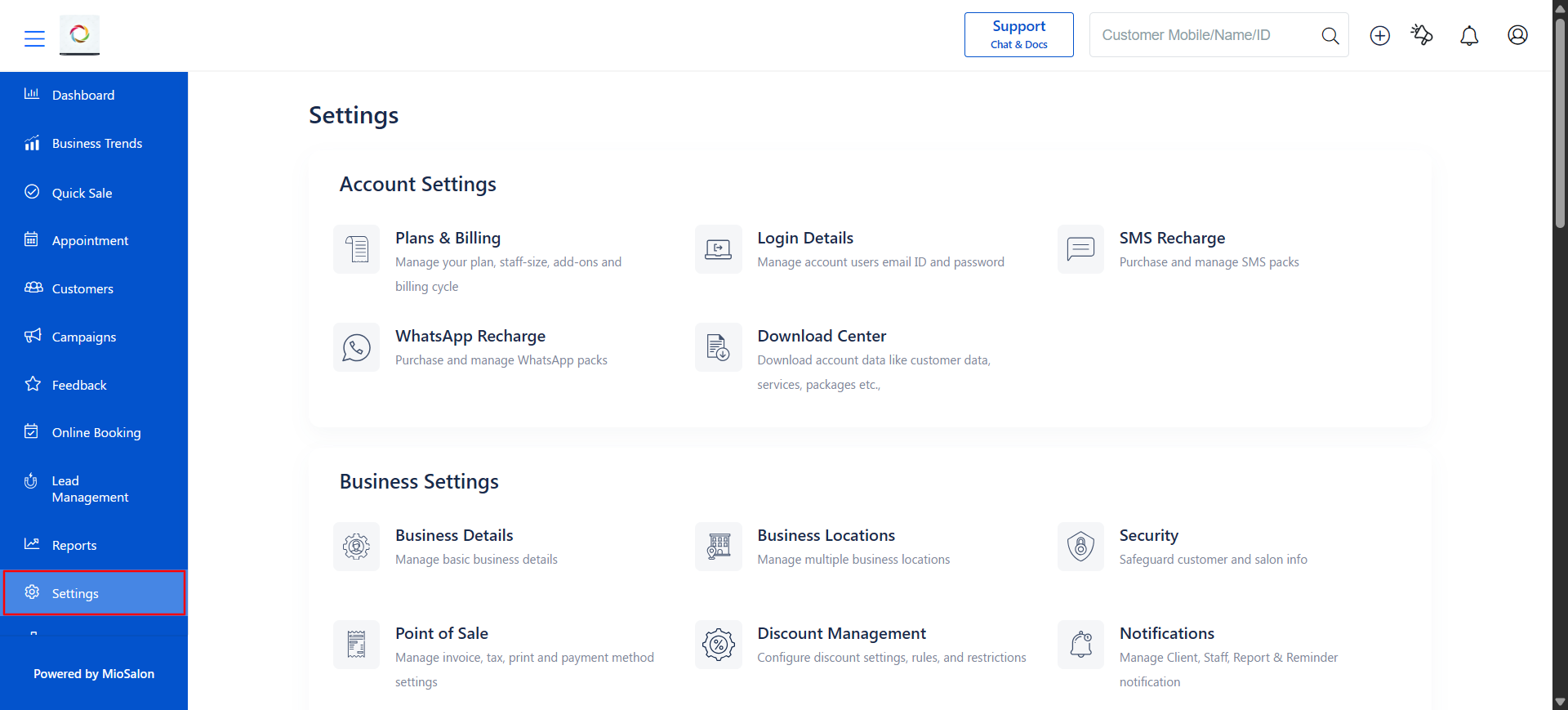
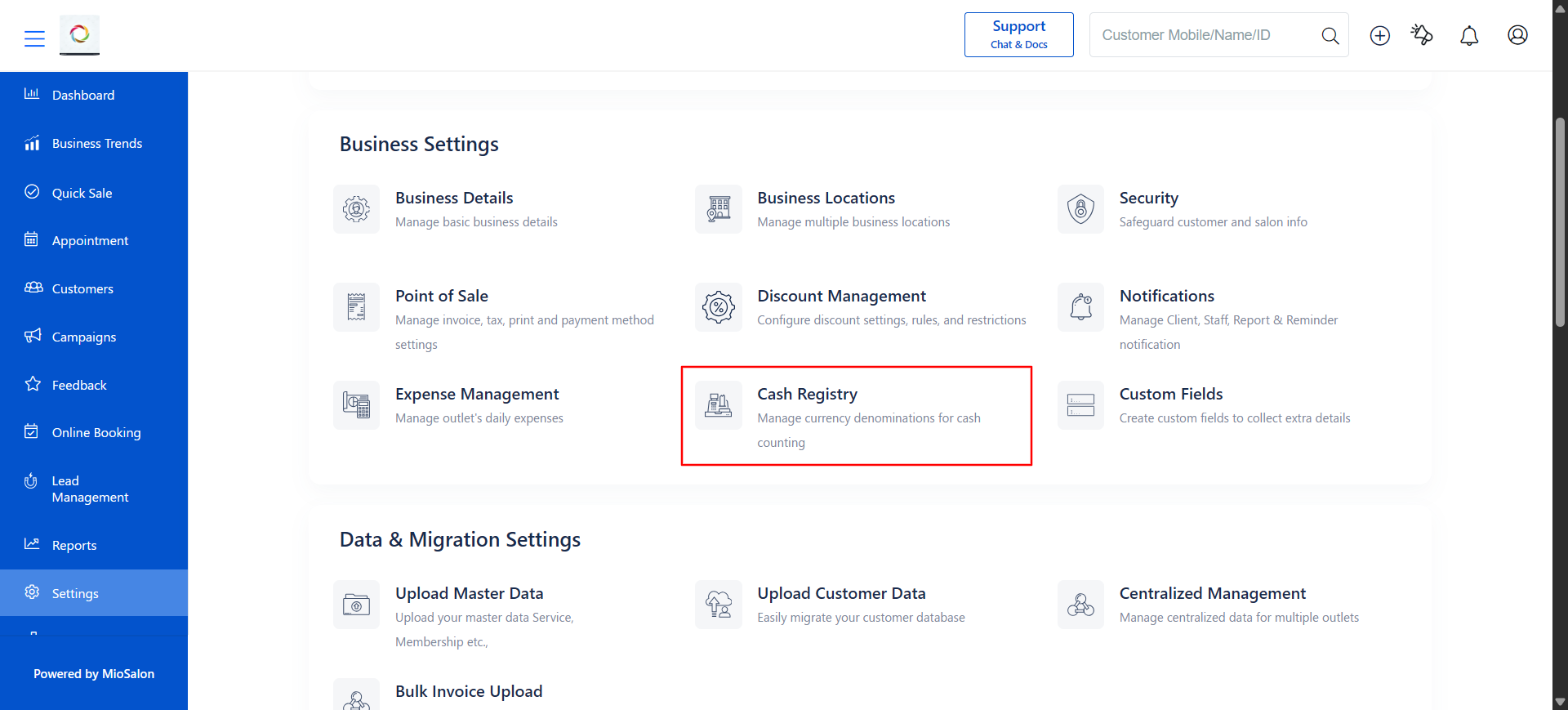
2. Navigate to Settings → Cash Registry → Cash Registry Summary Report from the left-side sub-menu.
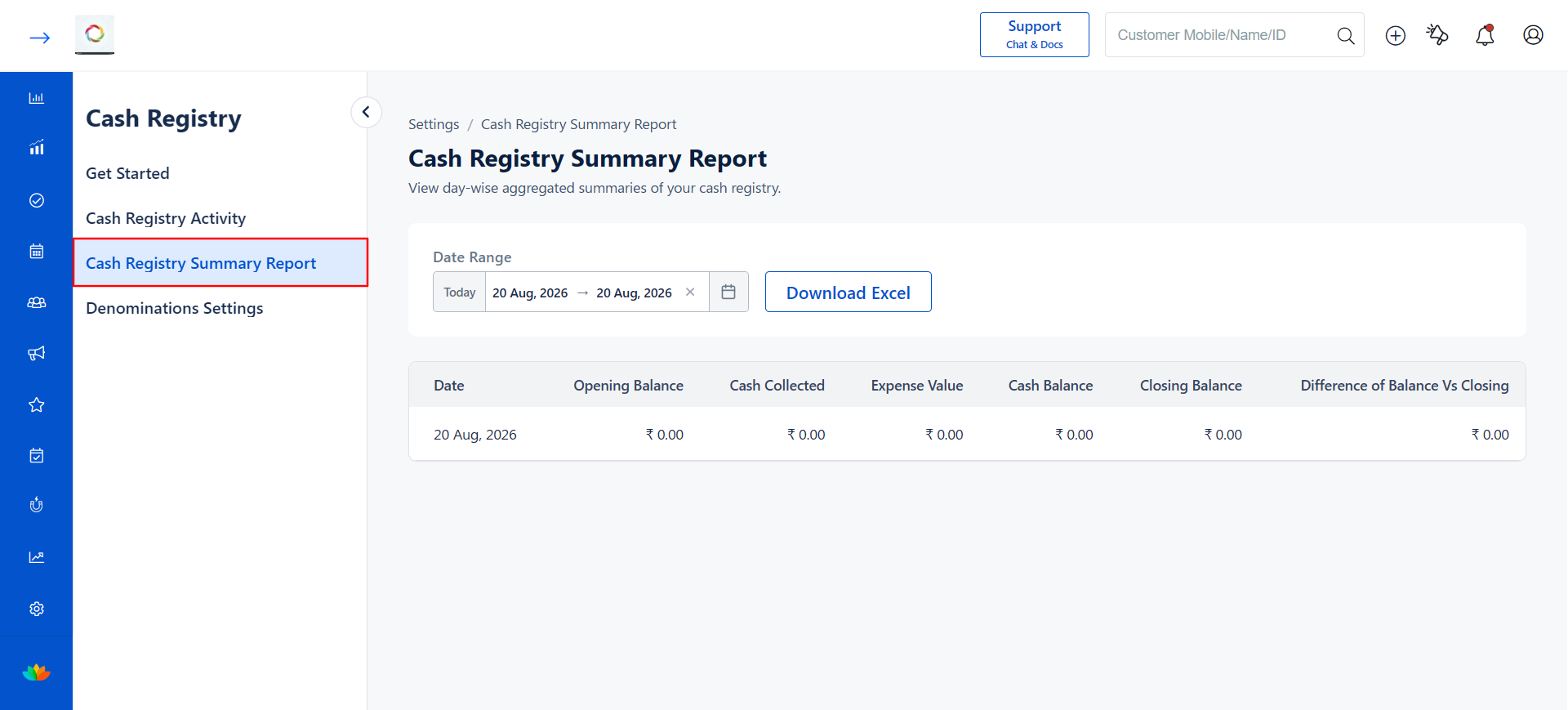
3. The Cash Registry Summary Report page will display a day-wise summary table with the following columns:
Column Description
| Column | Description |
|---|---|
| Date | The date for which the summary is displayed. |
| Opening Balance | The cash balance recorded during the Opening Shift for that date. |
| Cash Collected | The total cash collected through transactions (sales) during that date. |
| Expense Value | The total expenses recorded for that date. |
| Cash Balance | The calculated cash balance (Opening Balance + Cash Collected - Expense Value). |
| Closing Balance | The cash balance recorded during the Closing Shift for that date. |
| Difference of Balance Vs Closing | The difference between the calculated Cash Balance and the actual Closing Balance. A non-zero value indicates a cash discrepancy. |
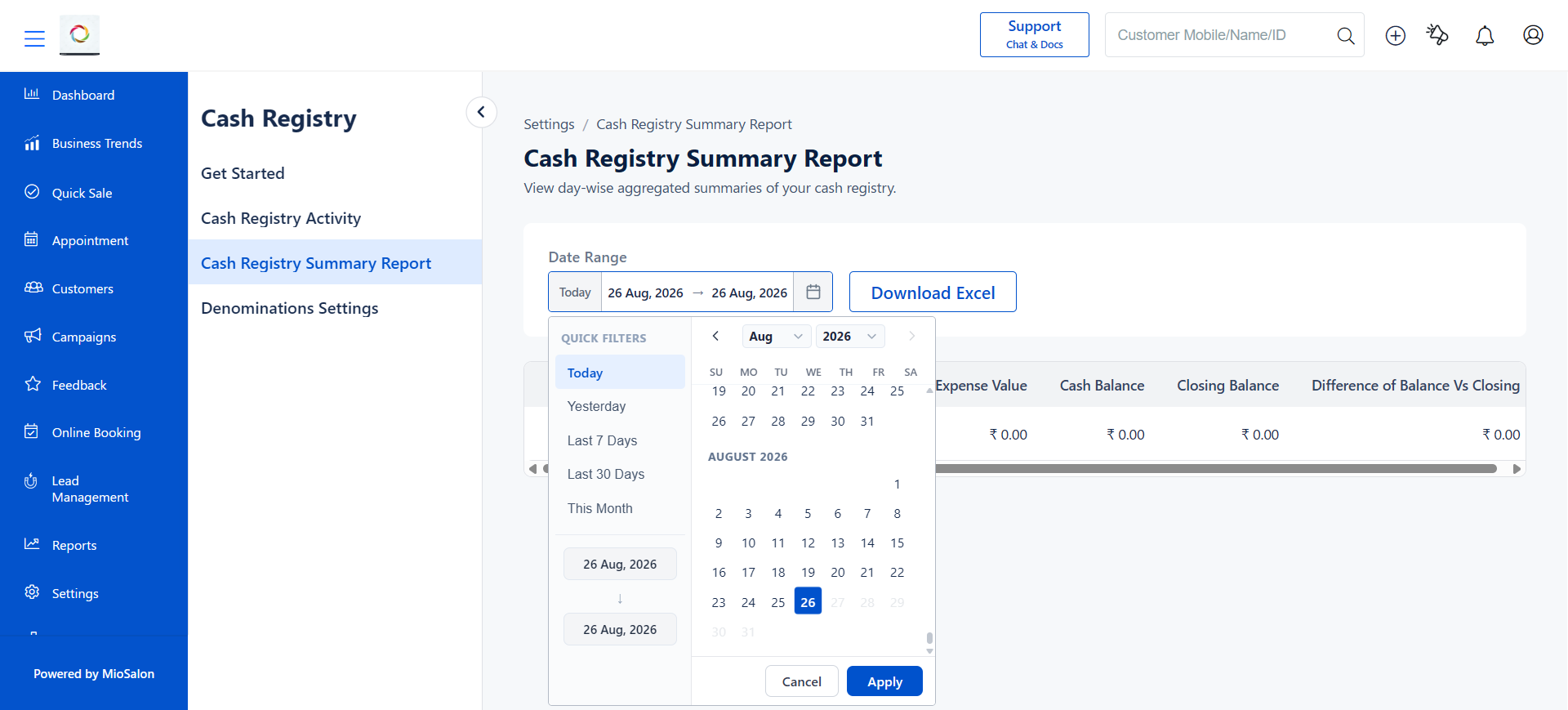
4. To filter the report by a specific date range, click on the Date Range field at the top of the page.
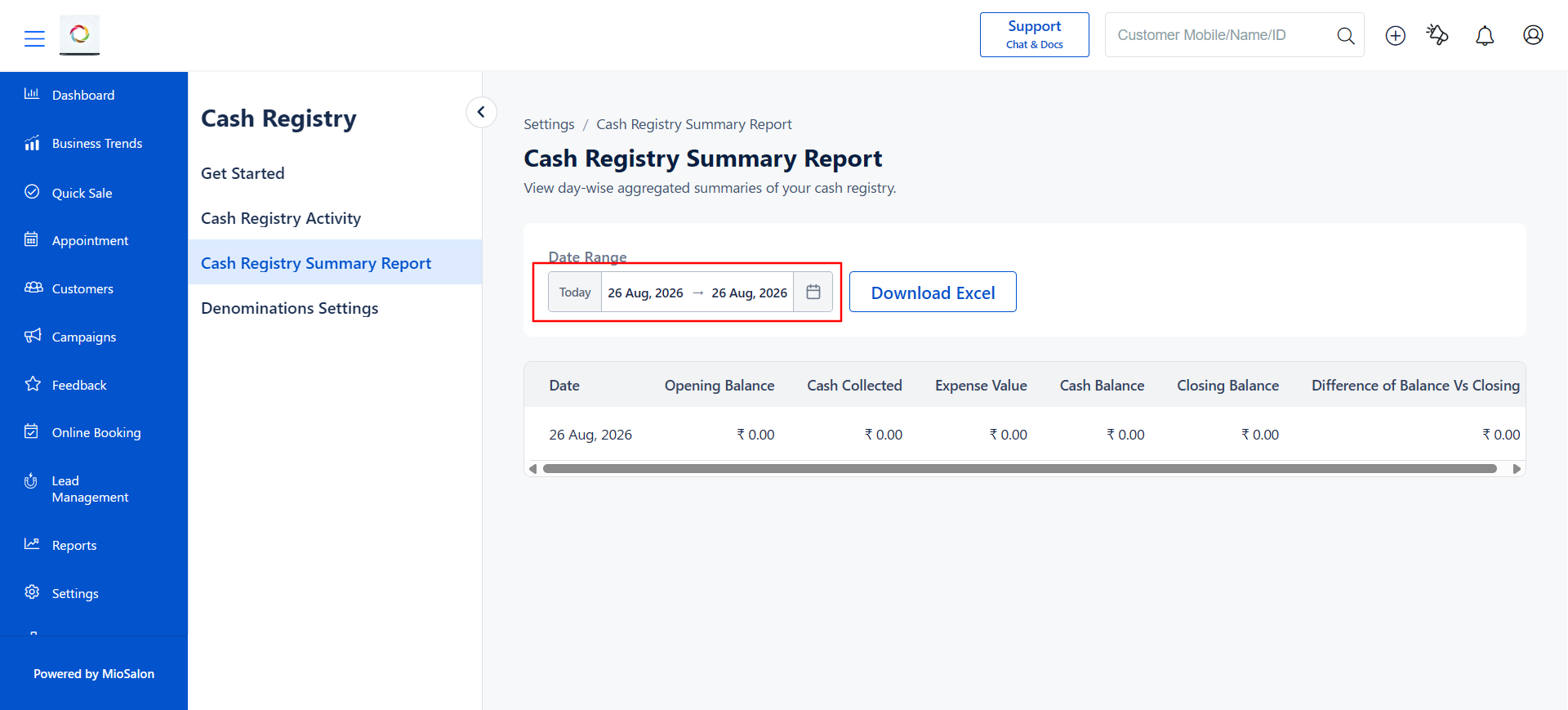
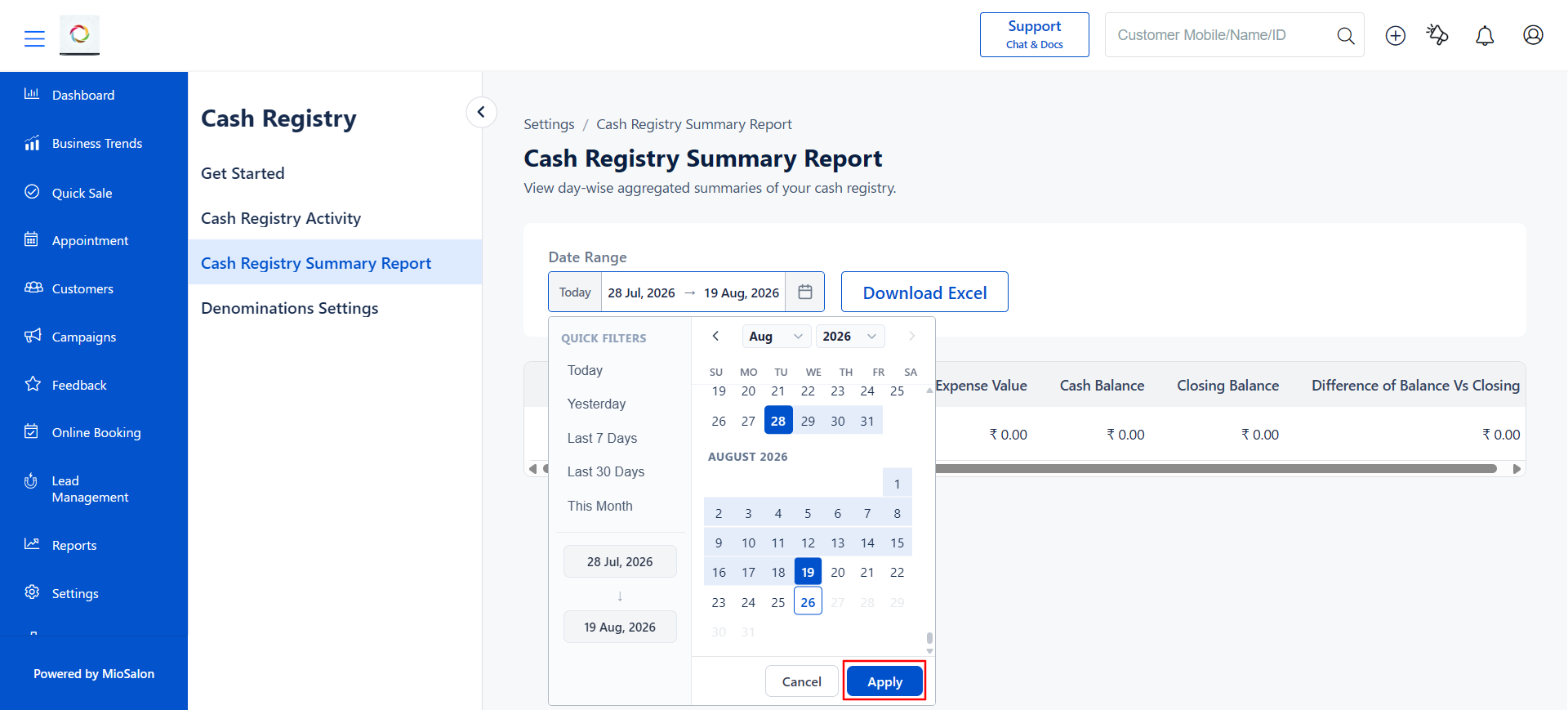
5. A calendar pop-up will appear with quick filter options such as Today, Yesterday, Last 7 Days, Last 30 Days, and This Month. You can also manually select a custom start and end date.
6. After selecting the desired date range, click Apply to update the report.
Steps to Download the Cash Registry Summary Report
1. On the Cash Registry Summary Report page, set the desired Date Range using the steps described above.
2. Click the Download Excel button located next to the Date Range filter.
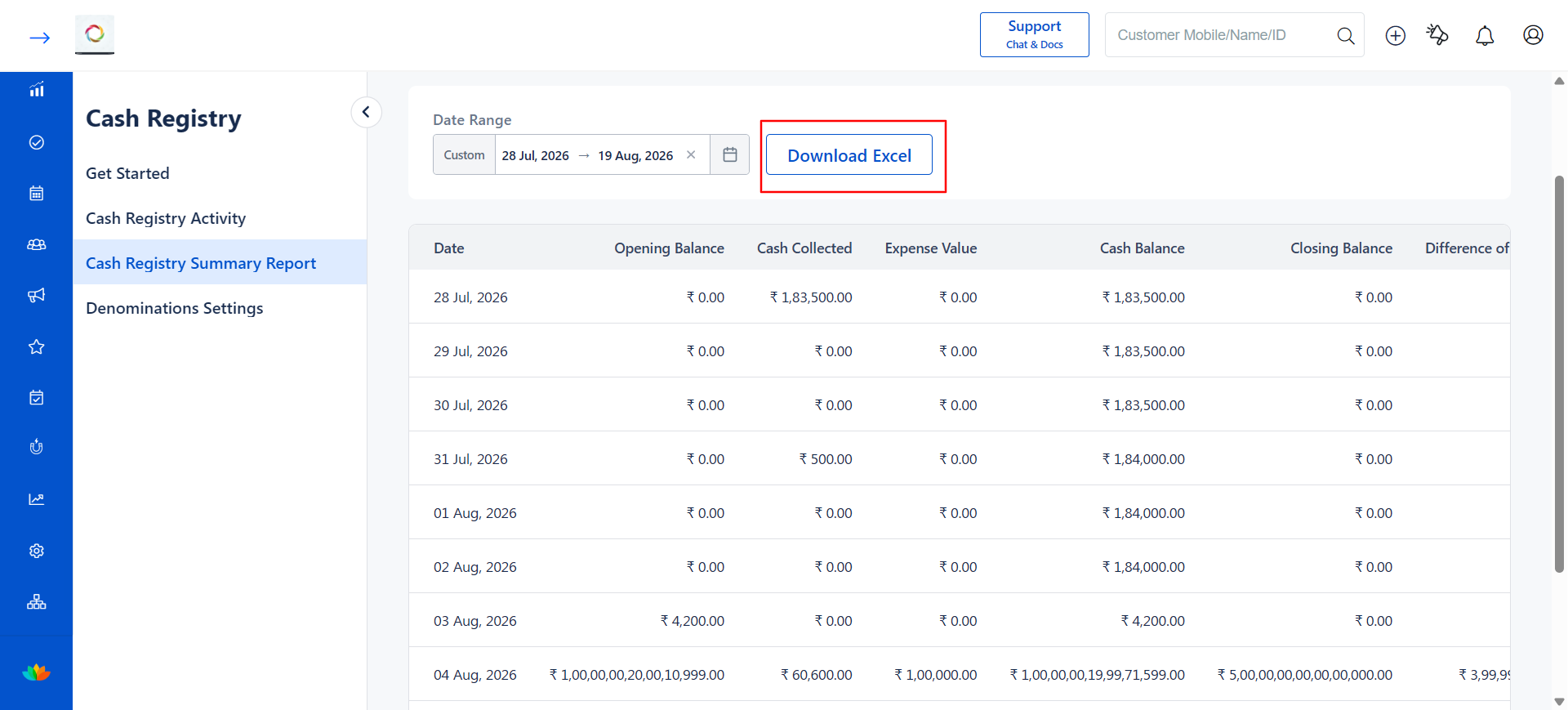
3. The report will be downloaded as an Excel file to your device, which you can open for offline analysis, record-keeping, or sharing with your accountant.
Use Cases
1. A salon owner reviews the weekly Cash Registry Summary Report to identify days where the closing balance did not match the expected cash balance.
2. A manager downloads the monthly report as an Excel file to share with the accountant for financial reconciliation and tax filing.
3. A business owner uses the Difference of Balance Vs Closing column to quickly spot cash leakage or counting errors on specific days.
4. A multi-location manager compares cash registry summary reports across branches to monitor cash handling consistency.
Benefits
1. Provides a comprehensive day-wise overview of all cash movements including opening balance, collections, expenses, and closing balance in one place.
2. The Difference of Balance Vs Closing column instantly highlights cash discrepancies, enabling quick corrective action.
3. Flexible date range filters with quick filter options make it easy to generate reports for any time period.
4. The Download Excel feature enables offline analysis, archival, and easy sharing with accountants or auditors.
5. Improves financial transparency and strengthens cash management practices across the business.
Note
The Cash Registry Summary Report includes data only for dates within the selected date range. If no opening or closing shift entries exist for a particular date, the values for that date will display as 0.00.
Was this article helpful?
That’s Great!
Thank you for your feedback
Sorry! We couldn't be helpful
Thank you for your feedback
Feedback sent
We appreciate your effort and will try to fix the article