How to Add Cash to the Registry in MioSalon ?
Overview
The Add Cash Registry feature in MioSalon enables you to log the cash present in your register at the start or end of each shift.
This helps salon and spa businesses maintain accurate records of their opening and closing cash balances on a daily basis.
Staff members can enter the count for each pre-configured currency denomination, and the system automatically calculates the total cash balance.
This feature plays a key role in maintaining financial accountability and ensuring that the physical cash in the register matches the expected balance.
Navigation Path
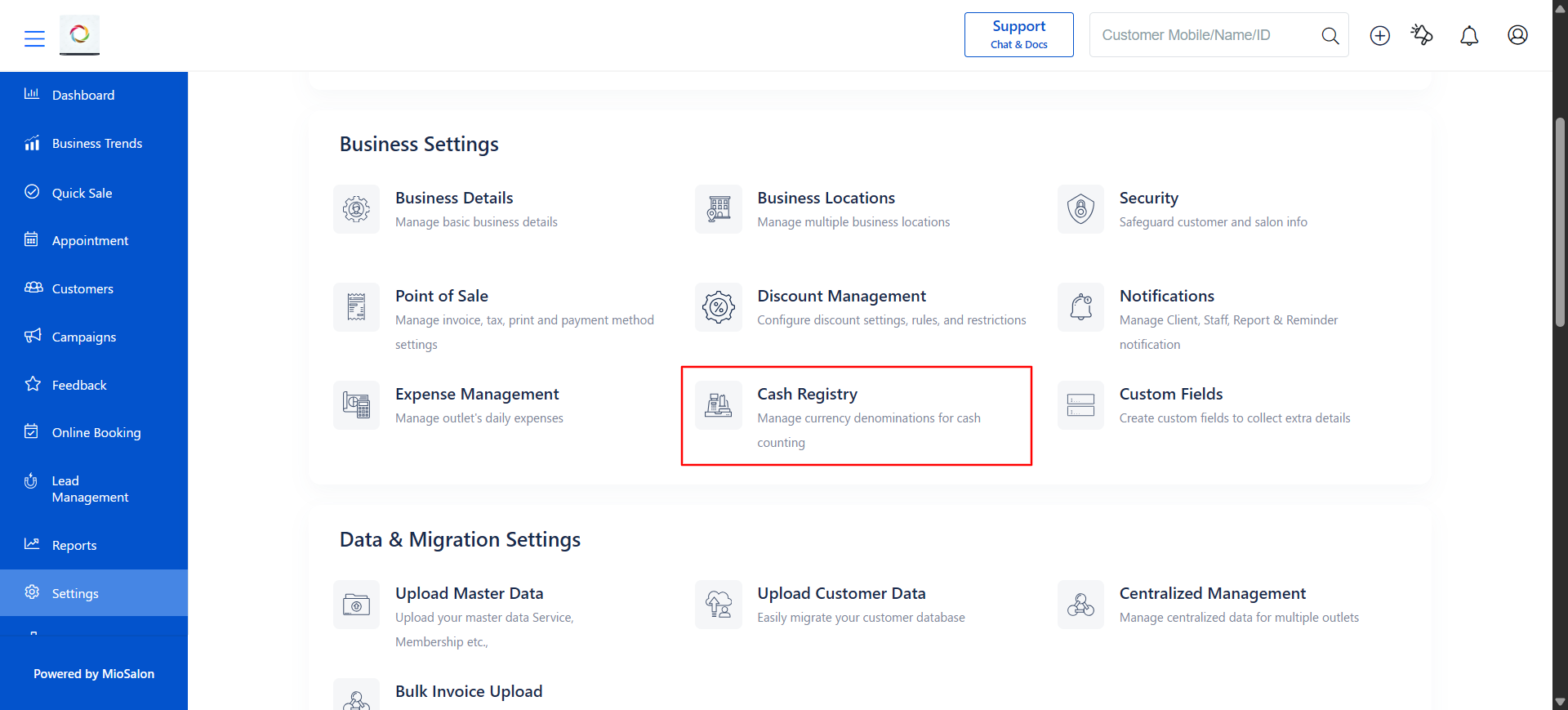
Settings → Cash Registry → Cash Registry Activity
Steps to Add Cash to the Registry
1. Log in to your MioSalon account.
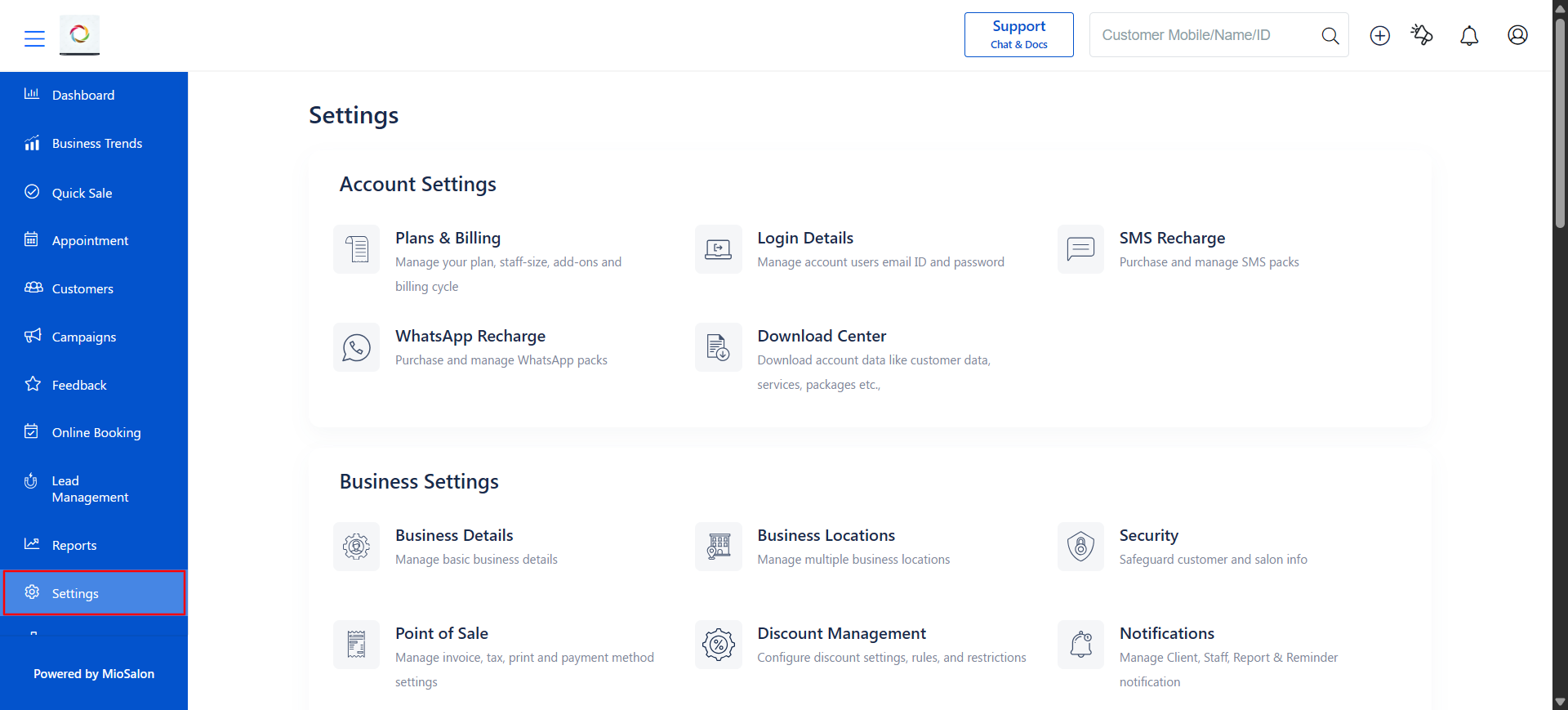
2. Navigate to Settings → Cash Registry → Cash Registry Activity from the left-side sub-menu.
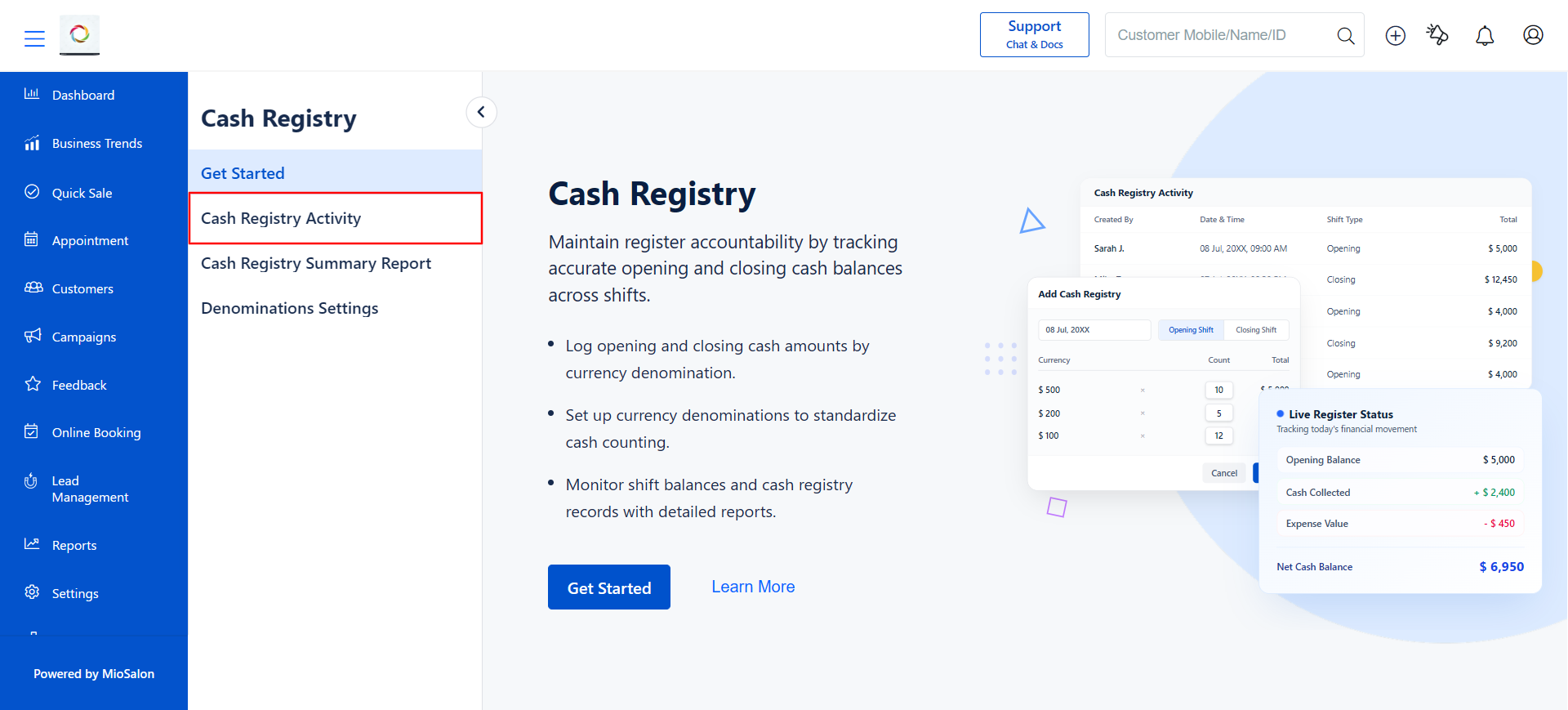
3. On the Cash Registry Activity page, click the Add Cash Registry button located in the top-right corner.
4. The Add Cash Registry pop-up window will appear with the following fields:
Field Description
| Field | Description |
|---|---|
| Date | Select the date for the cash registry entry (E.g., 19 Aug, 2026). |
| Shift Type | Choose between Opening Shift or Closing Shift. |
| Currency Value | Displays the pre-configured denominations (E.g., 100.00, 500.00, 1,000.00). |
| Count | Enter the number of notes/coins for each denomination (E.g., 5, 2, 1). |
| Total | Automatically calculated as Currency Value multiplied by Count. |
| Total Balance | The sum of all denomination totals displayed at the bottom. |
5. Select the Date for the cash registry entry.
6. Choose the Shift Type. Select Opening Shift to record the cash at the beginning of the day, or select Closing Shift to record the cash at the end of the day.
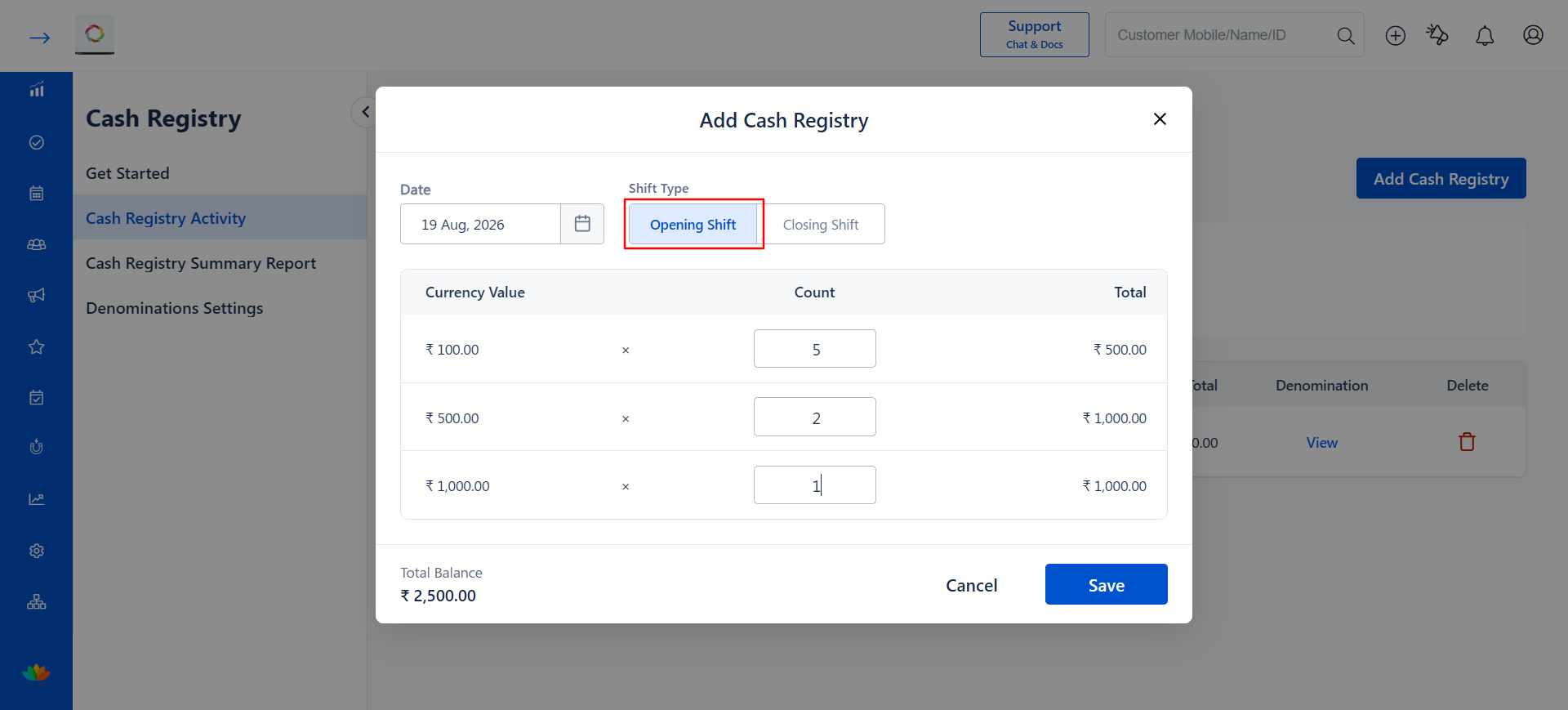
7. Enter the Count for each denomination. The Total for each row and the Total Balance at the bottom will be calculated automatically (E.g., 100.00 x 5 = 500.00, 500.00 x 2 = 1,000.00, 1,000.00 x 1 = 1,000.00, Total Balance = 2,500.00).
8. Click the Save button to save the cash registry entry.
9. The new entry will now appear in the Cash Registry Activity table with the Date & Time, Created By, Shift Type, Total, and Denomination details.
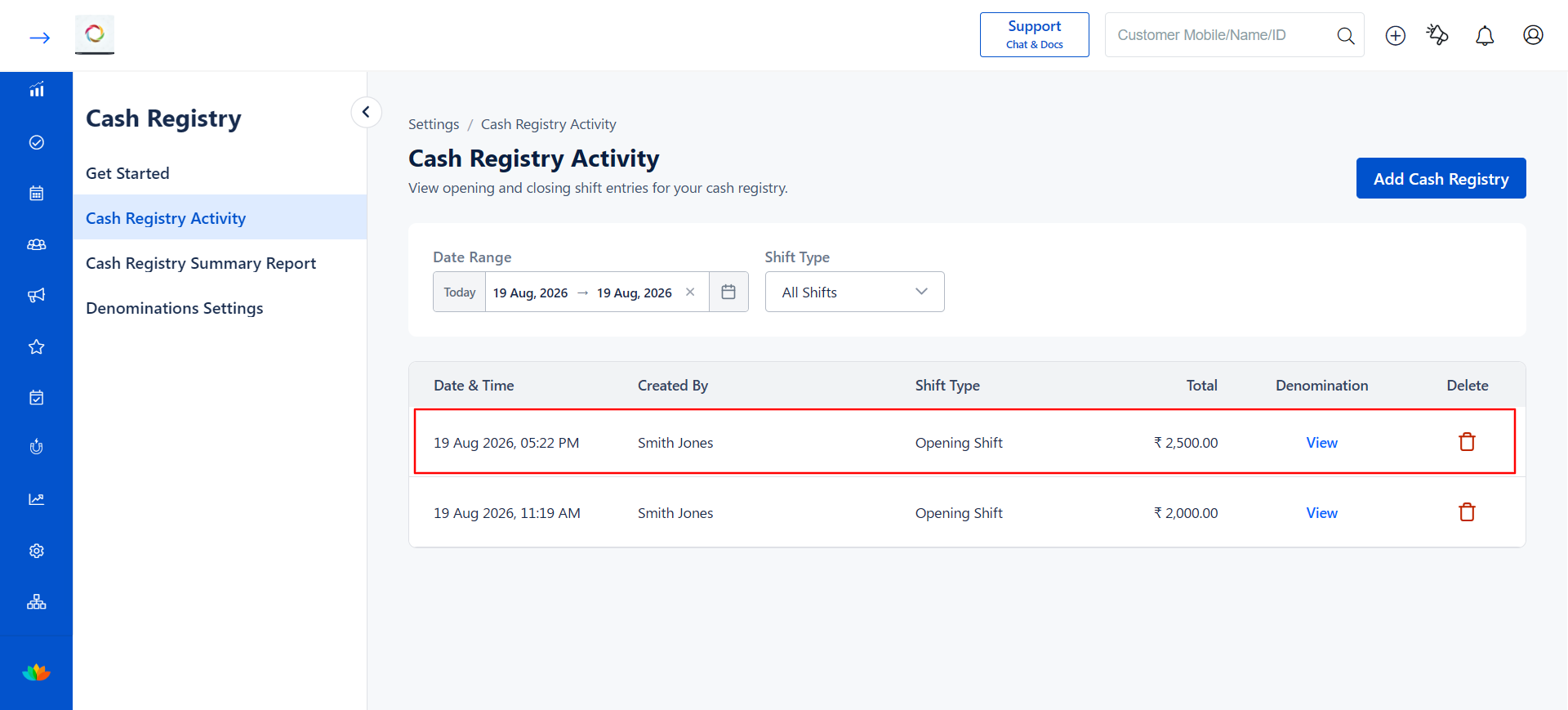
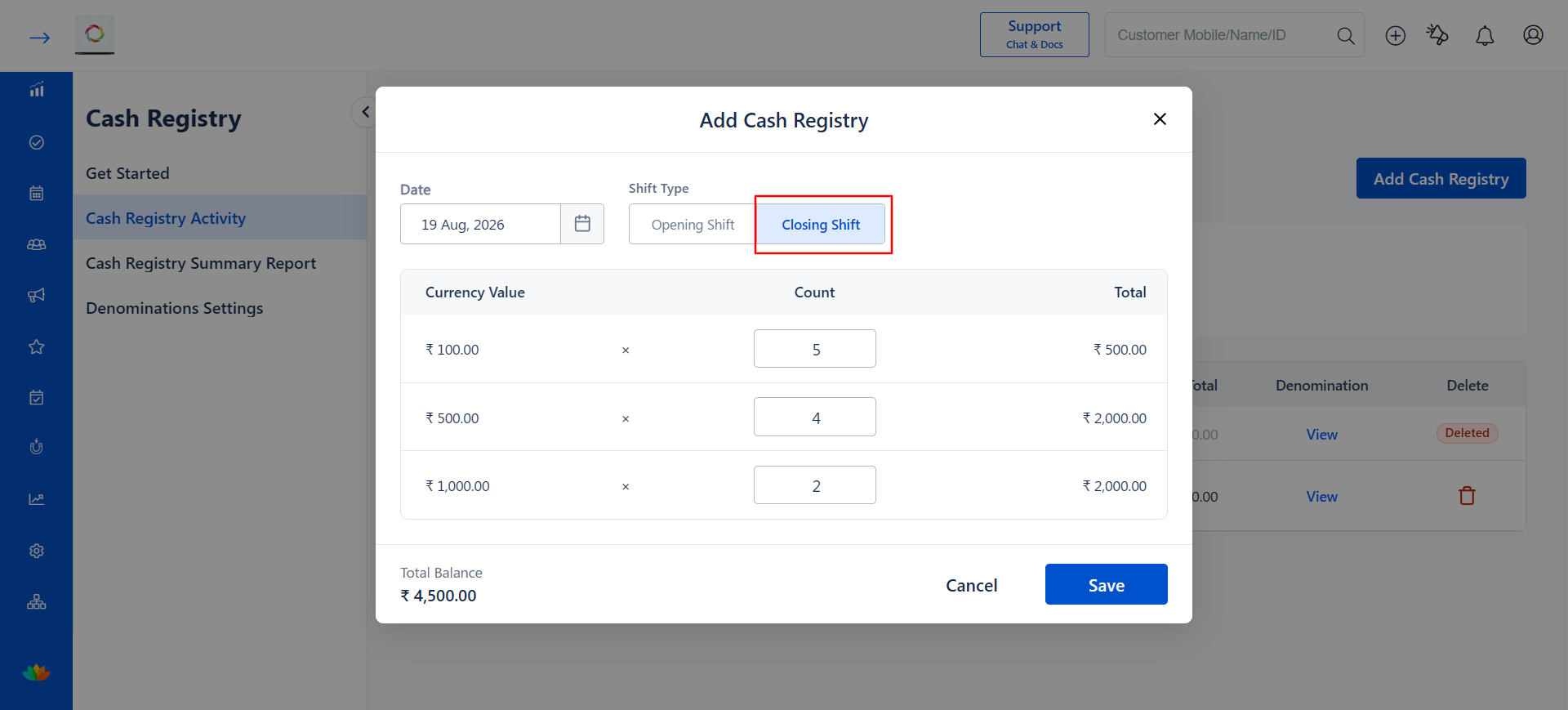
10. To add a Closing Shift entry, repeat Steps 3 to 8 and select Closing Shift as the Shift Type.
Note
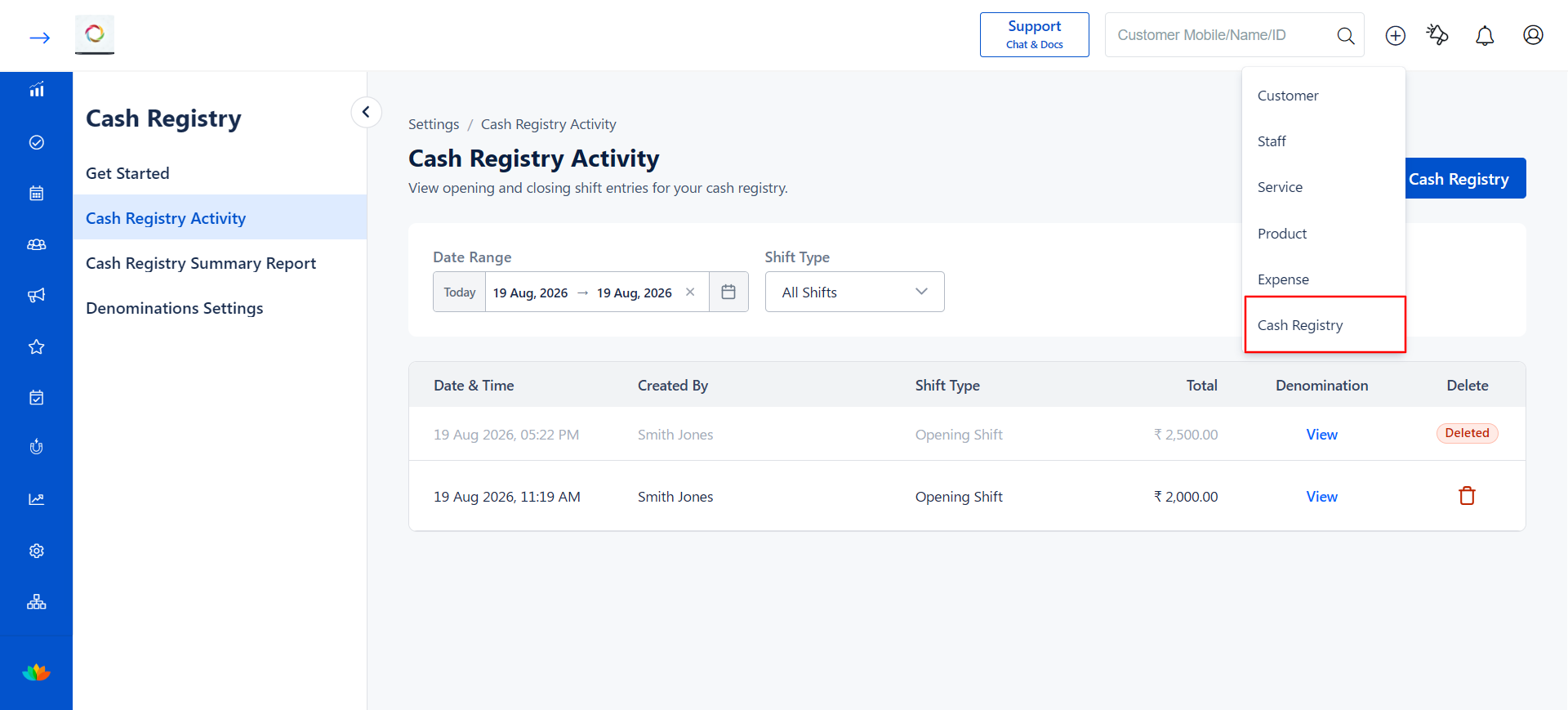
You can also access the Add Cash Registry feature directly from the Quick Add (+) menu at the top of the screen by selecting Cash Registry from the dropdown.
Use Cases
1. A front-desk staff member records the opening cash balance at the start of each business day to establish a baseline for the day's transactions.
2. A salon manager records the closing cash at the end of the day to verify that the physical cash matches the system's expected cash balance.
3. A business with multiple shifts uses the feature to track cash handover between the opening and closing shift teams.
Benefits
1. Provides a denomination-wise breakdown of cash, making it easy to verify the exact composition of the register balance.
2. Automatically calculates the total balance, eliminating the need for manual addition and reducing errors.
3. Creates an auditable trail of cash entries linked to specific staff members, dates, and shift types.
4. Helps detect cash discrepancies early by comparing opening and closing balances.
5. Simplifies end-of-day cash reconciliation for salon managers and business owners.
Was this article helpful?
That’s Great!
Thank you for your feedback
Sorry! We couldn't be helpful
Thank you for your feedback
Feedback sent
We appreciate your effort and will try to fix the article