How to View the Cash Registry Activity and Delete a Cash Registry Activity Record in MioSalon ?
Overview
The Cash Registry Activity page in MioSalon provides a detailed log of all opening and closing shift cash entries recorded in your business.
It allows you to view, filter, and manage your cash registry records by date range and shift type.
You can also view the denomination-wise breakdown of any entry and delete records that were created in error.
This feature is essential for maintaining clean, accurate cash records and enables salon managers to quickly audit cash movements across shifts.
Navigation Path
Settings → Cash Registry → Cash Registry Activity
Steps to View the Cash Registry Activity
1. Log in to your MioSalon account.
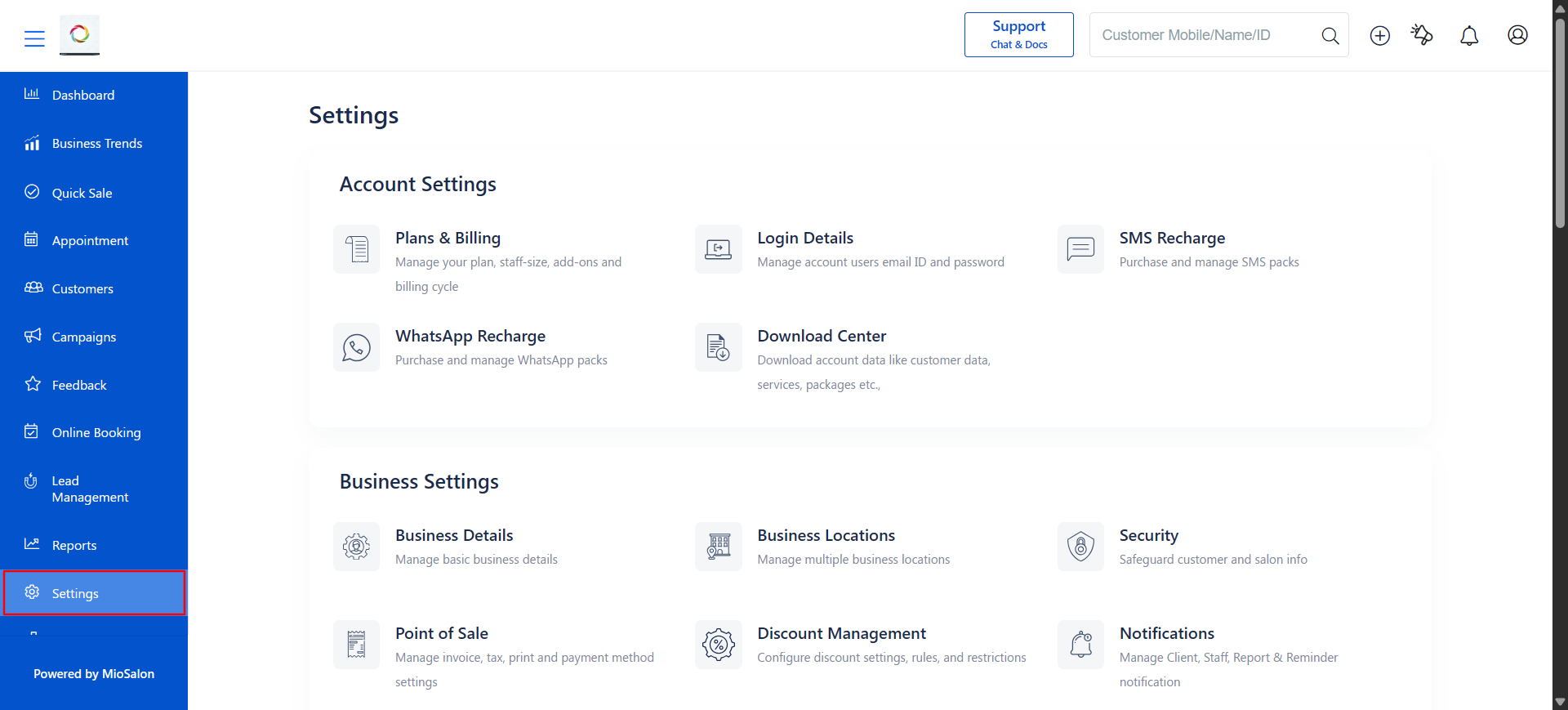
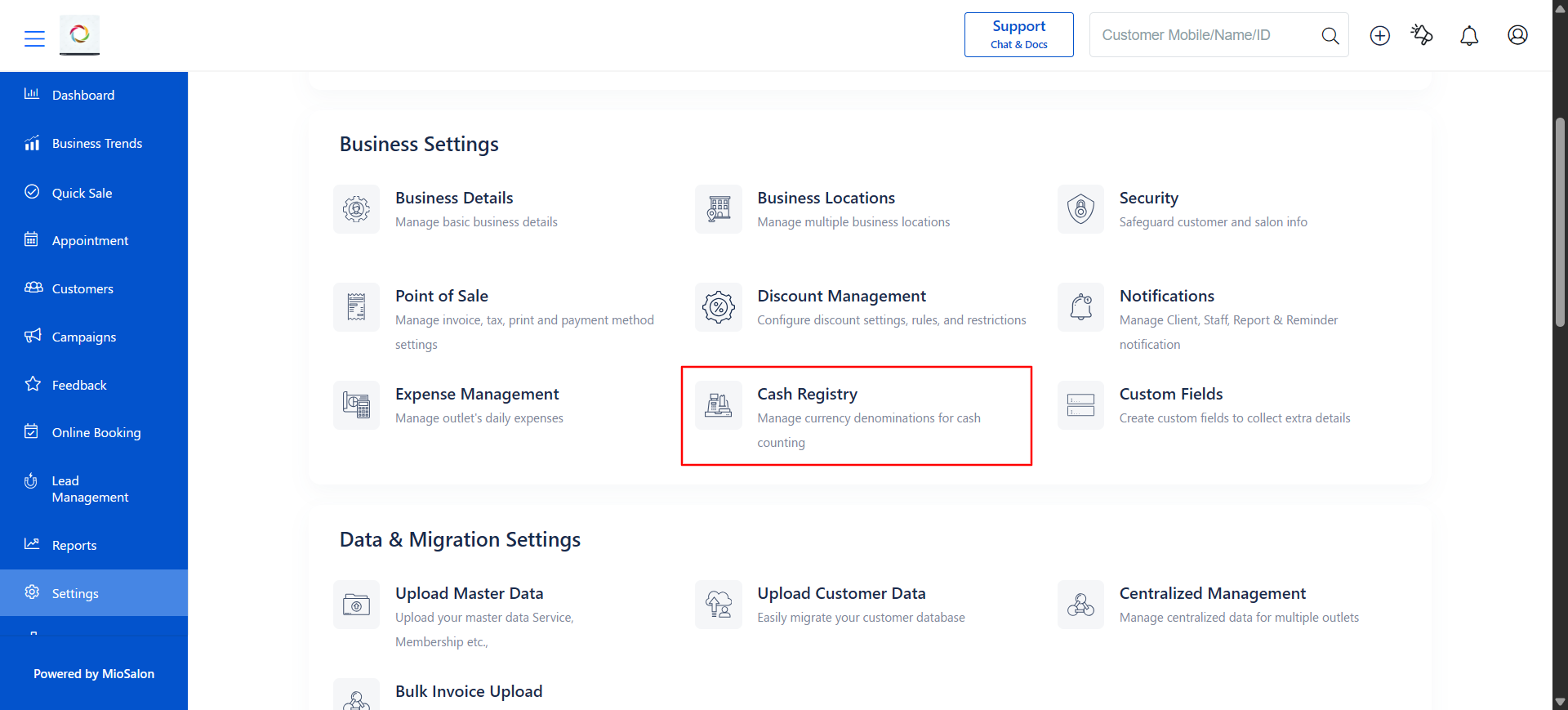
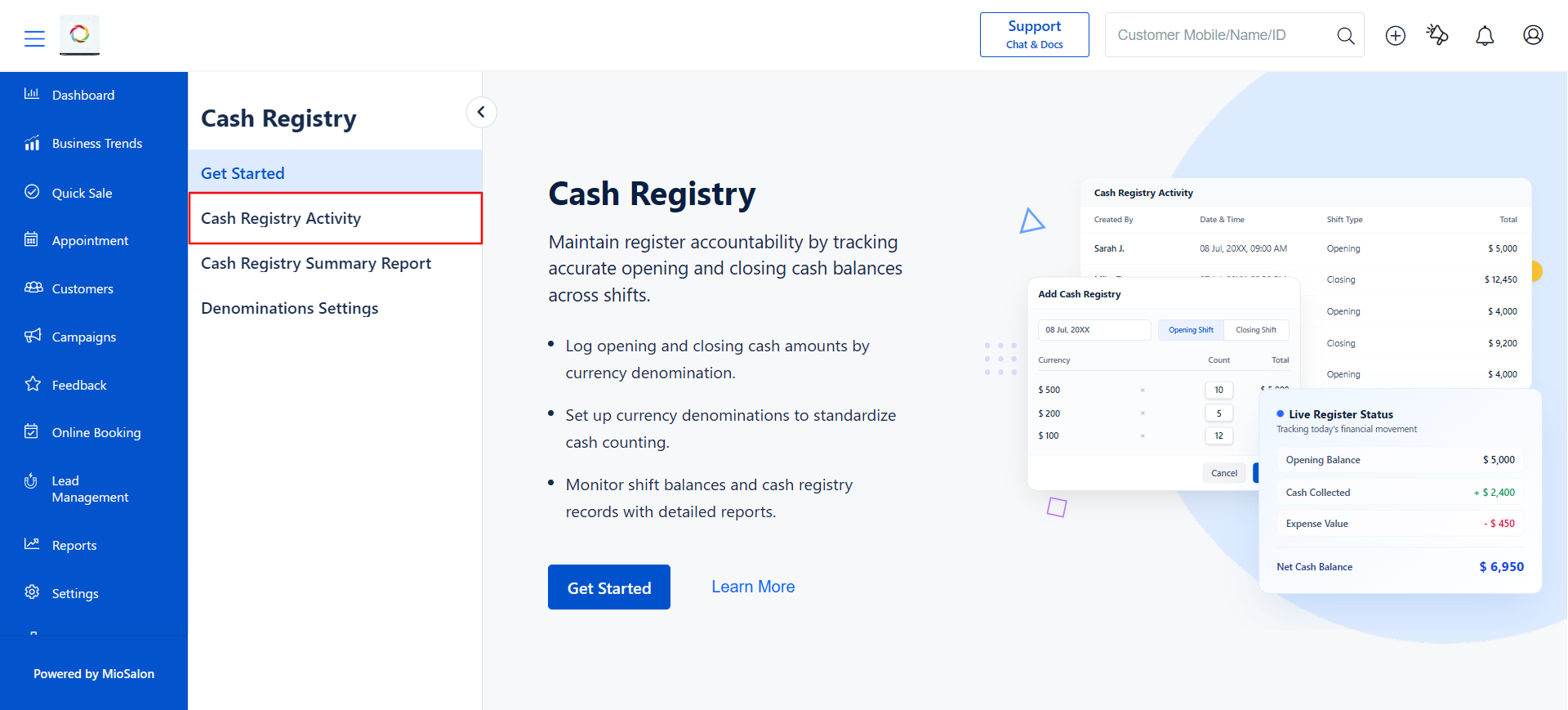
2. Navigate to Settings → Cash Registry → Cash Registry Activity from the left-side sub-menu.
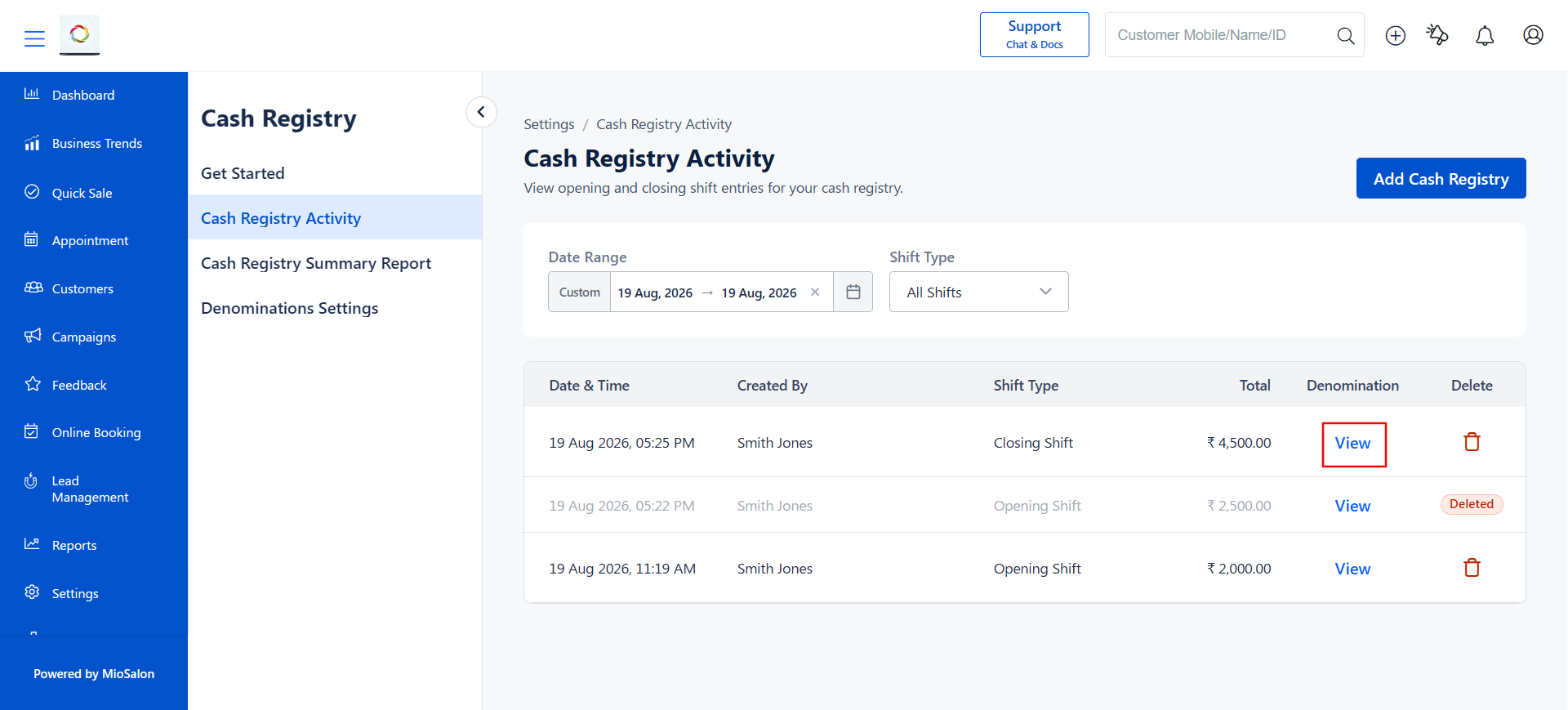
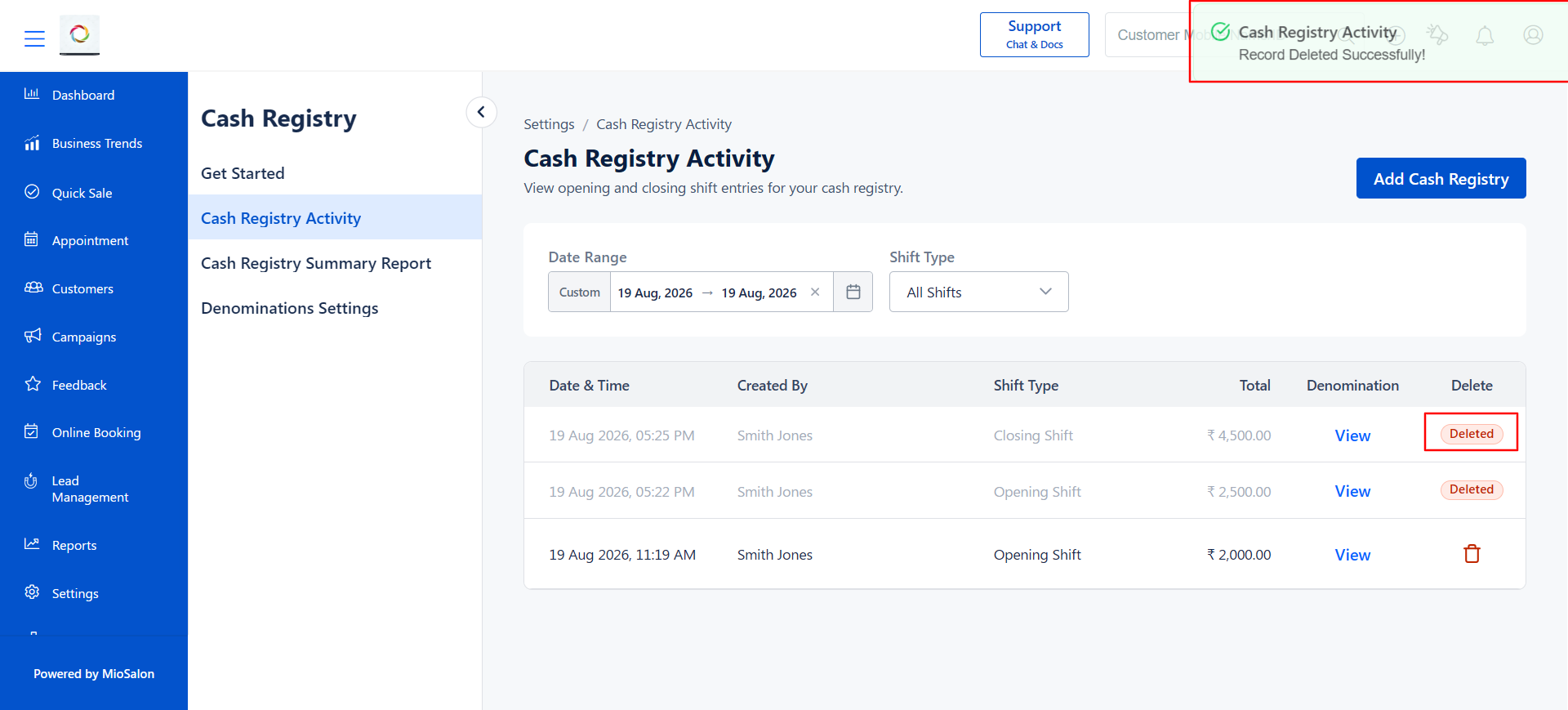
3. The Cash Registry Activity page will display all cash registry records in a table with the following columns:
Column Description
| Column | Description |
|---|---|
| Date & Time | The date and time when the cash registry entry was created. |
| Created By | The name of the staff member who created the entry. |
| Shift Type | Indicates whether the entry is for an Opening Shift or Closing Shift. |
| Total | The total cash balance recorded for that entry. |
| Denomination | Click View to see the denomination-wise breakdown of the entry. |
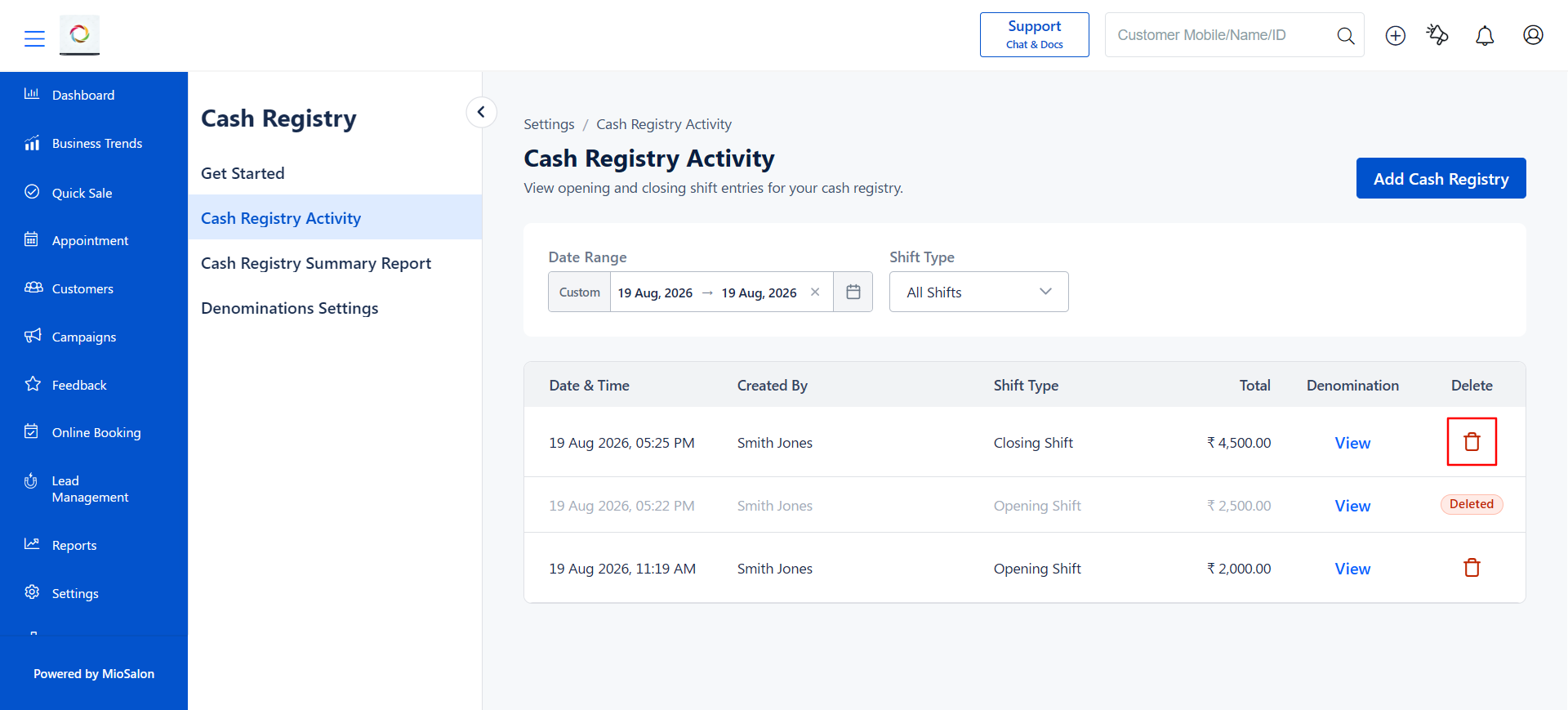
| Delete | Click the trash icon to delete the record. |
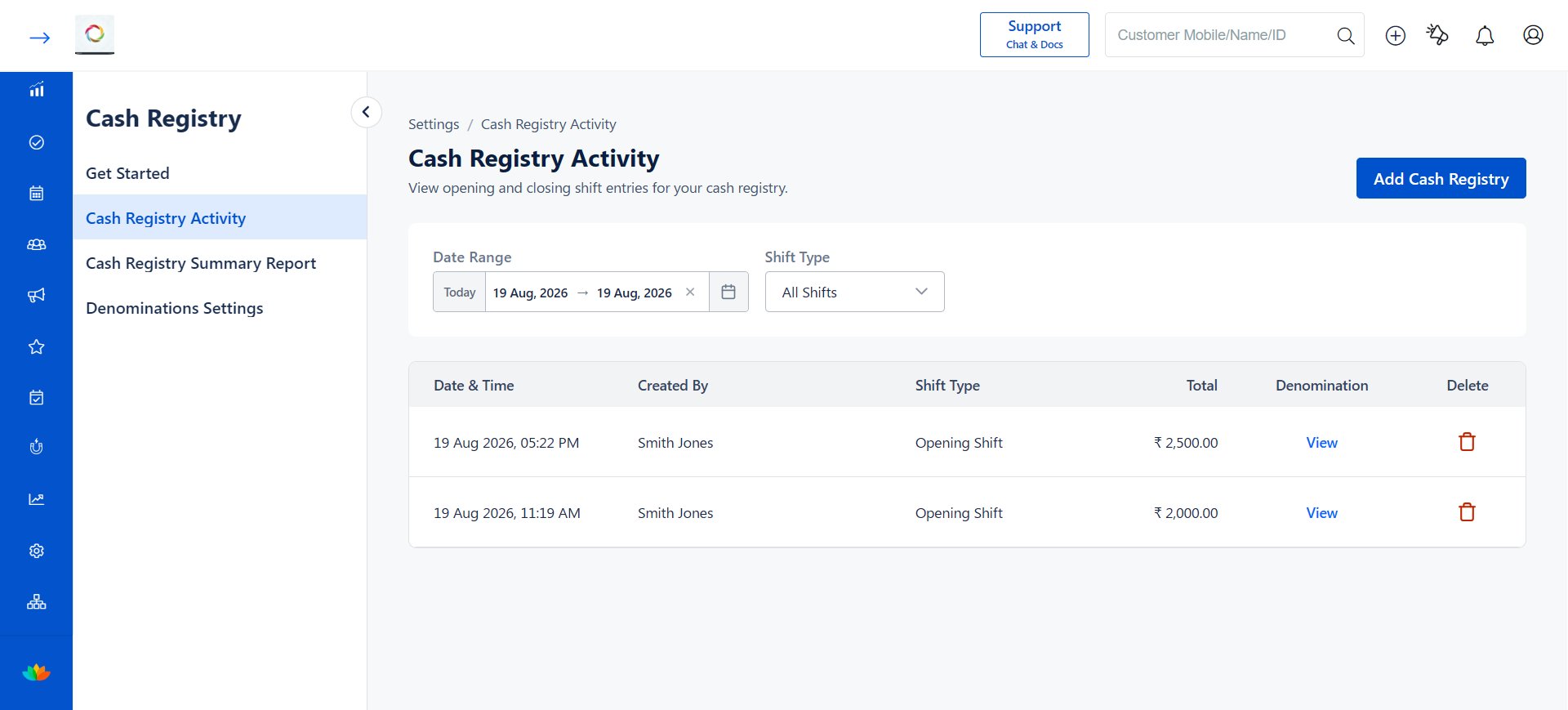
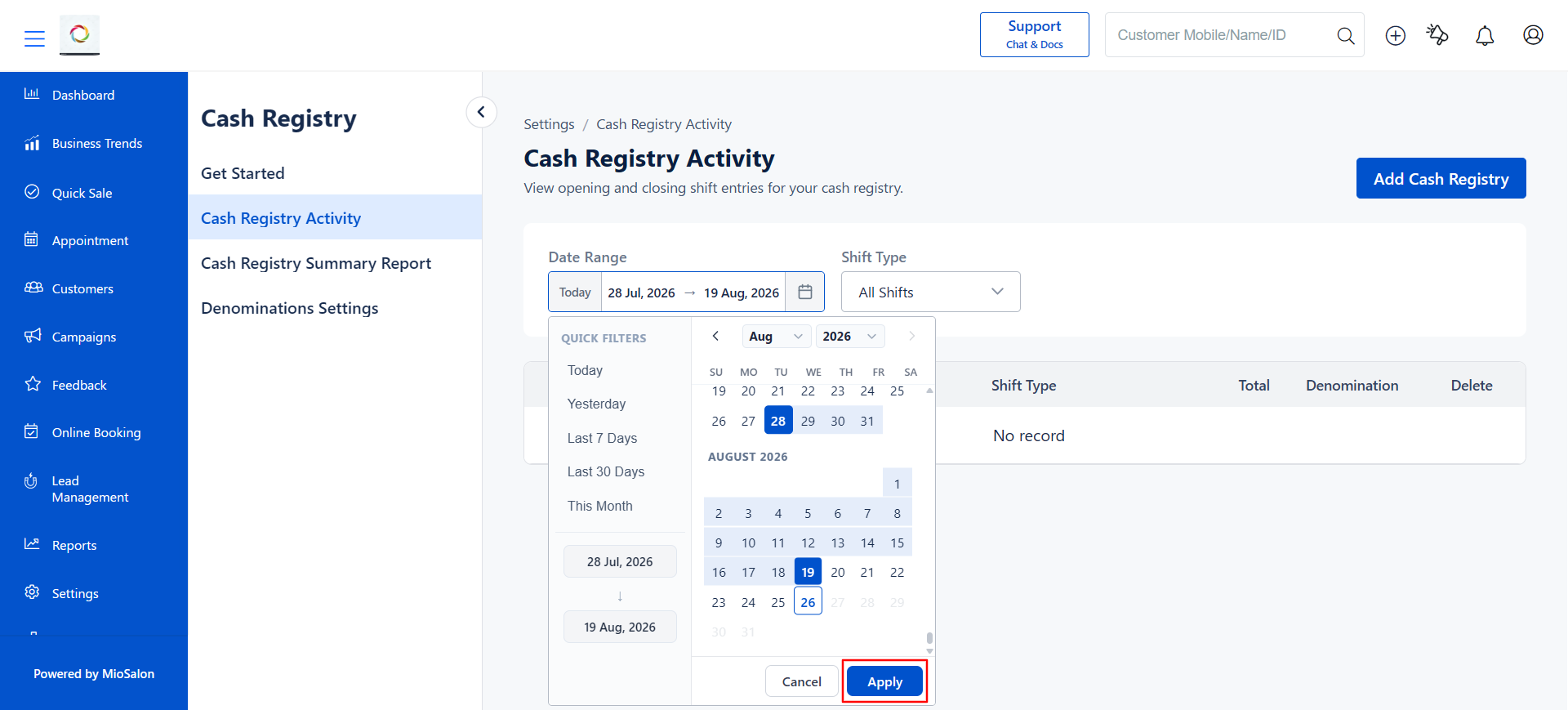
4. To filter records by date, use the Date Range filter at the top. Click on the calendar icon, select a start and end date, and click Apply.
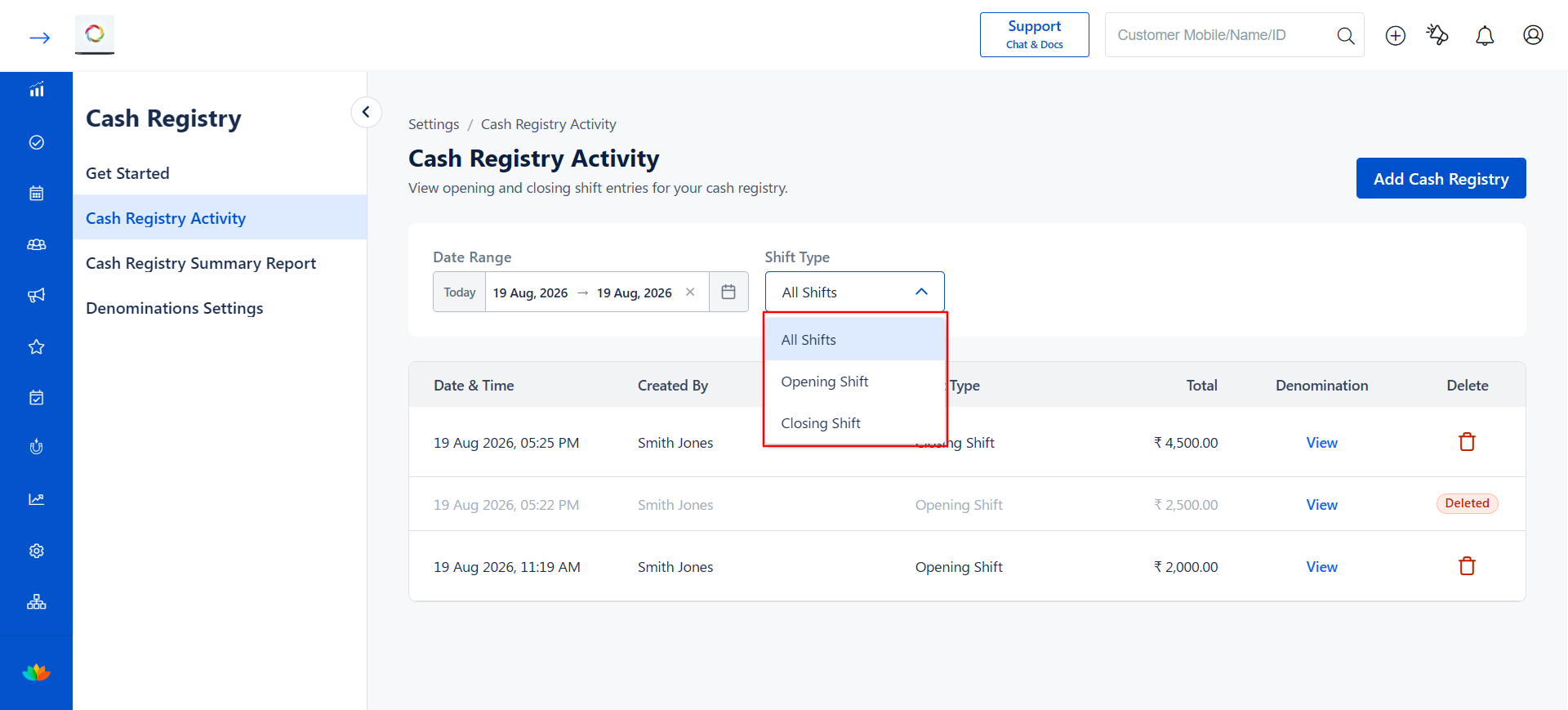
5. To filter records by shift type, use the Shift Type dropdown. You can choose from All Shifts, Opening Shift, or Closing Shift.
6. To view the denomination-wise breakdown of an entry, click View in the Denomination column for that record.
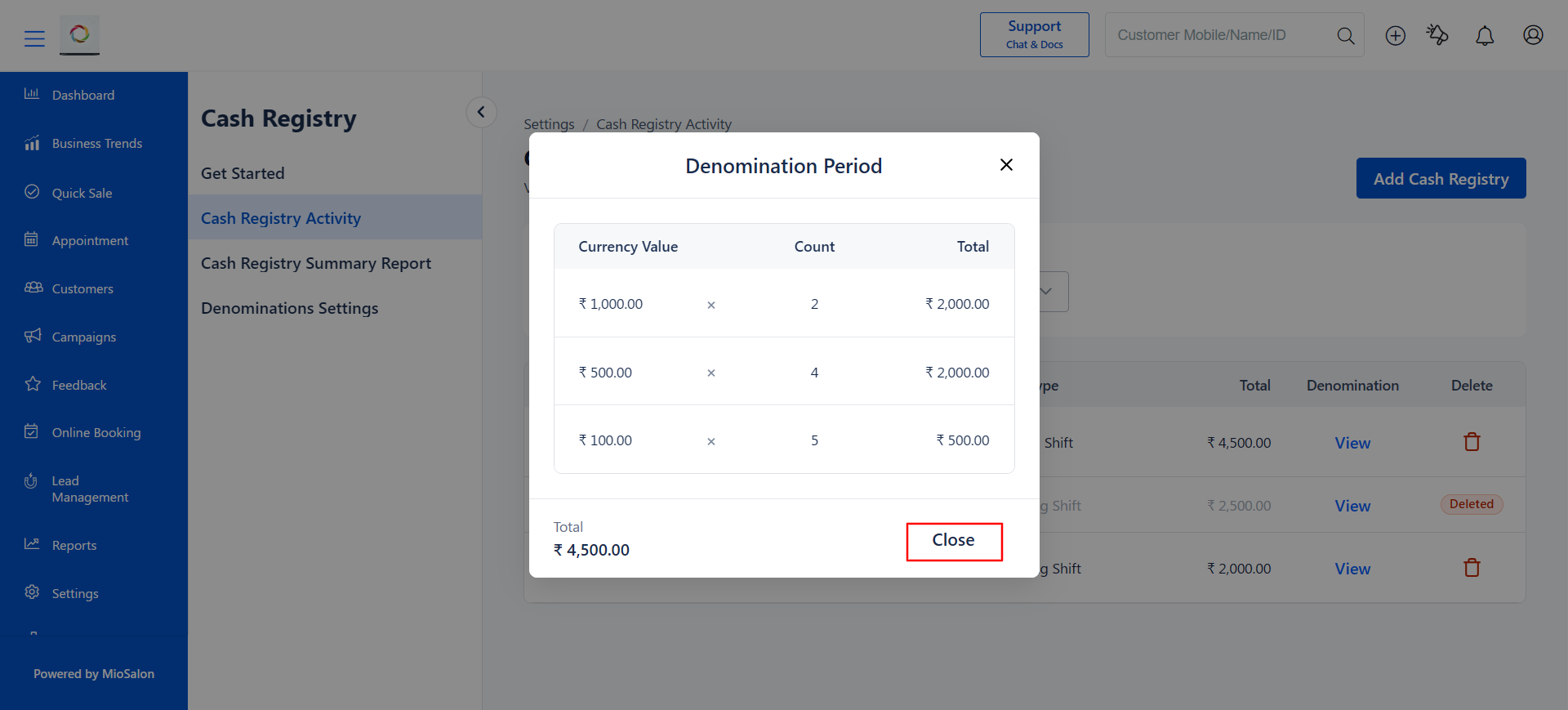
7. The Denomination Period pop-up will display a table with the Currency Value, Count, and Total for each denomination, along with the overall Total at the bottom. Click Close to dismiss the pop-up.
Steps to Delete a Cash Registry Activity Record
1. Navigate to Settings → Cash Registry → Cash Registry Activity.
2. Locate the record you want to delete in the Cash Registry Activity table.
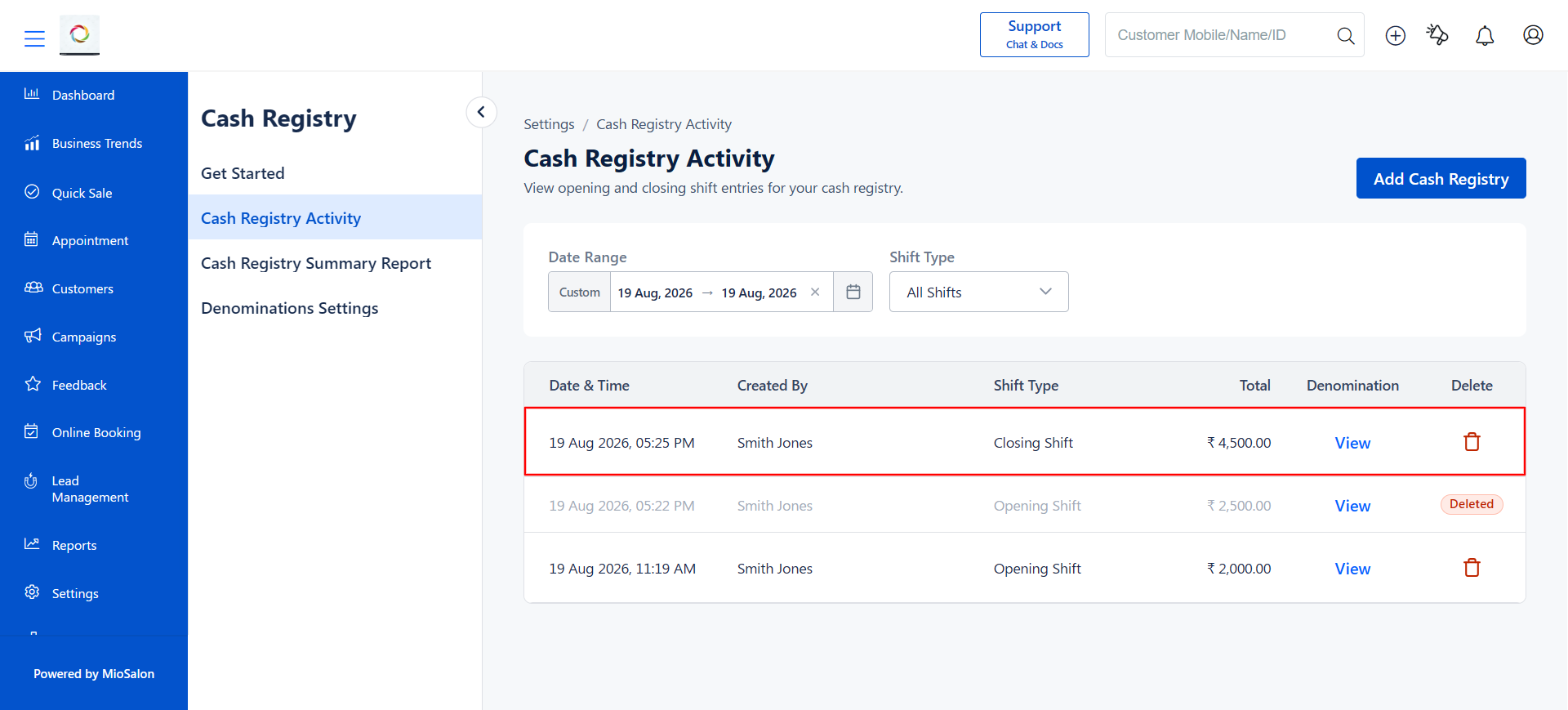
3. Click the Delete icon (delete icon) in the Delete column for that record.
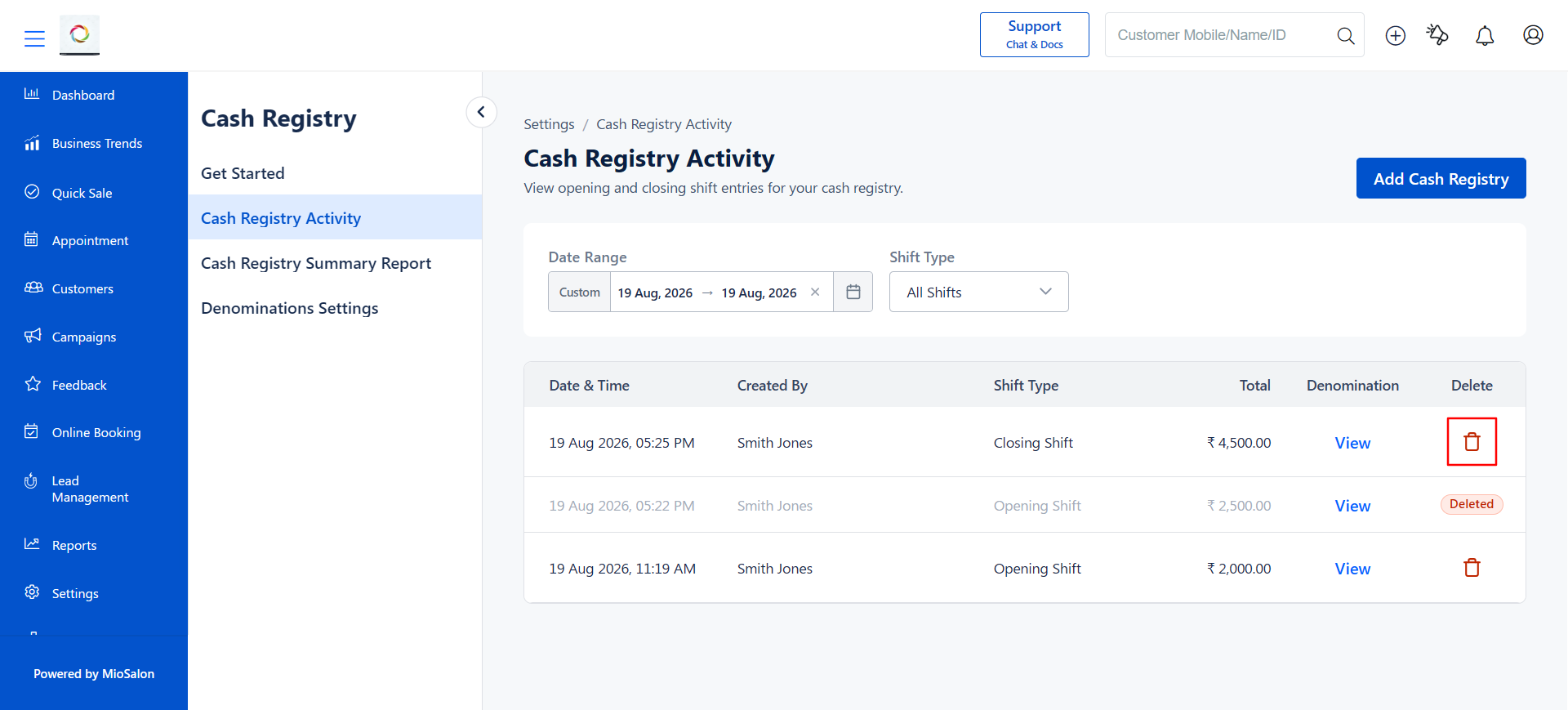
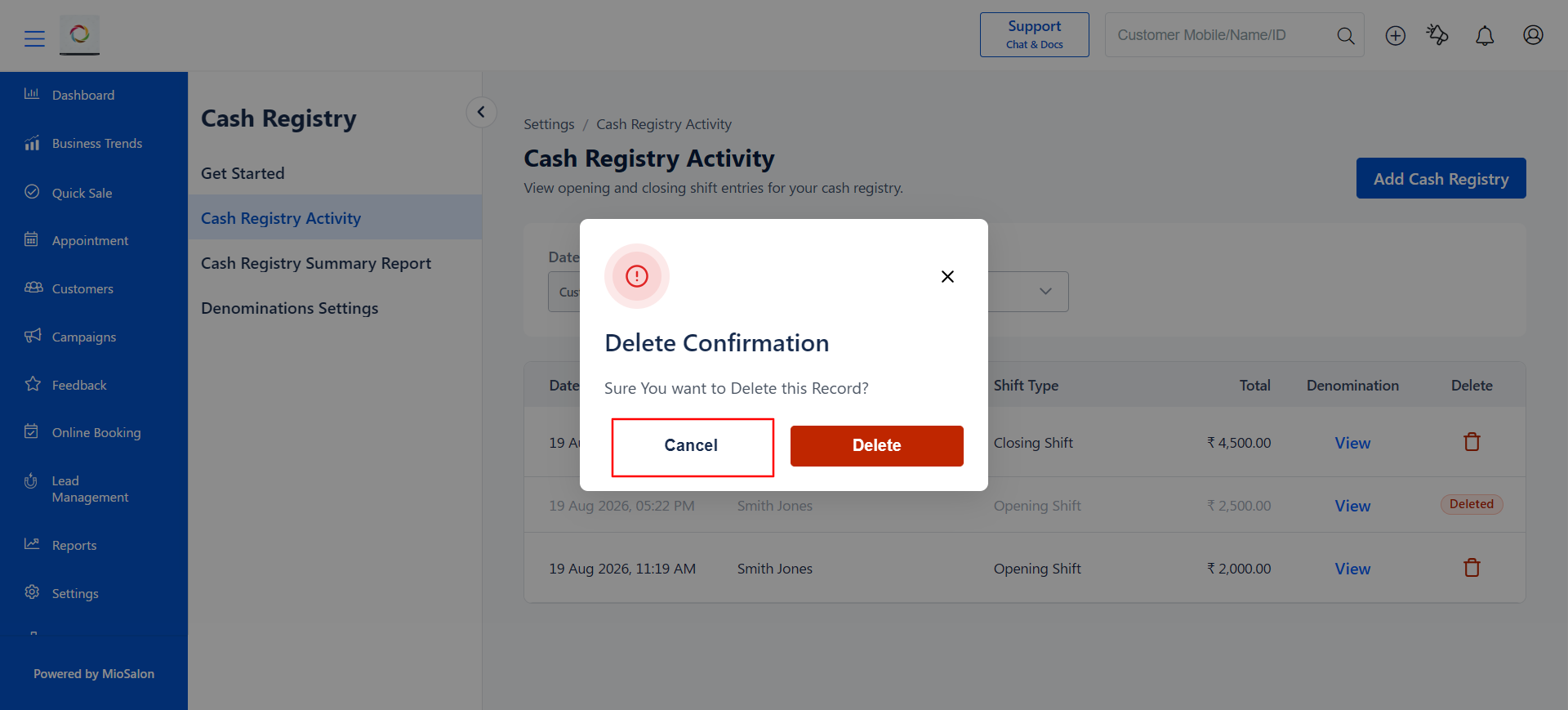
4. A Delete Confirmation pop-up will appear asking Sure You want to Delete this Record?
5. Click Delete to confirm the deletion, or click Cancel to go back without deleting.
6. A success message Record Deleted Successfully! will appear, and the record will be marked as Deleted in the table.
Use Cases
1. A salon manager reviews the Cash Registry Activity to verify that staff have recorded the opening and closing cash for each shift.
2. A business owner clicks on the denomination view to verify the exact note-by-note breakdown of a specific cash entry.
3. A staff member accidentally creates a duplicate or incorrect cash registry entry and uses the delete feature to remove it.
4. A manager filters the records by Closing Shift only to quickly audit end-of-day cash for the past week.
Benefits
1. Provides a centralized view of all cash registry entries with clear date, staff, and shift information.
2. Denomination-wise breakdown enables detailed verification of each cash entry without ambiguity.
3. Flexible filters (Date Range and Shift Type) allow quick access to specific records for auditing purposes.
4. Delete functionality helps maintain clean records by removing erroneous or duplicate entries.
5. Deleted records remain visible in the table with a Deleted label, preserving a complete audit trail.
Note
Deleted records are not permanently removed from the Cash Registry Activity table. They remain visible with a Deleted label, ensuring full traceability and accountability of all cash registry actions.
Was this article helpful?
That’s Great!
Thank you for your feedback
Sorry! We couldn't be helpful
Thank you for your feedback
Feedback sent
We appreciate your effort and will try to fix the article