Overview
Discount Restriction in MioSalon helps you control the maximum discount that can be applied during quick sales. This prevents excessive discounting, protects revenue, and ensures consistent pricing practices across staff and outlets.
Once configured, the system automatically enforces the discount limit during billing.
To access Discount settings
Log in to your MioSalon account.
From the left-side menu, click Settings.
Under Settings, click Business Settings.
Scroll down and select Point of Sale.
Click Discount.
To configure discount restriction
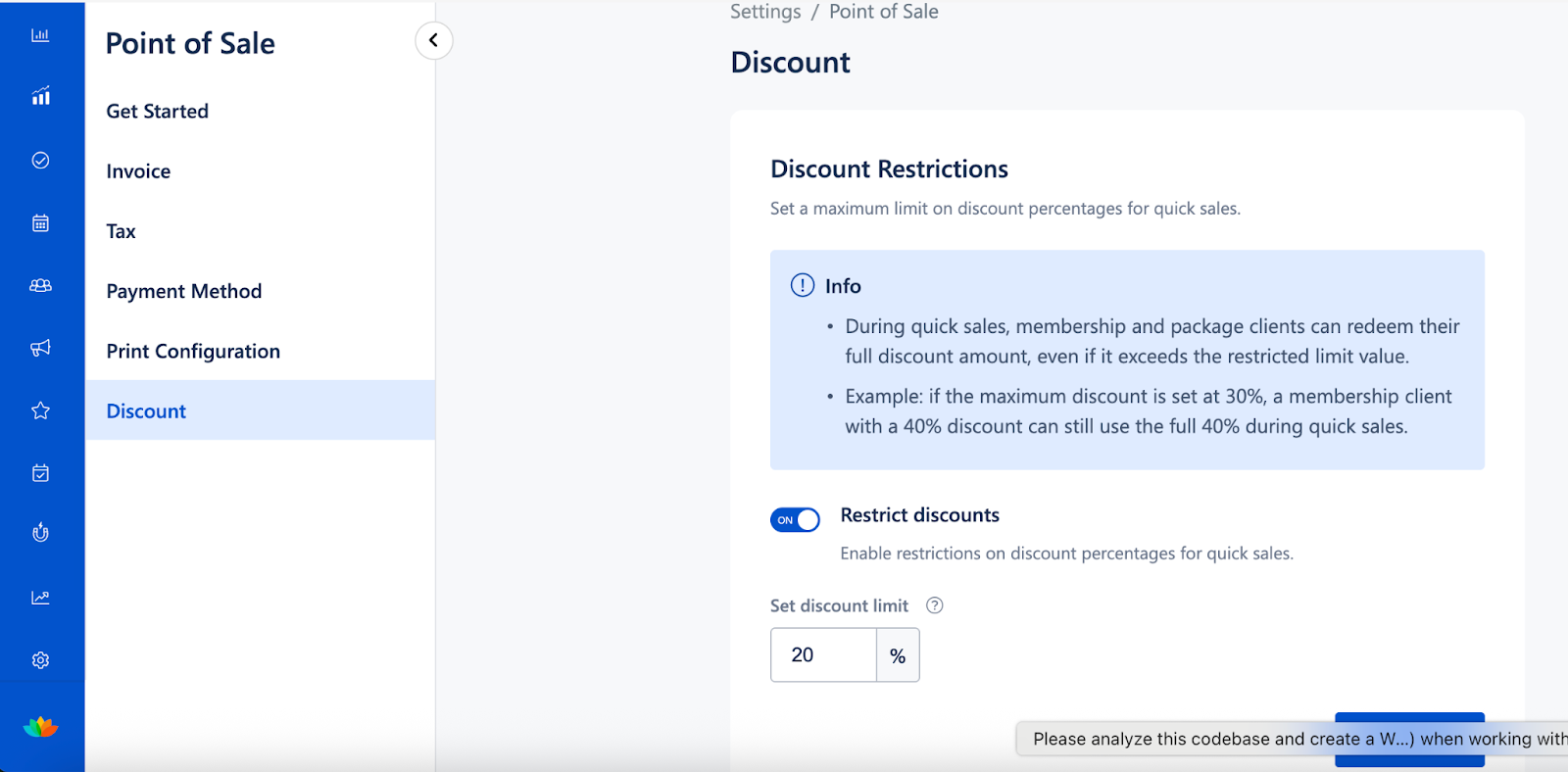
In the Discount Restrictions section, review the information provided.
Enter the maximum discount percentage allowed for quick sales.
Click Save to apply the restriction.
The system will now automatically restrict discounts that exceed the defined limit during billing.
Important Notes
Discount restrictions apply only to quick sales.
If a staff member applies a discount higher than the configured limit, the system automatically enforces the maximum allowed value.
This setting applies only to new bills created after saving the configuration.
Existing invoices are not affected by changes to discount restrictions.
Use Cases
Revenue protection
Prevent excessive discounting that can impact business profitability.Staff control
Ensure uniform discount practices across all staff members.Pricing consistency
Maintain standardized pricing during quick sales.Audit and review
Reduce unauthorized discounts and improve billing accountability.
Was this article helpful?
That’s Great!
Thank you for your feedback
Sorry! We couldn't be helpful
Thank you for your feedback
Feedback sent
We appreciate your effort and will try to fix the article