Managing Discount Restrictions in Checkout
The Discount Restriction feature allows you to control how discounts are applied during checkout. You can define flexible rules at user, role, and store levels to ensure better control and consistency.
Navigation Path
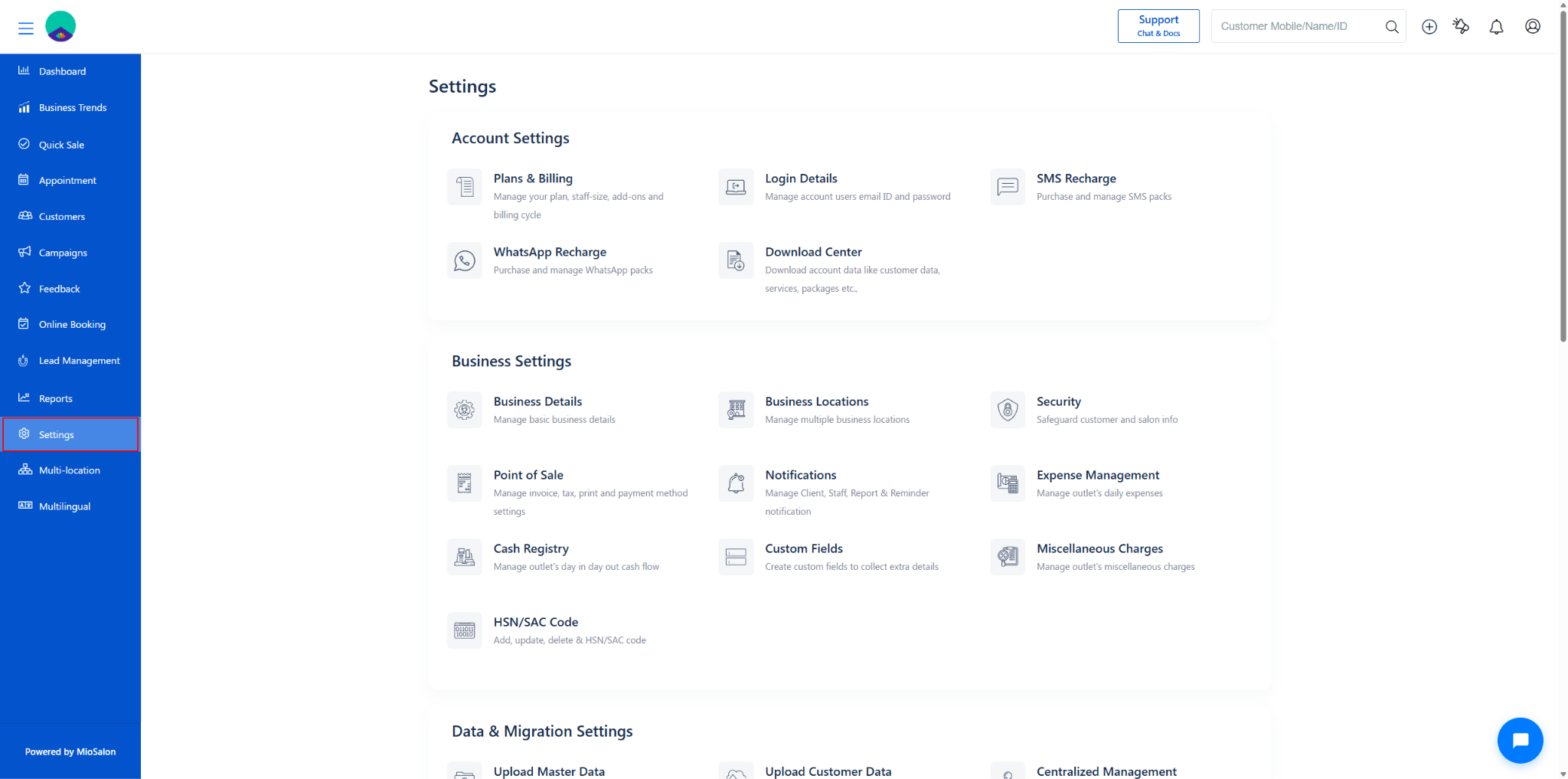
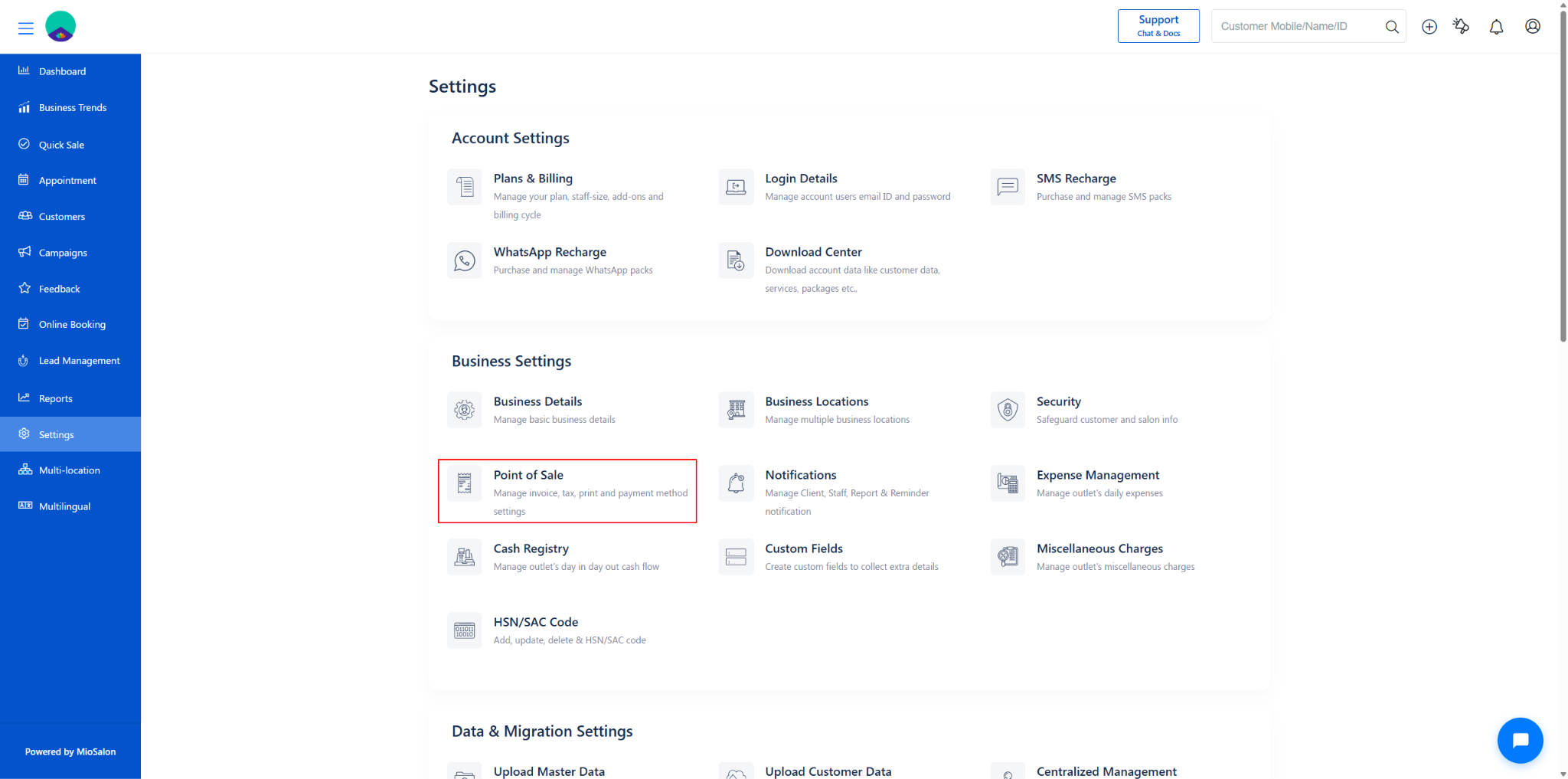
Settings → Point of Sales → Discount
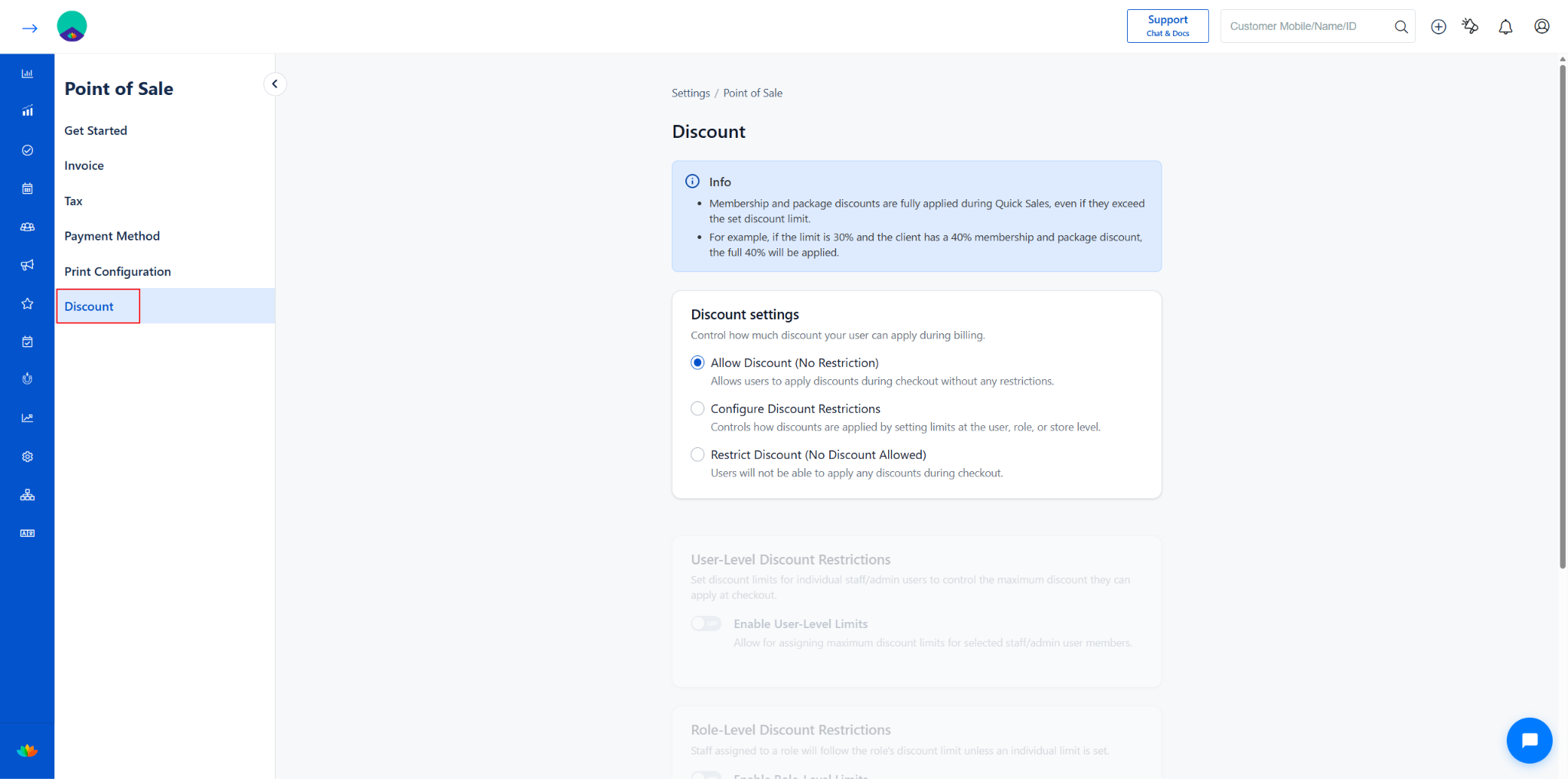
Discount Settings Options
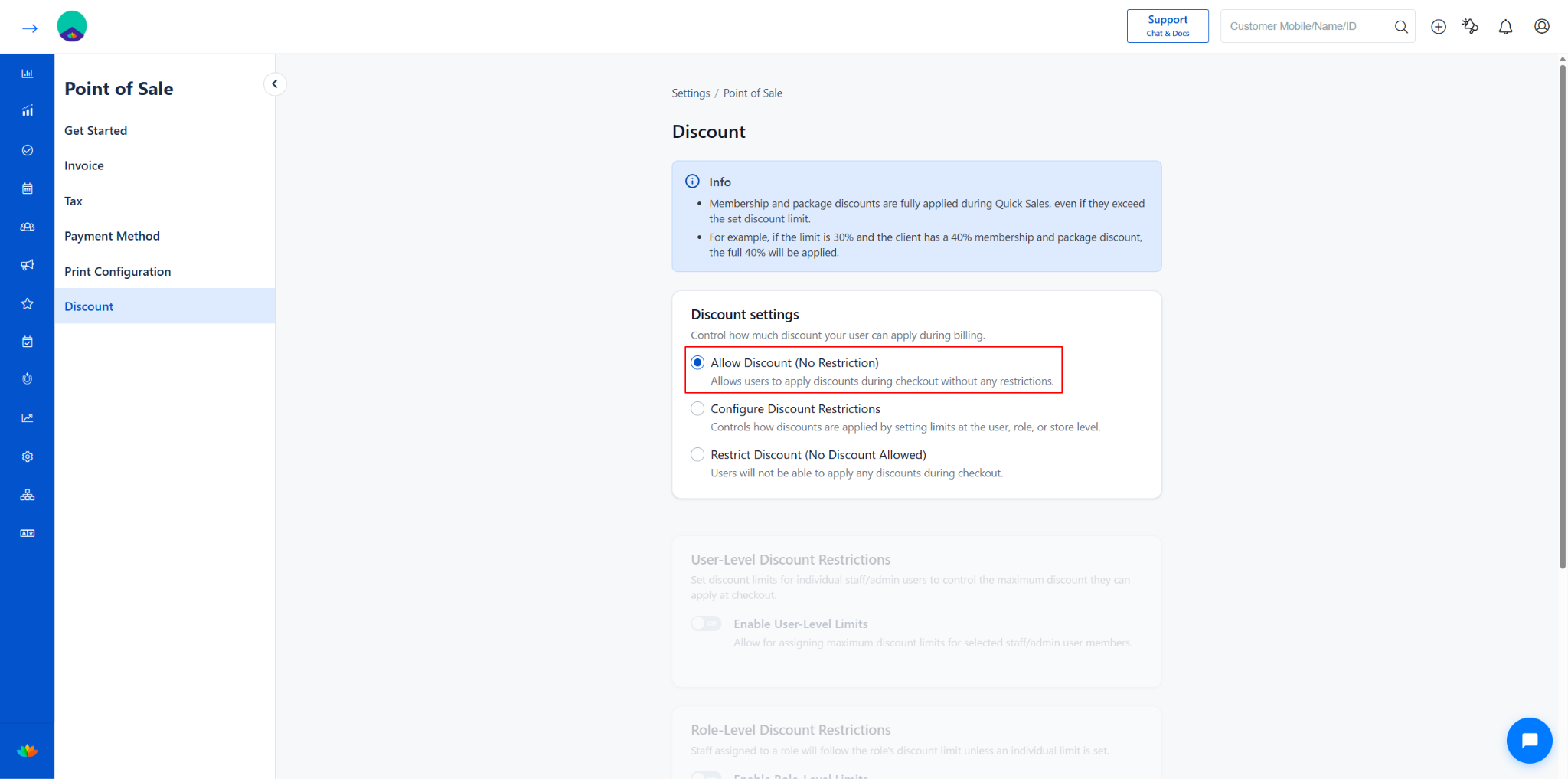
Option 1: Allow Discount (No Restriction)
When this option is selected, users can apply discounts freely during checkout.
Steps to Enable
Go to Settings → Point of Sales → Discount Settings
Select Allow Discount (No Restriction).
Click Save.
? Users can enter any discount percentage during checkout.
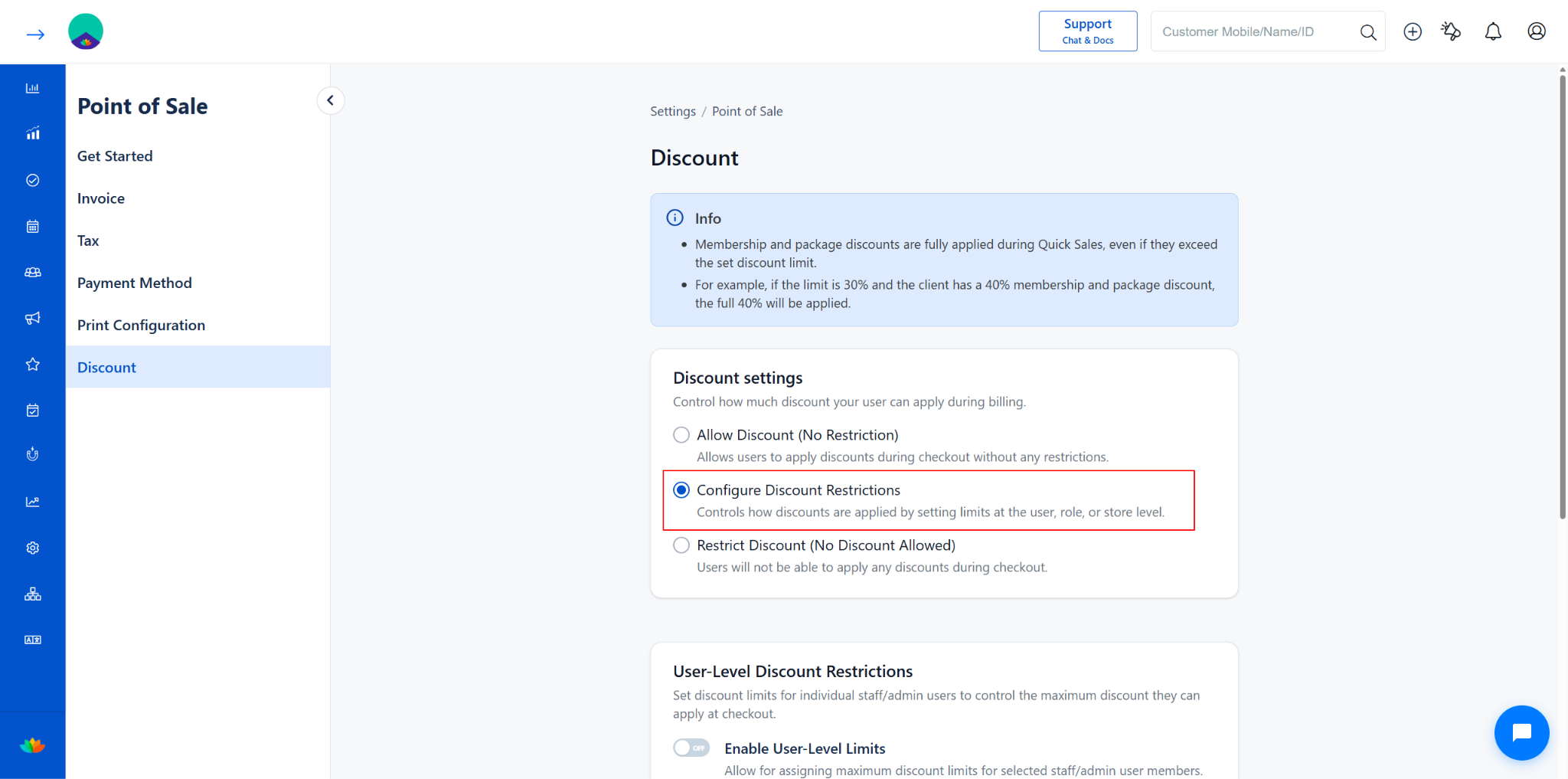
Option 2: Configure Discount Restrictions
This option allows you to control discounts using predefined rules across different levels.
Steps to Configure
Navigate to Discount Settings.
Select Configure Discount Restrictions.
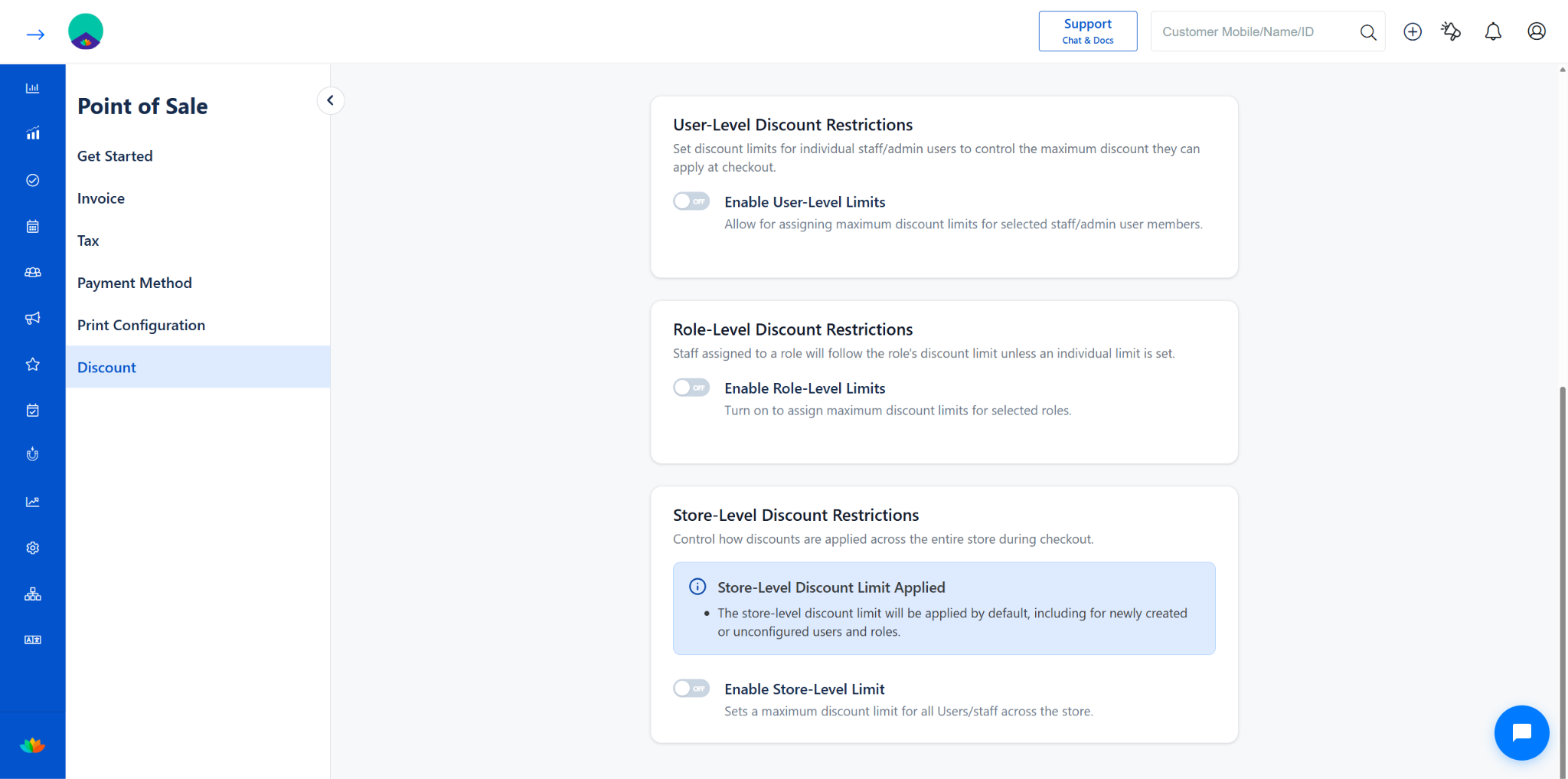
Enable and configure:
User-level limits
Role-level limits
Store-level limits
Choose a Discount Limit Rule (explained below).
Click Save.
The system will enforce discount limits based on your configuration.
Option 3: Restrict Discount (No Discount Allowed)
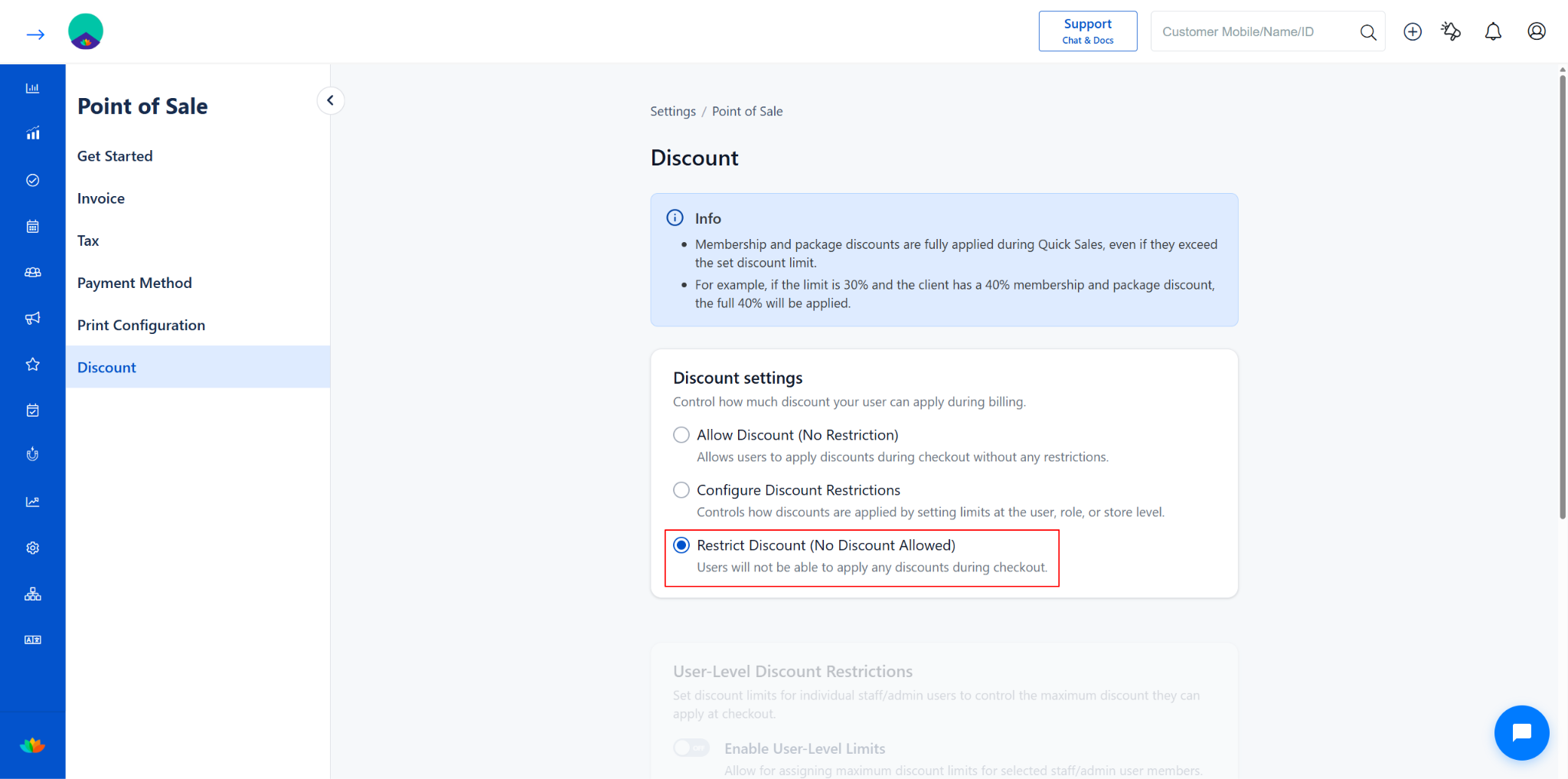
This option completely disables discount usage during checkout.
Steps to Enable
Go to Discount Settings.
Select Restrict Discount.
Click Save.
The discount field will be disabled during checkout.
User-Level Discount Restriction Setup
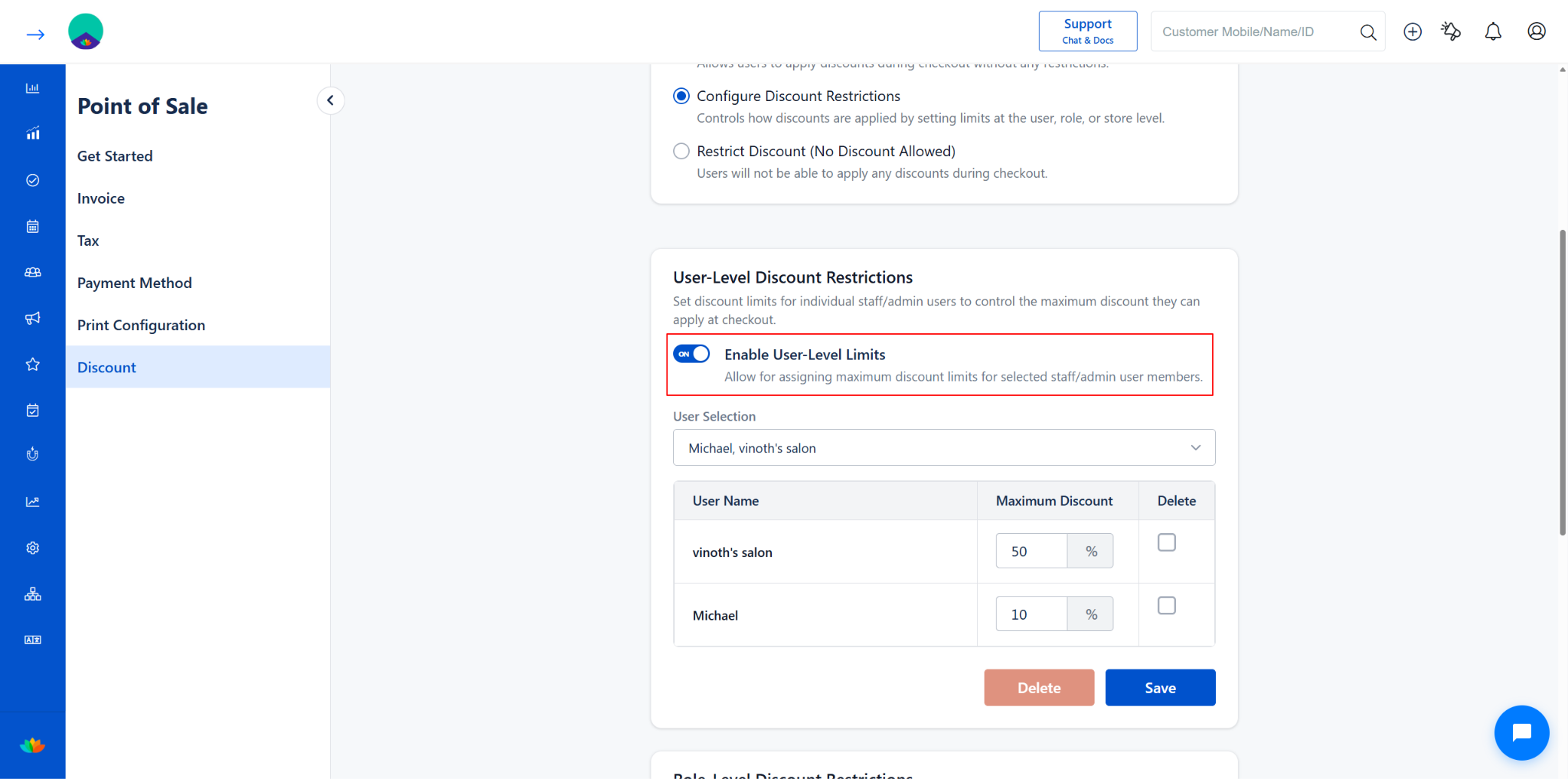
You can define specific discount limits for individual users.
Steps to Configure
Settings → Point of Sales → Discount → Configure Discount Restrictions
Select the required Admin/Staff Users.
Locate Discount Restriction Settings.
Enable the toggle for User-Level Restriction.
Enter the maximum discount percentage (0%–100%).
Click Save.
? This ensures that the selected user can only apply discounts within the defined limit.
Delete User Restriction
Step 5: Remove User Restriction (Optional)
To remove a configured role-level restriction:
Select the checkbox under the Delete column.
Click the Delete button.
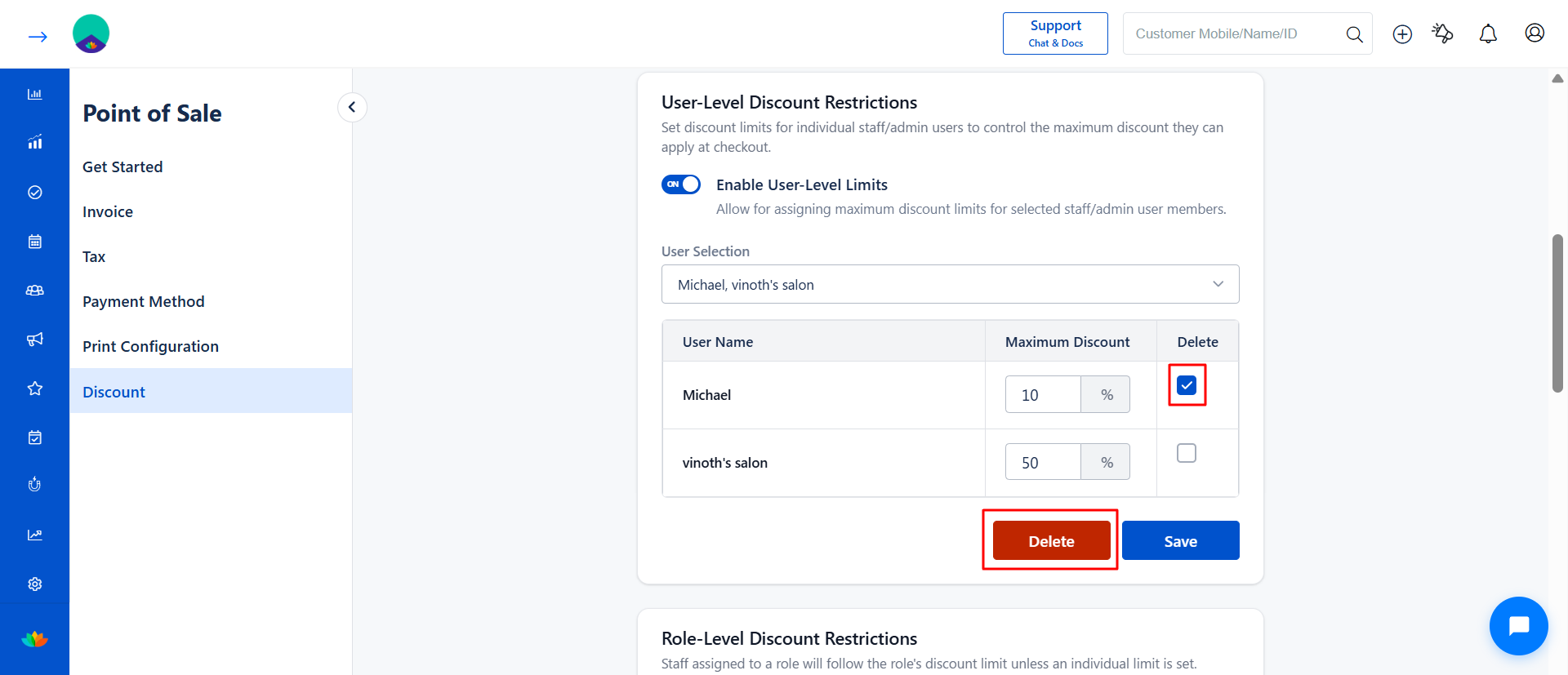
Once deleted:
The role restriction will no longer apply during checkout.
Save Configuration
Step 6: Save the Settings
Click Save after completing the configuration.
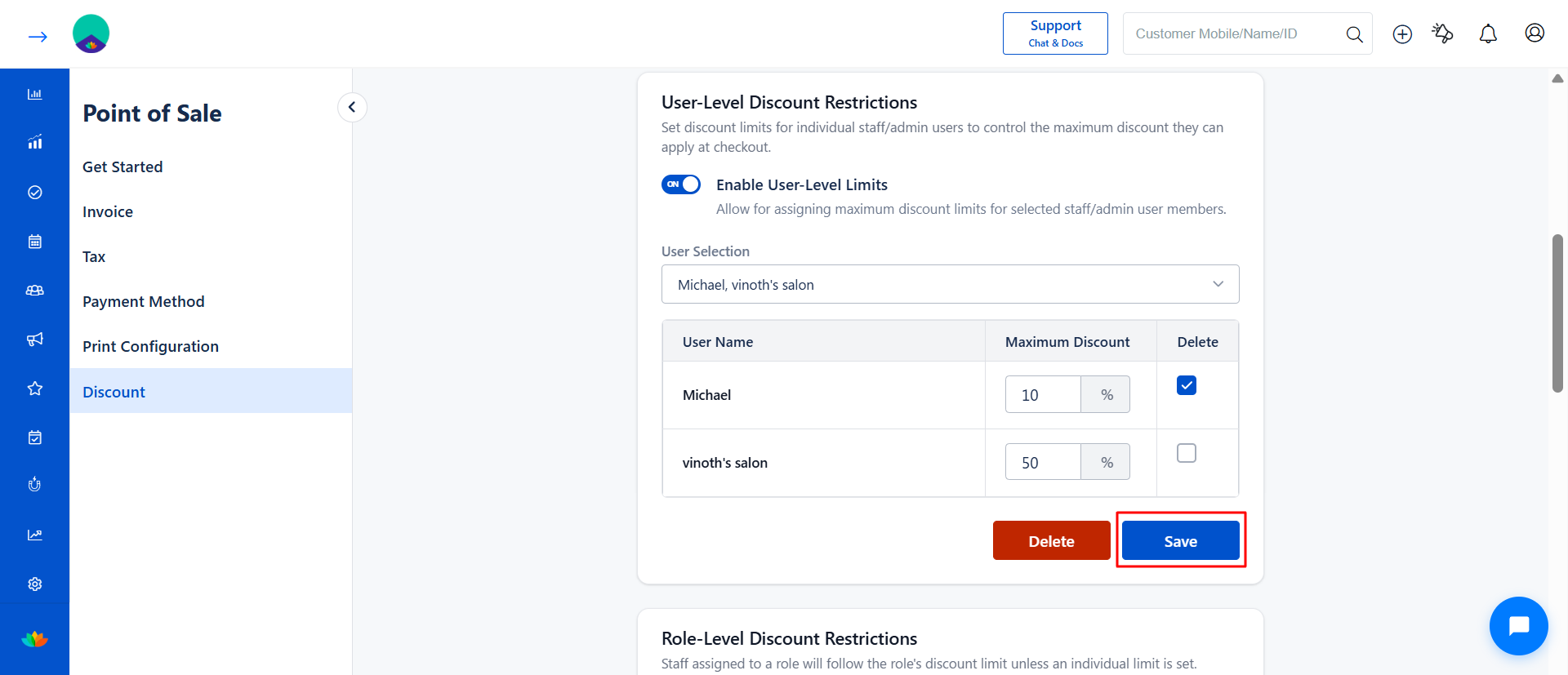
Once saved:
All users mapped to the selected role will follow the configured discount limit.
User-Level Discount Behavior at Checkout
When a user-level discount limit is configured, it takes priority (based on selected rule).
How it Works
Staff selects services/products and proceeds to checkout.
Enters a discount in the Discount field.
The system validates the entered value against the user-level limit.
System Behavior
If the entered discount is within limit → Discount is applied.
If the entered discount exceeds limit →
System restricts the value or
Shows validation message (based on setup).
Example:
User-level limit = 20%
Entered discount = 25%
Discount will not be allowed beyond 20%.
User-Level Restriction Across Multiple Branches
When a login user is mapped to multiple branches, the configured maximum user-level discount restriction will automatically apply across all mapped branches.
This ensures consistent discount control regardless of the branch from which the user performs billing.
How it Works
A staff/admin user may have access to multiple business locations or branches.
If a user-level discount limit is configured for that user, the same restriction will be enforced in every mapped branch.
The user cannot apply a discount beyond the configured limit in any branch.
Example:
User-Level Discount Limit = 15%
User mapped to:
Branch A
Branch B
Branch C
The maximum allowed discount remains 15% across all branches during checkout.
Checkout Behavior
During billing:
The system validates the logged-in user's configured discount restriction.
The same limit is enforced regardless of the selected branch/location.
This helps businesses maintain centralized discount control for users operating across multiple outlets.
Role-Level Discount Restriction Setup
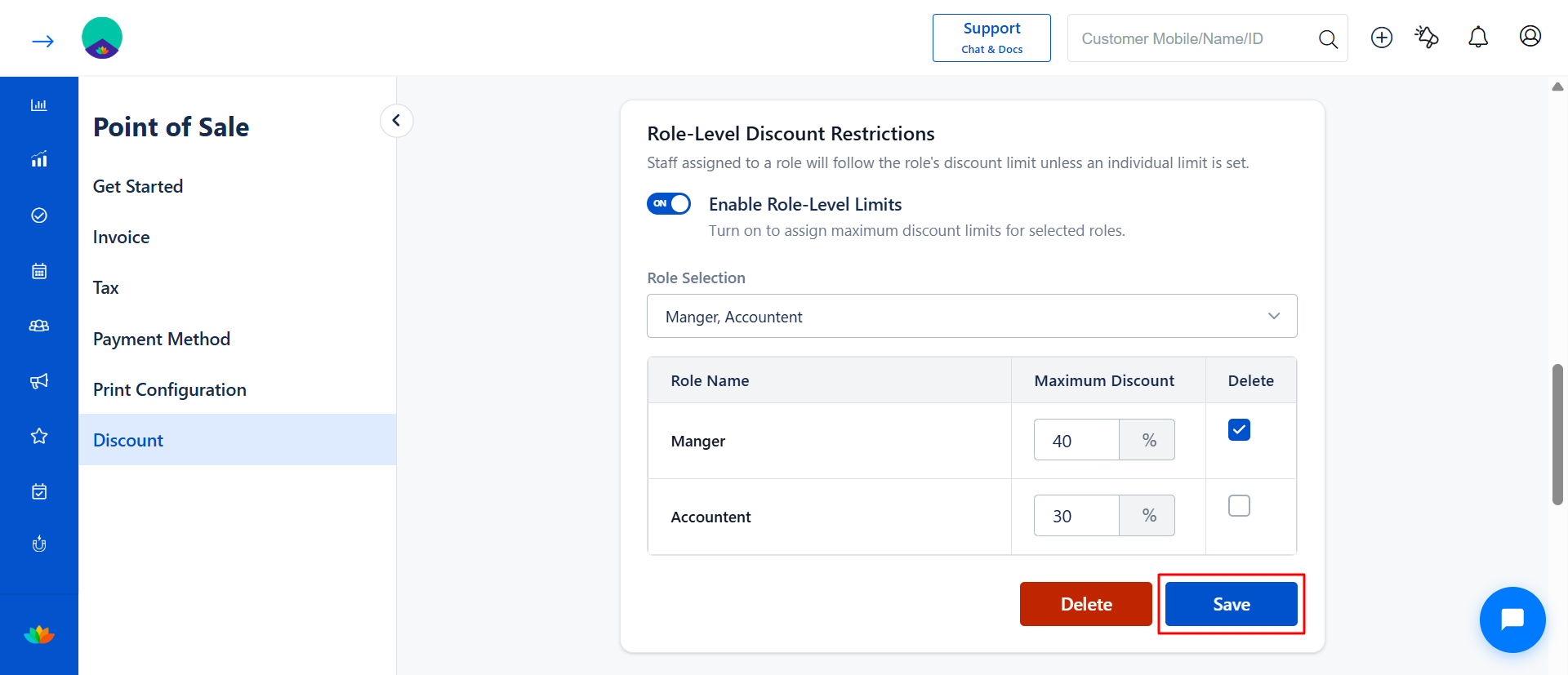
The Role-Level Discount Restriction feature allows businesses to configure maximum discount limits based on staff roles. Staff members assigned to a role will automatically follow the configured discount limit unless an individual user-level restriction is available.
How to Configure Role-Level Discount Restriction
Step 1: Navigate to Discount Settings
Go to:
Settings → Point of Sales → Discount → Configure Discount Restrictions
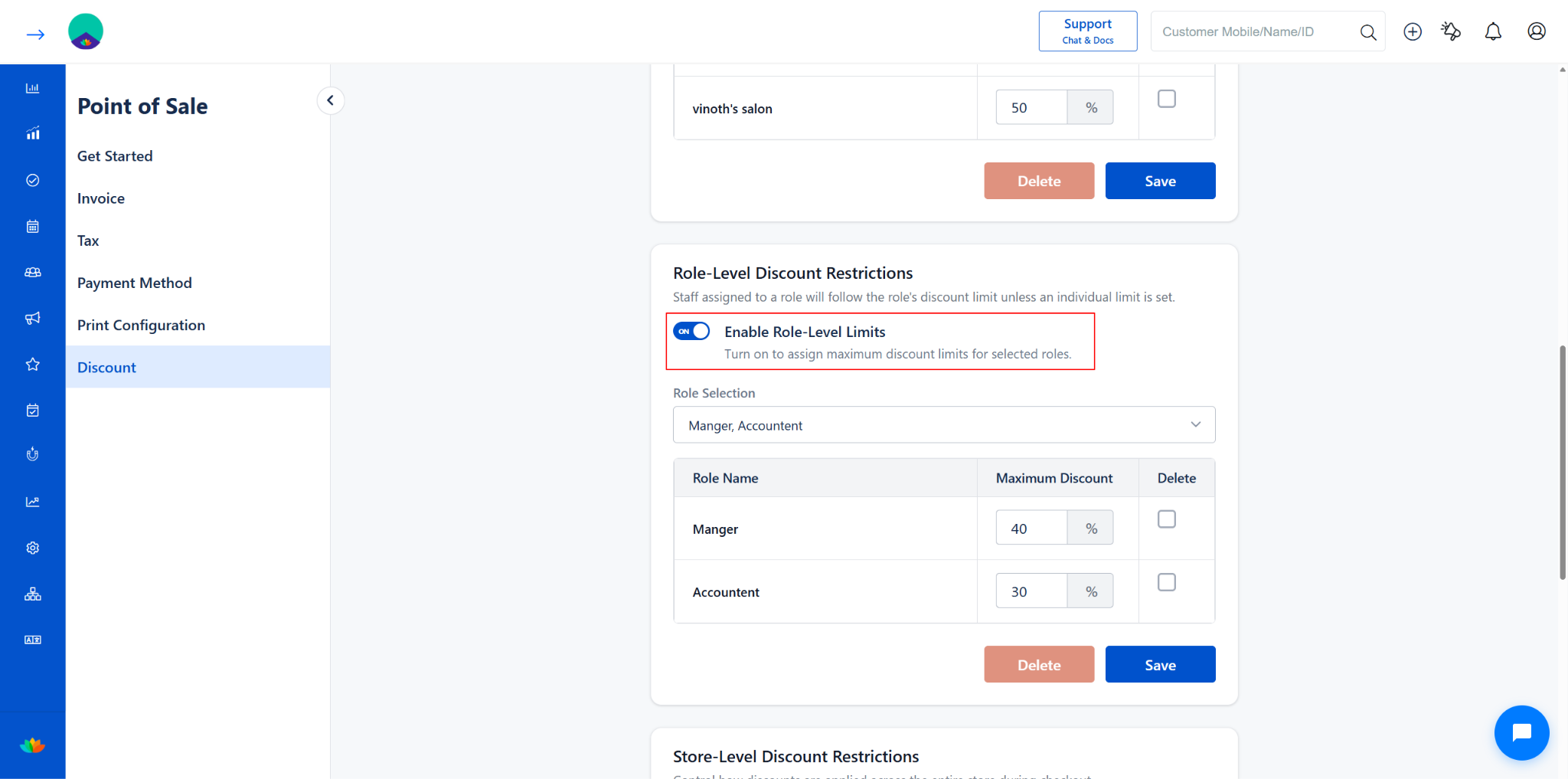
Step 2: Enable Role-Level Limits
Turn ON the toggle:
Enable Role-Level Limits
Once enabled:
The system allows discount restrictions to be configured role-wise.
Role Selection
Step 3: Select the Required Role
Choose the required role from the Role Selection dropdown.
Examples:
Manager
Receptionist
Cashier
Staff
Configure Maximum Discount
Step 4: Enter Maximum Discount Percentage
Provide the maximum allowed discount percentage for the selected role.
Example:
Manager → 10%
This means:
Staff assigned to the Manager role cannot apply discounts beyond 10%.
Delete Role Restriction
Step 5: Remove Role Restriction (Optional)
To remove a configured role-level restriction:
Select the checkbox under the Delete column.
Click the Delete button.
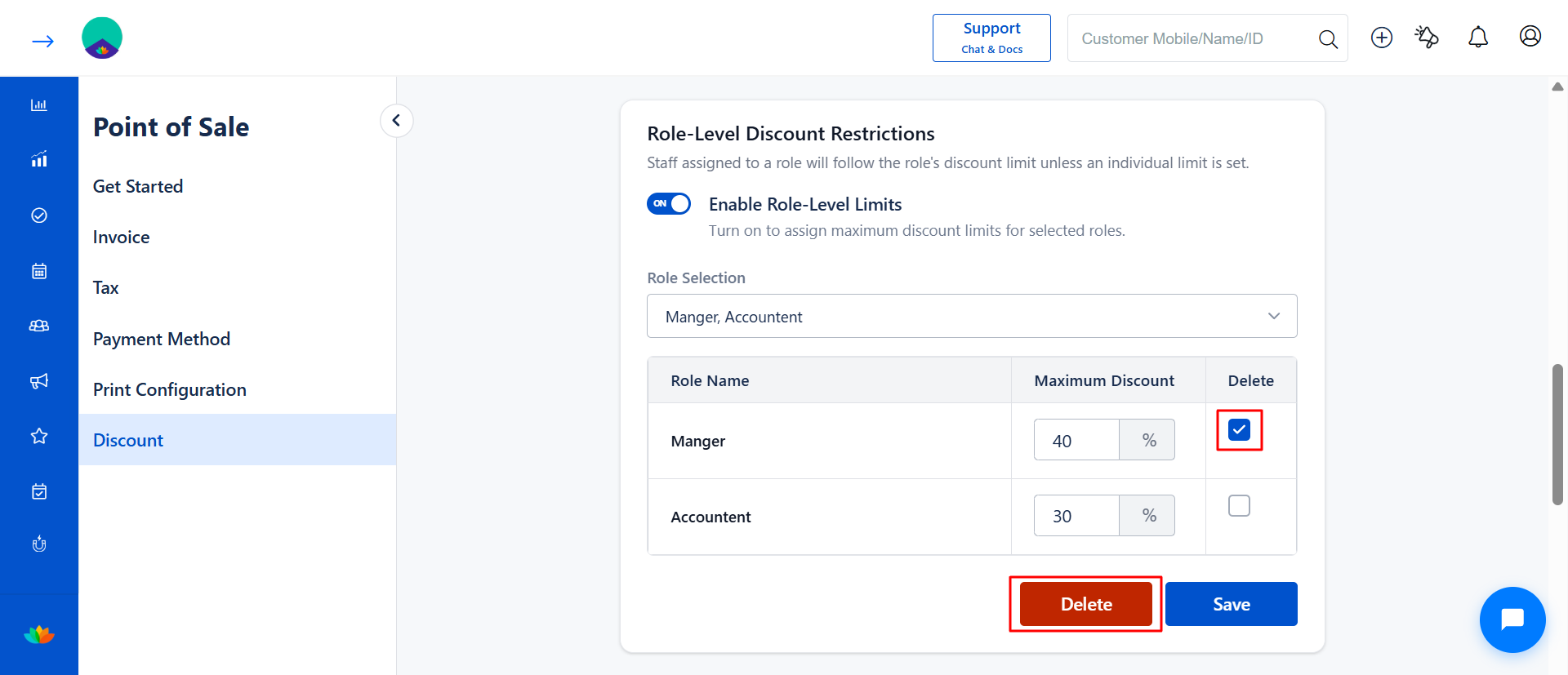
Once deleted:
The role restriction will no longer apply during checkout.
Save Configuration
Step 6: Save the Settings
Click Save after completing the configuration.
Once saved:
All users mapped to the selected role will follow the configured discount limit.
Role-Level Discount Behavior at Checkout
During checkout:
The system validates the logged-in user’s assigned role.
The configured role-level discount restriction is applied automatically.
System Behavior
If entered discount is within the limit → Discount is applied
If entered discount exceeds the limit → System restricts the discount
? Example:
Role: Manager
Maximum Discount: 10%
Entered Discount: 15%
? Only 10% discount will be allowed.
Priority Handling
Role-level restrictions work together with:
User-Level Restrictions
Store-Level Restrictions
The final discount limit depends on the configured Discount Limit Rule.
Example:
Apply Priority-Based Limit
Priority Order:
User → Role → Store
If:
User-Level = 5%
Role-Level = 10%
Store-Level = 15%
Final allowed limit = 5%
Store-Level Discount Restriction Setup
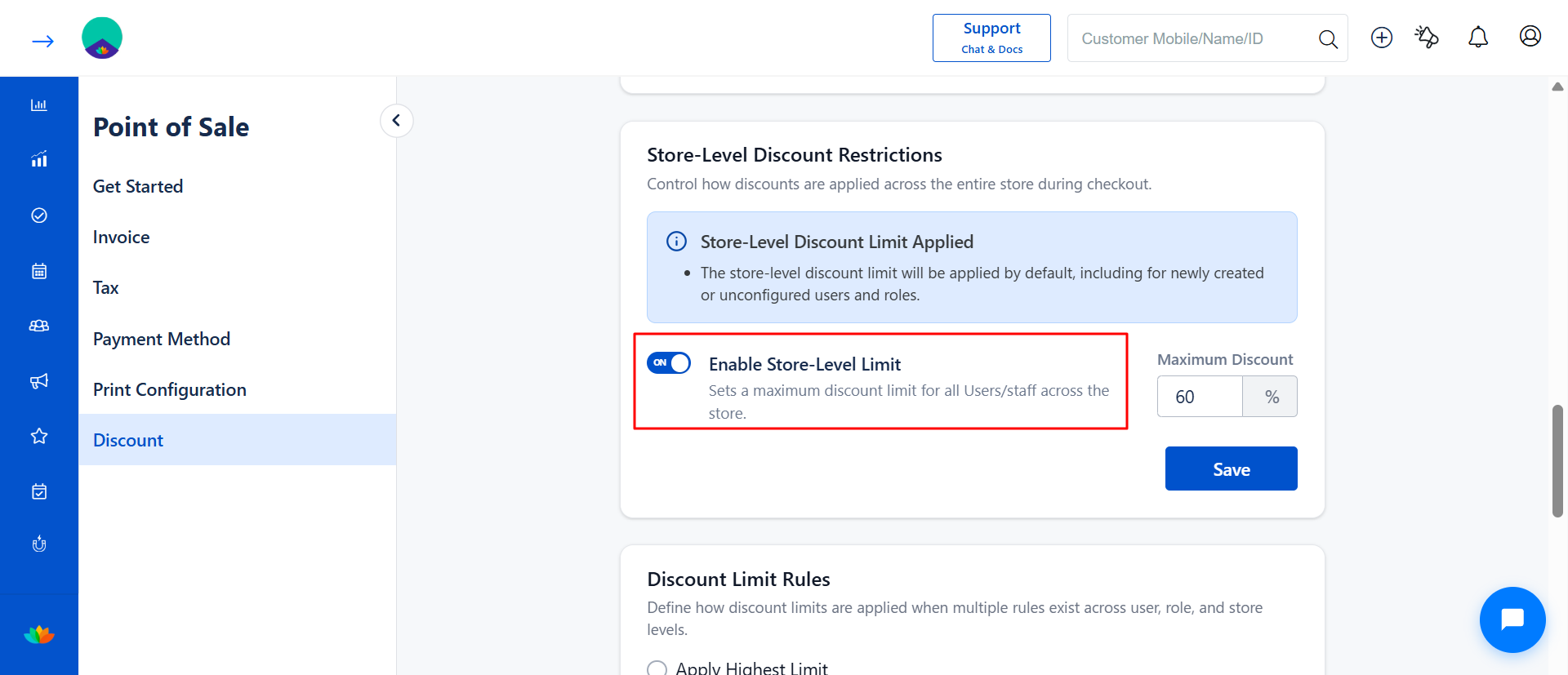
Store-level settings act as the default fallback for all users.
Steps to Configure
Settings → Point of Sales → Discount Settings → Configure Discount Restrictions
Enable Store-Level Discount Restriction toggle.
Enter the maximum discount percentage (0%–100%).
Click Save.
Store-Level Discount Behavior at Checkout
A store-level discount acts as a default/fallback limit.
When Store-Level Applies
User-level limit is not configured
Role-level limit is not configured
New users or roles are not yet set up
How it Works
Staff proceeds to checkout.
Enter the discount value.
System checks store-level limit.
System Behavior
If within limit → Discount applied
If exceeds limit → Restricted to store-level value
? Example:
Store-level limit = 30%
Entered discount = 40%
Only 30% will be allowed.
Discount Limit Rule Configuration
This setting defines how the system decides the final discount limit when multiple limits exist.
Steps to Configure
Go to Discount Settings.
Locate the Discount Limit Rule section.
Choose one of the following options:
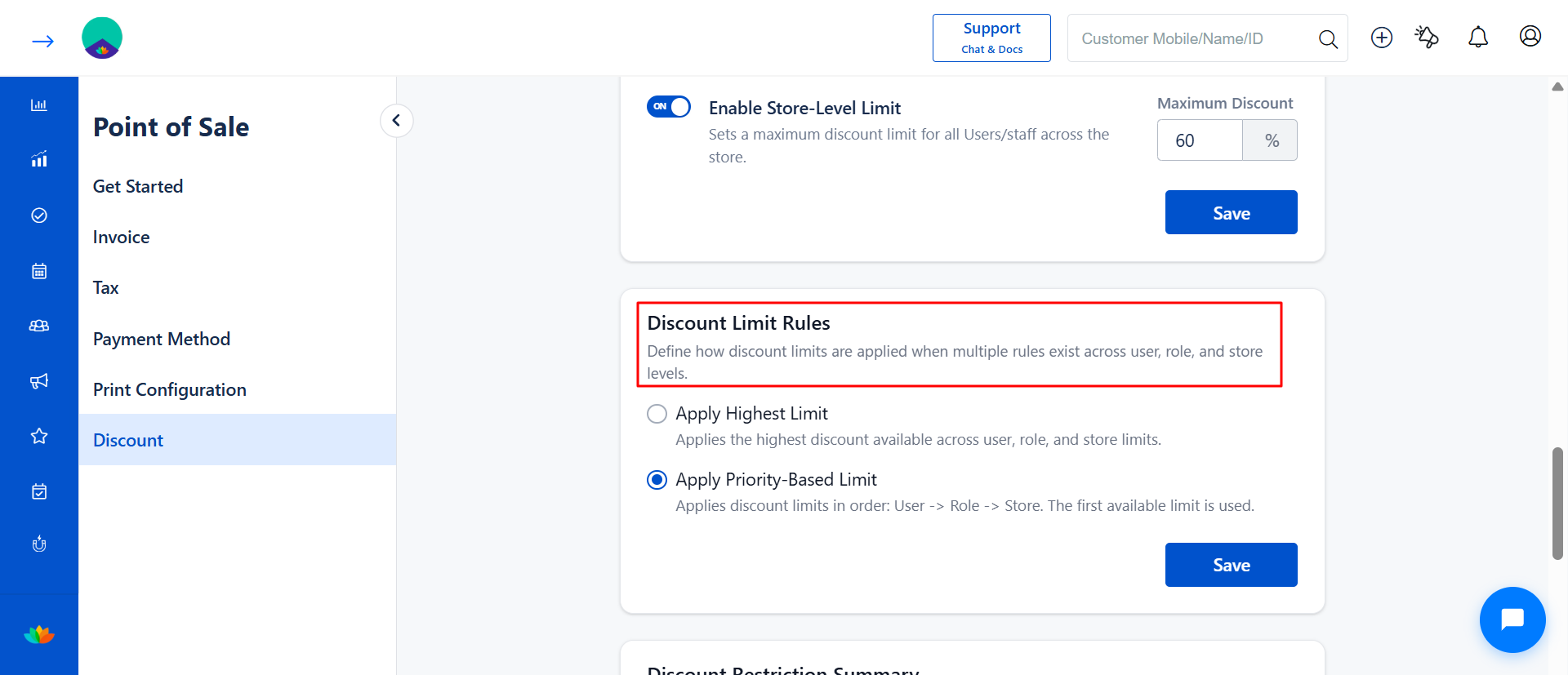
Apply Highest Limit
The system evaluates all configured limits (User, Role, Store).
The highest discount percentage is applied.
Apply Priority-Based Limit
The system follows this order:
User → Role → StoreThe first available limit is applied.
Click Save.
This ensures consistent discount behavior during checkout. (See screenshot)
Behavior-Based Discount Limit Rule Working
Apply Highest Limit
System compares all available limits (User, Role, Store)
Applies the highest value
Example:
User = 20%, Store = 30%
Allowed = 30%
Apply Priority-Based Limit
System follows order:
User → Role → StoreFirst available limit is applied
Example:
User = 20%, Store = 30%
Allowed = 20%
Discount Restriction Summary
The Discount Restriction Summary section displays the currently applied discount limit for each user during billing.
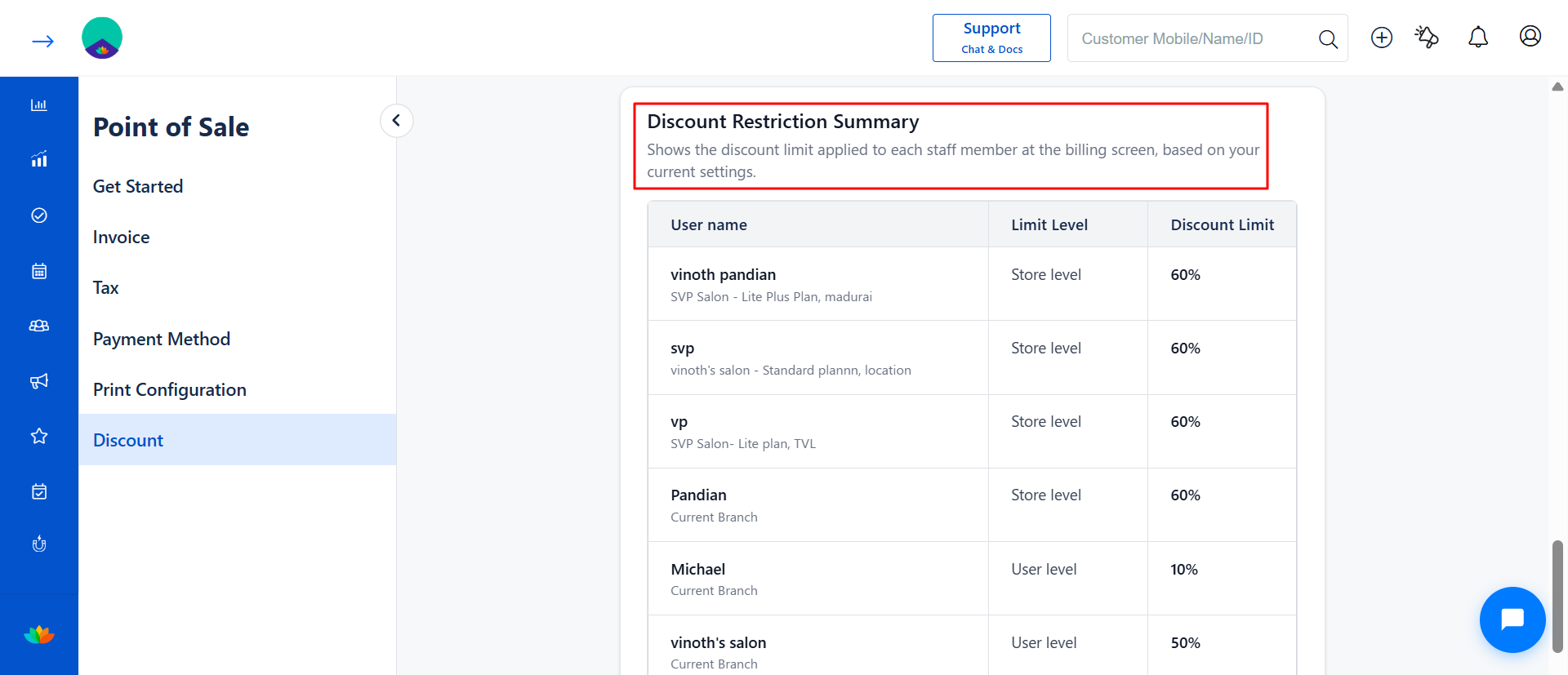
The summary helps businesses quickly identify:
User Name
Applied Limit Level
Configured Discount Limit
Limit Levels Shown in Summary
Store Level
Indicates that the user follows the store-level configured discount restriction.
User Level
Indicates that the user has an individually configured discount restriction.
Role Level
Indicates that the user follows the restriction configured for the assigned role.
Purpose of the Summary
The Discount Restriction Summary helps:
Verify active discount configurations
Identify which restriction rule is applied to each user
Improve transparency during billing operations
Reduce confusion in multi-user and multi-branch environments
Example:
User A → User-Level Restriction = 10%
User B → Store-Level Restriction = 10.3%
User C → Role-Level Restriction = 15%
The summary dynamically reflects the actual restriction applied during checkout.
Membership & Package Discount Behavior (Important)
Membership and package discounts are not restricted by discount limits during Checkout.
How it Works
These discounts are applied automatically
The system does not validate against configured limits
Example:
Configured discount limit = 30%
Membership and Package discount = 40%
Full 40% will be applied
Use Cases
Prevent excessive discounts by junior staff.
Allow senior staff or managers higher discount flexibility.
Maintain consistent discount policies across multiple branches.
Control discount usage for new or unconfigured users.
Benefits
Better Control: Define who can give how much discount.
Reduced Revenue Leakage: Prevent over-discounting.
Flexible Configuration: Supports user, role, and store-level rules.
Improved Transparency: Clear visibility during checkout.
Scalable Setup: Works well for single and multi-branch salons.
Important Notes
Store-level limit acts as a fallback if no other limits are configured.
New users or roles will follow the store-level limit by default.
Existing configurations are auto-migrated without changing values.
Membership and package discounts are not restricted.
Discount restriction is enforced during billing at the store level.
Was this article helpful?
That’s Great!
Thank you for your feedback
Sorry! We couldn't be helpful
Thank you for your feedback
Feedback sent
We appreciate your effort and will try to fix the article