Overview
Print Configuration in MioSalon allows you to control how invoices are formatted and printed during billing. You can customize invoice headers, footers, customer details, invoice name, and logo placement, and preview the invoice before finalizing it.
This ensures invoices are professional, branded, and compliant with your business requirements.
Canonical Guided Steps
To access Print Configuration
Log in to your MioSalon account.
From the left-side menu, click Settings.
Under Settings, click Business Settings.
Scroll down and select Point of Sale.
Click Print Configuration.
To configure print settings
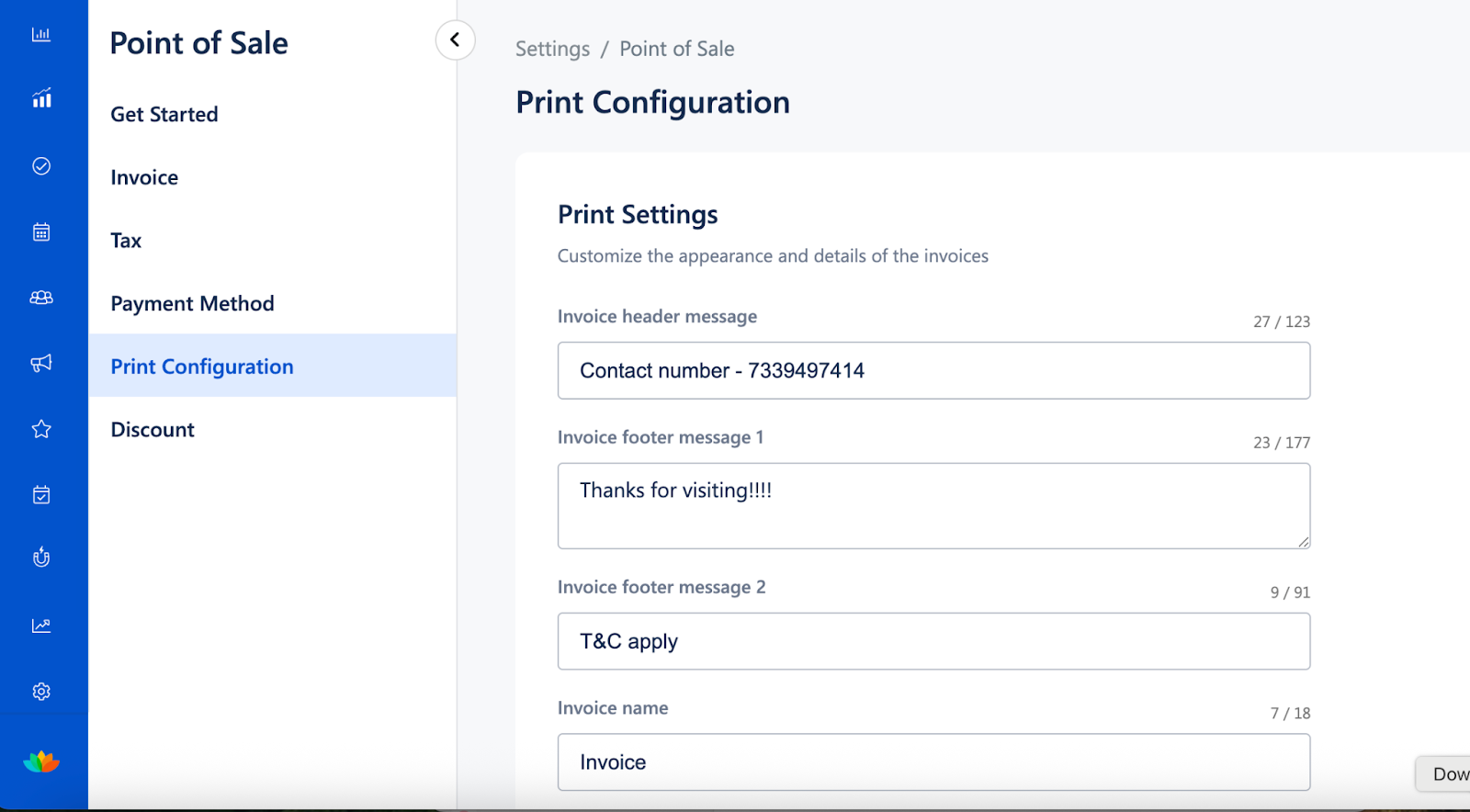
In the Print Settings section, enter or update the following details as required:
Contact number to be displayed on the invoice
Header message (for example, a welcome or brand message)
Footer message (for example, thank-you note or terms)
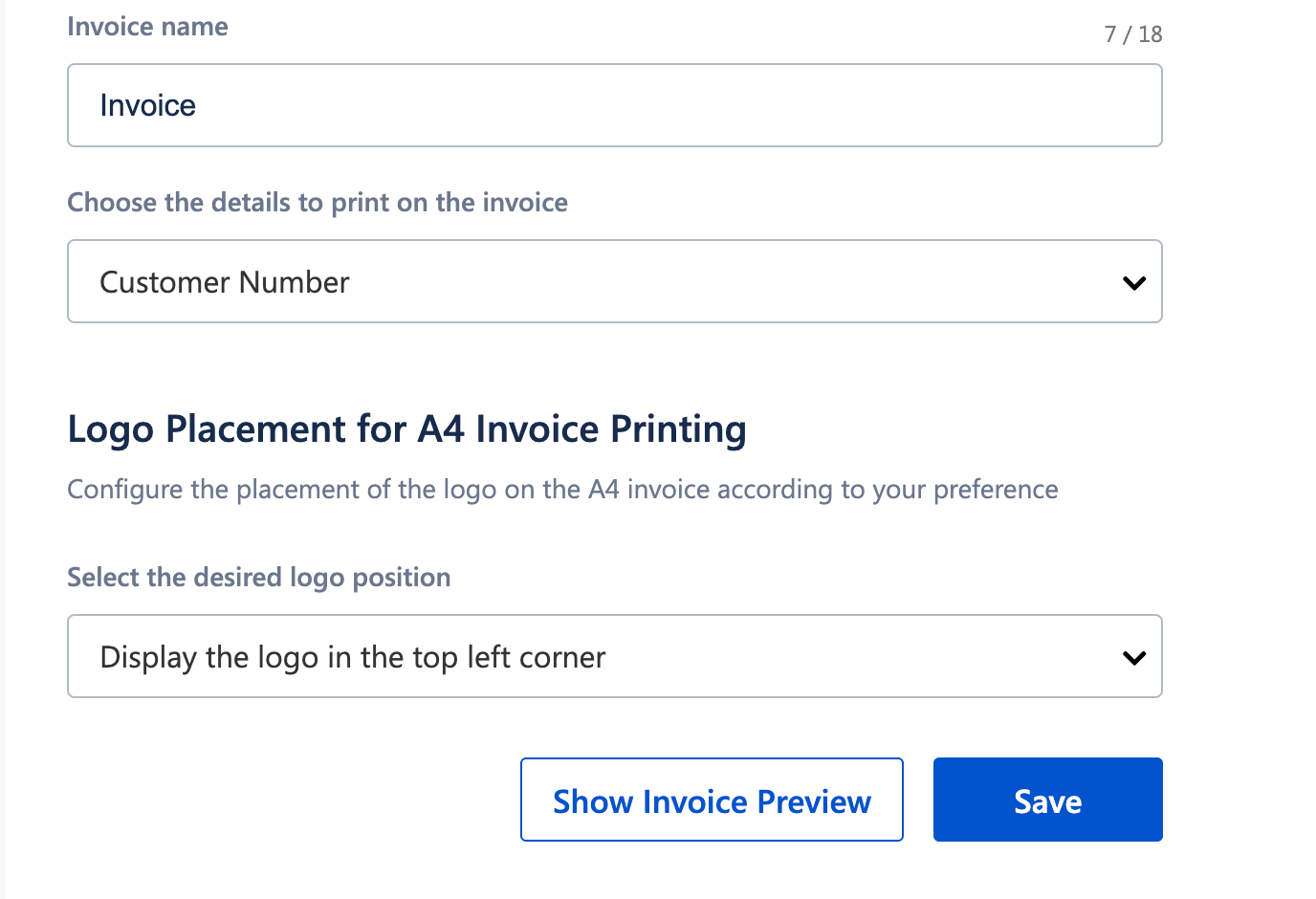
Invoice name (such as Invoice, Tax Invoice, Receipt)
Choose the customer details you want to display on the invoice.
Under Logo Placement for A4 Invoice Printing, select where the logo should appear on the printed invoice.
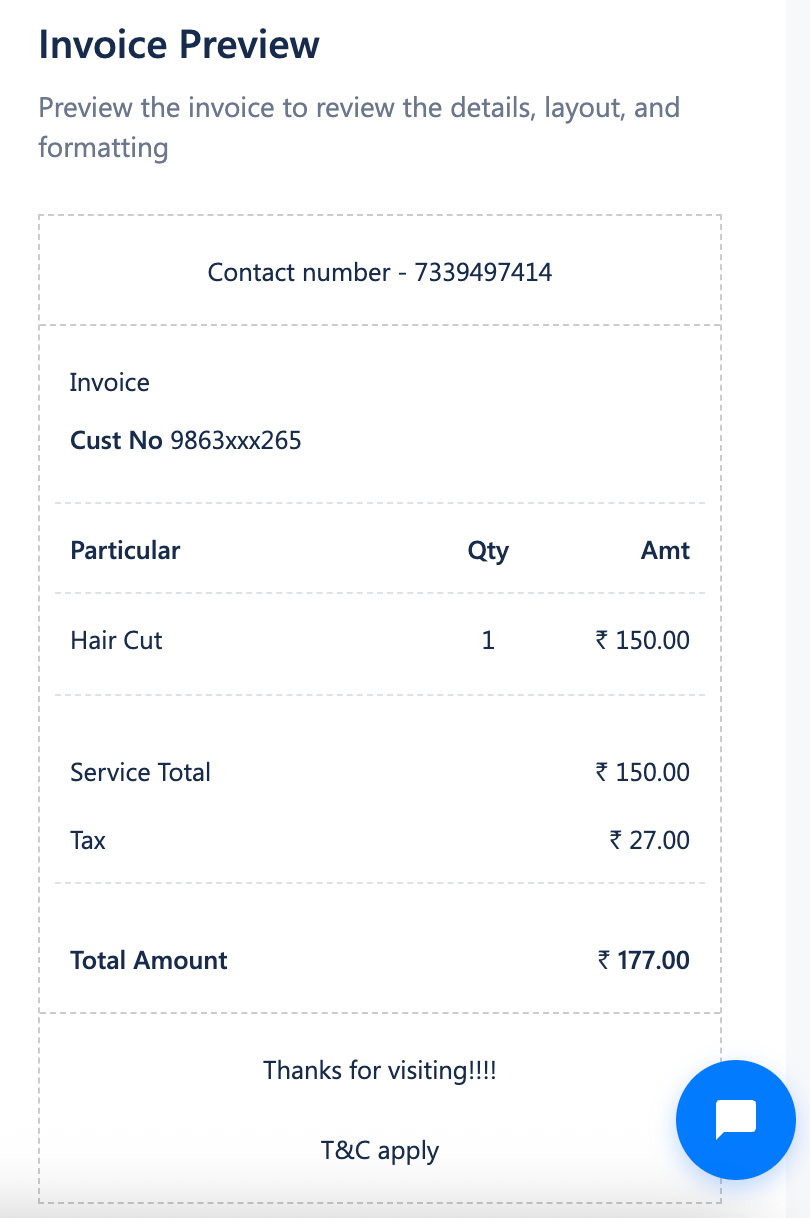
Click Show Invoice Preview to review the layout and formatting.
Click Save to apply the changes.
All future invoices will now follow the updated print configuration.
Important Notes
Print configuration changes apply only to newly generated invoices.
Existing invoices are not updated when print settings are changed.
Invoice Preview helps verify layout, tax breakup, and totals before printing.
Ensure messages and details entered are customer-appropriate, as they appear on printed invoices.
Use Cases
Branded invoices
Display your business logo and custom messages to maintain a professional brand identity.Customer communication
Add thank-you notes or terms and conditions directly on invoices.Compliance and clarity
Choose which customer details appear on invoices for clear identification.Error prevention
Use Invoice Preview to avoid formatting or content issues before printing.Multi-outlet consistency
Standardize invoice appearance across all locations.
Was this article helpful?
That’s Great!
Thank you for your feedback
Sorry! We couldn't be helpful
Thank you for your feedback
Feedback sent
We appreciate your effort and will try to fix the article