Overview
Creating a Custom Tax Name allows you to define a tax label that matches your country’s or region’s tax system instead of using a default name. This ensures the correct tax terminology is displayed consistently across invoices, POS bills, and customer-related screens.
Once configured, the custom tax name is applied globally across the MioSalon system.
To create or update a custom tax name
Log in to your MioSalon account.
From the left-side menu, click Settings.
Under Settings, click Business Settings.
Scroll down and select Point of Sale.
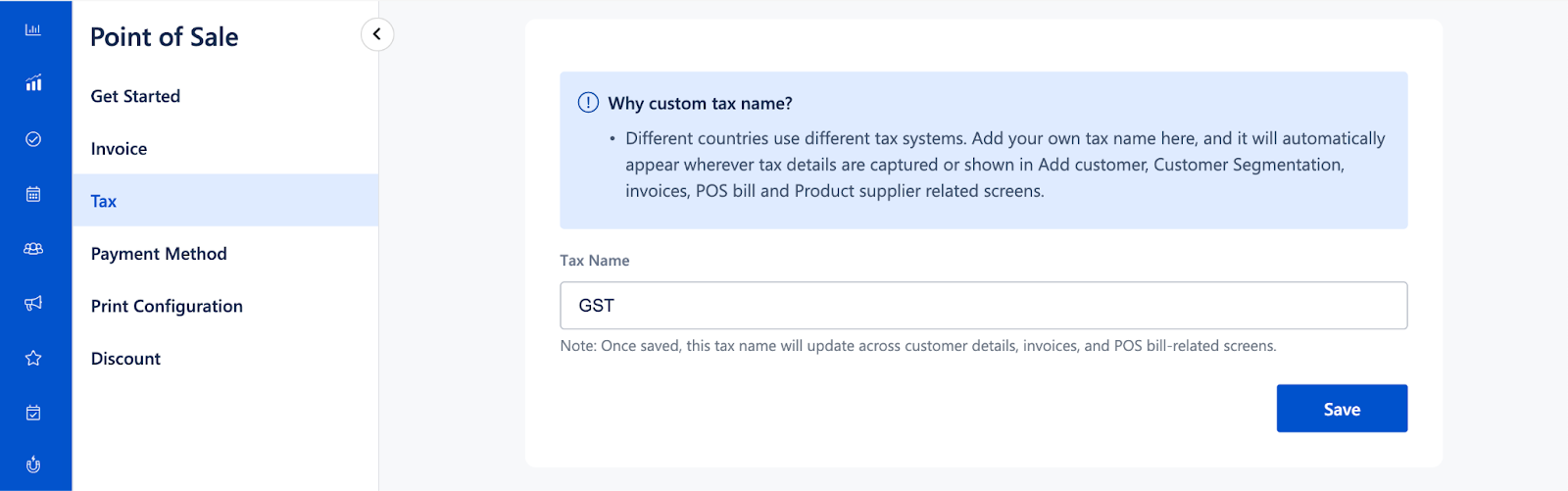
Click Tax.
Under the Tax Name section, enter the required custom tax name
(for example: GST, VAT, Sales Tax).Click Save.
The custom tax name will now be reflected across all relevant POS and invoice screens.
Important Notes
The custom tax name changes only the tax label, not the tax percentage or calculation logic.
This setting is applied globally across the business.
Existing invoices are not recalculated, but the updated tax name will appear wherever tax labels are displayed.
Use a tax name that complies with local statutory requirements, as it appears on customer-facing invoices.
Use Cases
Region-specific tax compliance
Display the correct tax terminology as required by local regulations.Multi-country business operations
Customize tax names without altering tax calculation logic.Customer-facing clarity
Ensure customers see familiar and accurate tax labels on invoices.Consistent system-wide reporting
Maintain uniform tax naming across invoices, POS bills, and customer records.
Was this article helpful?
That’s Great!
Thank you for your feedback
Sorry! We couldn't be helpful
Thank you for your feedback
Feedback sent
We appreciate your effort and will try to fix the article