Overview
The Business Details section in MioSalon is where you establish your salon's primary identity and configure essential regional settings that standardize operations across your entire system. It allows you to enter your business name and contact details so your salon is correctly identified across invoices, booking calendars, and client communications. You can also set your local currency, time zone, country, and language to ensure that checkouts, appointment slots, and financial reports are accurate for your region. Keeping this information up to date ensures a seamless and professional experience for both your staff and your clients.
Navigation Path
Settings → Business Details → Business Details Configuration
Steps
- Log in to your MioSalon account and click on Settings from the left-side navigation menu.
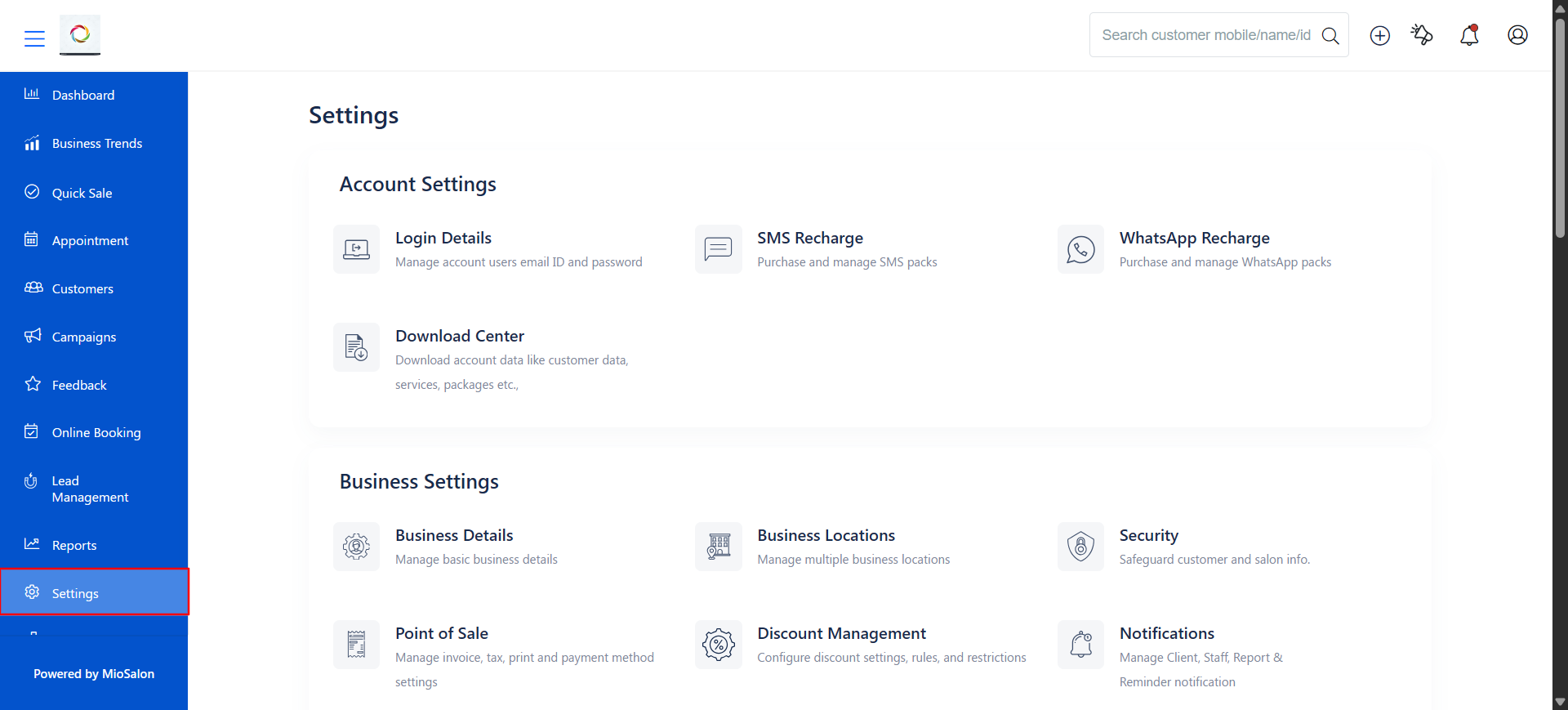
- Under the Business Settings section, click on Business Details.
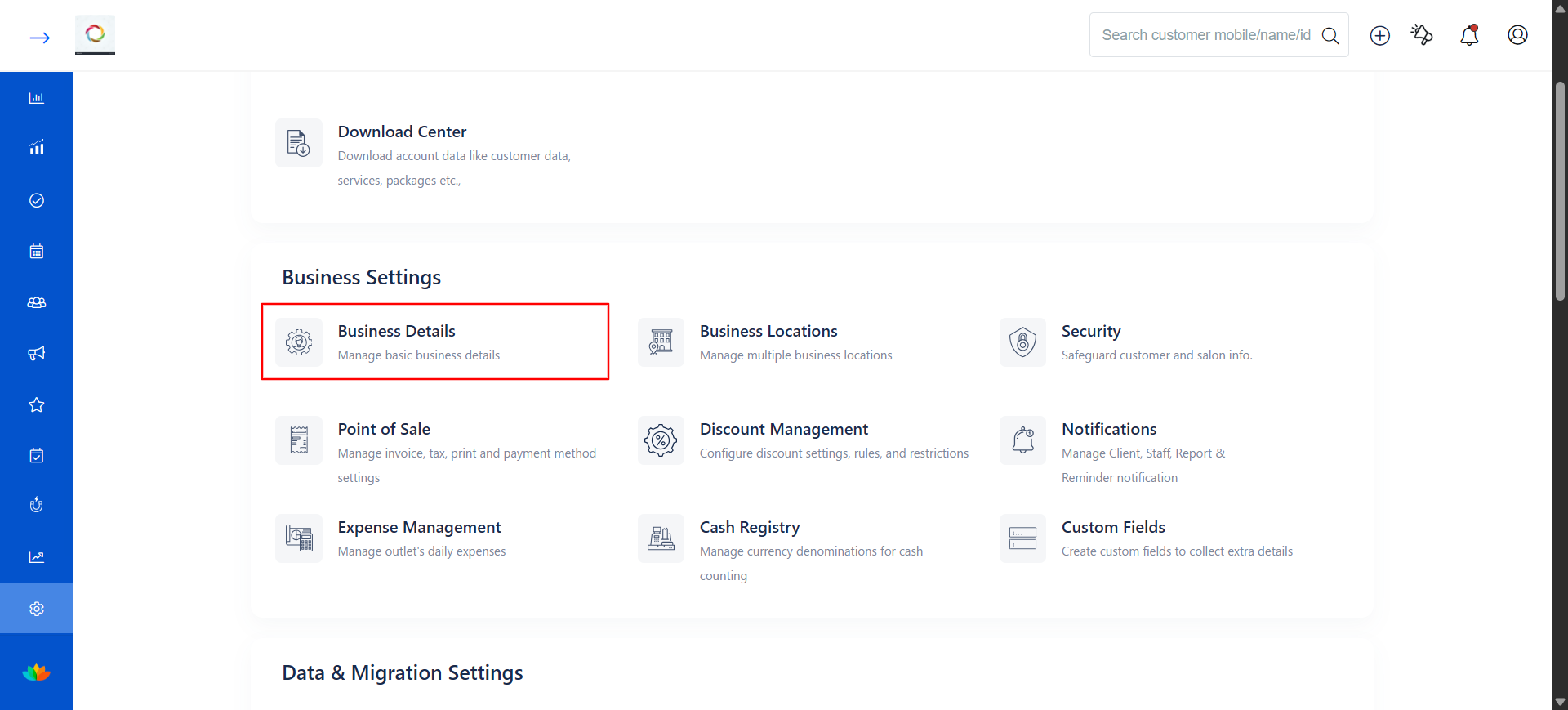
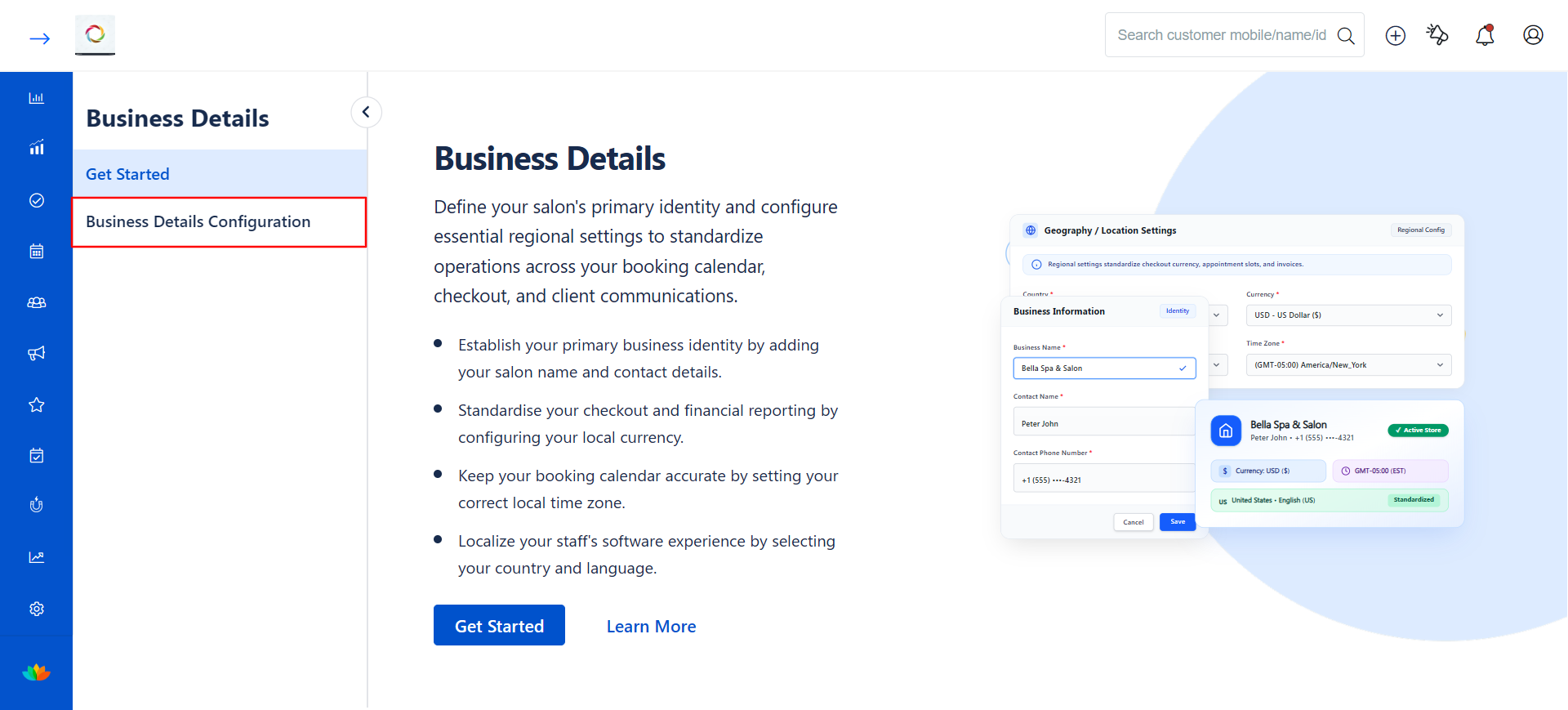
- You will be taken to the Business Details overview page. Click on Business Details Configuration from the left panel to begin configuring your settings.
- Under the Business Information section, fill in the following required fields:
Field Description Sample Data Business Name The official name of your salon or spa E.g., Joe & Joe Salon's Contact Name Name of the primary contact person for your business E.g., Smith Joe Contact Phone Number Active phone number for business contact E.g., 5461XXXXXX 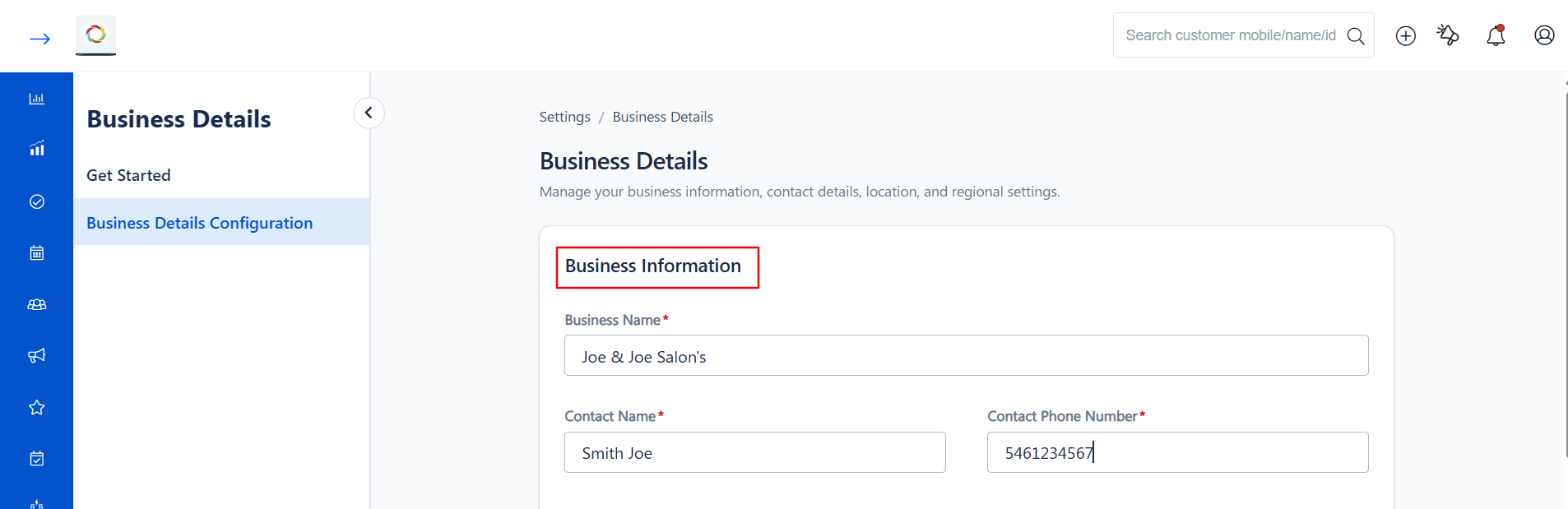
- Scroll down to the Geography/Location settings section. Review the info notice on screen, then fill in the required regional fields:
Field Description Sample Data Country The country where your business is located E.g., India Currency The currency used for checkouts and financial reporting E.g., Indian Rupee Language The language displayed in the software interface for your staff E.g., English Time Zone Your local time zone for accurate appointment scheduling E.g., (GMT+05:30) Chennai, Kolkata, Mumbai, New Delhi 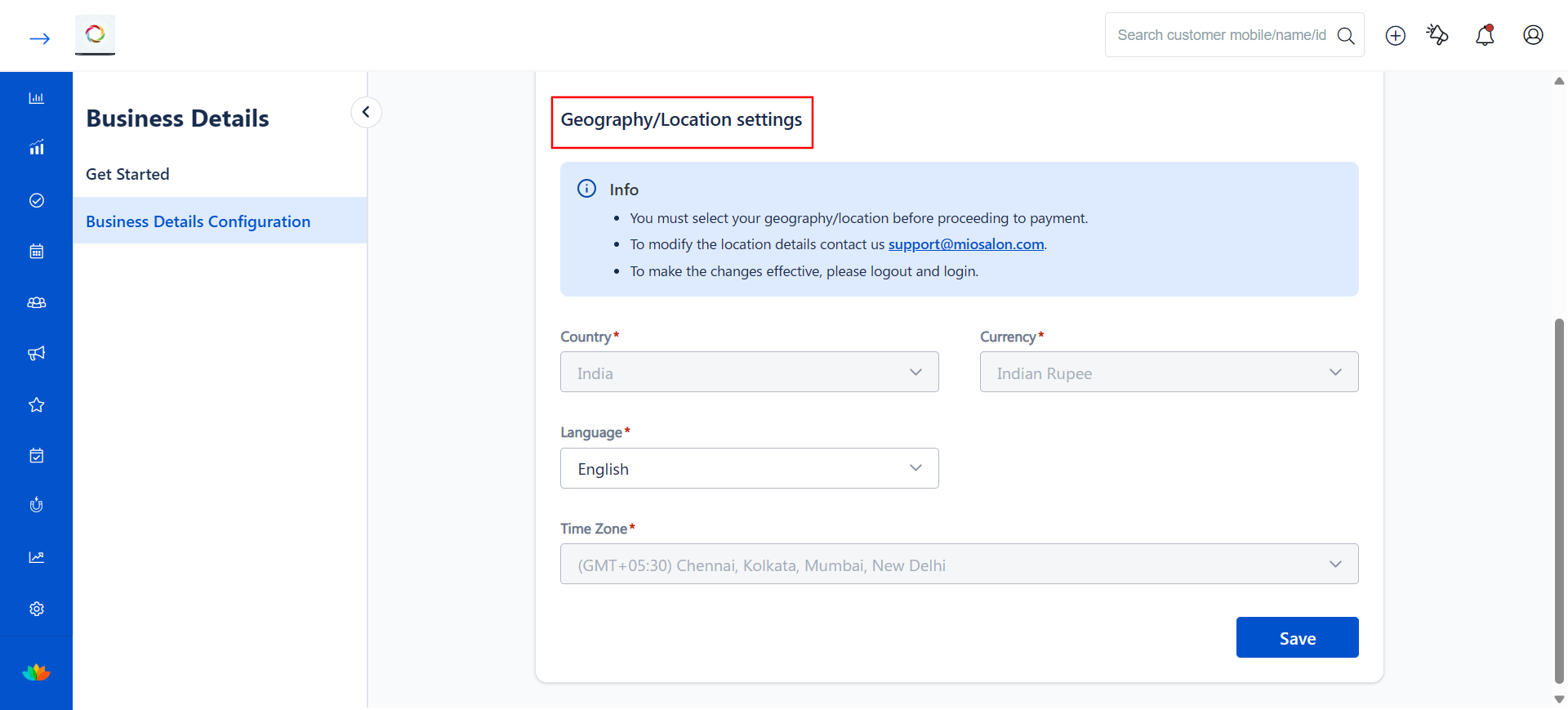
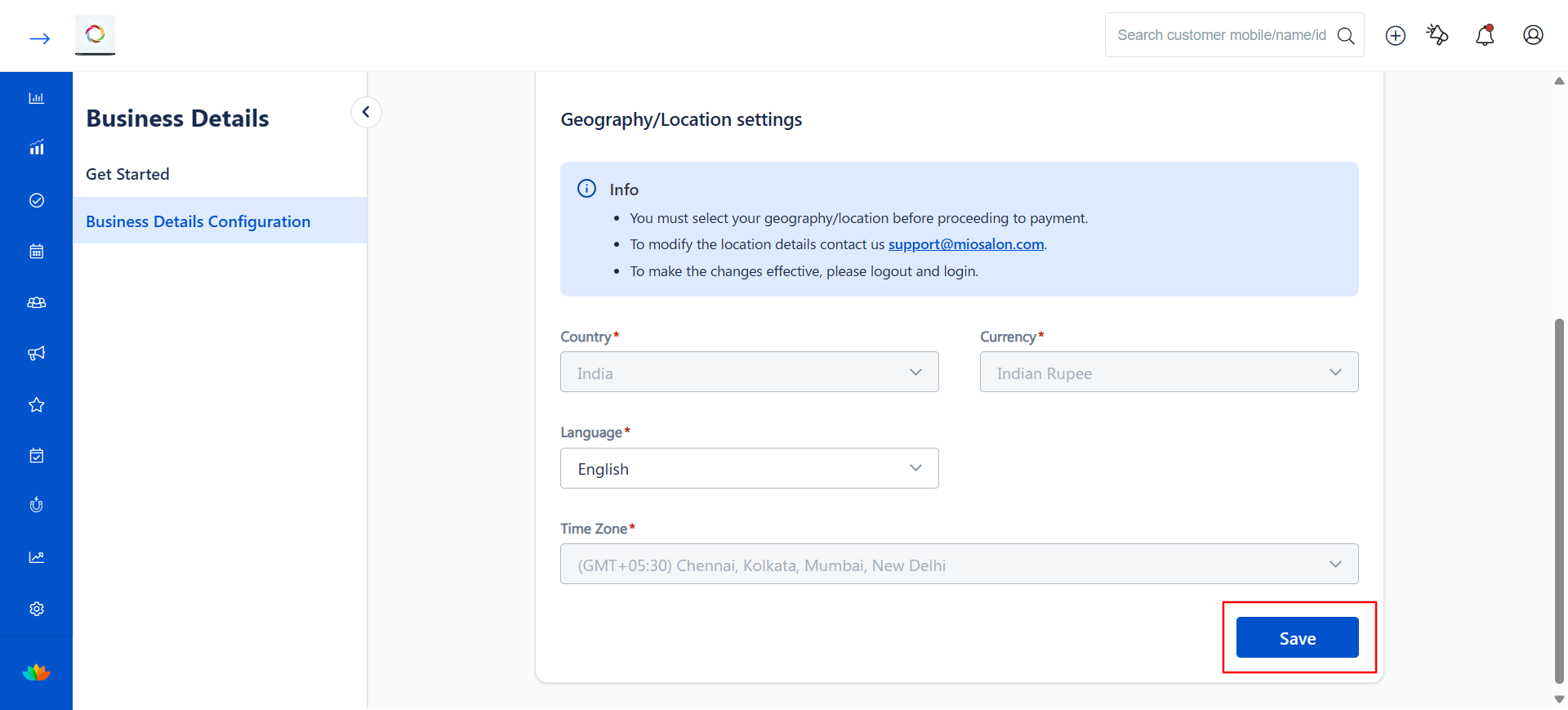
- Once all fields are filled in, click Save to apply the changes.
Note
- You must select your geography/location settings before proceeding to payment setup.
- To modify location details (Country, Currency, Time Zone), contact the MioSalon support team at support@miosalon.com, as these fields may be restricted after initial setup.
- After saving your changes, please log out and log back in for the new settings to take effect across the platform.
Use Cases
- A newly onboarded salon needs to enter its business name and contact details before going live on MioSalon.
- A multi-outlet salon group wants to standardize the currency and time zone across all locations.
- A salon relocating to a new city needs to update its contact phone number so clients can reach them at the correct number.
- A salon that recently rebranded wants to update its business name so it appears correctly on all invoices and client-facing communications.
- A salon serving an international clientele wants to set the correct language so that their staff can navigate the software comfortably.
Benefits
- Ensures your salon's identity is accurately displayed on invoices, reports, and client-facing booking pages.
- Accurate currency settings eliminate errors in checkout, billing, and financial reporting.
- Setting the correct time zone keeps your appointment calendar accurate and prevents scheduling conflicts.
- Language and country settings localize the platform experience for your staff, improving usability and reducing errors.
- Keeping contact details current ensures clients and the support team can always reach your business quickly.
Was this article helpful?
That’s Great!
Thank you for your feedback
Sorry! We couldn't be helpful
Thank you for your feedback
Feedback sent
We appreciate your effort and will try to fix the article