Feature overview
This feature enables end-to-end management of appointment status follow-ups by allowing you to configure when reminders start and how frequently they are triggered for pending updates. It includes real-time alert popups to notify users about appointments that require immediate action, ensuring timely status updates and accurate record maintenance. Additionally, it provides detailed insights into follow-up activities across users and branches, helping track pending appointments, monitor user responsiveness, and improve overall scheduling efficiency and operational visibility.
Navigation Path
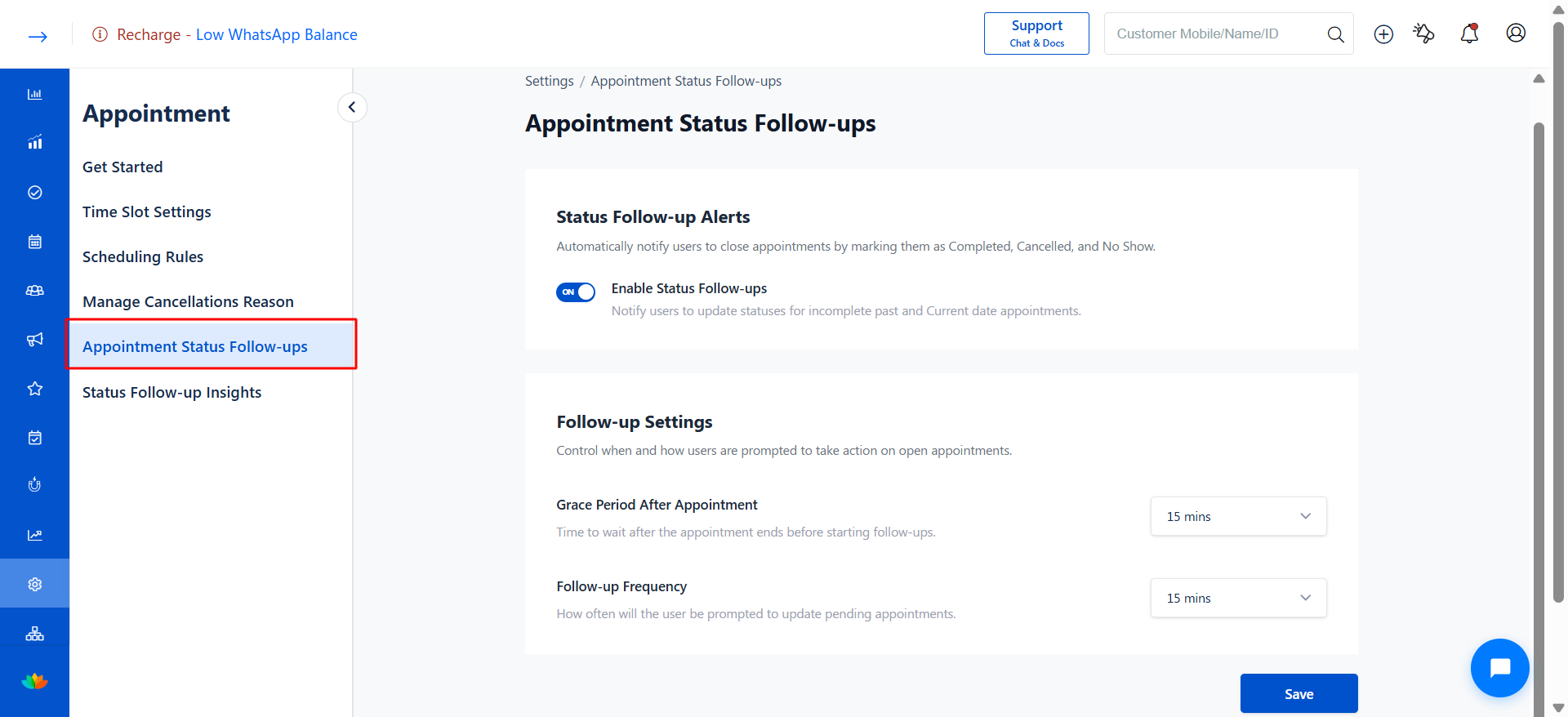
Settings → Appointment → Appointment Status Follow-ups
Steps to Configure Follow-up Timings
1. Open Appointment Status Follow-ups
Go to Settings.
Navigate to Appointment.
Click on Appointment Status Follow-ups.
2. Enable Status Follow-ups
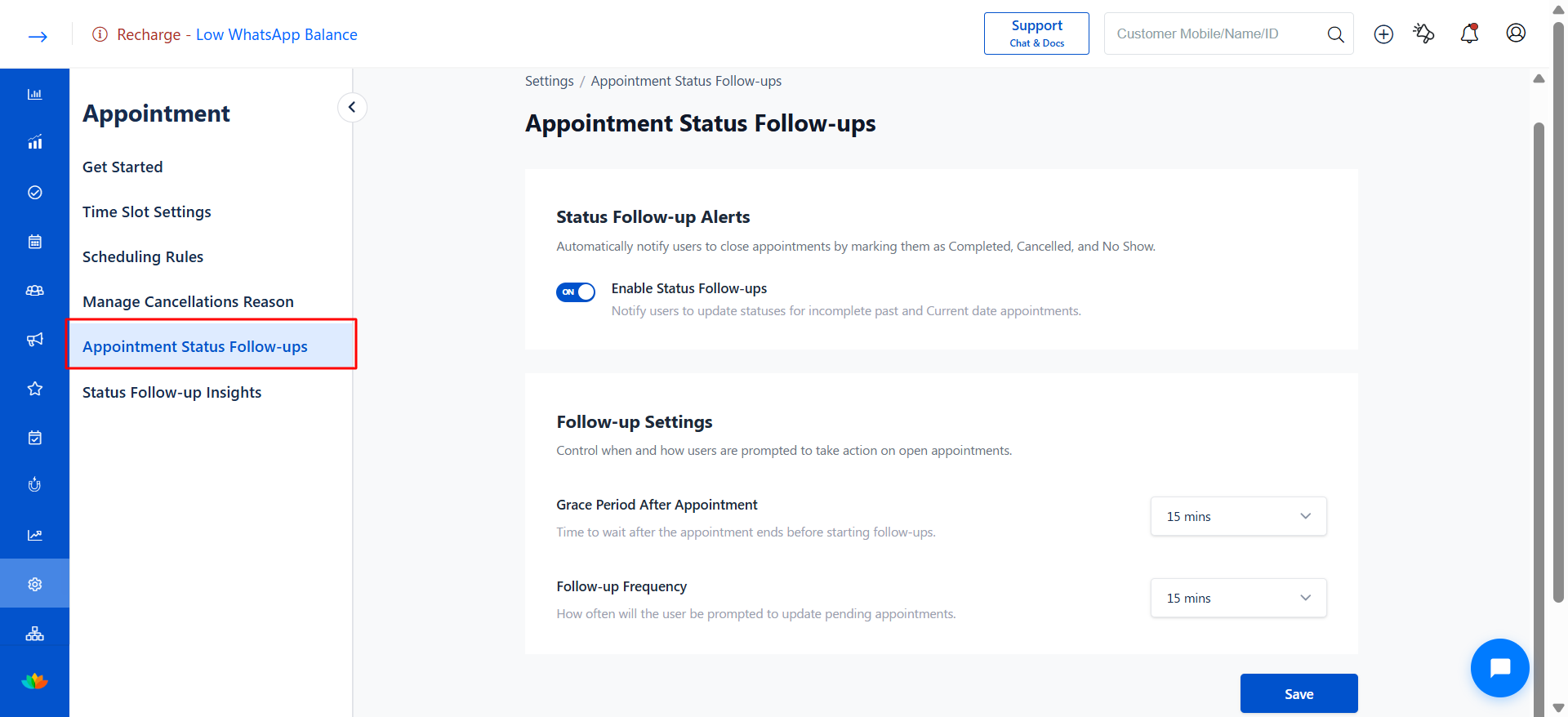
Turn ON the Enable Status Follow-ups toggle.
This activates reminders for incomplete past and current appointments.
3. Configure Grace Period After Appointment
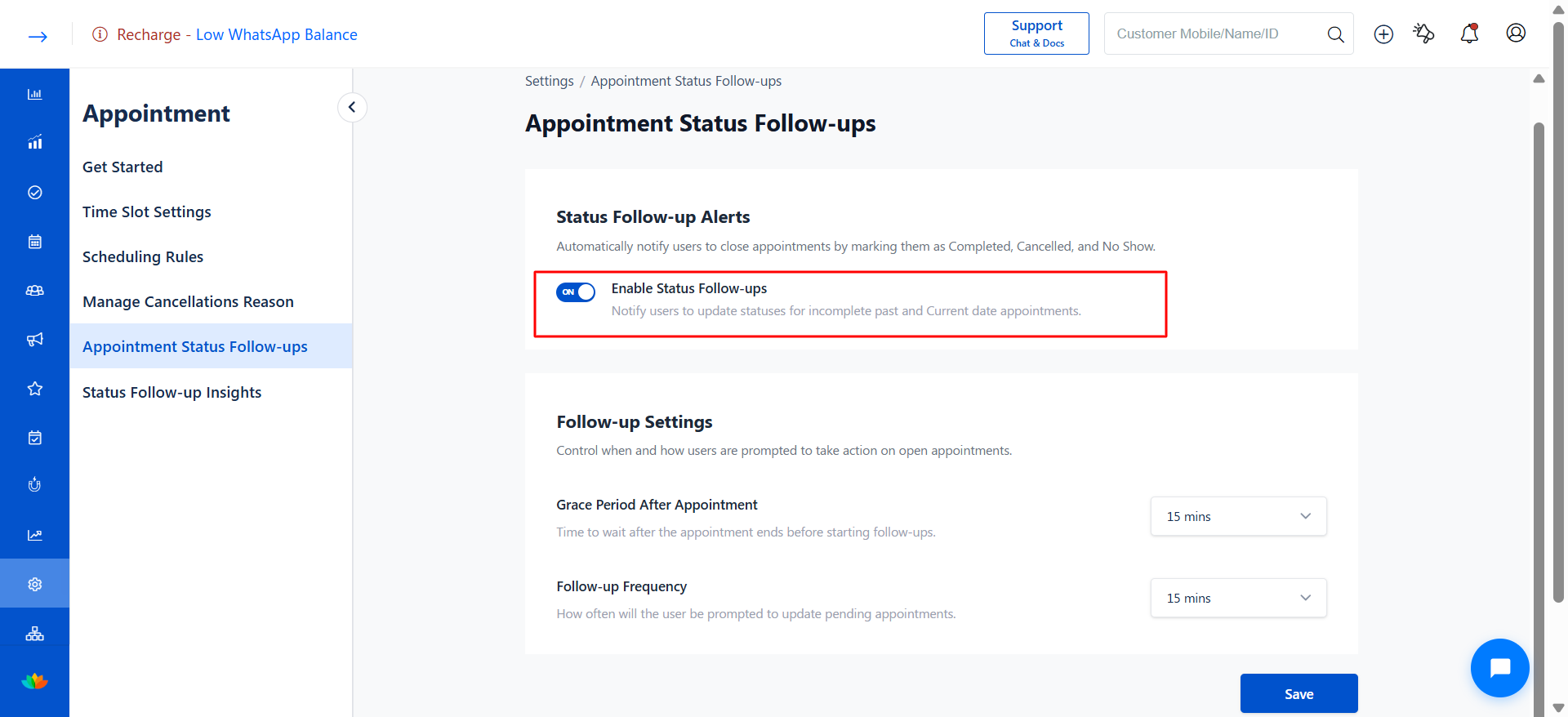
Locate Grace Period After Appointment.
Select a value from the dropdown:
15 Minutes
30 Minutes
45 Minutes
1 Hour
2 Hours
3 Hours
4 Hours
5 Hours
What this means:
This defines how long the system waits after the appointment ends before starting follow-up reminders.
Example:
If an appointment ends at 2:00 PM and grace period is 30 minutes, follow-ups start at 2:30 PM.
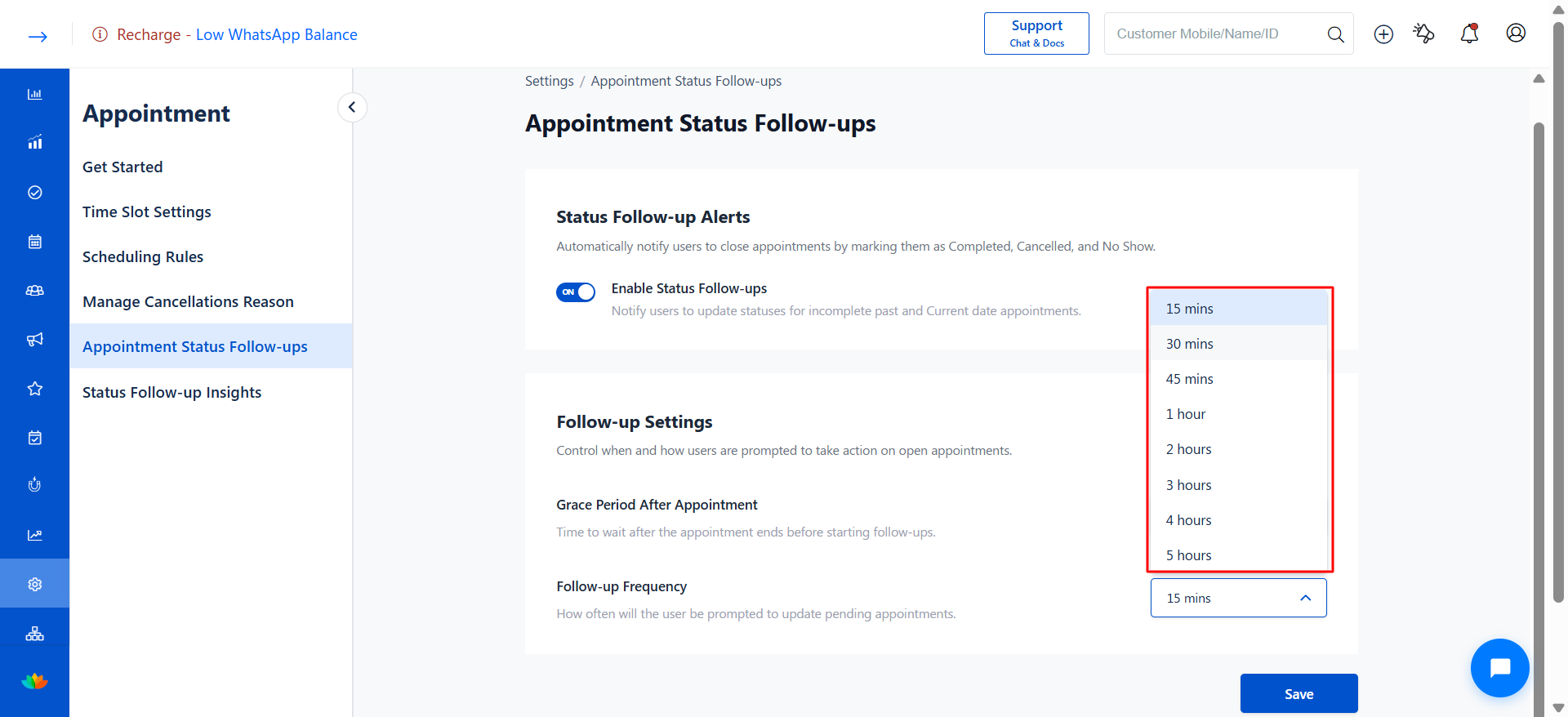
4. Configure Follow-up Frequency
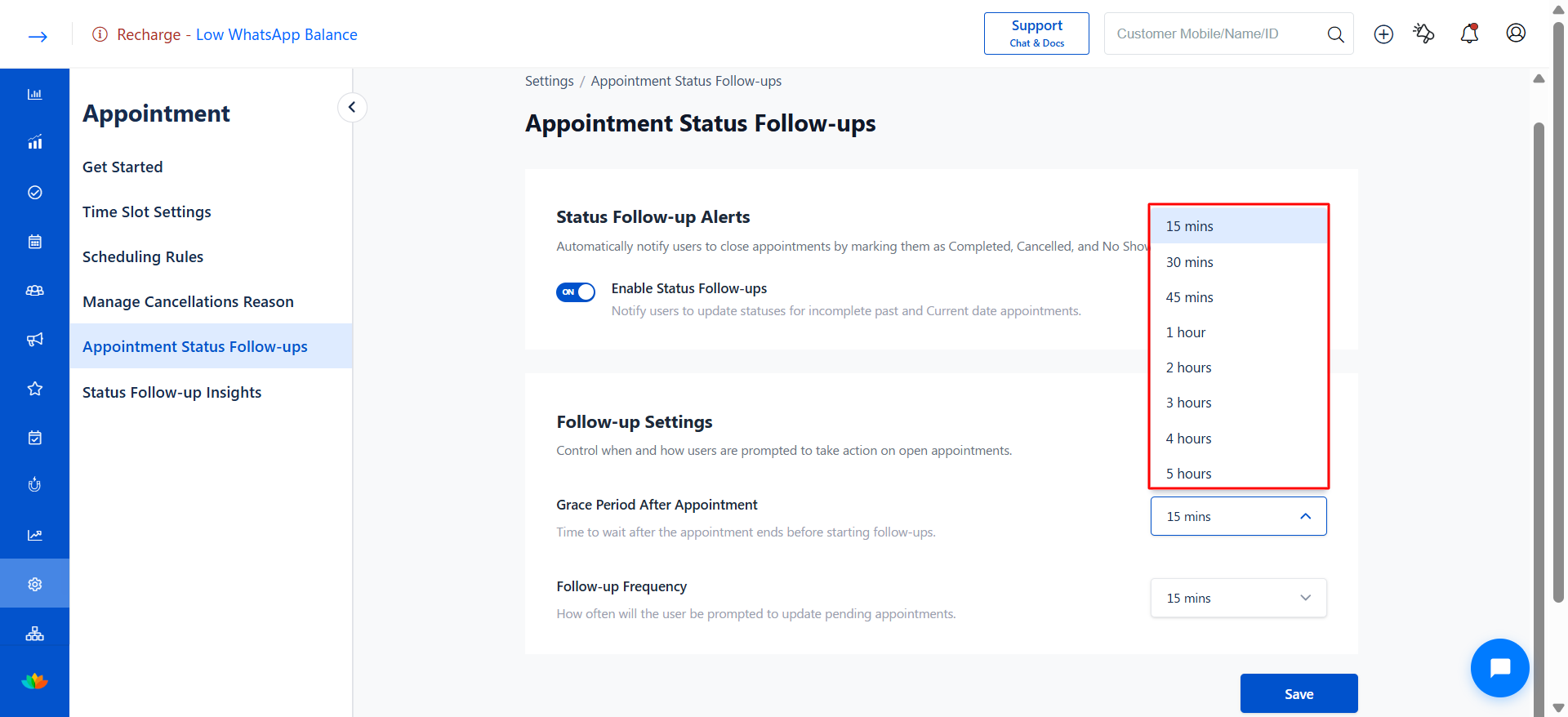
Locate Follow-up Frequency.
Select how often reminders should be sent:
15 Minutes
30 Minutes
45 Minutes
1 Hour
2 Hours
3 Hours
4 Hours
5 Hours
What this means:
This defines the interval between each reminder until the appointment status is updated.
Example:
If frequency is 15 minutes, users will be reminded every 15 minutes after the grace period ends.
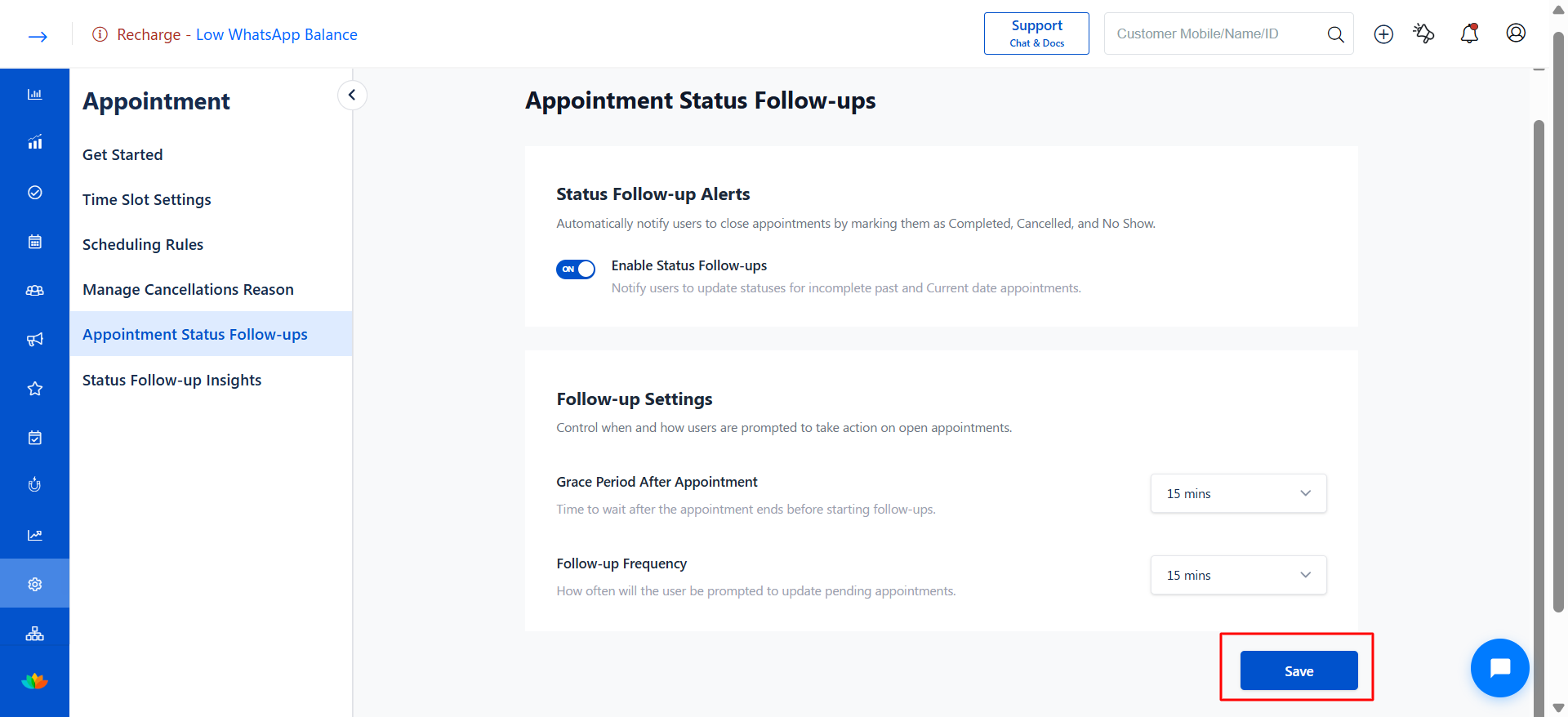
5. Save Settings
Click Save to apply the configured timings.
Appointment Alerts Popup
Steps to Use Appointment Alerts Popup
1. Alert Popup Trigger
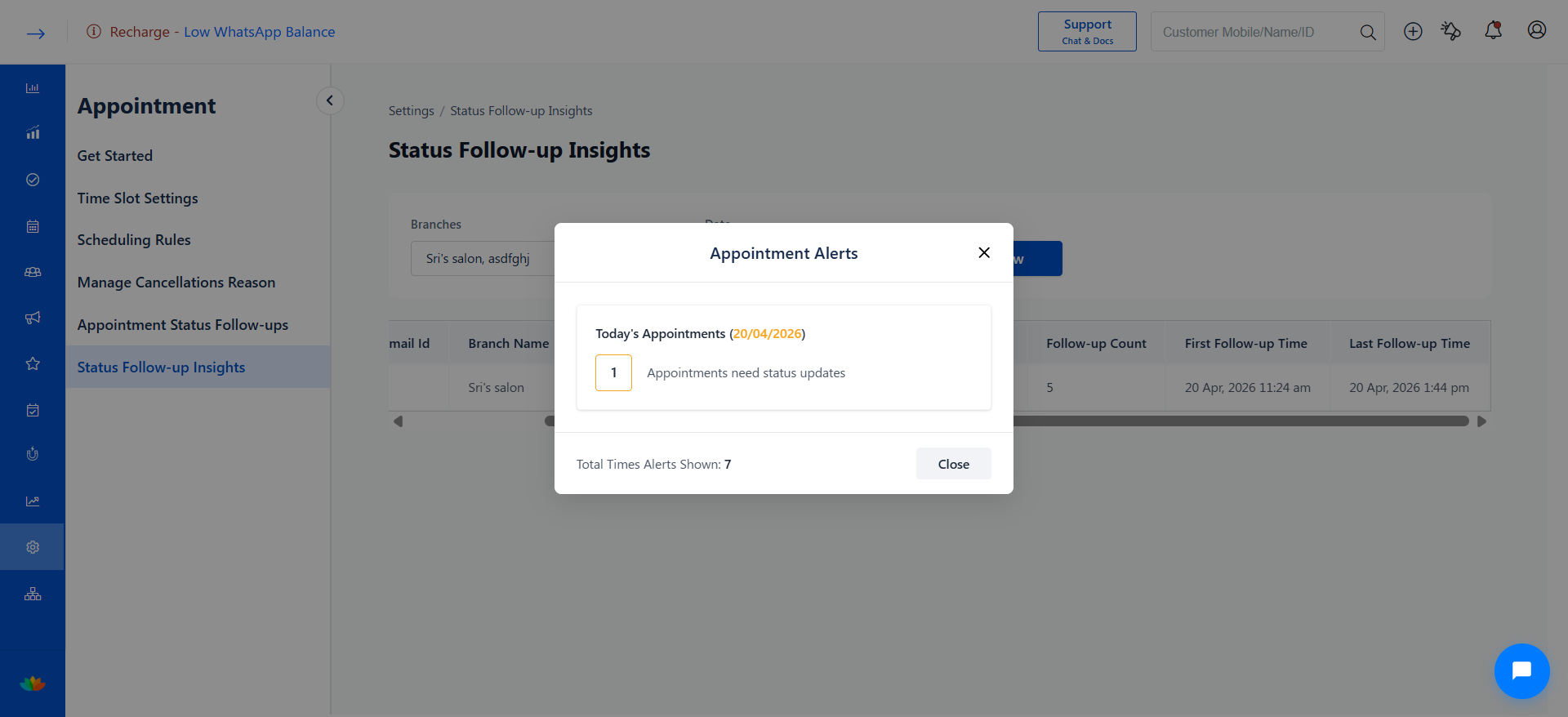
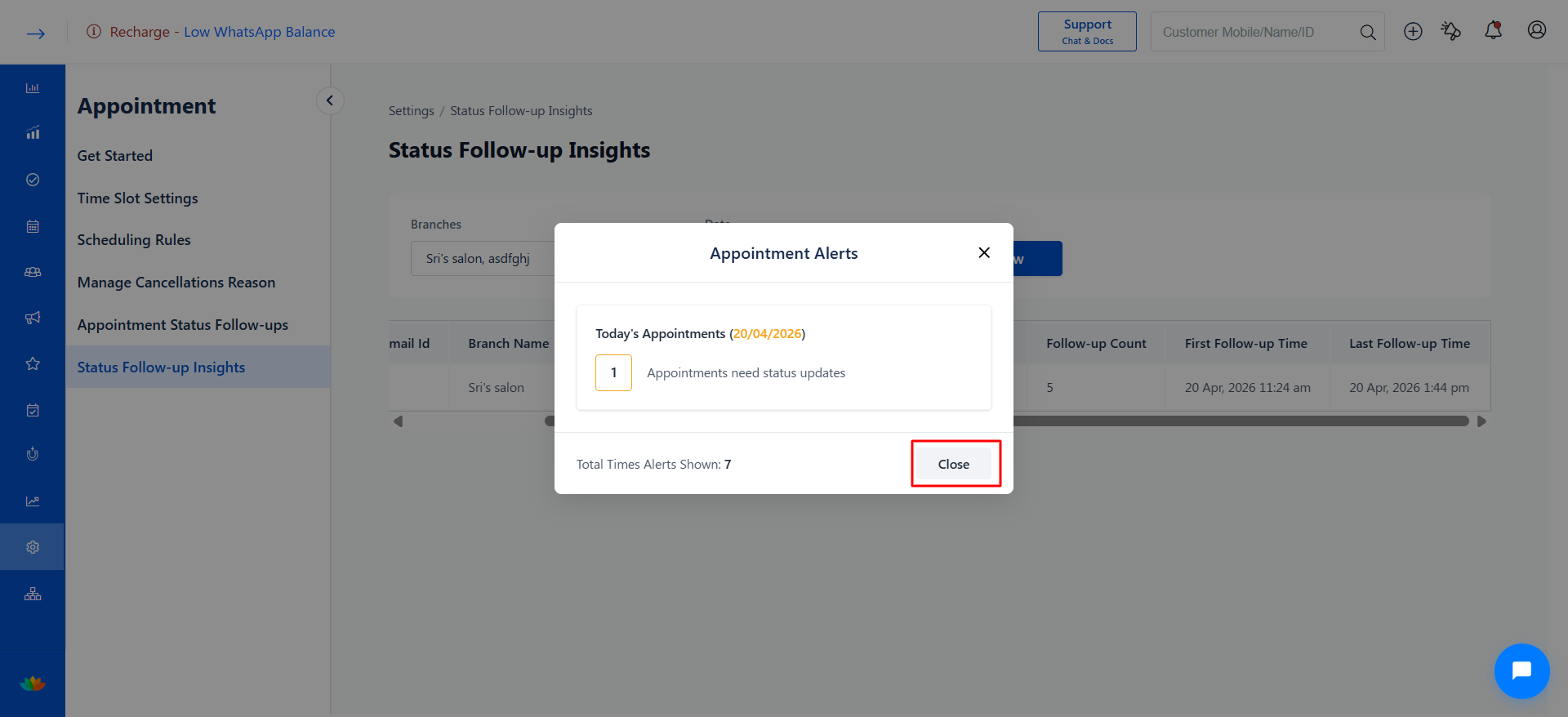
The Appointment Alerts popup appears automatically when there are pending appointments requiring status updates.
2. View Alert Details
The popup displays the following information:
Today’s Appointments (DD/MM/YYYY) – Shows the current date.
Appointments need status updates – Count of appointments pending update.
Total Times Alerts Shown – Number of times the alert has been triggered.
3. Take Action
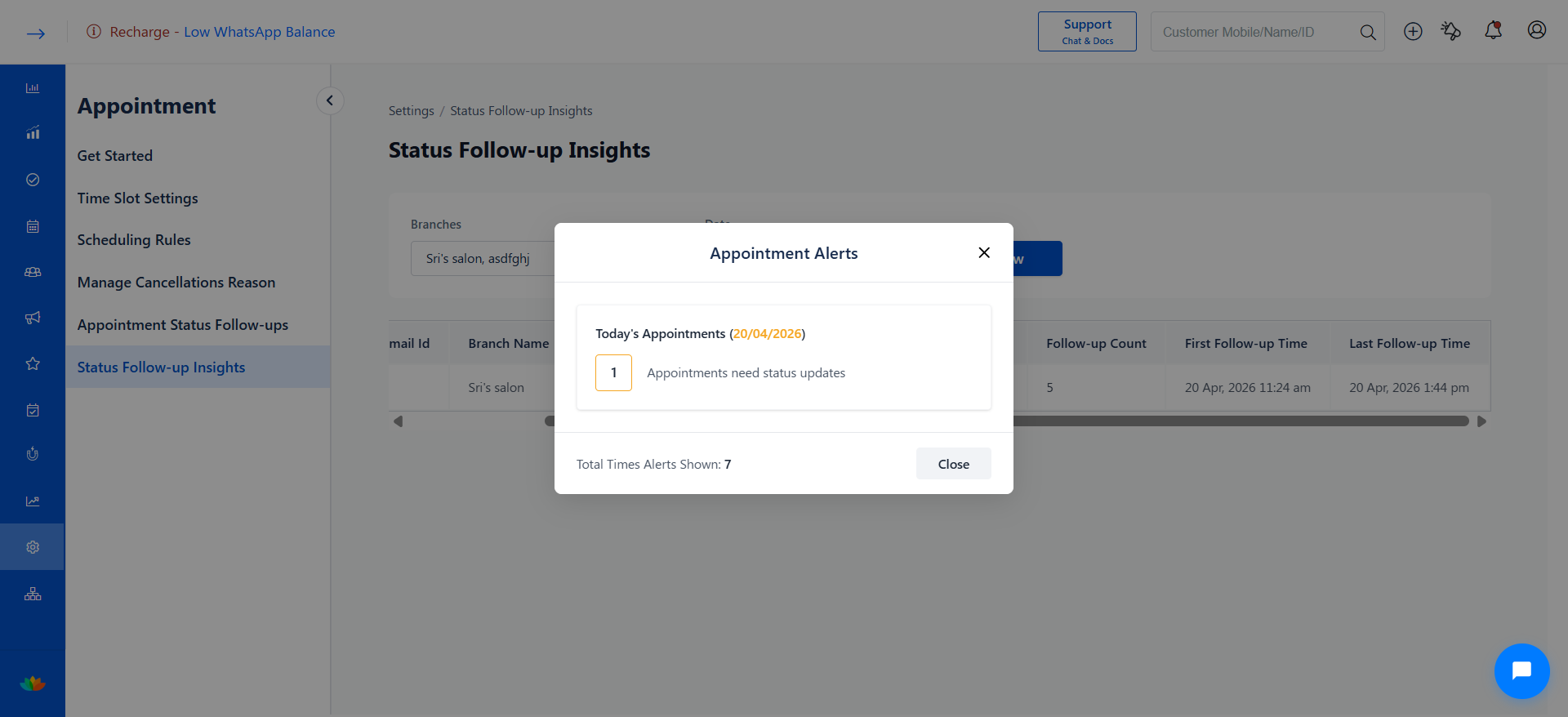
Review the pending count and navigate to update appointment statuses (Completed, Cancelled, No Show).
4. Close the Popup
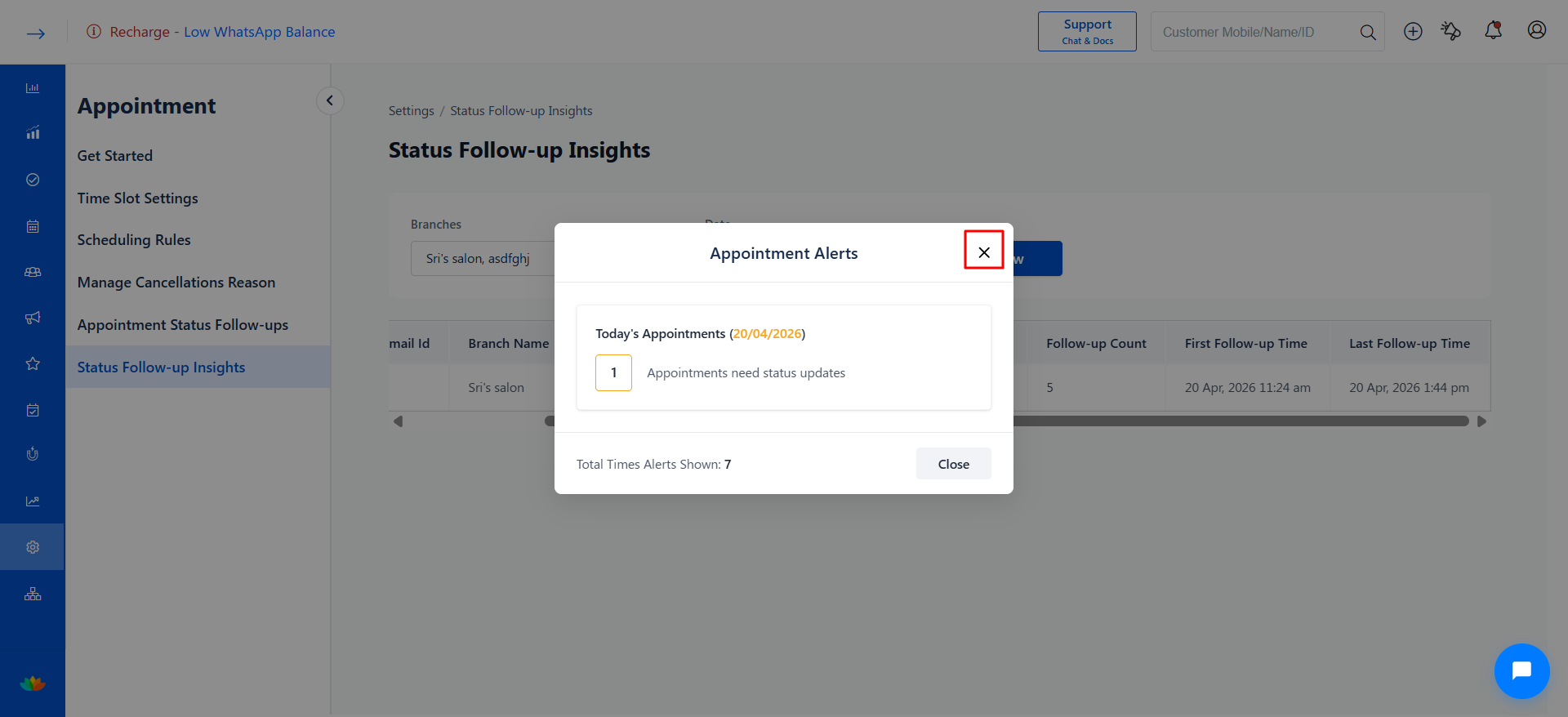
Click Close button to dismiss the alert.
Or use the Close (X) icon at the top of the popup.
Status Follow-up Insights
Navigation Path
Settings → Appointment → Status Follow-up Insights
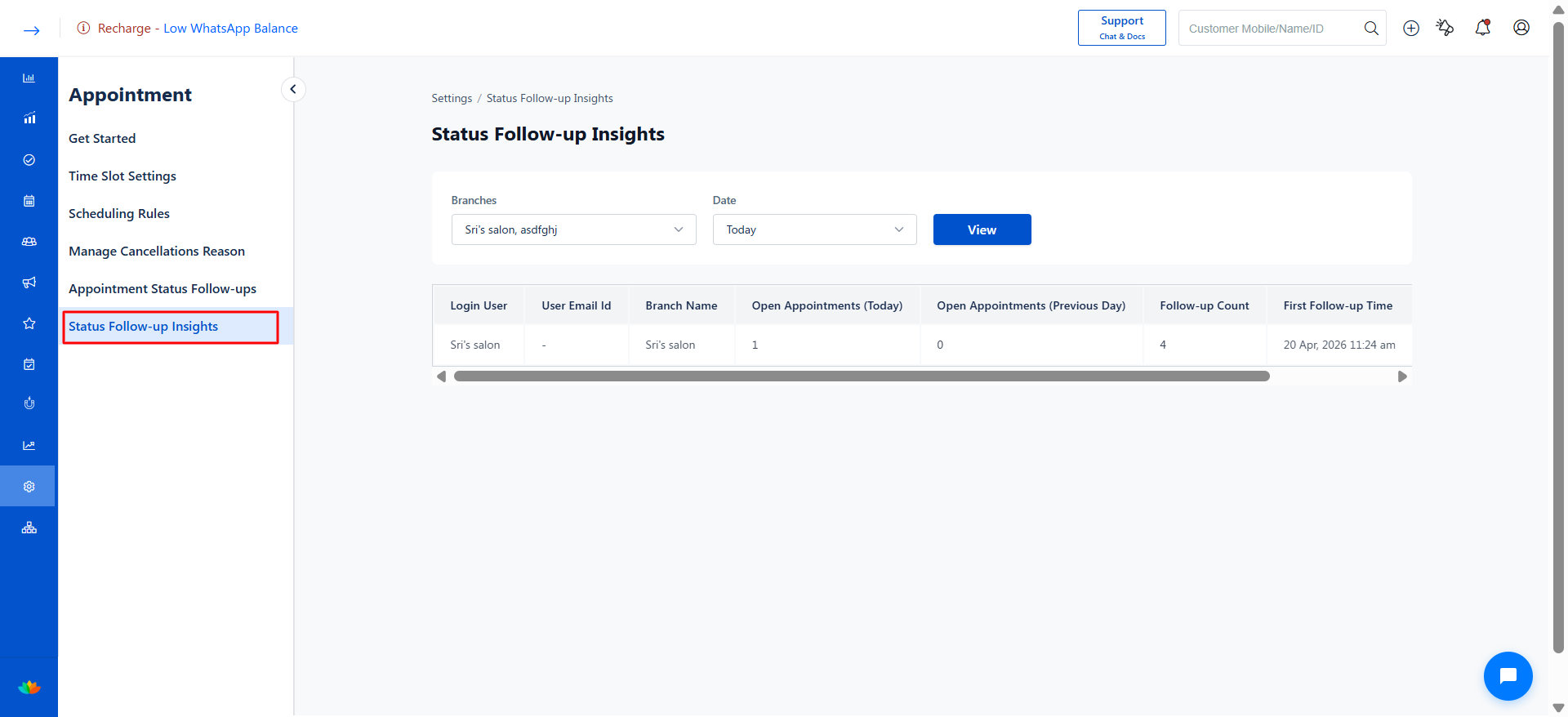
Steps to Use Status Follow-up Insights
1. Open Status Follow-up Insights
Go to Settings from the main menu.
Navigate to Appointment.
Click on Status Follow-up Insights.
2. Select Branch(es)
Locate the Branches dropdown.
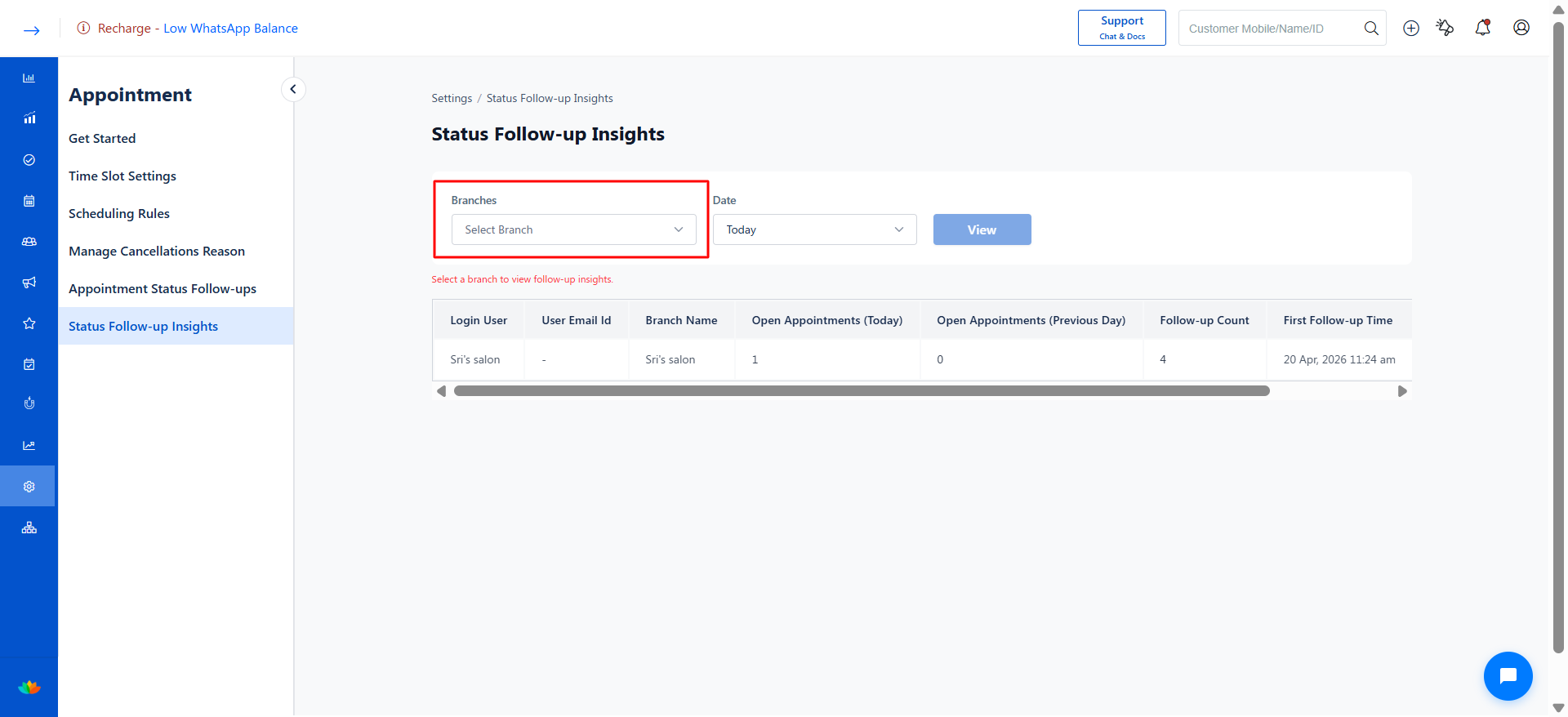
By default, all branches are selected.
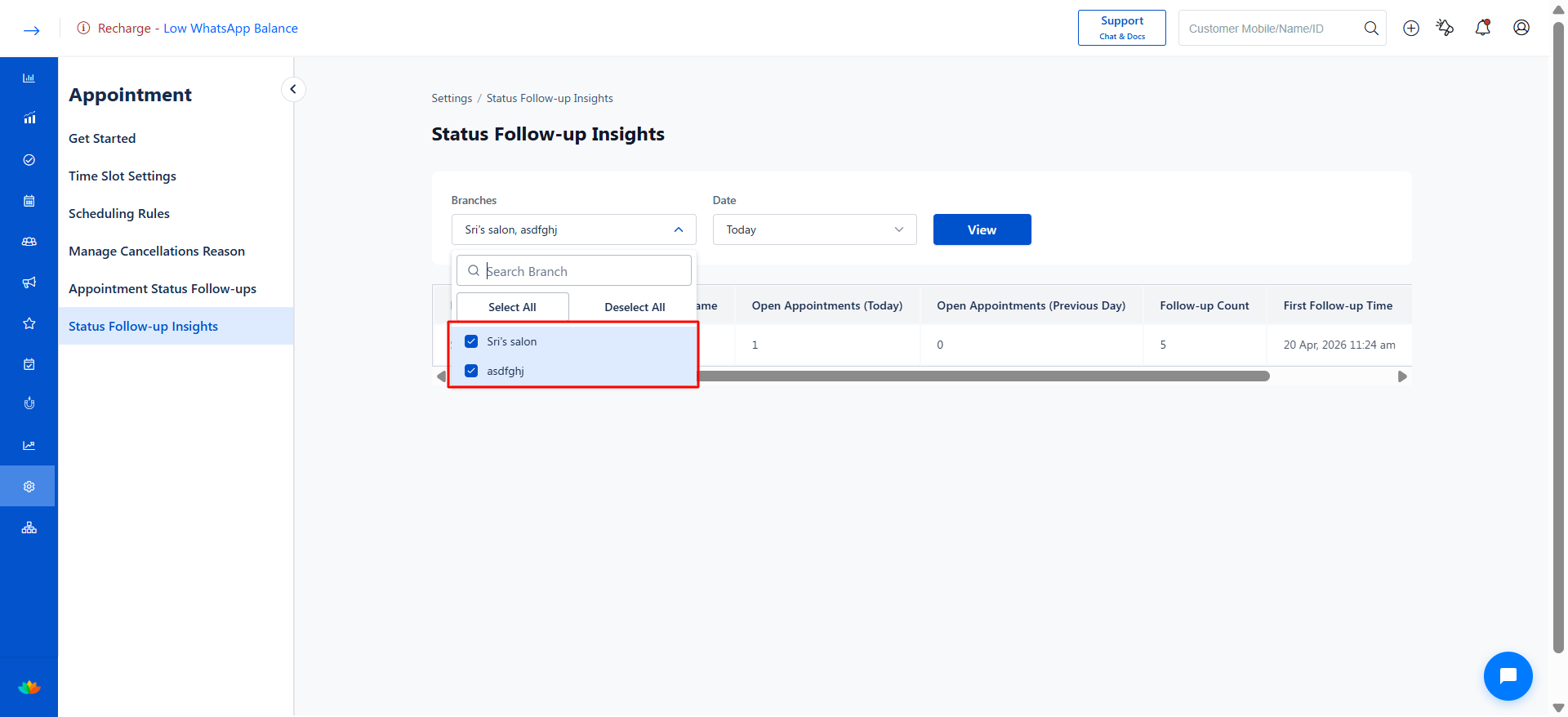
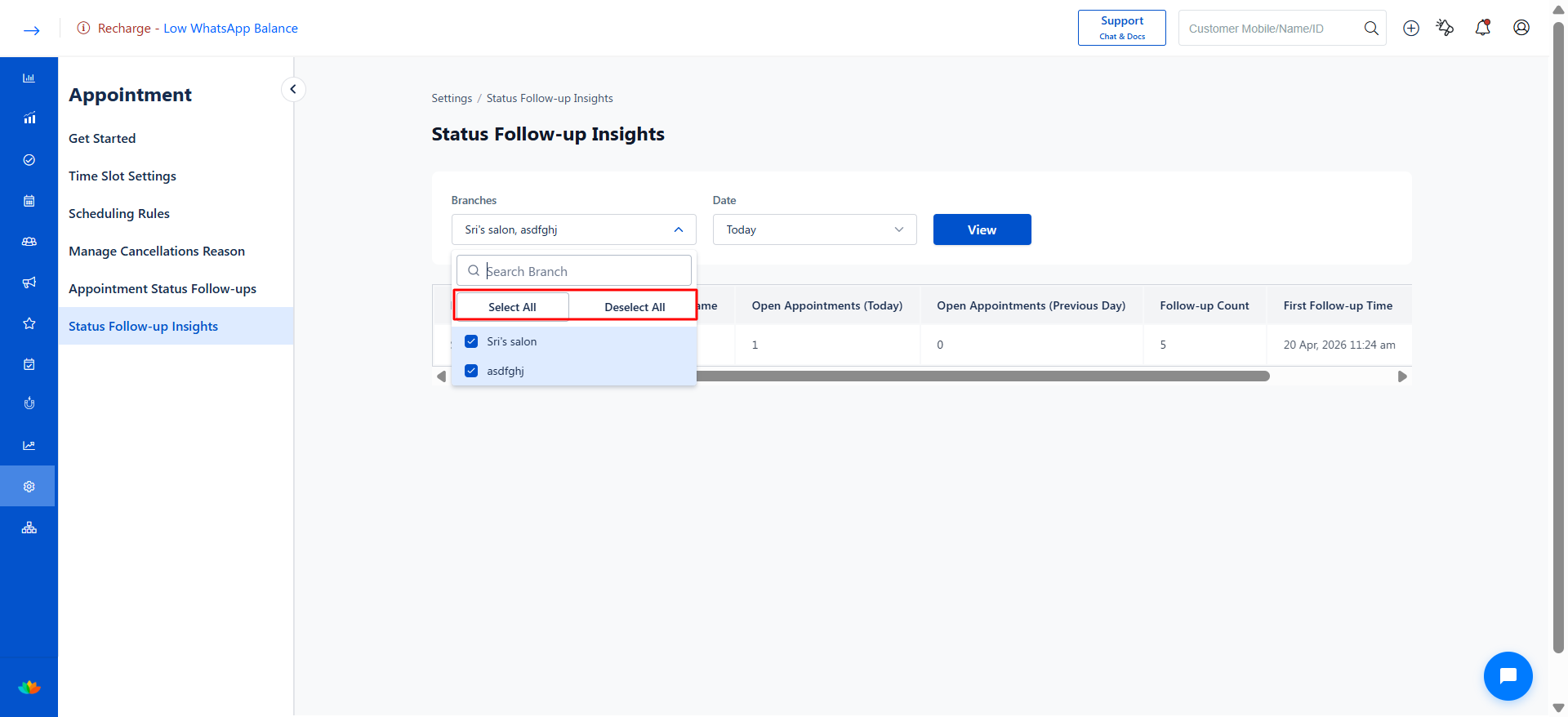
Use the available options:
Select All – Includes all branches in the report.
Deselect All – Clears all selections.
Choose one or multiple branches as needed.
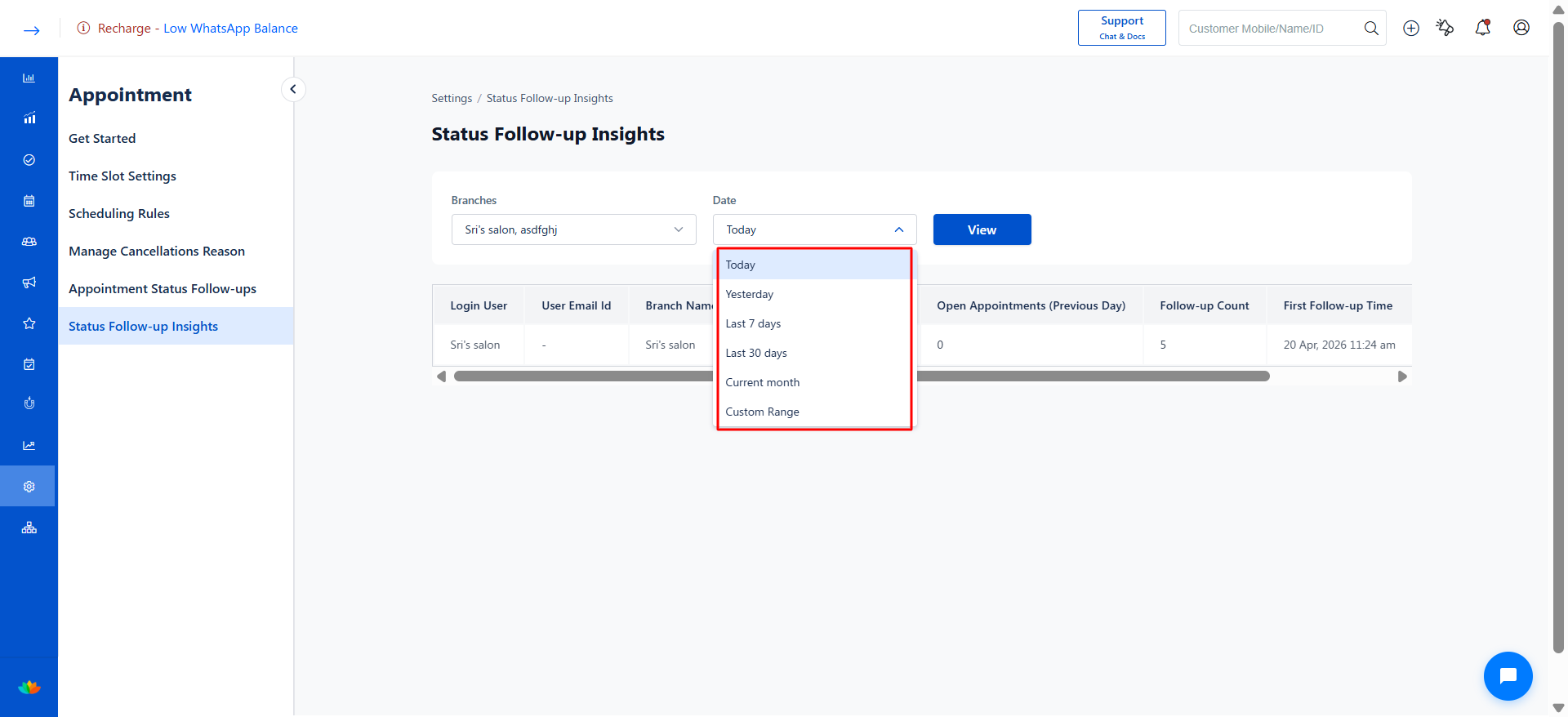
3. Select Date Range
Locate the Date dropdown.
Choose from the following options:
Today
Yesterday
Last 7 Days
Last 30 Days
Current Month
Custom Range (manually select start and end date)
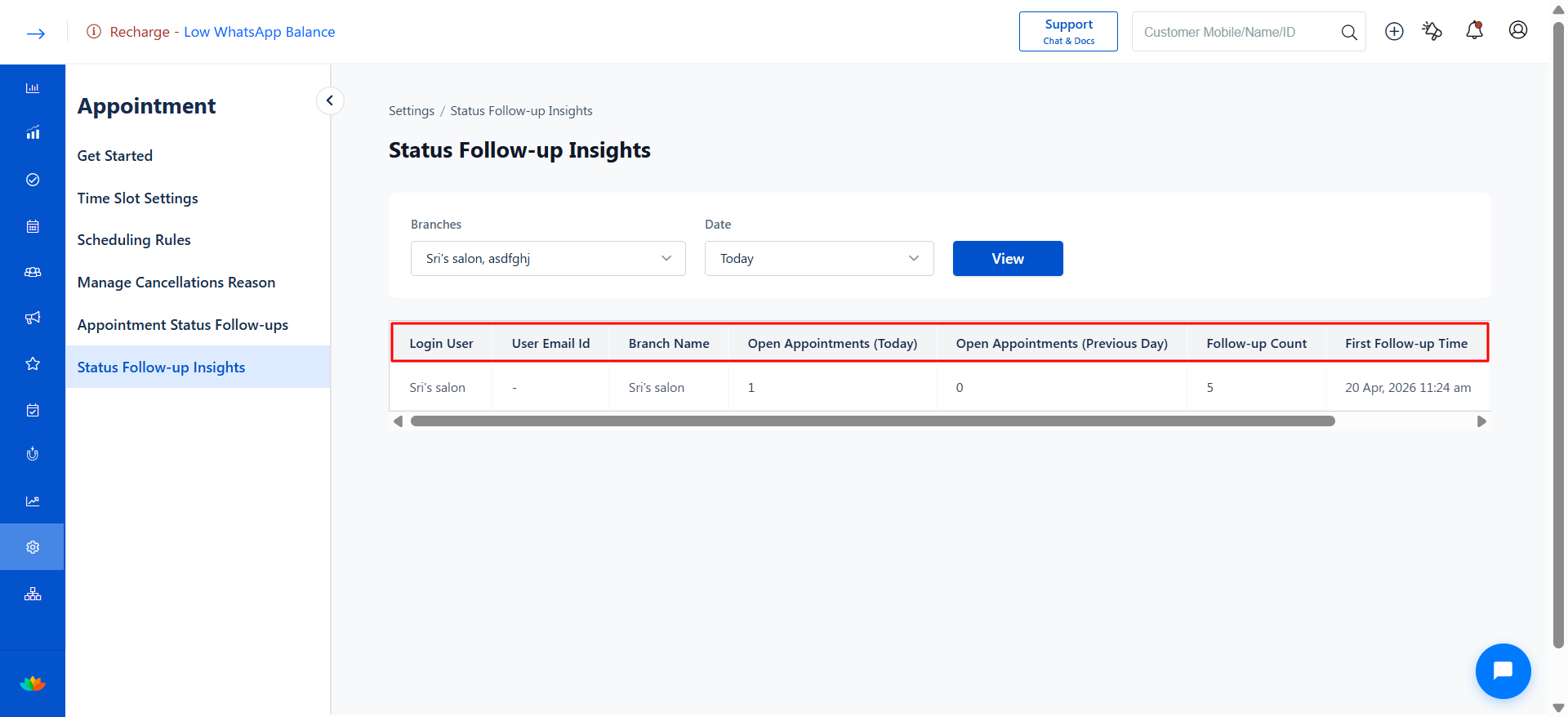
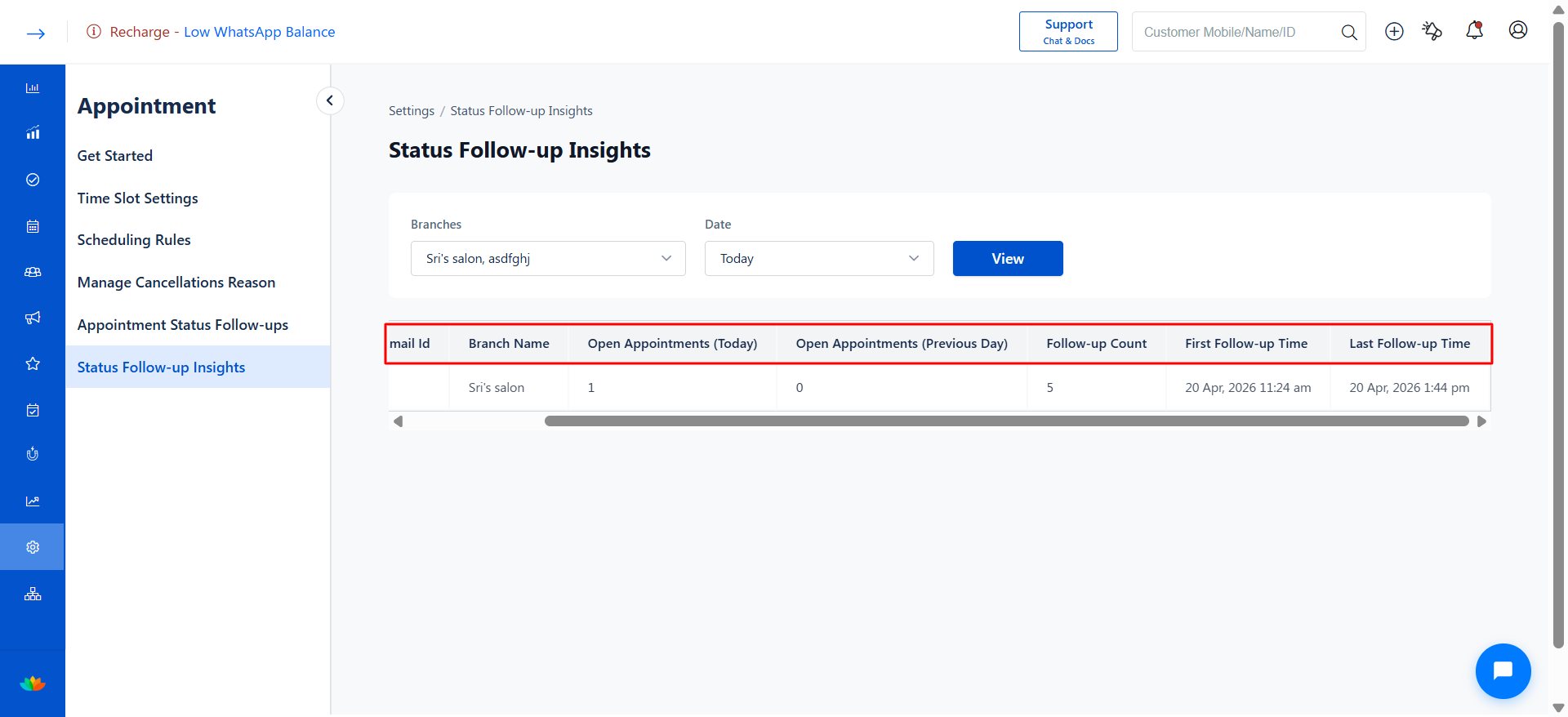
4. Review Insights Table
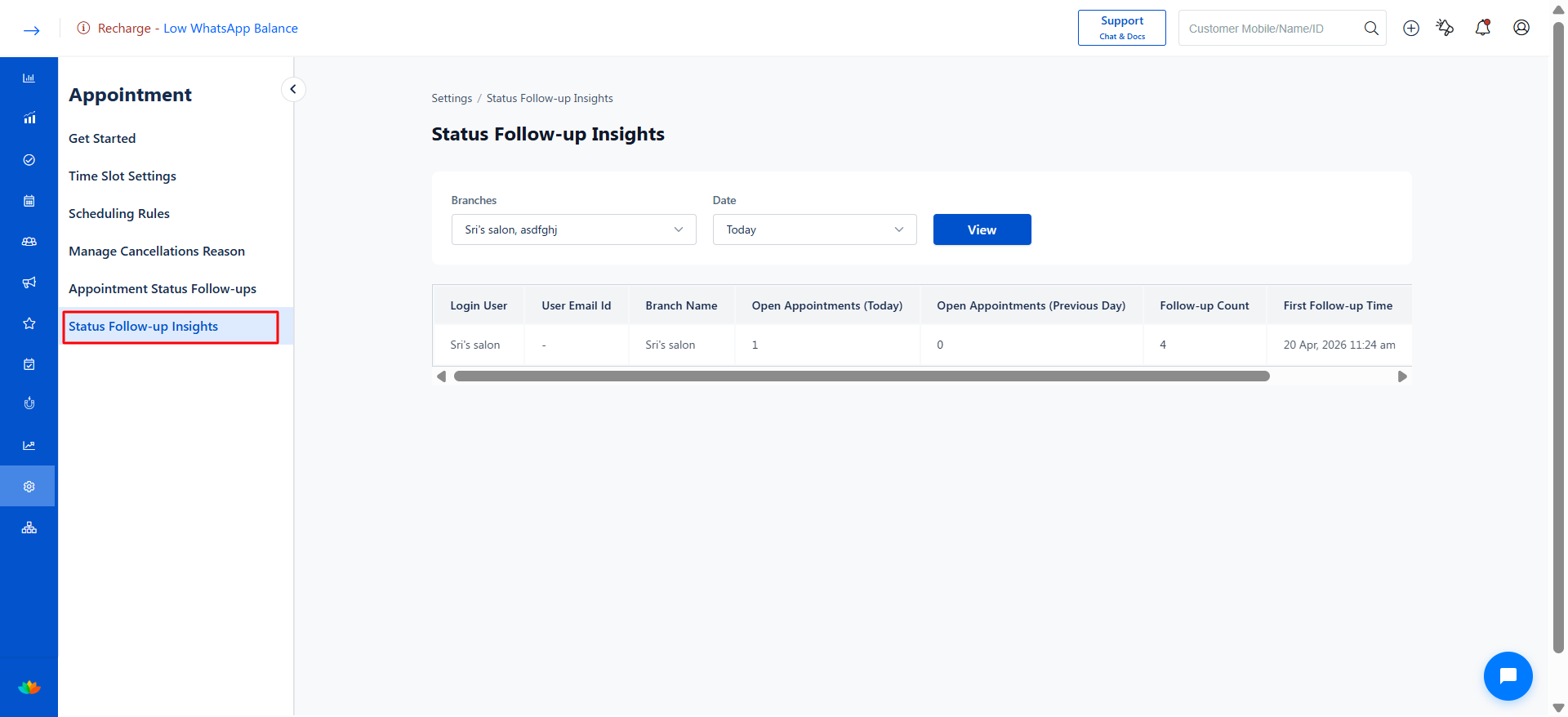
The insights table provides the following columns:
Login User – Name of the user handling appointments.
User Email ID – Email address of the user.
Branch Name – Associated branch/location.
Opened Appointments (Today) – Count of appointments still open for the current day.
Opened Appointments (Previous Day) – Count of appointments still open from the previous day.
Follow-up Count – Total number of follow-up reminders triggered.
First Follow-up Time – Timestamp when the first follow-up was triggered.
Last Follow-up Time – Timestamp of the most recent follow-up.
5. Analyze the Data
Identify users with high open appointment counts.
Check follow-up count to understand reminder frequency.
Compare first and last follow-up times to measure response delays.
Use Cases
Configure calendar view and time slots for efficient scheduling.
Control booking rules (avoid double booking, enforce resource selection).
Ensure mandatory steps like client consent before completing services.
Standardize cancellation reasons for tracking and reporting.
Automate follow-ups to remind users to update pending appointments.
Monitor user and branch performance through follow-up insights.
Benefits
Reduced scheduling conflicts and better time management.
Improved data accuracy with consistent status updates and structured inputs.
Higher operational efficiency through automation and defined workflows.
Better compliance and risk control with mandatory conditions.
Enhanced visibility and accountability across users and branches.
Data-driven decisions using insights on cancellations and follow-ups.
Was this article helpful?
That’s Great!
Thank you for your feedback
Sorry! We couldn't be helpful
Thank you for your feedback
Feedback sent
We appreciate your effort and will try to fix the article