Overview
MioSalon allows you to add and manage customers easily across multiple workflows—whether you’re creating a customer manually, during billing, or while booking an appointment. You can also add customers using international phone numbers, regardless of your account’s base country.
Accurate customer records help with bookings, billing, communication, reporting, and personalized engagement.
Ways to Add a New Customer
You can add customers using any of the following methods:
Method 1: From Customer Segmentation
Go to the Main Menu from the left navigation.
Click Customers → Customer Segmentation.
Click New Customer.
Method 2: Using the Quick Add (+) Icon
Click the + icon in the top-right corner.
Select Customer.
Method 3: From Global Search
Use the Search bar (top-right corner).
Enter a mobile number, name, or customer ID.
Click Add Customer if no record exists.
Method 4: From Quick Sale
Go to Quick Sale from the main menu.
Enter the customer’s mobile number, name, or customer ID.
Click Add Customer.
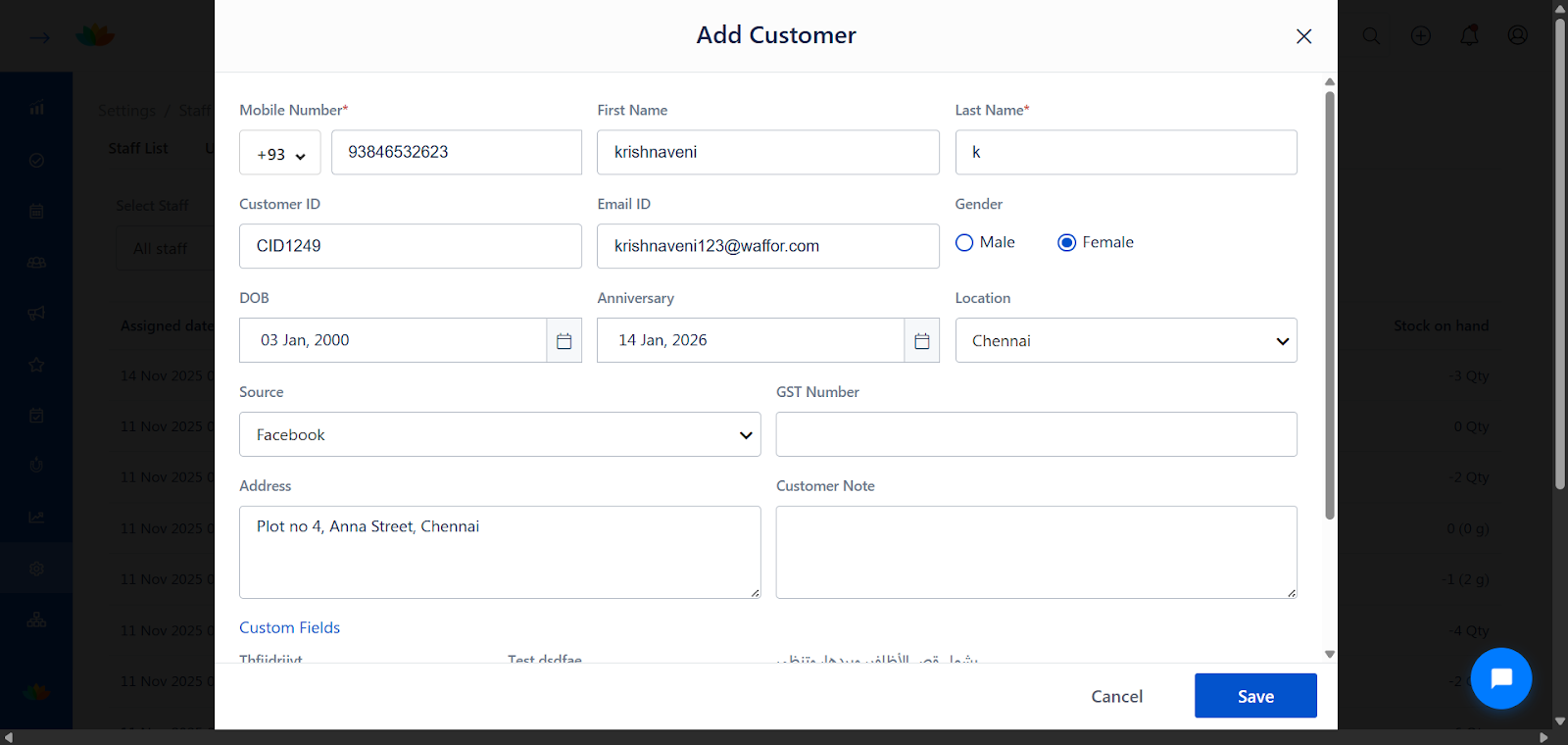
Common Steps in the Add Customer Screen
In the Add Customer popup, enter the following details.
Note: Fields marked with a red asterisk (*) are mandatory.
Mandatory Fields
Mobile Number – Enter the customer’s mobile number.
Country Code – Select the appropriate country code from the dropdown.
First Name
Last Name
Name Validation Rules
Names must start with an alphabet (A–Z).
Special characters are not allowed at the beginning of the name.
Mandatory fields show clear error messages if left blank.
Error messages you may see:
First name must start with a letter (A–Z).
Last name must start with a letter (A–Z).
This field is required.
Optional Customer Details
Customer ID – Unique internal reference.
Email ID
Gender
DOB – Used for birthday messages.
Anniversary – Used for anniversary greetings.
Location
If Fixed Location: choose from predefined locations.
If Custom Location: enter manually.
Source – Select how the customer found your business.
GST Number – If applicable.
Address
Customer Note – Special preferences or instructions.
Custom Fields – Additional data as configured in settings.
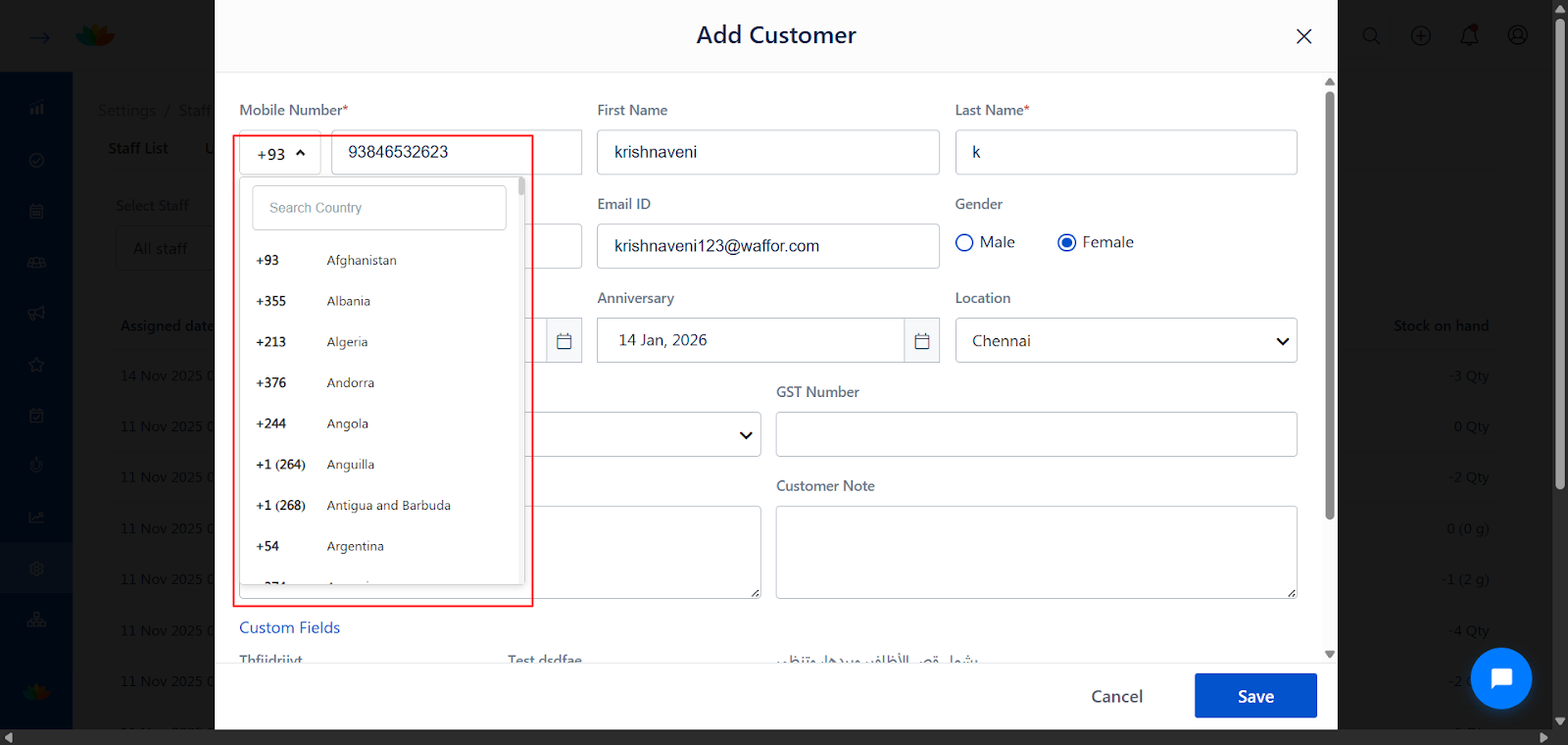
Adding a Customer with an International Phone Number
You can create customers using any country’s phone number, even if your MioSalon account is based in a different region.
Steps:
Open the Add Customer popup.
In the Mobile Number field:
Click the Country Code dropdown.
Search and select the required country code (e.g., +93, +355, +1).
Enter the customer’s mobile number (without spaces).
Fill in the remaining customer details.
Click Save.
✅ The customer is successfully created with the selected international phone number.
Check detailed article:
SMS Communication Preference
Choose the Send SMS Type for the customer:
Transactional Messages – Appointments, reminders, invoices, OTPs.
Promotional Messages – Offers, campaigns, vouchers, greetings.
Use Case Scenarios
Adding walk-in customers from different countries.
Managing international clients or tourists.
Centralized customer management for multi-location salons.
Ensuring correct SMS delivery using country-specific phone formats.
Benefits
Supports global customer management with country-specific phone numbers.
Prevents data errors with clear validations and prompts.
Improves communication accuracy for SMS and notifications.
Enables better customer insights, reporting, and personalization.
Short FAQs (to place at the end of the article)
1. Can I add customers with an international phone number?
Yes. You can select any country code from the dropdown and add customers regardless of your account’s base region.
2. Is the mobile number mandatory when adding a customer?
Yes. A valid mobile number with the correct country code is required to create a customer.
3. What are the name validation rules?
First and last names must start with an alphabet (A–Z). Special characters or numbers are not allowed at the beginning.
4. Can I change the country code after saving the customer?
No. Once saved, the mobile number and country code cannot be edited. You’ll need to create a new customer if changes are required.
5. Will international customers receive automated messages?
Yes, provided messaging is enabled and supported for the selected country code.
Was this article helpful?
That’s Great!
Thank you for your feedback
Sorry! We couldn't be helpful
Thank you for your feedback
Feedback sent
We appreciate your effort and will try to fix the article