Staff Sales - Completed Appointments Report
Overview
The Staff Sales - Completed Appointments report gives salon owners an accurate, appointment-based view of staff revenue. It specifically tracks and counts revenue only from appointments that have been marked as Completed.
This ensures that commissions and sales figures consistently reflect actual services rendered, excluding future bookings or upfront payments.
Use this report to calculate fair staff commissions, prevent payout errors caused by no-shows or cancellations, and gain a clear picture of the genuine revenue earned on any given day.
Navigation Path
Reports → Appointment & Sales → Staff Sales - Completed Appointments
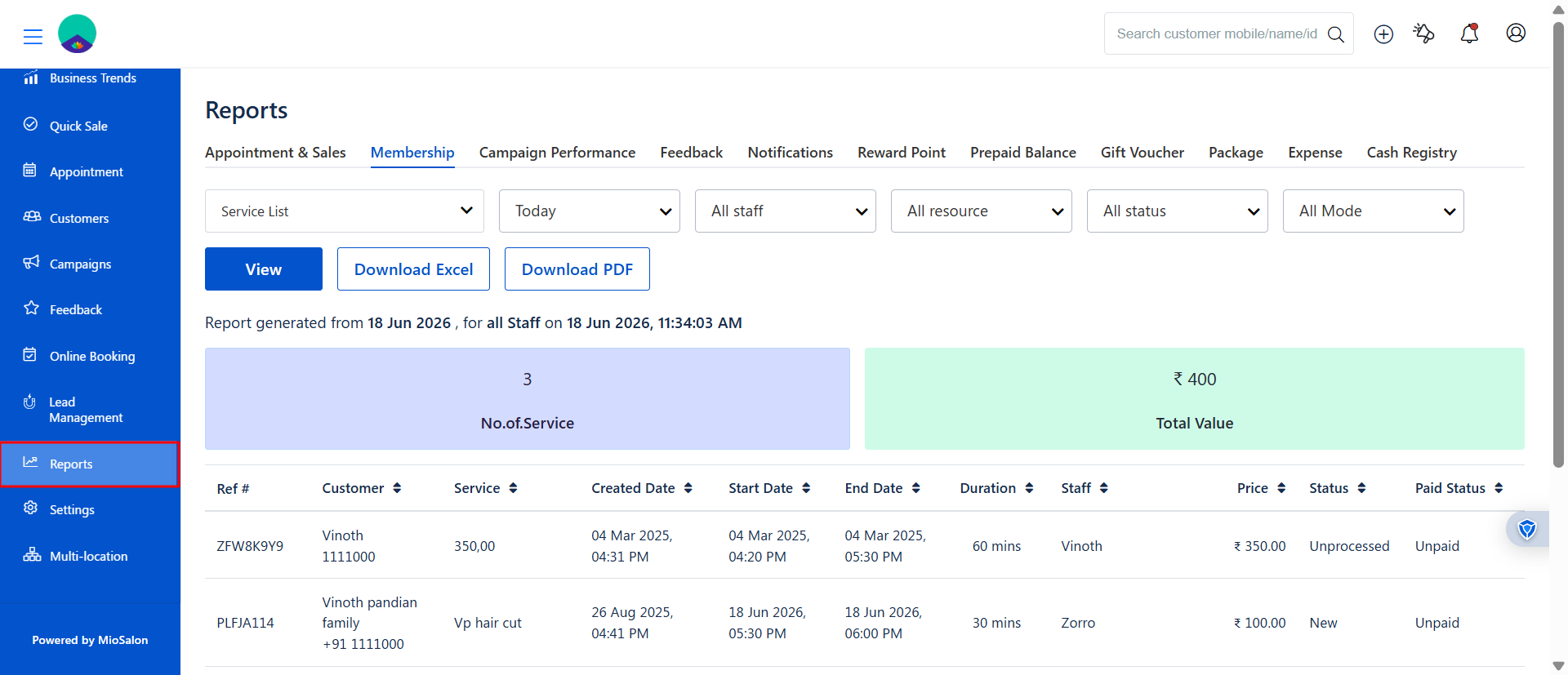
Step 1: Access the Report
Click Reports from the left-side menu.
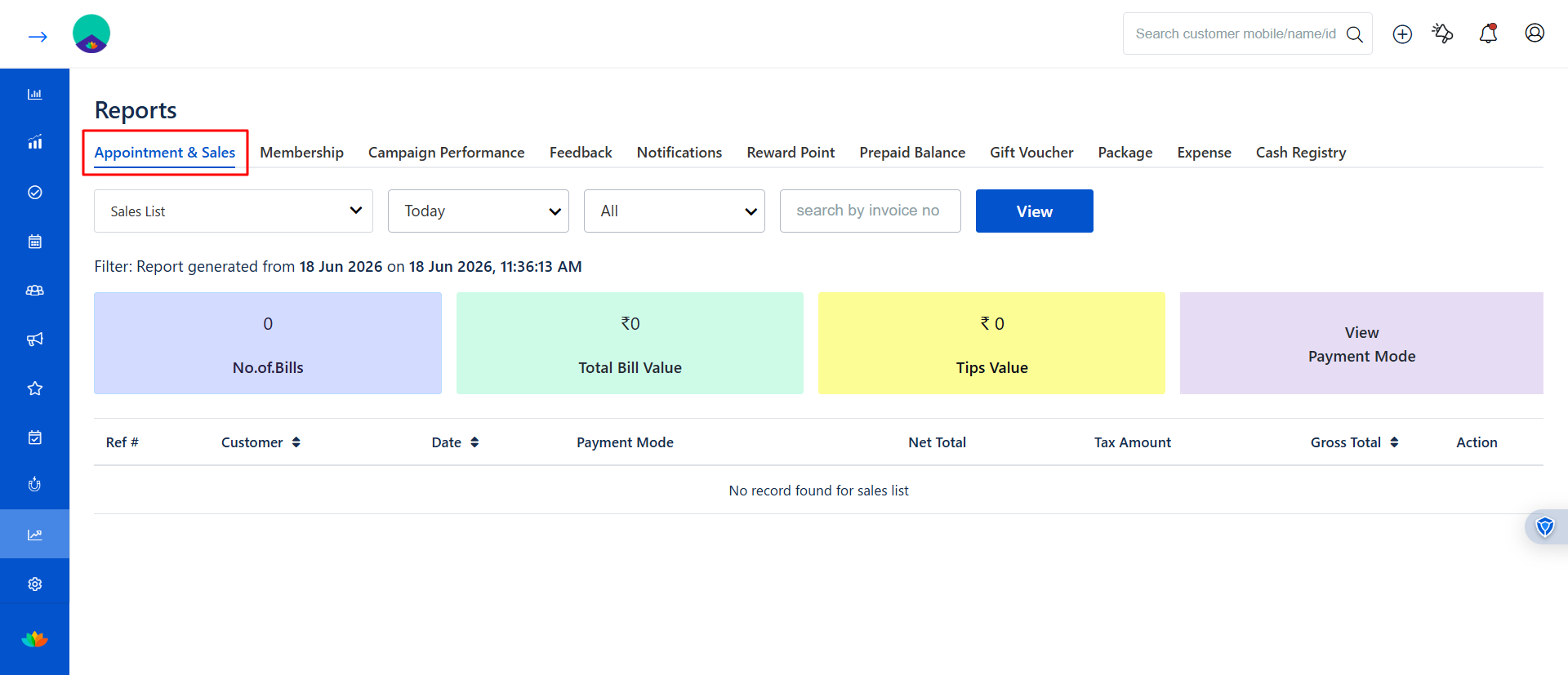
Select Appointment & Sales.
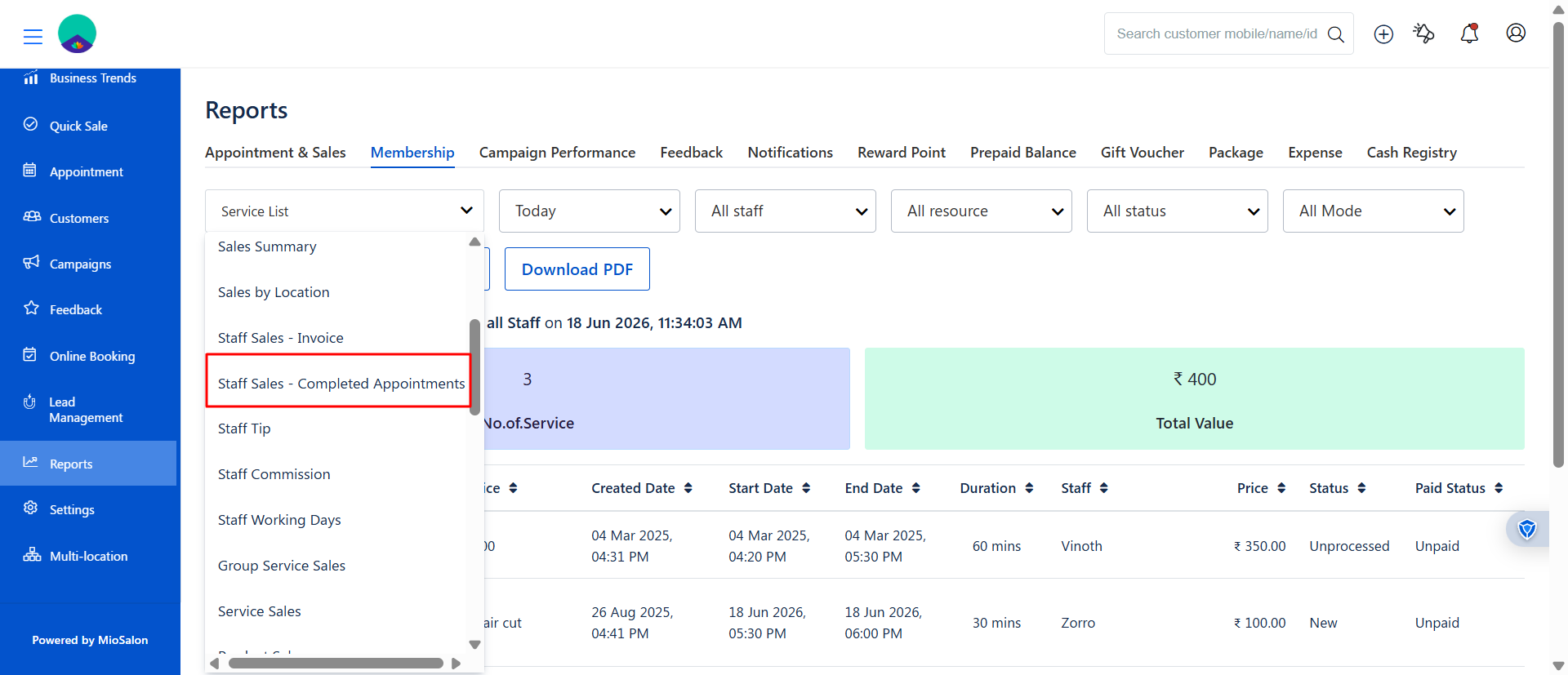
Choose Staff Sales - Completed Appointments from the dropdown list.
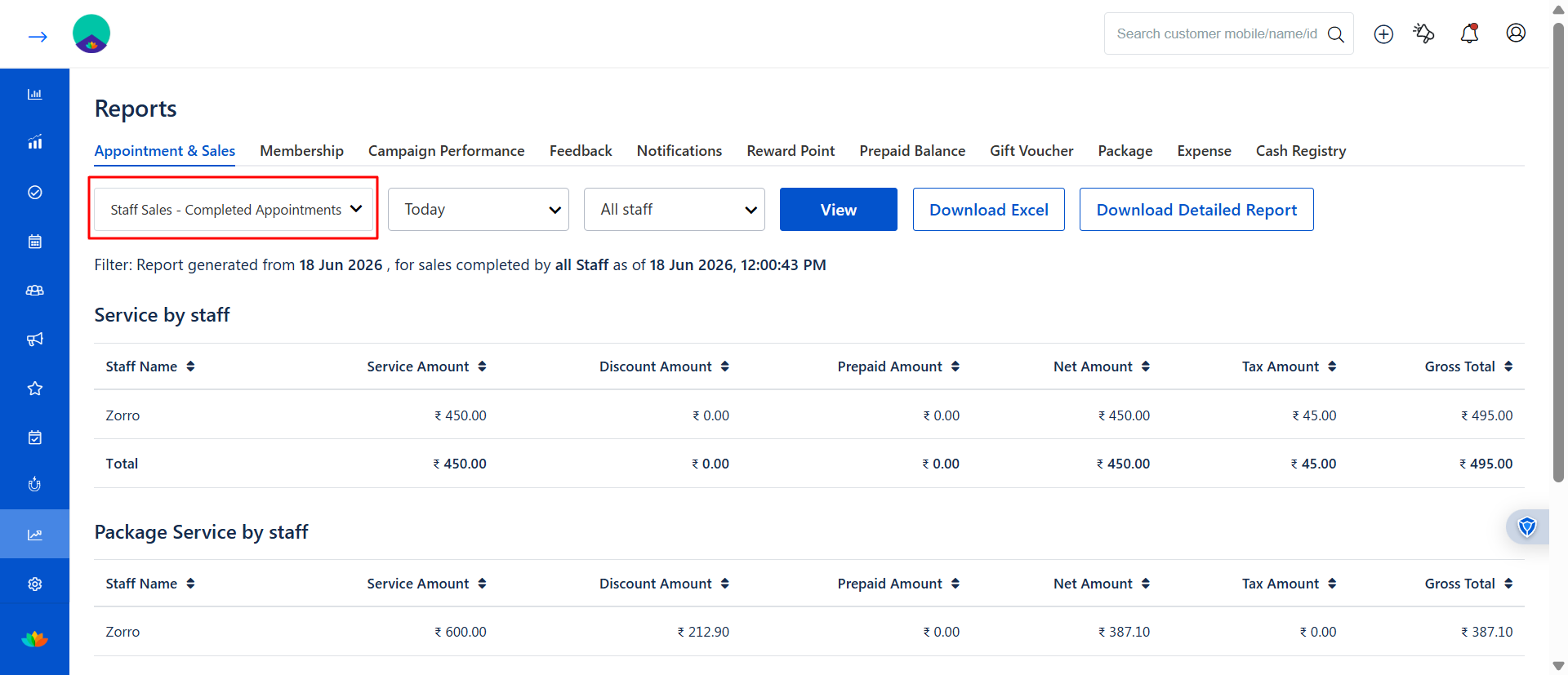
The report opens with Date, Staff, and Branch filters, followed by revenue summaries.
When should I use this report?
When calculating staff commissions
Before processing payroll
To verify completed service revenue
To audit staff performance based on completed work
Understanding the Logic - A Practical Example
Scenario: A client books a Bridal Makeup appointment for March 20th and pays 500 upfront on March 1st.
March 1st -- Invoice is generated for 500.
March 2nd -- Owner runs the Staff Sales - Completed Appointments report for March 1st.
Result: The 500 does not appear. The appointment has not been completed yet.
March 20th -- The client arrives, the service is performed, and status is updated to Completed.
March 21st -- Owner runs the report for March 20th.
Result: The 500 Now appears, and the staff member receives their commission.
This ensures commissions are always tied to real, completed work, never to future or unperformed bookings.
Step 2: Apply Filters
Select Date Range
Choose from:
Today
Yesterday
Last 7 Days
Last 30 Days
Last Month
Current Month
Custom Range
Select Staff
All Staff: View revenue across your entire team
Individual Staff Name: Narrow down to a specific team member
Click View
Based on your filters, the system displays only the appointments completed within the selected date range, with a staff-wise revenue breakdown.
Step 3: Review the Report Results
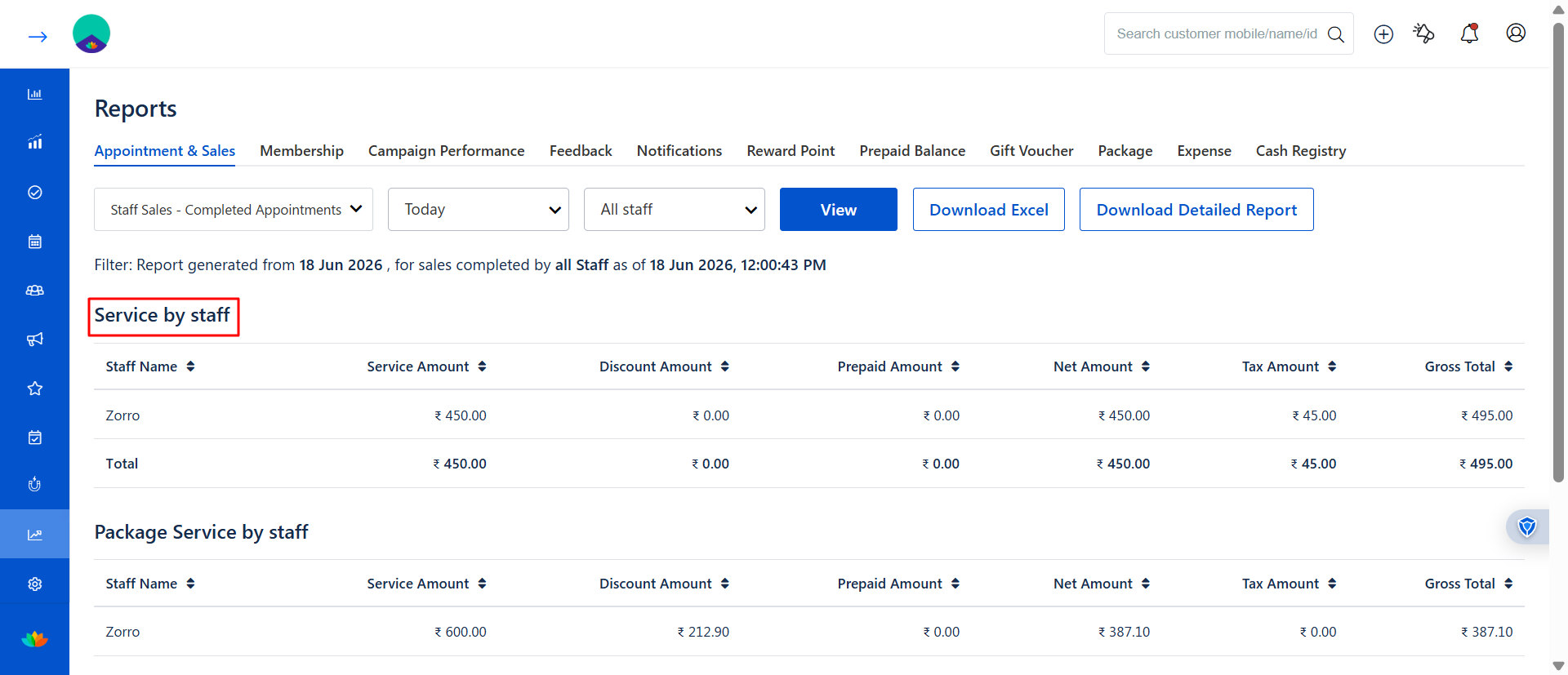
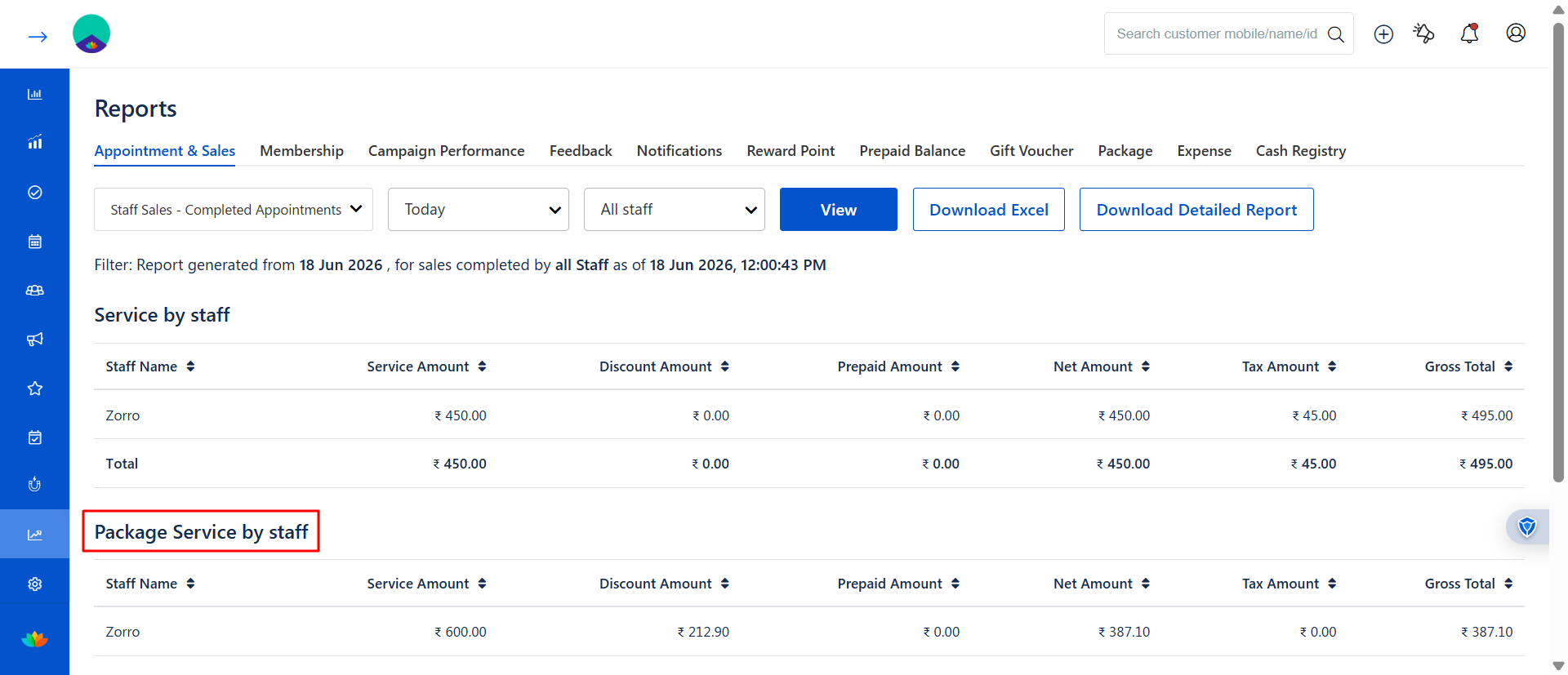
The report displays a summary of revenue generated from completed appointments, divided into two distinct sections:
1. Service by Staff: Tracks revenue from regular services completed by each staff member.
2. Package Service by Staff: Shows revenue from services redeemed through packages, where the appointment was completed.
Columns:
Staff Name: The name of the staff member who performed the service
Service Amount: The original price of the service/package
Discount Amount: Any discount applied
Net Amount: Service Amount minus Discount Amount
Tax Amount: Tax charged on the net amount
Prepaid Amount: Amount settled using a prepaid balance
Gross Total: (Net Amount + Tax Amount) minus Prepaid Amount
Revenue Calculation Logic:
Net Amount = Service Amount - Discount Amount
Gross Total = (Net Amount + Tax Amount) - Prepaid Amount
Note: Prepaid Amount is deducted because the revenue has already been settled through a prepaid balance.
Exporting the Data: Which report should I choose?
Step 4: Download the Summary Report (Excel)
You can export the on-screen summary data for payroll processing or record-keeping.
Select the required Date Range.
Select Staff (All Staff or an individual staff member).
Click View to load the report.
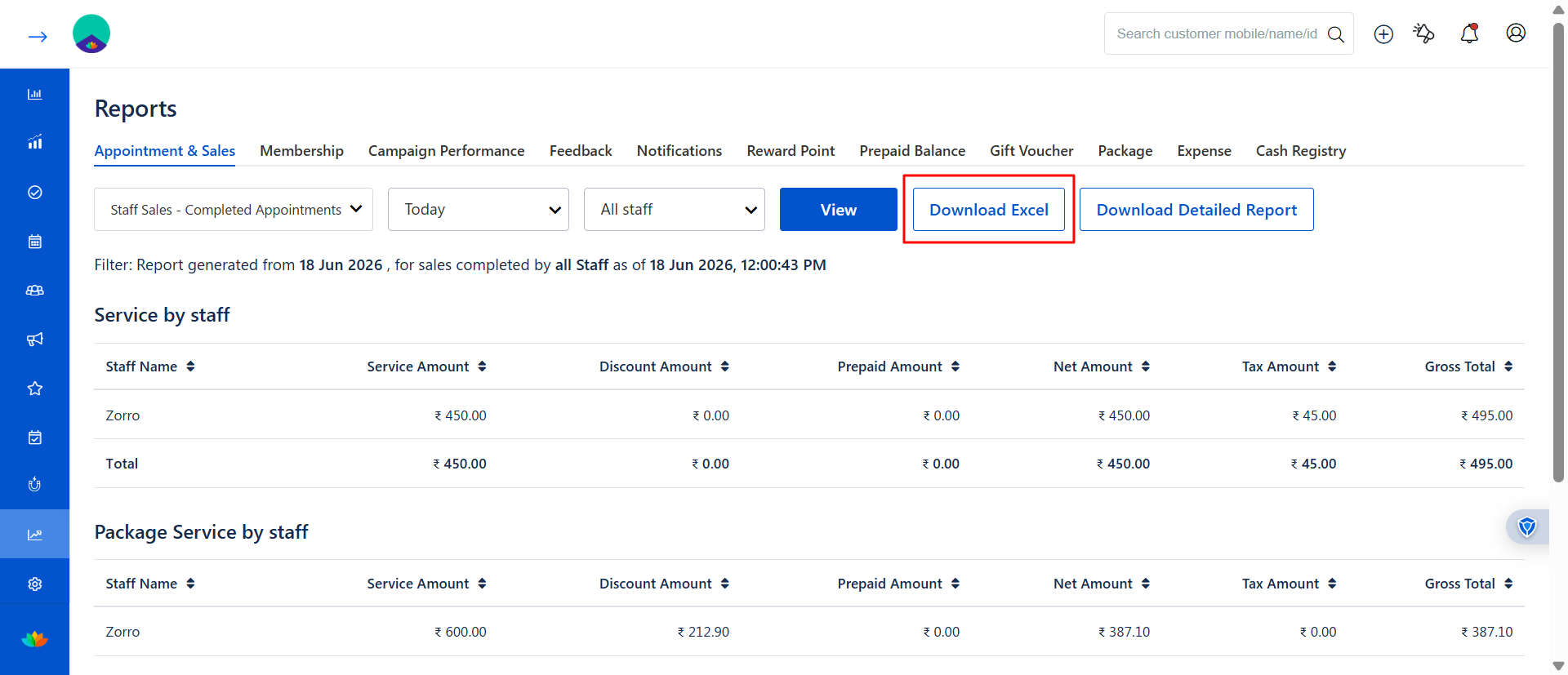
Click Download Excel.
The Excel file will be generated and sent to the registered Admin Email ID.
Excel File Structure:
Section 1 - Services by Staff
Columns: Staff Name | Service Amount | Discount Amount | Net Amount | Tax Amount | Prepaid Amount | Gross Total
Section 2 - Package Service by Staff
Columns: Staff Name | Service Amount | Discount Amount | Net Amount | Tax Amount | Prepaid Amount | Gross Total
Step 5: Download the Detailed Report
The Detailed Report provides a full transaction-level breakdown, making it ideal for audits, accounting, or compliance reviews.
Select the required Date Range.
Select Staff (All Staff).
Click View.
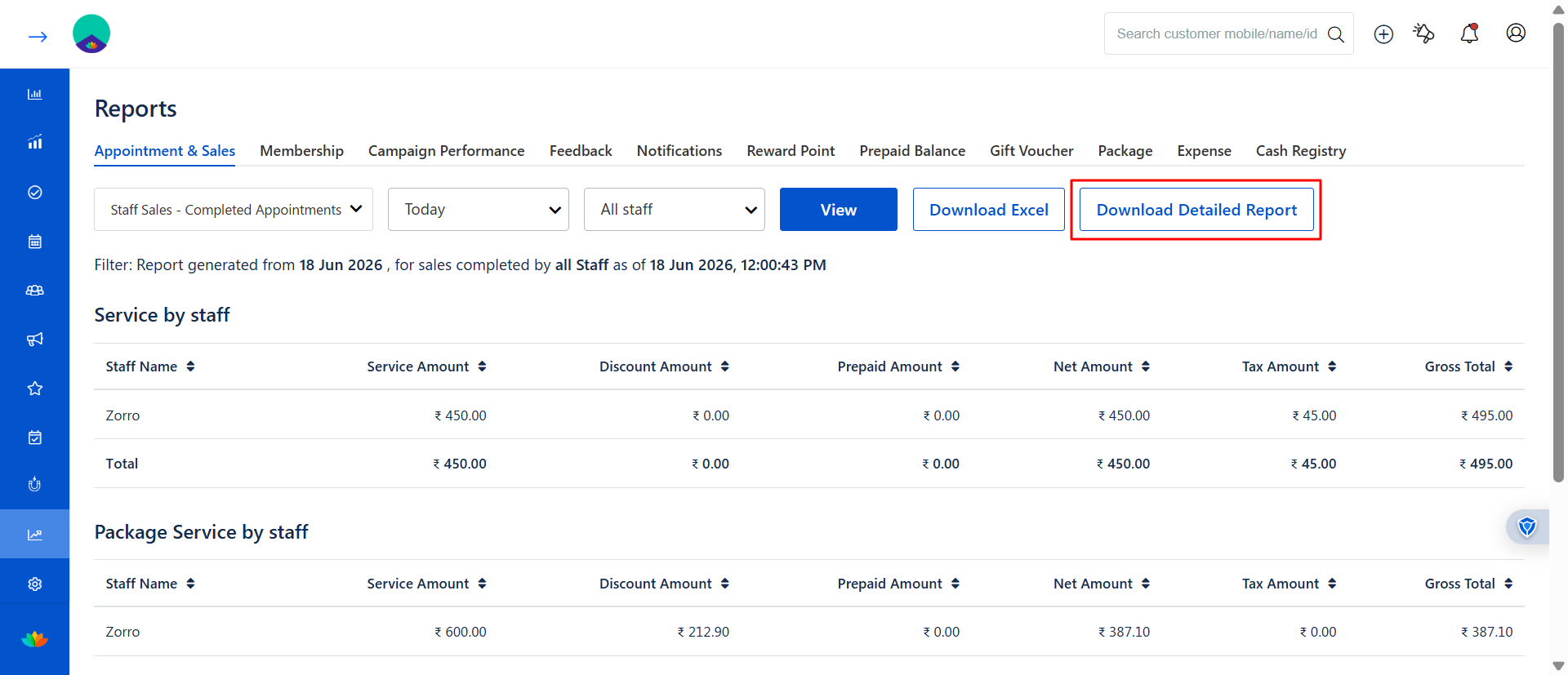
Click Download Detailed Report.
The detailed report file will be generated and sent to the registered Admin Email ID.
Note: The Detailed Report can only be generated for all staff members at once.
- Detailed Report
Columns: Bill Number | Mobile Number | Customer Name | Gender | Source | Appointment Date | Time | Category | Name (Service / Package Name) | Staff Name | Price | Discount | Discount Percentage | Taxable Amount | Tax | Total Amount | Payment Modes
How This Report Differs from Standard Staff Sales
Benefits
Fair Commission Payouts: Staff are rewarded only for services they have delivered.
Reduced Revenue Leakage: No more paying commissions on no-shows, cancellations, or future appointments.
Clear Performance Visibility: See exactly how much each staff member contributed from real, completed work.
Stronger Financial Control: Cross-verify billing and appointment completion data in one unified report.
Better Business Decisions: Use completion-based data to plan staffing, scheduling, and incentive programs effectively.
Important Notes
Only appointments with the status Completed are included in the report.
Revenue is calculated based on the appointment completion date, not the invoice date.
Future appointments will not appear until they are marked as Completed.
The exported report reflects the filters selected at the time of download.
Package services are displayed separately from regular services.
The report is generated and sent to the registered Admin Email ID.
Was this article helpful?
That’s Great!
Thank you for your feedback
Sorry! We couldn't be helpful
Thank you for your feedback
Feedback sent
We appreciate your effort and will try to fix the article